Change a user's access
When someone's job changes, change their roles so they can do their new work and no longer hold access they do not need.
Before you start
- You need the IT Business Systems or Application Team role.
- Access changes follow your organization's approval process. Have the change approved before you make it here. 7-Asset records the change you make, not the request or its approval.
- Know which roles the person should hold after the change.
Steps
Open User Access
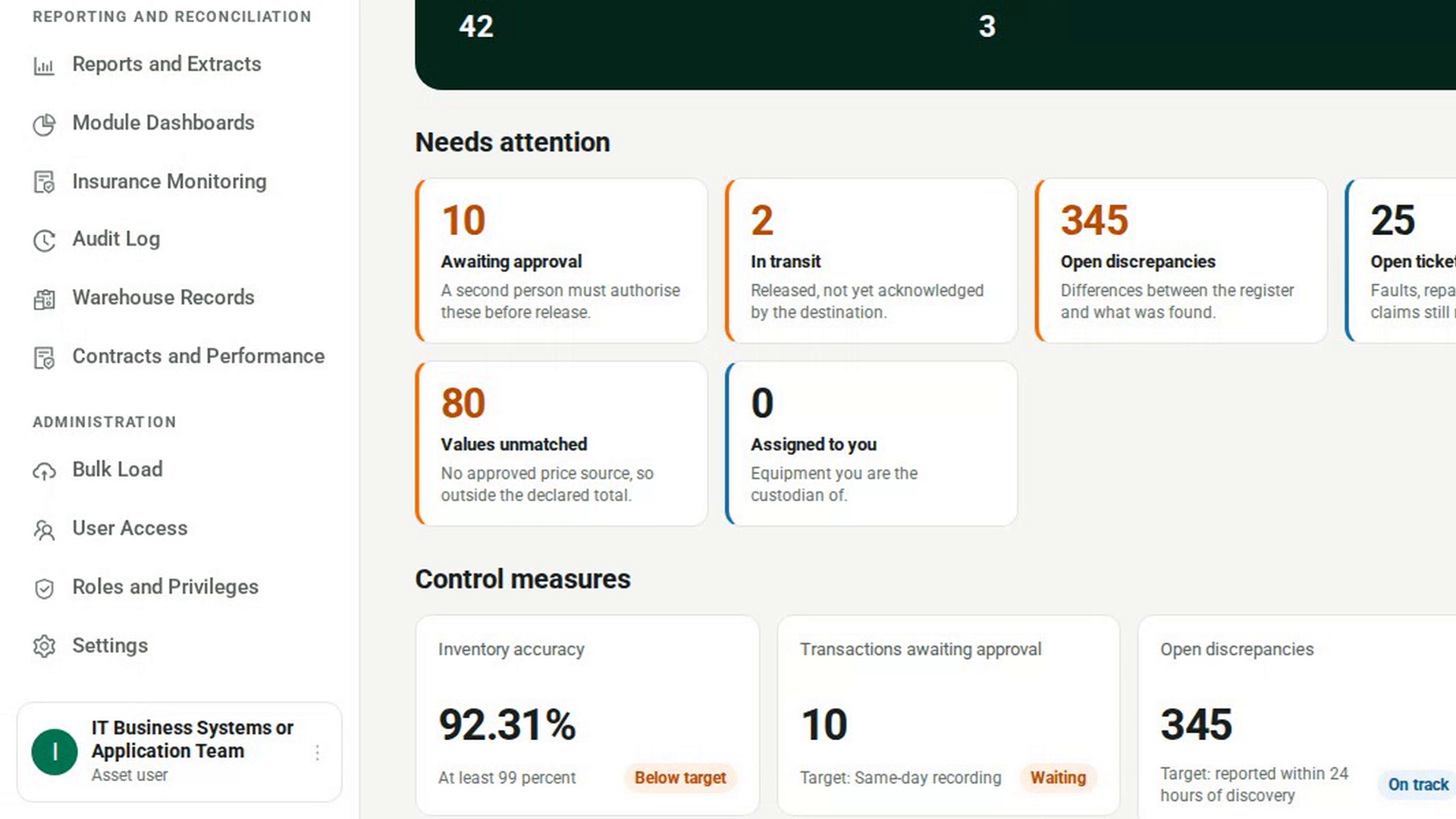
In the sidebar, under Administration, select User Access.
Find the user
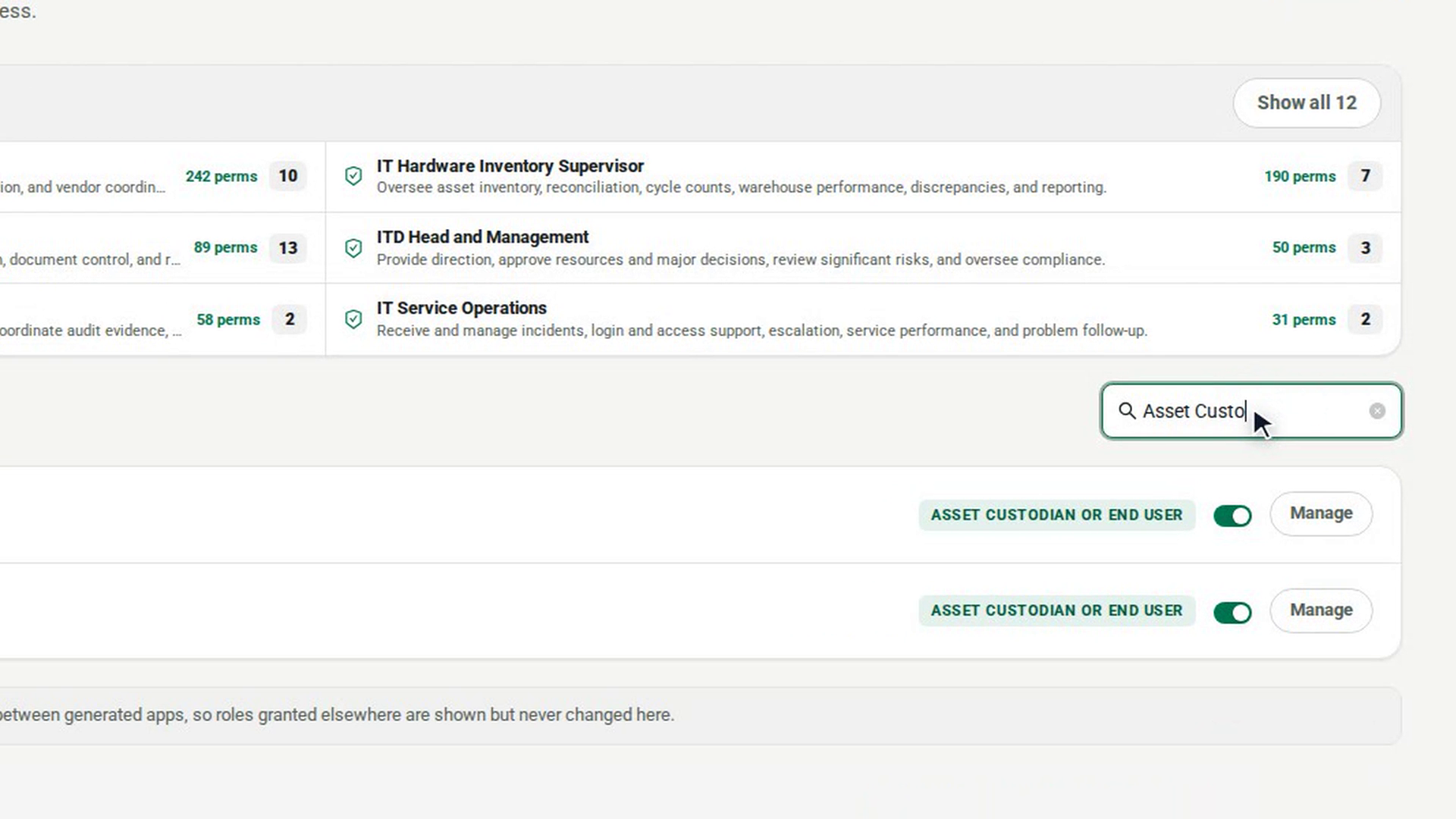
Type their name or login in Search name or login. Their current roles are shown on their row.
Open their access
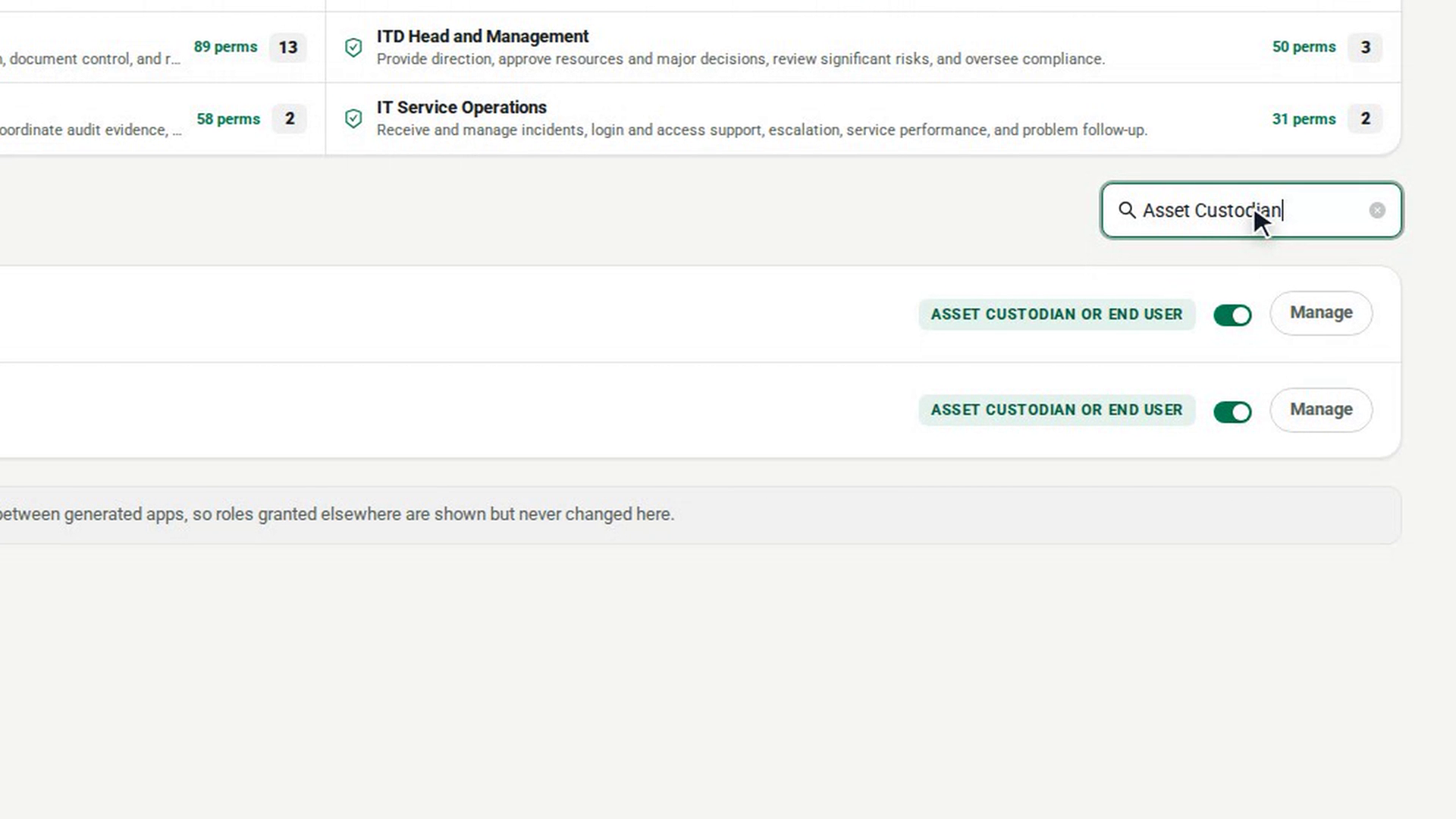
Select Manage on the user's row. The panel shows their current roles highlighted.
Add and remove roles
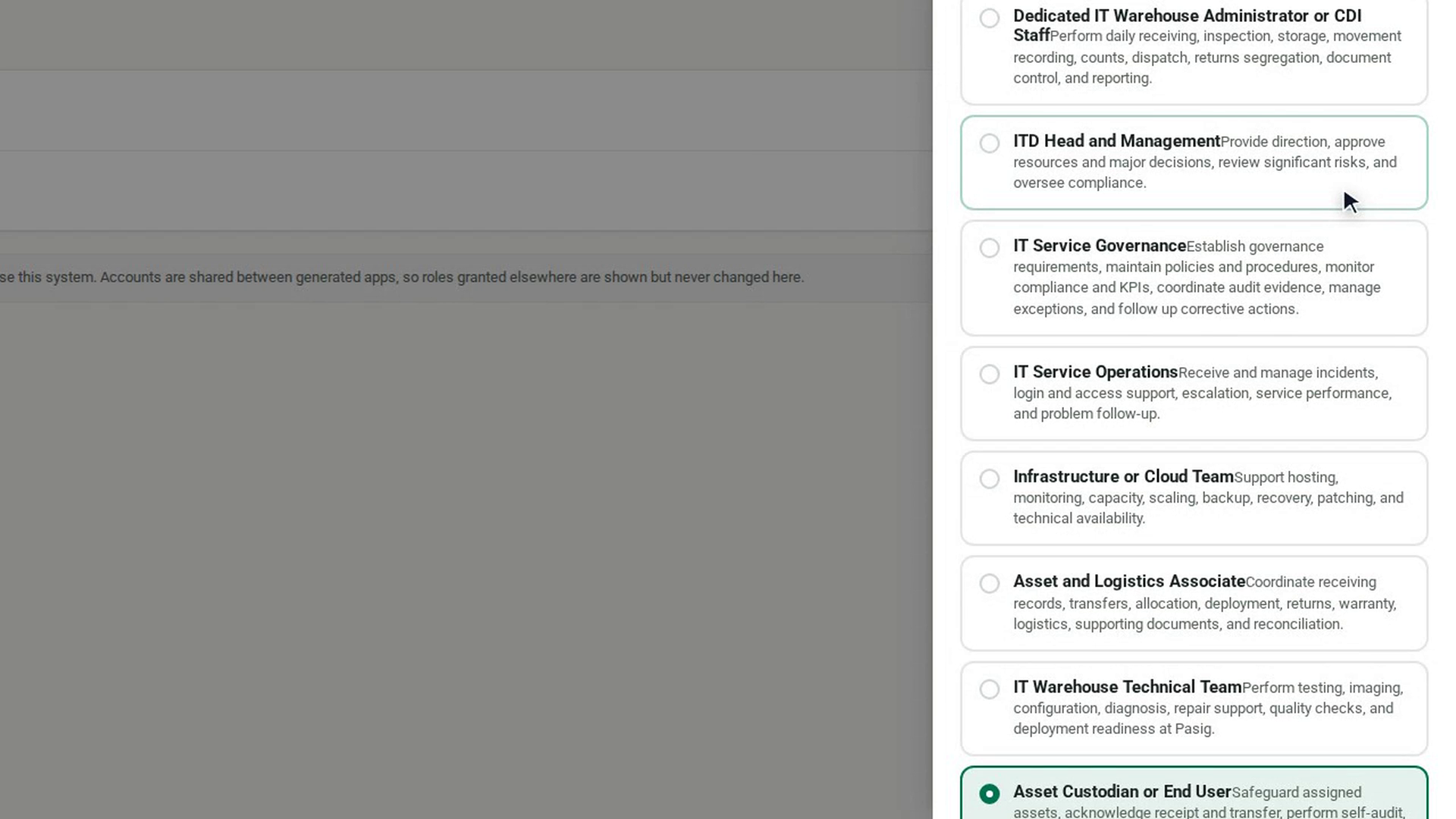
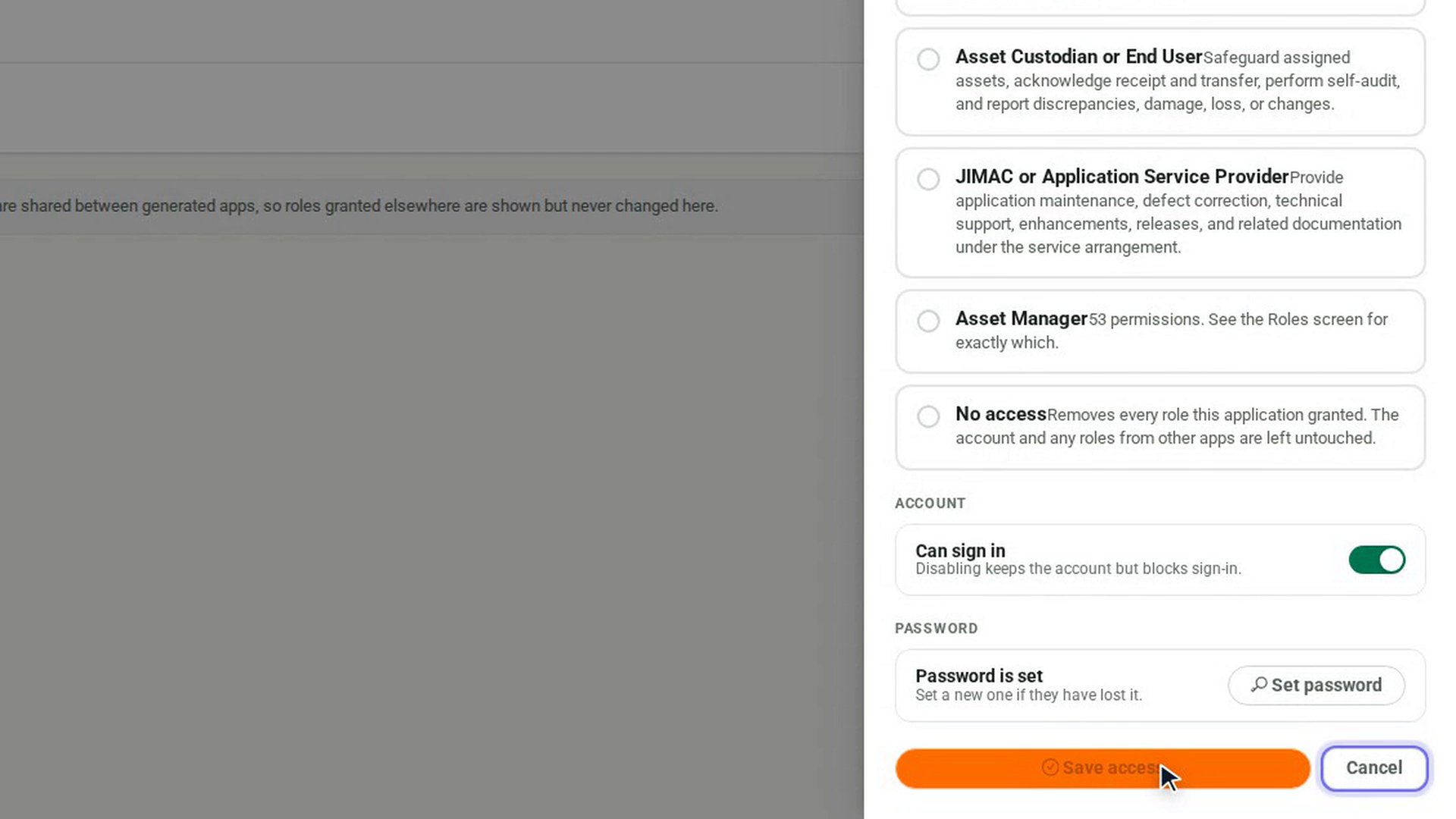
Select each role the new job needs, and select any role they no longer need to remove it. To take away every 7-Asset role, select No access. Their account and any roles from other applications are left as they are.
Save the change
Select Save access. A message confirms which roles the person now holds, or that they no longer have access to this application. To leave without changing anything, select Cancel.
Screenshots
Step 1: Open User Access
Step 2: Find the user
Step 3: Open their access
Step 4: Add and remove roles
Step 5: Save the change
Watch how
Tip: No access removes roles but the person can still sign in and will be refused on every screen. If they are leaving, disable the account as well.