Find an asset
Asset Records lists every serialized unit in 7-Asset. Filter it by code, name or model, narrow it by status, and open a record to see where the asset is, who holds it and what has happened to it.
Before you start
- You need a role that can see Asset Records: IT Business Systems or Application Team, IT Hardware Inventory Supervisor, Dedicated IT Warehouse Administrator or CDI Staff, ITD Head and Management, IT Service Governance, IT Service Operations, Asset and Logistics Associate, or IT Warehouse Technical Team.
- If you only want the equipment assigned to you, open My Assigned Assets instead. Everyone has it.
Steps
Open Asset Records
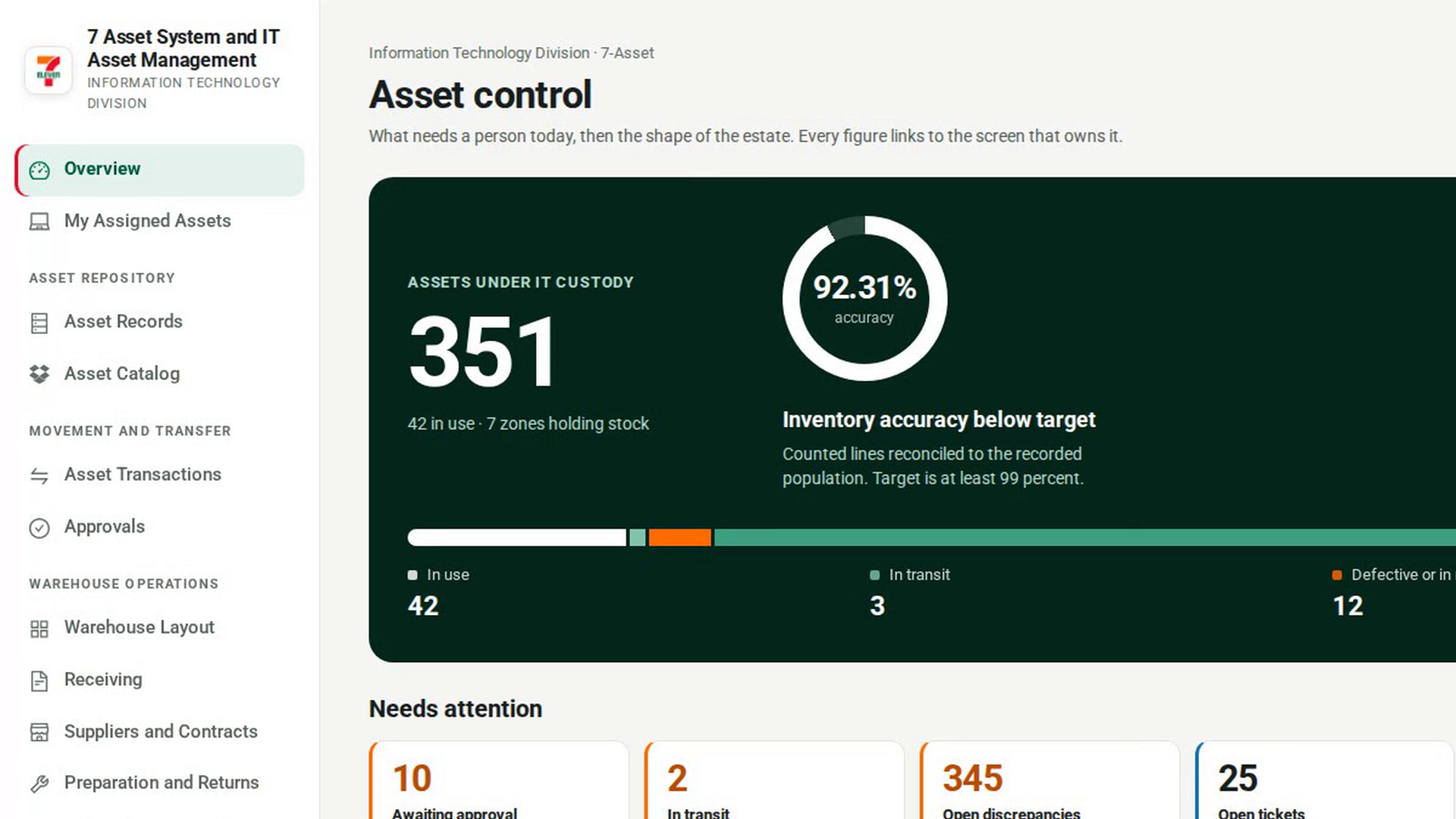
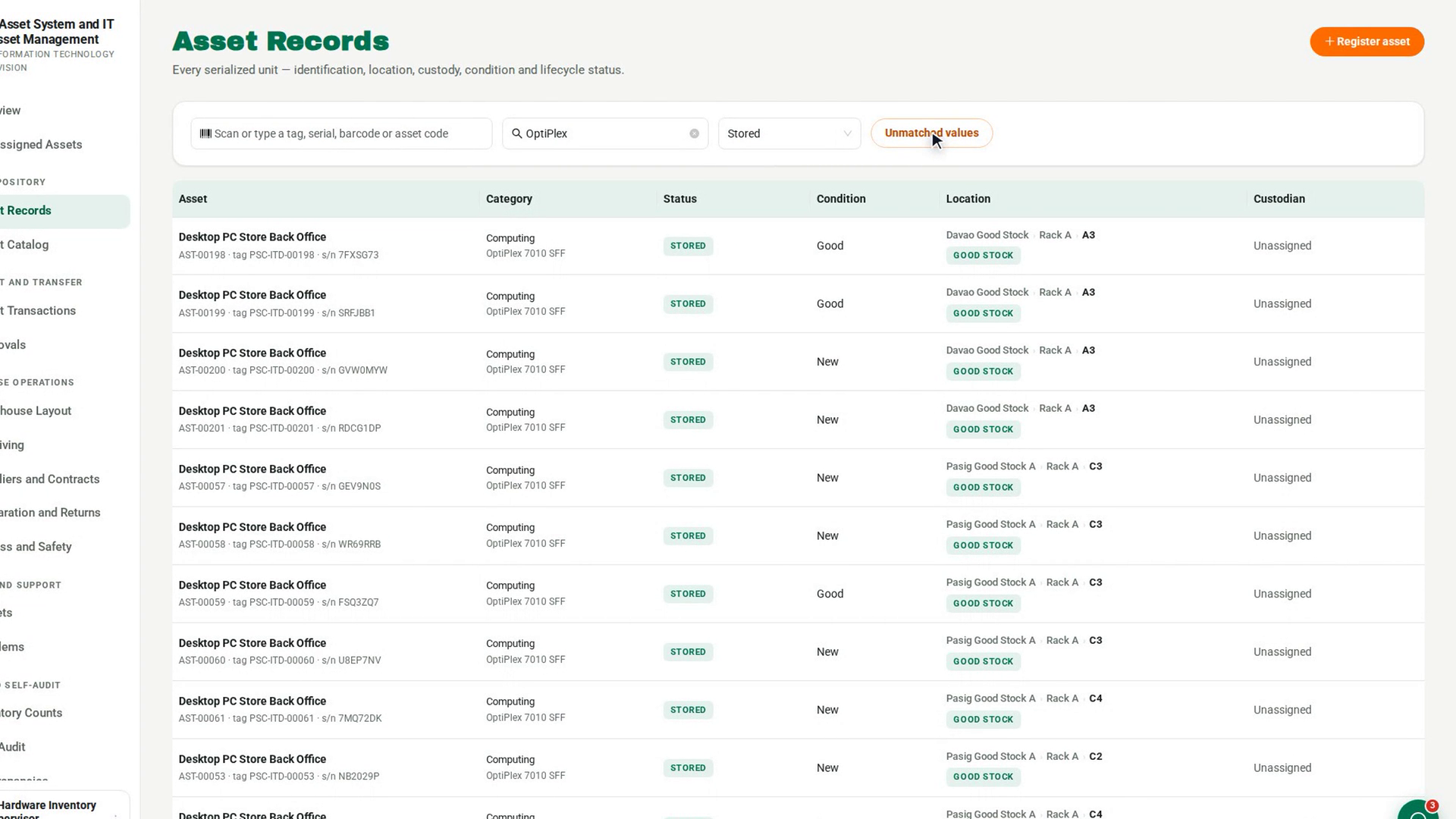
In the sidebar, under Asset Repository, select Asset Records. The newest records come first, with columns for Asset, Category, Status, Condition, Location and Custodian.
Filter the list
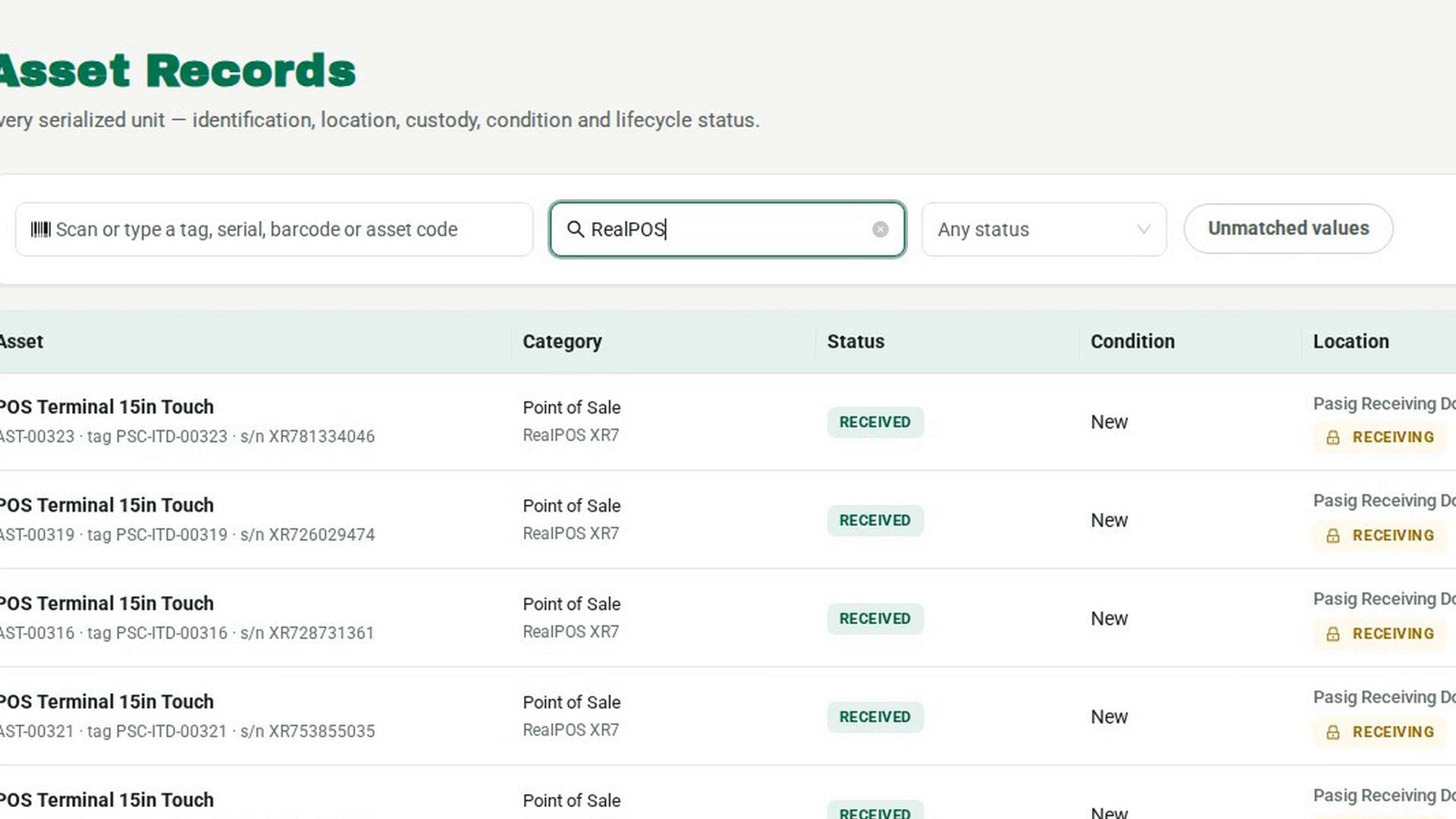
Type in Filter the list. The list narrows as you type to assets whose asset code, tag, serial number, barcode, name or model contains what you typed. Part of a word is enough.
Narrow it by status
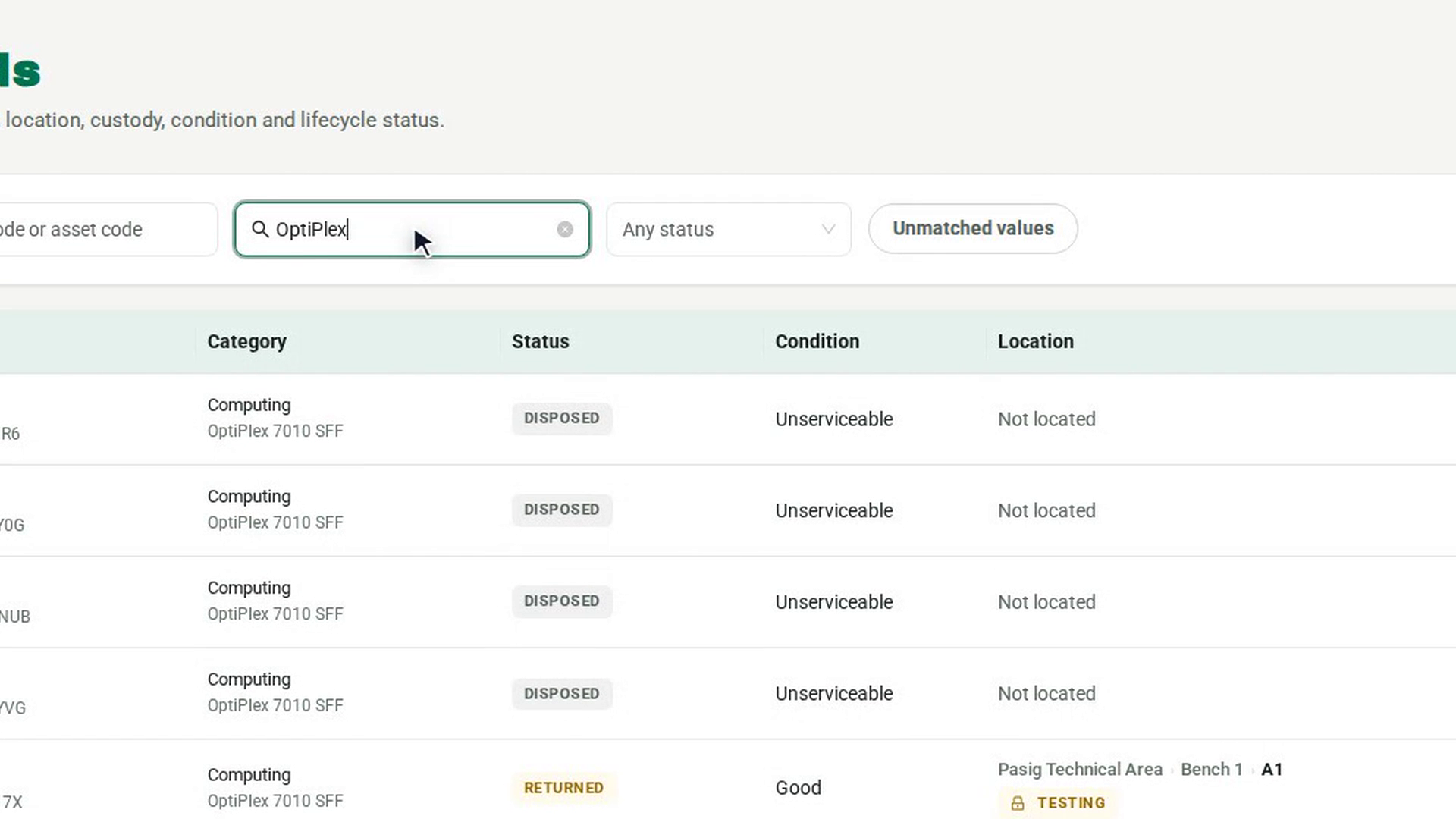
Open Any status and choose a lifecycle status, such as Stored, to show only assets in that status.
Show assets with untraced values
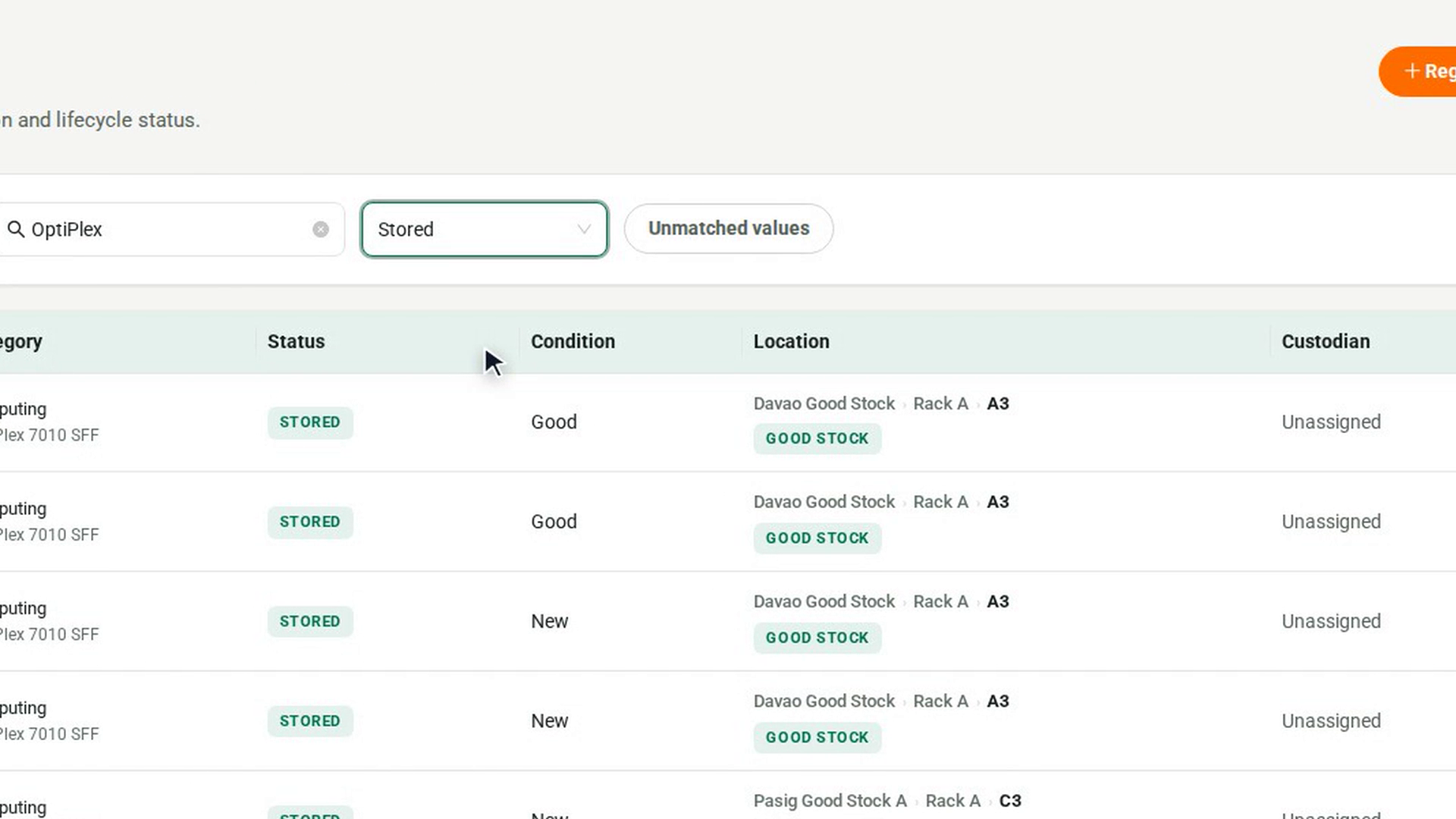
Select Unmatched values to show only assets whose value cannot be traced to an approved source. Select it again to turn it off.
Open the asset's record
Select the asset's row. Its record opens with Where and who, Identity and Value & cover, and tabs for its Preparation, Contracts, History, Transactions, Service and Evidence.
Screenshots
Step 1: Open Asset Records
Step 2: Filter the list
Step 3: Narrow it by status
Step 4: Show assets with untraced values
Step 5: Open the asset's record
Watch how
The filter does not search people or places. It matches codes, names and models only. You can read the custodian and location in their columns, but typing a person's name, a store or a warehouse does not find their assets.
Nothing listed? If the page says No assets match, clear the filter box, the status and Unmatched values to see the whole register again.
Scanning is a different box. The box that reads Scan or type a tag, serial, barcode or asset code needs the exact code and opens that one asset directly. Use Filter the list when you only know part of a name or code.