Find the root cause of a problem
When an incident is critical or keeps coming back, open a problem record, find the root cause, and define what will stop it. Later, a second person checks that it actually worked before the problem closes.
Before you start
- To open a problem, investigate it and define the preventive action, you need to be IT Service Operations, IT Hardware Inventory Supervisor, or IT Business Systems or Application Team.
- To review whether the fix worked and close the problem, you need to be IT Service Operations, IT Service Governance, IT Hardware Inventory Supervisor, or IT Business Systems or Application Team. You cannot review a problem you investigated.
- Usually a ticket shows Root-cause review required., for every P1 and for issues that keep recurring.
Steps
Open Problems
In the sidebar, under Service and Support, select Problems. The cards count Open problems, Recurring, no record, Effectiveness reviews due and Closed.
Open a problem record
Select Open a problem. In Open a problem record, give it a Title and choose Why is it being investigated, for example Critical incident or Recurrence. Fill in Category, Occurrences, In how many days and the Triggering ticket id if you have them. Select OK. The problem appears as a card with the status Open.
Record the investigation and root cause
On the card, select Investigate. Write up the Investigation, the Root cause and any Contributing factors, then select OK. With a root cause recorded, Root cause on the card shows Recorded and the status changes to Root cause identified.
Define the preventive action
Select Preventive action. In What will stop it, write the action in one clear sentence. That sentence is what the review measures. Optionally link an existing Corrective action id and set Review effectiveness on (YYYY-MM-DD). If you leave the date blank, 7-Asset sets a default review date. Select OK.
Review whether it worked
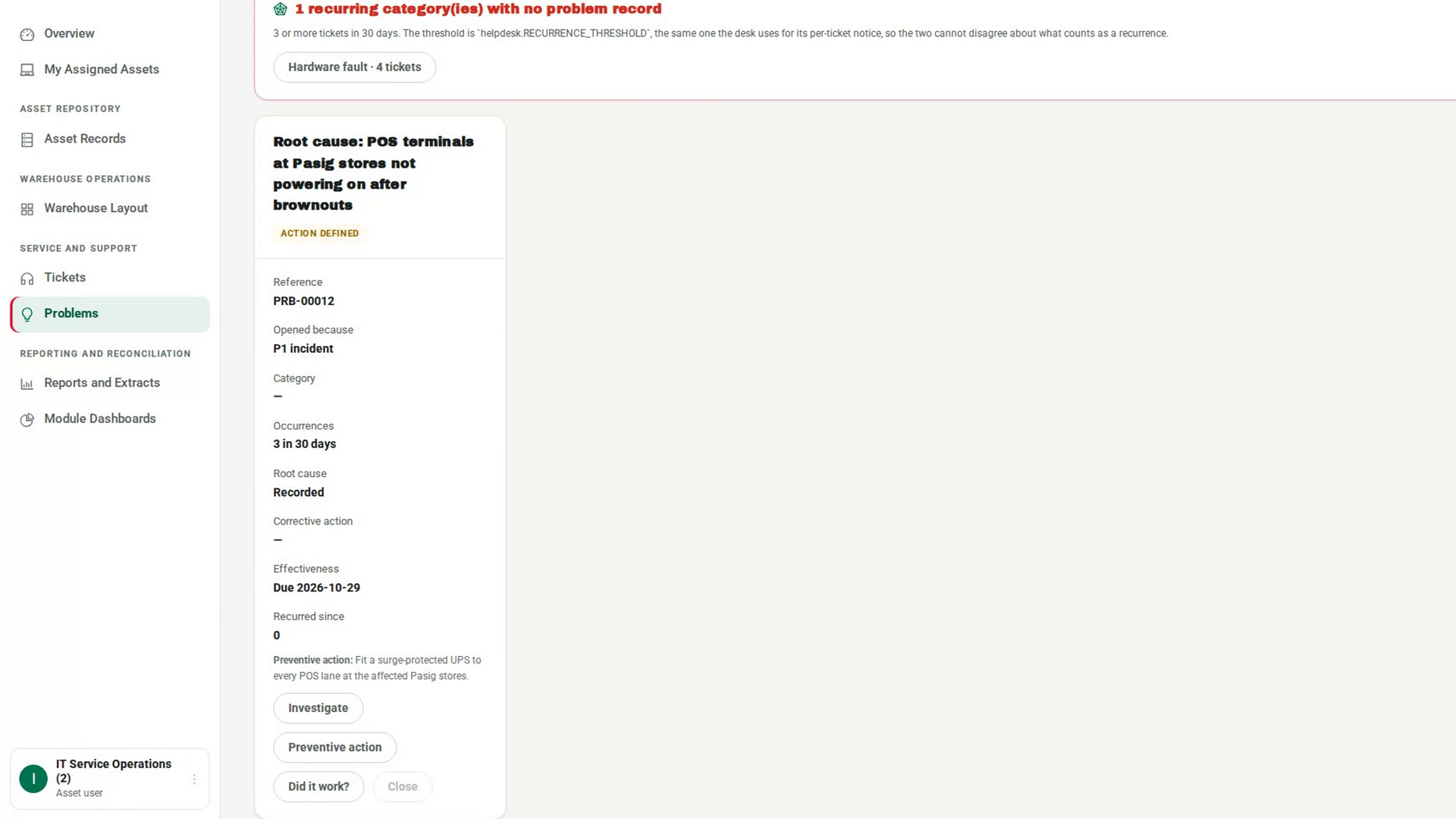
When the review date comes, a different person selects Did it work?. In Did the fix work?, choose the Verdict: Effective, Partially effective or Ineffective. For anything other than effective, say What is still happening. Select OK. Recurred since on the card shows how many tickets of this category were raised after the action was defined.
Close the problem
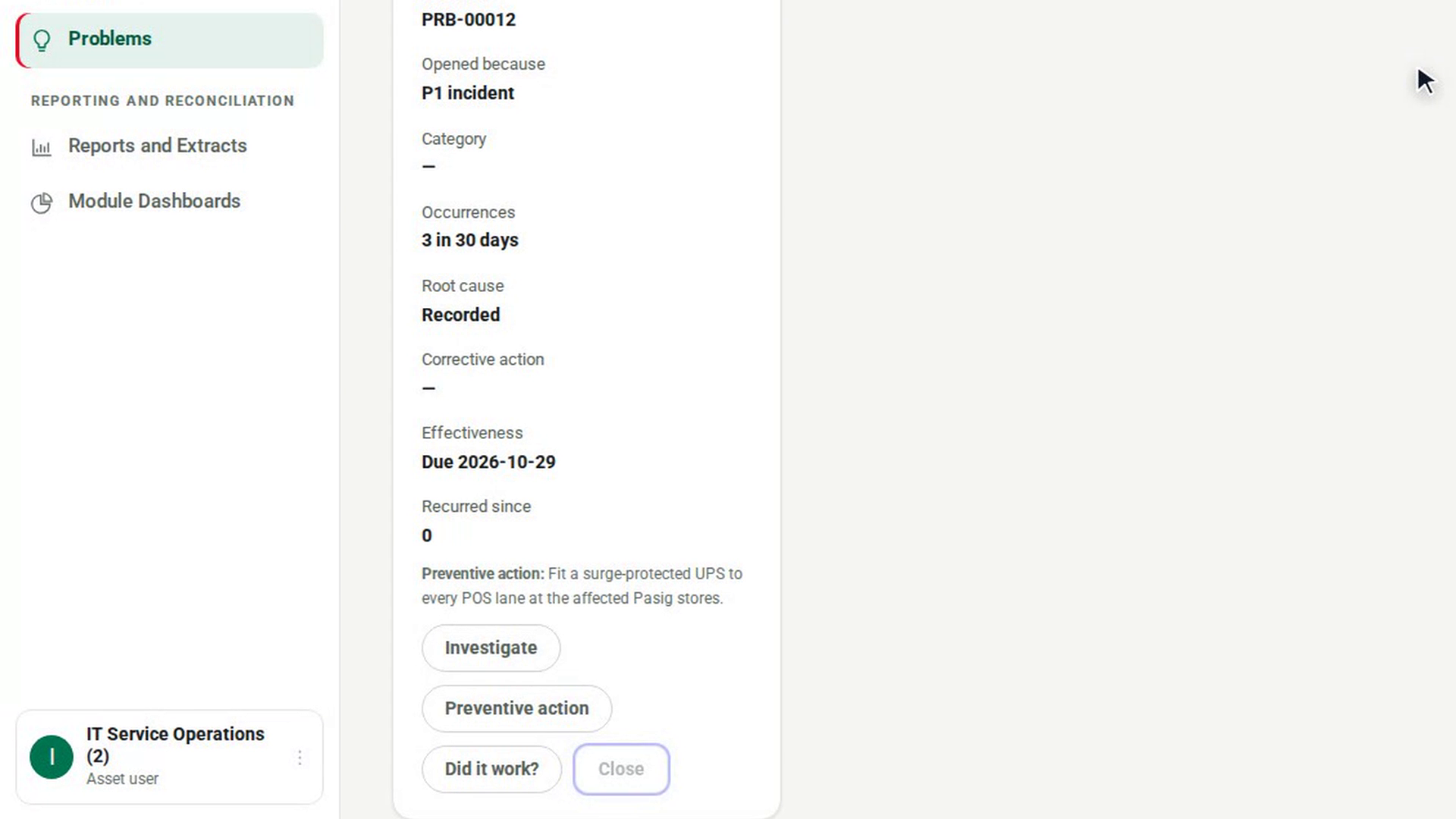
Select Close. In Close the problem, write What was concluded and select OK. The problem moves to Closed.
Screenshots
Step 1: Open Problems
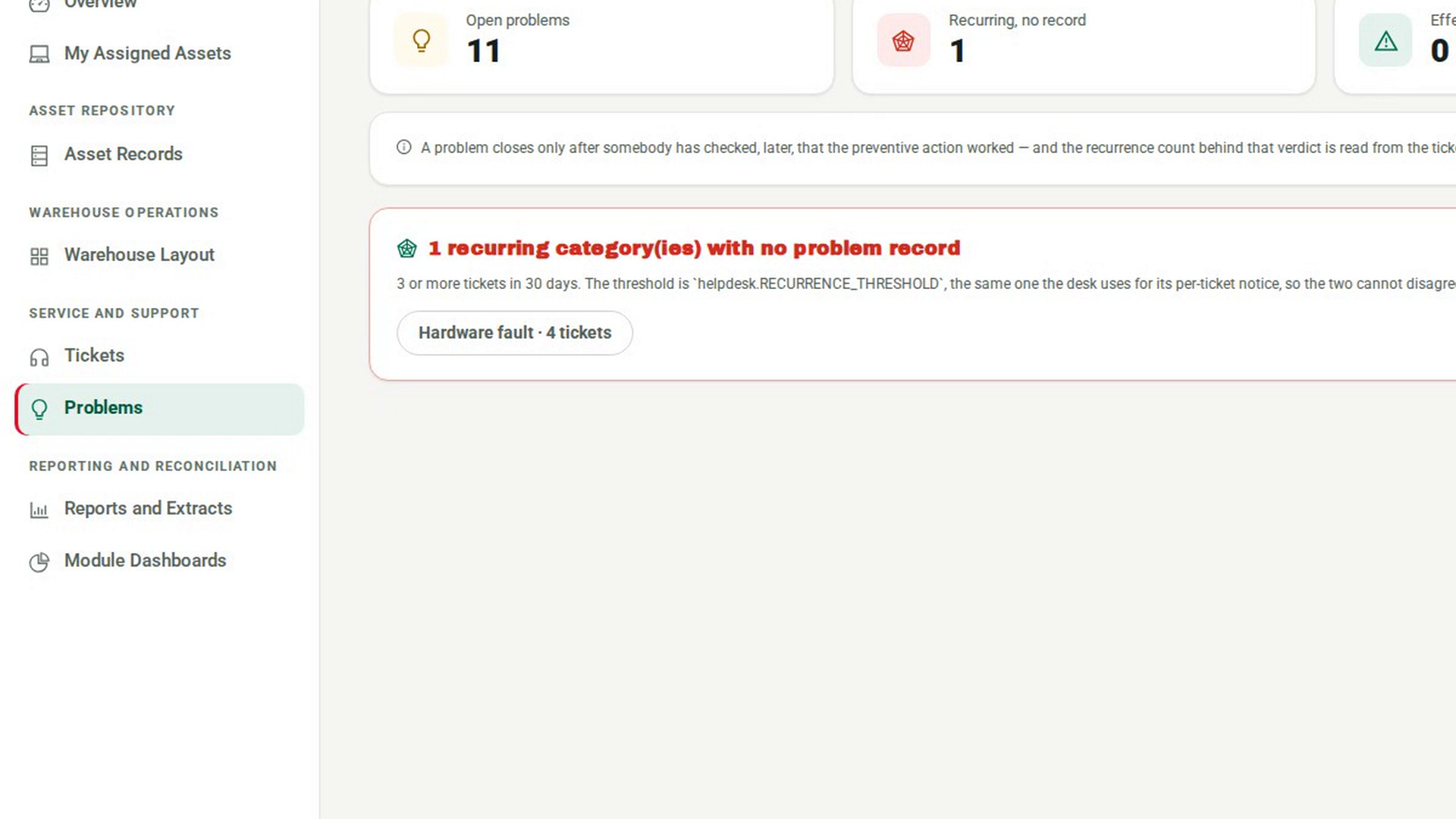
Step 2: Open a problem record
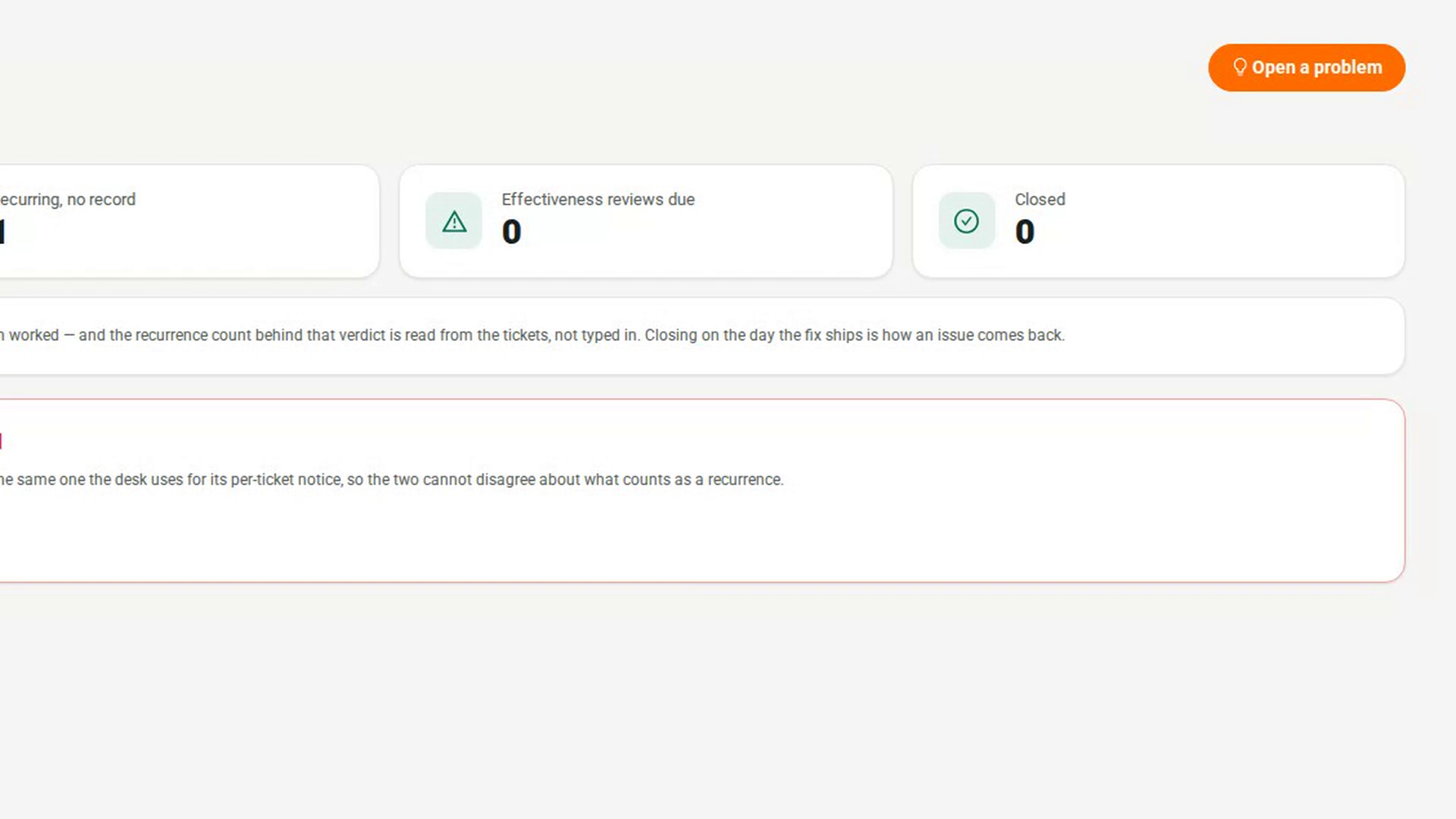
Step 3: Record the investigation and root cause
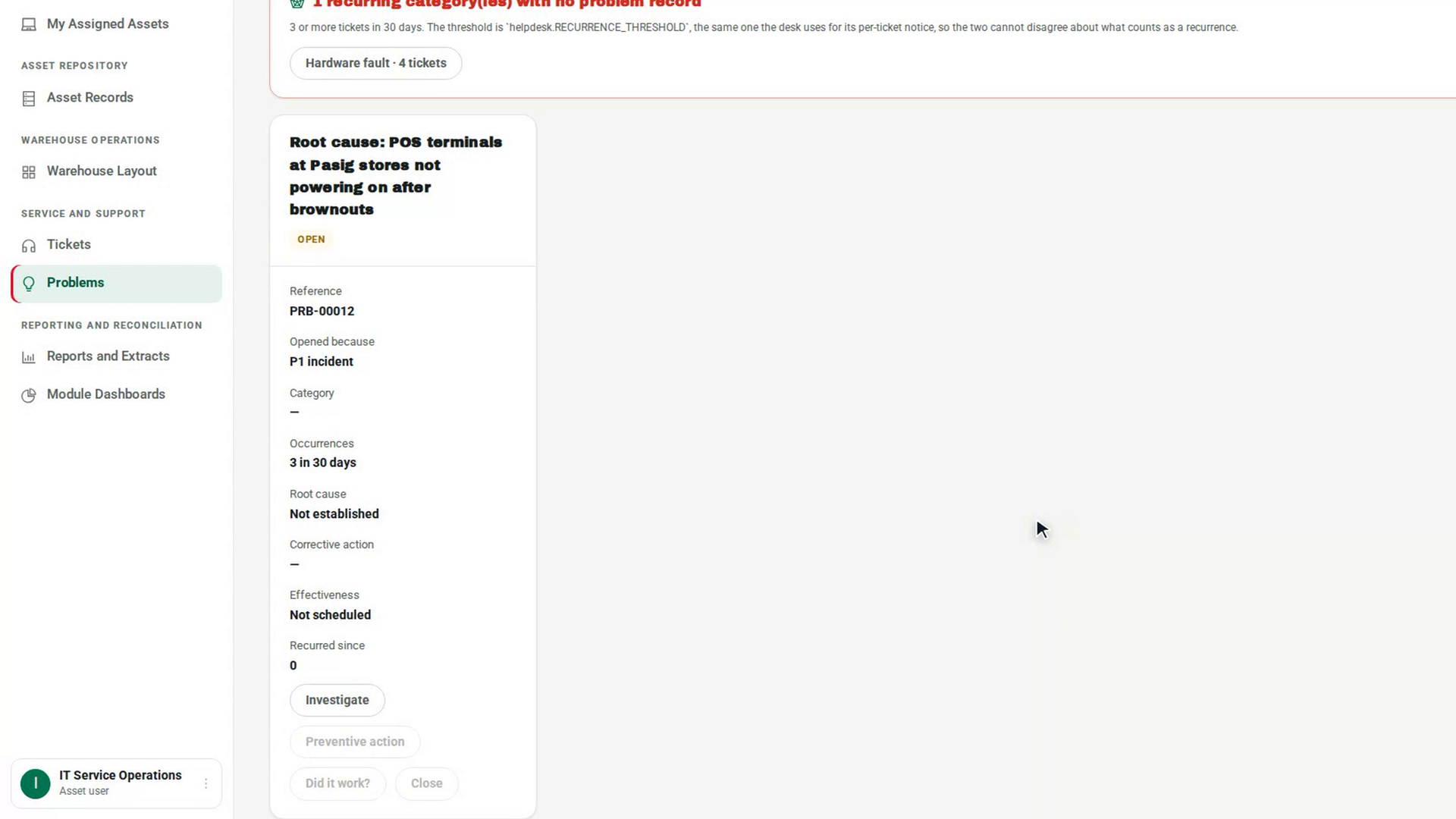
Step 4: Define the preventive action
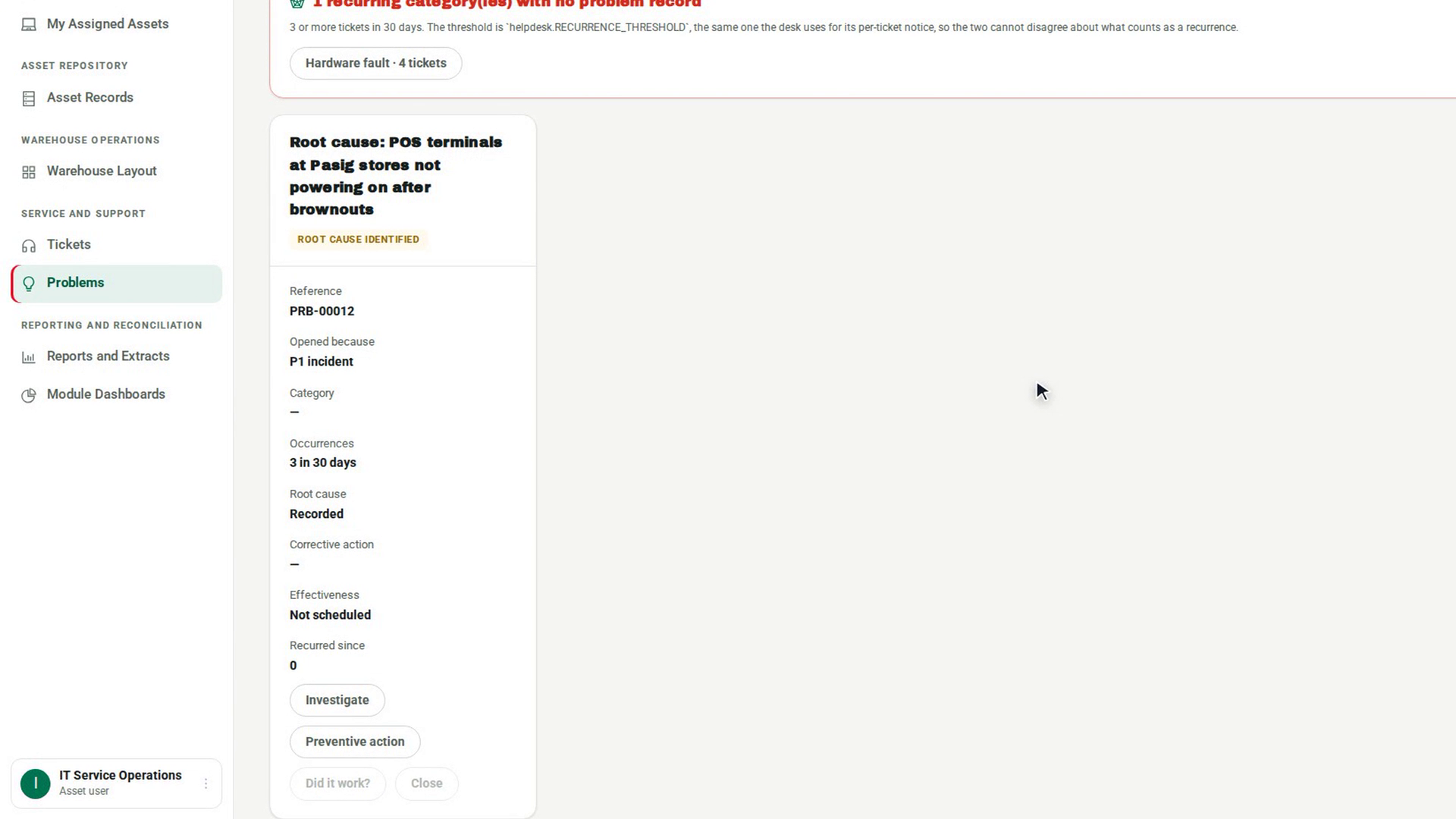
Step 5: Review whether it worked
Step 6: Close the problem
Watch how
The recurrence count comes from the tickets, not from you. If tickets of the same category were raised since the action was defined, 7-Asset refuses the verdict Effective. Record Partially effective or Ineffective instead. The investigator and the reviewer must be different people.
Tip: Preventive action stays unavailable until a root cause is recorded, and Did it work? stays unavailable until a preventive action exists. Close needs both a root cause and a review. Hover over a button to see why it is unavailable. The problem record does not fix anything itself. Carry the fix out through a corrective action and link it here.