Run a cycle count
A cycle count checks one area, or the whole site, against what 7-Asset says is there. You scope the count, record what you physically find, and a second person signs the reconciliation. Every difference becomes a discrepancy to investigate — the count itself changes nothing.
Before you start
- To open a count you need to be an IT Hardware Inventory Supervisor or IT Business Systems or Application Team.
- To record and submit a count you need to be a Dedicated IT Warehouse Administrator or CDI Staff, Asset and Logistics Associate, IT Hardware Inventory Supervisor, or IT Business Systems or Application Team.
- To sign the reconciliation you need to be an IT Hardware Inventory Supervisor, IT Service Governance, or IT Business Systems or Application Team — and you must not be the person who submitted the count.
- The area you want to count must exist in the warehouse layout if you want to limit the count to it.
Steps
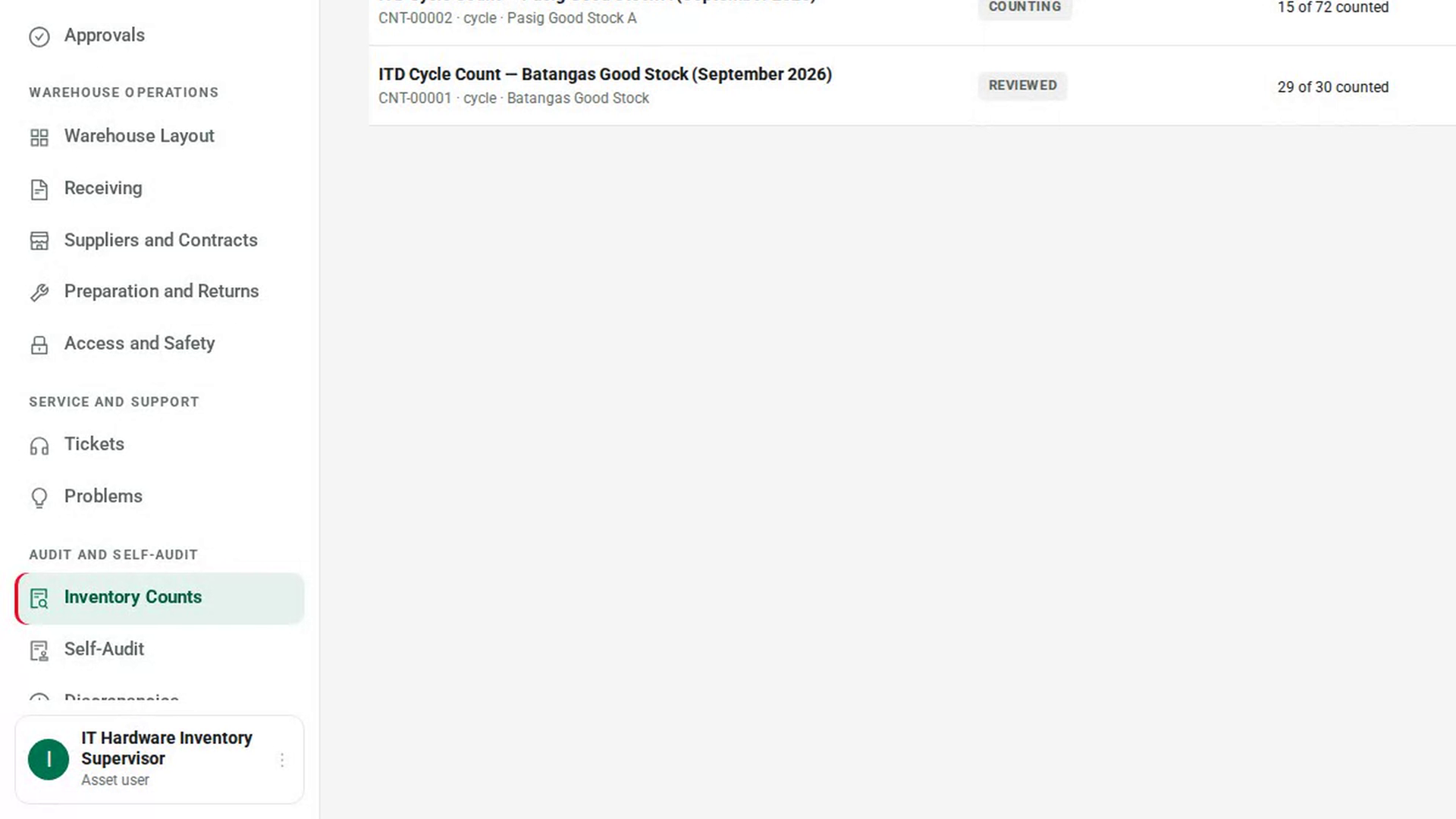
Open Inventory Counts
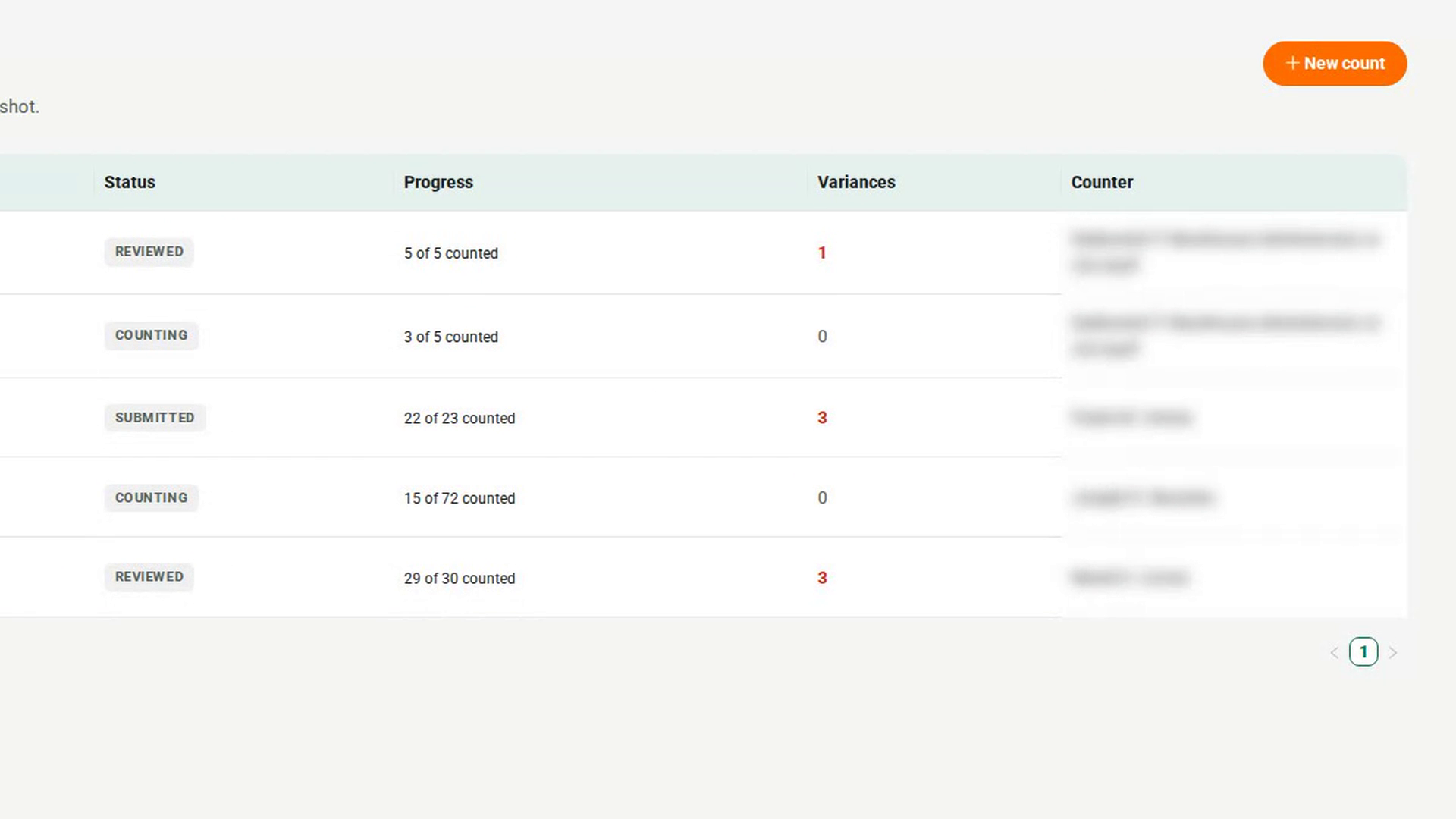
In the sidebar, under Audit and Self-Audit, select Inventory Counts. The list shows each count with its Status, Progress and Variances.
Scope the count
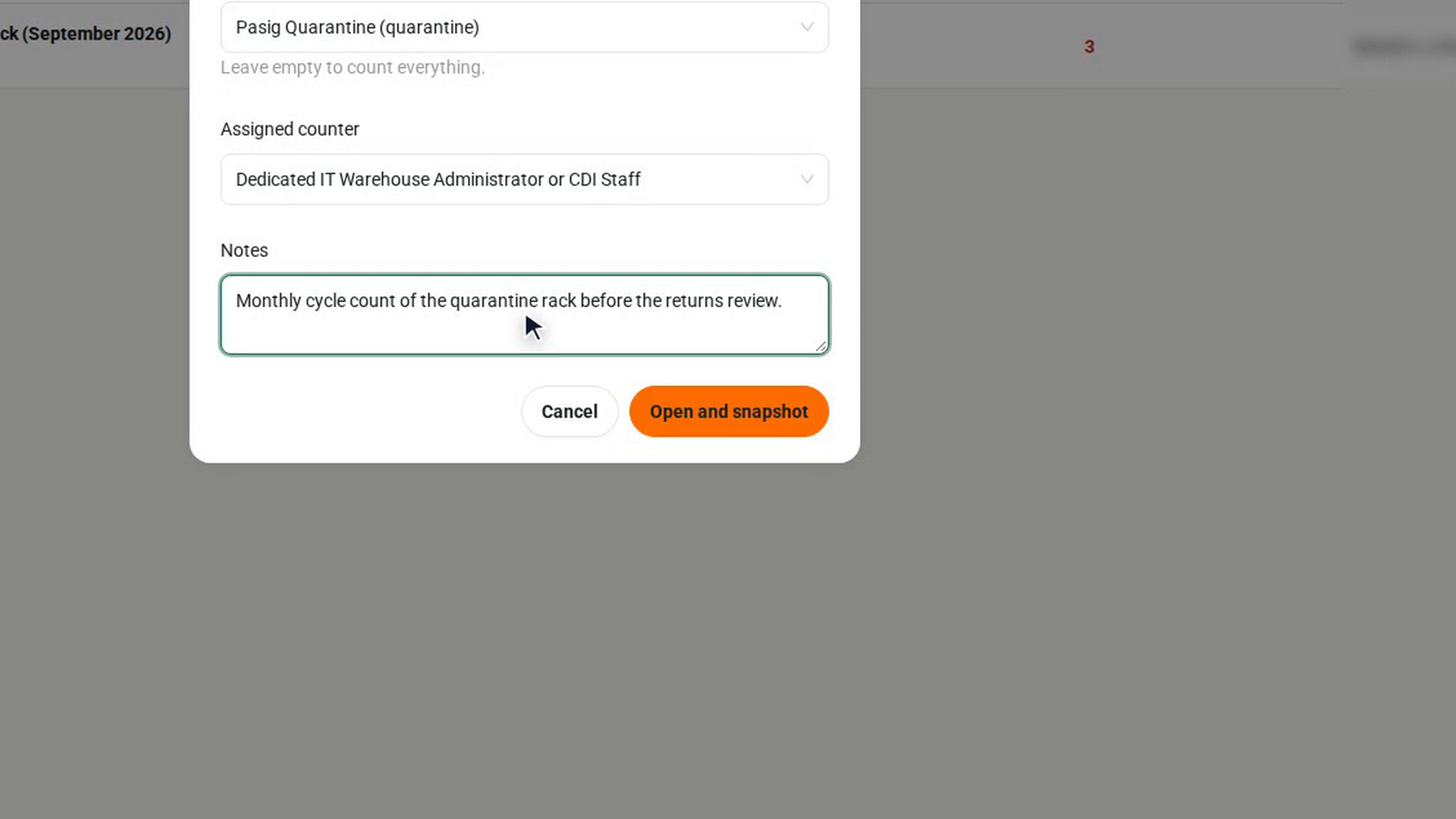
Select New count. In the Open a count dialog, enter a Count name and leave Type as Cycle. Under Scope, choose the area to count, or leave it empty to count the Whole site. Choose the Assigned counter and add any Notes.
Open it and take the snapshot
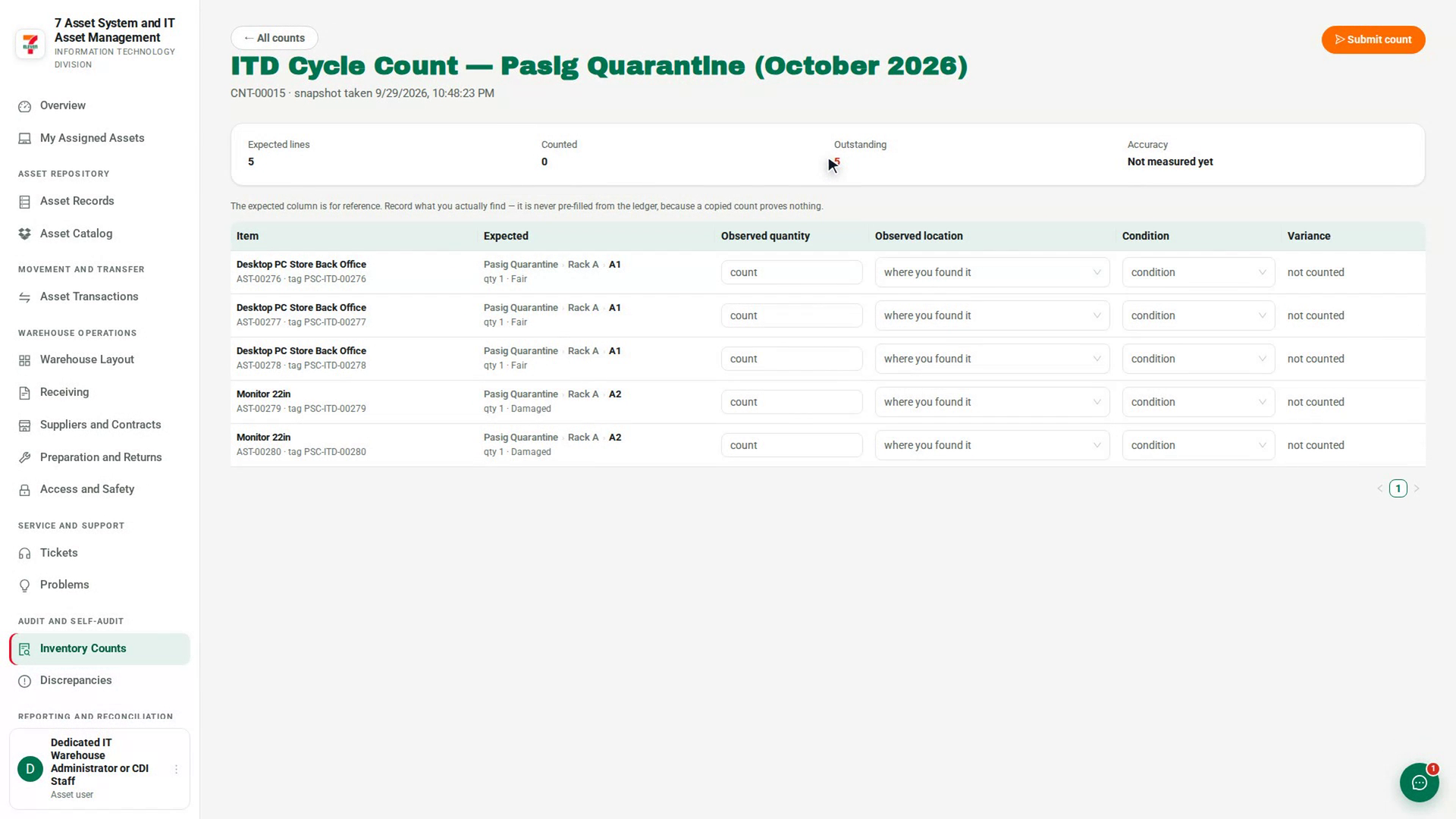
Select Open and snapshot. The count opens with the time of the snapshot under its name. From this moment, differences are measured against that snapshot, so a move made during the count cannot hide a difference.
Record what you find
For each line, enter the Observed quantity, choose the Observed location where you found it, and the Condition. The Expected column is for reference only and is never copied into your entries. The Variance column shows matches, not counted, or the kind of difference.
Submit the count
Select Submit count. The confirmation tells you that every difference becomes a variance case and that no stock moves and no location changes. Any line you did not count is reported as missing. Select Submit count to confirm. A message tells you how many cases were opened.
Have someone else sign the reconciliation
A different person opens the submitted count and selects Sign reconciliation. They add Review notes and select Sign reconciliation. The count then shows who signed it and when.
Screenshots
Step 1: Open Inventory Counts
Step 2: Scope the count
Step 3: Open it and take the snapshot
Step 4: Record what you find
Step 5: Submit the count
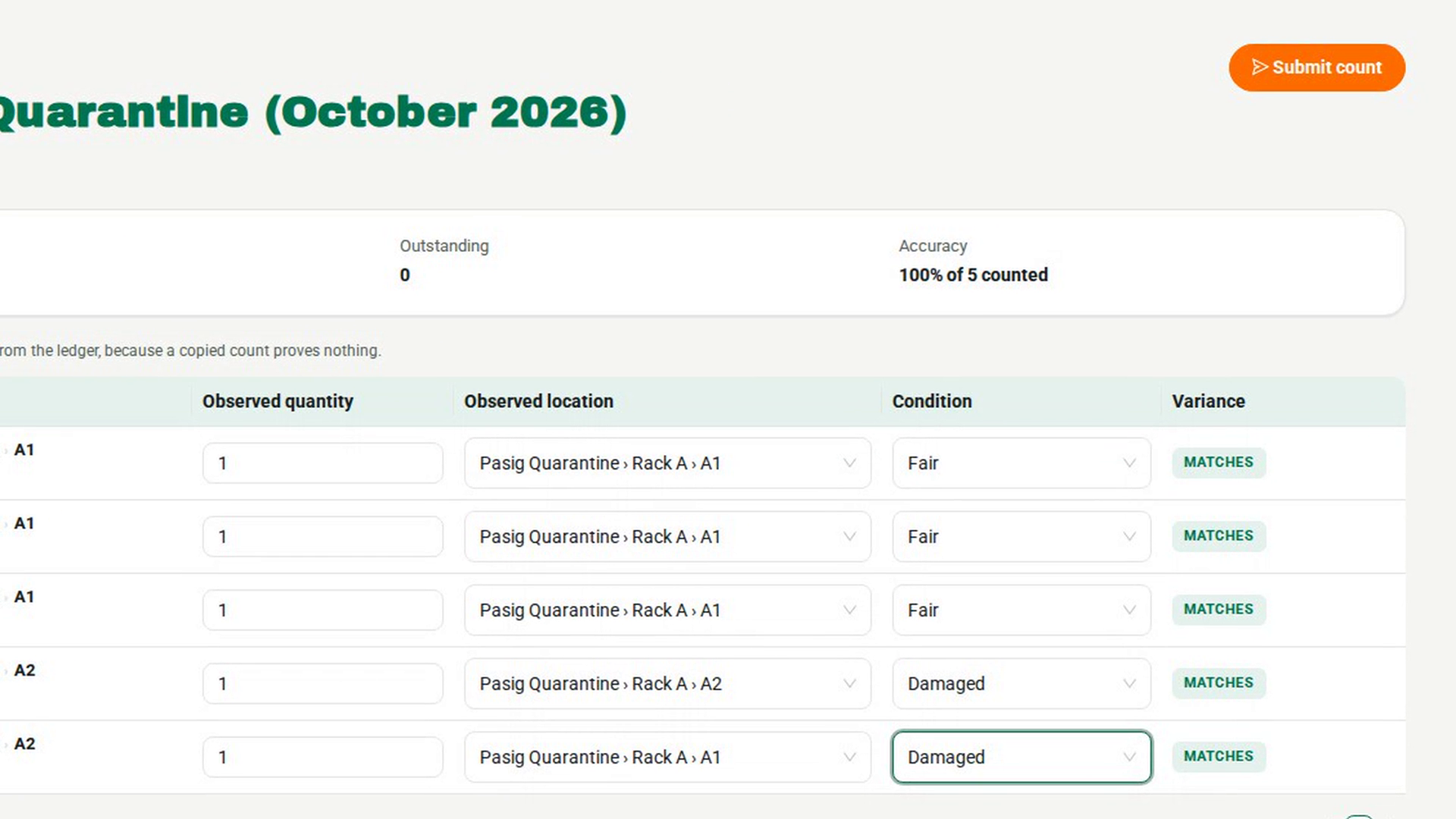
Step 6: Have someone else sign the reconciliation
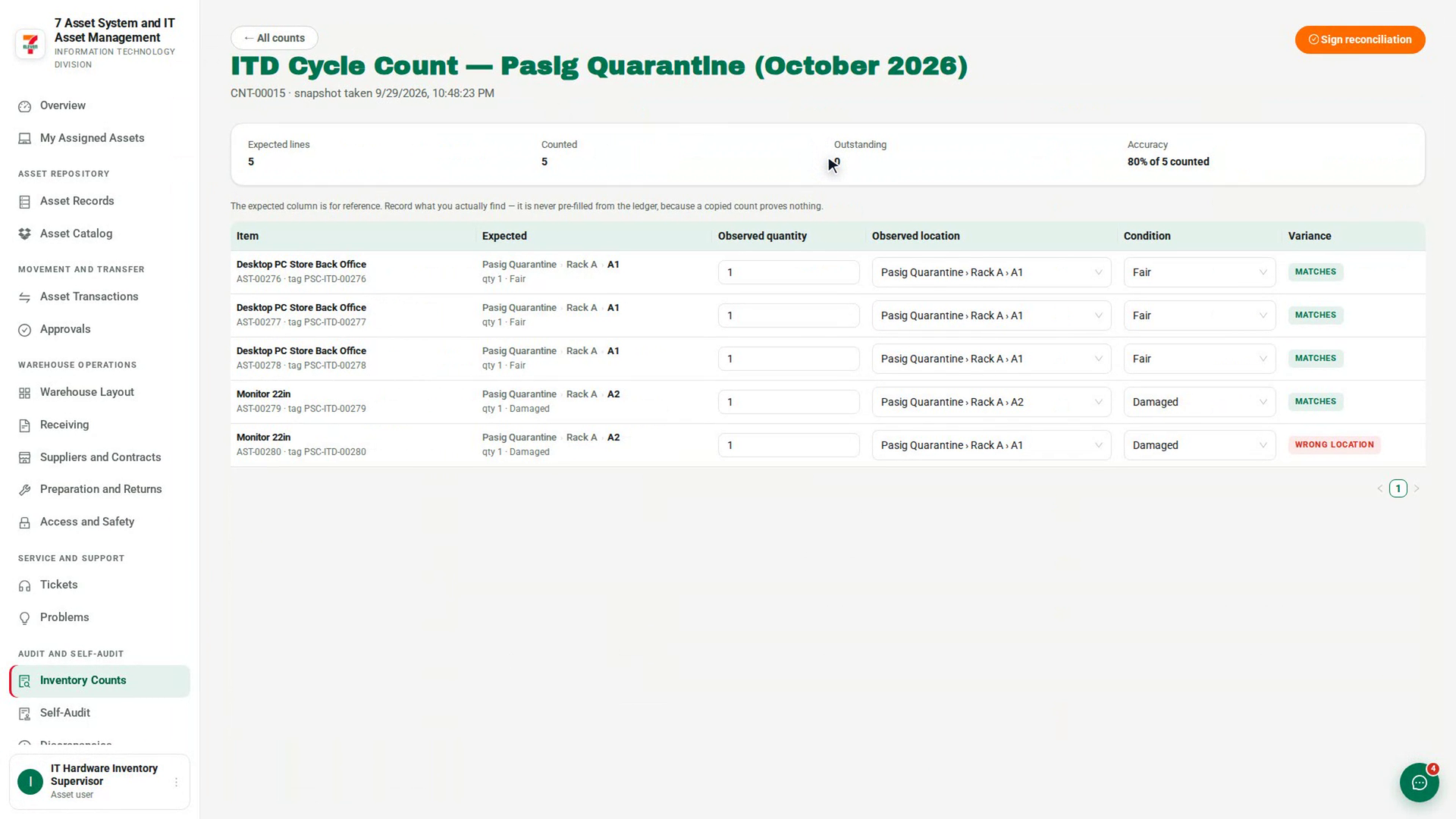
Watch how
Once you submit a count, it takes no more entries. Check every line first — anything left uncounted is reported as missing.
You cannot sign a count you submitted yourself, even if your role can sign. If you try, 7-Asset replies You submitted this count, so you cannot also sign its reconciliation. Ask another reviewer.
Tip: A count never corrects the record. Each difference opens a case under Discrepancies, and only an approved correction on that case changes the asset or the quantity.