Read the Overview dashboard
The Overview is the first screen you see after you sign in. It shows what needs someone's attention today, then the shape of the asset register, and every figure opens the screen that handles it.
Before you start
- Everyone who signs in can open the Overview.
- The figures come from the records already in 7-Asset. When nothing has been recorded yet, a card says so instead of showing a number.
Steps
Open the Overview
In the sidebar, select Overview at the top. The page is headed Asset control.
Check the headline figures
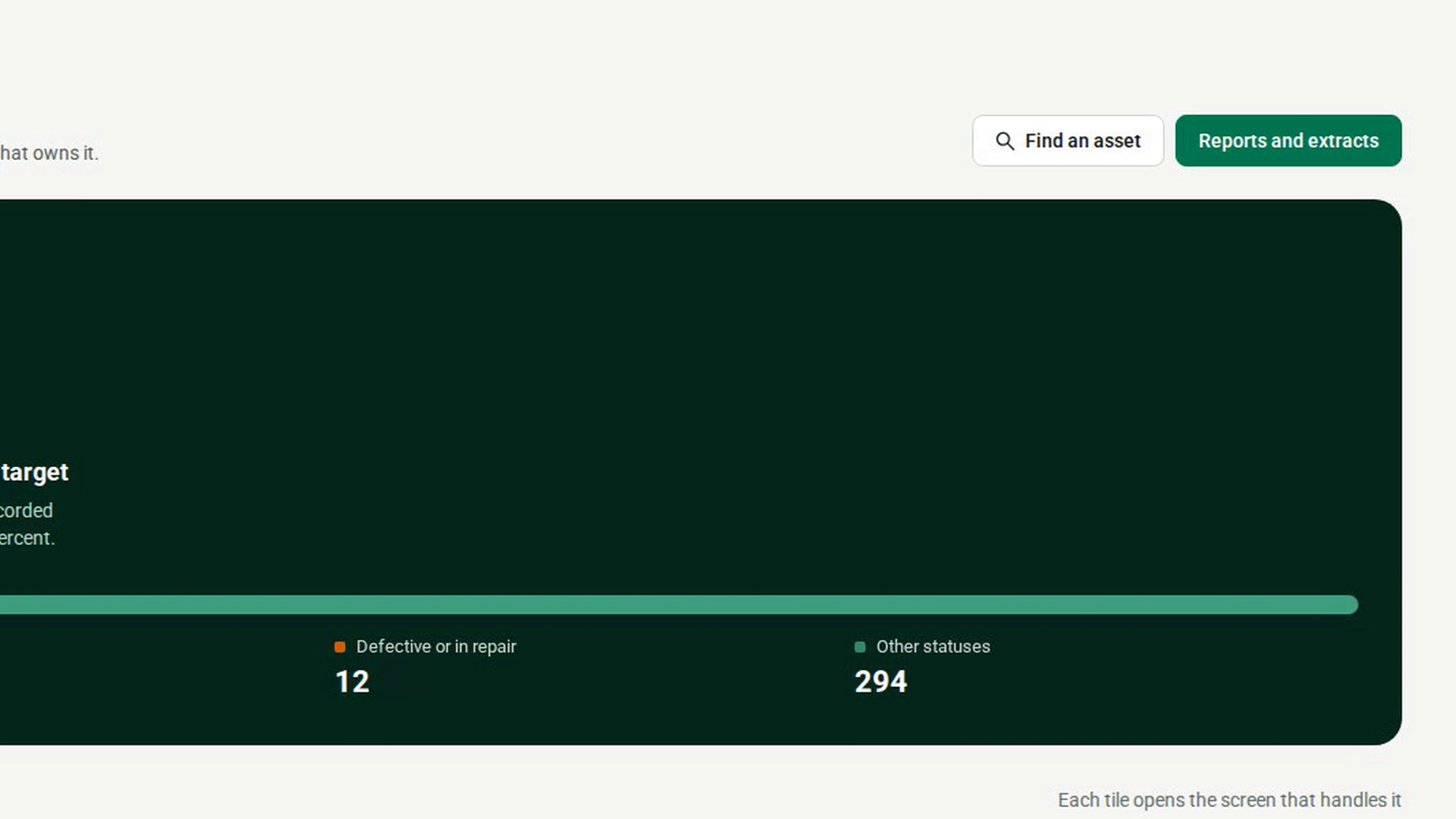
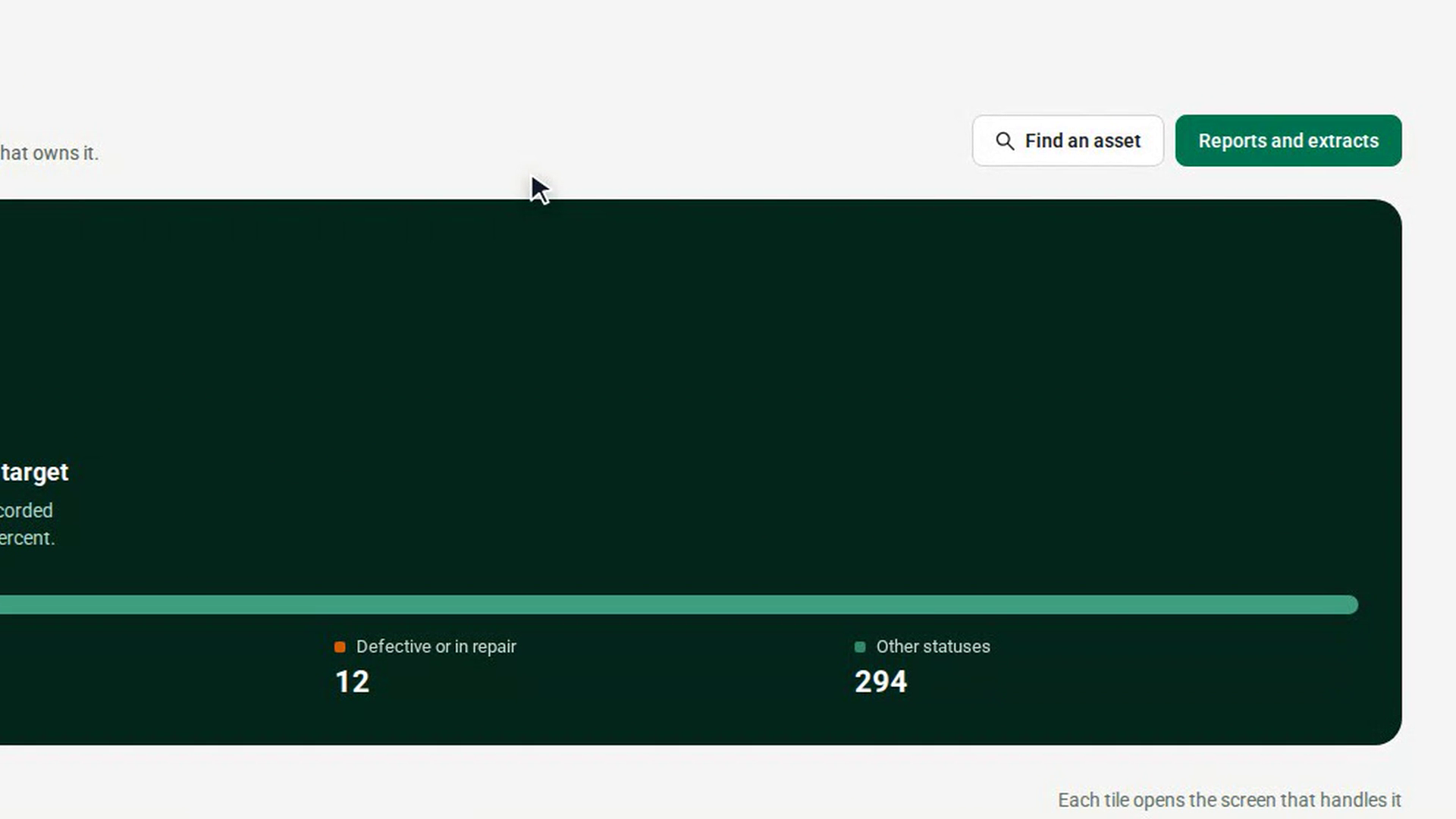
The top panel shows Assets under IT custody and how many are in use. Beside it, the ring shows inventory accuracy against its target of at least 99 percent. The bar underneath splits the assets into In use, In transit, Defective or in repair and Other statuses.
Work through Needs attention
Under Needs attention, each tile shows a count, such as Awaiting approval, In transit, Open discrepancies, Open tickets and Assigned to you. Select a tile to open the screen that handles it.
Review the control measures
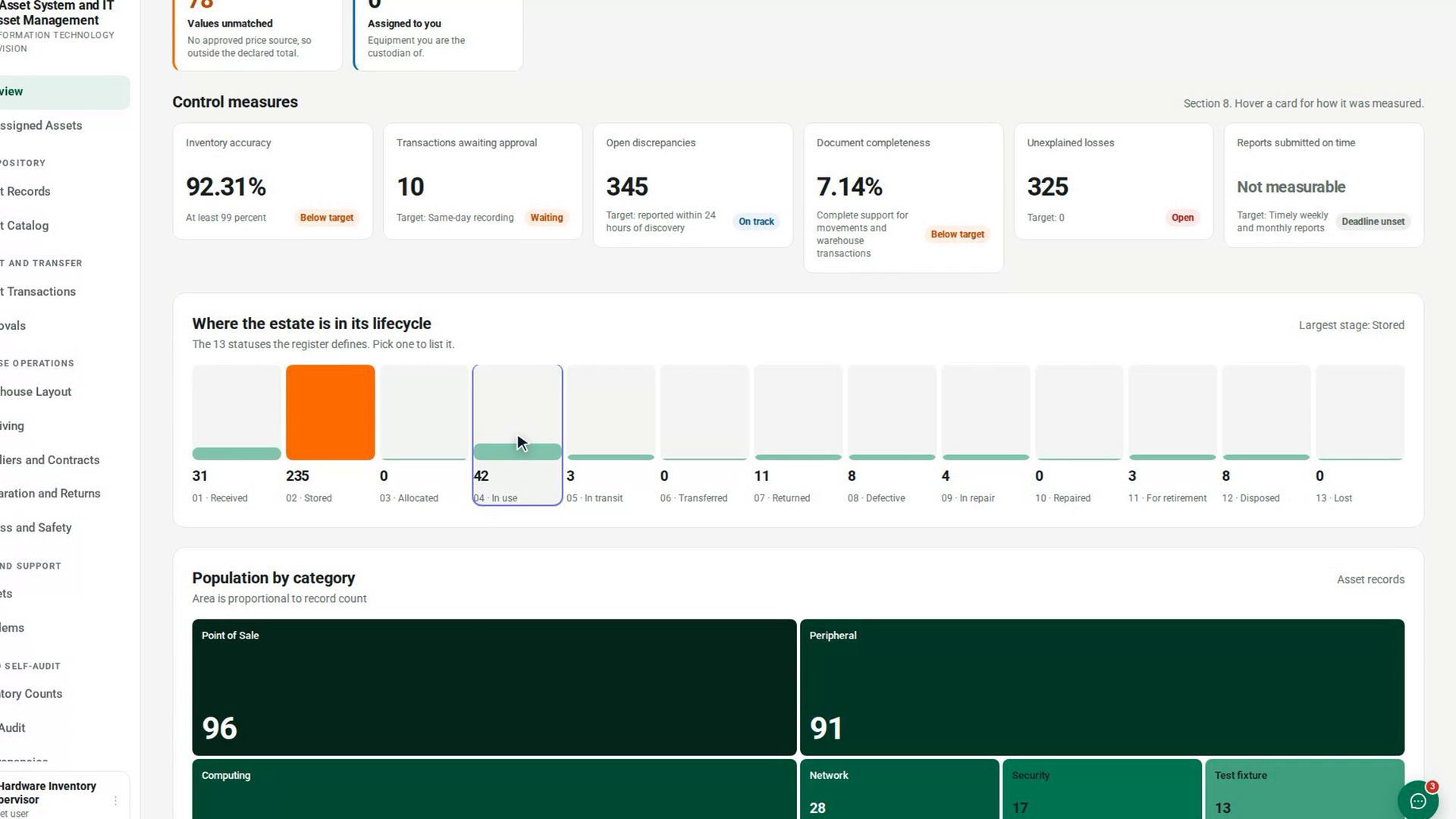
Under Control measures, each card shows a measure, its target and whether it is met. Hover over a card to see how it was measured.
See where the assets are
Where the estate is in its lifecycle shows how many assets are at each status. Select a status to list those assets. Where the estate sits shows assets by zone, and Record completeness shows how many records carry all five mandatory fields.
Look up an asset
Select Find an asset at the top of the page. In the Find an asset dialog, type an asset tag, a serial number or part of a name.
Open the full reports
Select Reports and extracts at the top of the page. It carries every figure on the Overview as a table you can export.
Screenshots
Step 1: Open the Overview
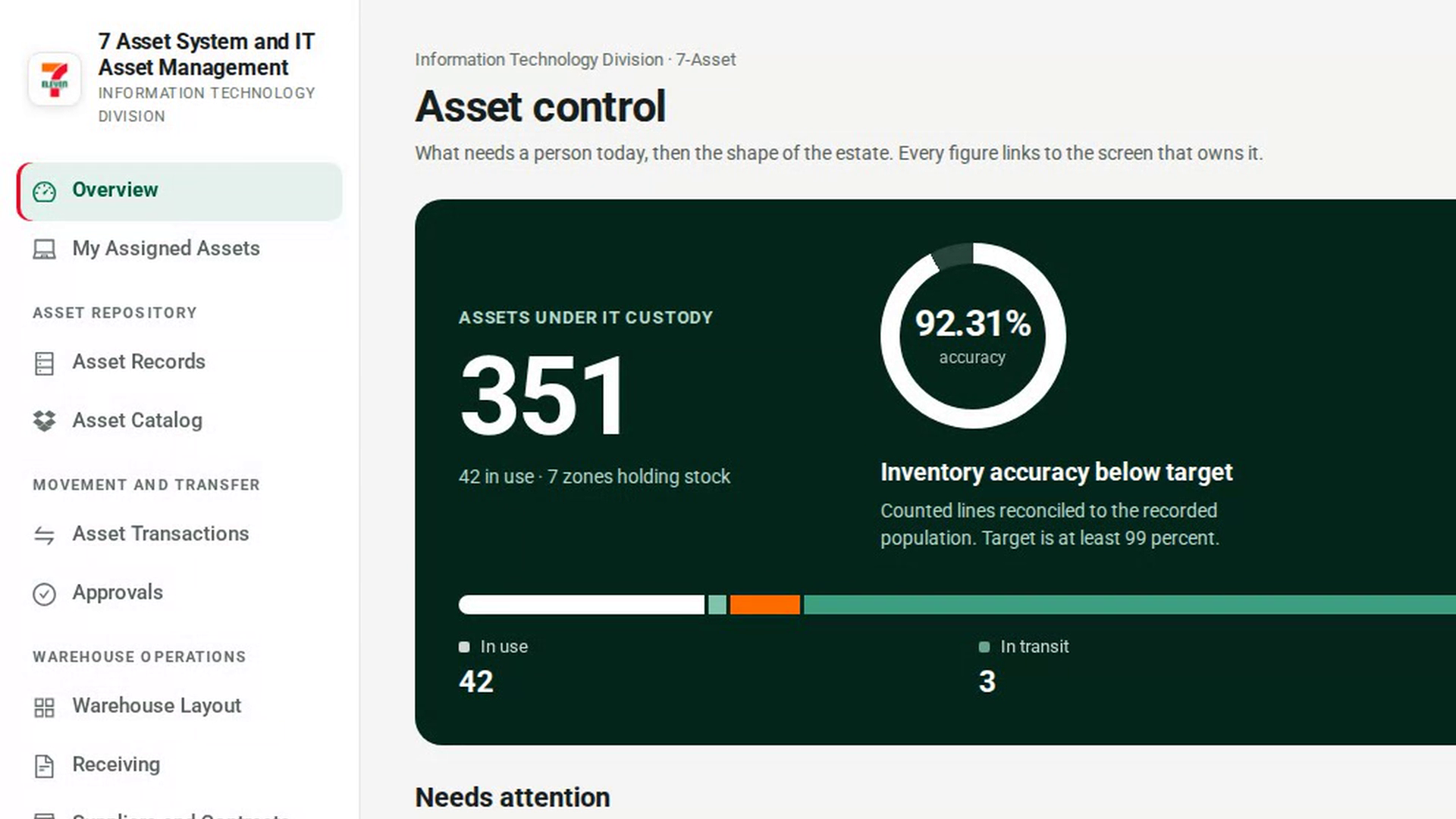
Step 2: Check the headline figures
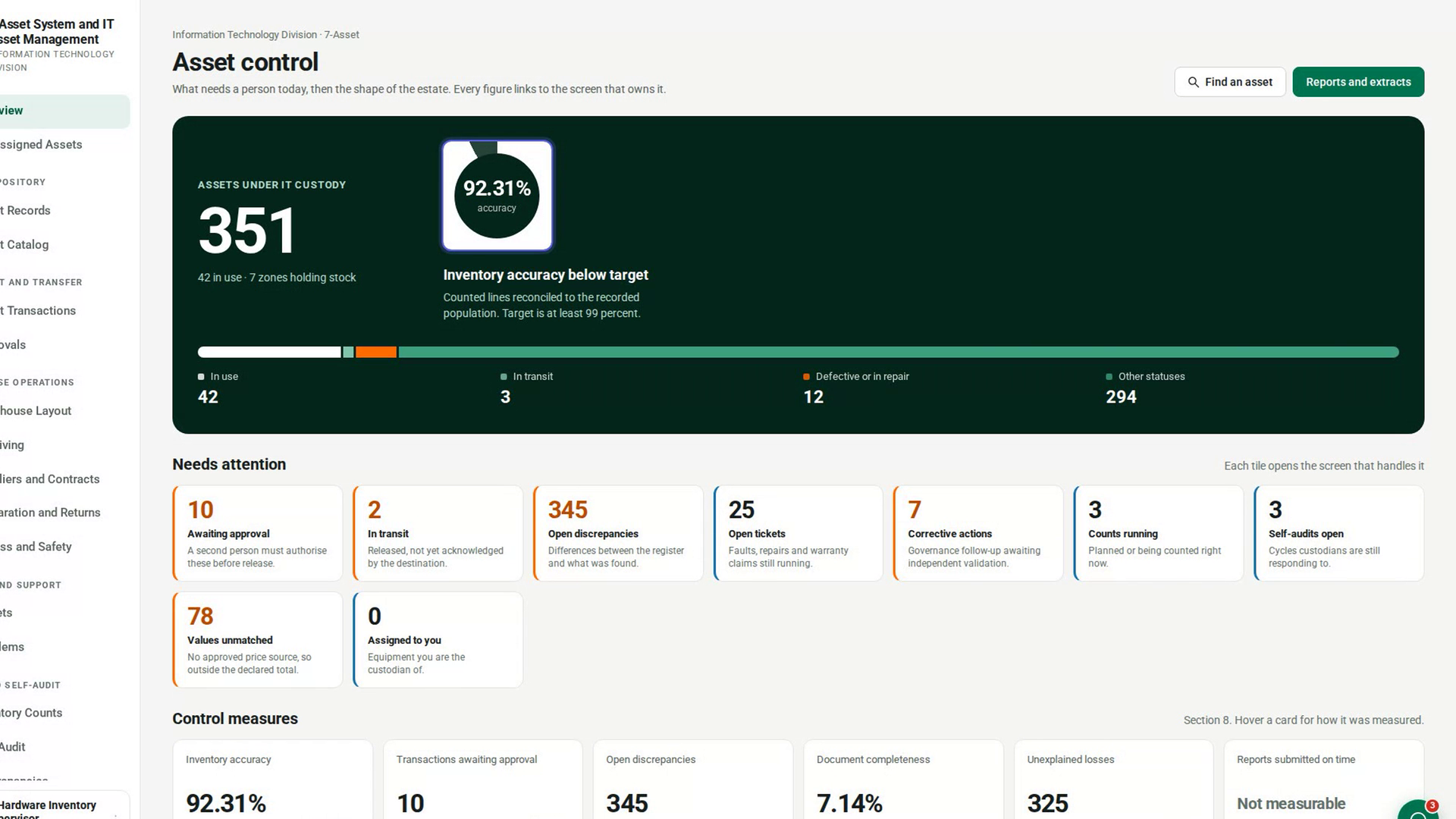
Step 3: Work through Needs attention
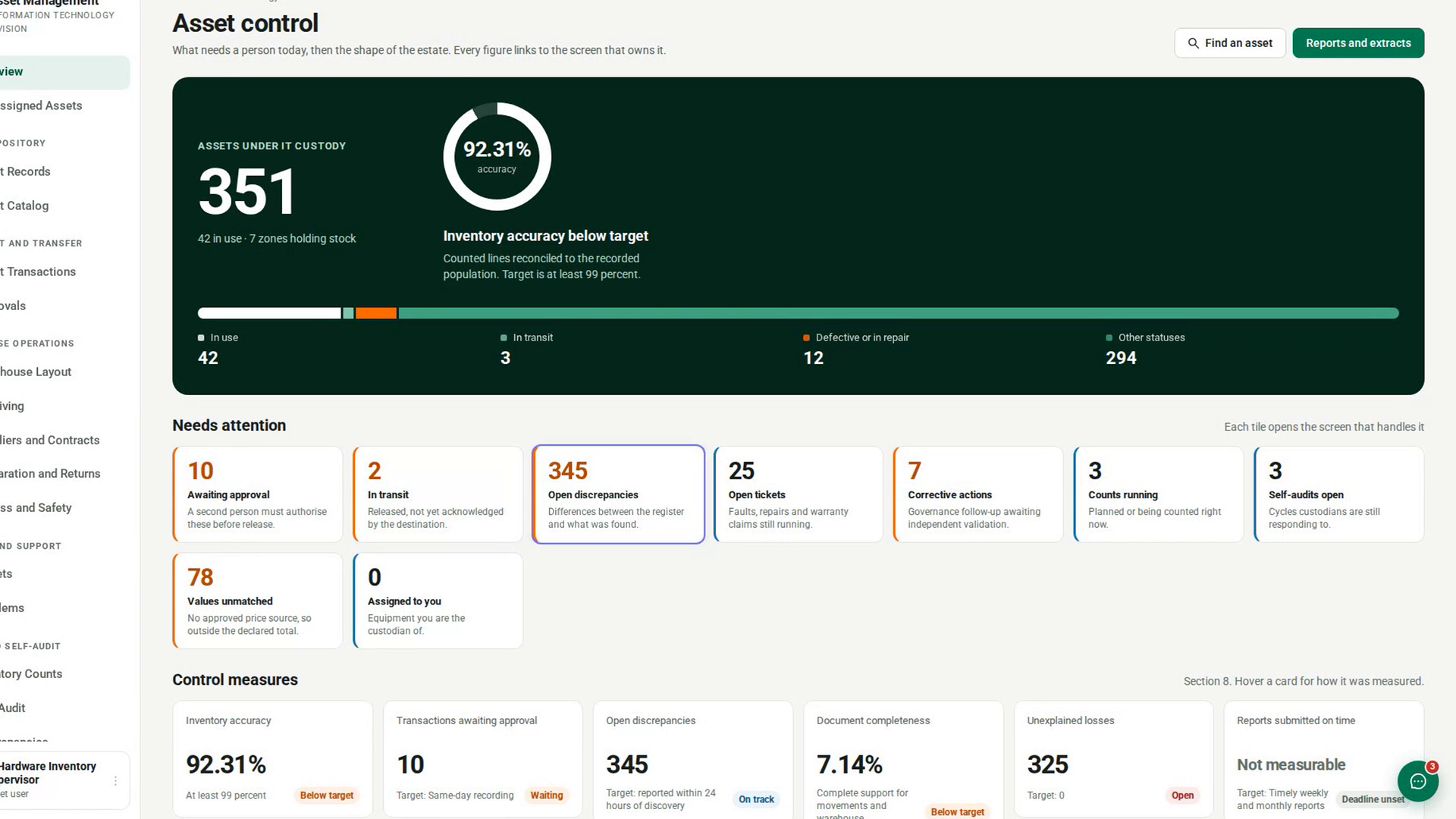
Step 4: Review the control measures
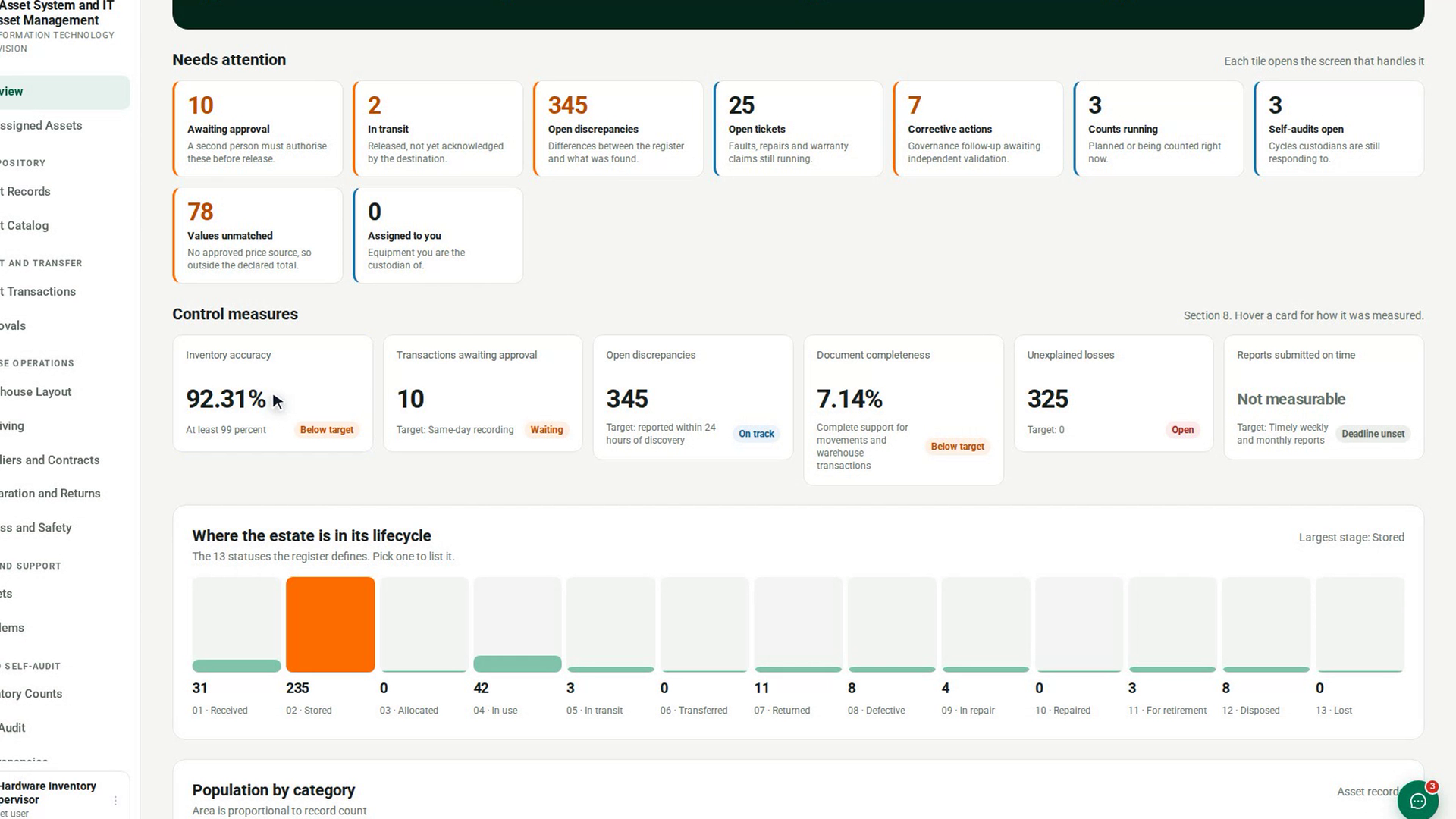
Step 5: See where the assets are
Step 6: Look up an asset
Step 7: Open the full reports
Watch how
Tip: If you hold assets and a self-audit is open, a banner at the top says how many items you have to confirm. Select Complete self-audit to answer them.