Review a recurring issue
Spot ticket categories that keep recurring without a problem record, make sure each one gets a root-cause review and a preventive action, and check later whether the prevention worked.
Before you start
- To review effectiveness and close a problem, you need to be IT Service Governance, IT Service Operations, IT Hardware Inventory Supervisor, or IT Business Systems or Application Team.
- Opening a problem record and recording the root cause and preventive action needs IT Service Operations, IT Hardware Inventory Supervisor, or IT Business Systems or Application Team. IT Service Governance can review but not open.
- You cannot review a problem you investigated yourself.
Steps
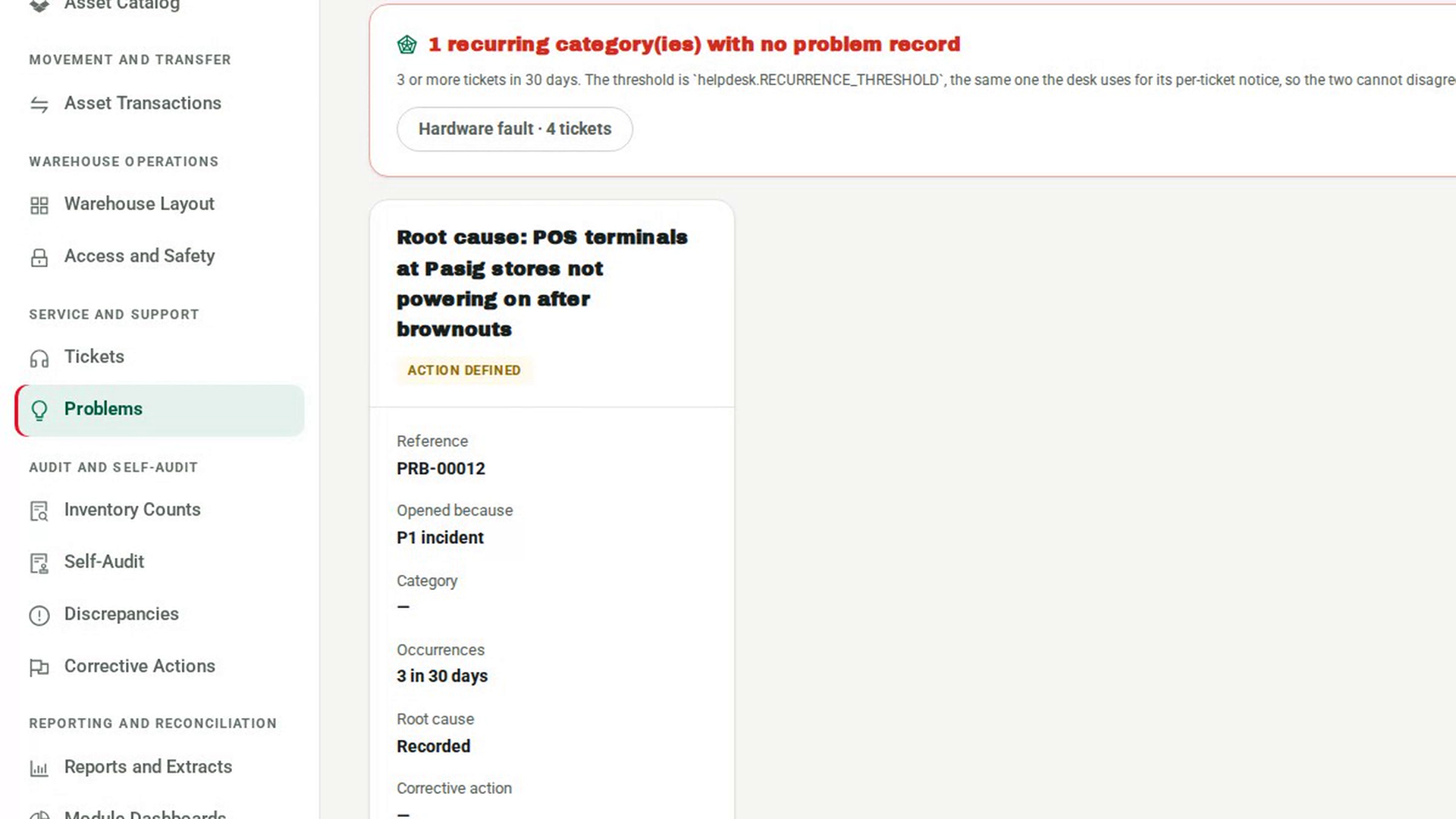
Check for recurring issues
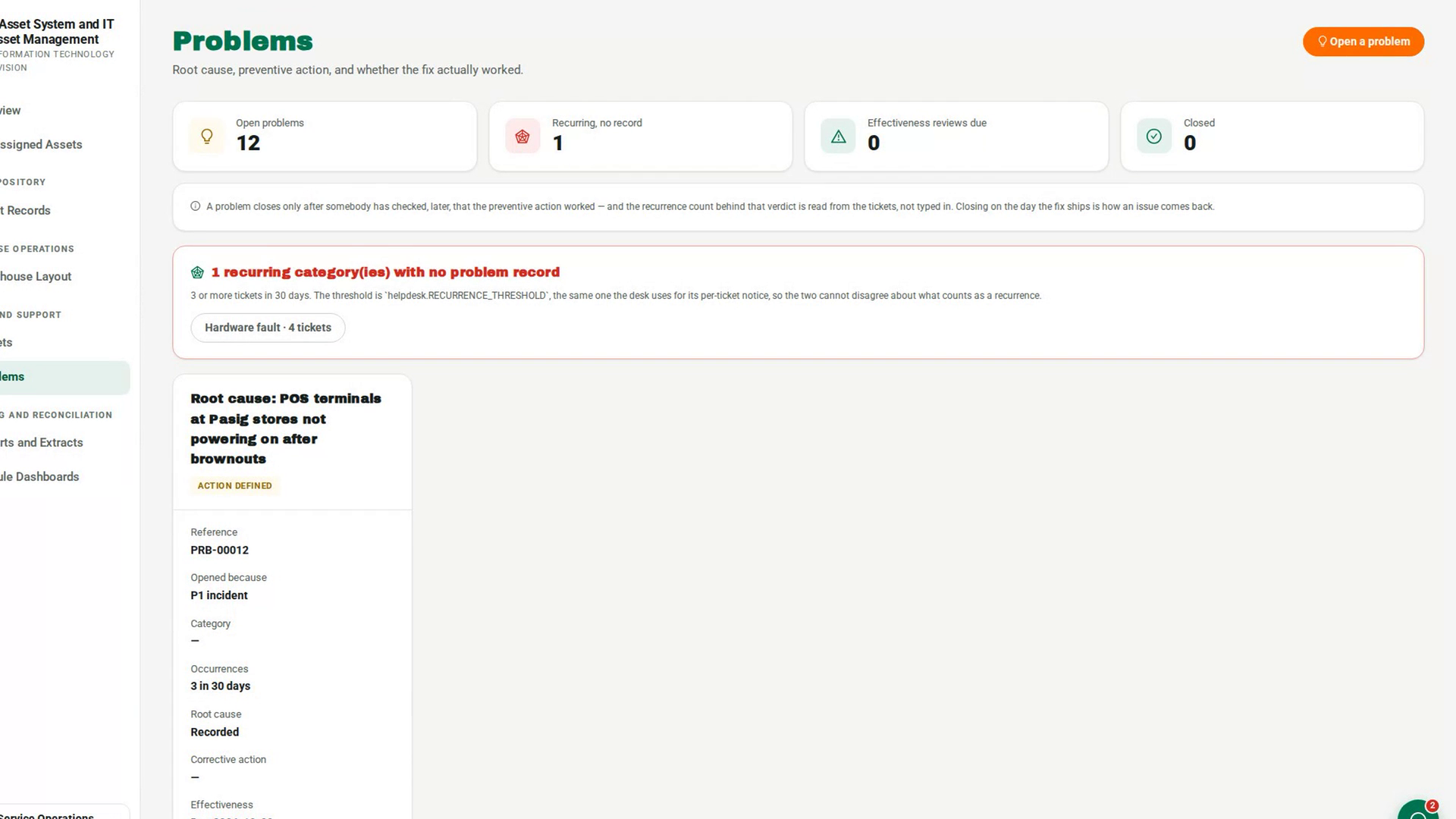
In the sidebar, under Service and Support, select Problems. Recurring, no record counts ticket categories that meet the recurrence threshold but have no open problem record. When there are any, a red panel lists them with their ticket counts and states the threshold.
Open a record for a recurring category
Someone who can open problems, such as IT Service Operations, selects the category in the panel. Open a problem record opens with the Category filled in and Why is it being investigated set to Recurrence. Add a Title and select OK. The category leaves the panel.
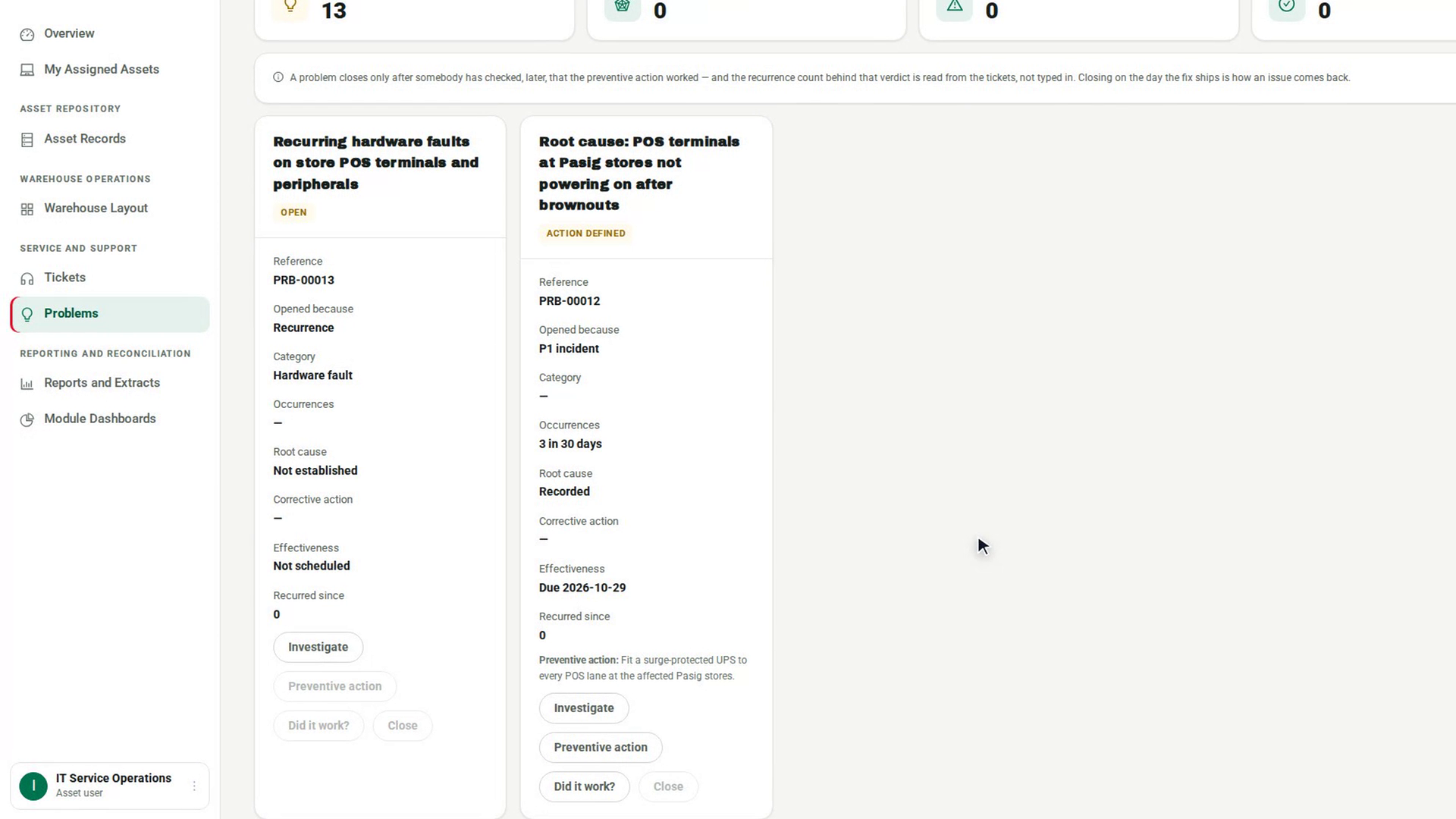
Check the root cause and preventive action
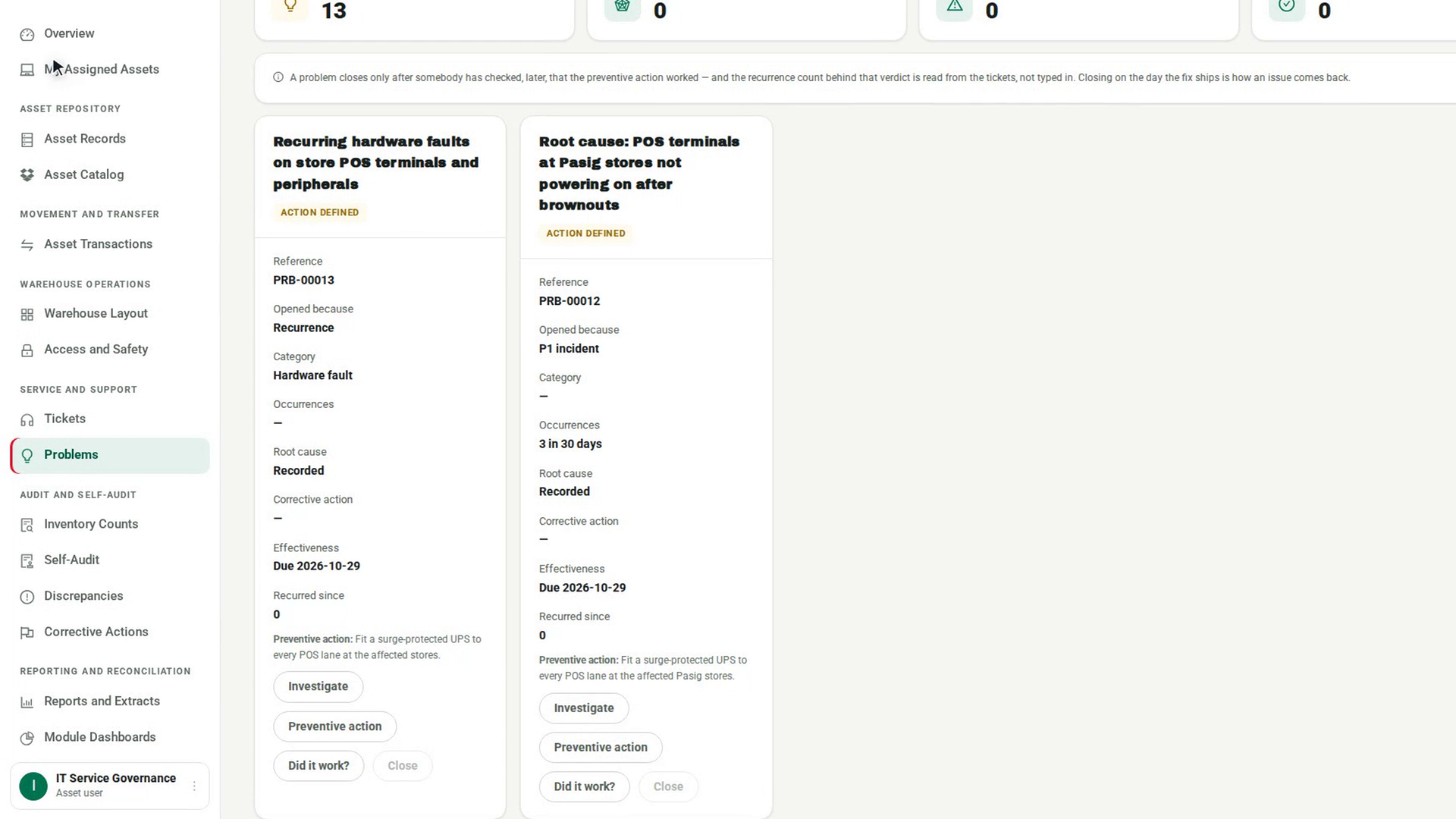
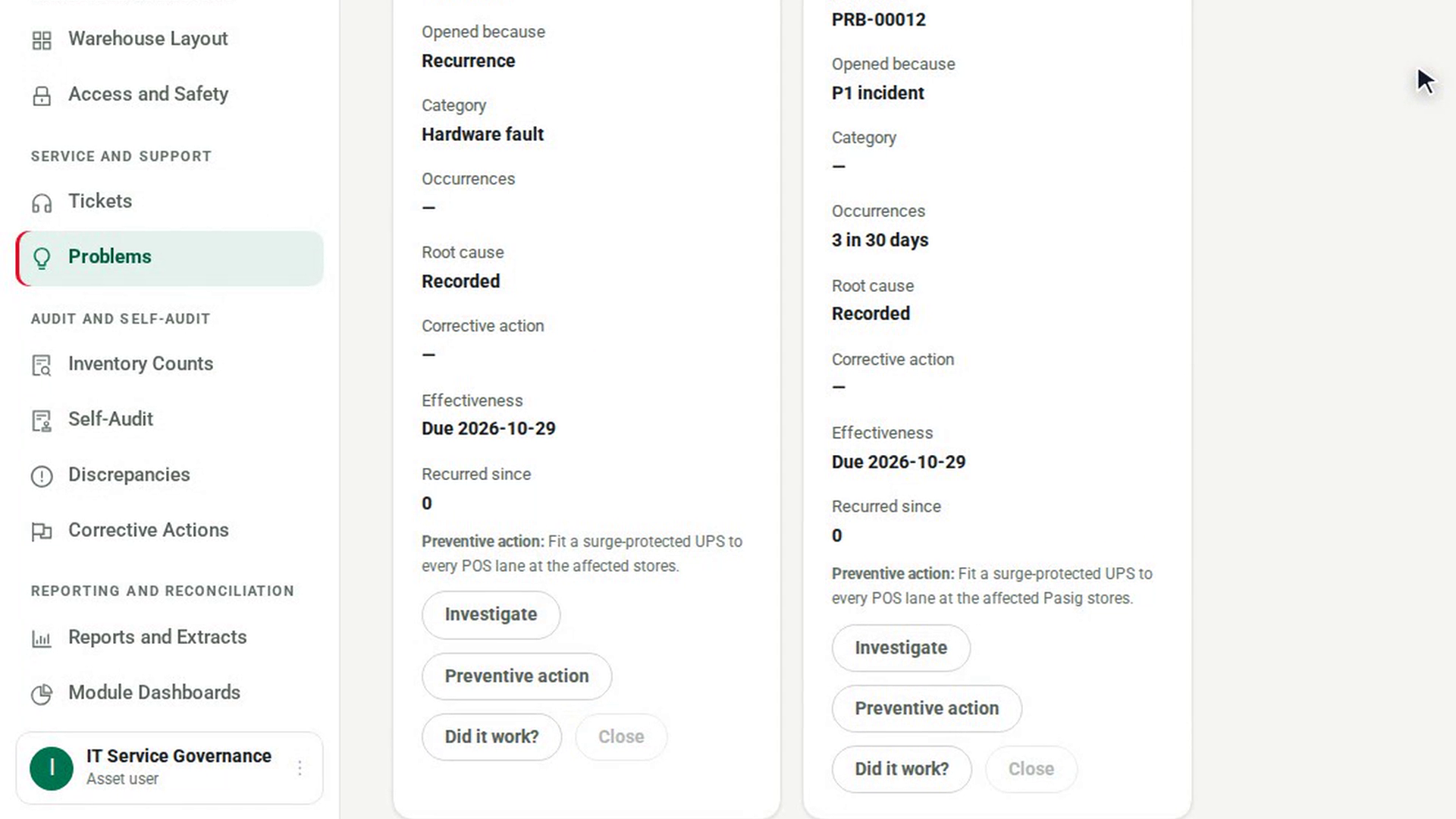
On the problem's card, check that Root cause shows Recorded and that the Preventive action is written under the fields. If not, the investigator uses Investigate and Preventive action to record them.
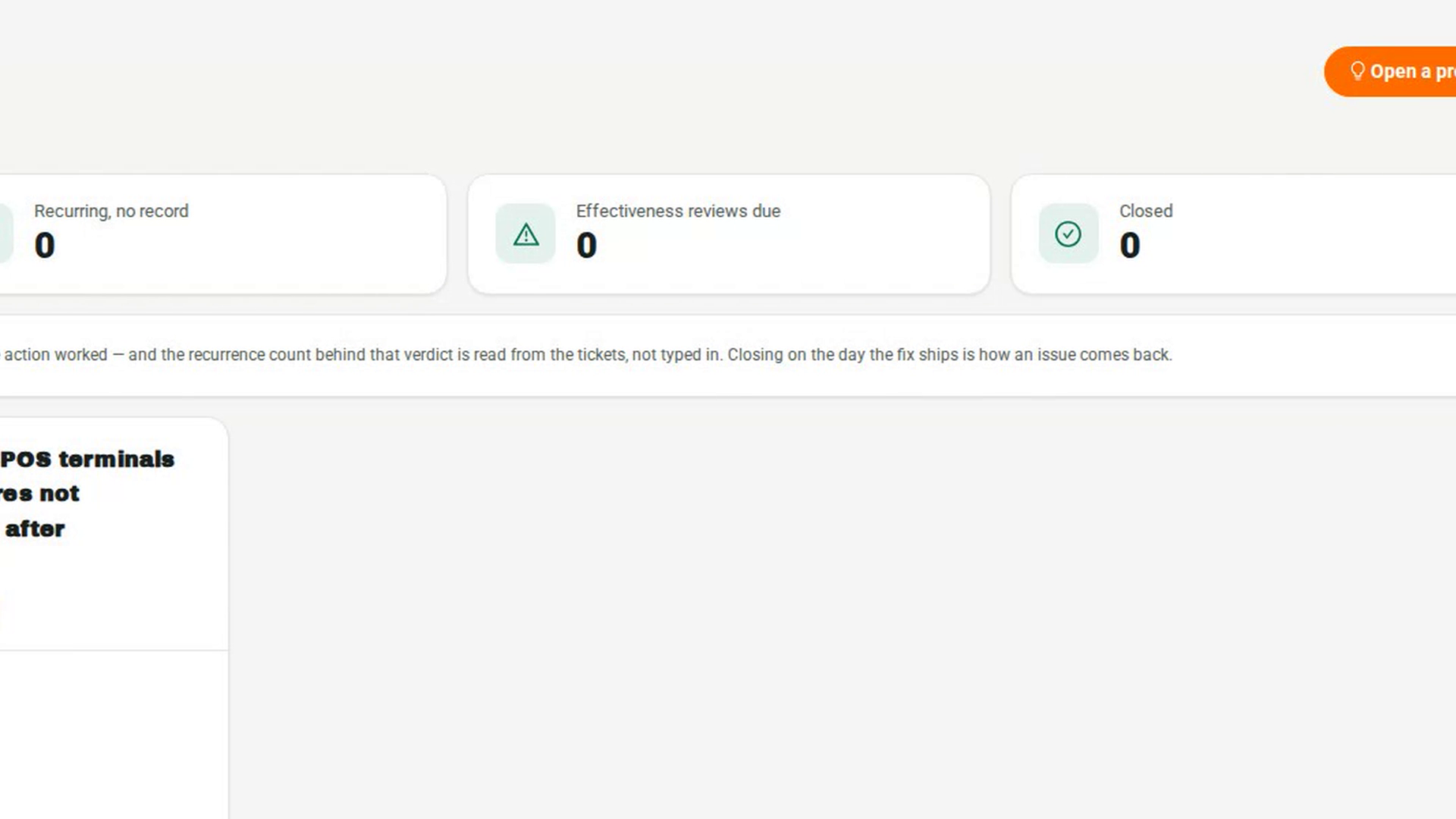
Find reviews that are due
Effectiveness reviews due counts problems whose review date has arrived. On each card, Effectiveness shows the date the review is due.
Record whether the prevention worked
Select Did it work?. In Did the fix work?, choose Effective — it has not recurred, Partially effective — reduced, not eliminated or Ineffective — still happening. For anything but effective, fill in What is still happening. Select OK. Recurred since shows the count 7-Asset found in the tickets.
Close the review
When the verdict is recorded, select Close, write What was concluded, and select OK.
Screenshots
Step 1: Check for recurring issues
Step 2: Open a record for a recurring category
Step 3: Check the root cause and preventive action
Step 4: Find reviews that are due
Step 5: Record whether the prevention worked
Step 6: Close the review
Watch how
7-Asset refuses Effective when tickets of the same category have been raised since the preventive action was defined. The count is read from the tickets, so you cannot override it.
Tip: The recurring panel counts tickets only. A discrepancy or count variance that keeps coming back is not detected here. Open a problem for it by hand with Open a problem and choose Audit finding.