Assign a role
Give a user the role that matches their responsibilities. A person can hold more than one role, and they get everything each role allows.
Before you start
- You need the IT Business Systems or Application Team role.
- The user must already have an account on User Access.
- The role must already exist. Roles are created on Roles and Privileges.
Steps
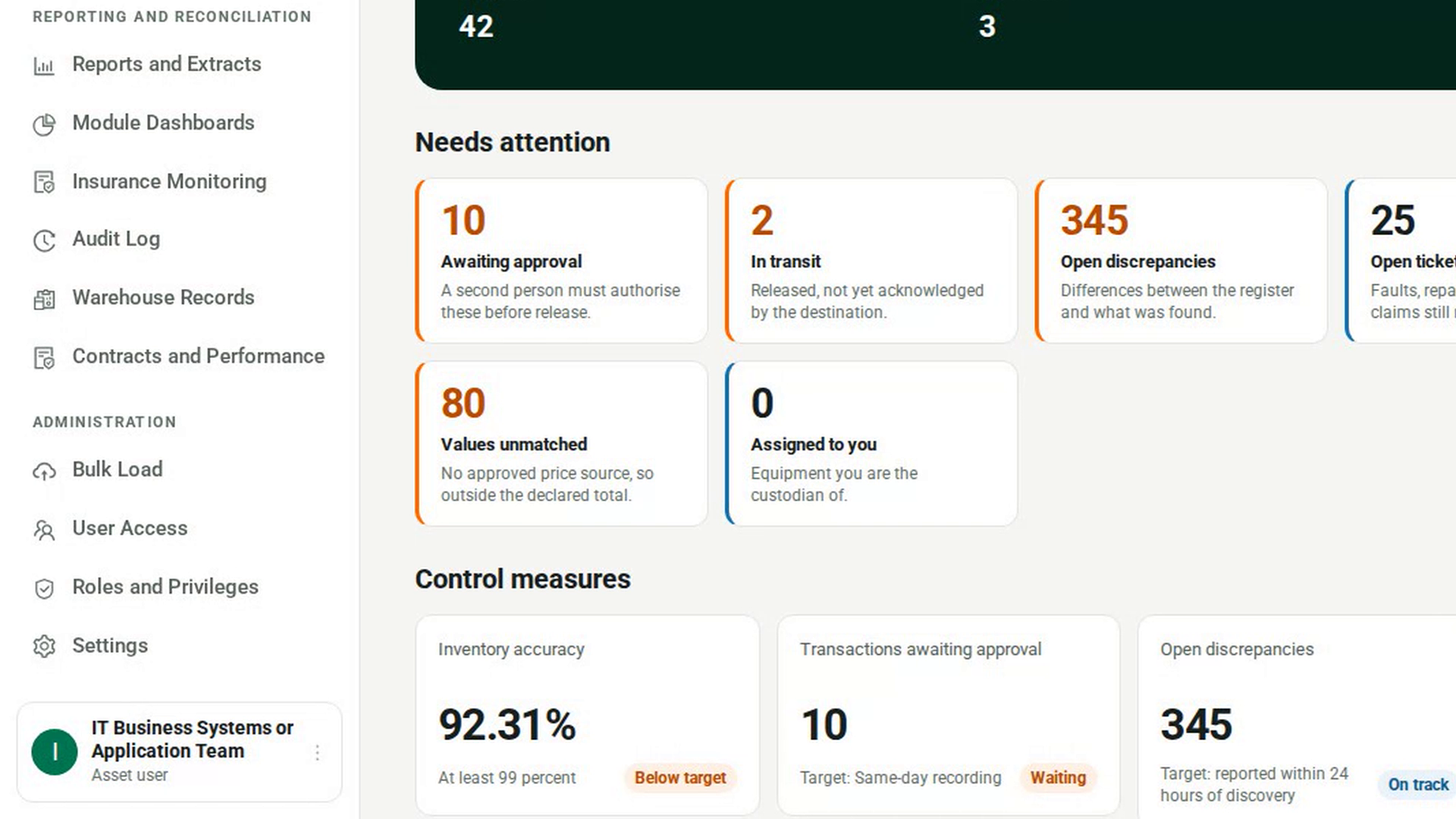
Open User Access
In the sidebar, under Administration, select User Access. The Roles panel at the top lists each role and what it grants.
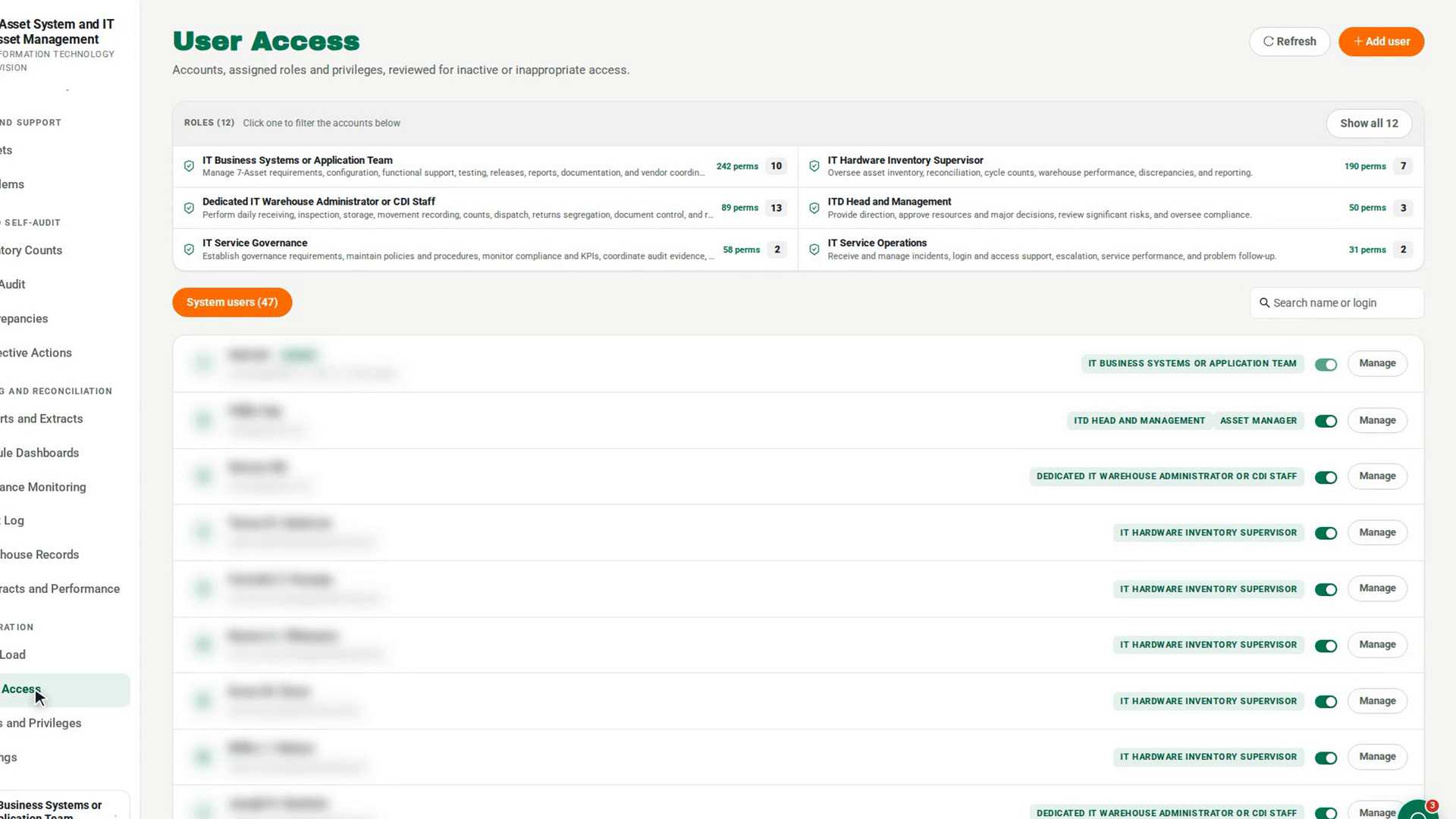
Find the user
Type their name or login in Search name or login. You can also select a role in the Roles panel to show only the people who hold it. Select Clear filter to show everyone again.
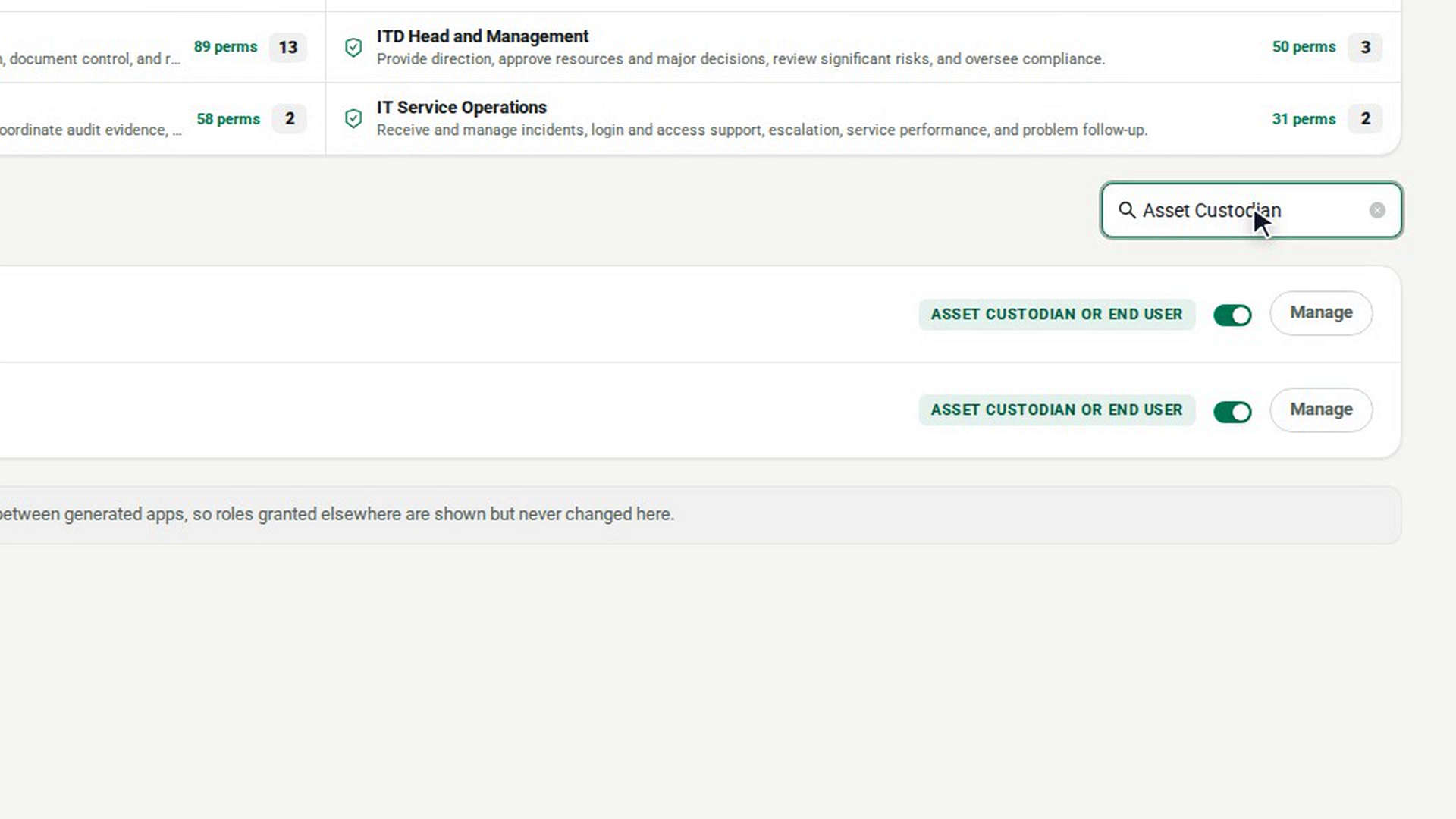
Open their access
Select Manage on the user's row. For someone with no role yet, the button says Give access. A panel opens with the person's name at the top.
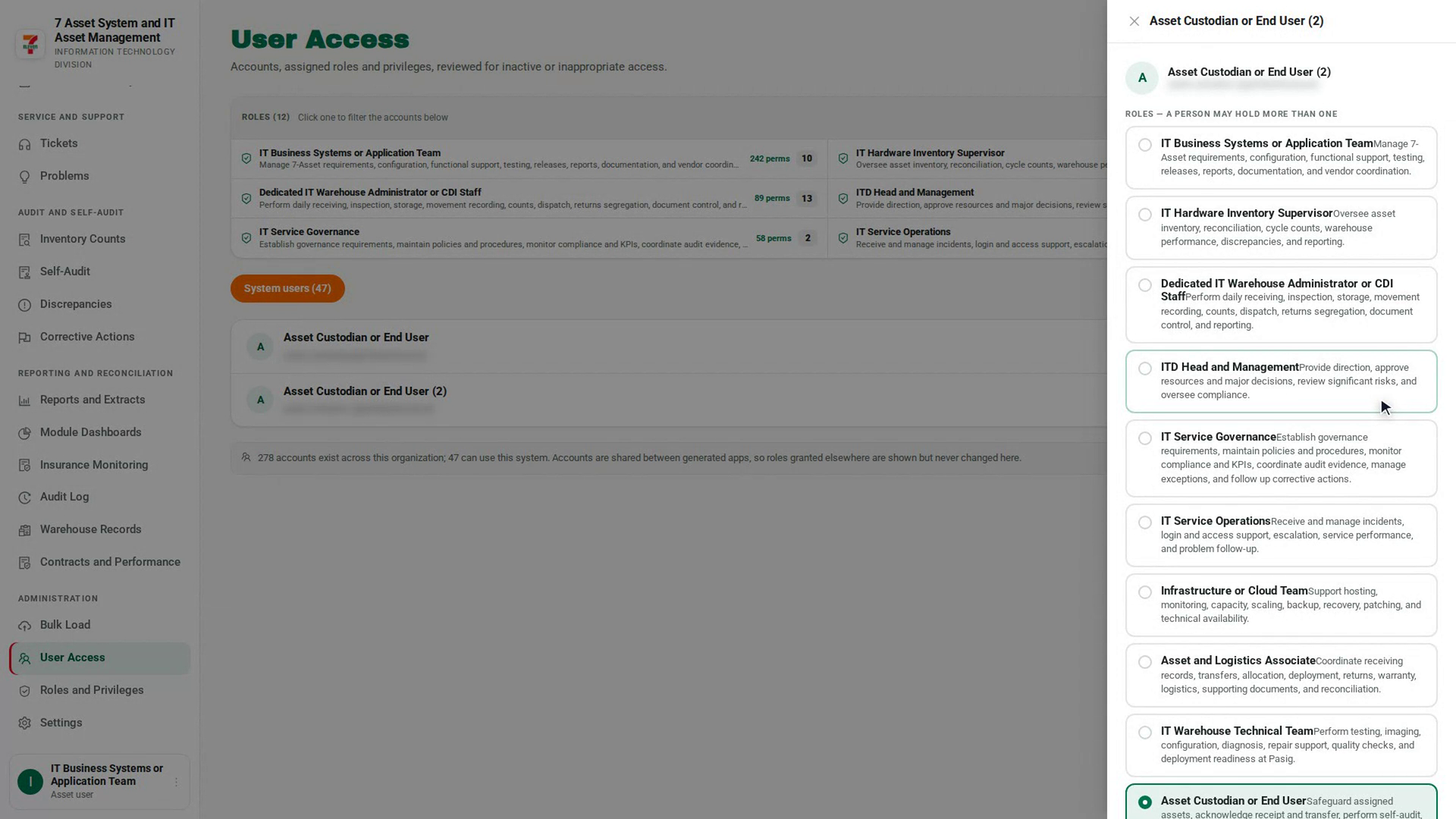
Choose the roles
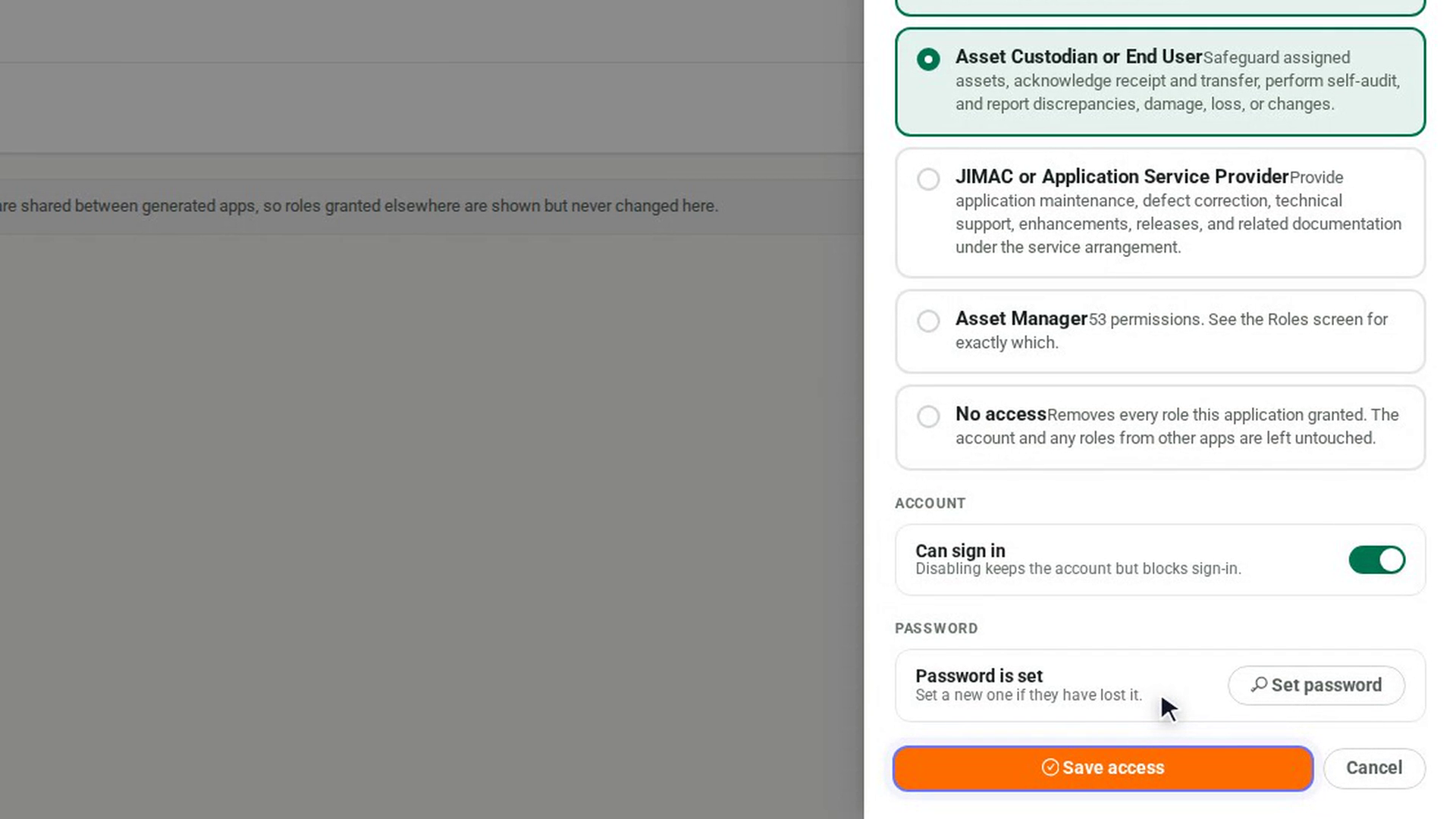
Under Roles — a person may hold more than one, select each role they need. Selected roles are highlighted. Select a highlighted role again to remove it.
Save the change
Select Save access. The button is available only once you have changed something. A message confirms which roles the person now holds. To leave without changing anything, select Cancel.
Screenshots
Step 1: Open User Access
Step 2: Find the user
Step 3: Open their access
Step 4: Choose the roles
Step 5: Save the change
Watch how
Tip: To see exactly what a role allows, select its permission count in the Roles panel. A role marked no permissions yet grants nothing, so a person who holds only that role would be refused everywhere.
Tip: Roles the person holds in other applications are shown in the panel but never changed here.