Reset a password
Set a new password for a user who has lost theirs or whose account cannot sign in yet. 7-Asset has no self-service reset, so an administrator sets it and shares it.
Before you start
- You need the IT Business Systems or Application Team role.
- The user must already have an account on User Access.
- Have a secure way to give the person their new password.
Steps
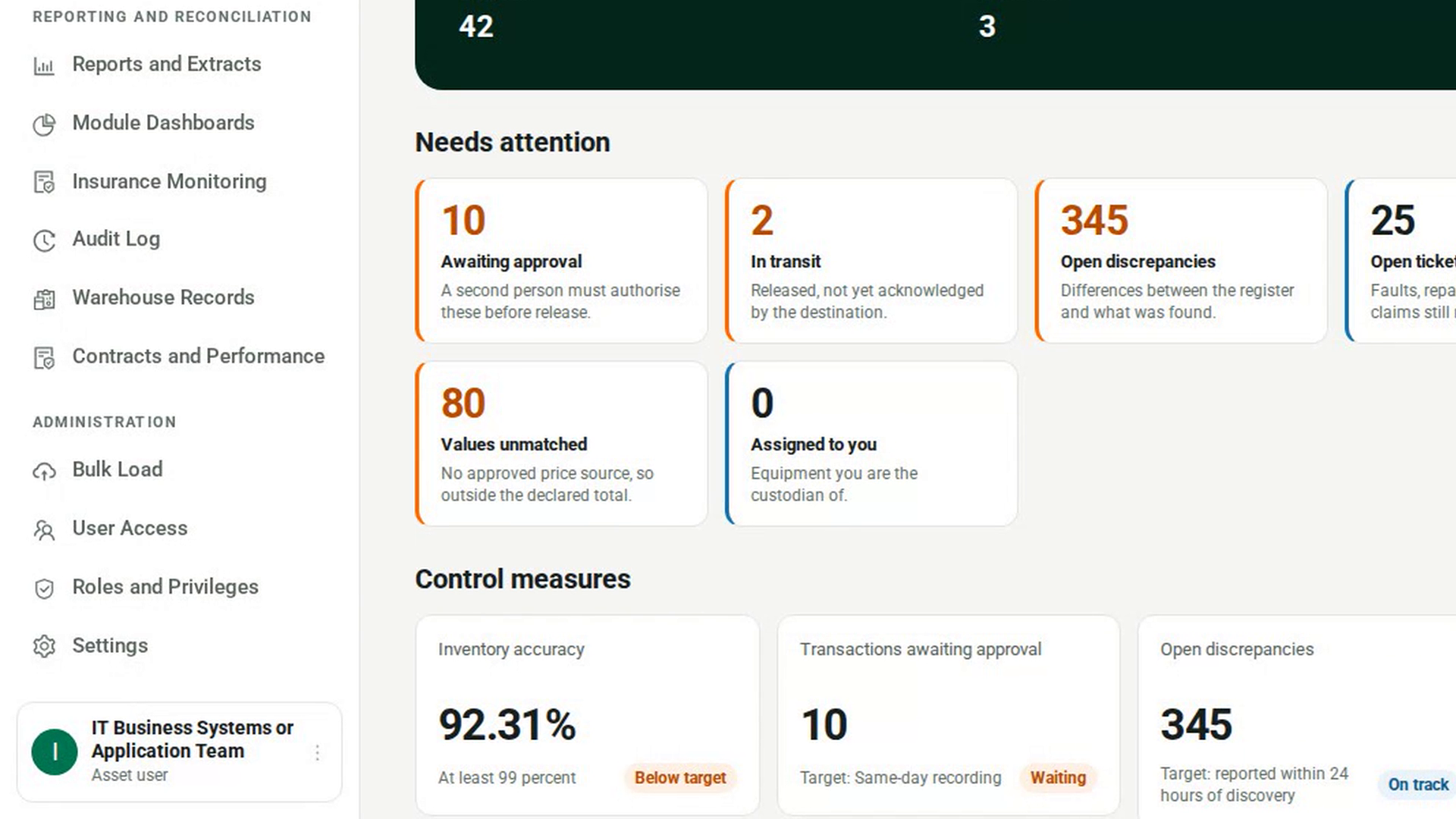
Open User Access
In the sidebar, under Administration, select User Access. An account with no password shows cannot sign in on its row.
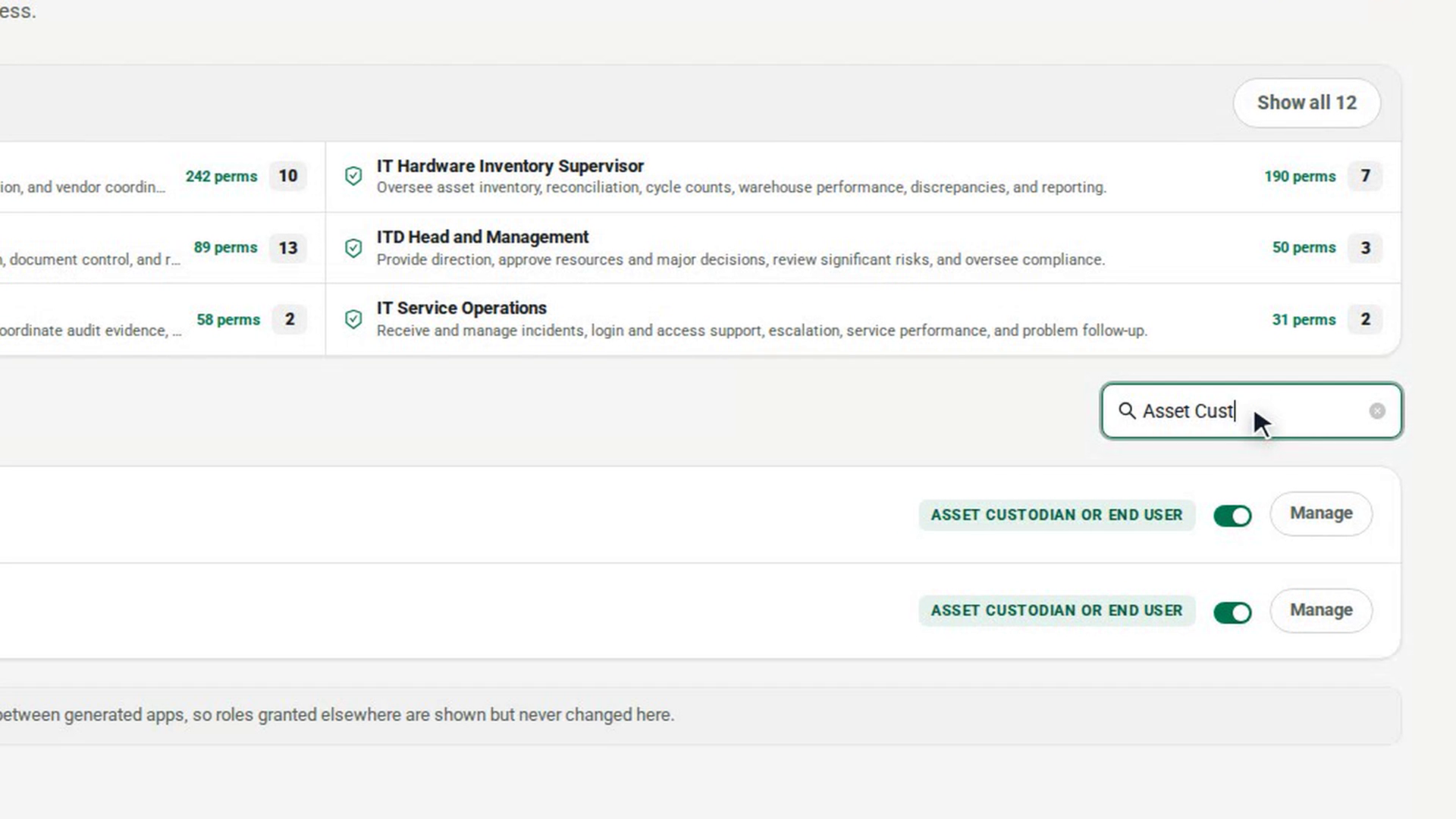
Open the user's account
Find the user with Search name or login, then select Manage on their row.
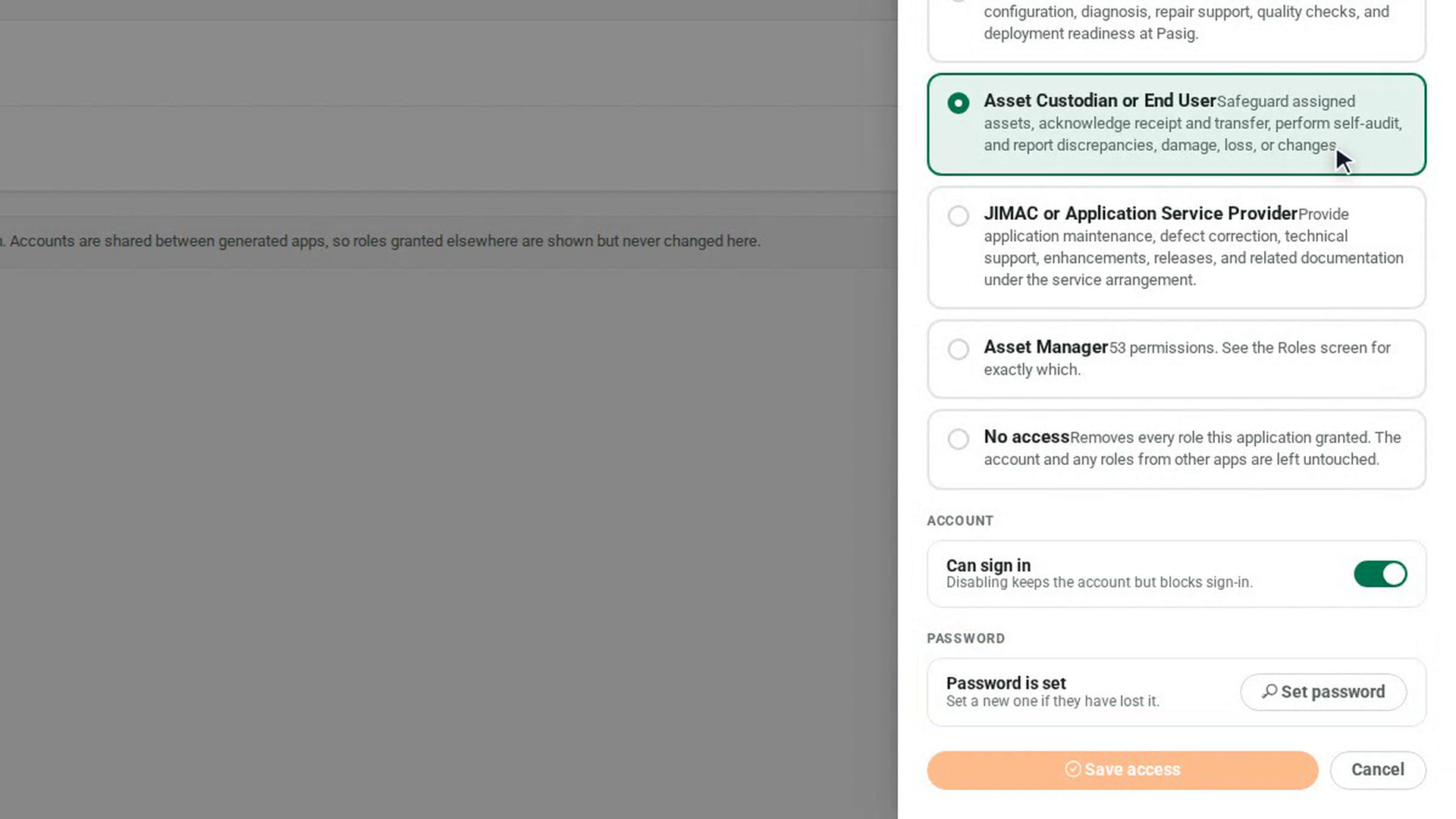
Check the password status
Under Password, the panel says Password is set or No password set.
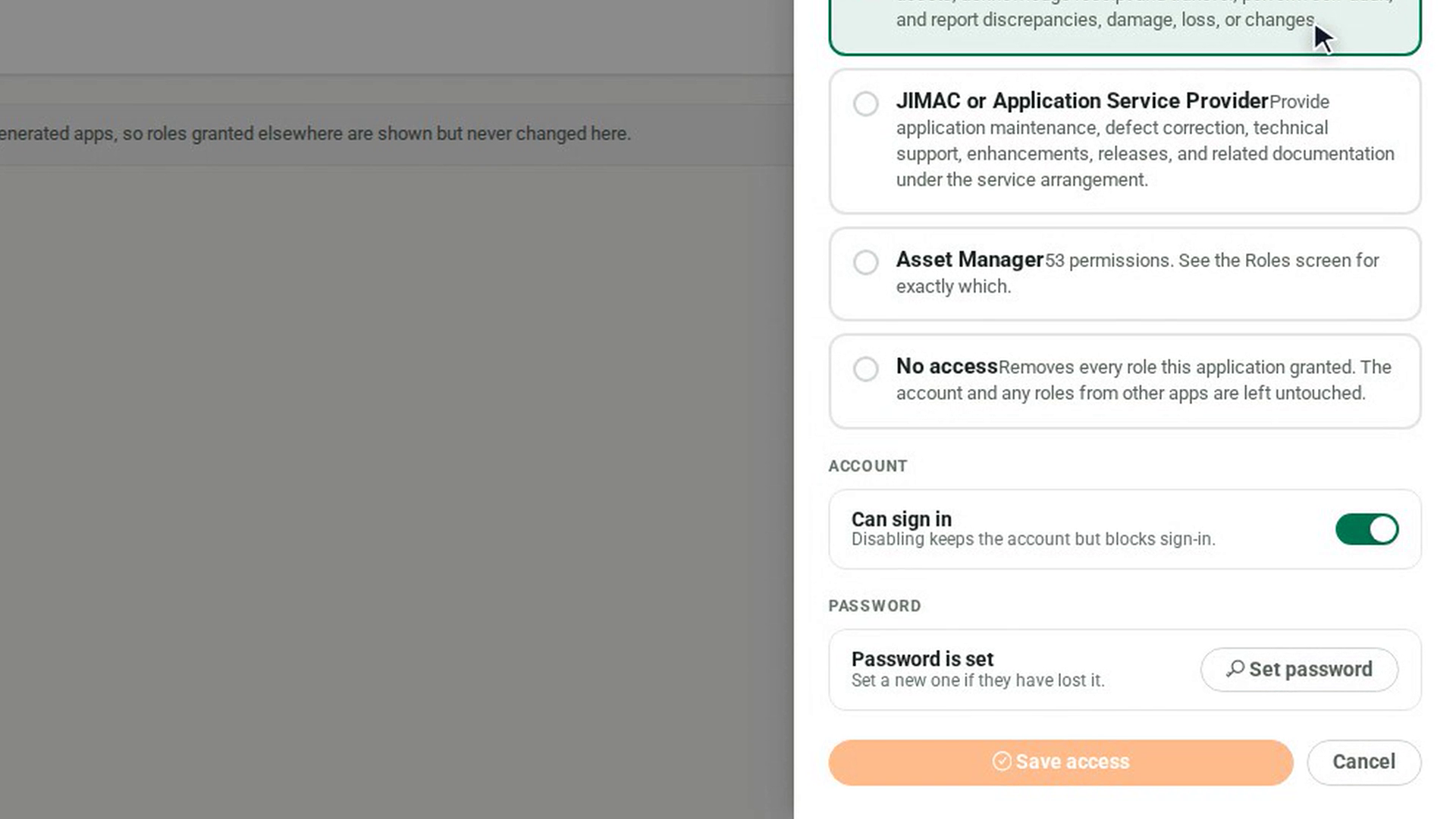
Start the reset
Select Set password. A panel titled with the user's name opens.
Enter the new password twice
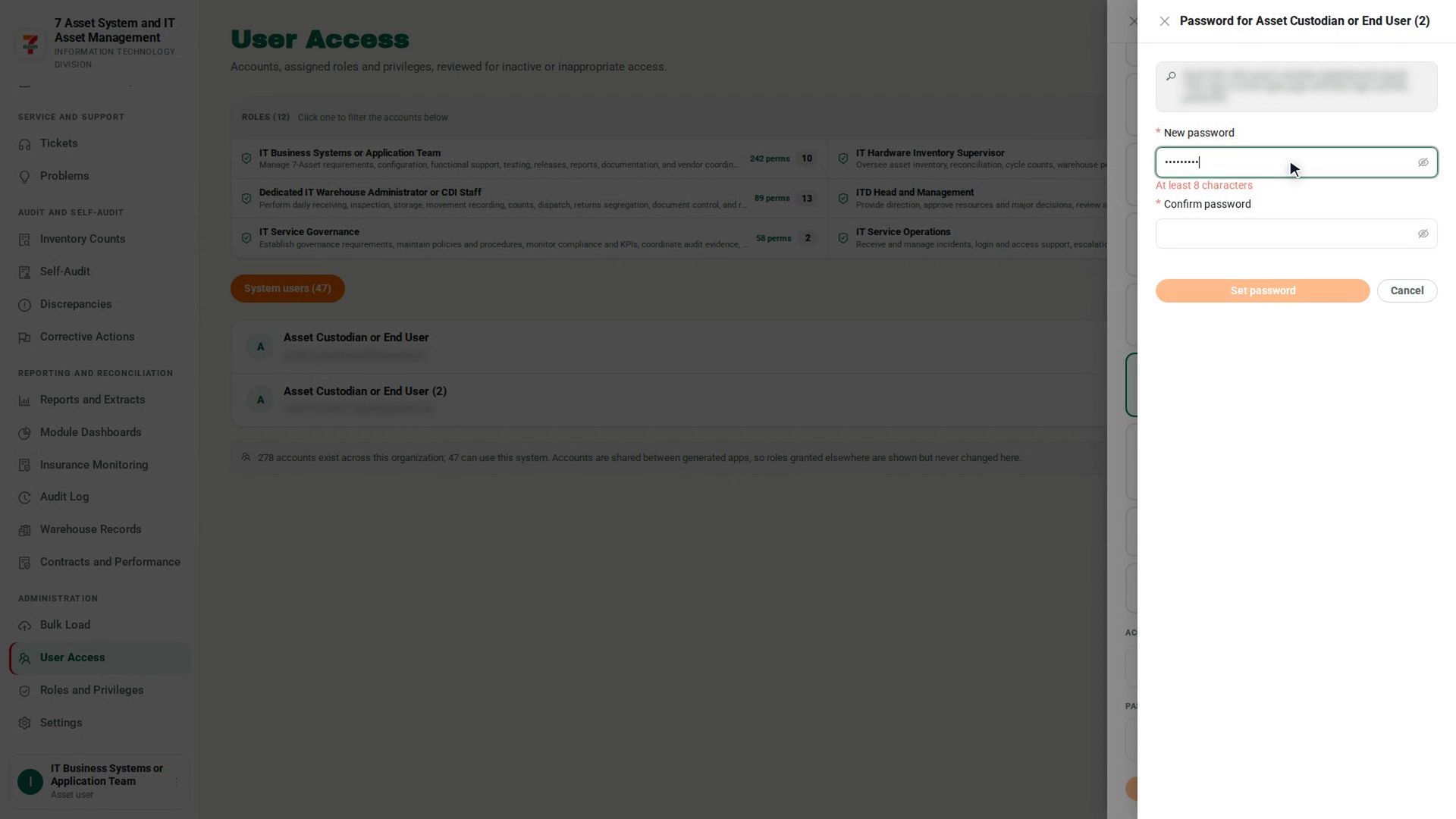
Type the new password in New password and again in Confirm password. It must be at least 8 characters, and both entries must match.
Set the password
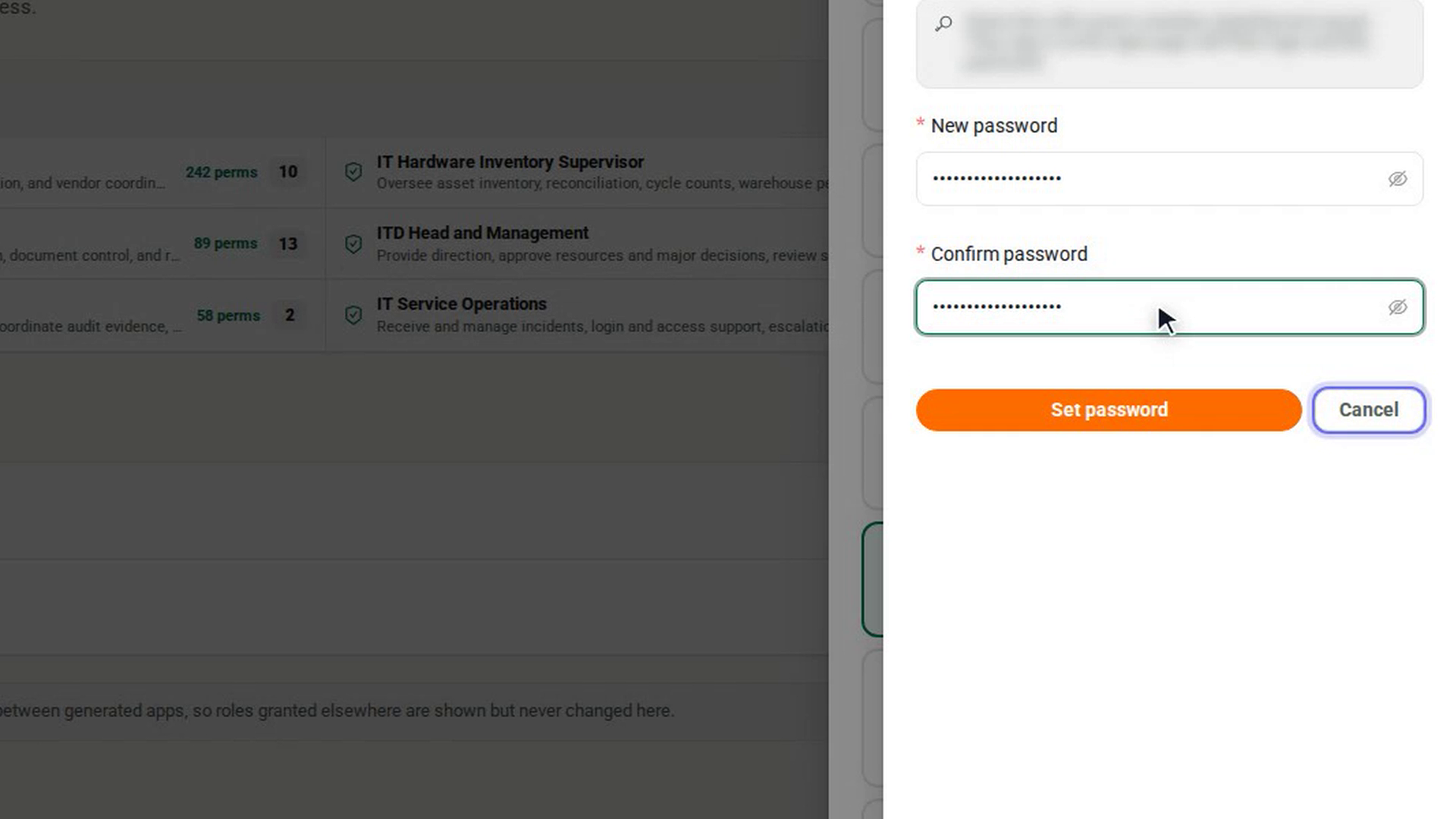
Select Set password. A message confirms the password is set and that they can sign in now. To leave without changing it, select Cancel.
Screenshots
Step 1: Open User Access
Step 2: Open the user's account
Step 3: Check the password status
Step 4: Start the reset
Step 5: Enter the new password twice
Step 6: Set the password
Watch how
The old password stops working as soon as you set the new one. Share the new password with the person through a secure channel, never in a shared chat or ticket.