Track a purchase order
Record a purchase order against a supplier and follow what has been received against each of its lines. An order records what you intend to buy; stock only changes when goods are received.
Before you start
- To raise or cancel an order, you need to be an IT Hardware Inventory Supervisor, an Asset and Logistics Associate or the IT Business Systems or Application Team.
- To receive against an order, you can also be a Dedicated IT Warehouse Administrator or CDI Staff.
- The supplier must exist in Suppliers and Contracts first — New Purchase Order stays unavailable until one does.
Steps
Open Receiving
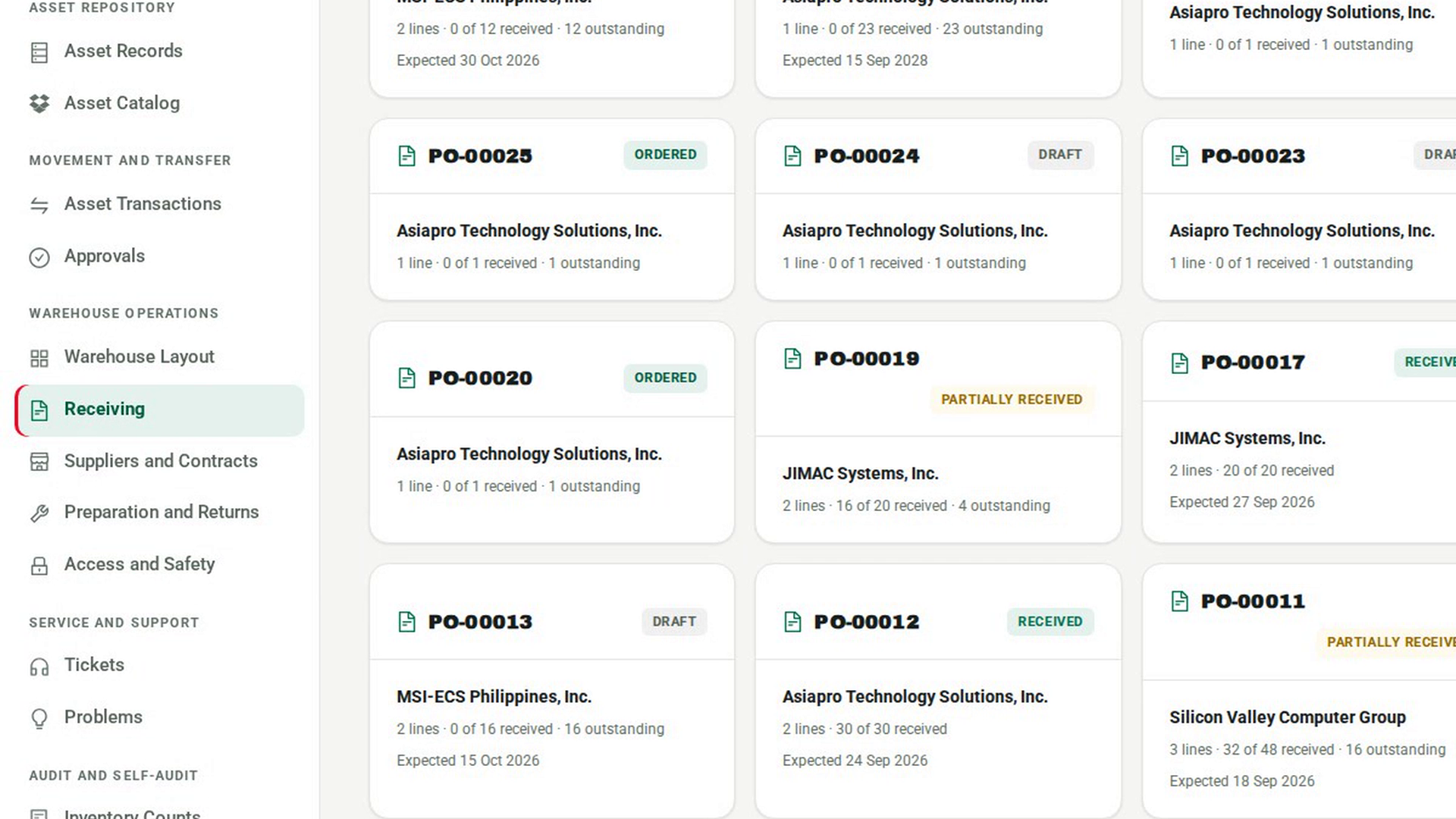
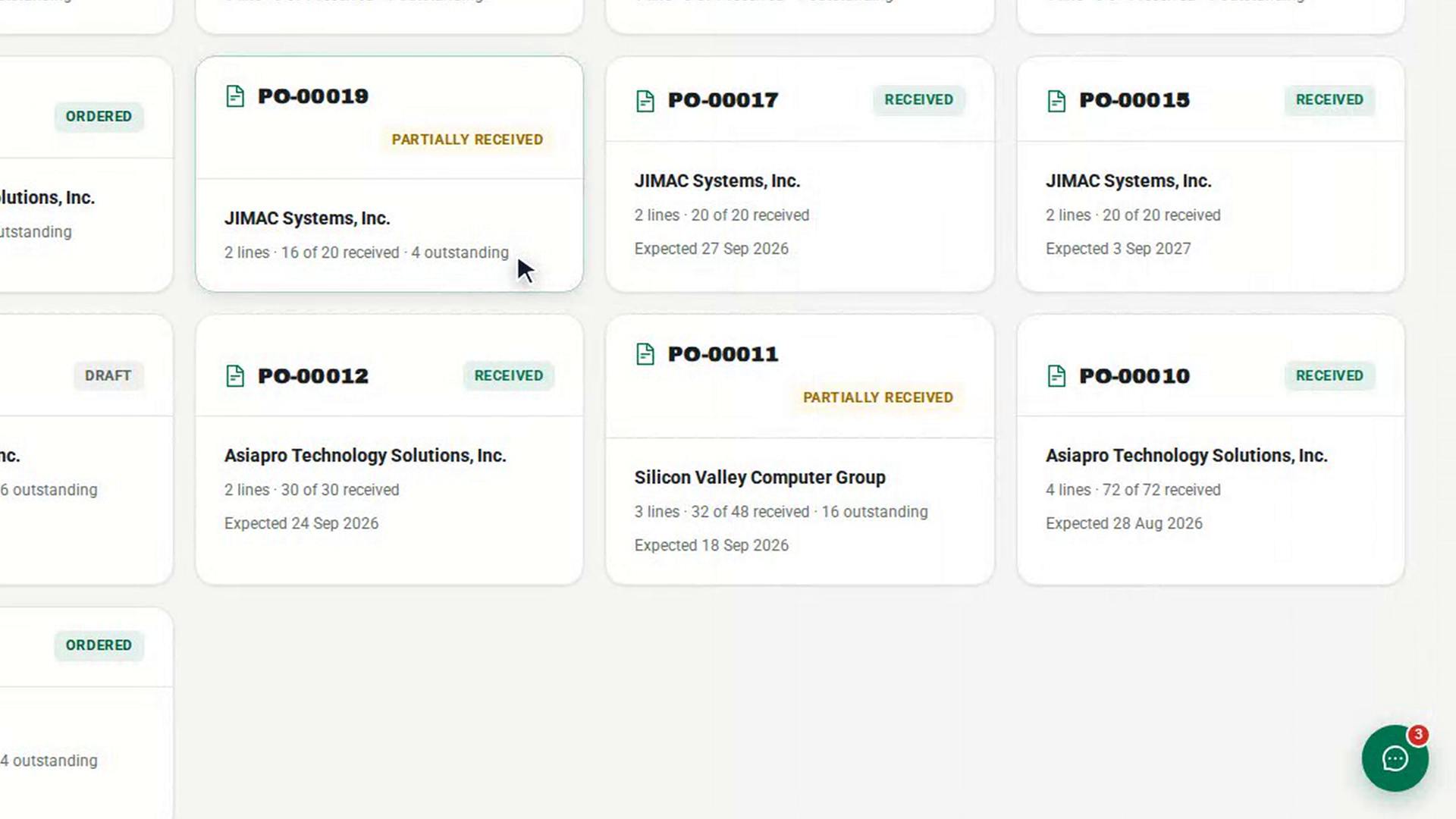
In the sidebar, under Warehouse Operations, select Receiving. Each order card shows its status, the supplier, how many units have been received out of those ordered, what is still outstanding and the expected delivery date.
Record a new order
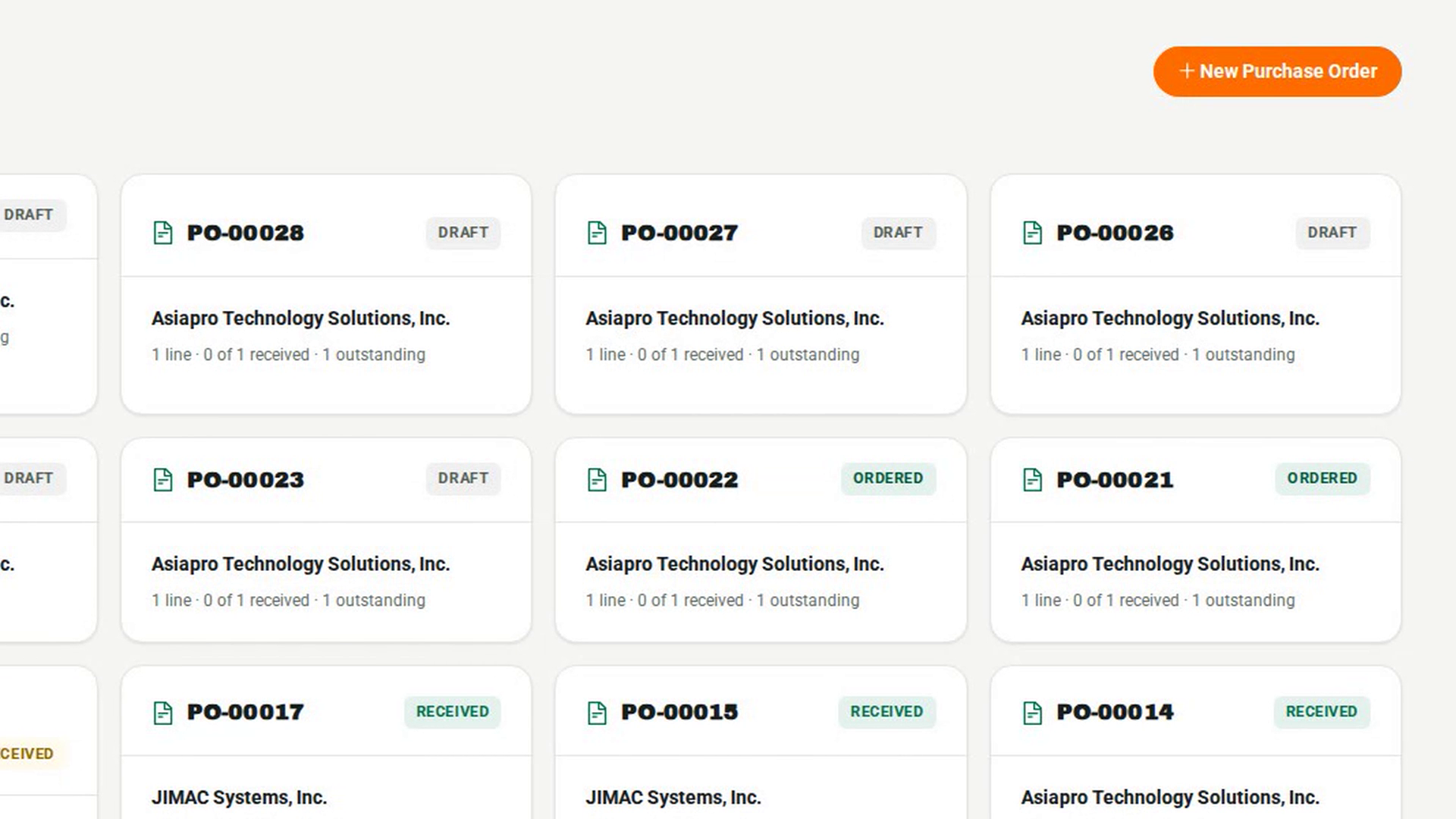
Select New Purchase Order. Choose the Supplier, the Expected delivery date, and each Asset with its Qty, then select Create draft. The order must be approved and placed before anything can be received against it.
Open the order
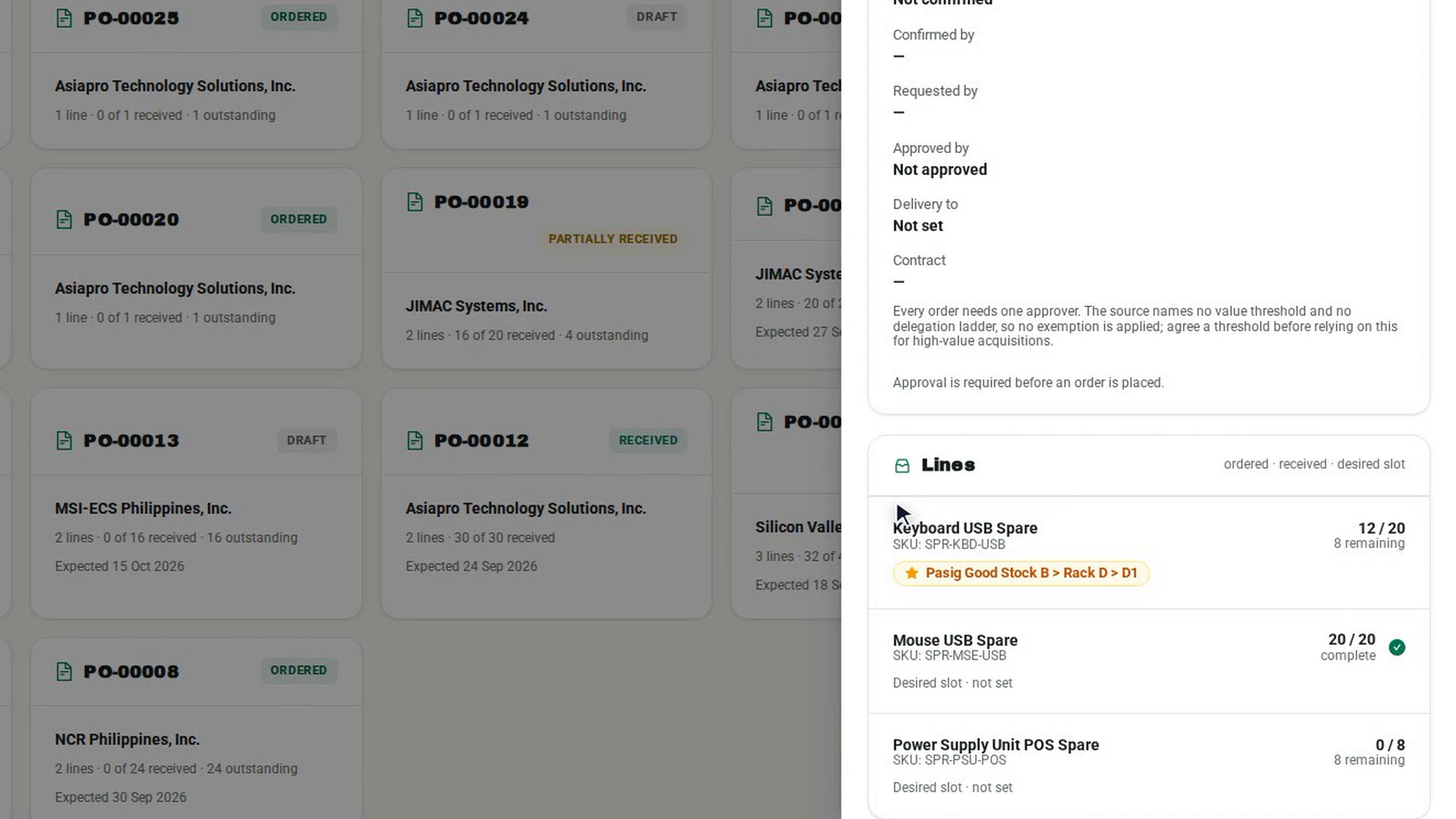
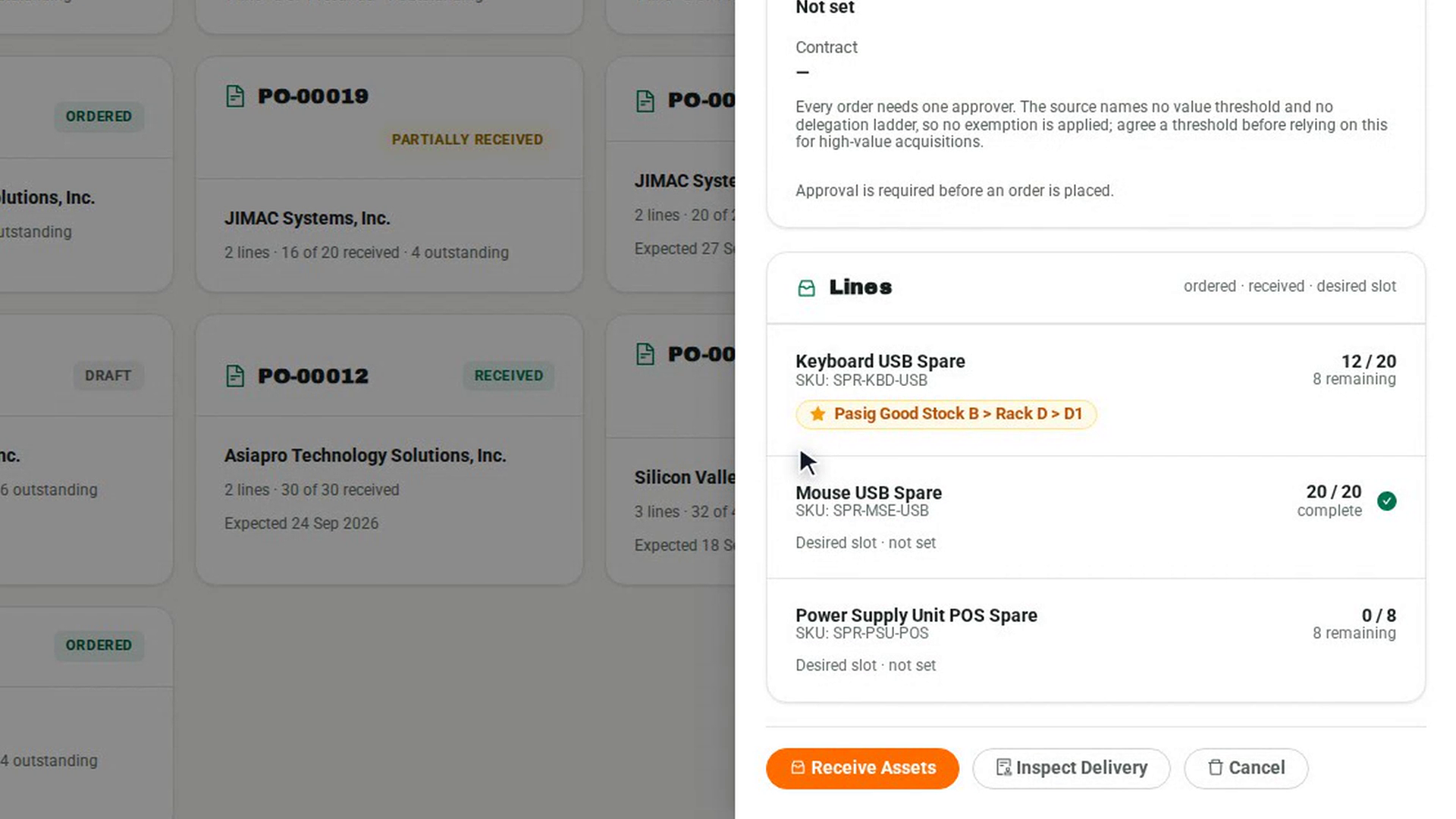
Select the order's card. The panel shows its status, how many lines are complete and how many units have been received out of those ordered.
Check each line
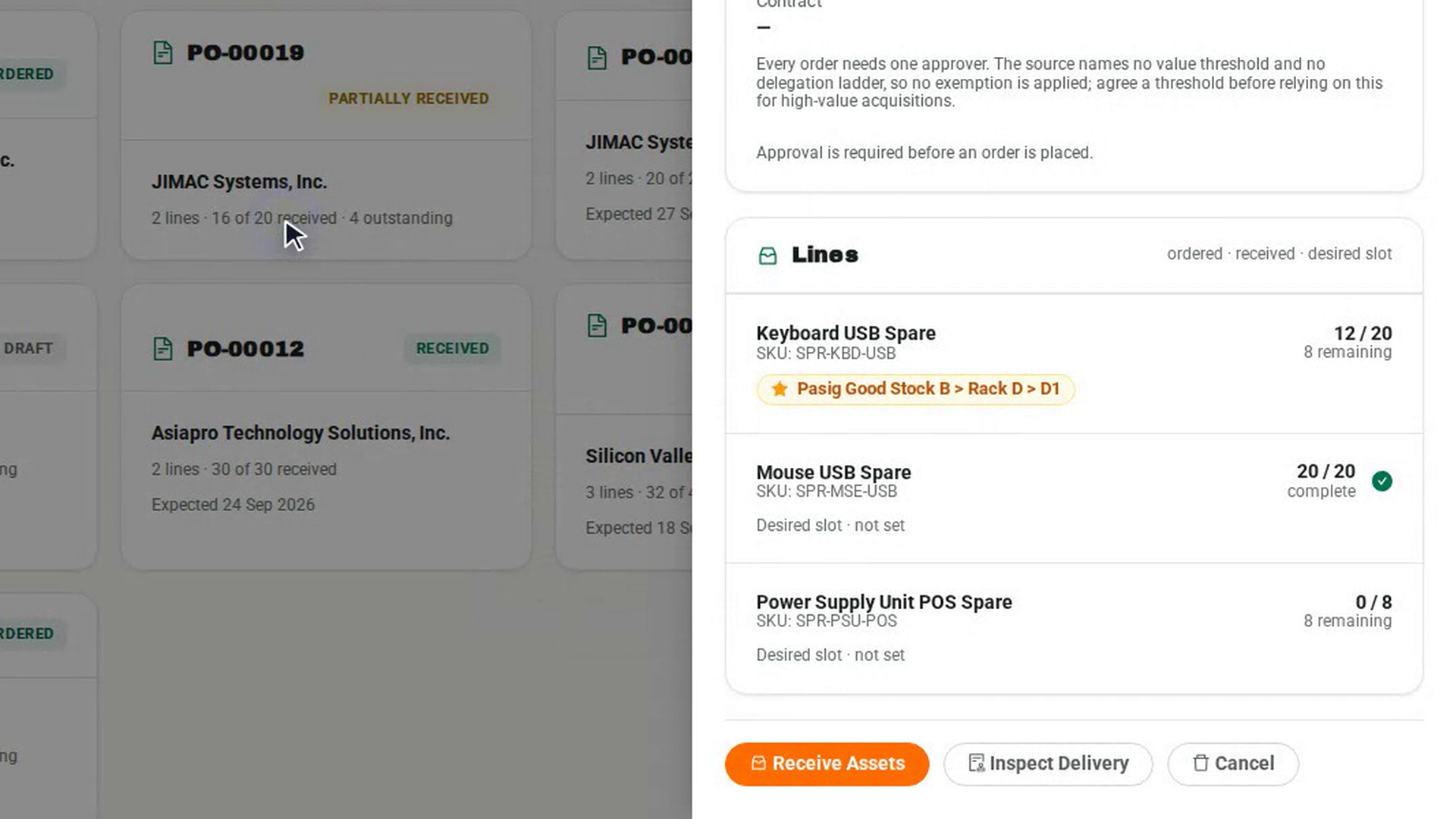
Under Lines, each line shows received out of ordered, and either how many are remaining or complete. The line's desired slot is shown as a suggestion, or Desired slot · not set.
Receive what arrived
On a placed order, select Receive Assets. In Receive against, each outstanding line starts with its remaining quantity. Adjust the quantity, confirm the ACTUAL SLOT the goods went into (select Put in to use the desired slot), then select Receive into stock. The order's status changes to Partially Received or Received.
Cancel what will not arrive
If the rest of the order will never come, select Cancel, then Cancel order. Stock already received stays where it is; only the outstanding balance is dropped.
Screenshots
Step 1: Open Receiving
Step 2: Record a new order
Step 3: Open the order
Step 4: Check each line
Step 5: Receive what arrived
Step 6: Cancel what will not arrive
Watch how
Tip: Receive Assets only counts quantities. To check a delivery for damage and register serial numbers, use Inspect Delivery instead. If a slot cannot hold everything, the dialog says how many fit and offers Find space for the rest.
Cancelling an order cannot be undone. Anything still outstanding is dropped.