Record maintenance on an asset
Record an issue with an asset, log the service work on a ticket, and keep the asset's service history. 7-Asset has no separate maintenance register or maintenance schedule. Maintenance is a ticket that names the asset, and the asset's Service tab lists those tickets as its history.
Before you start
- To raise the ticket, you need to be IT Service Operations, Asset Custodian or End User, Asset and Logistics Associate, Dedicated IT Warehouse Administrator or CDI Staff, IT Hardware Inventory Supervisor, or IT Business Systems or Application Team.
- To log the work and resolve the ticket, you need a role that can update tickets, such as IT Service Operations, IT Warehouse Technical Team or Dedicated IT Warehouse Administrator or CDI Staff.
- The asset must be in the register. Only tickets that name the asset appear in its service history.
Steps
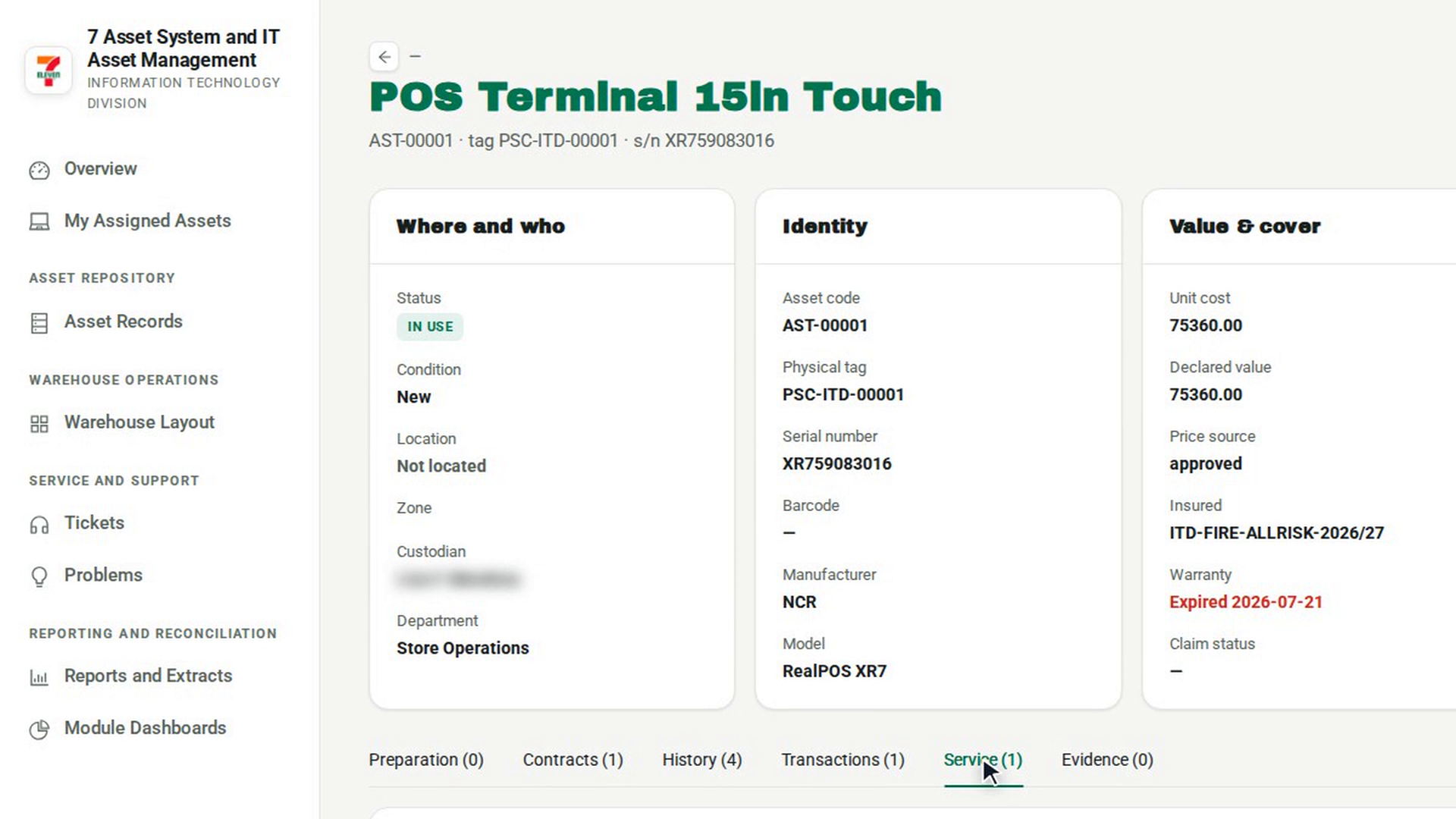
Check the asset's service history
In the sidebar, under Asset Repository, select Asset Records and open the asset. Open the Service tab. It lists earlier tickets for this asset with their status and resolution, or says No service history.
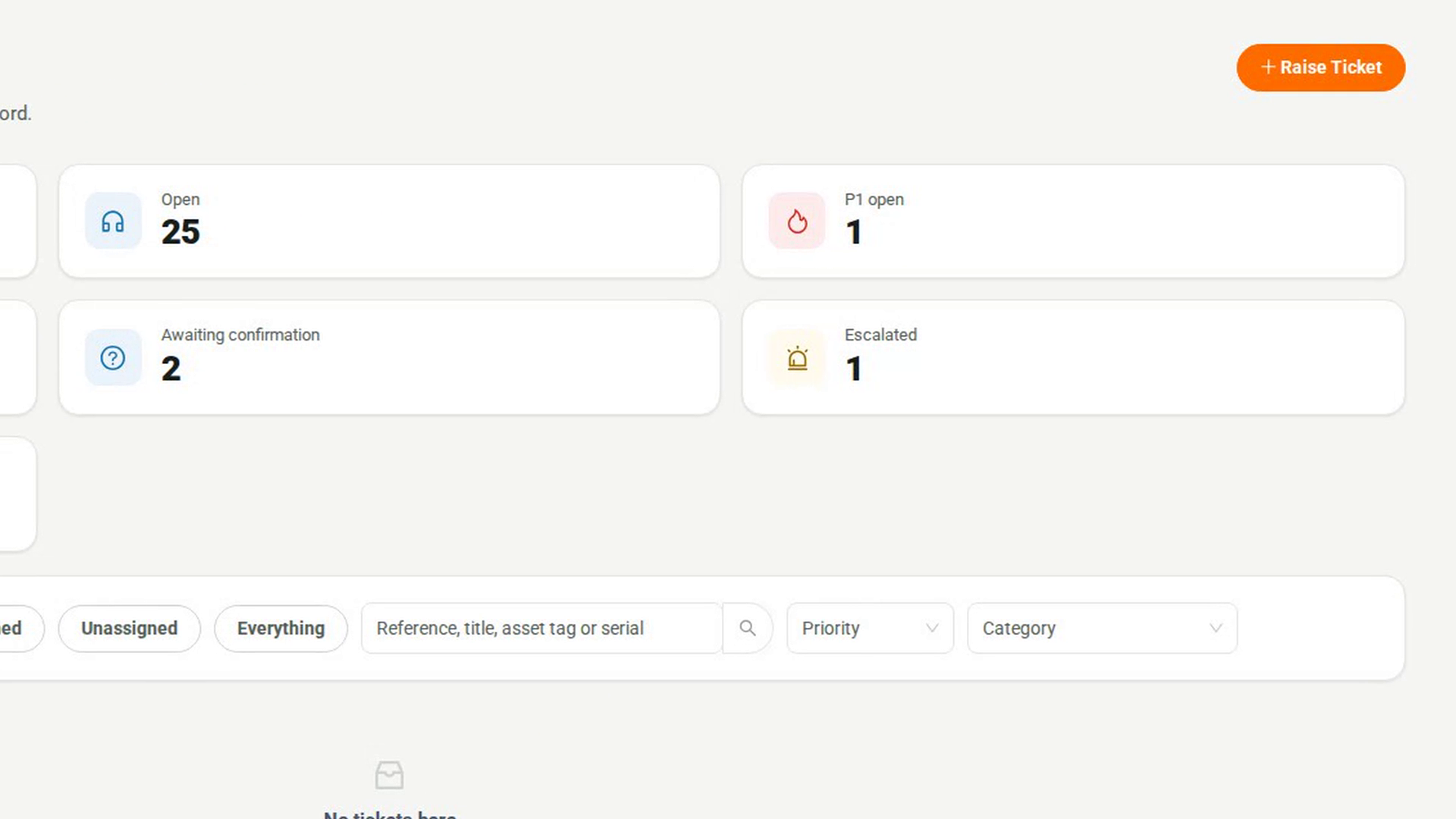
Raise a ticket for the issue
In the sidebar, under Service and Support, select Tickets, then Raise Ticket. Describe the issue in What is wrong? and choose the asset in Which asset is this about?. Choose Hardware Fault under Category if you know it. Select Raise ticket.
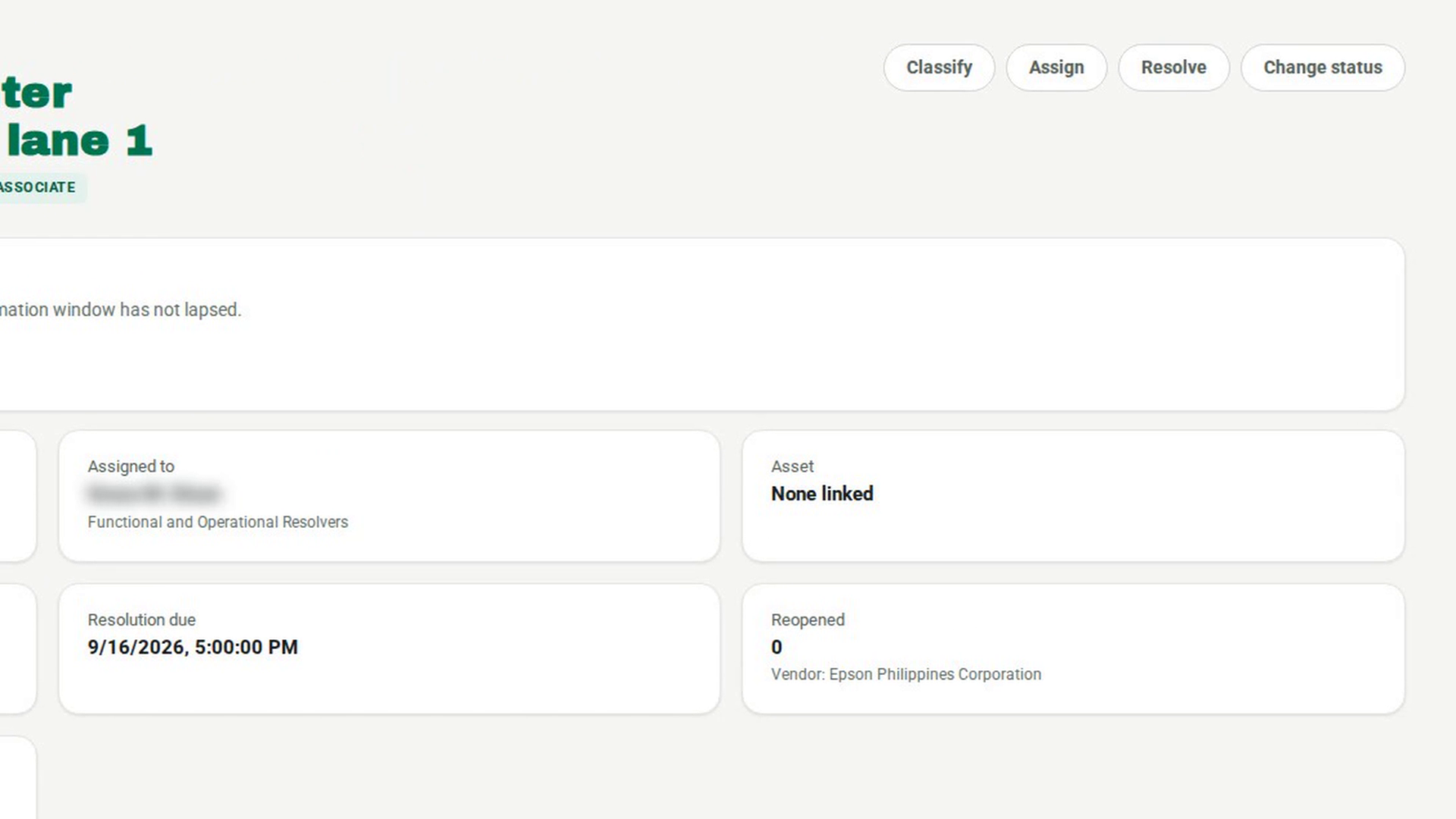
Start the service work
Open the ticket from Assigned to me or All open. Once it has been classified or assigned, select Change status, choose In Progress, and select Update. In Progress is not offered while the ticket is still New.
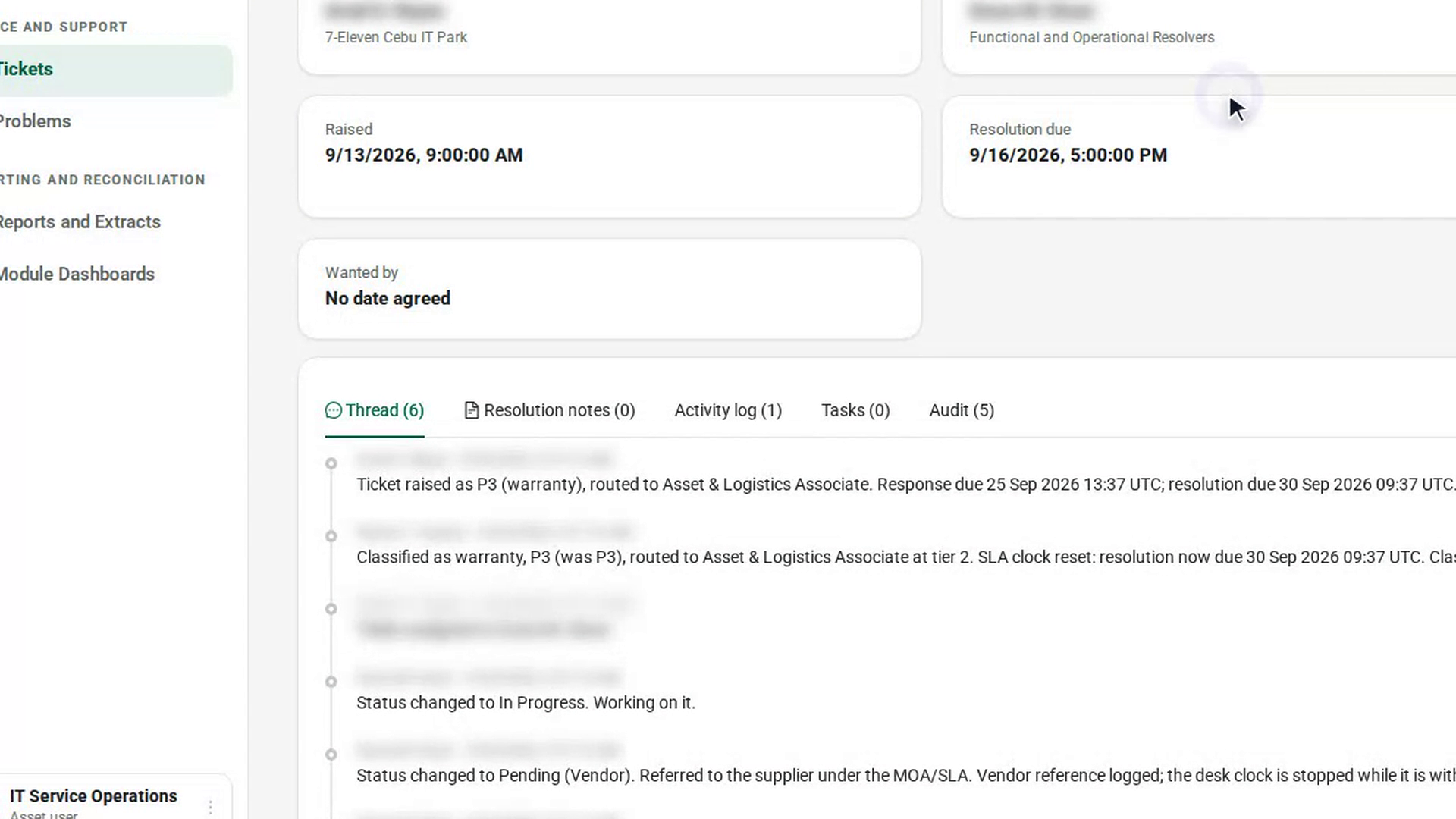
Log what you did
Open the Activity log tab and select Add note. In Add a note, give the note a Title and describe the work in Details, then select Add note. Use the Resolution notes tab the same way for the final fix.
Resolve the ticket
Select Resolve. Choose a Resolution such as repaired or no fault found, describe What was done, and select Mark resolved.
Confirm the history on the asset
Go back to the asset in Asset Records and open the Service tab. The ticket is listed with its reference, title, status and resolution. Select it to open the ticket.
Screenshots
Step 1: Check the asset's service history
Step 2: Raise a ticket for the issue
Step 3: Start the service work
Step 4: Log what you did
Step 5: Resolve the ticket
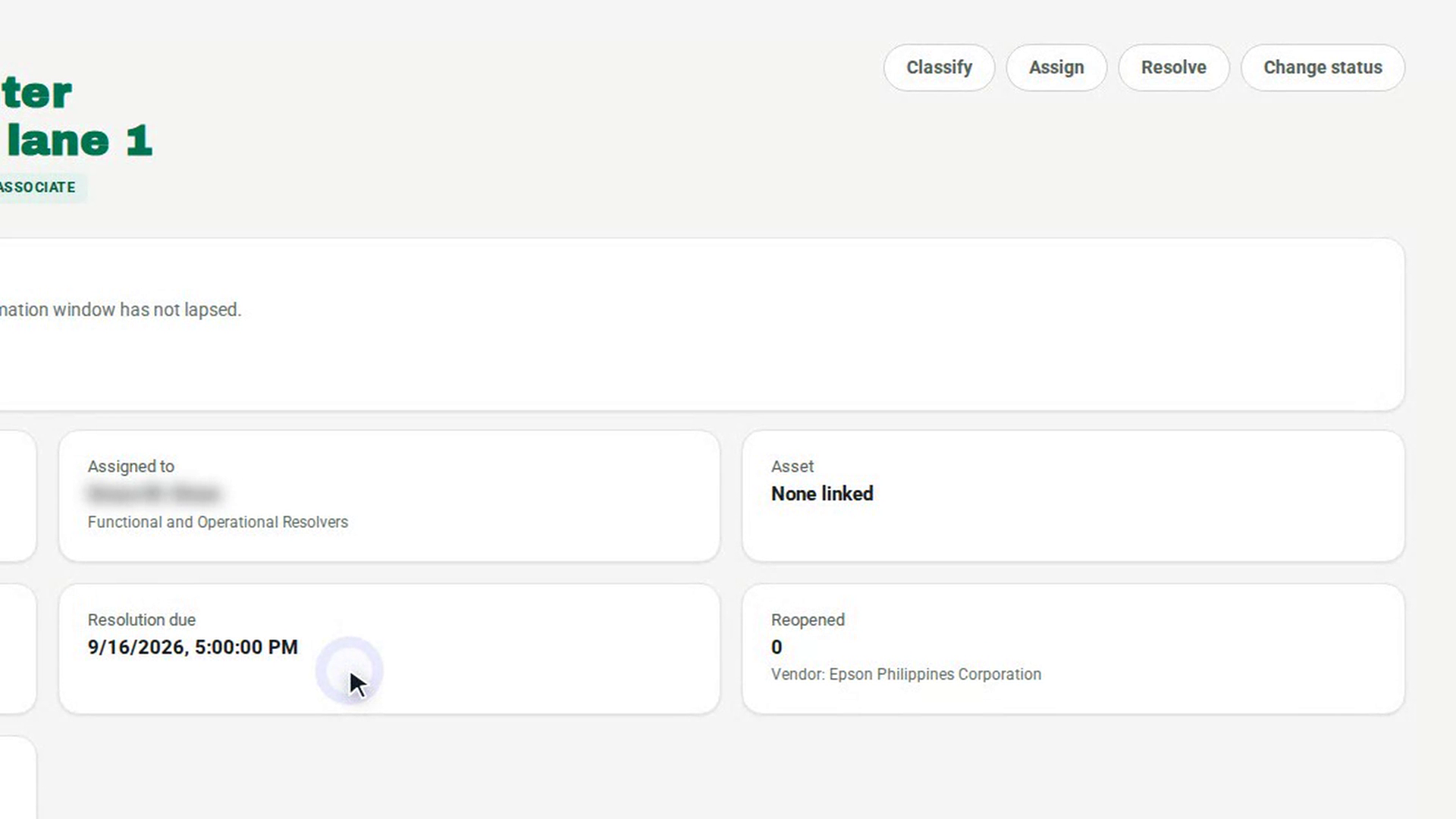
Step 6: Confirm the history on the asset
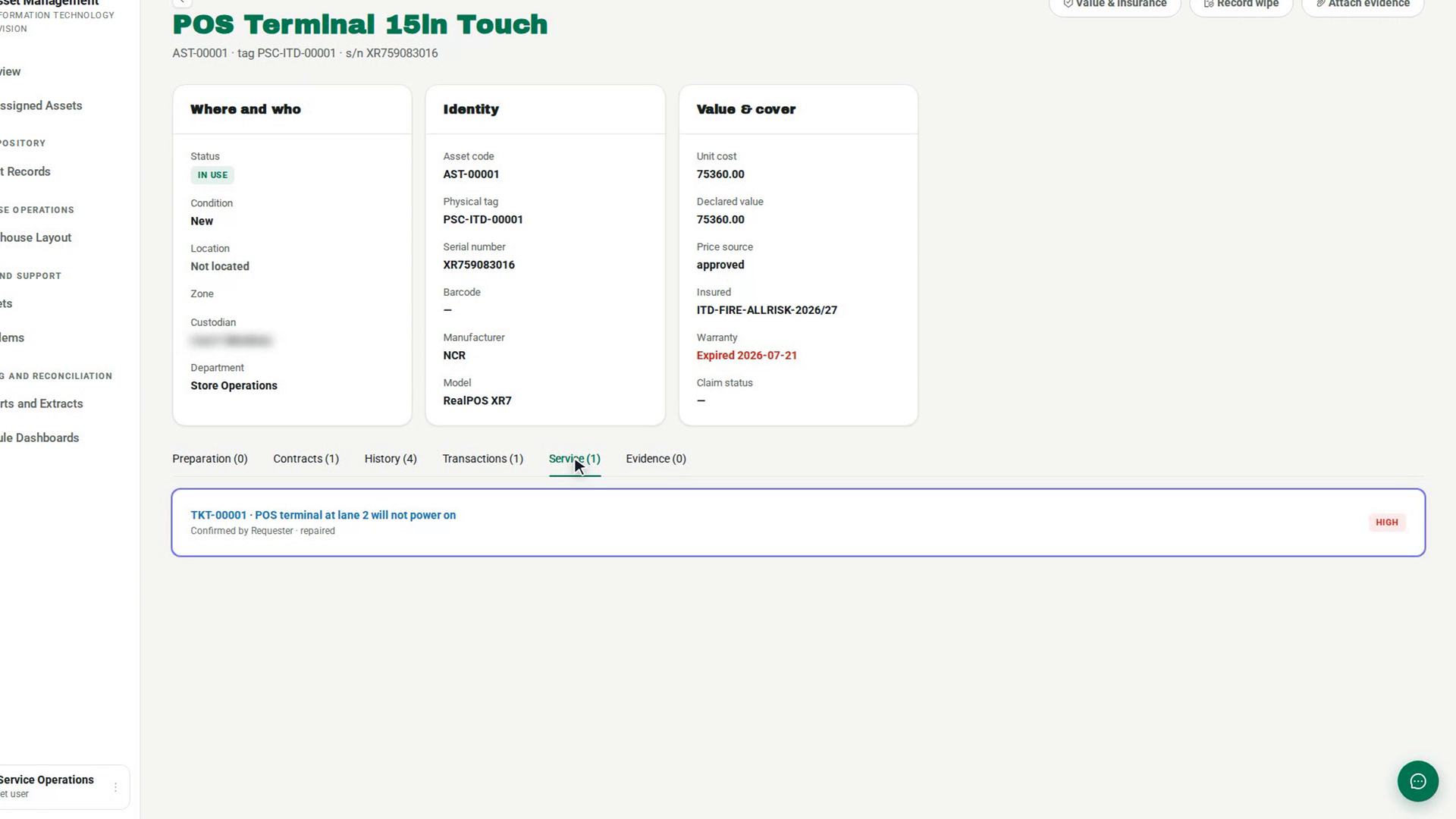
Watch how
A Hardware Fault ticket cannot close until a return or pullout is recorded against the asset. Record the approved transaction on Asset Transactions, then link it with Link the asset transaction on the ticket.
Tip: The ticket records the issue and the work. It does not change the asset's status or location. If the asset has to go to the bench or be repaired off site, record that as its own transaction or preparation.