Deploy an asset to its user
Deploying hands an approved allocation over to the person who will use it. You release it from the warehouse, it travels in transit, and it becomes theirs on the record only when they accept it.
Before you start
- To release you need to be a Dedicated IT Warehouse Administrator or CDI Staff, Asset and Logistics Associate, IT Hardware Inventory Supervisor, or IT Business Systems or Application Team.
- The allocation must be Approved by someone other than the person who prepared it. An allocation needs an independent approval and a destination acknowledgment.
- Have the asset in hand, and know who is carrying it to the user.
Steps
Find the approved allocation
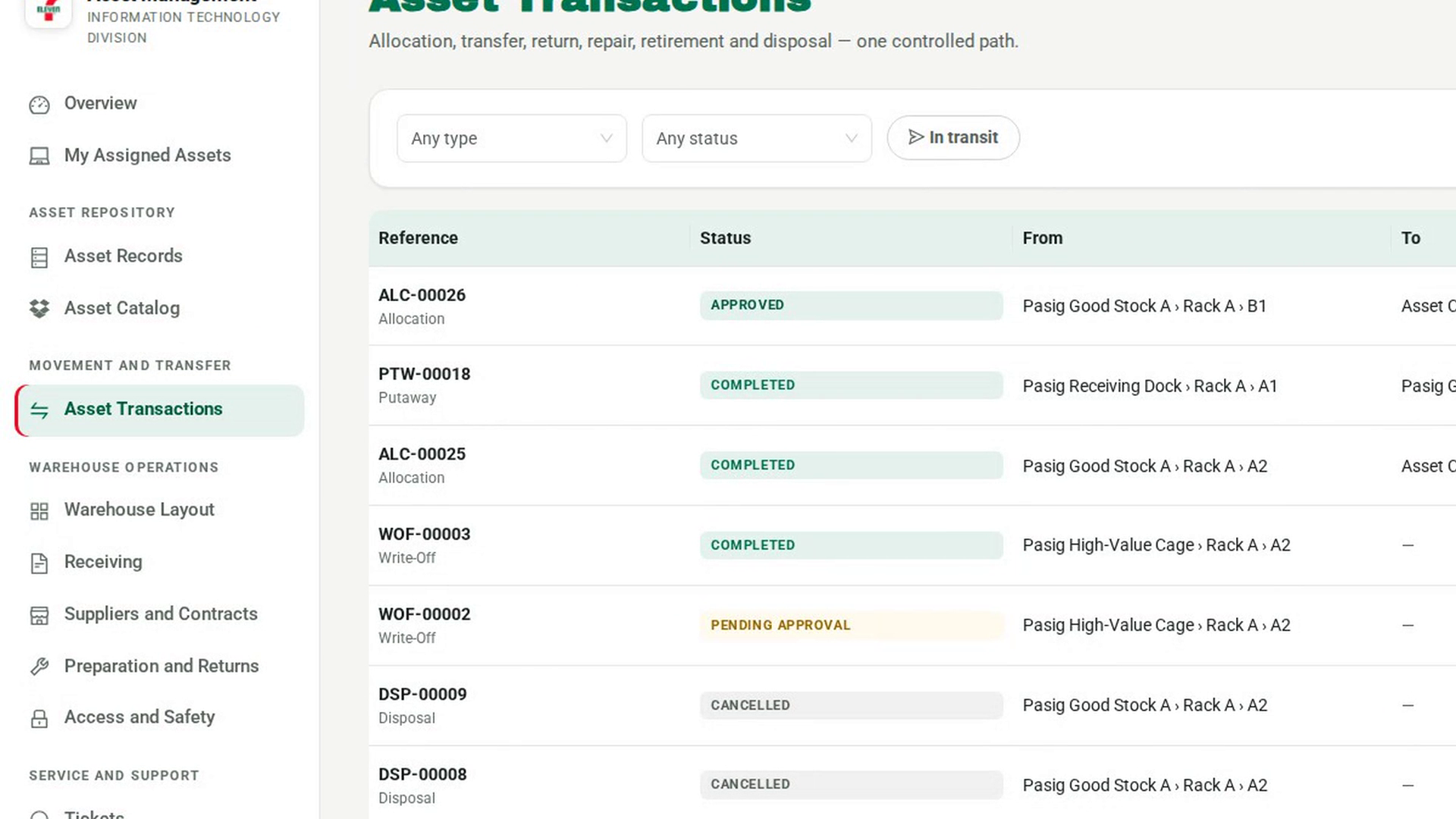
In the sidebar, under Movement and Transfer, select Asset Transactions. Set the type filter to Allocation and the status filter to Approved, then select the allocation to open it.
Check what you are handing over
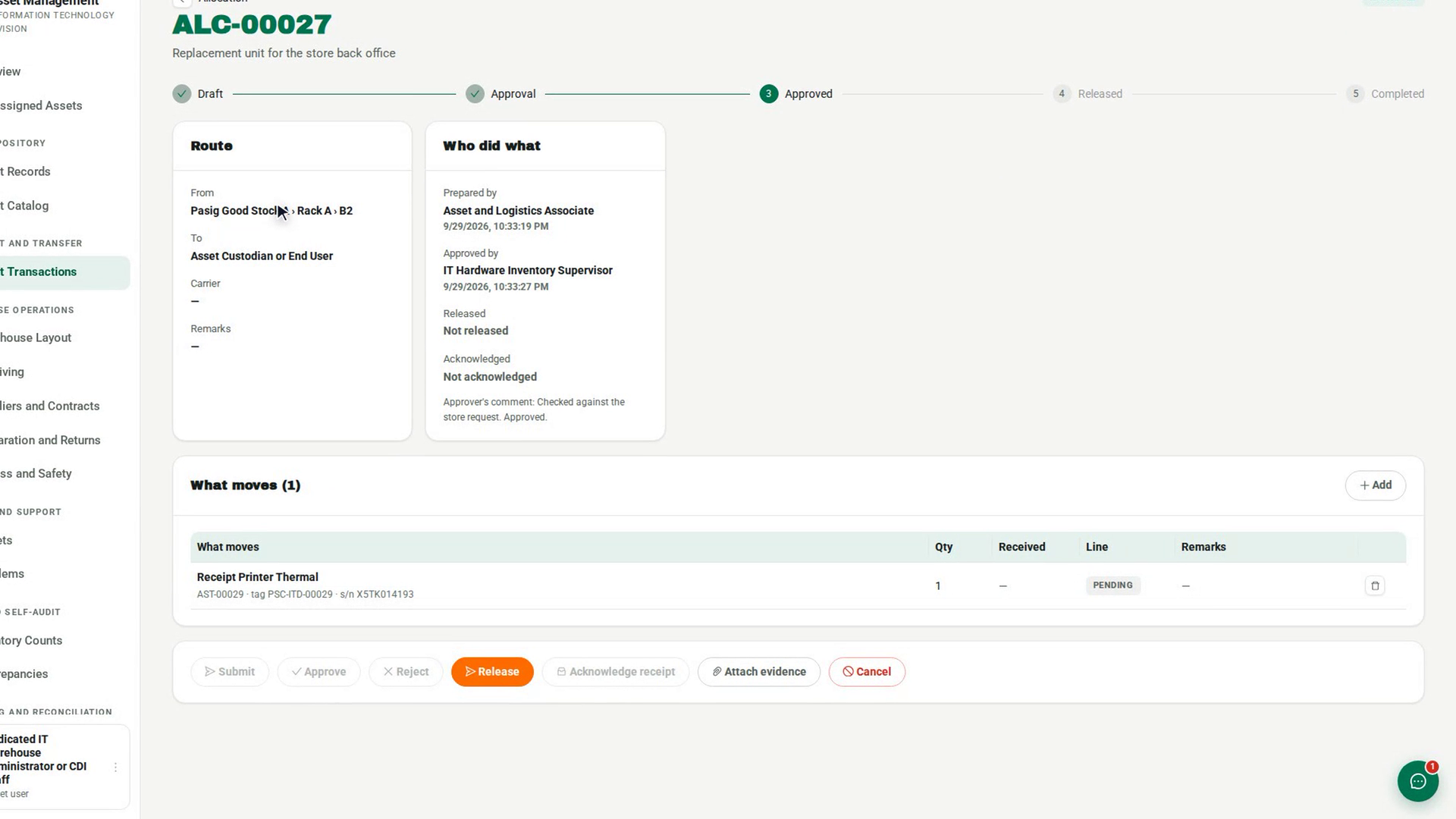
Compare the asset in your hands with What moves, and check Route and Who did what. Approved by names the approver.
Release it
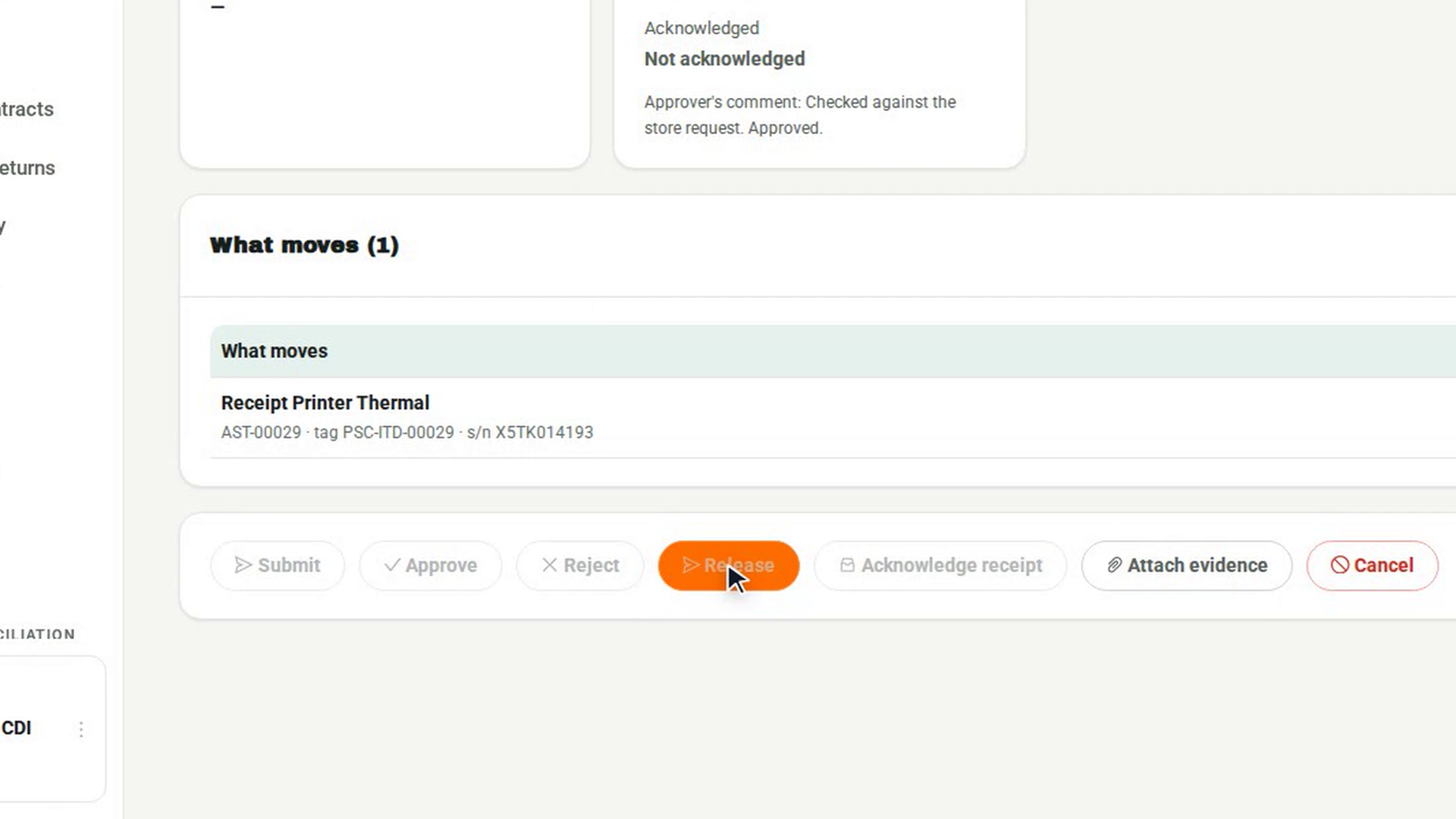
Select Release. The release dialog explains that the assets become in transit until the destination acknowledges them.
Record the handover
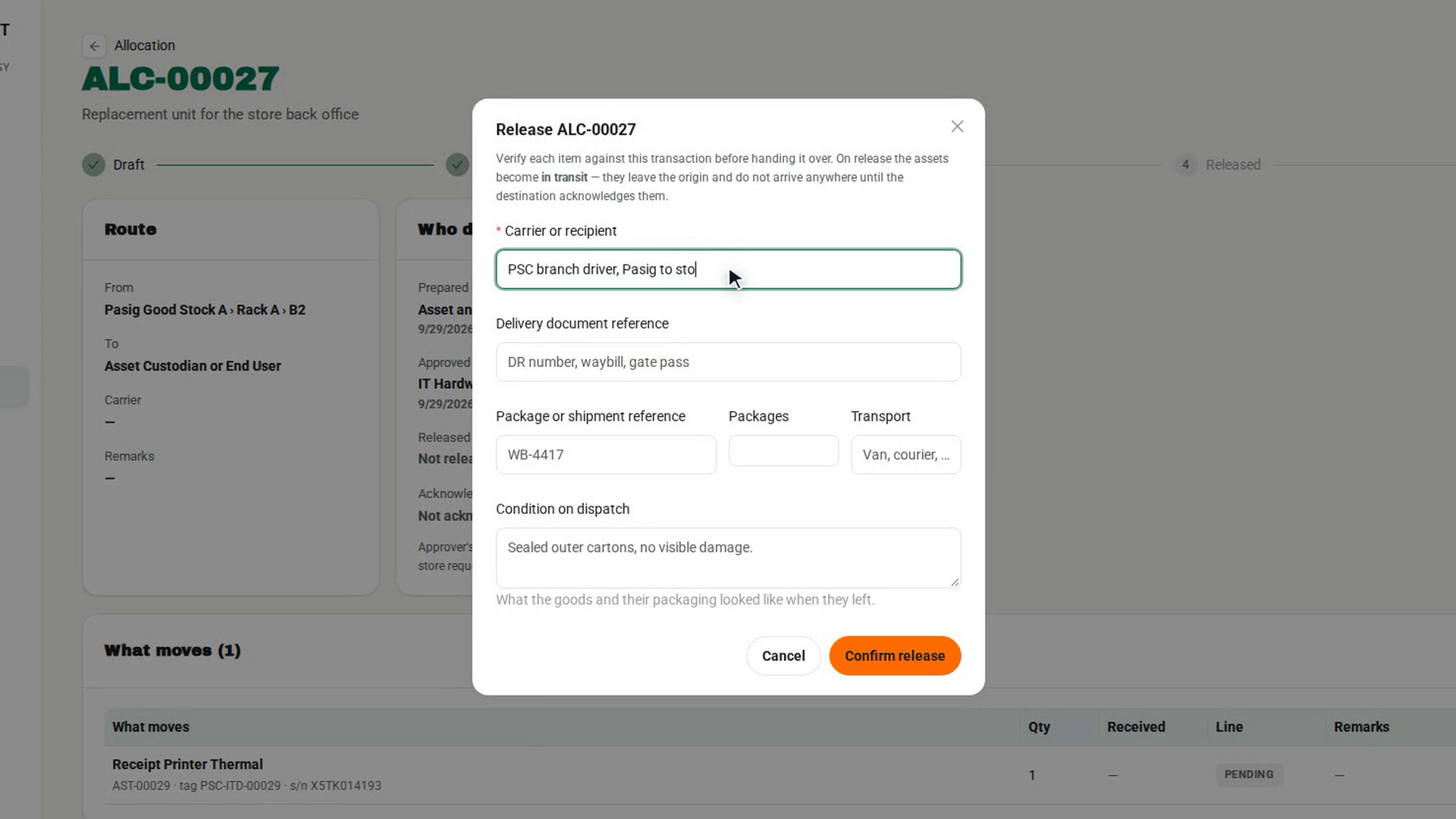
Fill in Carrier or recipient, which is required. Add the Delivery document reference, the Package or shipment reference, Packages, Transport and Condition on dispatch if you have them, then select Confirm release. The status changes to Dispatched.
Have the user accept it
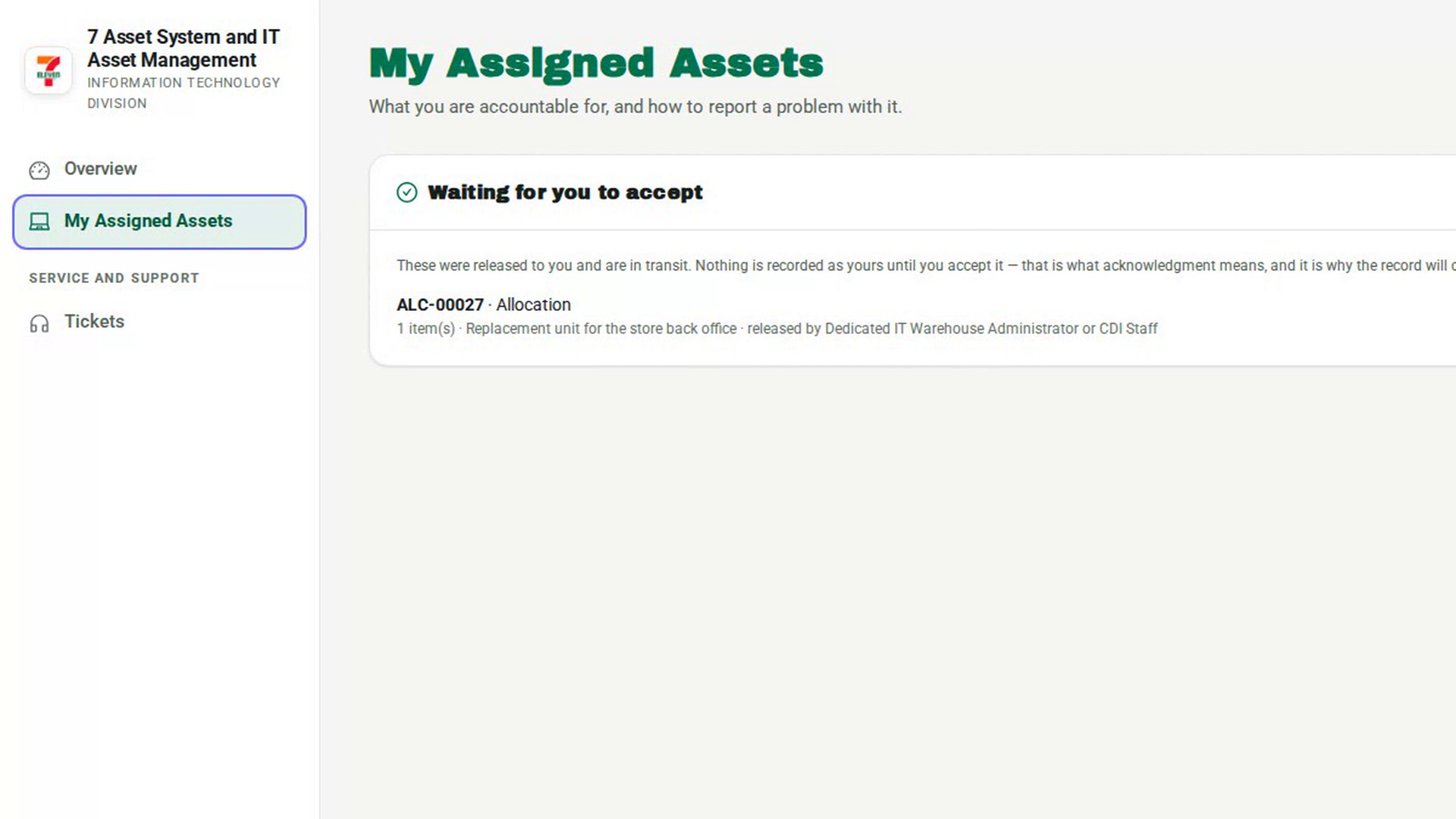
The user signs in, opens My Assigned Assets, and under Waiting for you to accept selects the Accept button that carries the transaction reference. The asset is then recorded as In Use and held by them.
Screenshots
Step 1: Find the approved allocation
Step 2: Check what you are handing over
Step 3: Release it
Step 4: Record the handover
Step 5: Have the user accept it
Watch how
Tip: Between release and acceptance the asset has no location. It is not in the warehouse and not yet with the user, and the record says so. Use the In transit filter on Asset Transactions to see what is still on its way.
Once released, an allocation can no longer be edited. If the delivery goes wrong, the destination rejects the line or the transaction is cancelled with a reason, and a discrepancy is opened to find the asset.