Reconcile warehouse records with the system
The warehouse keeps its own stock sheet. Reconciling it means importing that sheet, comparing it row by row with 7-Asset, and recording what was established about each difference. 7-Asset is the authorized register: the imported sheet never changes it.
Before you start
- To import an extract and run the comparison you need to be an Asset and Logistics Associate, IT Hardware Inventory Supervisor, or IT Business Systems or Application Team.
- To resolve differences you need to be an IT Hardware Inventory Supervisor or IT Business Systems or Application Team.
- To sign the reconciliation you need to be IT Service Governance or IT Business Systems or Application Team.
- Have the warehouse's stock sheet ready, with its cutoff date. Each row needs a tag, a serial or at least a description.
Steps
Open Warehouse Records
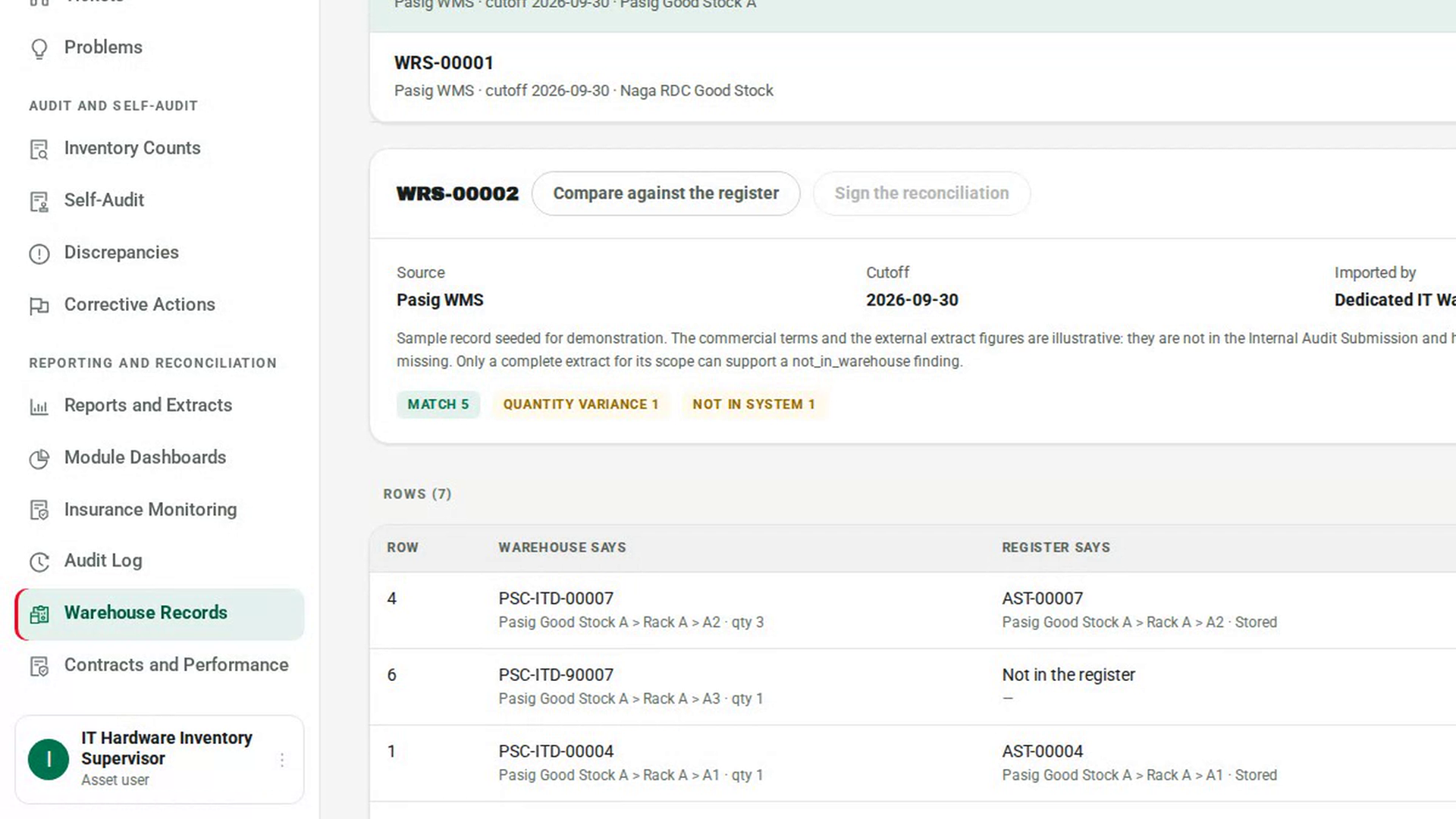
In the sidebar, under Reporting and Reconciliation, select Warehouse Records.
Import the warehouse extract
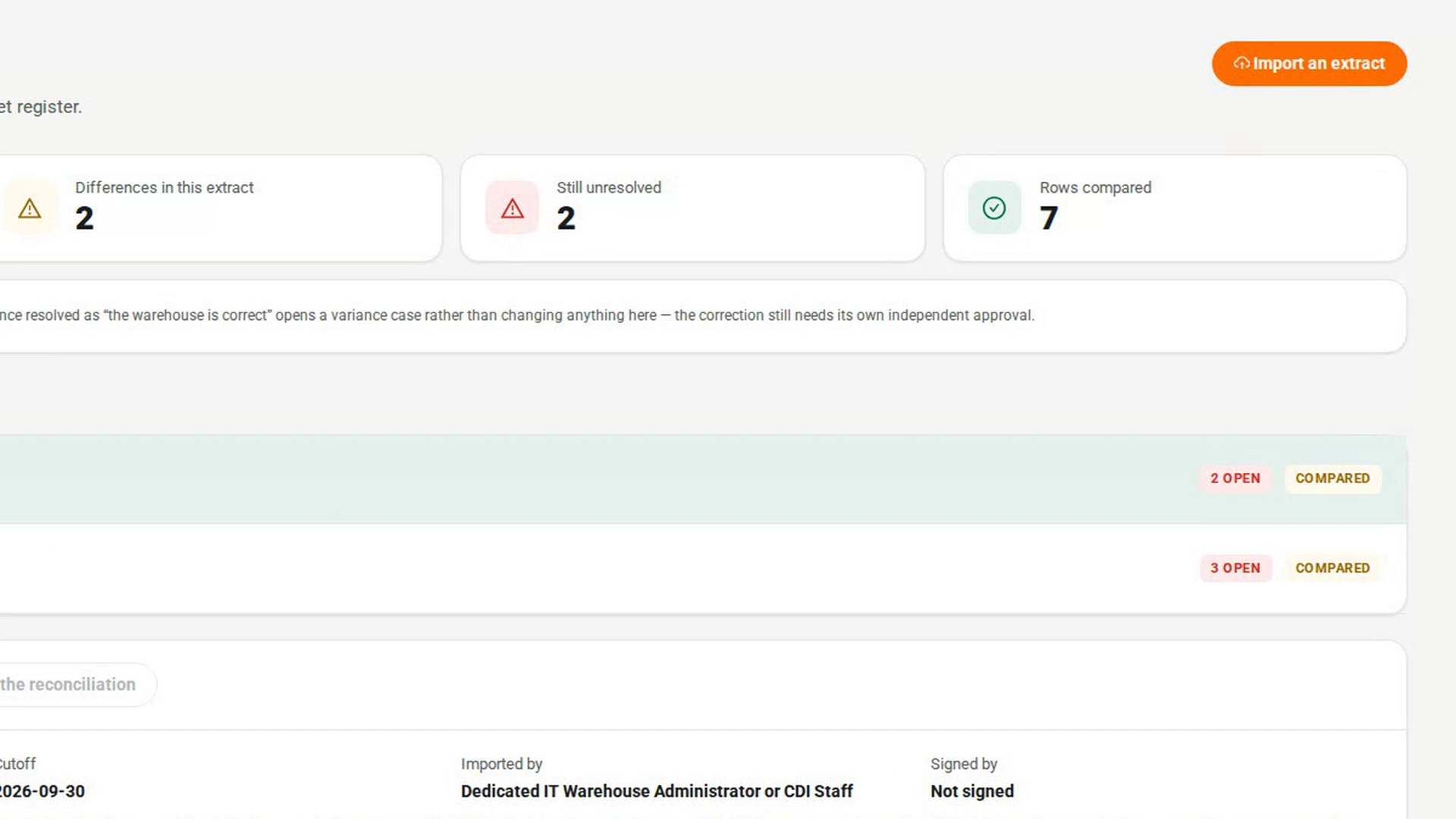
Select Import an extract. In the Import a warehouse extract dialog, fill in Which system is this from and the Cutoff (YYYY-MM-DD), and choose the Area covered. Leave Complete for its scope on only if the sheet lists everything in that area. Paste the rows into Rows, one per line: tag, serial, description, location, quantity. Confirm the dialog.
Compare it against the register
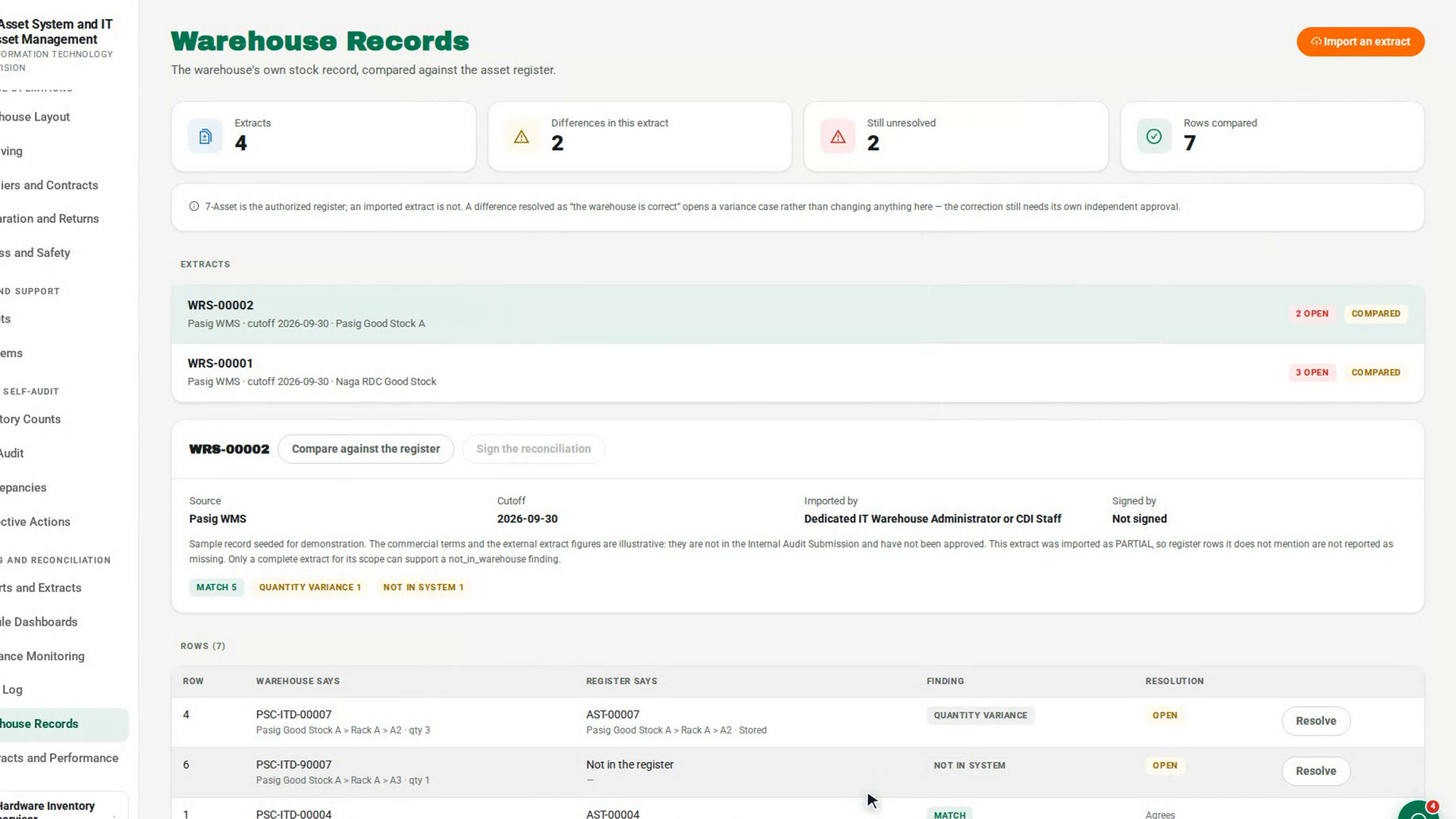
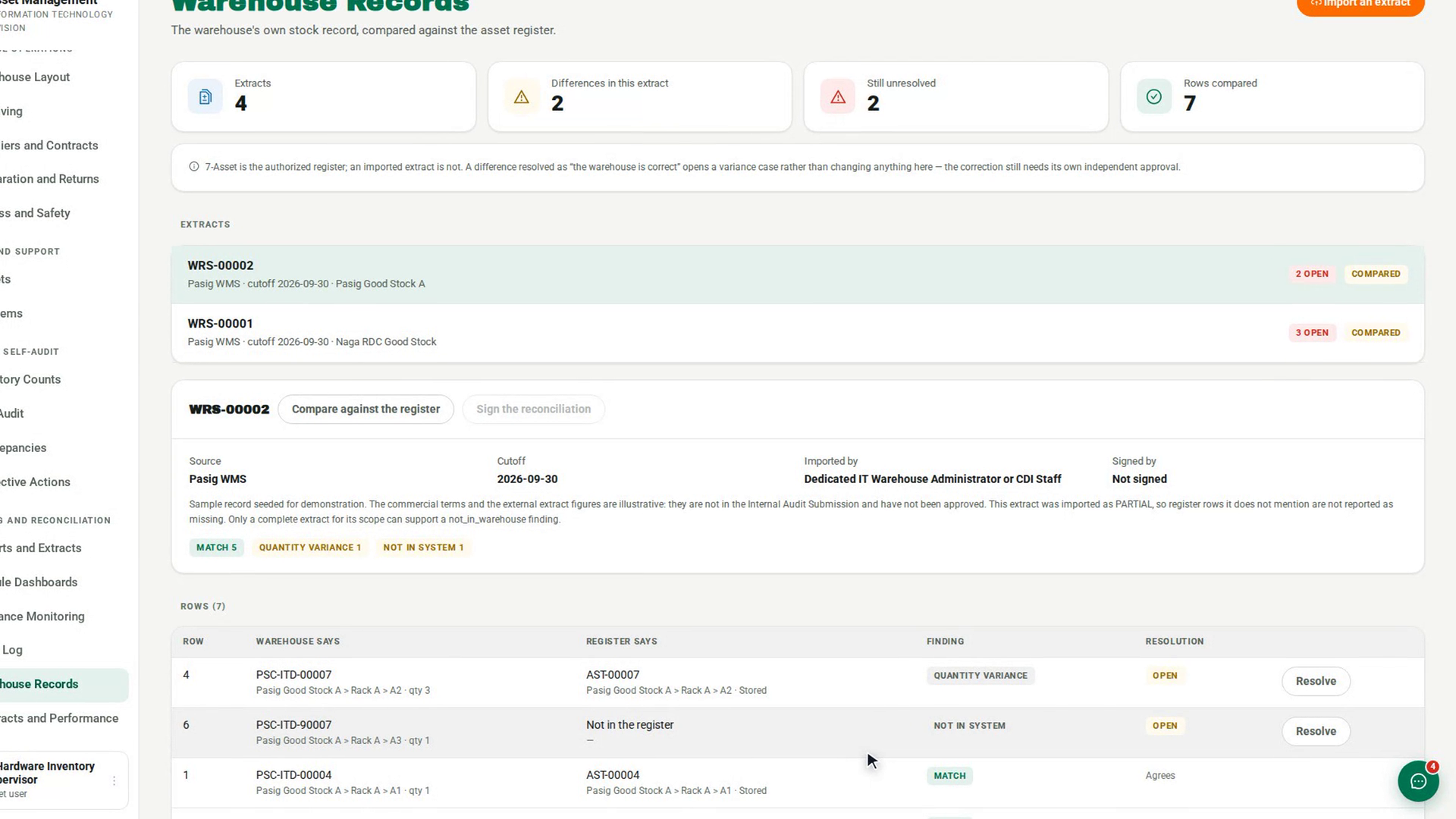
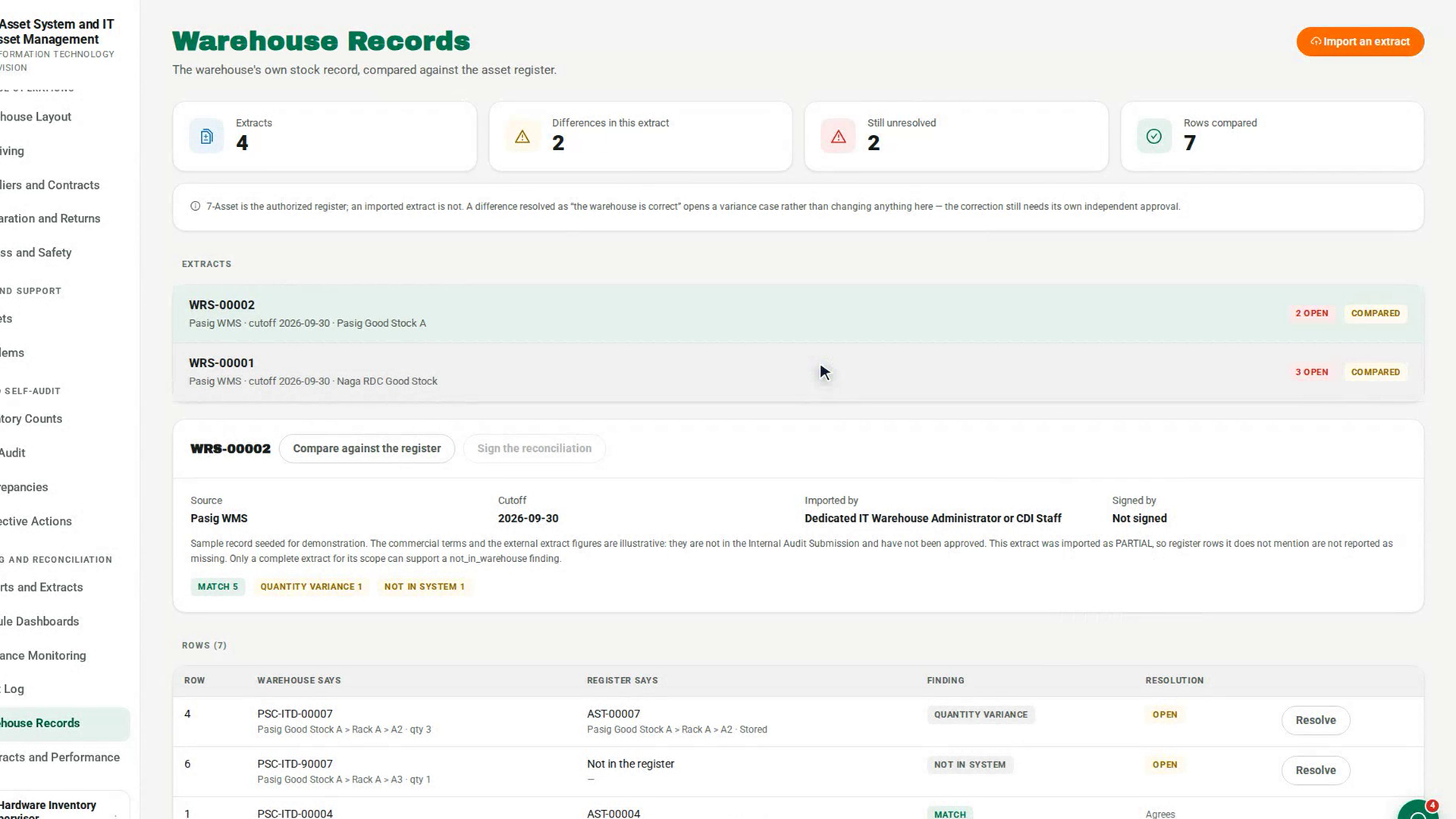
Under Extracts, select the extract you imported, then select Compare against the register. Each row gets a Finding, and chips above the table count each kind, such as Quantity variance, Location variance or Not in system.
Resolve each difference
In the Rows table, select Resolve on a row. In the Resolve a difference dialog, choose What was established — Register is correct, Warehouse is correct, Timing difference or Accepted as immaterial — and explain it in Notes. Confirm the dialog.
Sign the reconciliation
When Still unresolved shows zero, the signer selects Sign the reconciliation, adds Review notes and confirms. Signed by shows their name.
Screenshots
Step 1: Open Warehouse Records
Step 2: Import the warehouse extract
Step 3: Compare it against the register
Step 4: Resolve each difference
Step 5: Sign the reconciliation
Watch how
Tip: Choosing Warehouse is correct does not change 7-Asset. It opens a variance case, and the correction still needs its own independent approval on Discrepancies.
Signing is refused while any difference is still open. Hover over Sign the reconciliation to see how many lines are still unresolved.
Turn off Complete for its scope for a partial sheet. A partial extract cannot support a Not in warehouse finding, so register items it does not mention are not reported as missing.