Handle a warranty claim
Check that a faulty asset is still under warranty, record the warranty decision, and track the claim with the supplier as a ticket. 7-Asset has no separate warranty claim register. The claim lives on a ticket in the Warranty category.
Before you start
- To classify the returned asset, you need to be Asset and Logistics Associate, IT Warehouse Technical Team, Dedicated IT Warehouse Administrator or CDI Staff, IT Hardware Inventory Supervisor, or IT Business Systems or Application Team.
- Asset and Logistics Associate can raise the ticket but not work it. Changing its status, resolving it and linking the asset change need a role that can update tickets, such as IT Service Operations, IT Warehouse Technical Team or Dedicated IT Warehouse Administrator or CDI Staff.
- The asset must have the status Returned, or be on the Preparation bench.
Steps
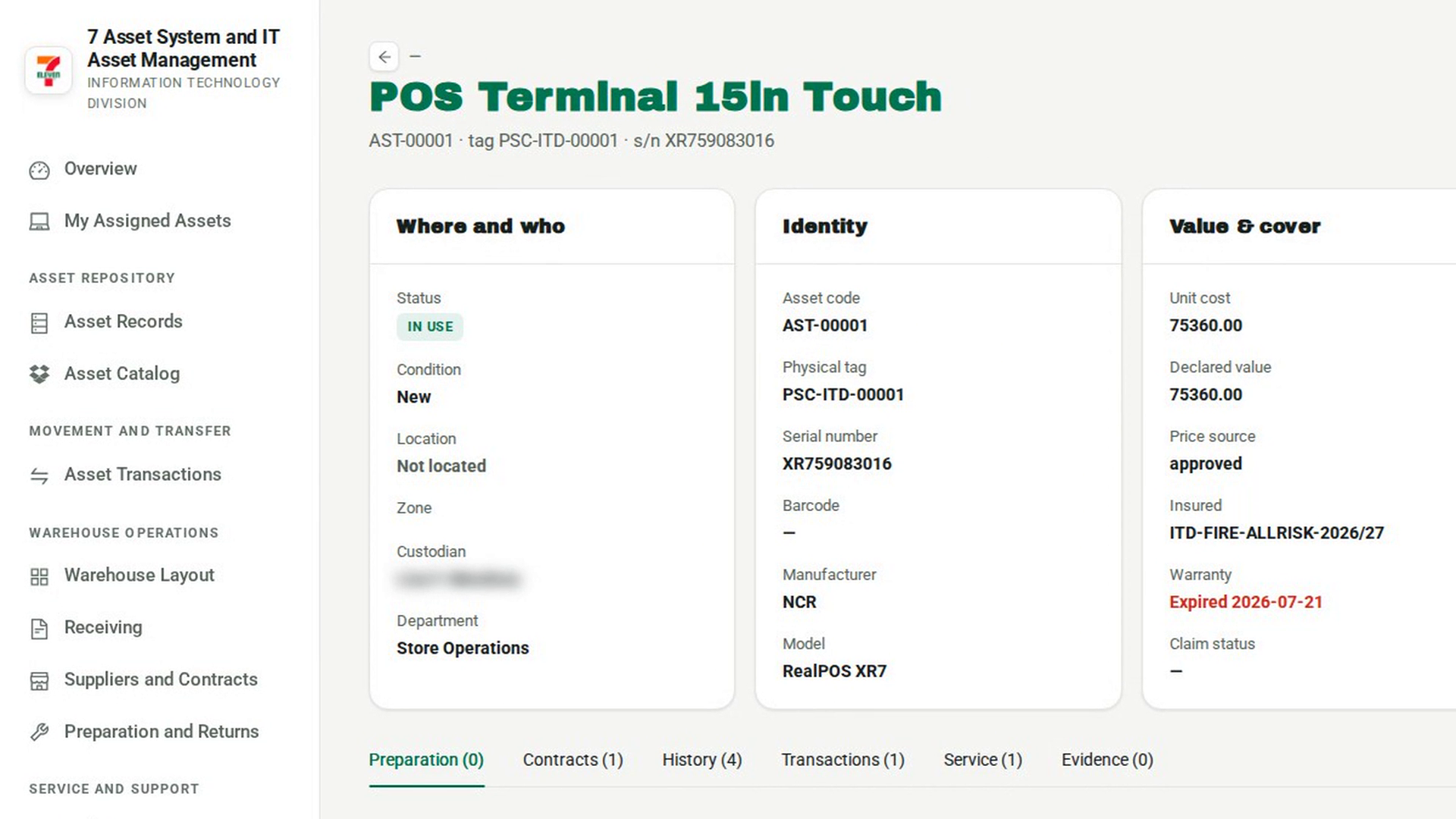
Check the warranty cover
In the sidebar, under Asset Repository, select Asset Records and open the asset. In the Value & cover card, Warranty shows the end date and the days remaining, Expired with the date, or Not recorded. The Contracts tab lists any agreement that covers the asset.
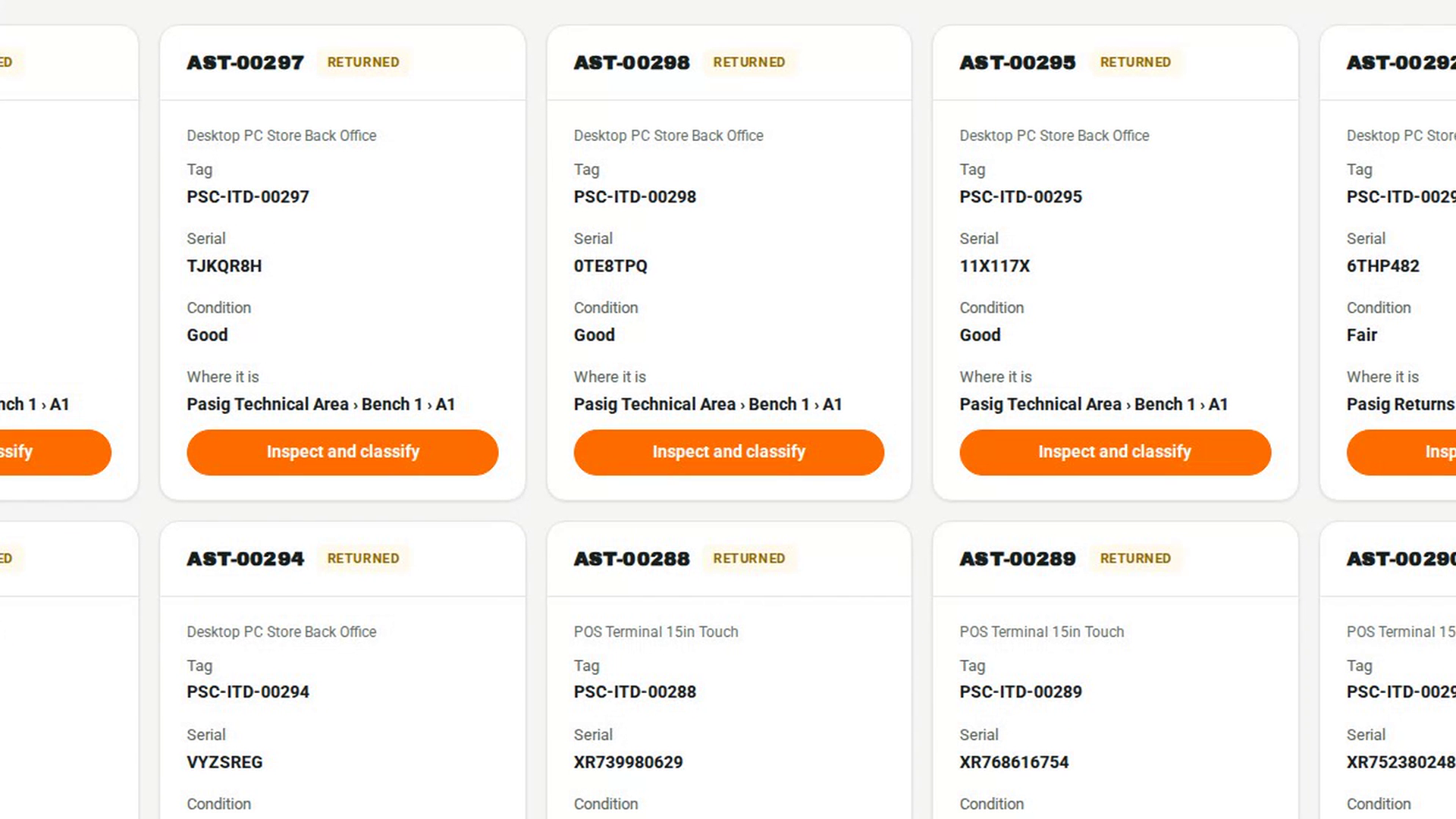
Record the warranty decision
In the sidebar, under Warehouse Operations, select Preparation and Returns. On the Returns tab, select Inspect and classify and choose Warranty — held in Defective. Write your reason in Why and select OK. If the fault was found on the bench instead, select Conclude on the preparation card and choose Warranty claim.
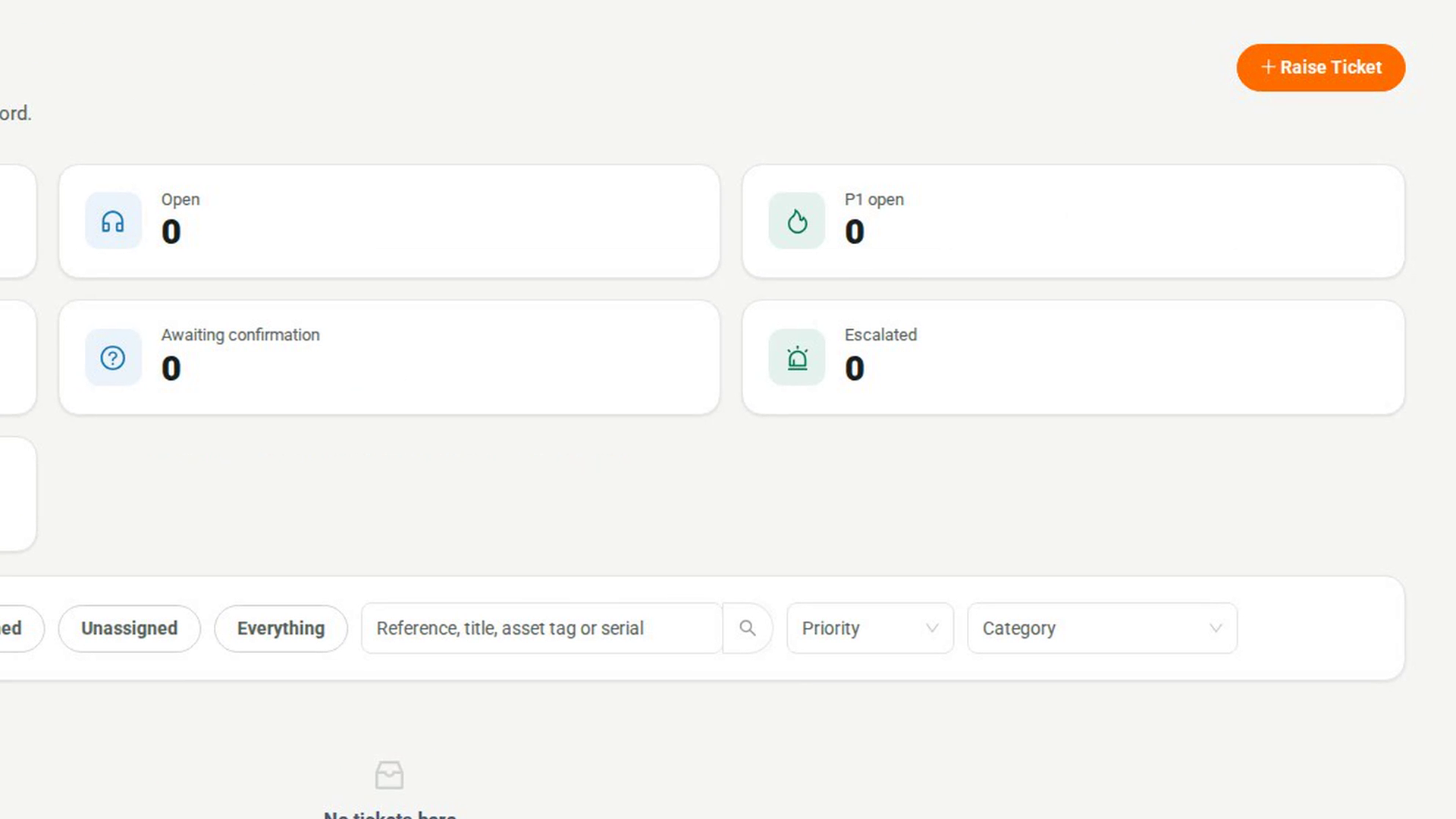
Raise the warranty ticket
In the sidebar, under Service and Support, select Tickets, then Raise Ticket. Describe the fault in What is wrong?, choose Warranty under Category, pick the asset in Which asset is this about? and select Raise ticket. The ticket is routed to the Asset & Logistics Associate group.
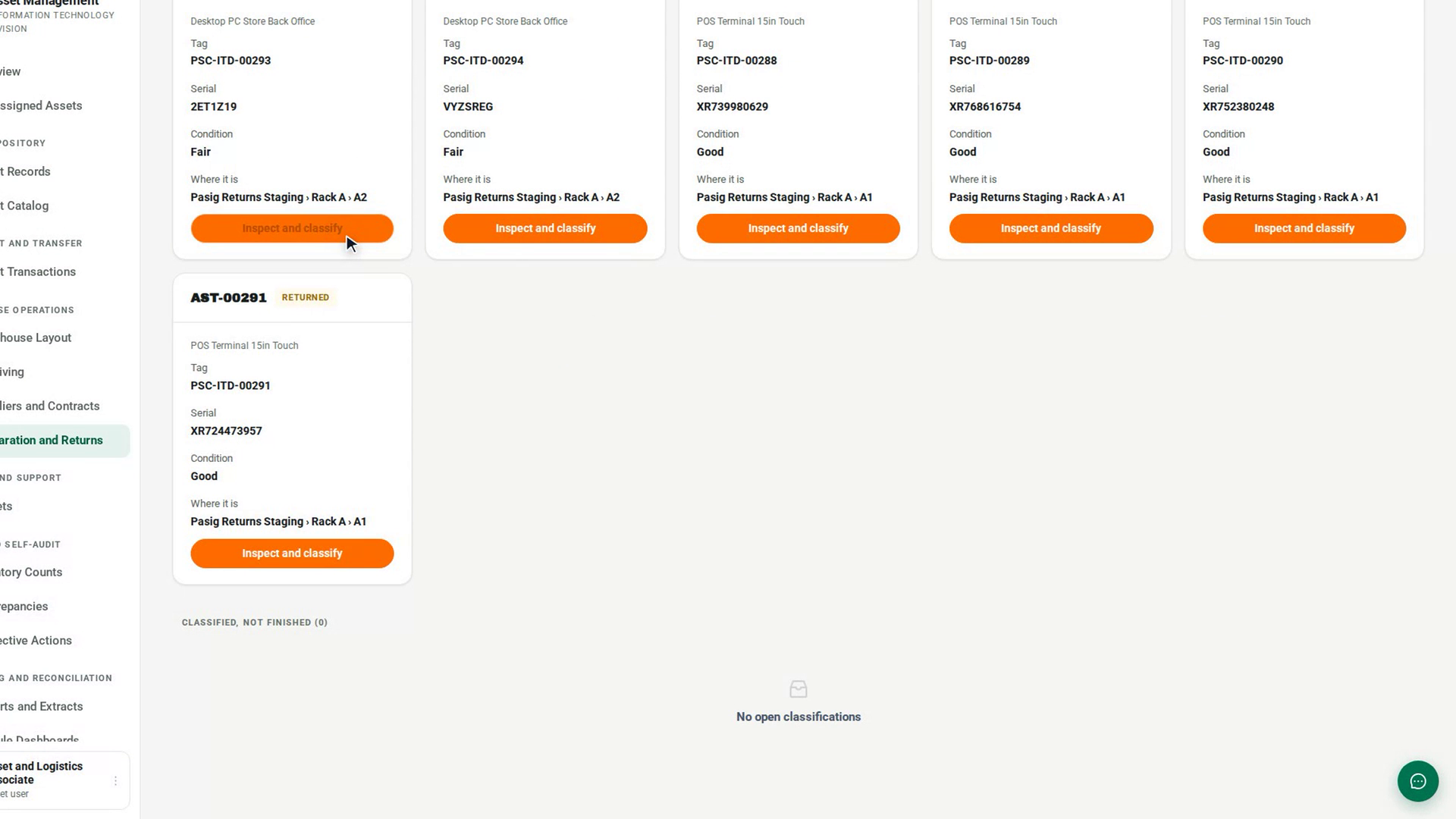
Link the ticket to the classification
Back on the Returns tab, under Classified, not finished, select Link the follow-up, enter the ticket's id in Ticket id and select OK. After you Record where it went, you can Close the classification.
Wait on the supplier
While the supplier has the claim, open the ticket, select Change status and choose Pending (Vendor). A remark is required. The SLA chip shows Clock stopped while the ticket waits.
Resolve and link the asset change
When the supplier has repaired or replaced the unit, select Resolve on the ticket and choose a Resolution. A warranty ticket needs a repair return recorded against the asset before it can close. Select Link the asset transaction in the This ticket cannot be closed yet. panel and enter the approved transaction.
Screenshots
Step 1: Check the warranty cover
Step 2: Record the warranty decision
Step 3: Raise the warranty ticket
Step 4: Link the ticket to the classification
Step 5: Wait on the supplier
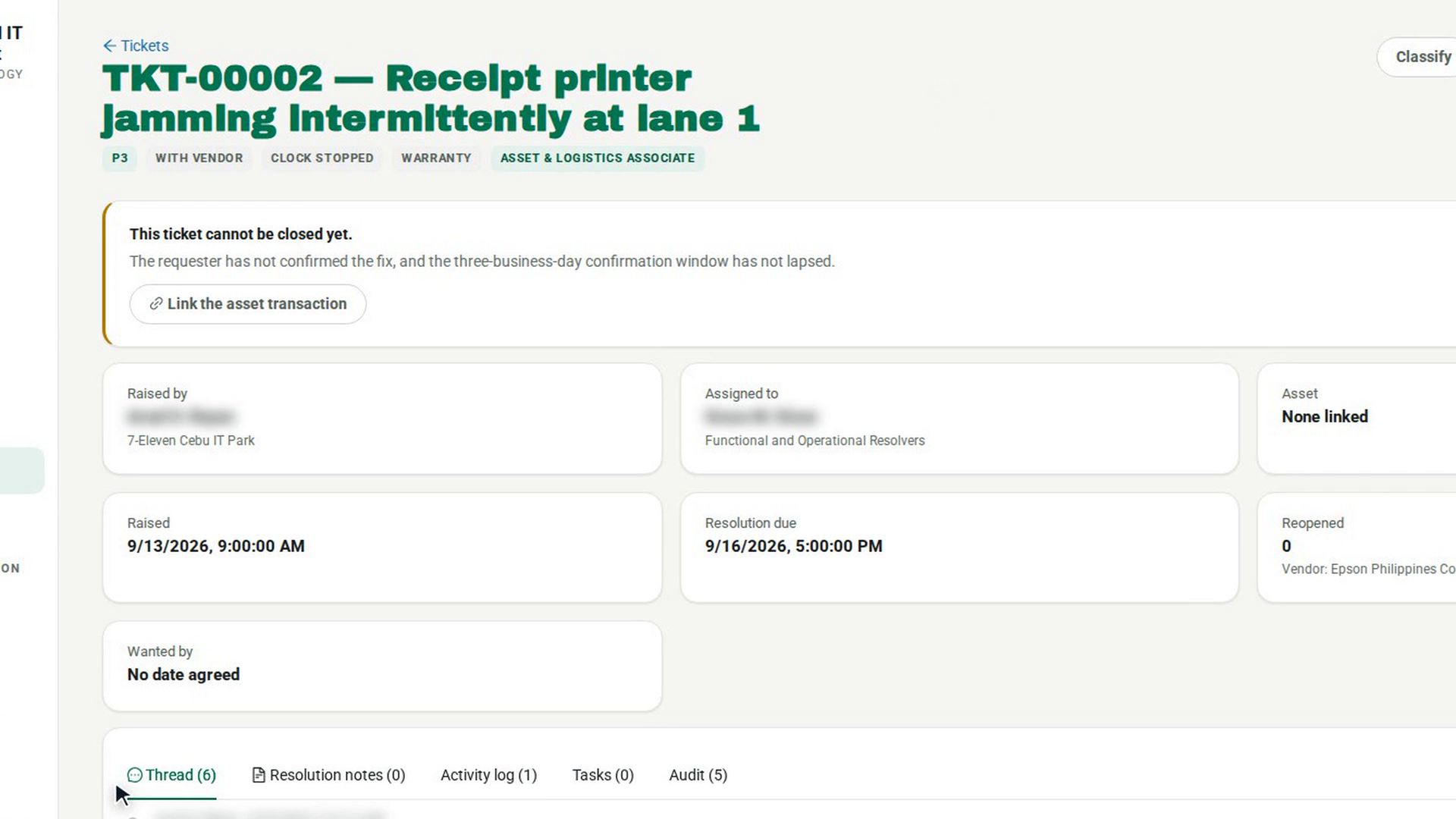
Step 6: Resolve and link the asset change
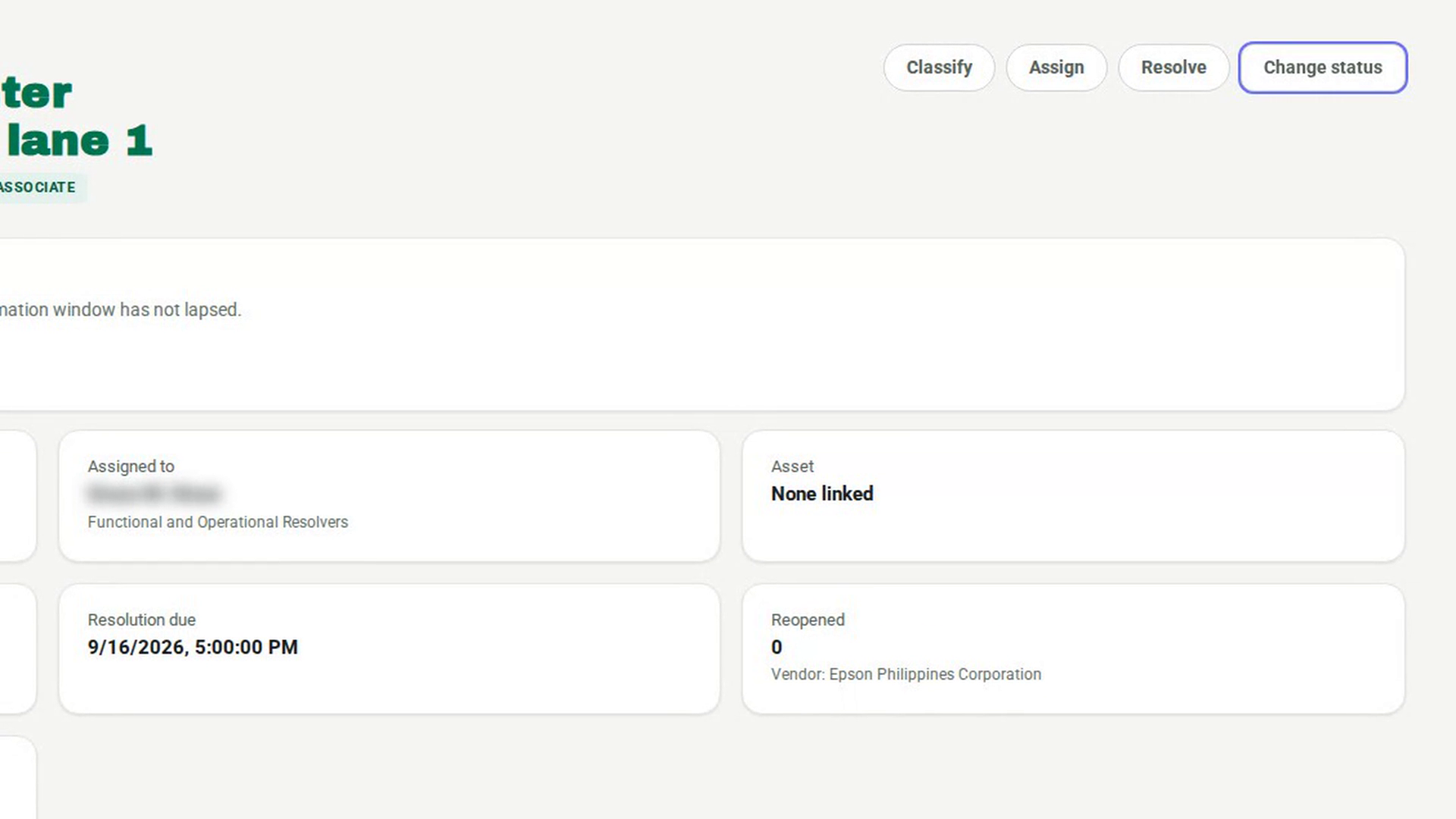
Watch how
Tip: Claim status on the asset record is not updated by the ticket. It changes only when the record itself is updated, for example through a bulk load. Follow the claim on the ticket's thread and status.
Tip: The warranty case counts on Suppliers and Contracts only include tickets that name the supplier. The Raise a ticket dialog has no supplier field.