Acknowledge receipt of an asset
When something is released to you, it stays in transit until you acknowledge it. Acknowledging lets you accept or reject each line and record the condition it arrived in. Custody moves to you only for the lines you accept.
Before you start
- To acknowledge on Asset Transactions you need to be a Dedicated IT Warehouse Administrator or CDI Staff, Asset and Logistics Associate, IT Hardware Inventory Supervisor, or IT Business Systems or Application Team.
- If you are the custodian the delivery is addressed to, you can accept it yourself from My Assigned Assets, without any extra access. See the tip below.
- The transaction must have been released, so its status is Dispatched or Partially Received. Only types that need a destination acknowledgment ask for one: Allocation, Transfer, Return, Repair and Disposal.
Steps
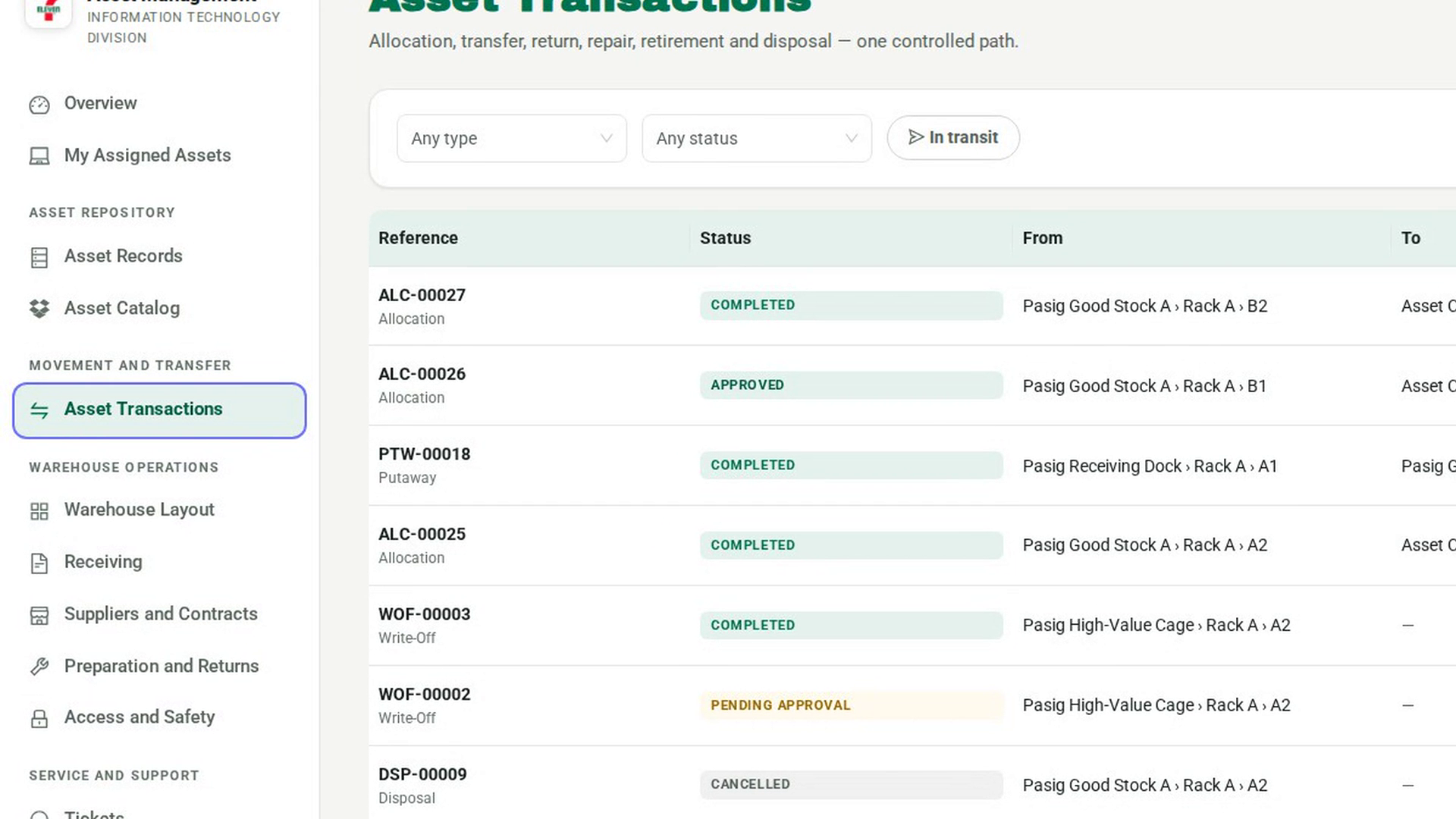
Find what is in transit to you
In the sidebar, under Movement and Transfer, select Asset Transactions, then select In transit. The list narrows to released transactions. Select the one that arrived.
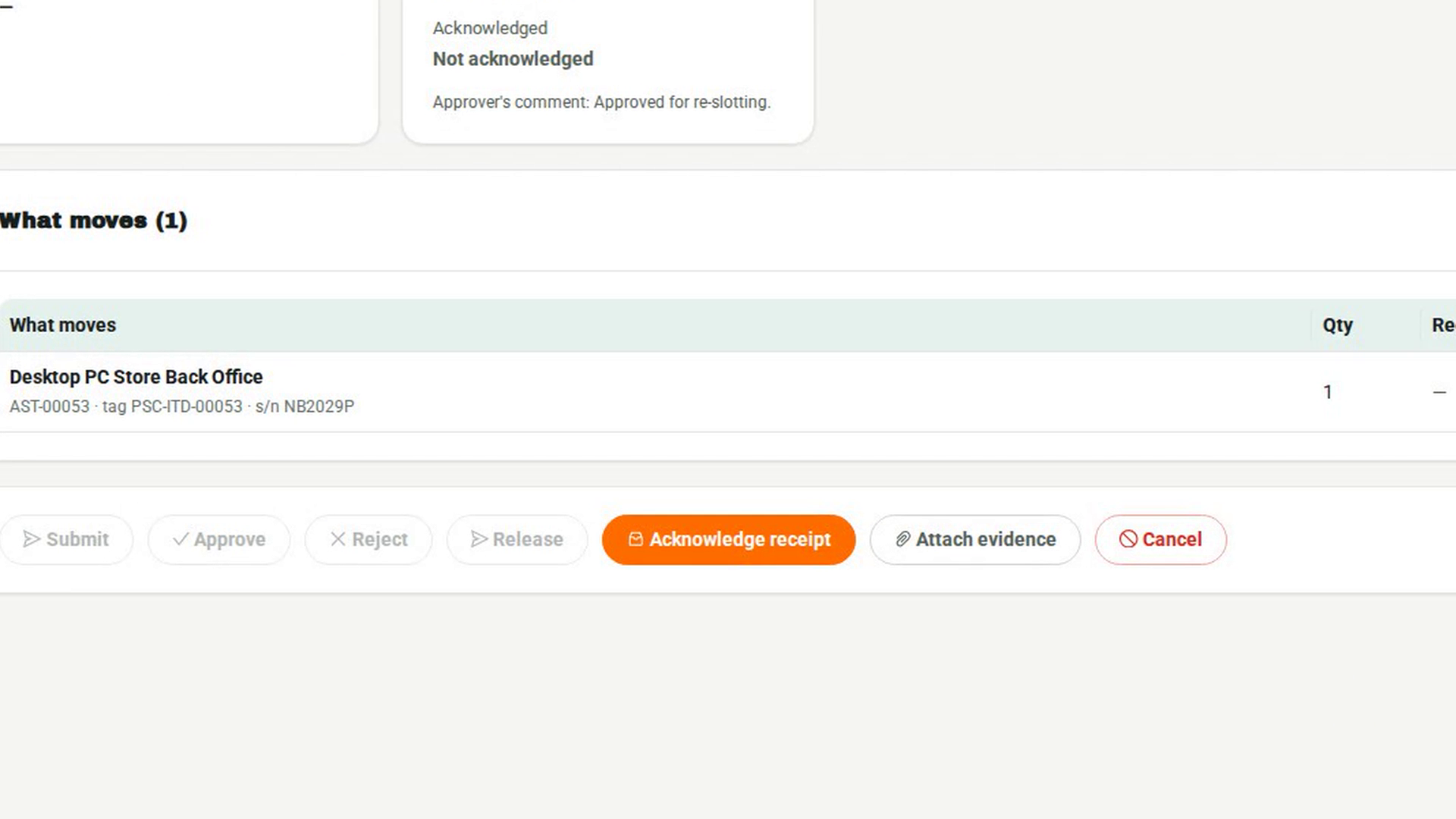
Open the acknowledgment
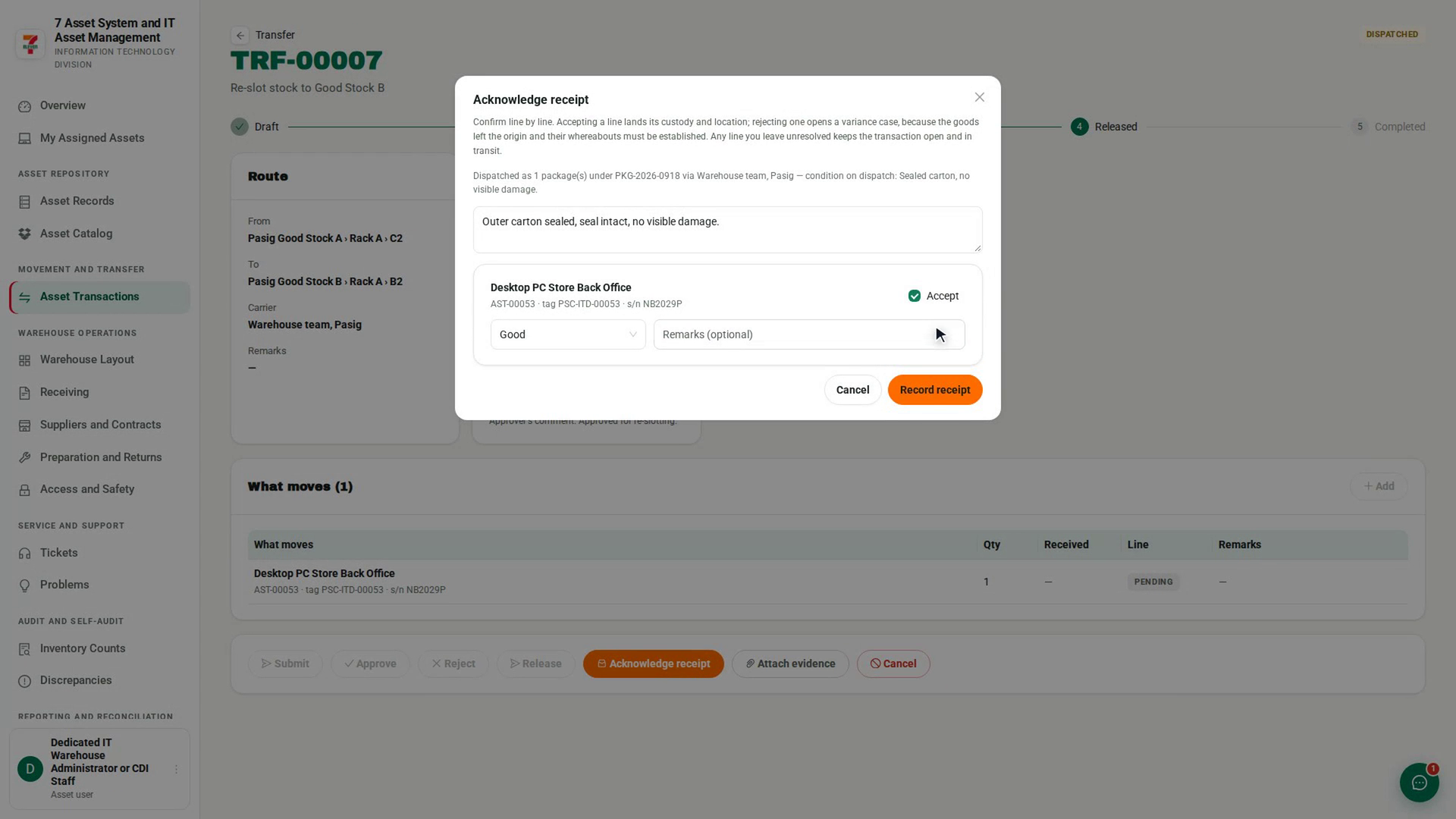
Select Acknowledge receipt. The Acknowledge receipt dialog lists every line still waiting, and shows how it was dispatched if the sender recorded packages.
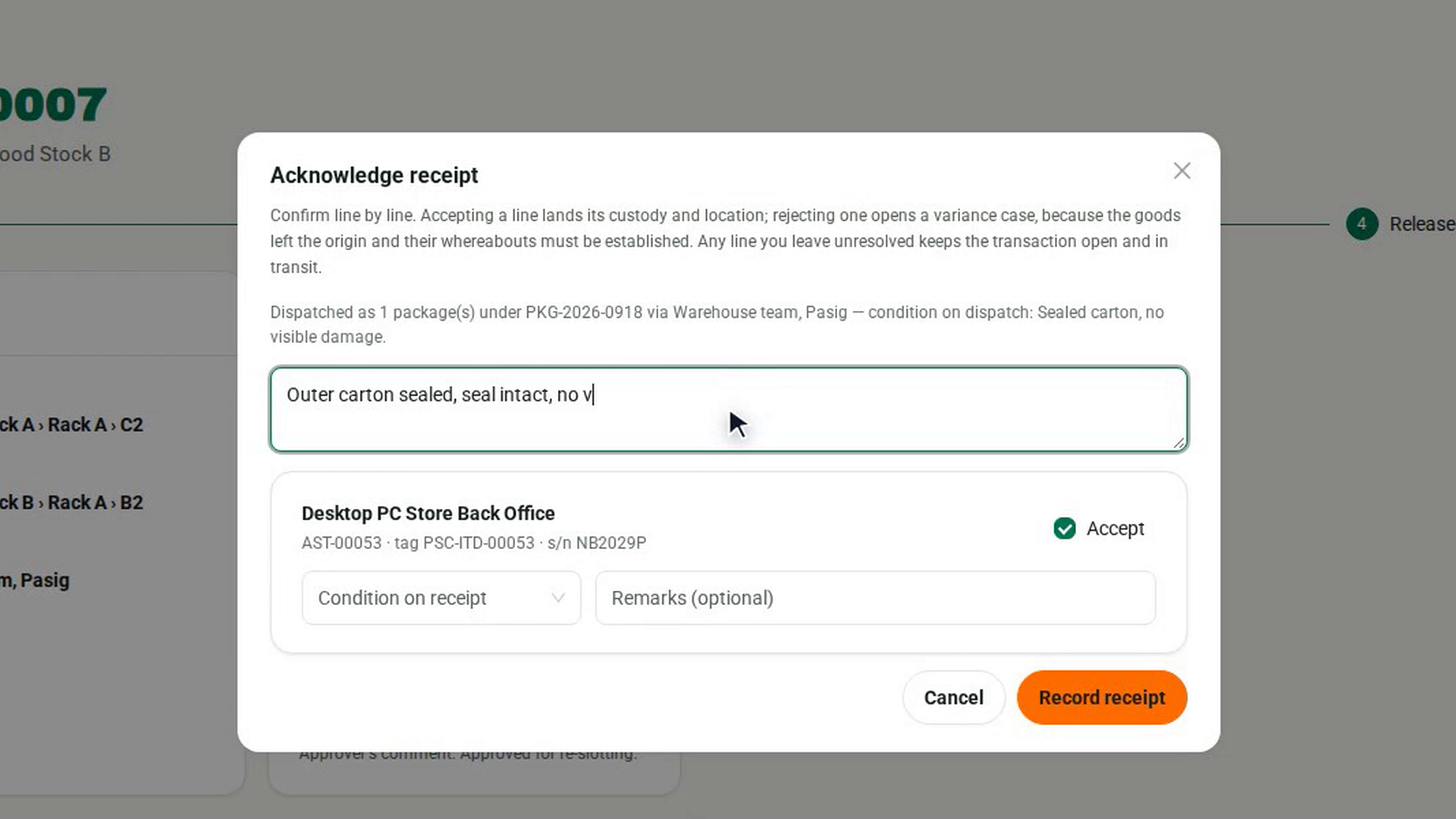
Describe how it arrived
In the box at the top, marked Condition on arrival, describe the packaging, seals and any visible damage.
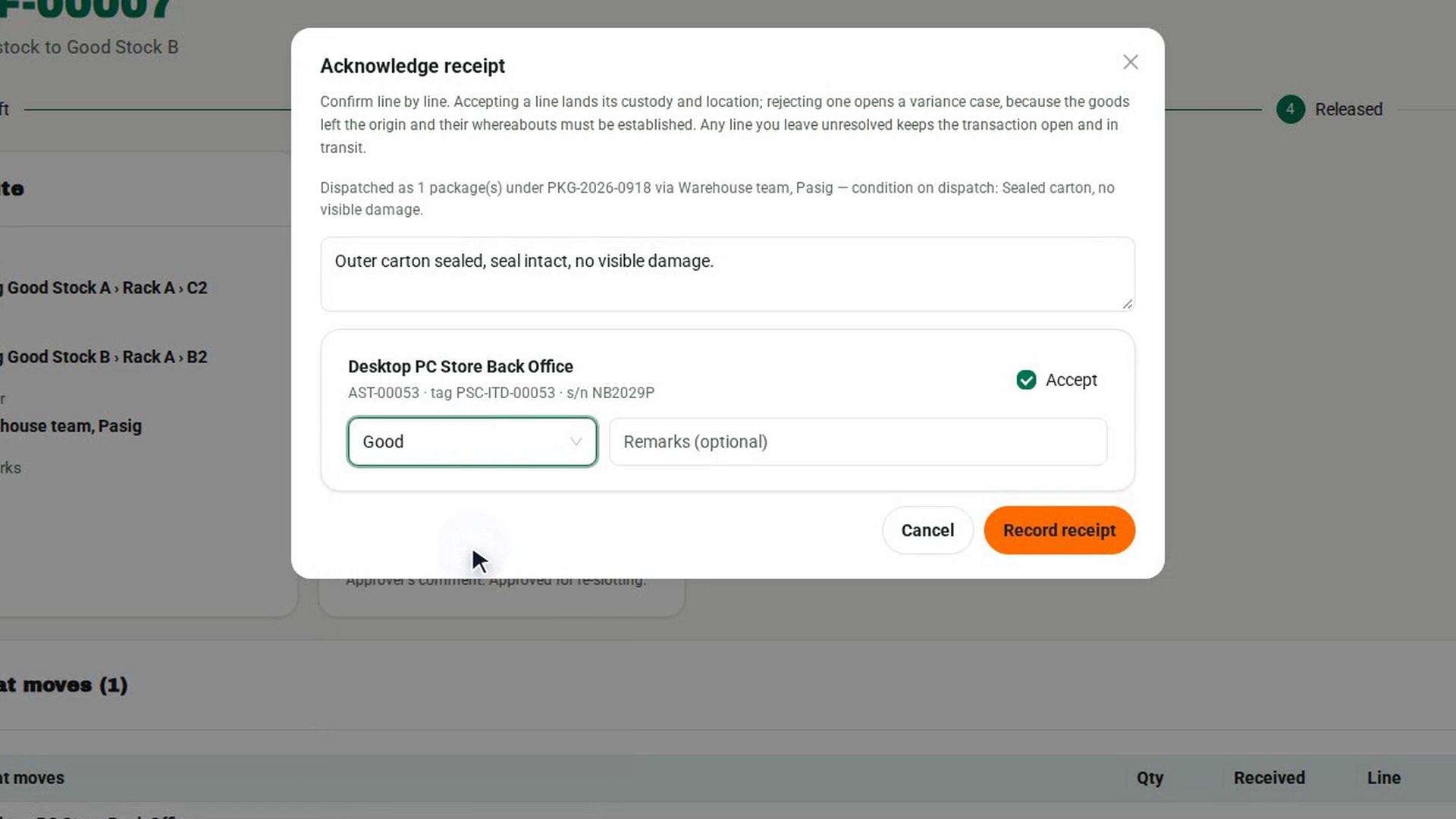
Decide each line
Every line starts with Accept ticked. For each one, choose the Condition on receipt. To reject a line, clear Accept and answer Why is this line being rejected?
Record the receipt
Select Record receipt. Accepted lines land at the destination and change custody. Every waiting line is decided at once, so the transaction then shows Completed.
Screenshots
Step 1: Find what is in transit to you
Step 2: Open the acknowledgment
Step 3: Describe how it arrived
Step 4: Decide each line
Step 5: Record the receipt
Watch how
Tip: If you are the person receiving the equipment, open My Assigned Assets. Under Waiting for you to accept, select the Accept button that carries the transaction reference. This accepts every line on that delivery. If something is wrong with it, ask the warehouse to reject the line on the transaction instead.
A rejected line is not ignored. The goods left the origin, so rejecting a line opens a discrepancy to find out where they are, and the asset stays in transit. Record receipt stays disabled until every rejected line has a reason.