Register an asset
Registering creates the record for one serialized asset: its name, identifiers, description, starting status and condition. 7-Asset gives every new record its own asset code, so the unit keeps one identity even if its tag is replaced or its serial is misread.
Before you start
- You need one of these roles: IT Business Systems or Application Team, IT Hardware Inventory Supervisor, Dedicated IT Warehouse Administrator or CDI Staff, or Asset and Logistics Associate. Without one of them, the Register asset button does not appear.
- Have the equipment, or its delivery documents, in front of you: you need its tag, serial number and any barcode or QR code.
- If the unit was ordered as a catalogue model, that model should already exist in the Asset Catalog, so you can link it.
Steps
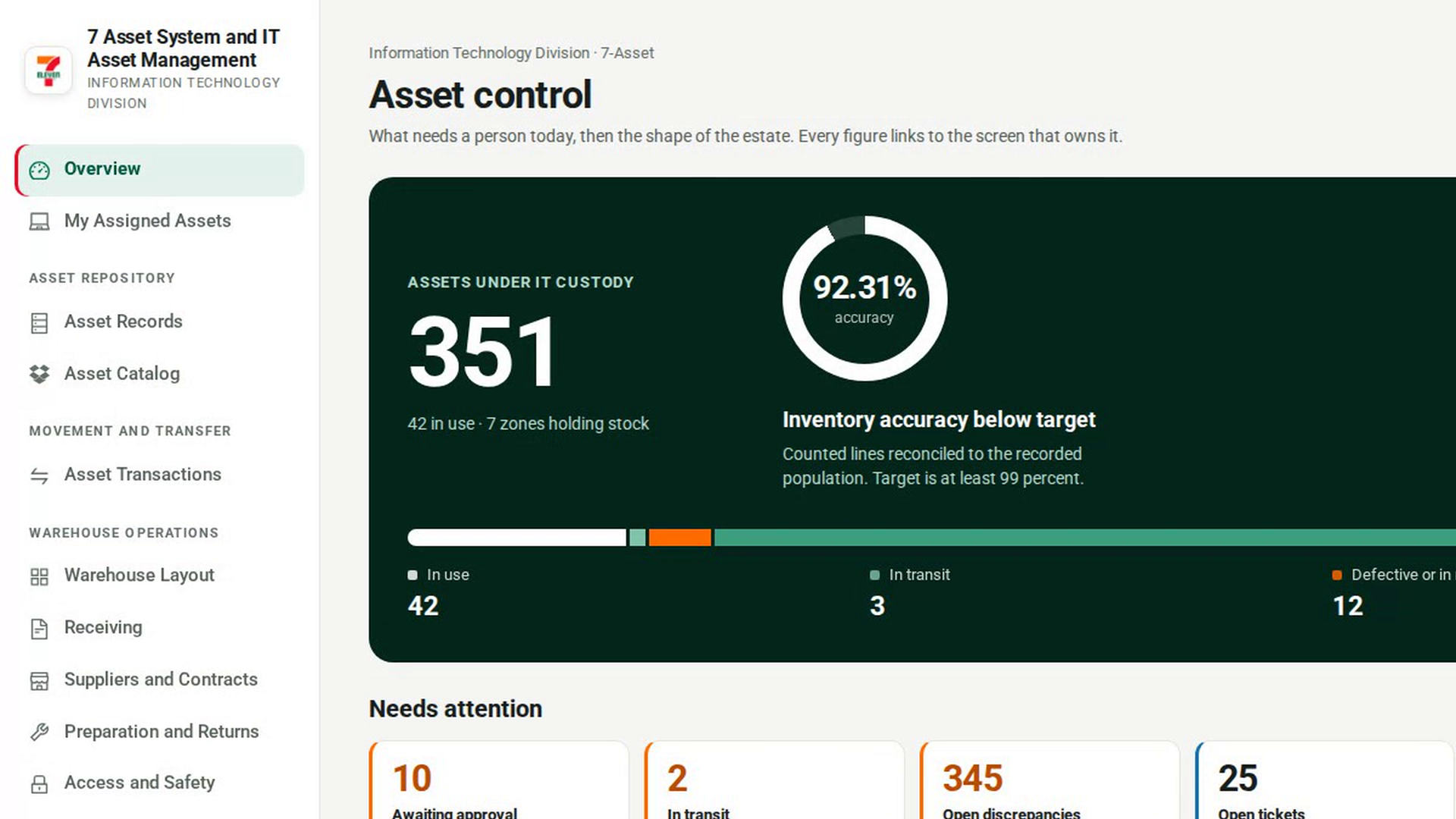
Open Asset Records
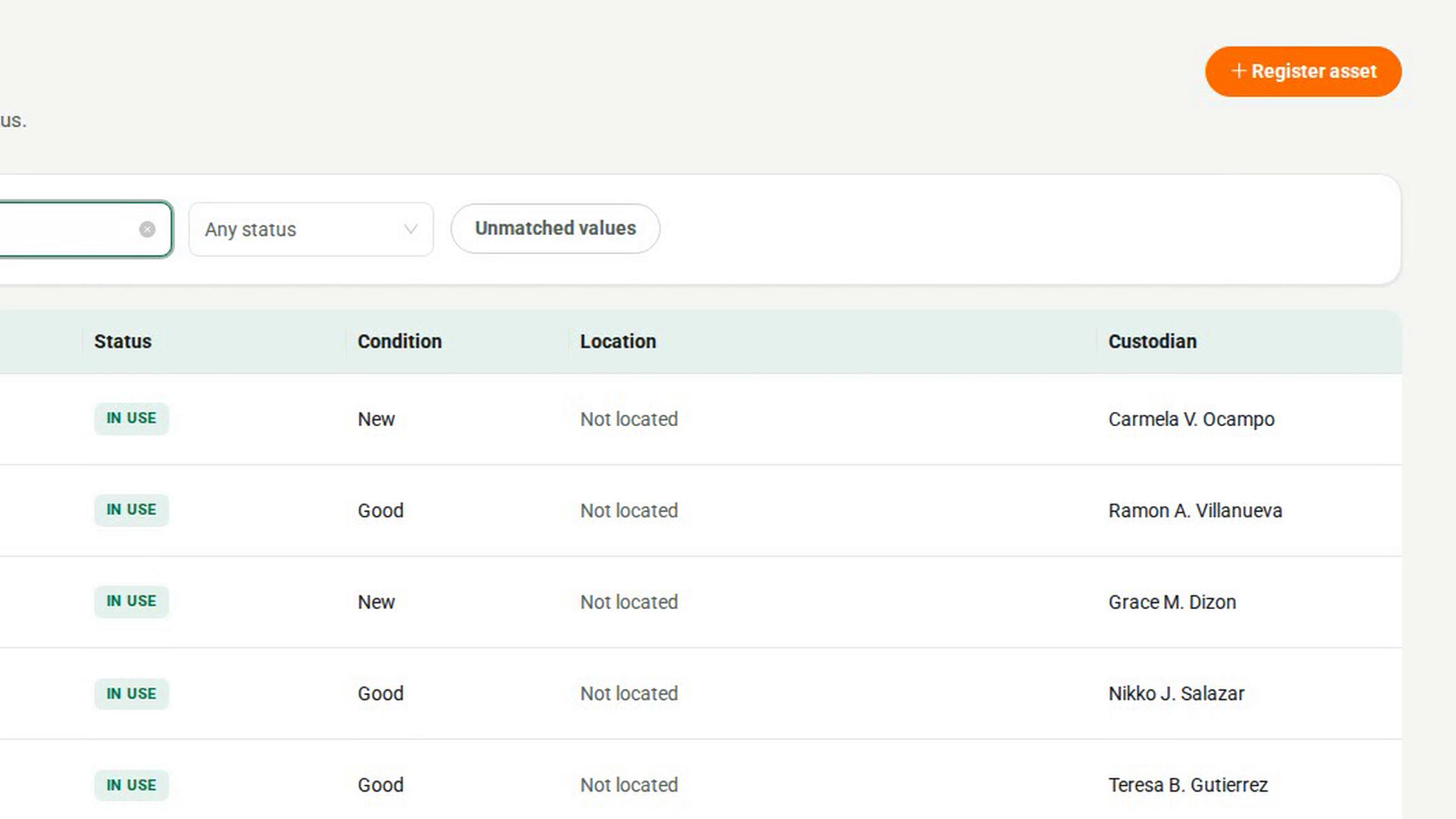
In the sidebar, under Asset Repository, select Asset Records. The register lists every serialized unit with its Asset, Category, Status, Condition, Location and Custodian.
Start a new record
Select Register asset at the top of the page. The Register asset dialog opens. There is no field for the asset code: 7-Asset generates it when you save.
Name the asset
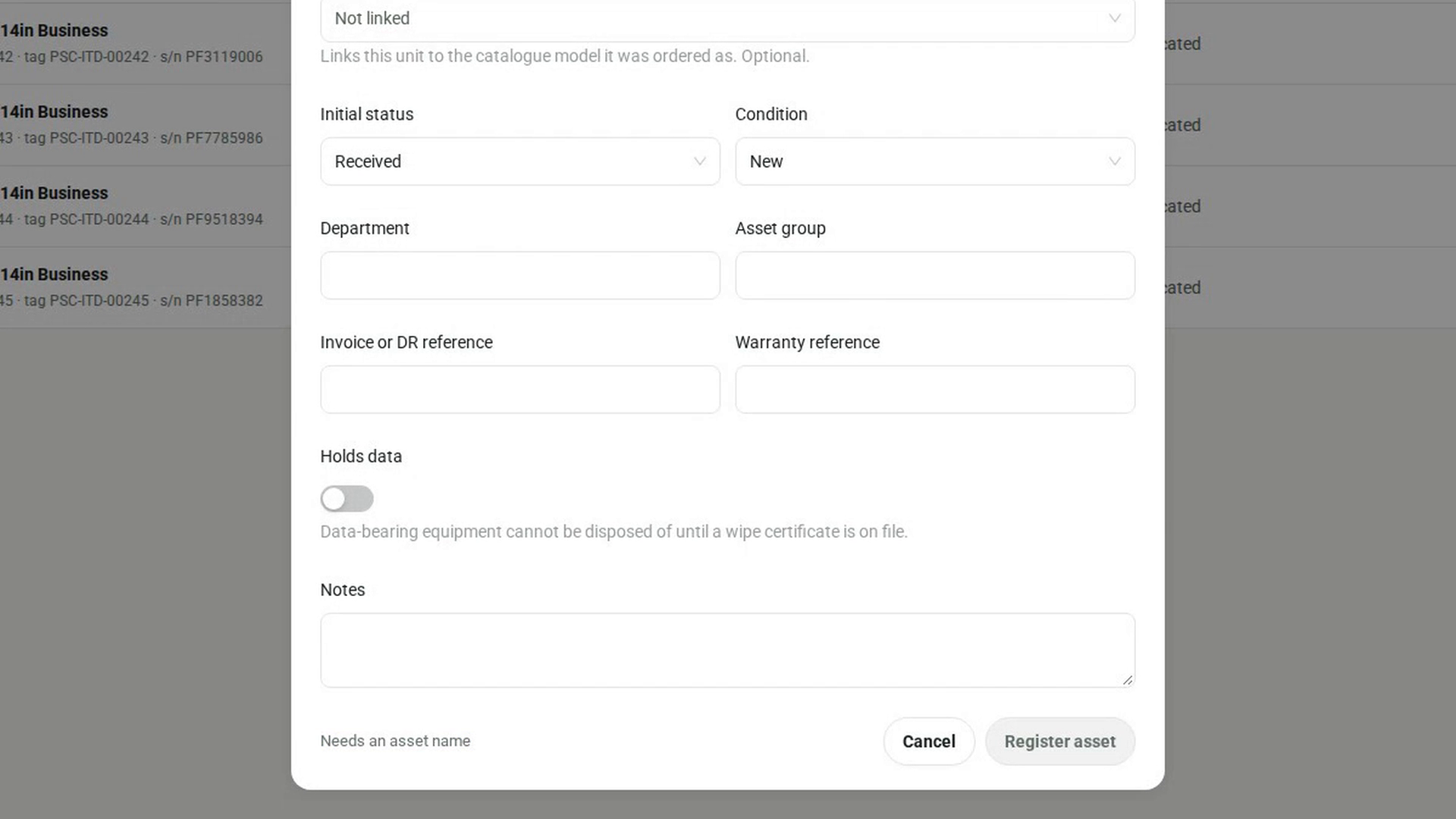
Type a name in Asset name, for example the make and model. This is the only required field. Until it is filled in, the dialog shows Needs an asset name and the save button stays disabled.
Enter its identifiers
Fill in Physical tag (what is stuck on the box), Serial number (what the maker stamped) and Barcode or QR. 7-Asset checks that no other live asset already uses the same tag or serial number.
Describe the equipment
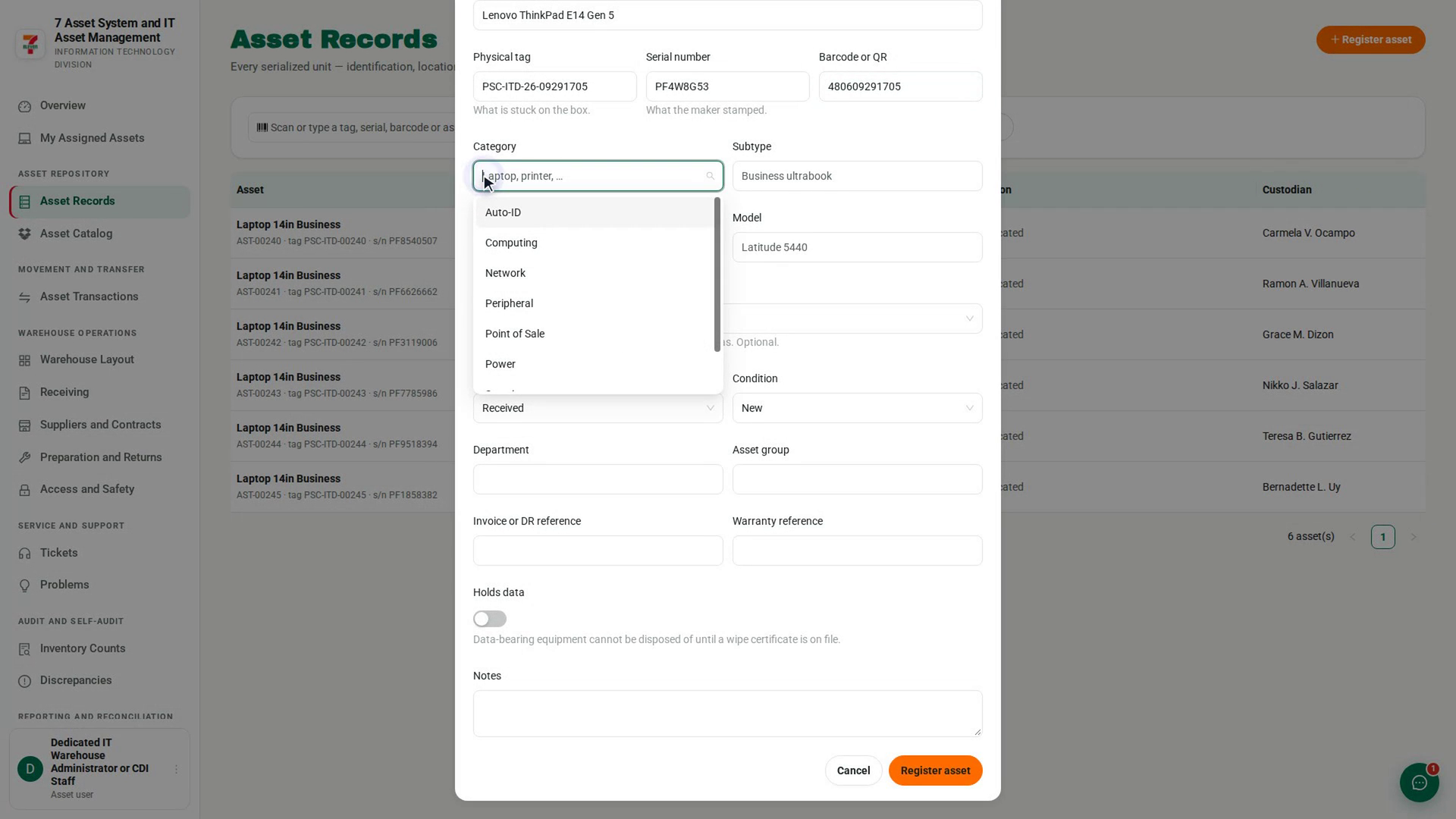
Choose or type a Category, then add the Subtype, Manufacturer and Model. If the unit was ordered as a catalogue model, choose it under Catalogue item. This link is optional.
Set its starting status and condition
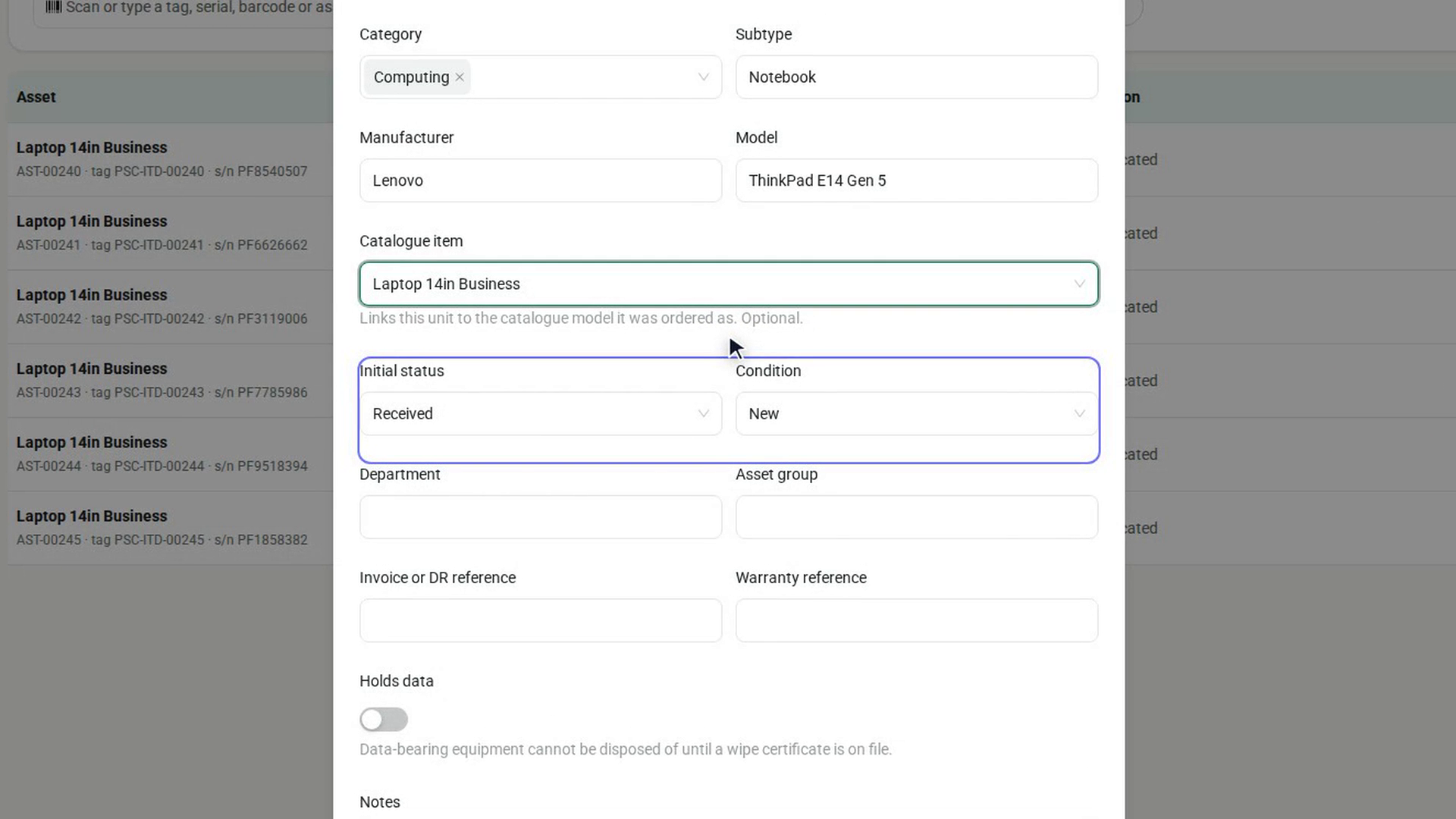
Under Initial status, choose Received or Stored. Under Condition, choose the condition the unit is in now.
Add references and flags
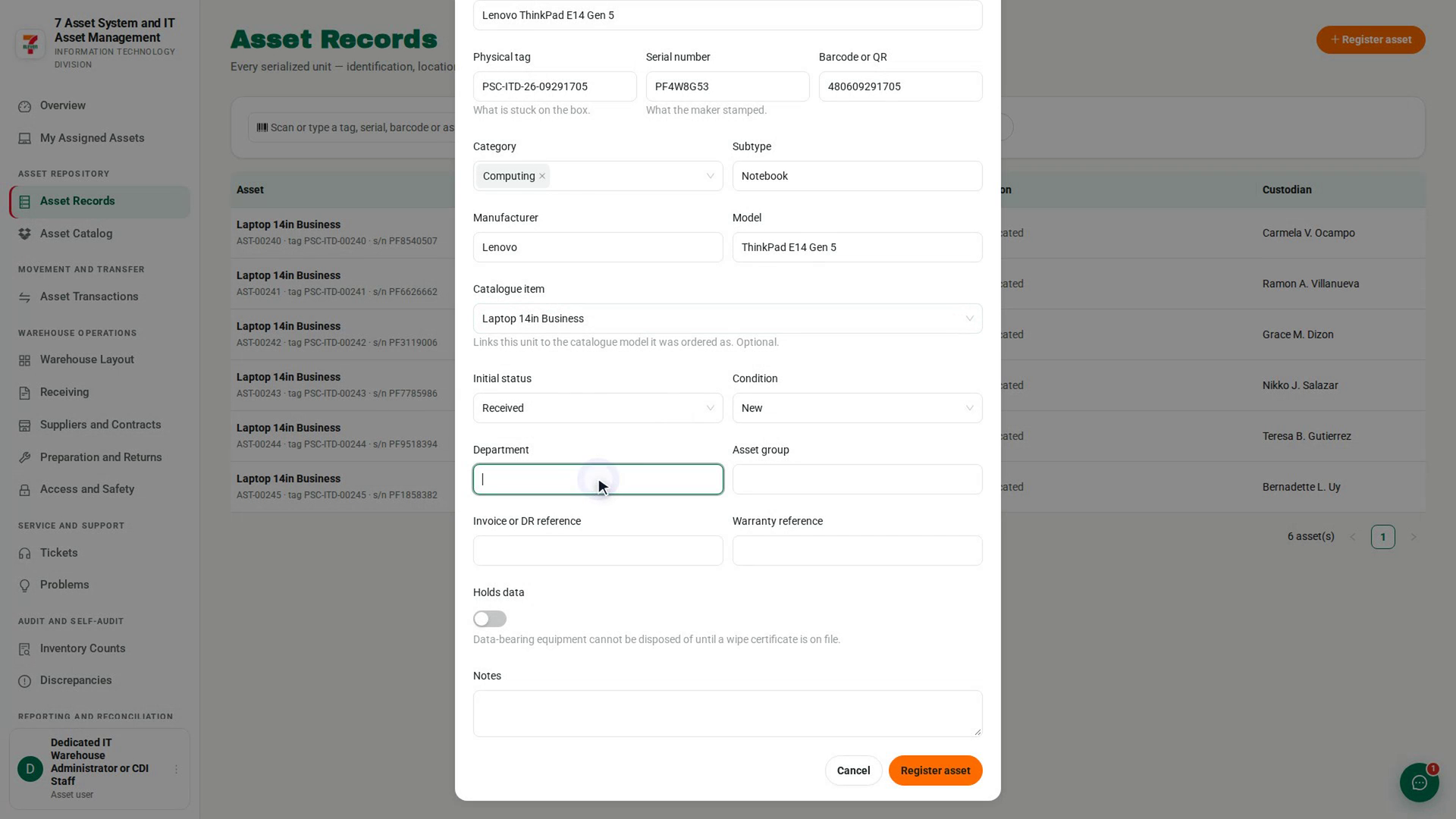
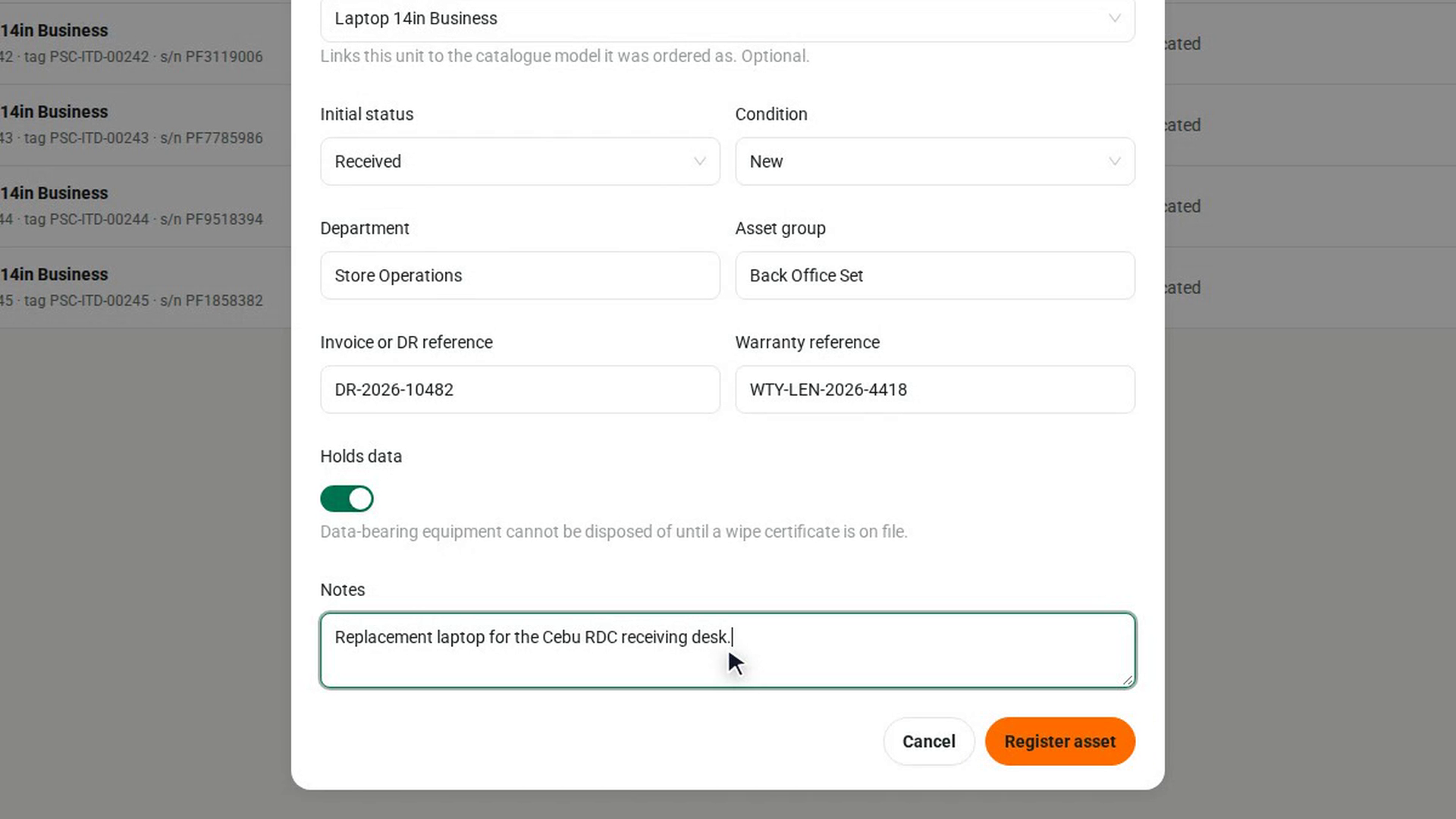
Add the Department, Asset group, Invoice or DR reference and Warranty reference if you have them. Turn on Holds data if the equipment stores data. Add anything else under Notes.
Register it
Select Register asset in the dialog footer. A message confirms the new code, for example Registered as followed by an AST- reference, and the asset appears in the register.
Screenshots
Step 1: Open Asset Records
Step 2: Start a new record
Step 3: Name the asset
Step 4: Enter its identifiers
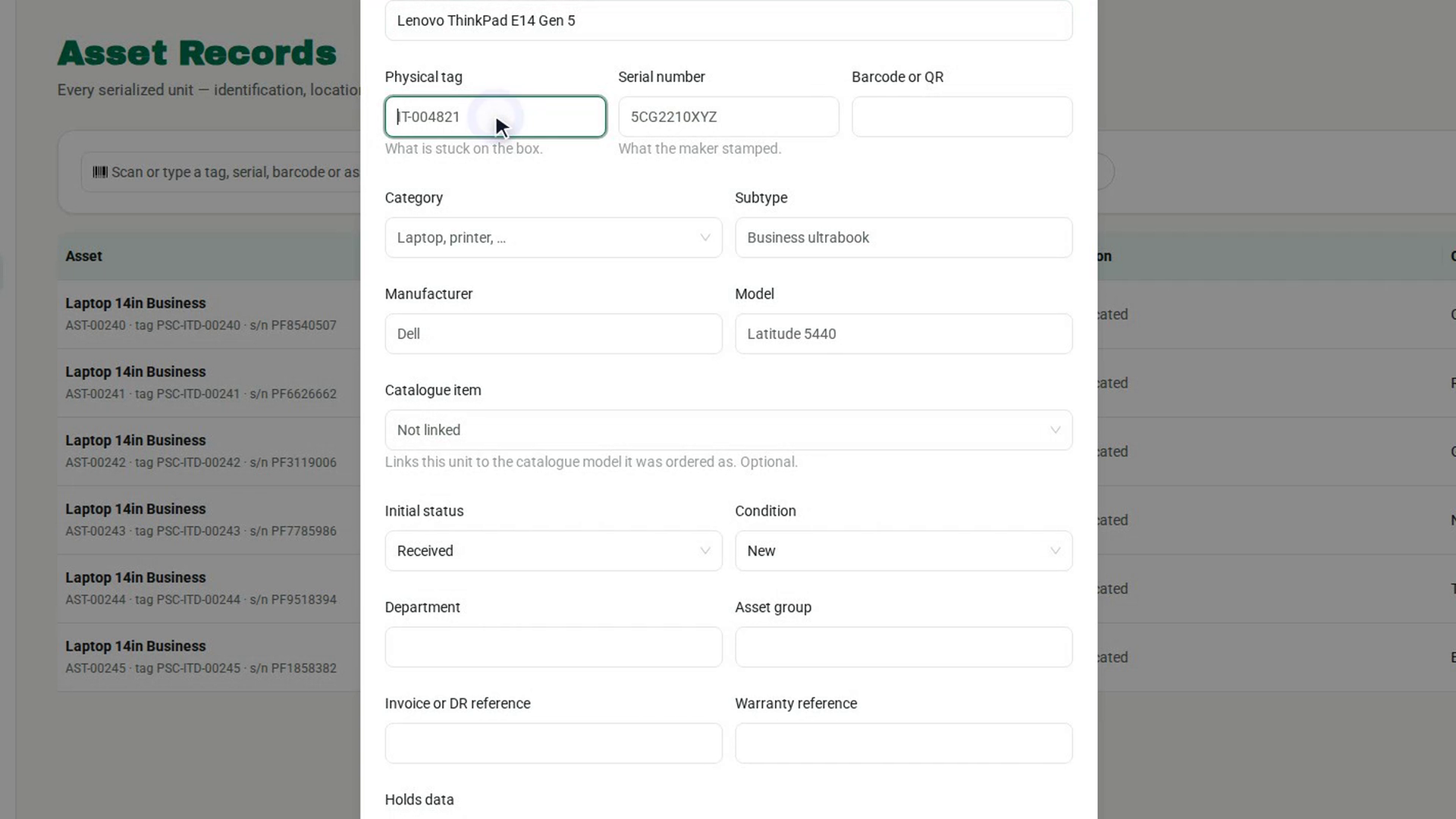
Step 5: Describe the equipment
Step 6: Set its starting status and condition
Step 7: Add references and flags
Step 8: Register it
Watch how
Location and custodian are not set here. The dialog has no location or custodian fields. They change only through a transaction, such as a putaway or an allocation, so every move has an approver, a time and a reason.
A repeated tag or serial is refused. If another live asset already has the same physical tag or serial number, 7-Asset refuses the registration and names the asset that holds it. The attempt is also filed as a duplicate case so someone can investigate. Check the label before you try again.
Turn on Holds data now if it applies. A data-bearing asset cannot be disposed of until a wipe certificate is on file, and the wipe can only be recorded on assets flagged as holding data. Asset Records has no way to edit a record after it is registered.