Your profile and roles
Your profile shows the account you are signed in as and the roles and permissions it carries. Use it to check why you can or cannot see a screen or a button.
Before you start
- Everyone who signs in can open their own profile.
- Your roles are assigned by the IT Business Systems or Application Team. You cannot change them here.
Steps
Open your profile
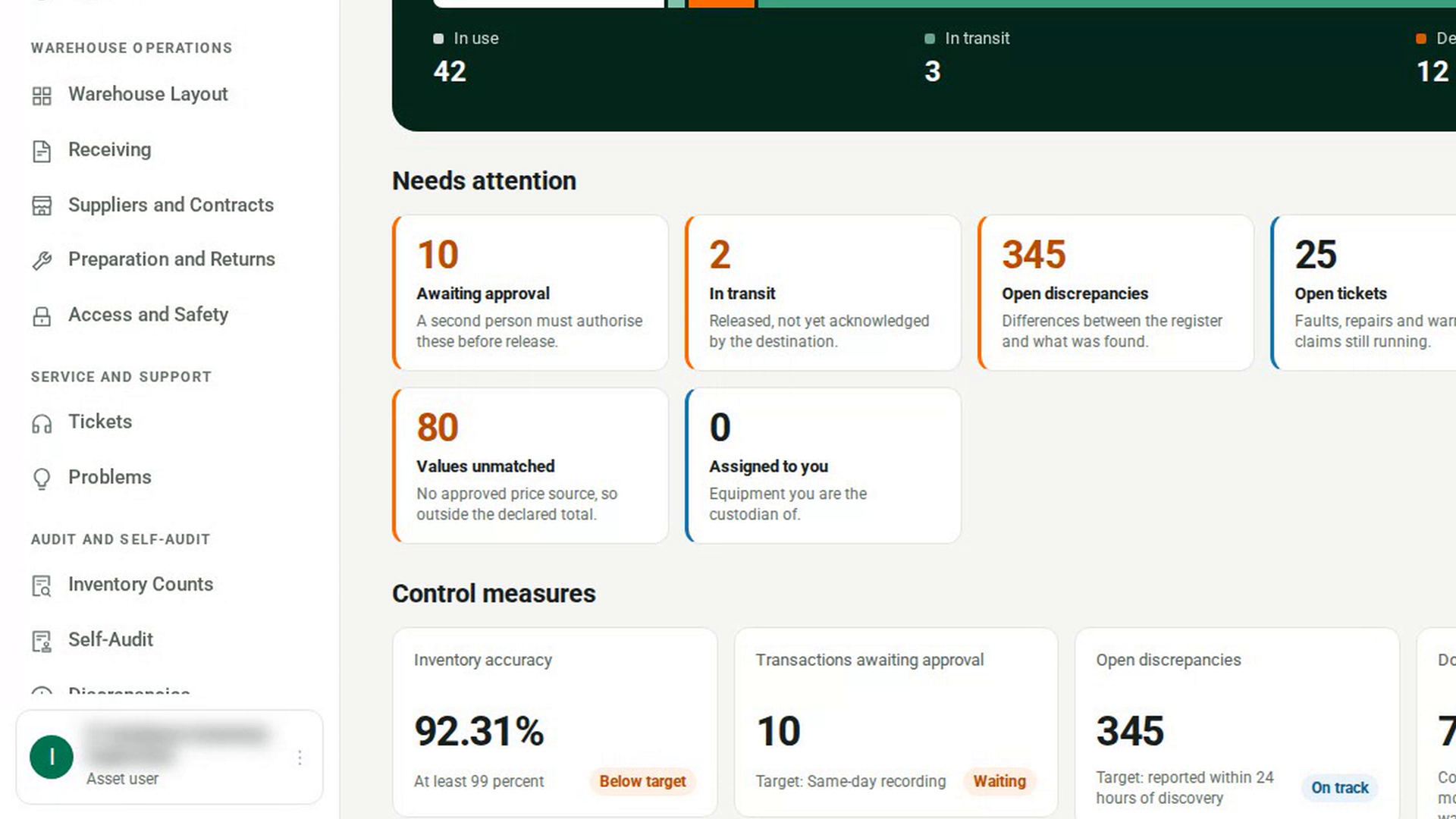
At the bottom of the sidebar, select your name, then select Your profile. The Your profile page opens.
Check your account details
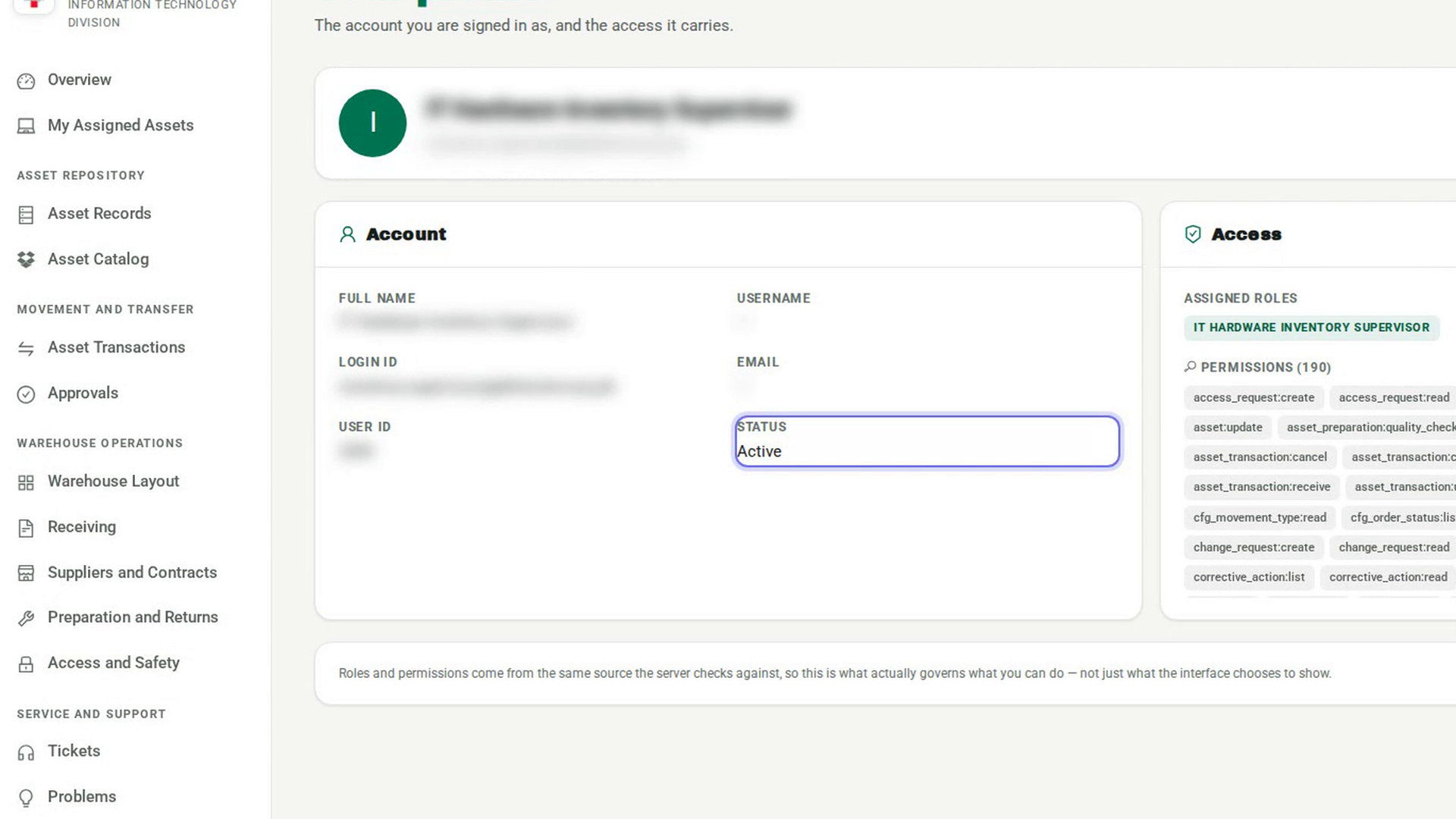
The Account card shows your Full name, Username, Login ID, Email, User ID and Status.
See which roles you hold
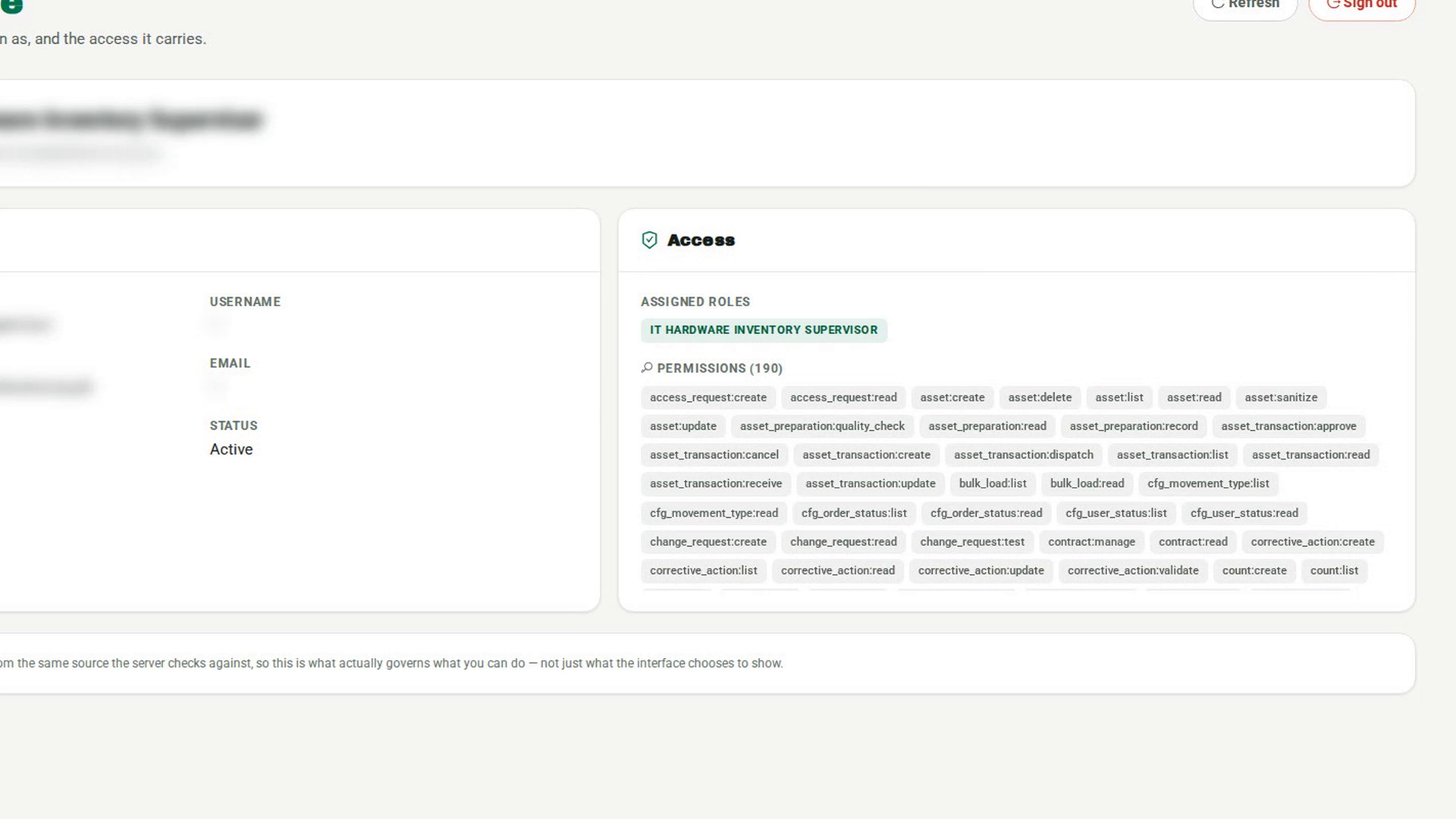
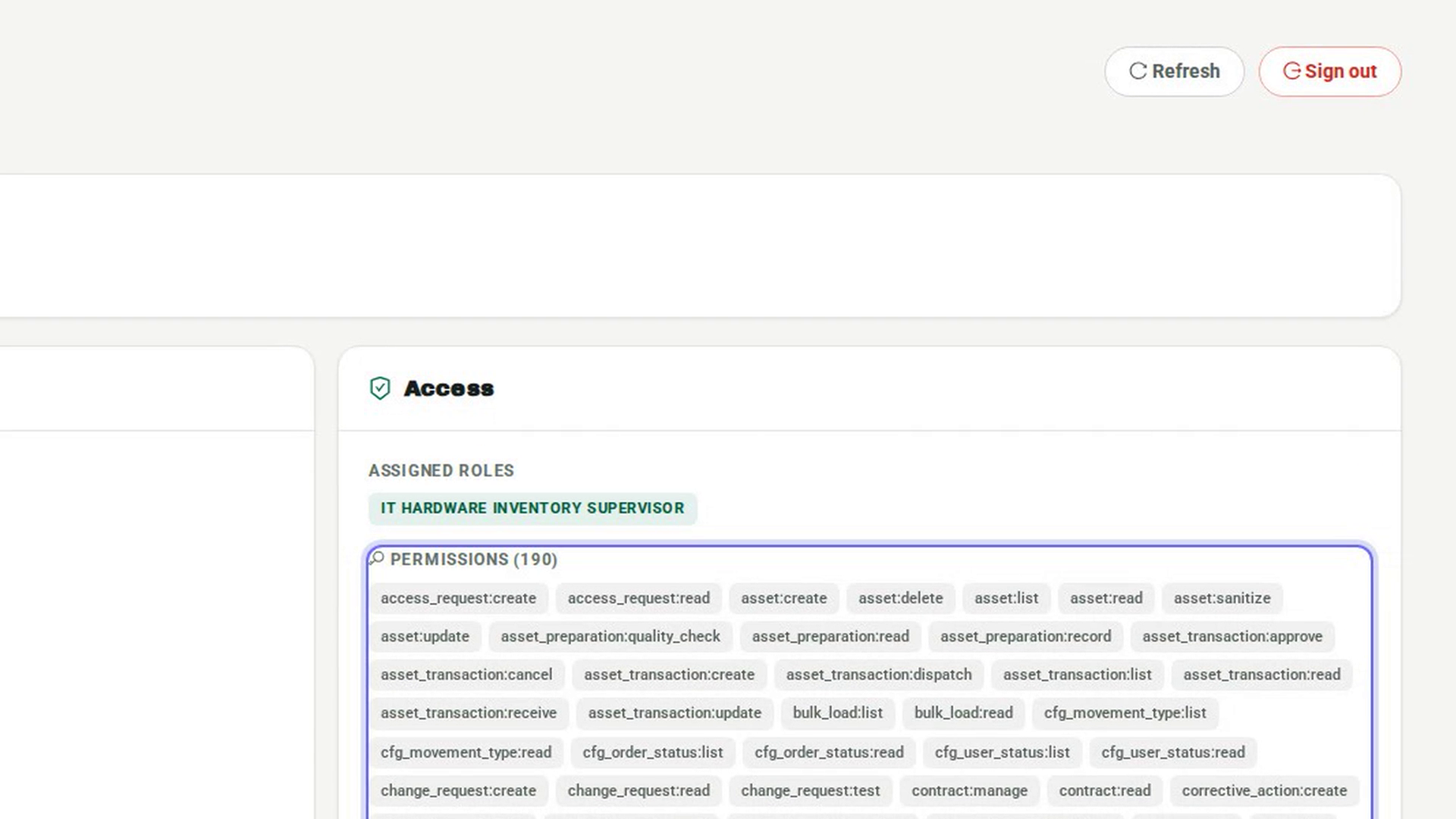
In the Access card, Assigned roles lists every 7-Asset role you hold. You can hold more than one.
Review your permissions
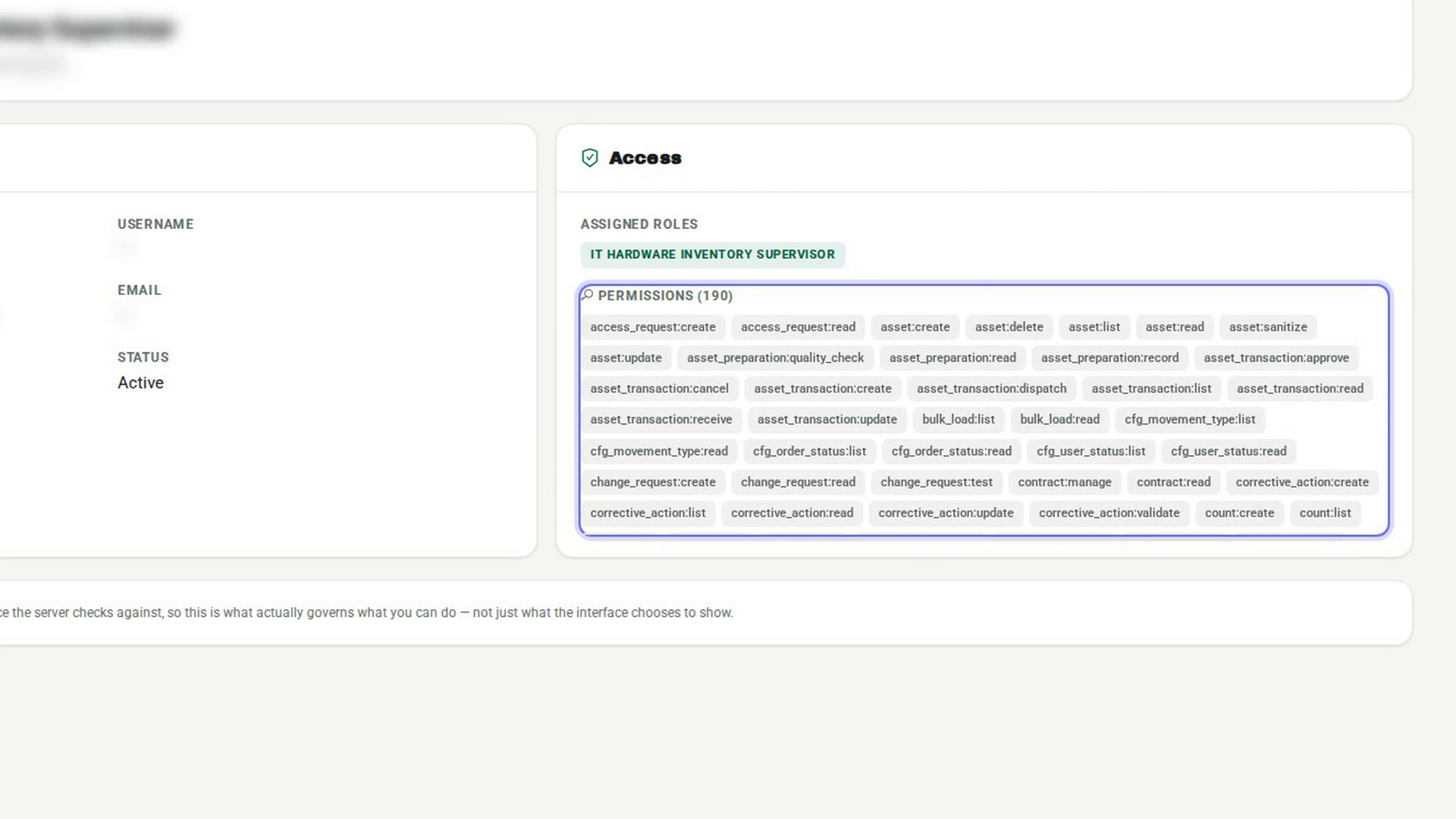
Under Permissions, you see each permission your roles give you. These are the same permissions 7-Asset checks when you open a screen or select a button.
Refresh after a change
If an administrator has just changed your roles, select Refresh to load your current access.
Screenshots
Step 1: Open your profile
Step 2: Check your account details
Step 3: See which roles you hold
Step 4: Review your permissions
Step 5: Refresh after a change
Watch how
Tip: If Assigned roles says No roles assigned, you have no access to 7-Asset screens. Ask your administrator for a role. A role shown as belonging to another app comes from a different application and gives you nothing in 7-Asset.
Tip: You can also sign out from here. Select Sign out, then confirm with Sign out in the Sign out? dialog.