Dispatch an approved release
Dispatching is the warehouse handover: you check the items against the approved transaction, record who is taking them, and release them. From that moment the assets are in transit until the destination acknowledges them.
Before you start
- You need to be a Dedicated IT Warehouse Administrator or CDI Staff, Asset and Logistics Associate, IT Hardware Inventory Supervisor, or IT Business Systems or Application Team.
- The transaction must be Approved. Types that need an independent approval (Allocation, Transfer, Retirement, Disposal and Write-Off) must have been approved by someone other than the preparer. Types that need none (Putaway, Return and Repair) are Approved as soon as they are submitted.
- Have the items and the carrier's details in front of you.
Steps
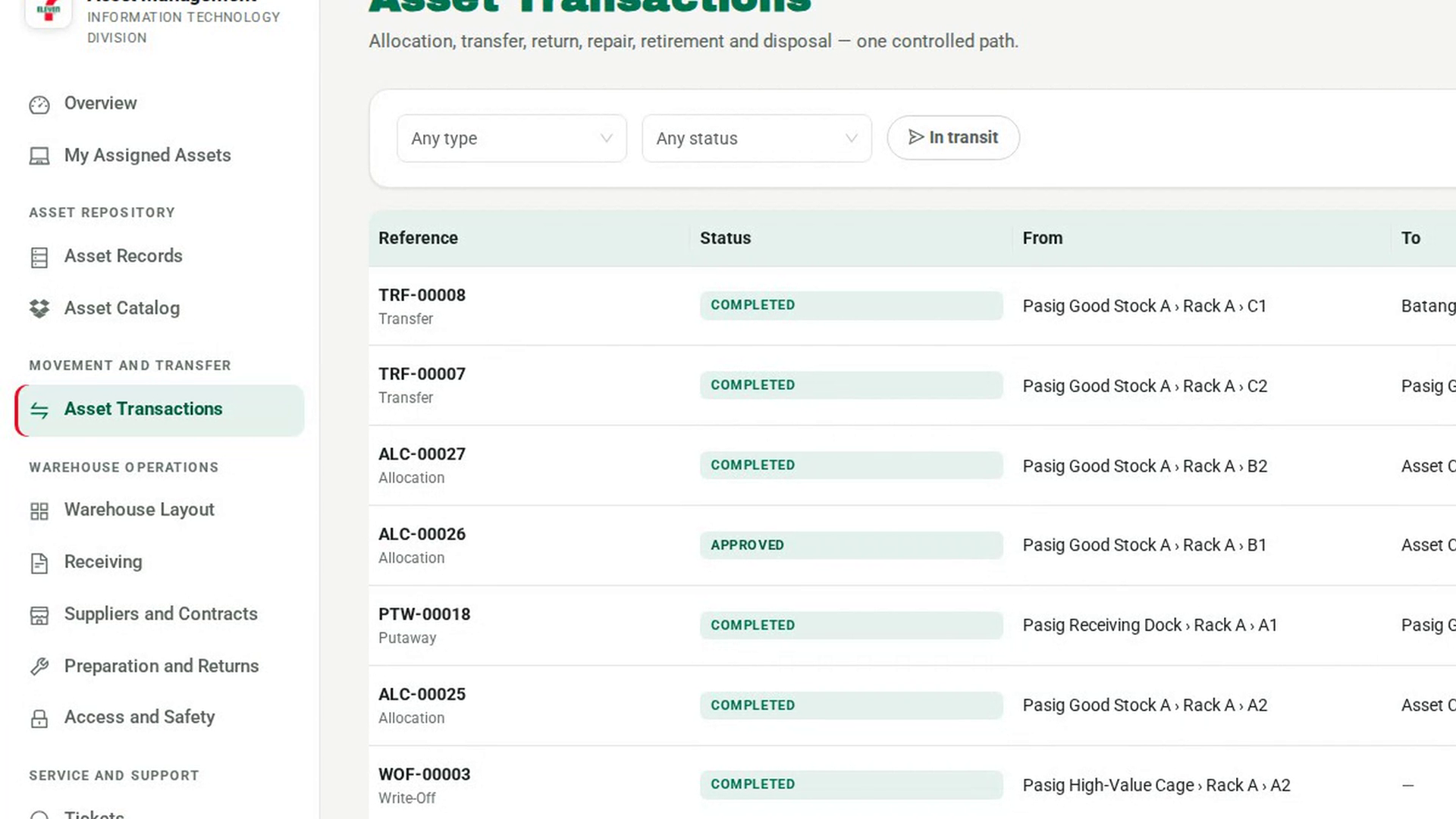
Open the transaction
In the sidebar, under Movement and Transfer, select Asset Transactions. Set the status filter to Approved and select the transaction you are dispatching.
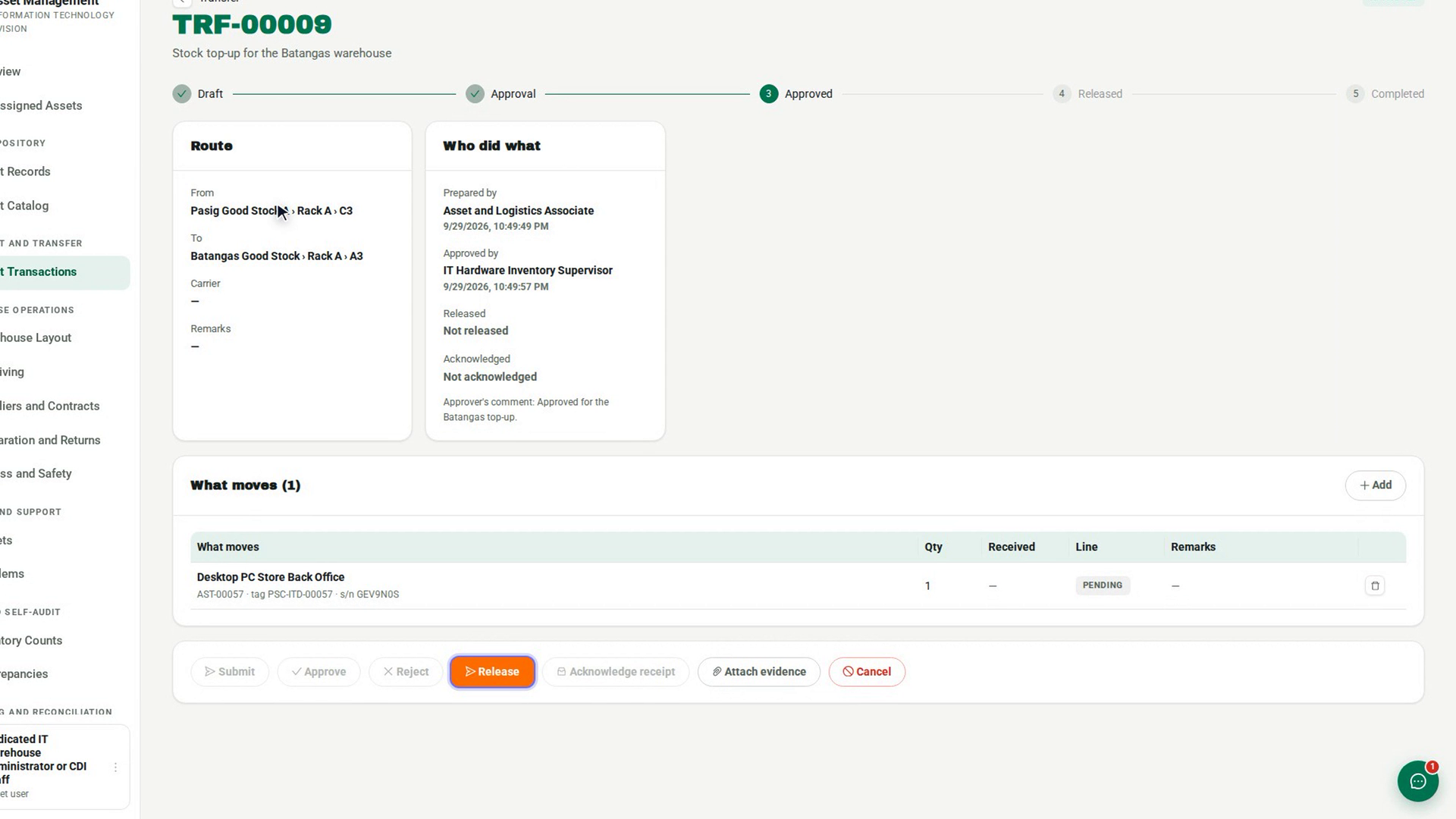
Check that release is allowed
Look at Release. If it is greyed out, hover over it to see why, for example Approval is required before release. A blocked disposal prints its reason under the buttons.
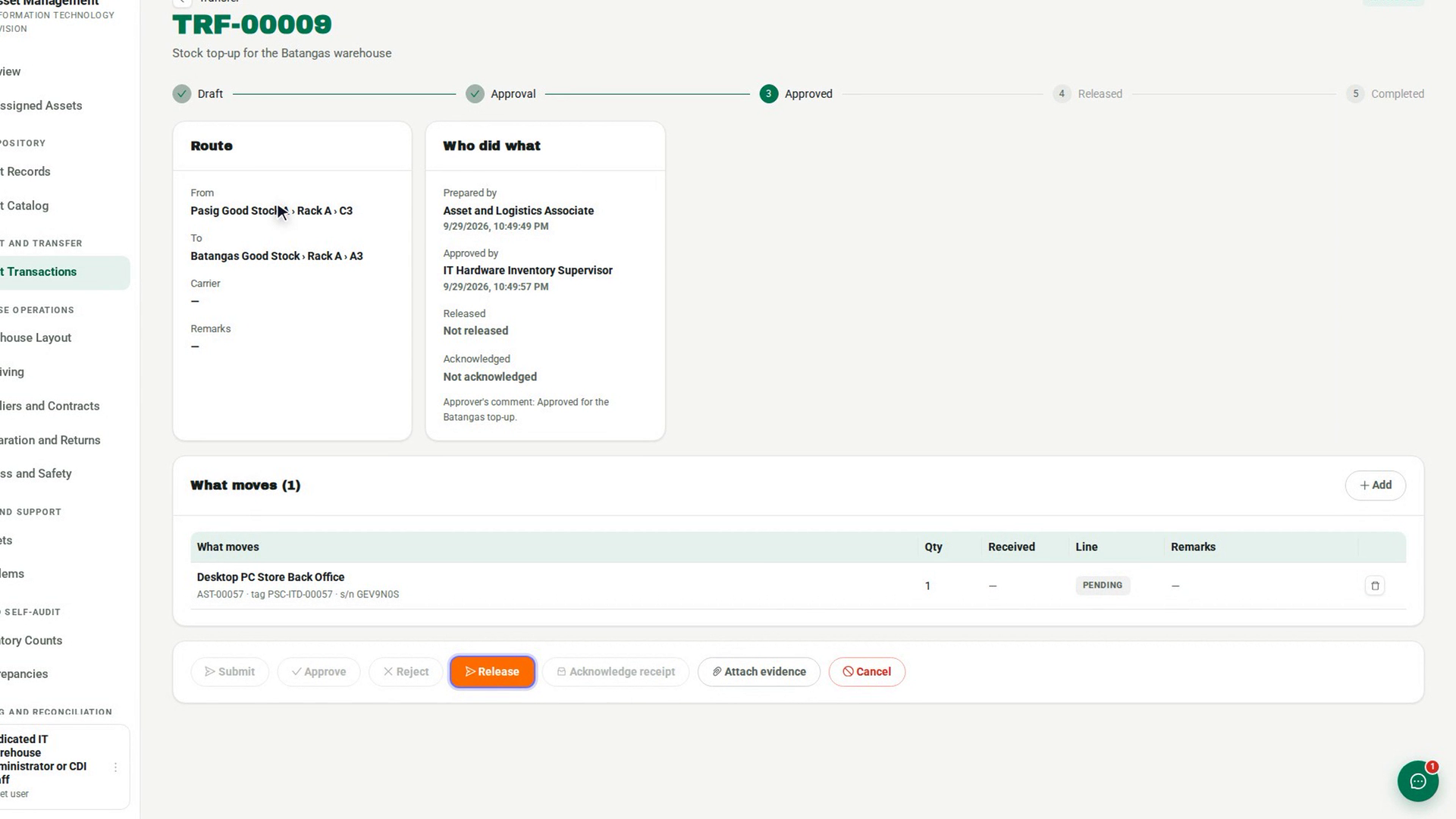
Check each item
Compare what you are handing over with What moves: asset code, tag and serial. Check the destination under Route.
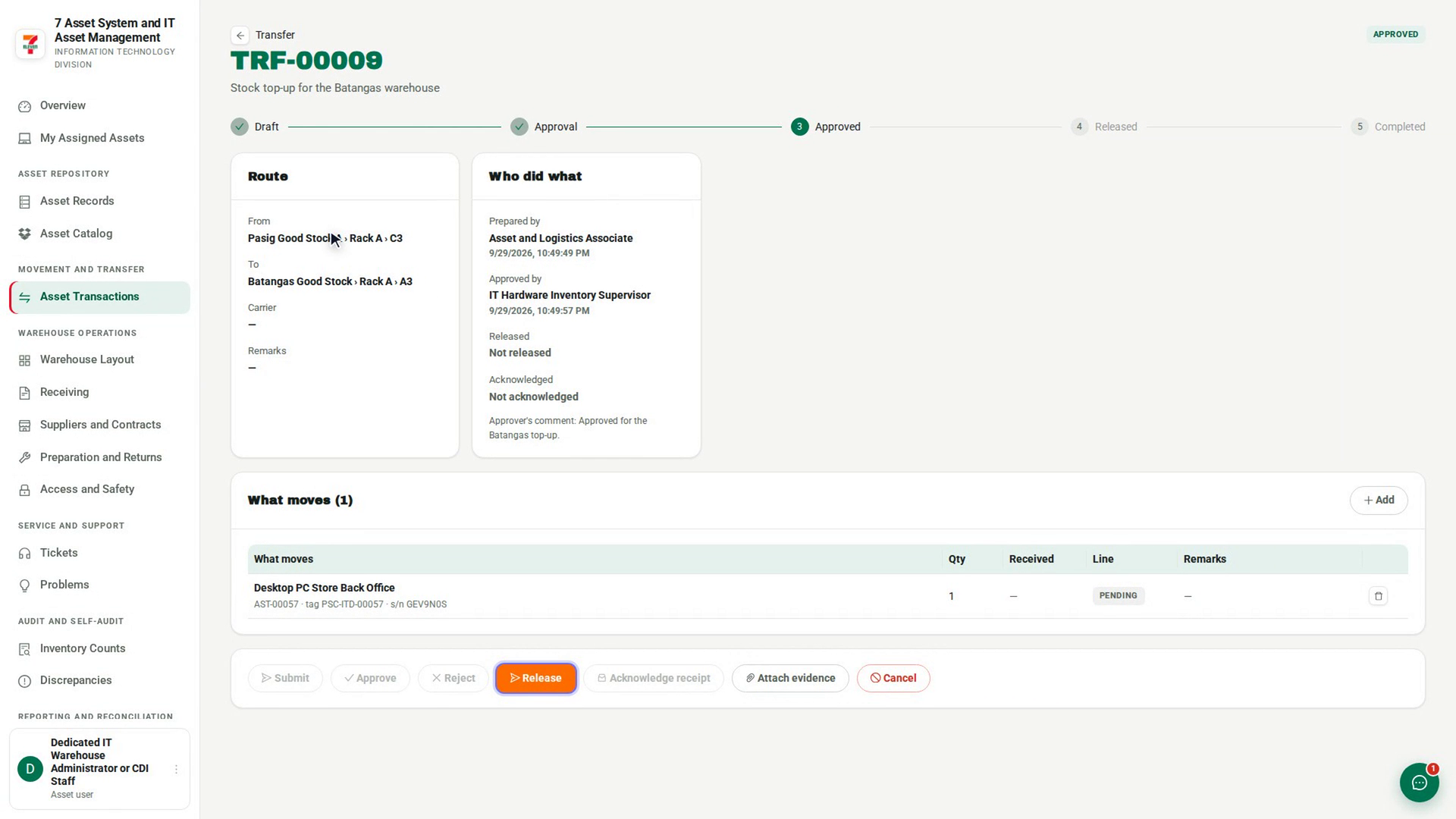
Identify the carrier
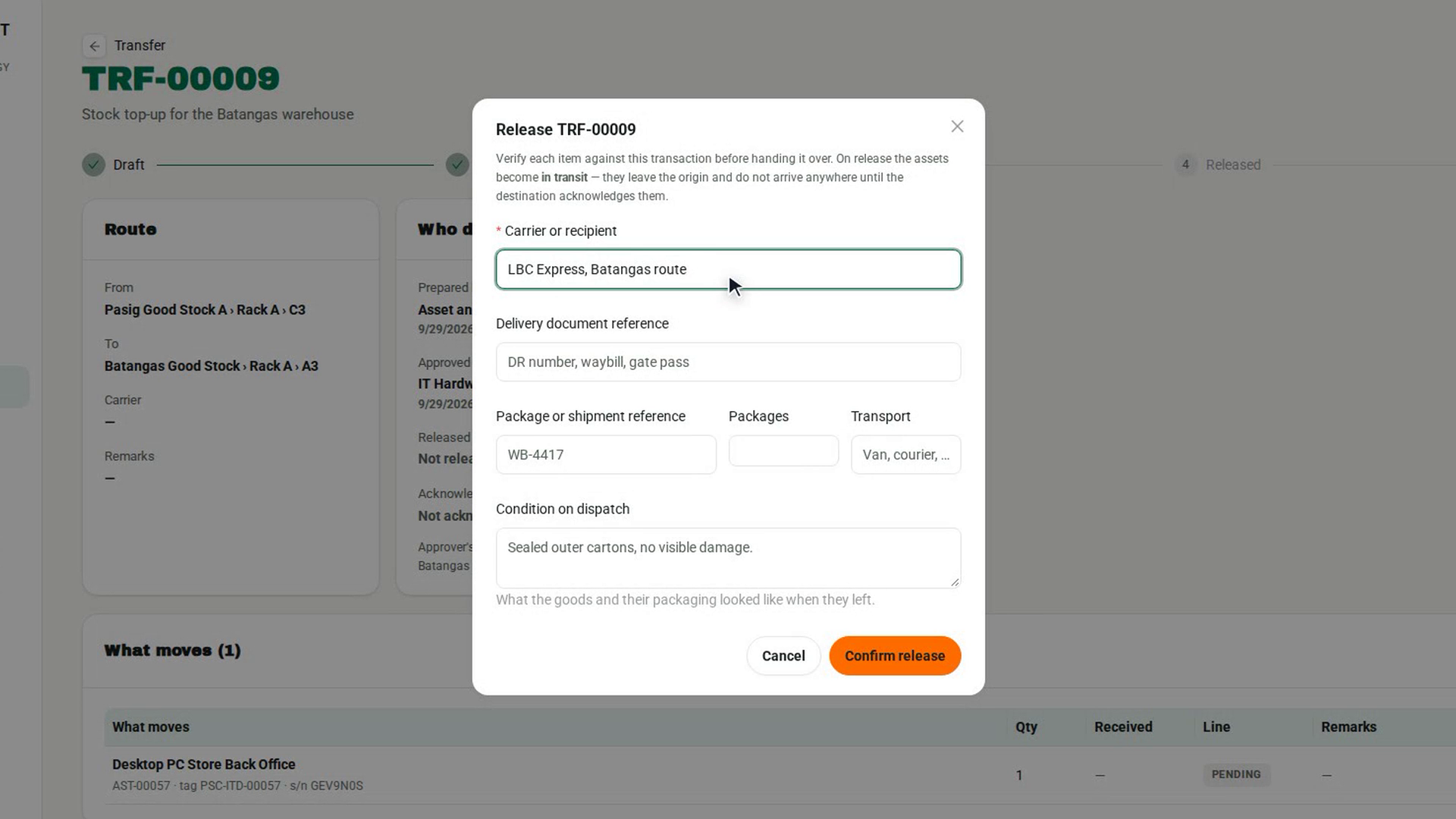
Select Release. In Carrier or recipient, record who is physically taking the goods: a courier, a branch driver or the recipient in person. Confirm release stays disabled until this is filled in.
Record the shipment details
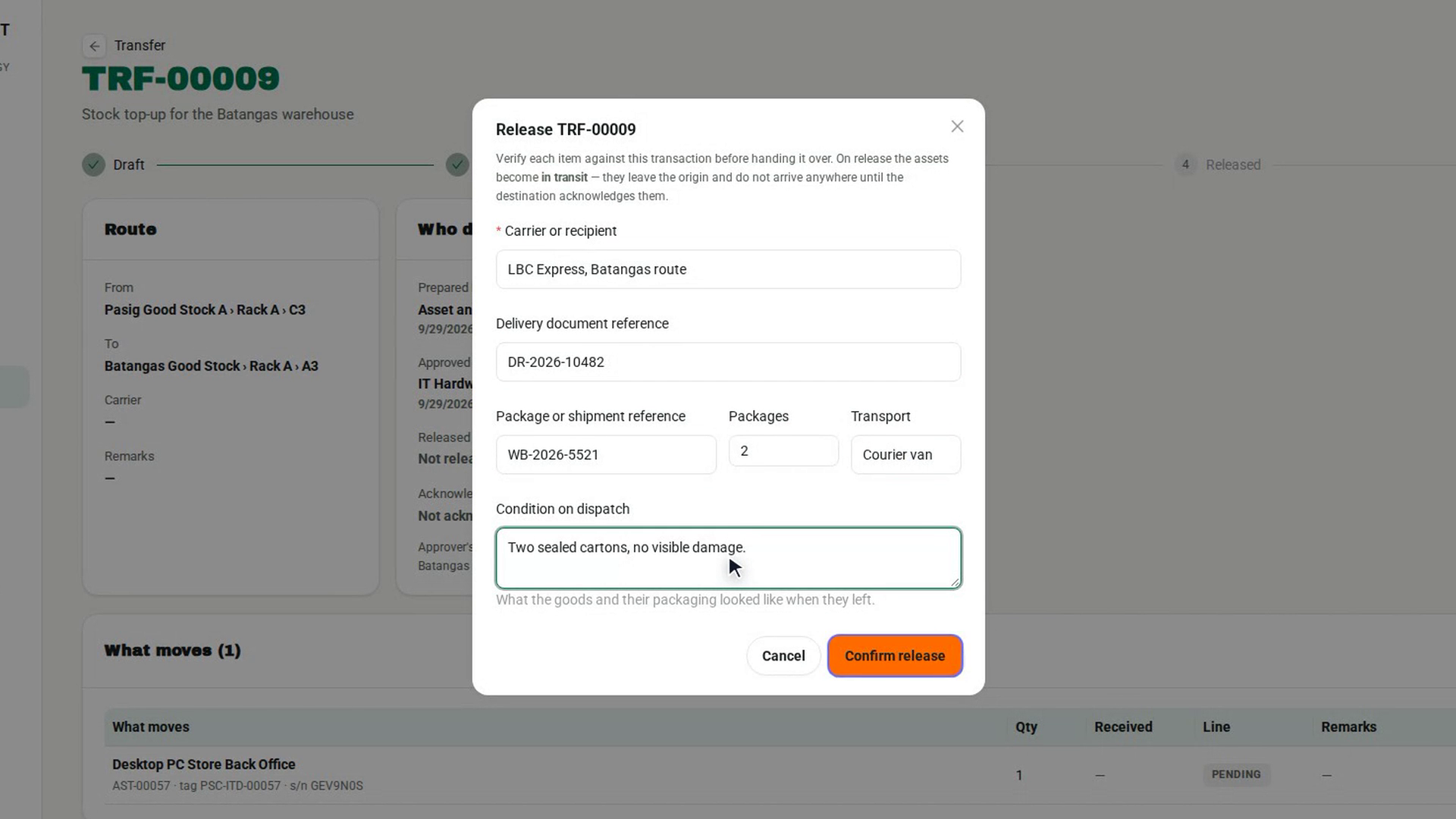
Add the Delivery document reference, Package or shipment reference, number of Packages, Transport, and what the goods looked like in Condition on dispatch.
Release it
Select Confirm release. The status changes to Dispatched and the assets are in transit, with no location, until the destination acknowledges them. Types with no destination acknowledgment complete straight away.
Screenshots
Step 1: Open the transaction
Step 2: Check that release is allowed
Step 3: Check each item
Step 4: Identify the carrier
Step 5: Record the shipment details
Step 6: Release it
Watch how
A released transaction can no longer be edited. If the goods need to come back, record a Return, or cancel the transaction with a reason. Cancelling after release opens a discrepancy for every asset still in transit.
Tip: If lines were added or changed after approval, the transaction goes back to Pending Approval and the page shows This changed after it was approved. It needs a fresh approval before you can release it.