Reconcile asset value and insurance
The insurance monitoring workbook is a separate record of what each asset is worth and whether it is insured. You import it into Insurance Monitoring, where each row is matched against the register, then work the exceptions and release the reconciled extract. Importing never changes an asset's value.
Before you start
- To import a workbook you need to be IT Business Systems or Application Team.
- To resolve exceptions you need to be an IT Hardware Inventory Supervisor or IT Business Systems or Application Team.
- To record a review or release the extract you need to be IT Service Governance or IT Business Systems or Application Team — and you must not be the person who imported the workbook.
- Have the workbook as a CSV file, with its version and reporting cutoff.
Steps
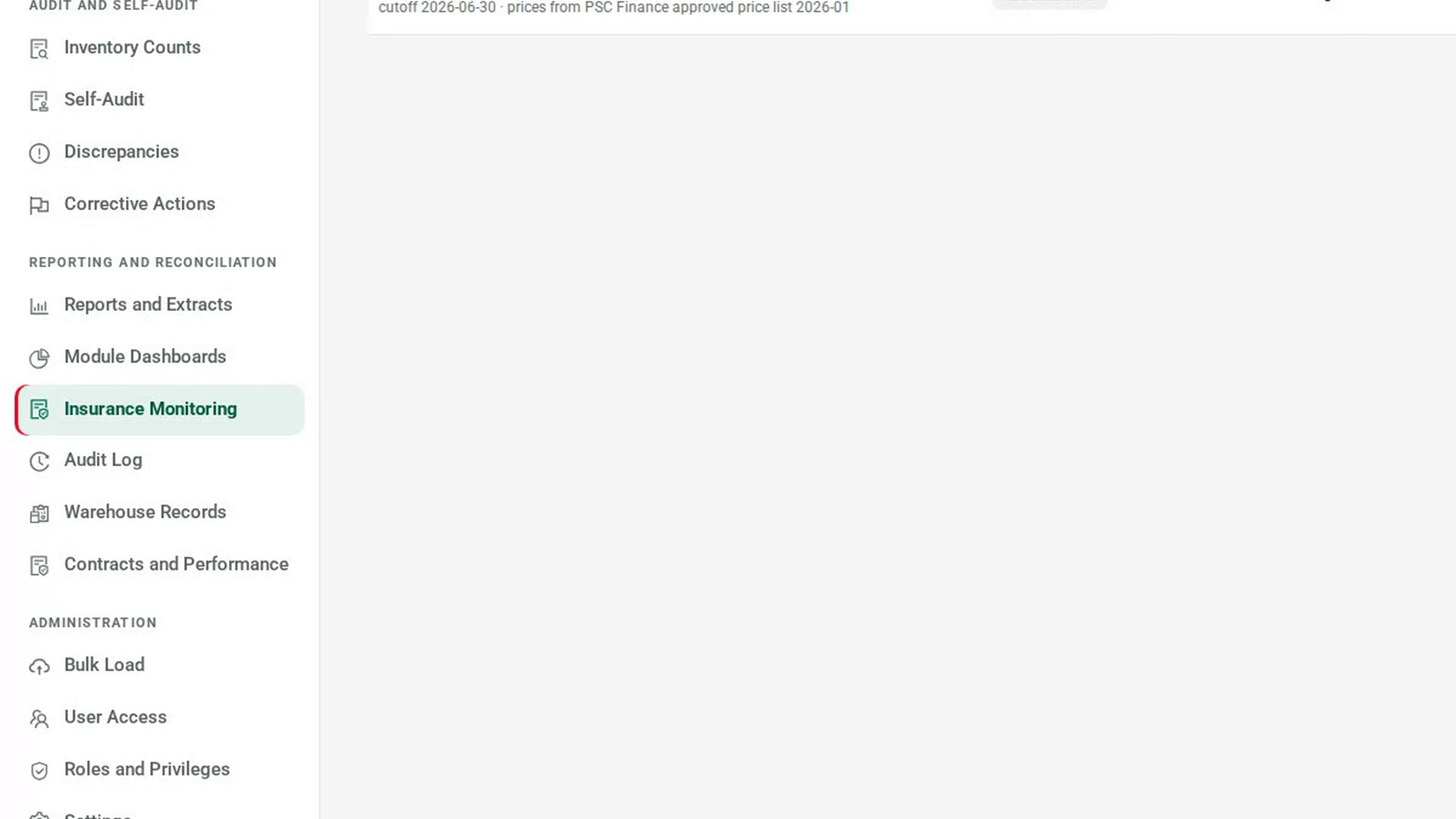
Open Insurance Monitoring
In the sidebar, under Reporting and Reconciliation, select Insurance Monitoring.
Import the workbook
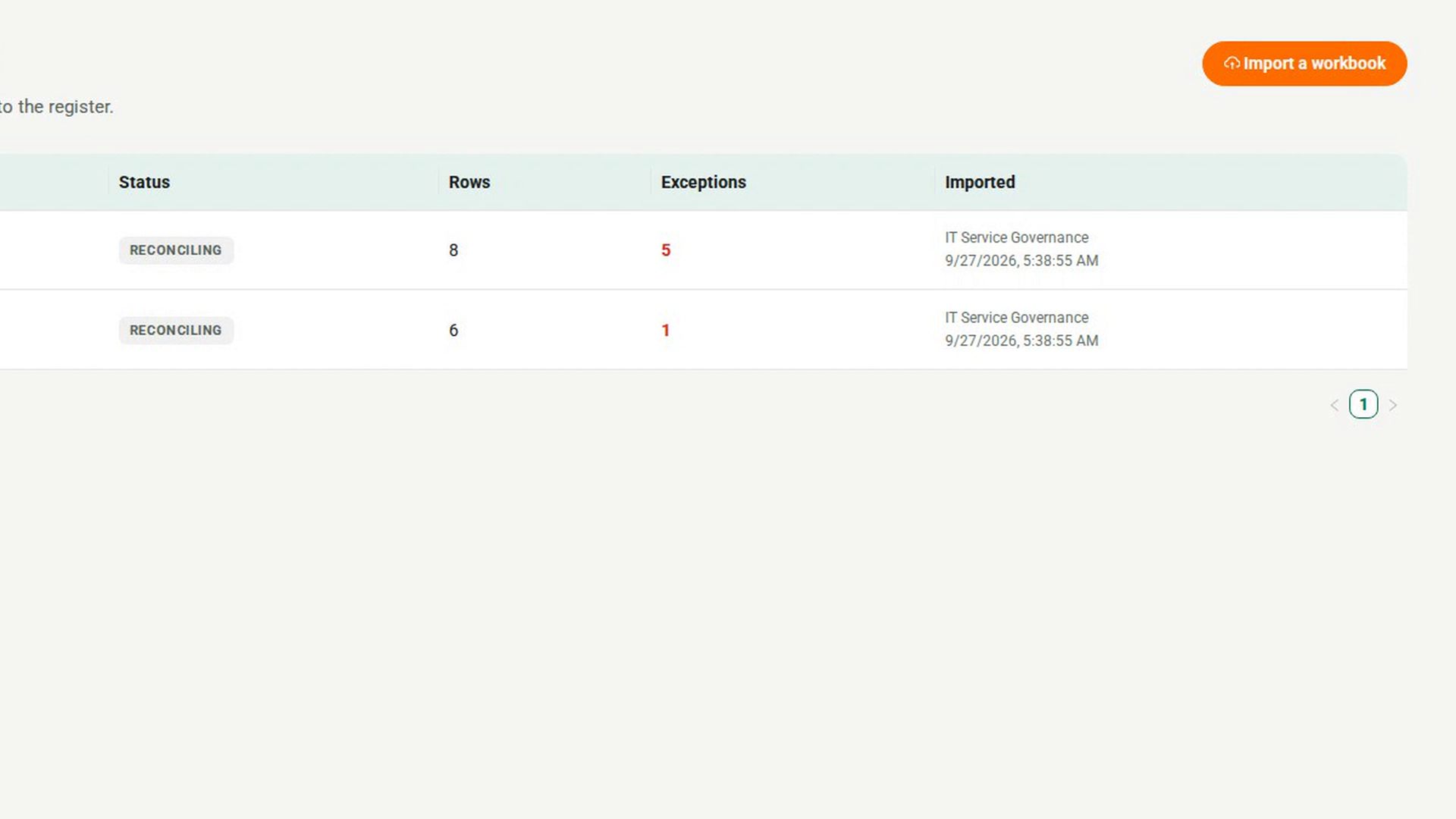
Select Import a workbook. In the Import a workbook dialog, enter the Workbook version and Reporting cutoff, and name the Approved price source. Choose the CSV file, or paste its contents with the header row first. The required columns are listed at the top, and Use the header row fills in a starting header. Select Match — writes no value.
Read the matched totals
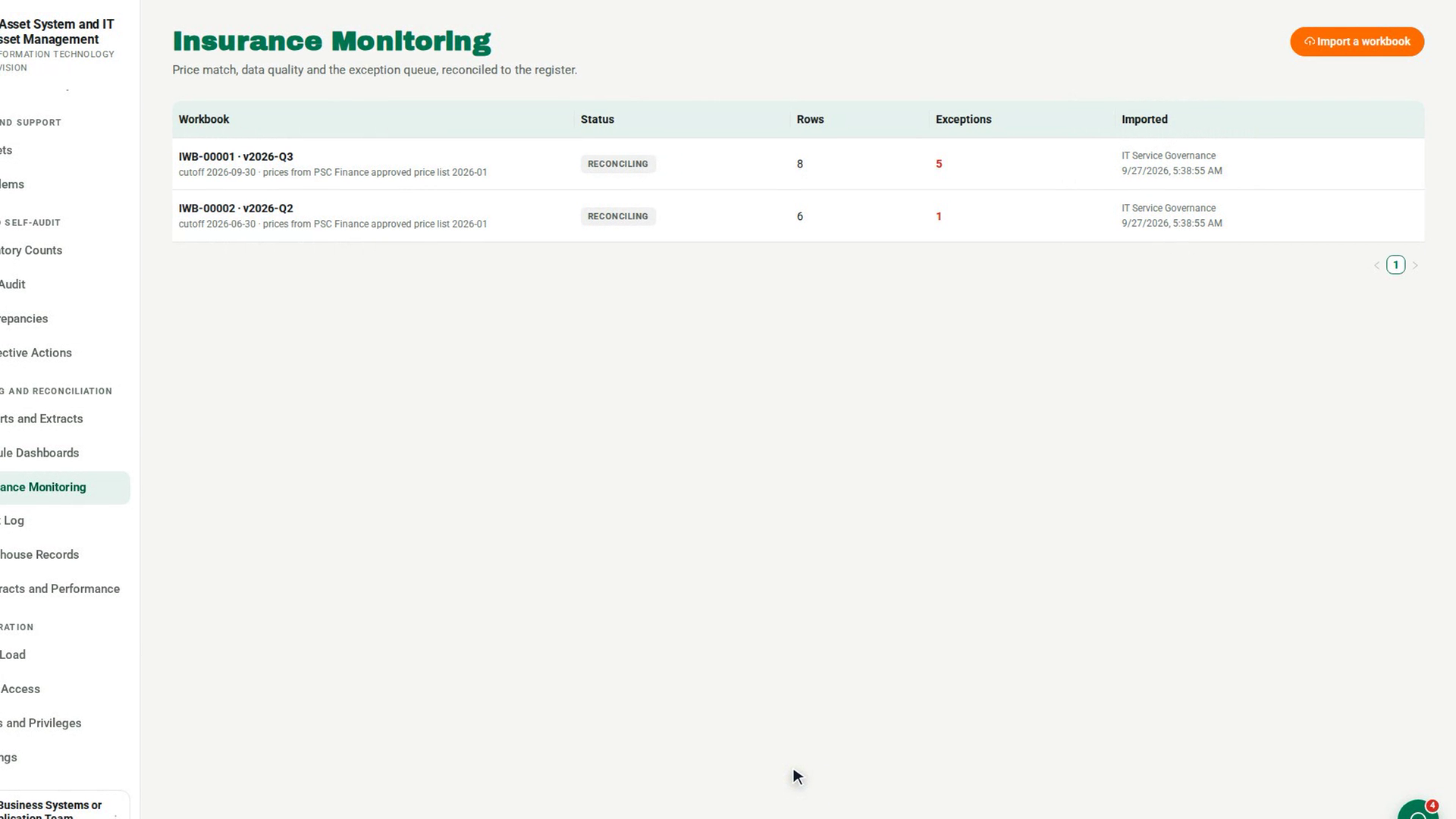
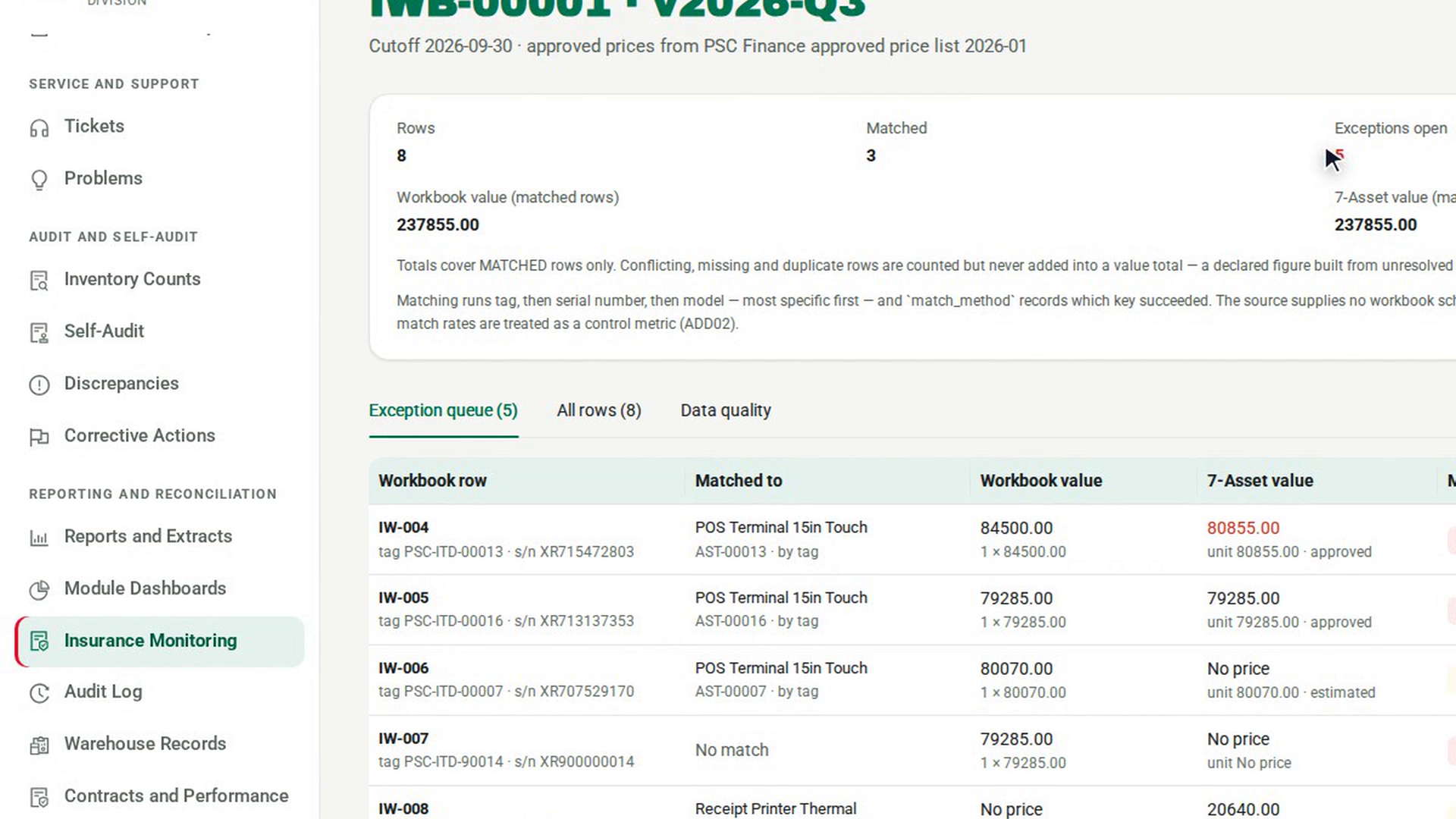
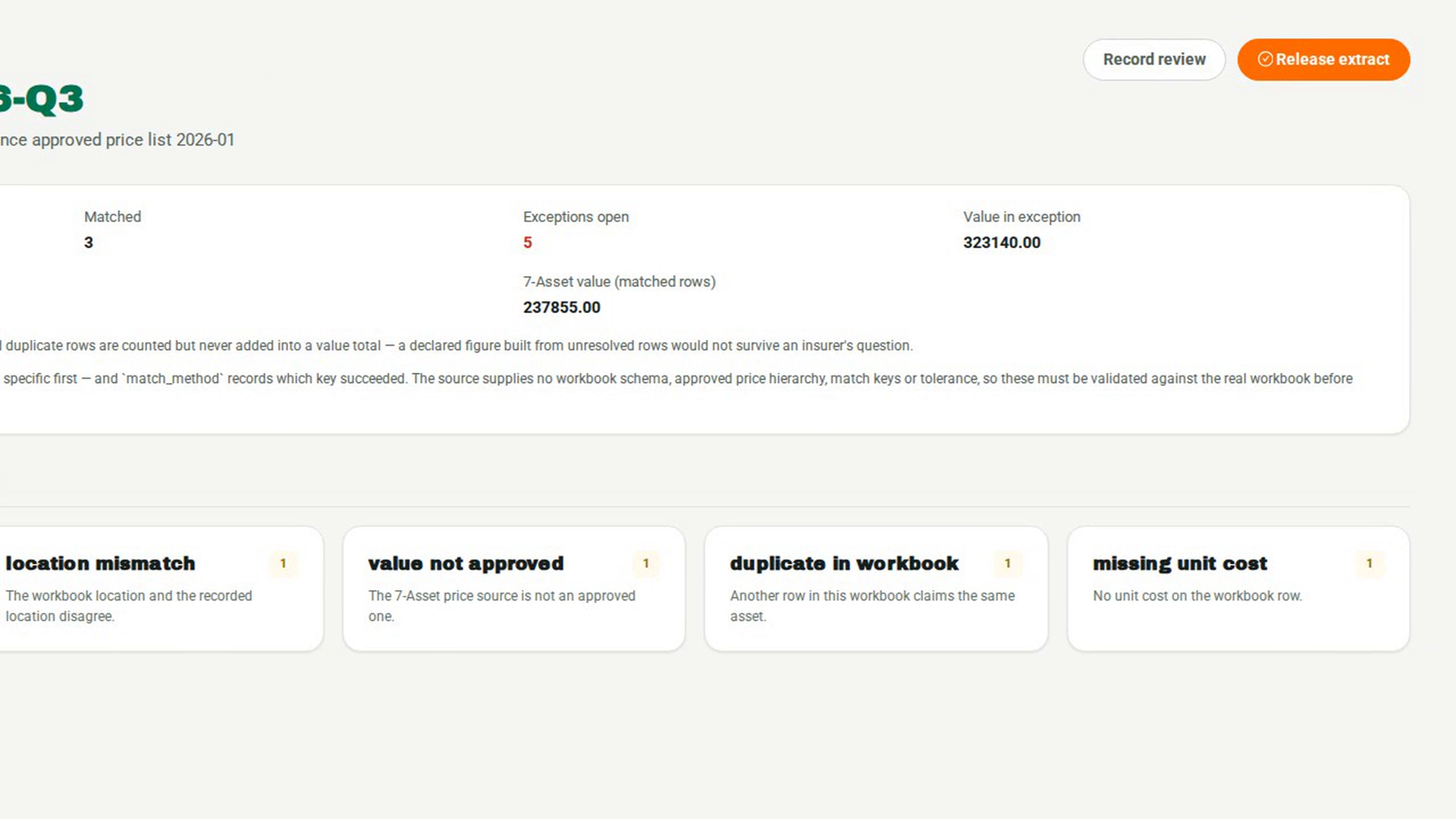
Select the workbook in the list. The summary shows Rows, Matched, Exceptions open and Value in exception, then Workbook value (matched rows) beside 7-Asset value (matched rows). Totals cover matched rows only.
Resolve the exceptions
On the Exception queue tab, select Resolve on a row. The dialog shows what the workbook says and what 7-Asset says. Choose the Outcome, explain it under What was decided, and add a Variance case id if the physical facts are in doubt. Select Record resolution.
Check data quality
Select the Data quality tab to see each flag raised on the workbook and how many rows carry it.
Review and release the extract
Another person selects Record review to note a review, or Release extract to release it. They add Review notes and confirm. If exceptions are still open, the release button reads Release with exceptions disclosed, and the extract says so.
Screenshots
Step 1: Open Insurance Monitoring
Step 2: Import the workbook
Step 3: Read the matched totals
Step 4: Resolve the exceptions
Step 5: Check data quality
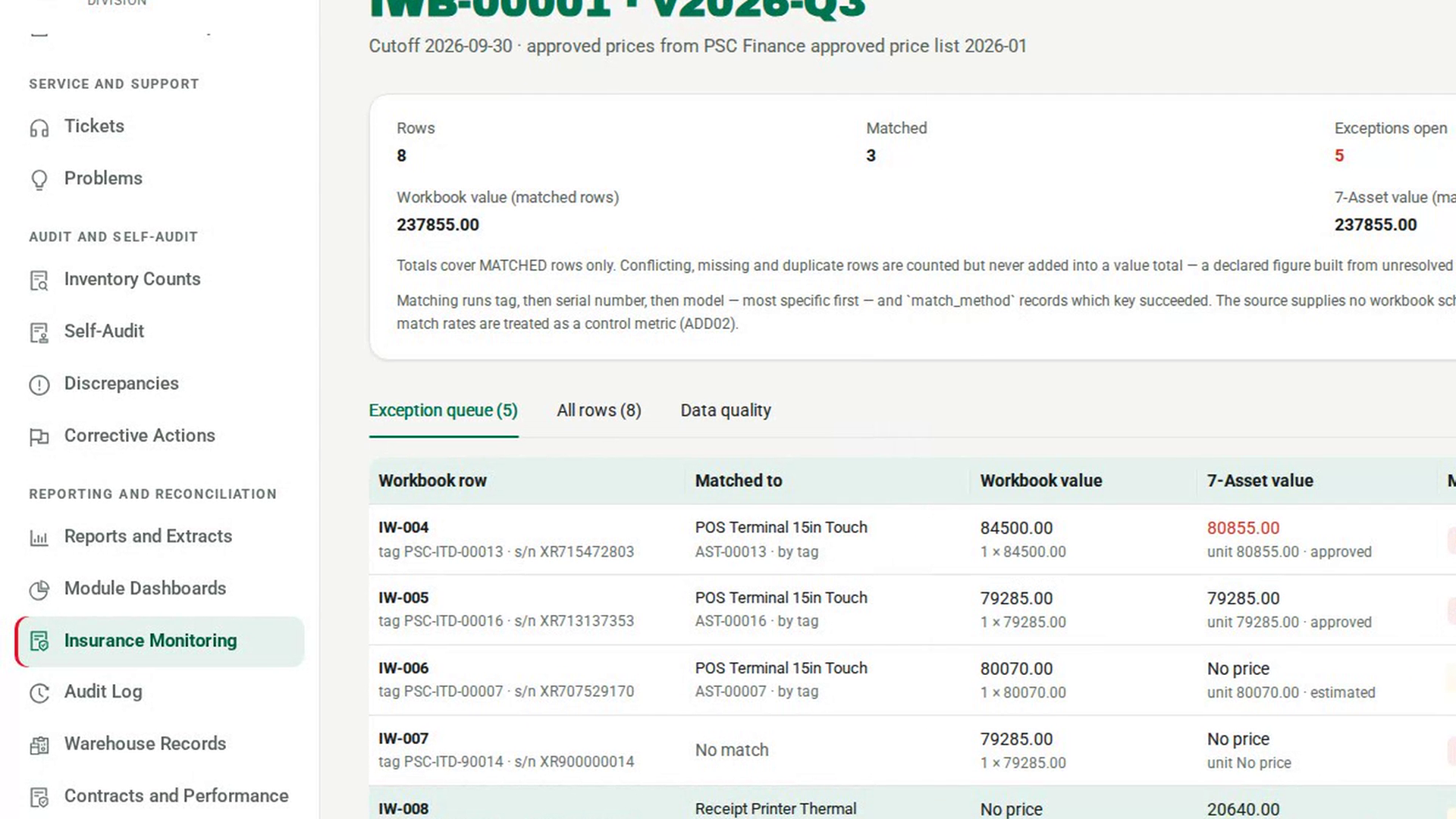
Step 6: Review and release the extract
Watch how
You cannot review or release a workbook you imported. 7-Asset replies You imported this workbook, so you cannot also sign its reconciliation.
Tip: Resolving a row records what was decided. It does not change the asset's value — that is a separate act on the asset, or a variance case where the physical facts are in question.
In the Asset value and insurance report on Reports and Extracts, the approved value sums only prices traced to an approved source. Estimated and unmatched values are counted but never added into it.