Handle a receiving discrepancy
When a delivery is short, damaged or not what was ordered, the inspection opens a discrepancy case. You follow that case from investigation to an approved correction, and then close it.
Before you start
- Anyone who records deliveries can open, investigate and propose corrections — for example a Dedicated IT Warehouse Administrator or CDI Staff or an Asset and Logistics Associate.
- Approving or rejecting a correction needs an IT Hardware Inventory Supervisor or the IT Business Systems or Application Team, and it must be someone other than the person who proposed it.
- The case usually exists already: recording a delivery inspection opens one for each rejected, damaged or short quantity.
Steps
Find the receiving cases
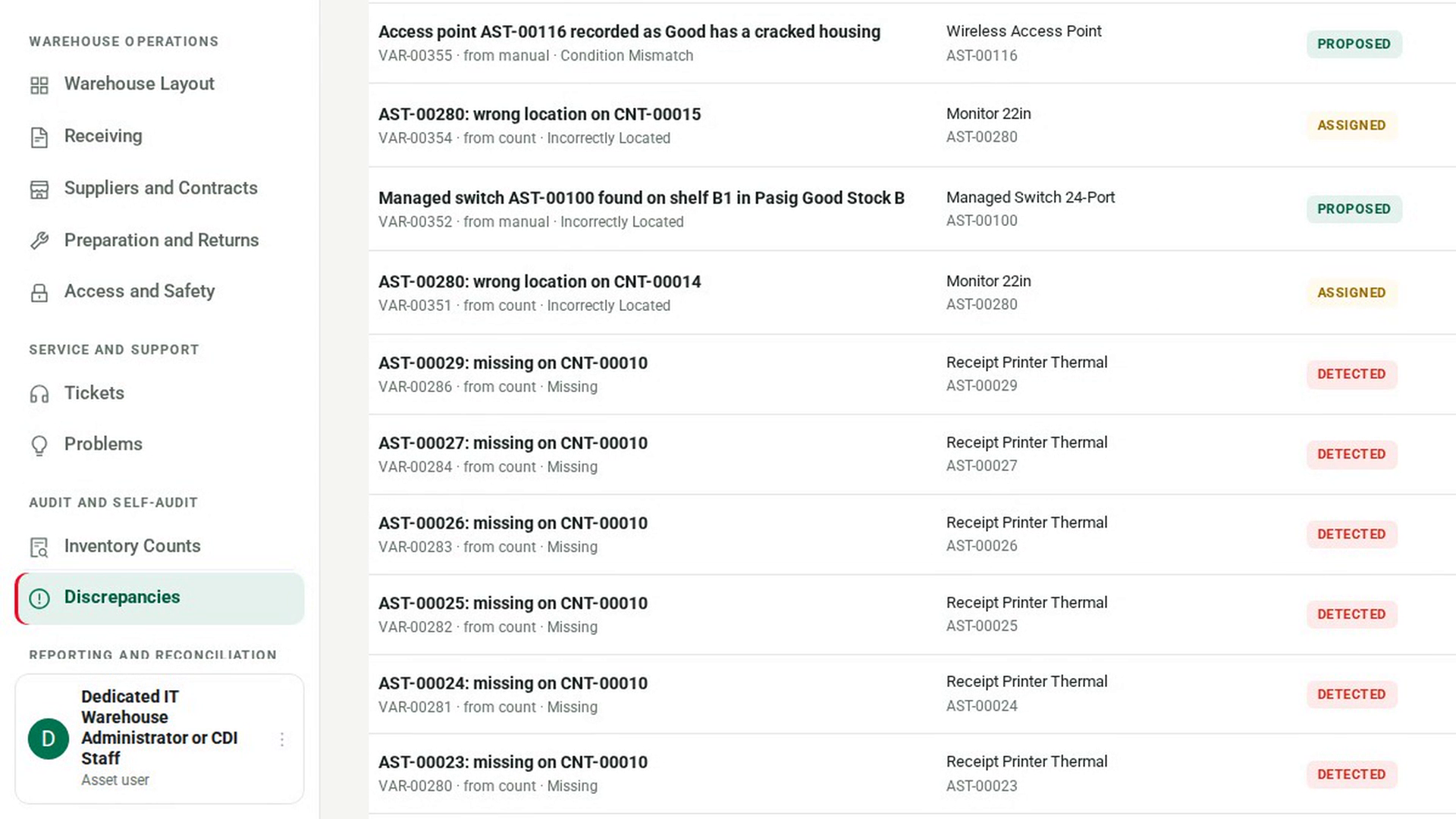
In the sidebar, under Audit and Self-Audit, select Discrepancies. In Any source, choose receiving. Each case shows what was found, the purchase order it came from, its status, risk and owner. Select a case to open it.
Check what was expected and what arrived
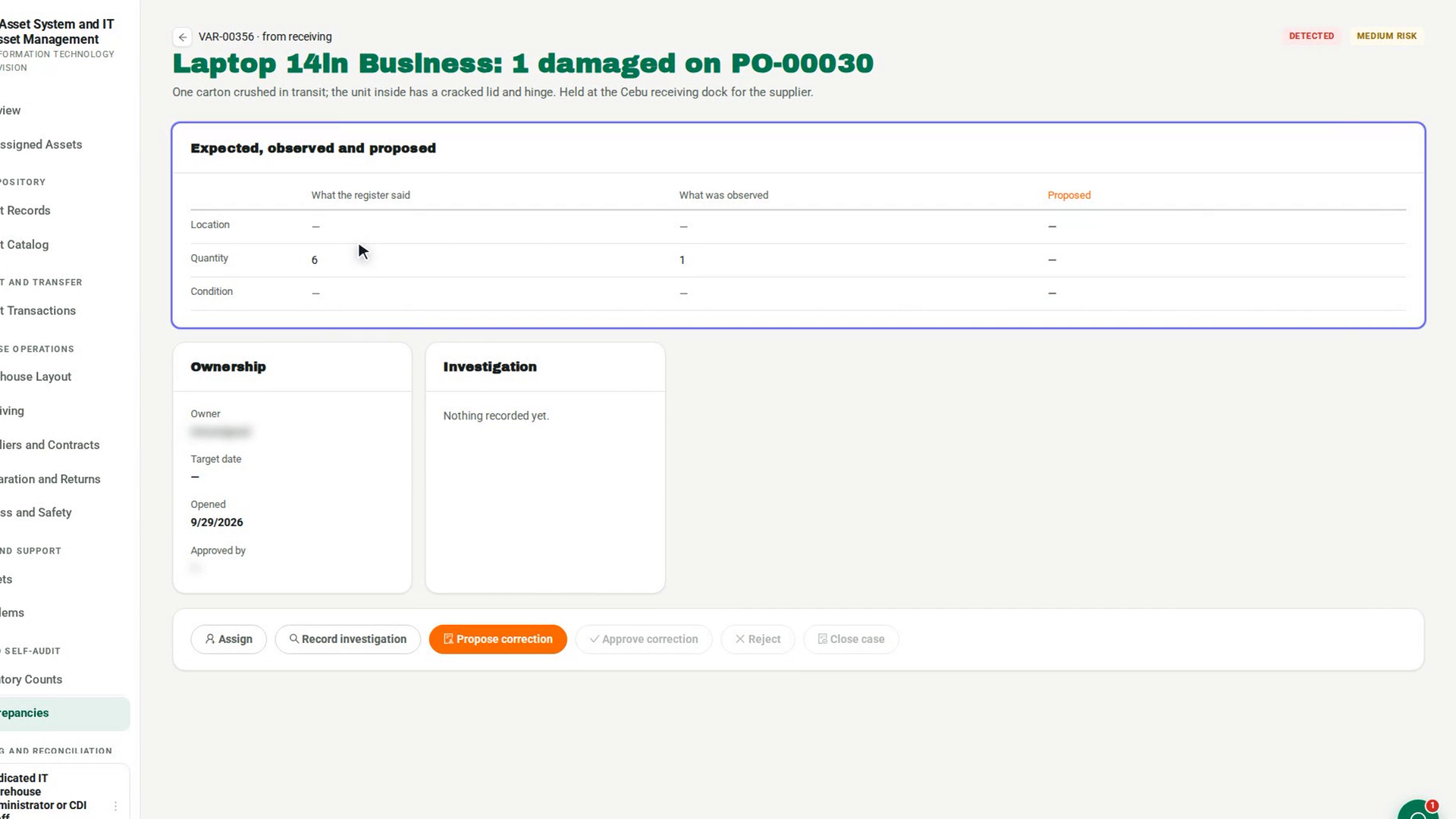
The case page shows Expected, observed and proposed side by side: what the order still expected, the quantity found rejected, damaged or missing, and any correction proposed so far.
Assign an owner
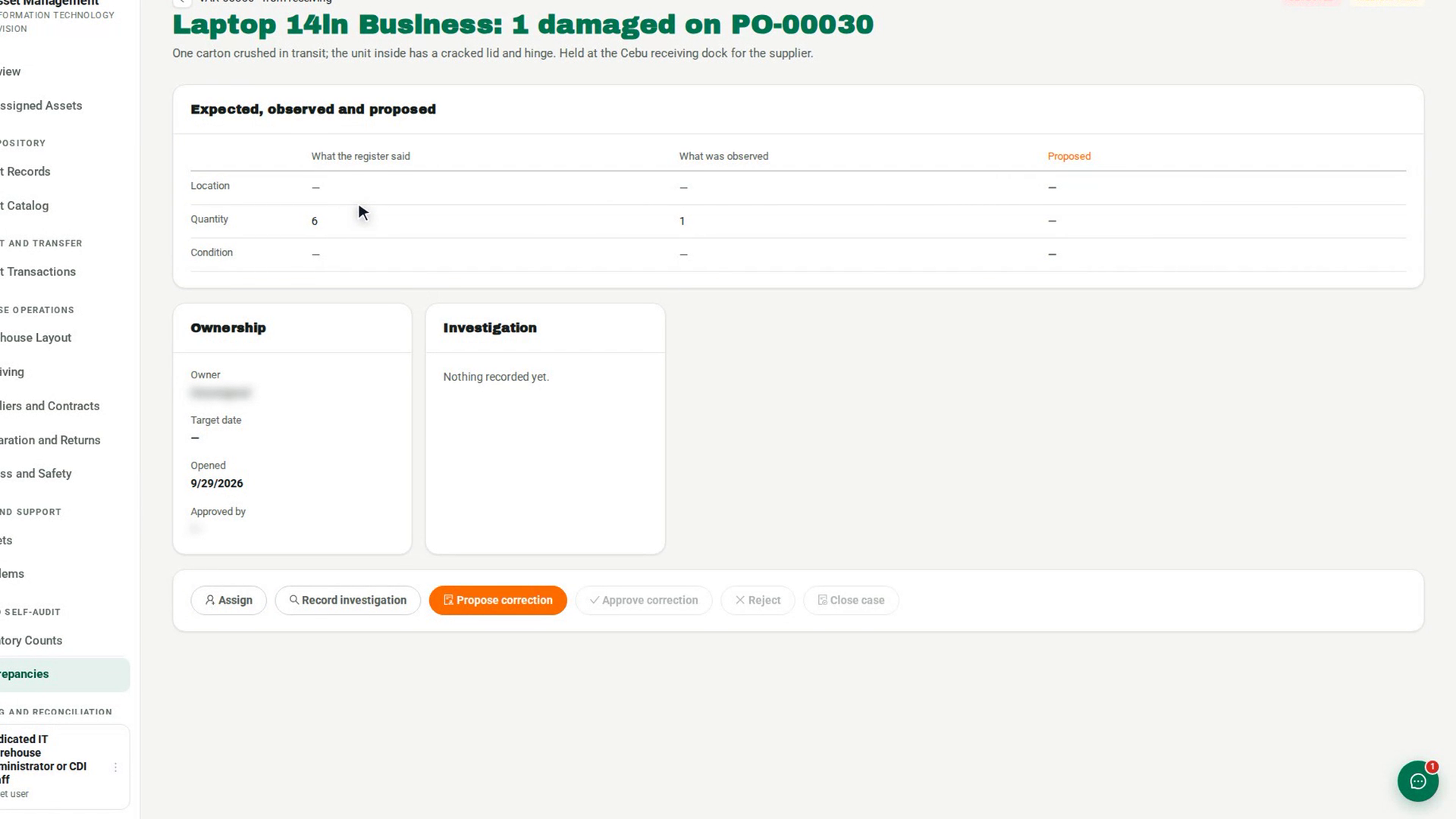
Select Assign. In Assign this case, choose the Accountable owner, set the Risk and a Target date if you have one, and select Assign.
Record the investigation
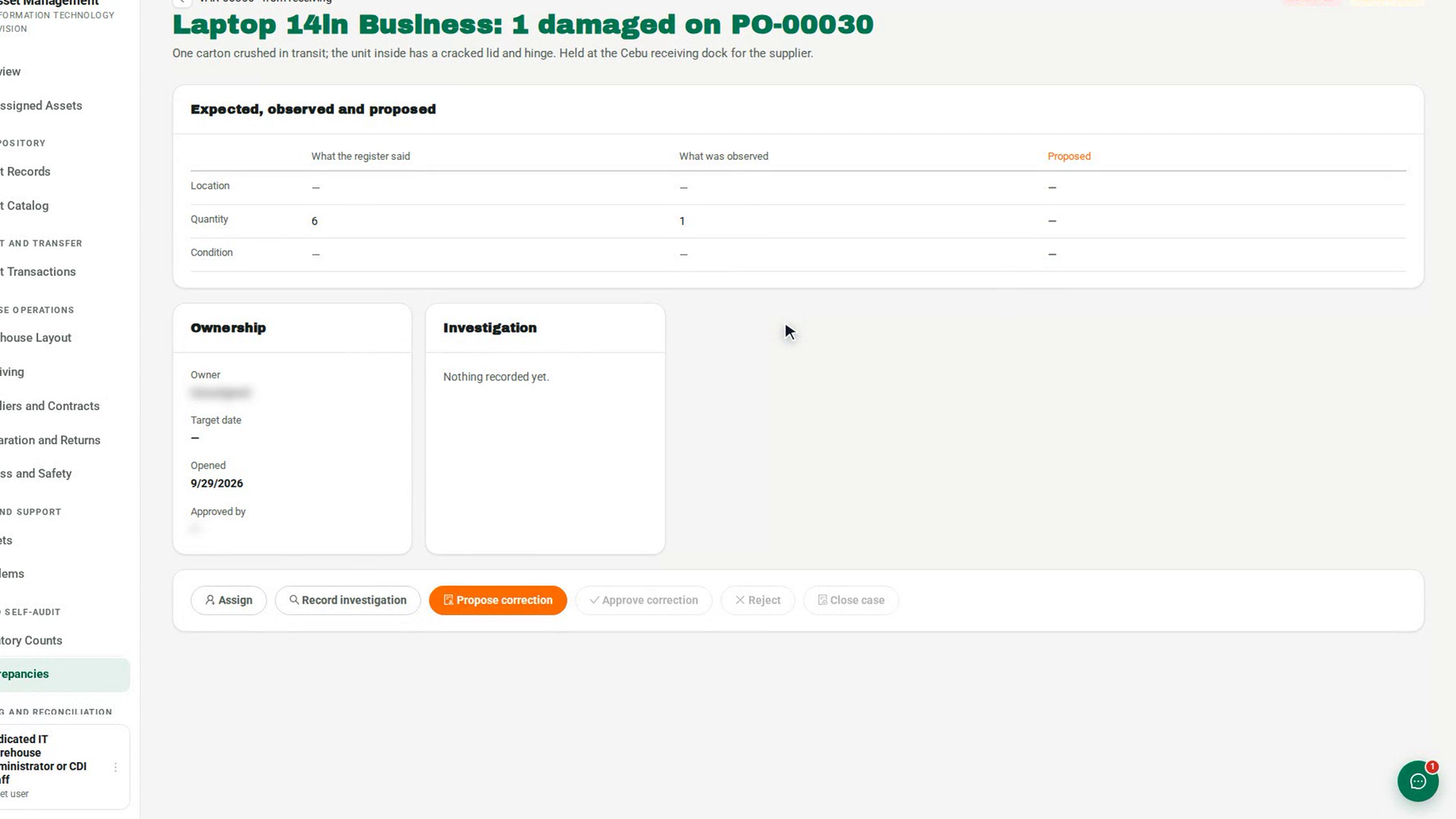
Select Record investigation. In What did you find?, note the records you checked, the physical evidence and who you spoke to, then select Save notes.
Propose a correction
Select Propose correction. In Propose a correction, say What should happen — for example that the supplier will replace the damaged units — and enter a Corrected quantity if the stock figure should change. Select Submit proposal. Nothing changes yet.
Approve or reject the correction
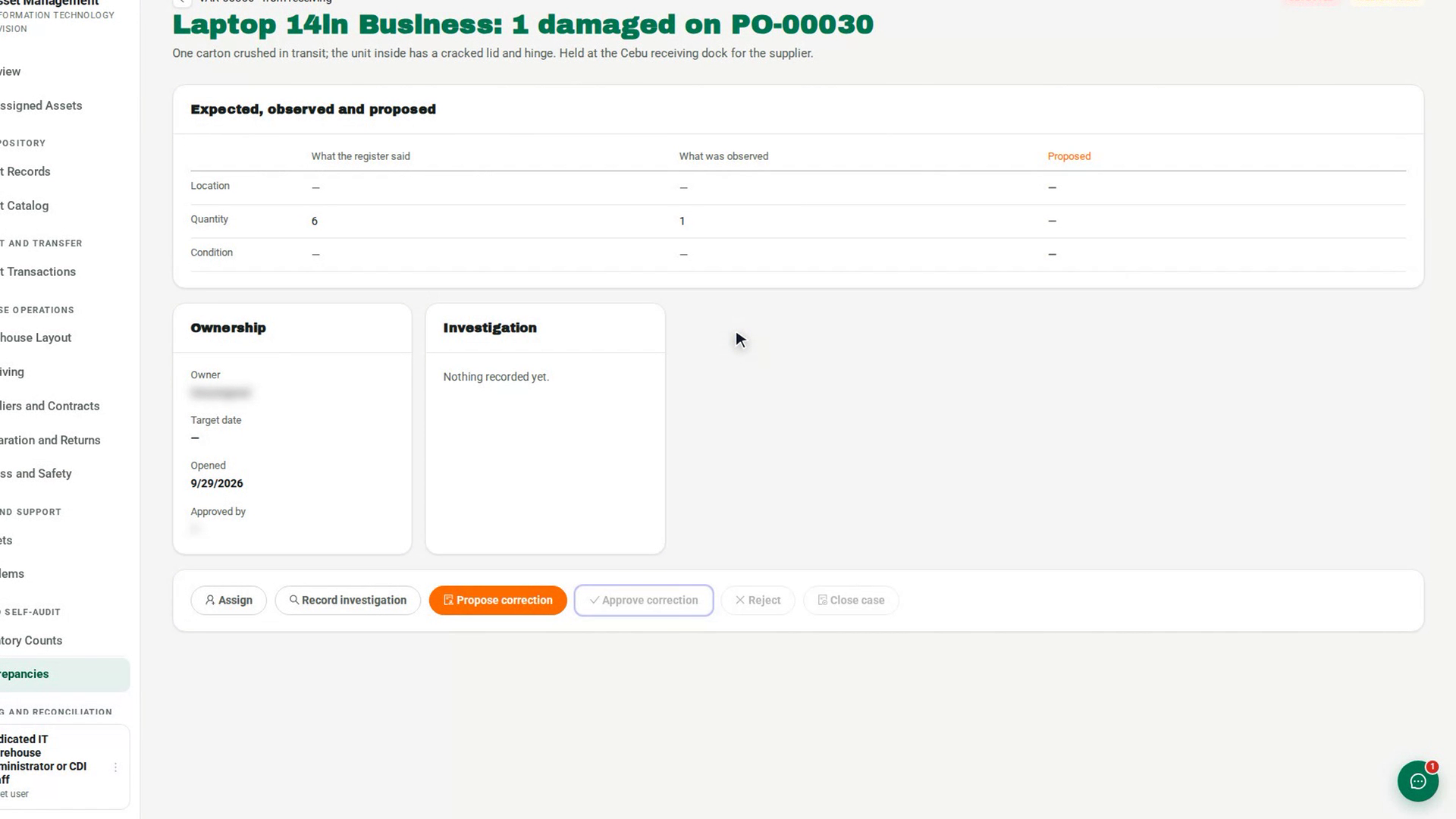
Another person opens the case and selects Approve correction, then Approve and apply. This is the only step that changes the record. To send it back, they select Reject and give a reason; the case returns to investigation.
Close the case
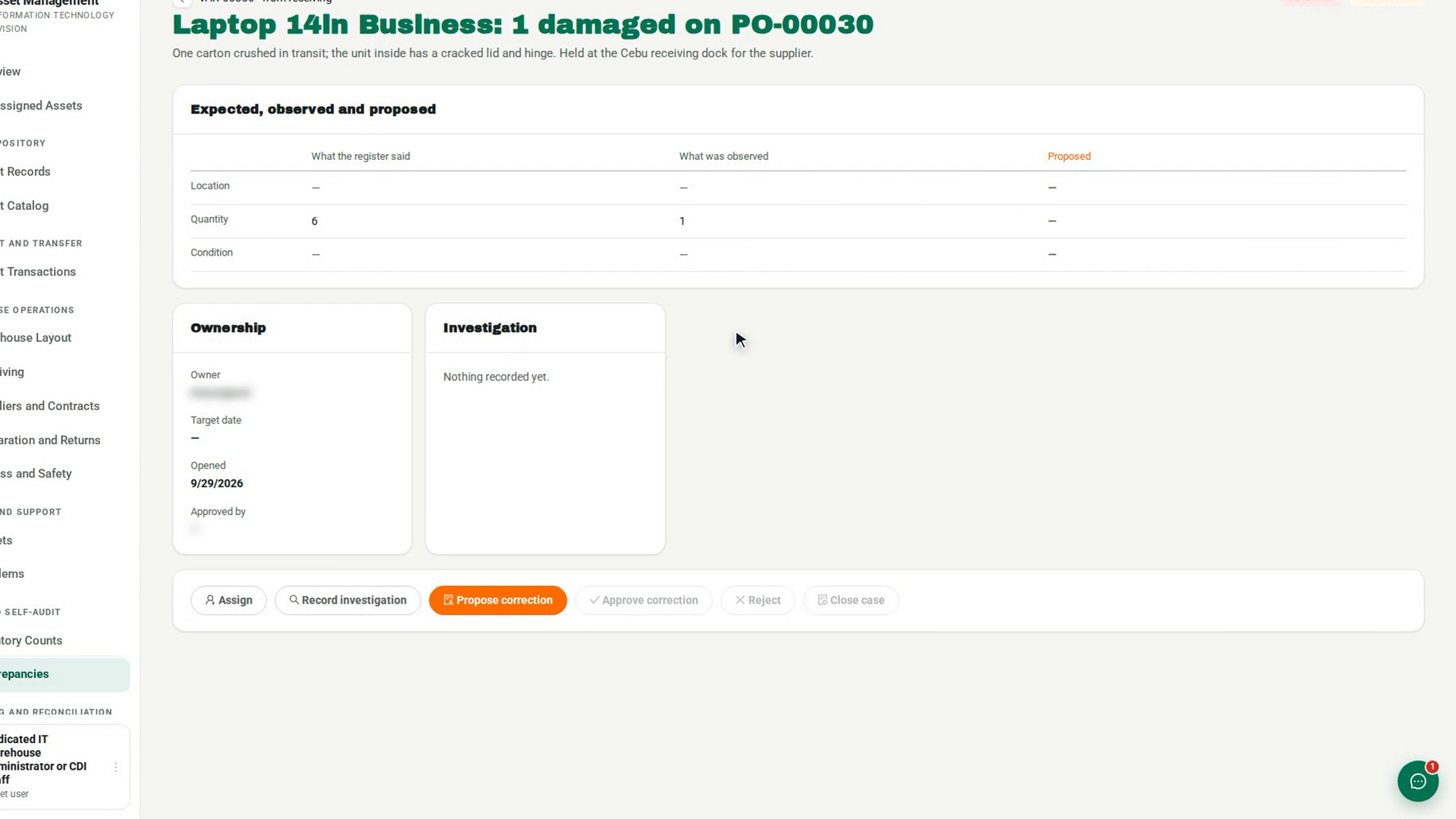
Once the correction is approved or rejected, select Close case. Enter the Closure notes, and an External process reference if one exists, then select Close case.
Screenshots
Step 1: Find the receiving cases
Step 2: Check what was expected and what arrived
Step 3: Assign an owner
Step 4: Record the investigation
Step 5: Propose a correction
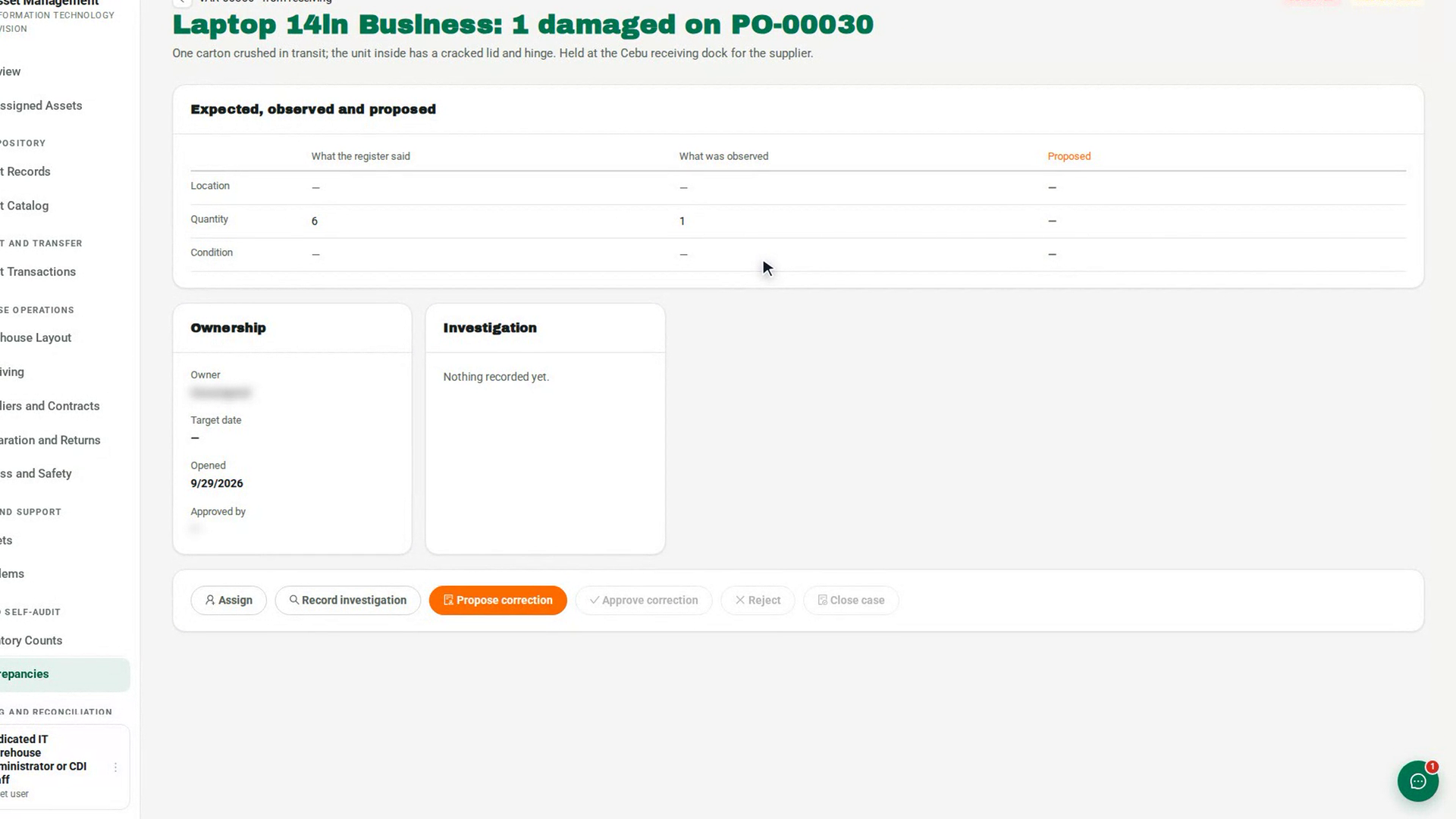
Step 6: Approve or reject the correction
Step 7: Close the case
Watch how
You cannot approve a correction you proposed, even if your role allows approving. 7-Asset refuses it and tells you to ask another approver.
Tip: A greyed-out button shows why when you hover over it — for example Approve correction stays unavailable until a correction has been proposed, and Close case until the case is resolved. Rejected quantities appear with the kind Other, damaged ones as Damaged and shortfalls as Missing.