Monthly inventory and exception pack
The monthly pack gathers every open exception for one month into a single record, such as unresolved variances, goods in transit nobody acknowledged and overdue corrective actions. It records who generated it, who reviewed it and who it was issued to, which is the evidence that monthly reporting happens.
Before you start
- To see the packs you need a role that can open Reports and Extracts: IT Business Systems or Application Team, IT Hardware Inventory Supervisor, Dedicated IT Warehouse Administrator or CDI Staff, ITD Head and Management, IT Service Governance, IT Service Operations, Infrastructure or Cloud Team, Asset and Logistics Associate, or IT Warehouse Technical Team.
- To generate, review or issue a pack you need to be IT Business Systems or Application Team or IT Hardware Inventory Supervisor.
- The reviewer must be a different person from the one who generated the pack.
Steps
Open the packs
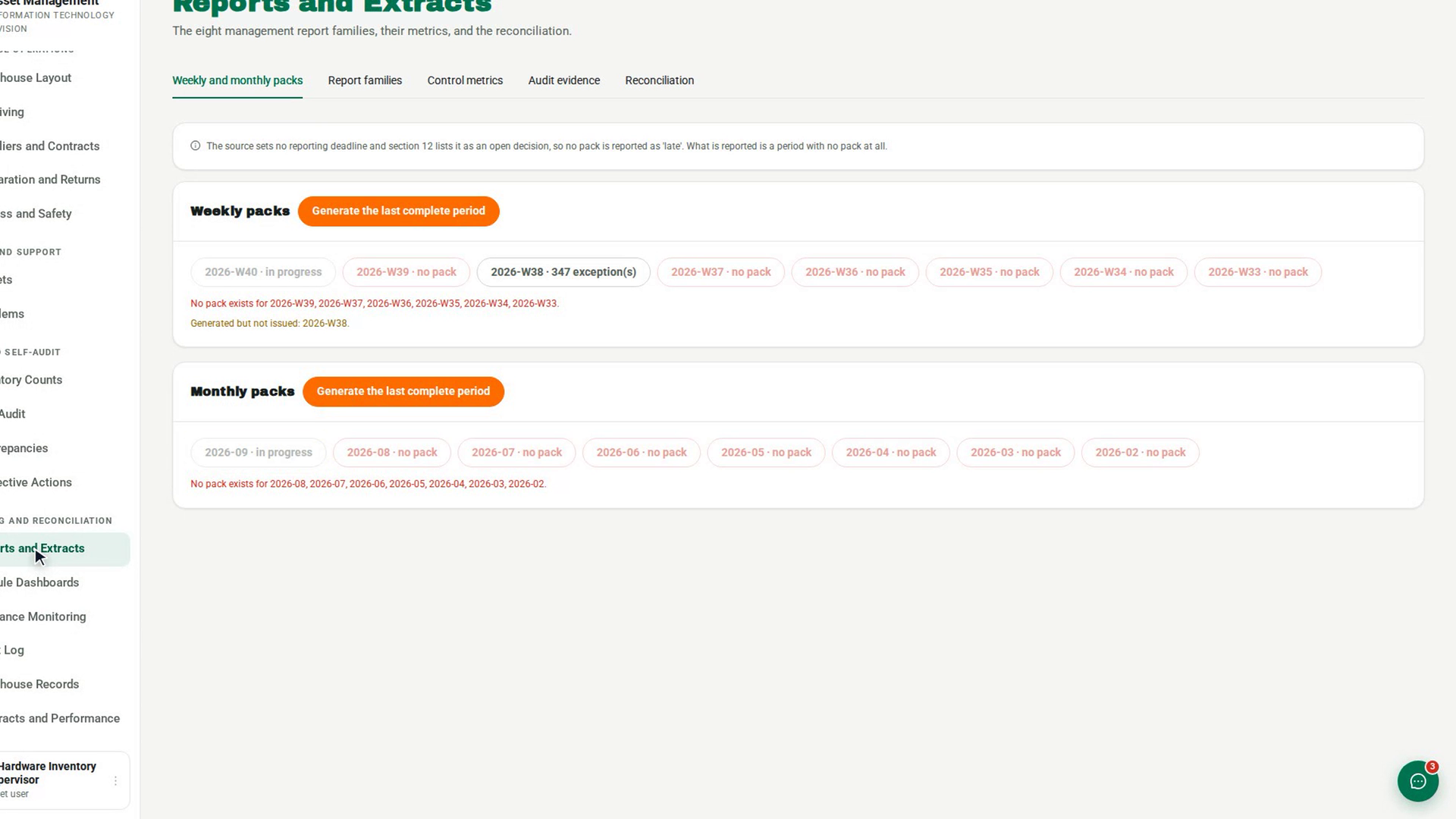
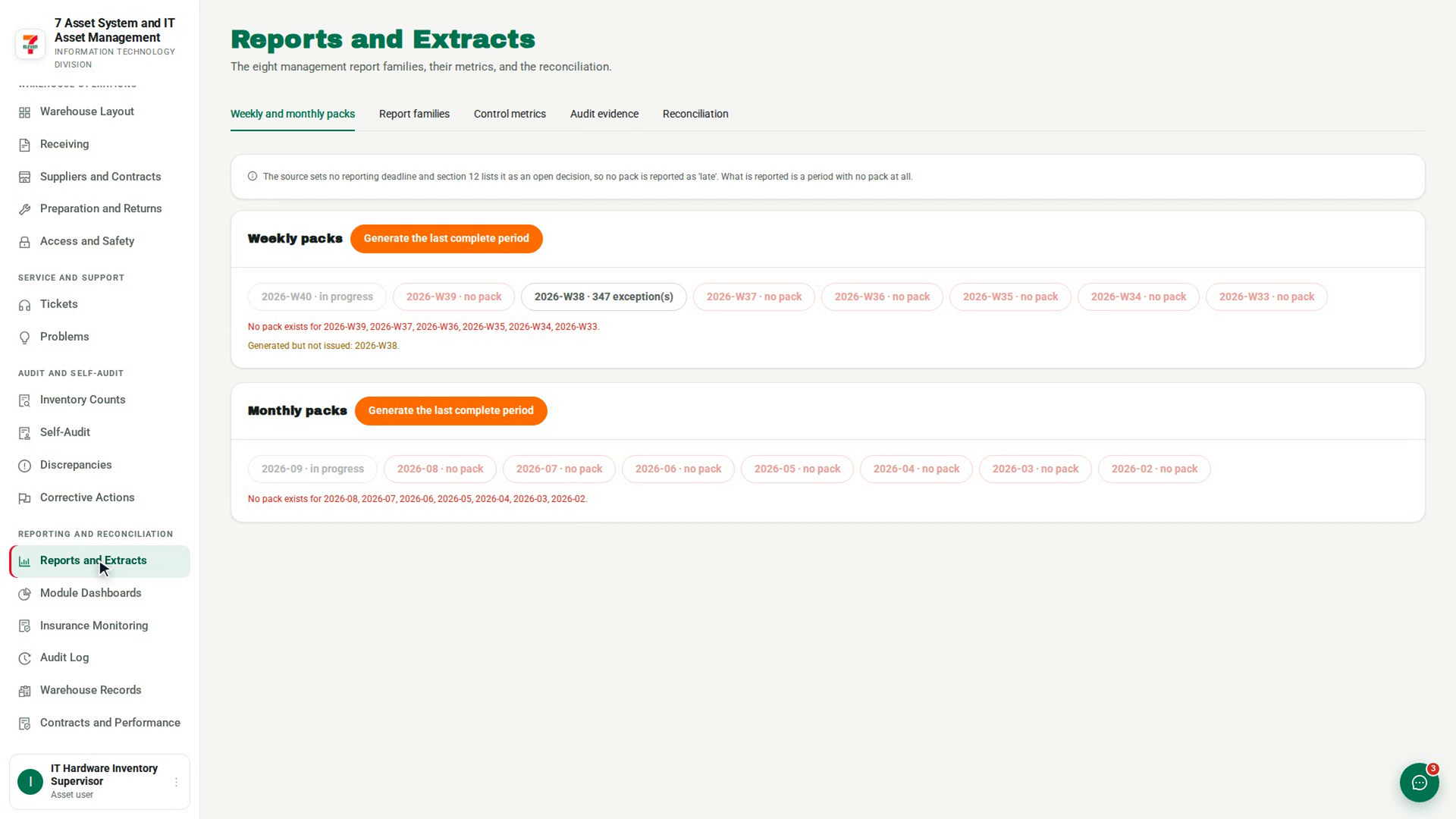
In the sidebar, under Reporting and Reconciliation, select Reports and Extracts. The page opens on the Weekly and monthly packs tab. The note at the top explains that no pack is reported as late, only as missing.
Check which months have a pack
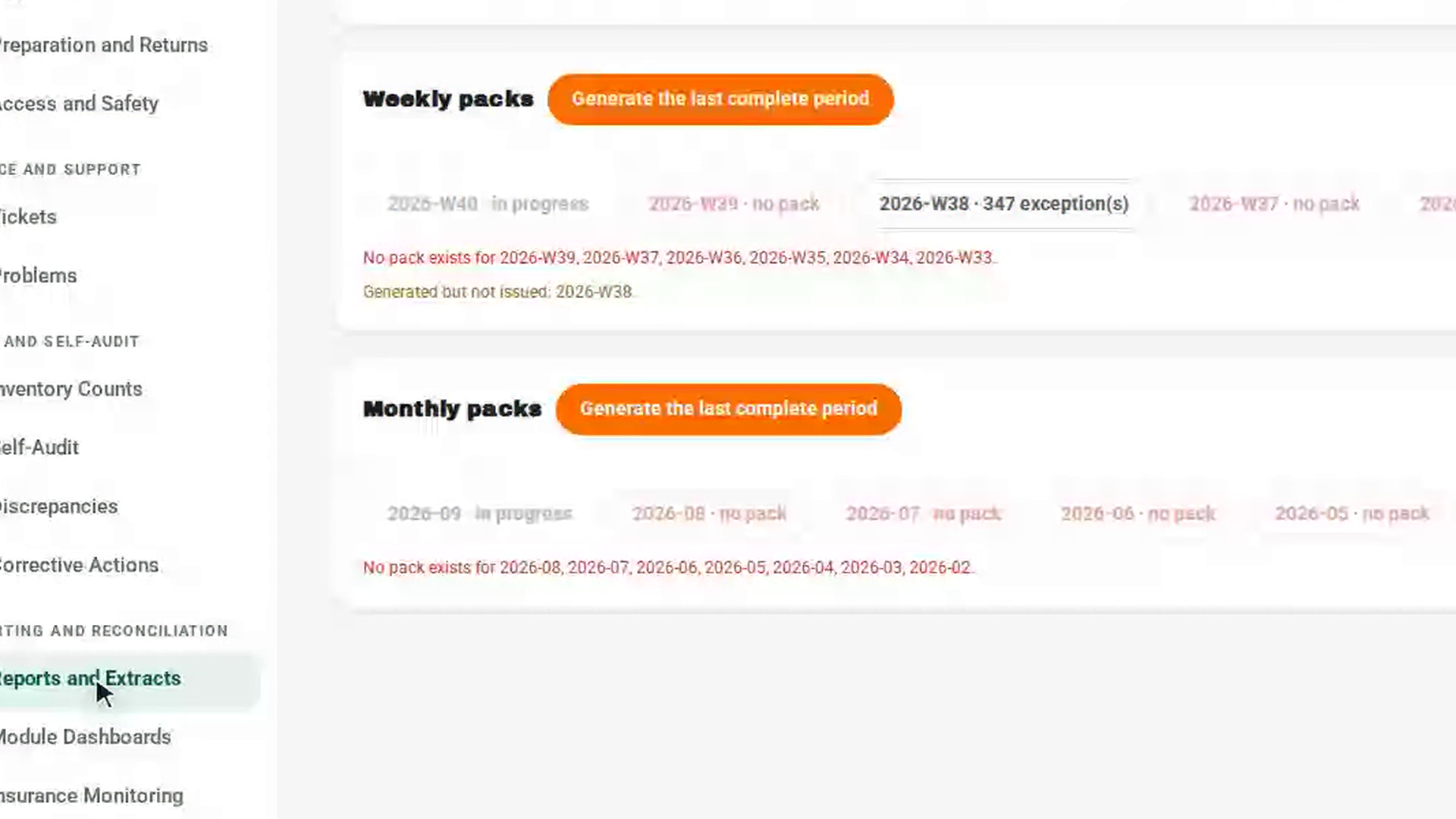
In the Monthly packs card, each recent period is a button, for example 2026-08. It reads in progress for the current period, the number of exceptions for a period with a pack, or no pack in red. Lines below list the periods with no pack and the ones Generated but not issued.
Generate the last complete month
Select Generate the last complete period in the Monthly packs card. The message Pack generated. appears and the pack opens below. Only one pack can exist for a period, so a second one is refused.
Open a pack
Select a period that has a pack. The pack opens below with its reference, period and status, and the fields Period, Exceptions at generation, Exceptions now and Issued to.
Read the exceptions
Each kind of exception found appears as its own table, with its name, the count in brackets and a line saying what it means. If there are none, you see No exceptions in this period.
Review the pack
Select Review. The message Pack reviewed. appears and the status changes. If you generated the pack, 7-Asset refuses: You generated this pack. A reporting control whose reviewer is its author reviews nothing.
Issue the pack
Once the pack is reviewed, type who it goes to in Issued to and select Issue. The message Pack issued. appears, and Issued to shows the recipient.
Screenshots
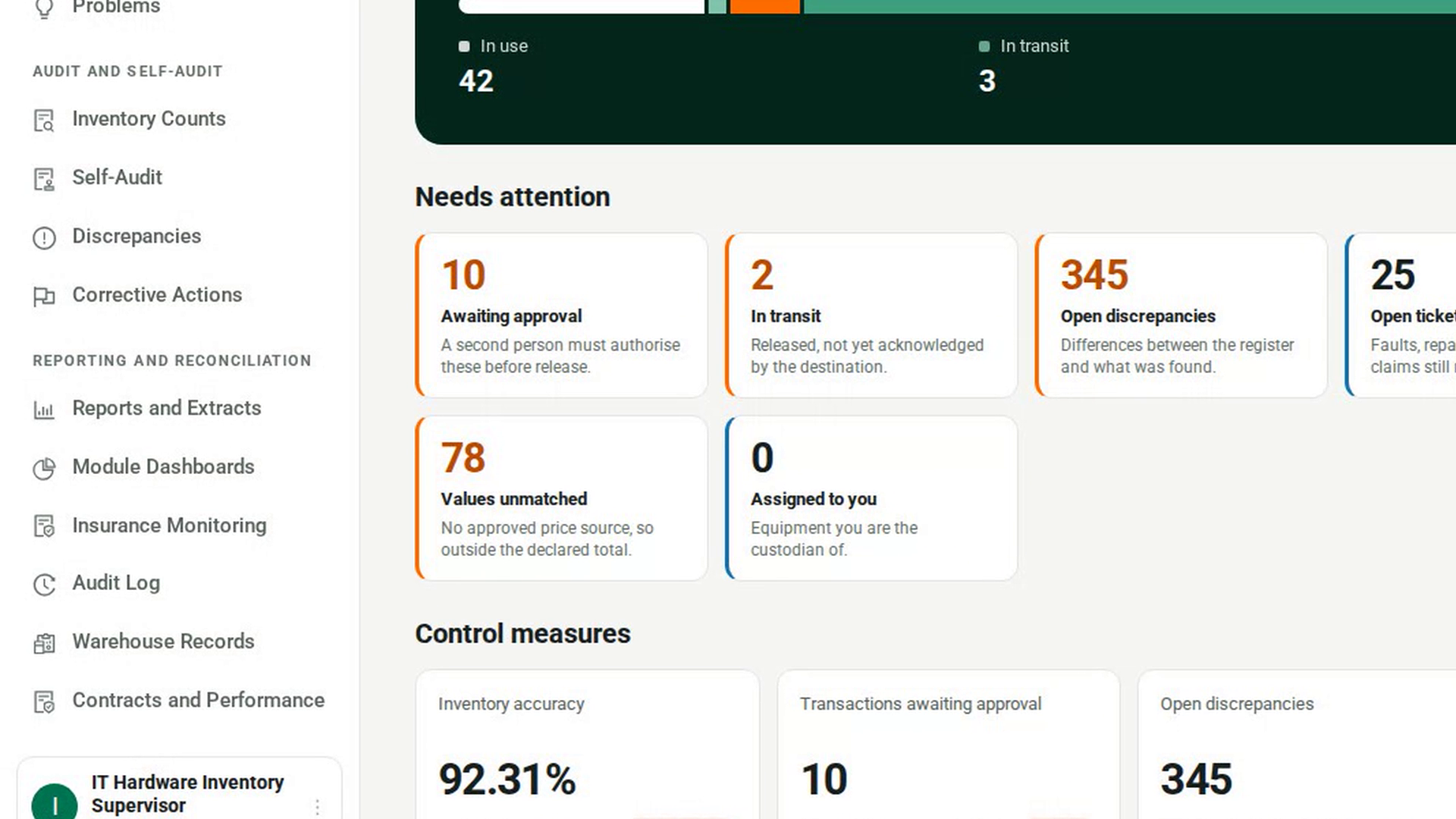
Step 1: Open the packs
Step 2: Check which months have a pack
Step 3: Generate the last complete month
Step 4: Open a pack
Step 5: Read the exceptions
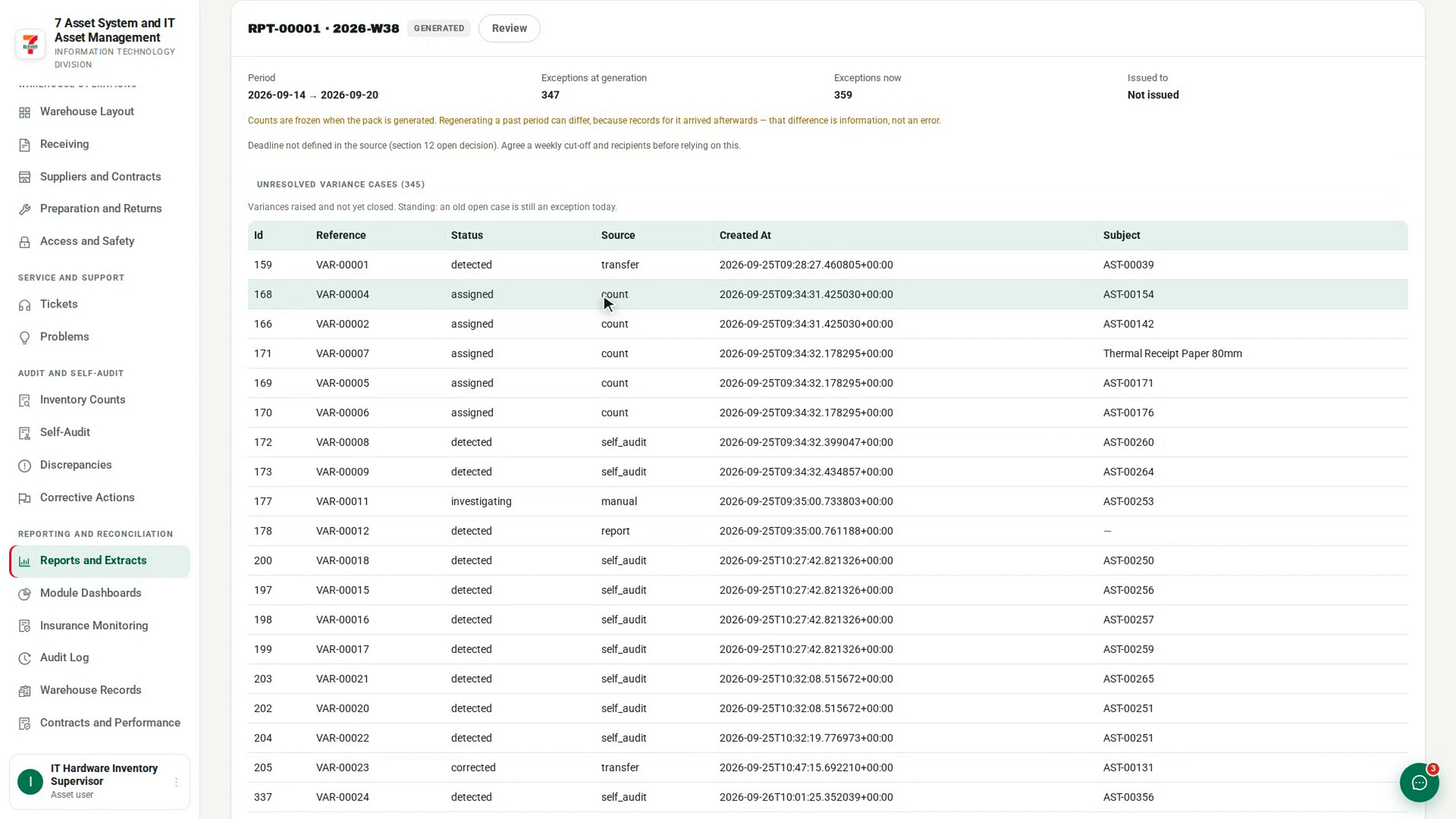
Step 6: Review the pack
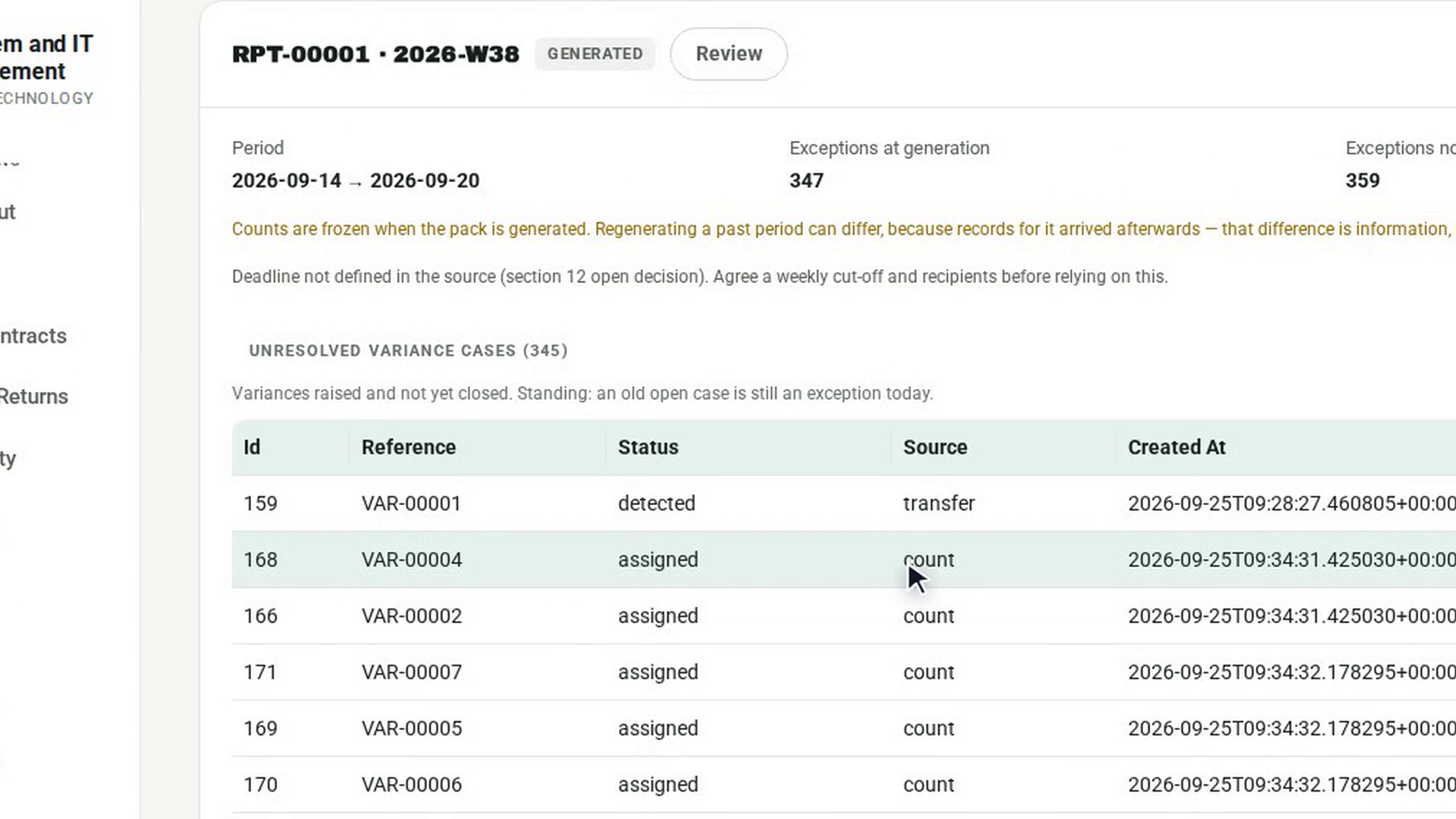
Step 7: Issue the pack
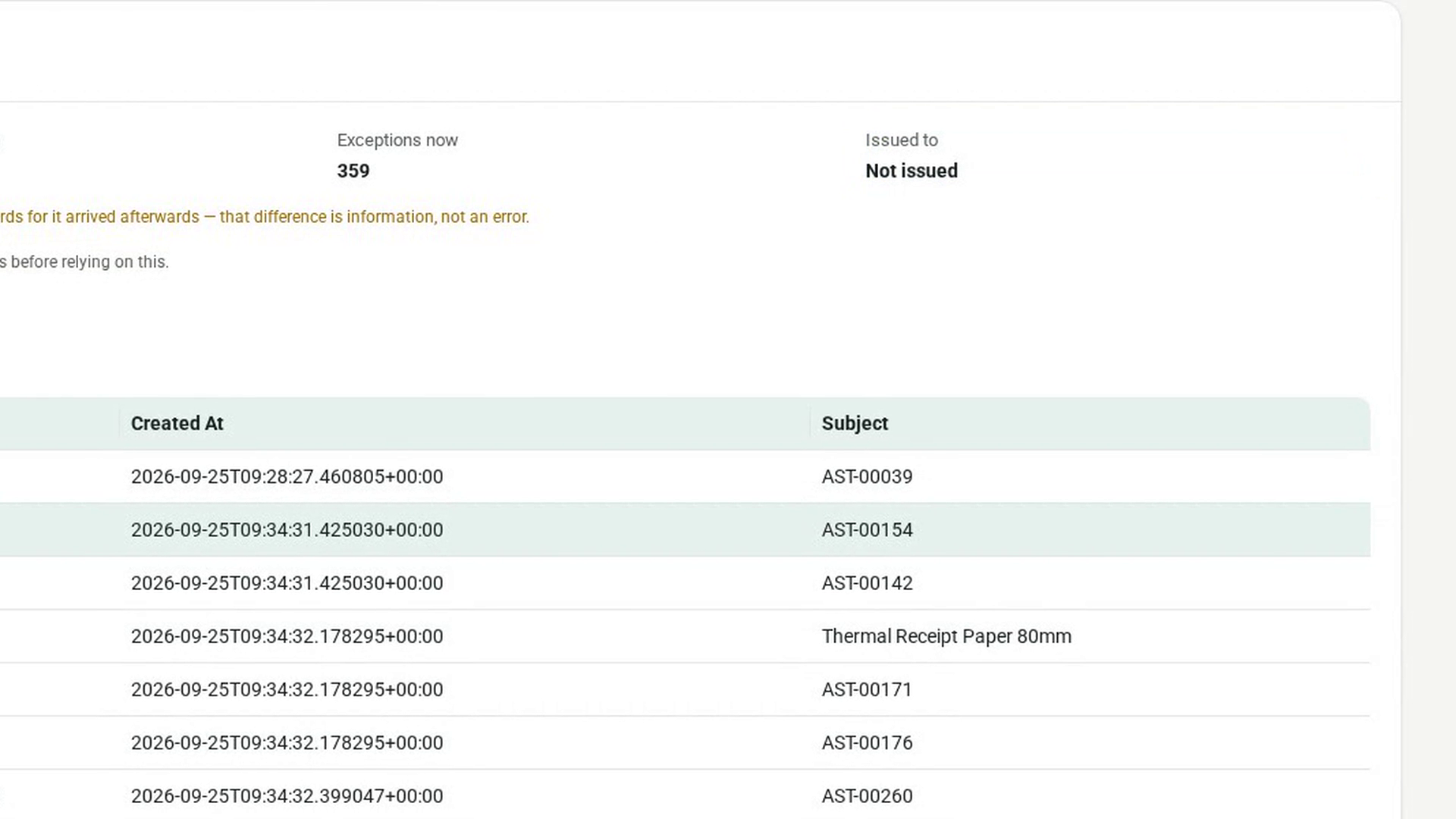
Watch how
Tip: 7-Asset sets no reporting deadline, so a month with no pack is shown as missing, never as late. The current month is marked in progress and is not counted as missing.
The counts are frozen when a pack is generated. If Exceptions now differs from Exceptions at generation, records for that period arrived afterwards. The pack explains this under the fields. It is information, not an error.
A pack must be reviewed before it can be issued, and it cannot be issued without naming who received it.