Raise and work a ticket
Log an issue with an asset or with 7-Asset itself, and follow it through classification, assignment, resolution and closure. Every step is written to the ticket's thread, so the requester and the resolvers see the same history.
Before you start
- To raise a ticket, you need to be Asset Custodian or End User, Asset and Logistics Associate, IT Service Operations, Dedicated IT Warehouse Administrator or CDI Staff, IT Hardware Inventory Supervisor, or IT Business Systems or Application Team.
- To classify, you need to be IT Service Operations, IT Warehouse Technical Team, IT Hardware Inventory Supervisor, or IT Business Systems or Application Team. To assign or close, you need to be IT Service Operations, IT Hardware Inventory Supervisor, or IT Business Systems or Application Team.
- To change status or resolve, you need a role that can update tickets, such as IT Service Operations, IT Warehouse Technical Team, Dedicated IT Warehouse Administrator or CDI Staff, or JIMAC or Application Service Provider.
- Unless your role can see the whole queue, you see only the tickets you raised or are working on.
Steps
Open Tickets
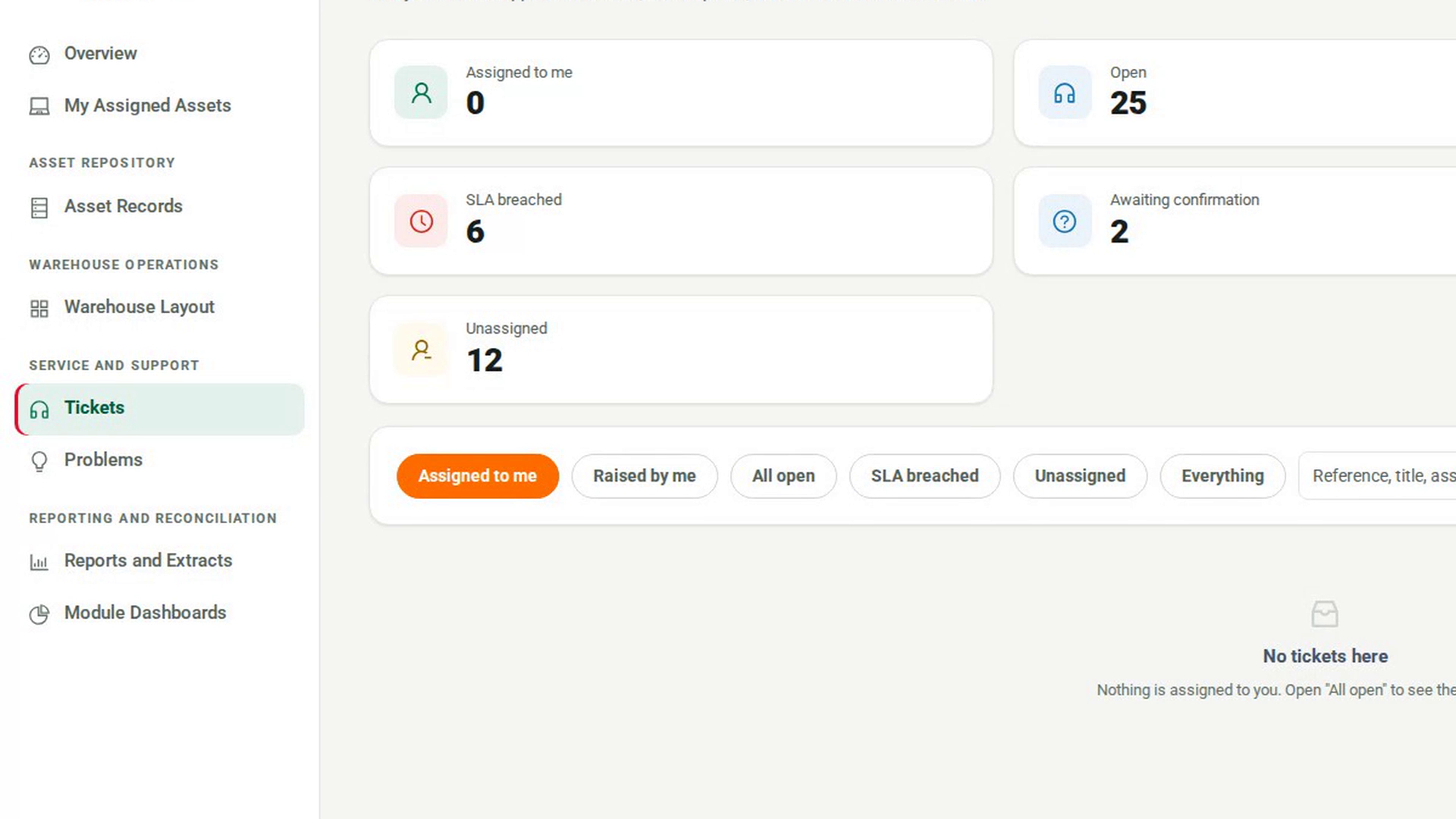
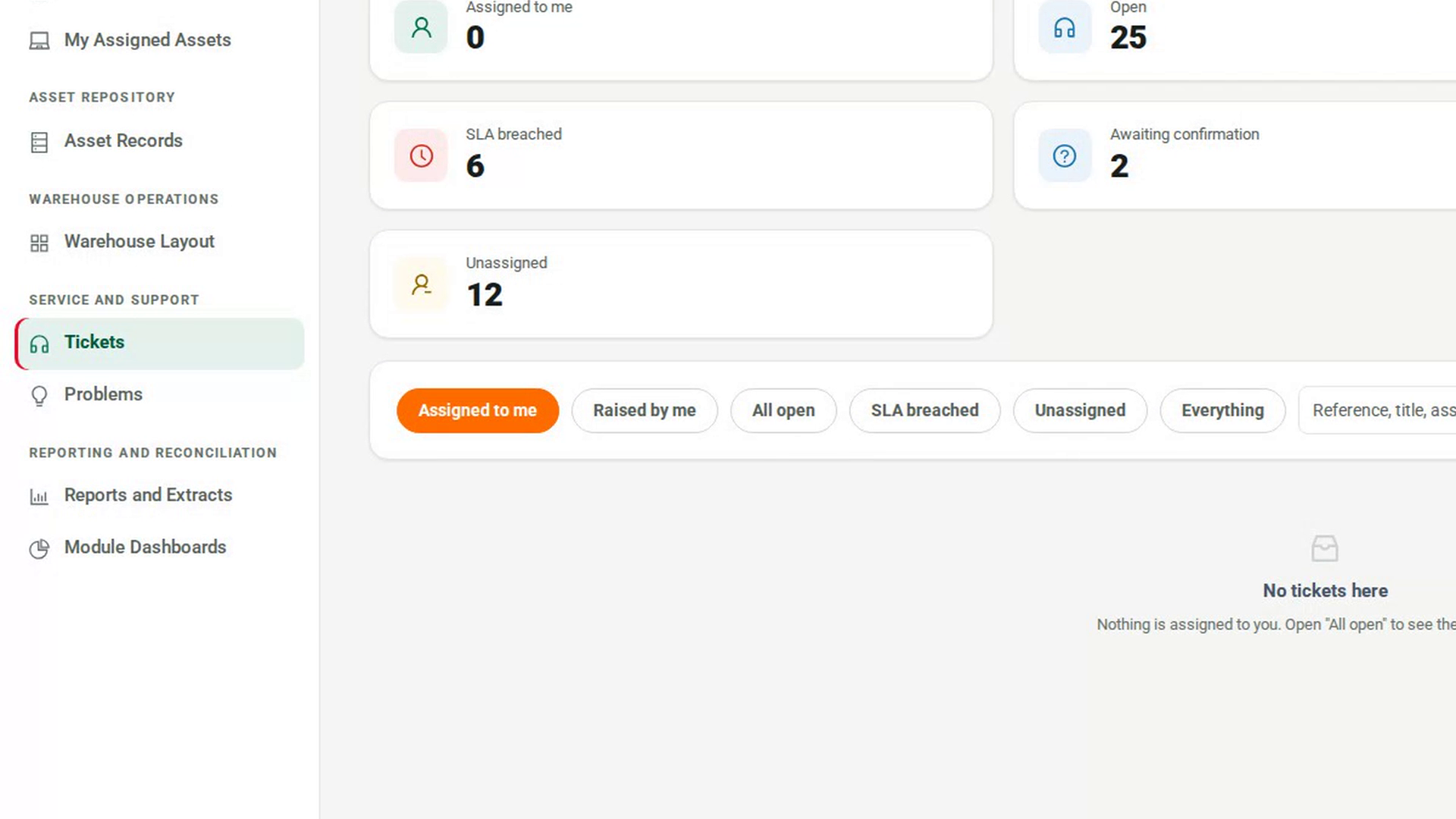
In the sidebar, under Service and Support, select Tickets. The list opens on Assigned to me. The buttons above it switch to Raised by me, All open, SLA breached, Unassigned and Everything.
Raise the ticket
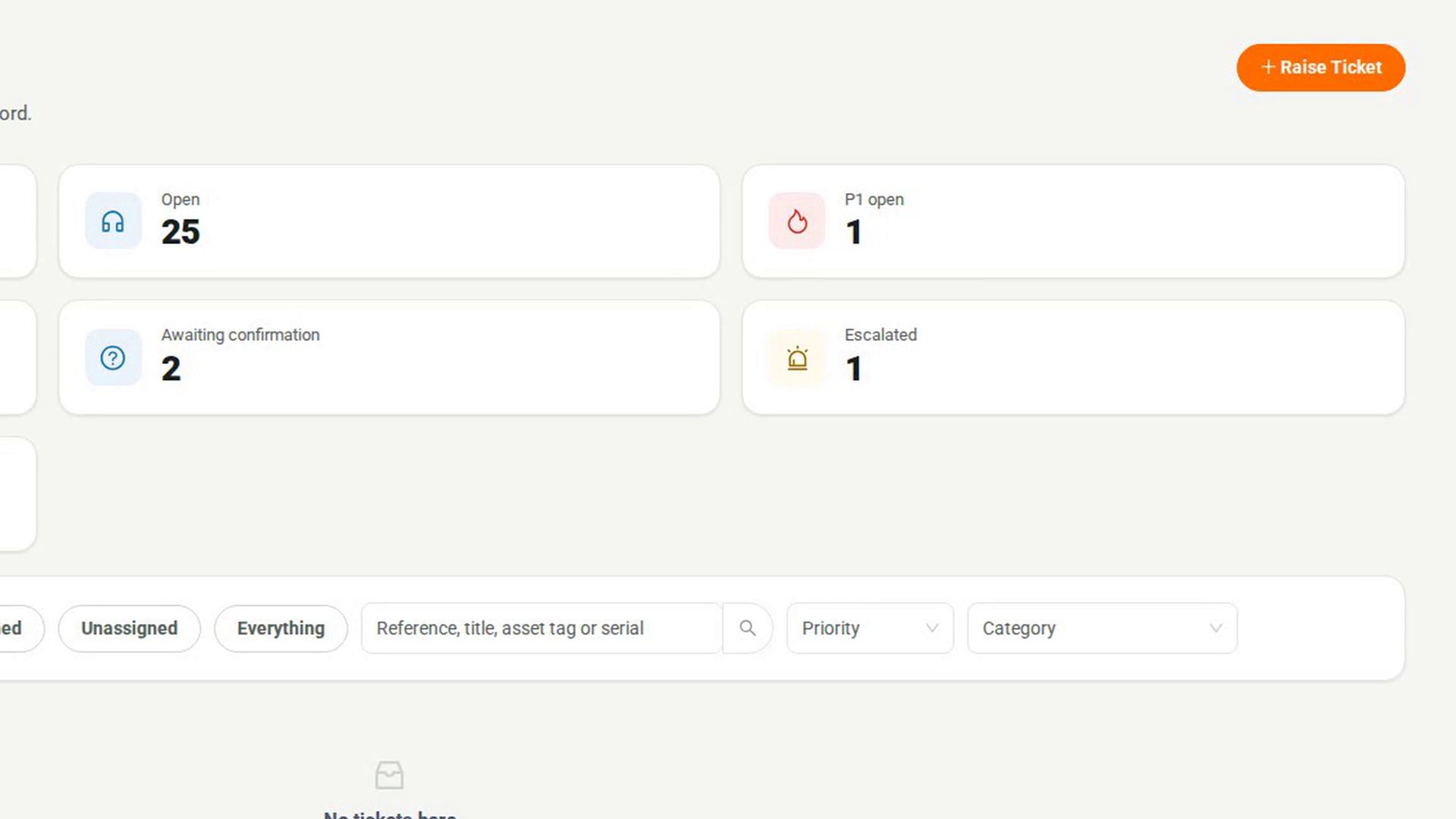
Select Raise Ticket. In the Raise a ticket dialog, say in one line What is wrong? and add Details. Category, Priority and Type are optional, so leave them blank if you are unsure. In Which asset is this about?, search for the asset by code, tag, serial or name. Select Raise ticket. 7-Asset confirms the new ticket's reference.
Open the ticket
Select Raised by me and select the ticket's reference. The ticket page shows its priority, status, SLA and category chips, and the Thread tab records what 7-Asset did, for example where it routed the ticket and when the response and resolution are due.
Classify and route it
A resolver selects Classify. In Classify and route, choose the Category, which shows the group it routes to, and the Priority. Add Impact and Remarks if useful, then select Classify. A new ticket's status changes to Classified. Classifying again later restarts the SLA clock from now.
Assign it
Select Assign. Choose a person in Assign to, a Resolver group, or both, and optionally a Tier. Select Assign. The status changes to Assigned and the Assigned to card shows the new owner.
Work the ticket
Select Change status and pick the New status, for example In Progress. Only the moves allowed from the current status are offered. A pending, cancelled or reopened status needs a remark. Use the reply box on the Thread tab to write to the requester, or choose Internal note (resolvers only).
Resolve it
Select Resolve. In Resolve ticket, choose the Resolution, describe What was done, and select Mark resolved. The requester is asked to confirm the fix.
Confirm and close
The requester selects Confirm fix and answers Did this fix your problem?. Choosing No — it is still happening (reopens the ticket) needs a comment. After confirmation, a resolver selects Close and then Close ticket.
Screenshots
Step 1: Open Tickets
Step 2: Raise the ticket
Step 3: Open the ticket
Step 4: Classify and route it
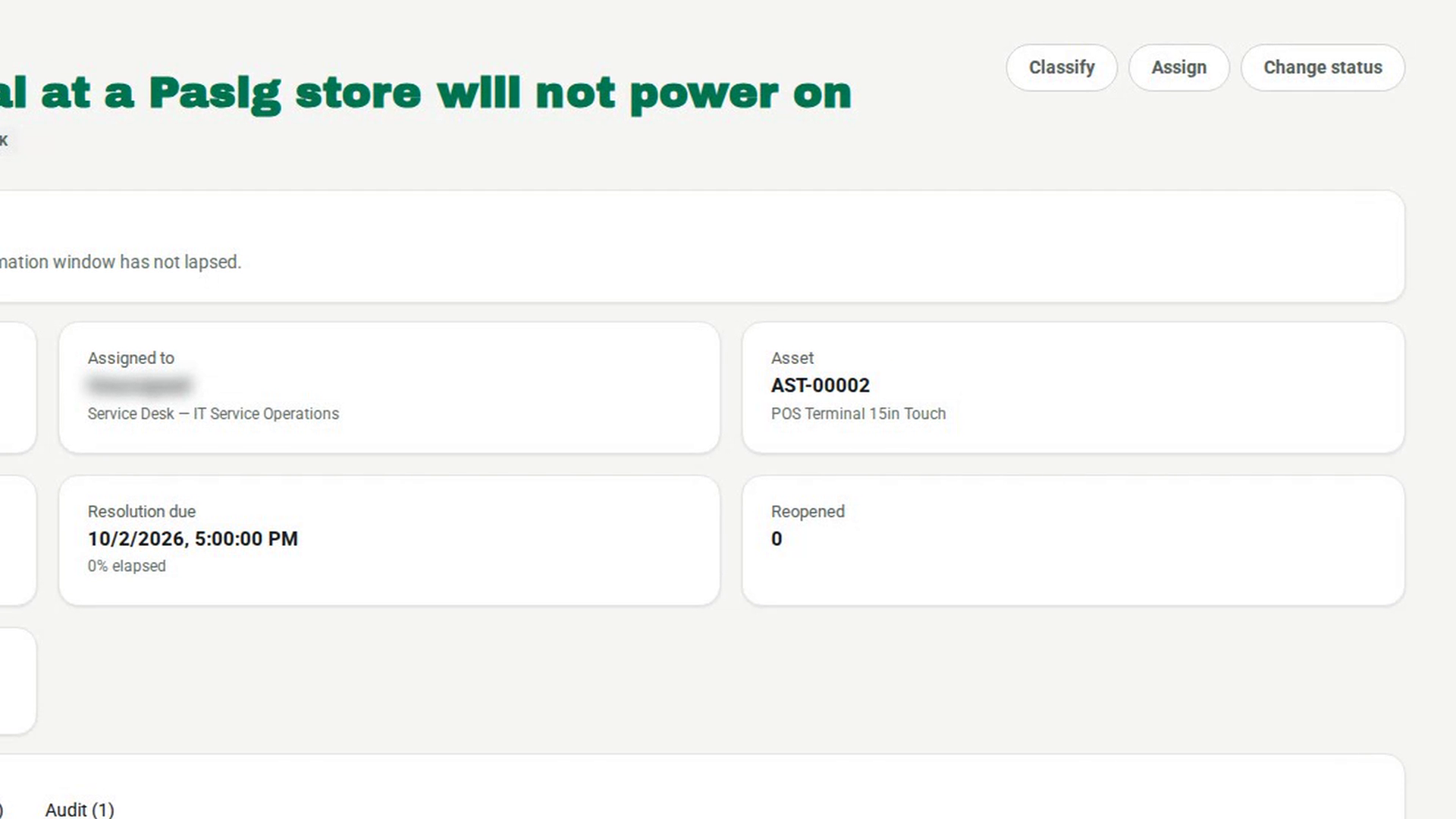
Step 5: Assign it
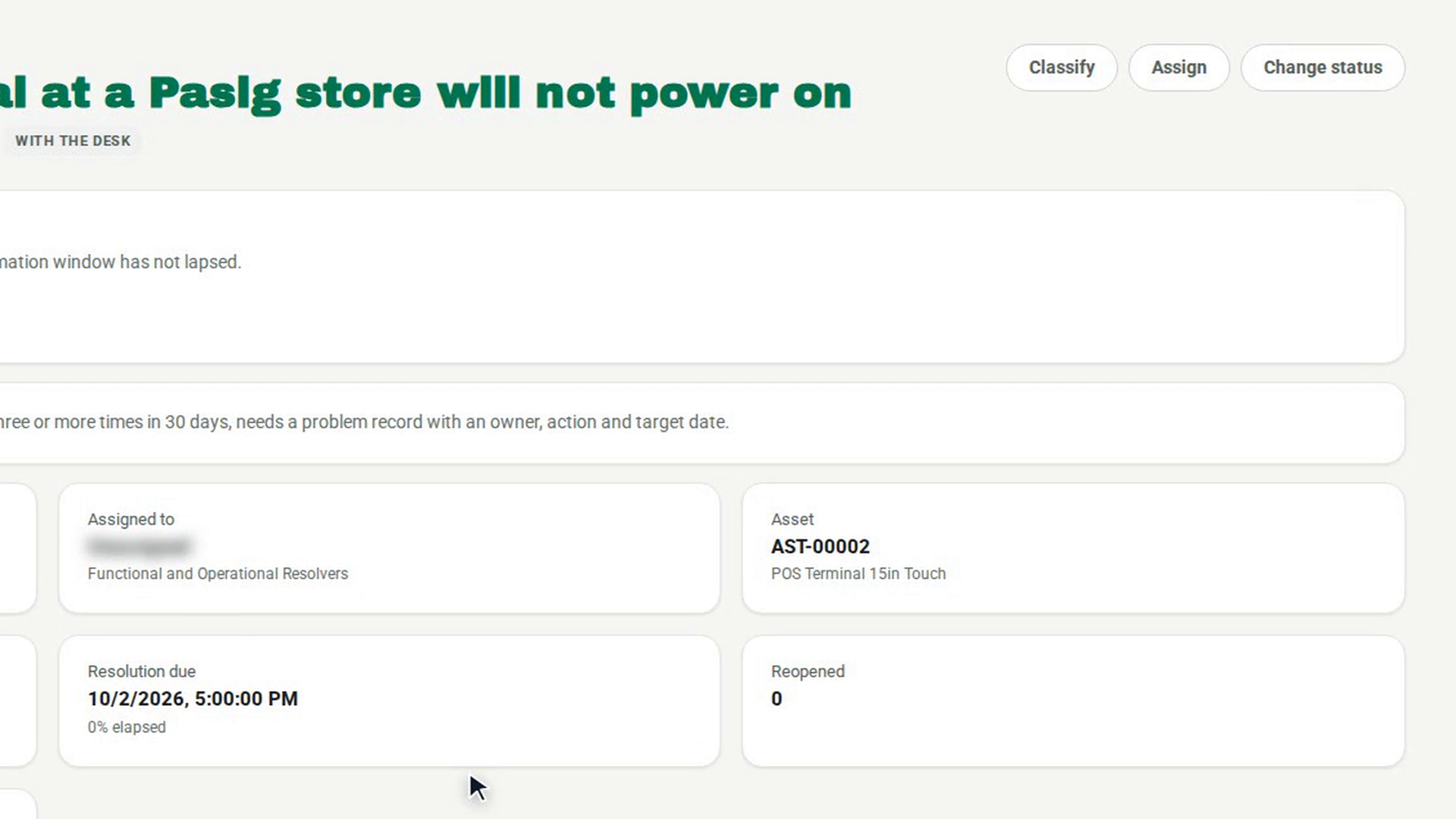
Step 6: Work the ticket
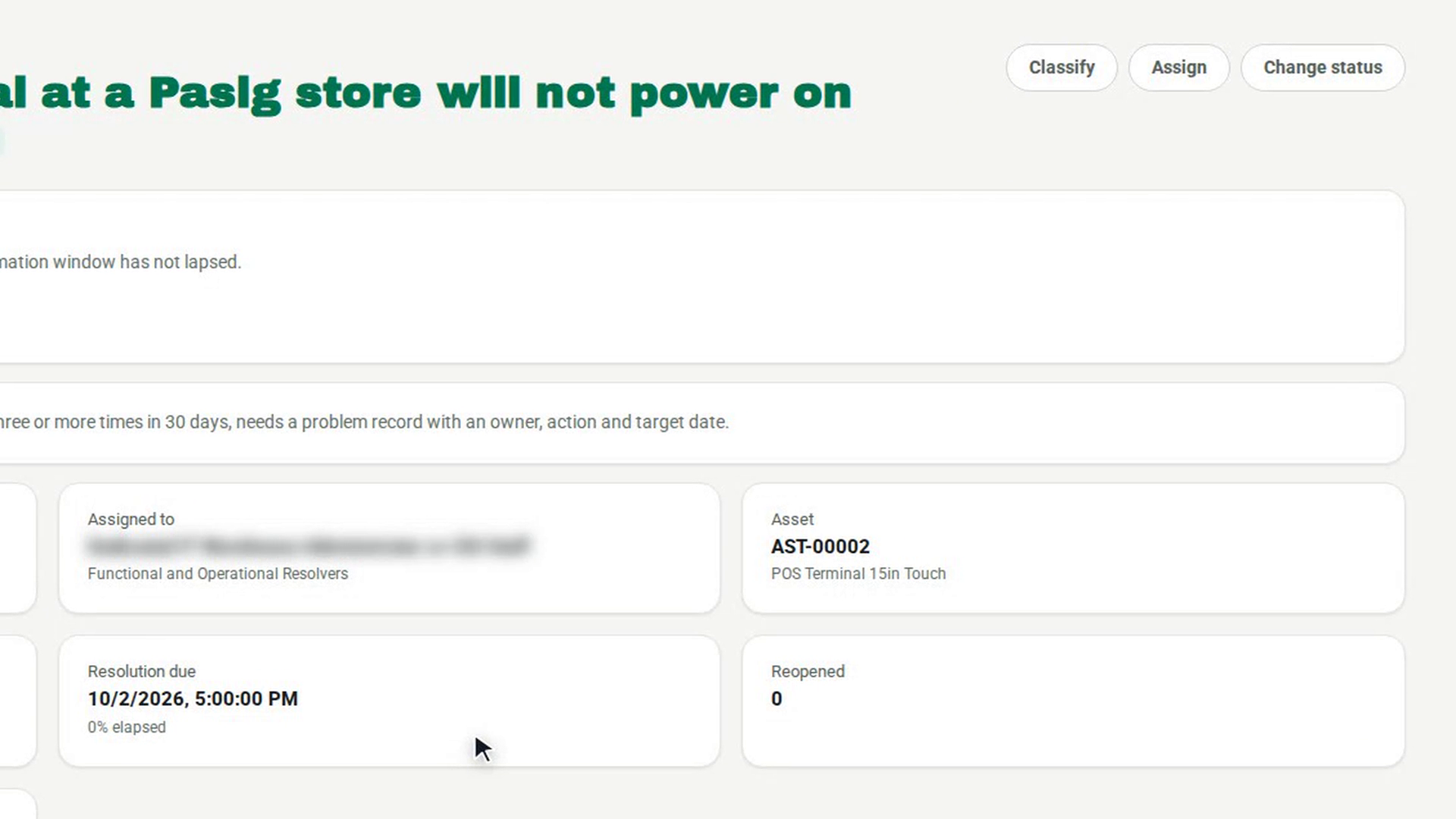
Step 7: Resolve it
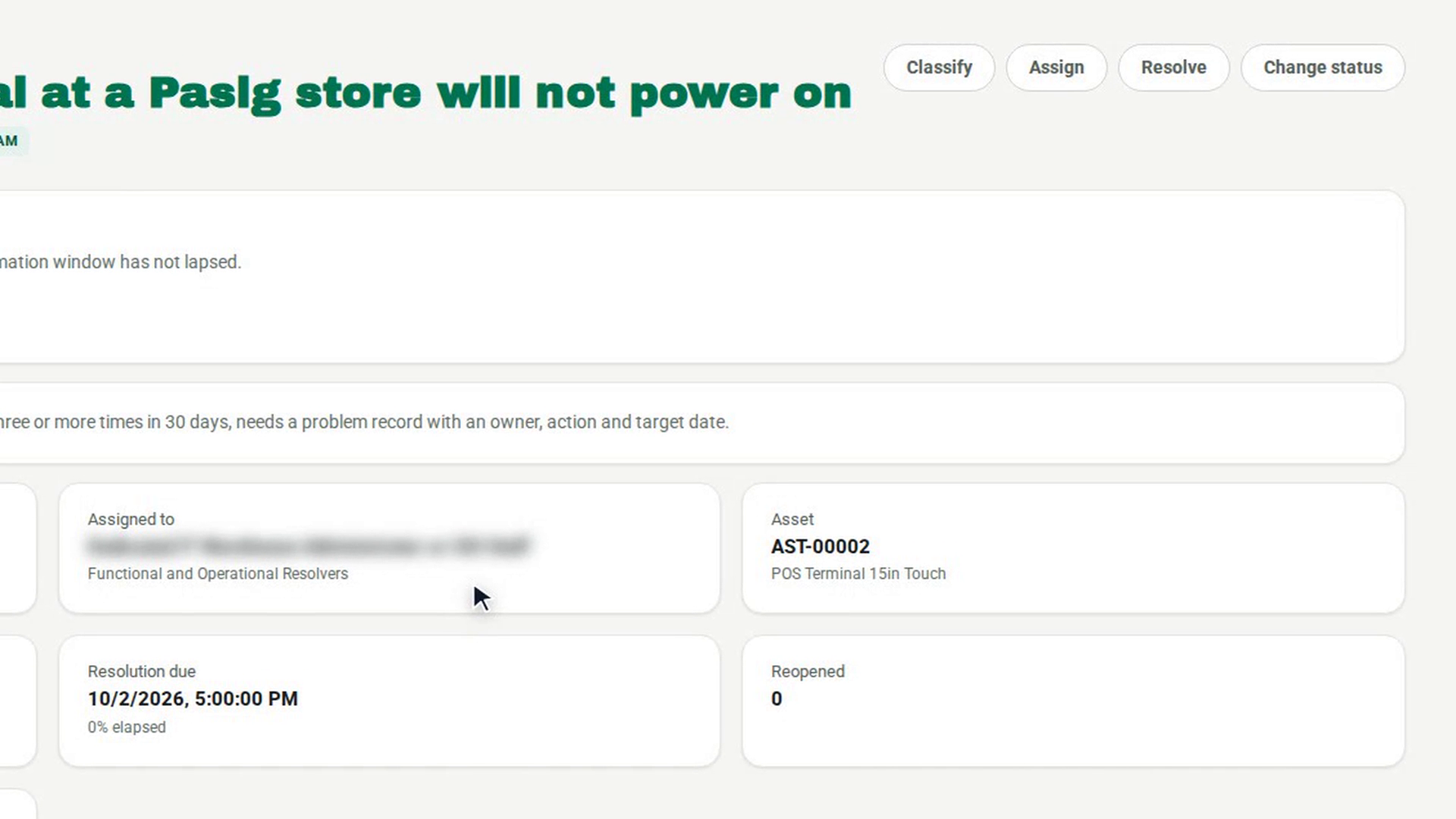
Step 8: Confirm and close
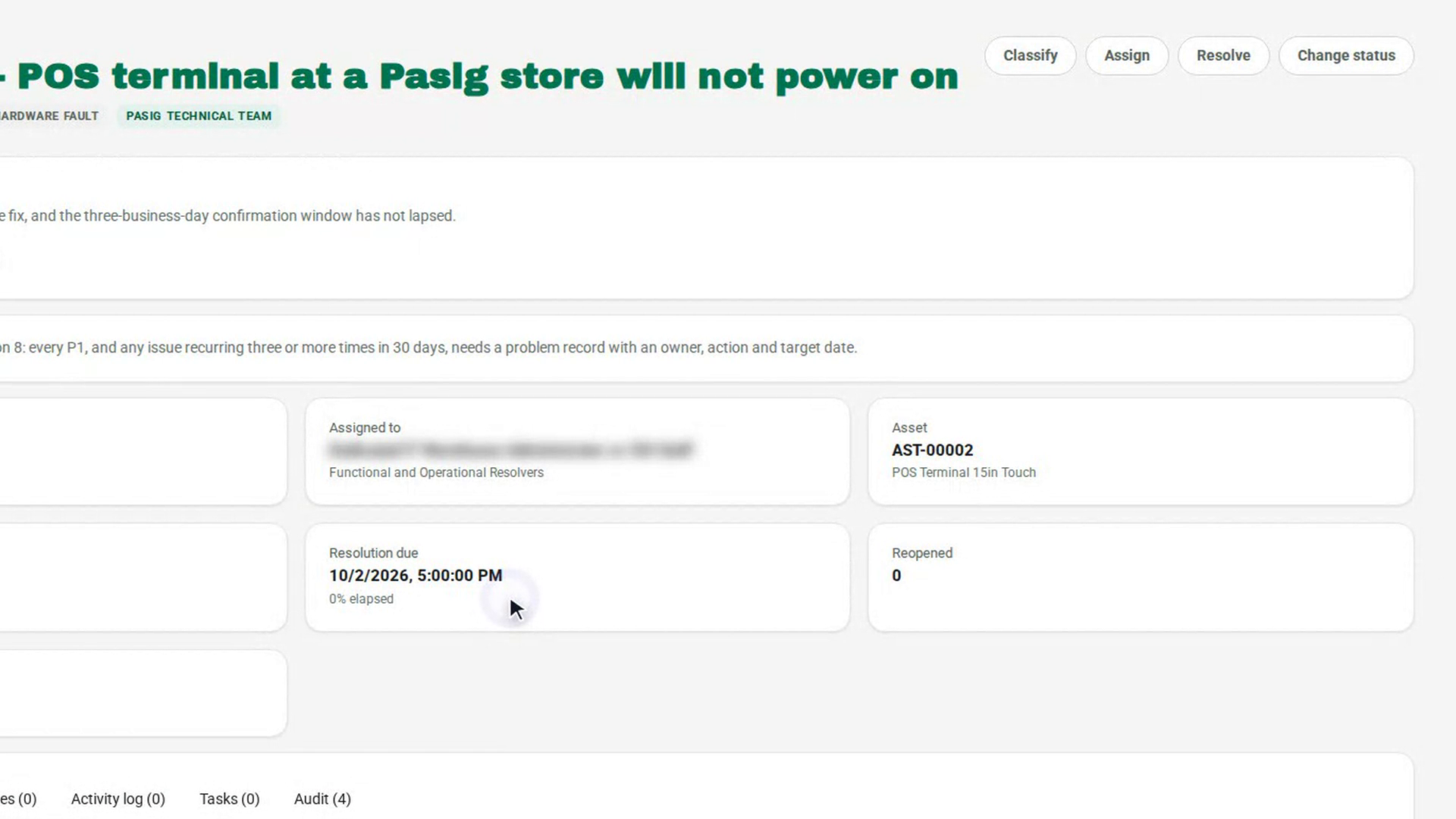
Watch how
Some categories need a controlled change to the asset record before the ticket can close. Hardware Fault needs a return or pullout, Warranty a repair return, Inventory Discrepancy and Transfer Dispatch an adjustment, and Lost Stolen a write-off. The ticket does not make that change. Record it as an approved transaction or variance case, then select Link the asset transaction in the This ticket cannot be closed yet. panel. In Link the asset record change, enter the Asset transaction id or Variance case id and select Link.
Tip: If the requester does not reply, the ticket can close without confirmation once the window stated in Resolve ticket has passed. The This ticket cannot be closed yet. panel says what is still missing and when that window ends.
Tip: The person the ticket is assigned to cannot also be the approver of the asset transaction you link. 7-Asset refuses the link if they are the same person.