Follow up assets in transit
An asset that has been released but not yet acknowledged by its destination is in transit: it has no location until someone accepts it. You find these movements in the movement report, then clear each one by having the destination acknowledge receipt — or by rejecting what never arrived.
Before you start
- To read the reports you need a role that can open Reports and Extracts, such as Asset and Logistics Associate, IT Hardware Inventory Supervisor, or Dedicated IT Warehouse Administrator or CDI Staff.
- To acknowledge receipt you need to be an Asset and Logistics Associate, Dedicated IT Warehouse Administrator or CDI Staff, IT Hardware Inventory Supervisor, or IT Business Systems or Application Team.
Steps
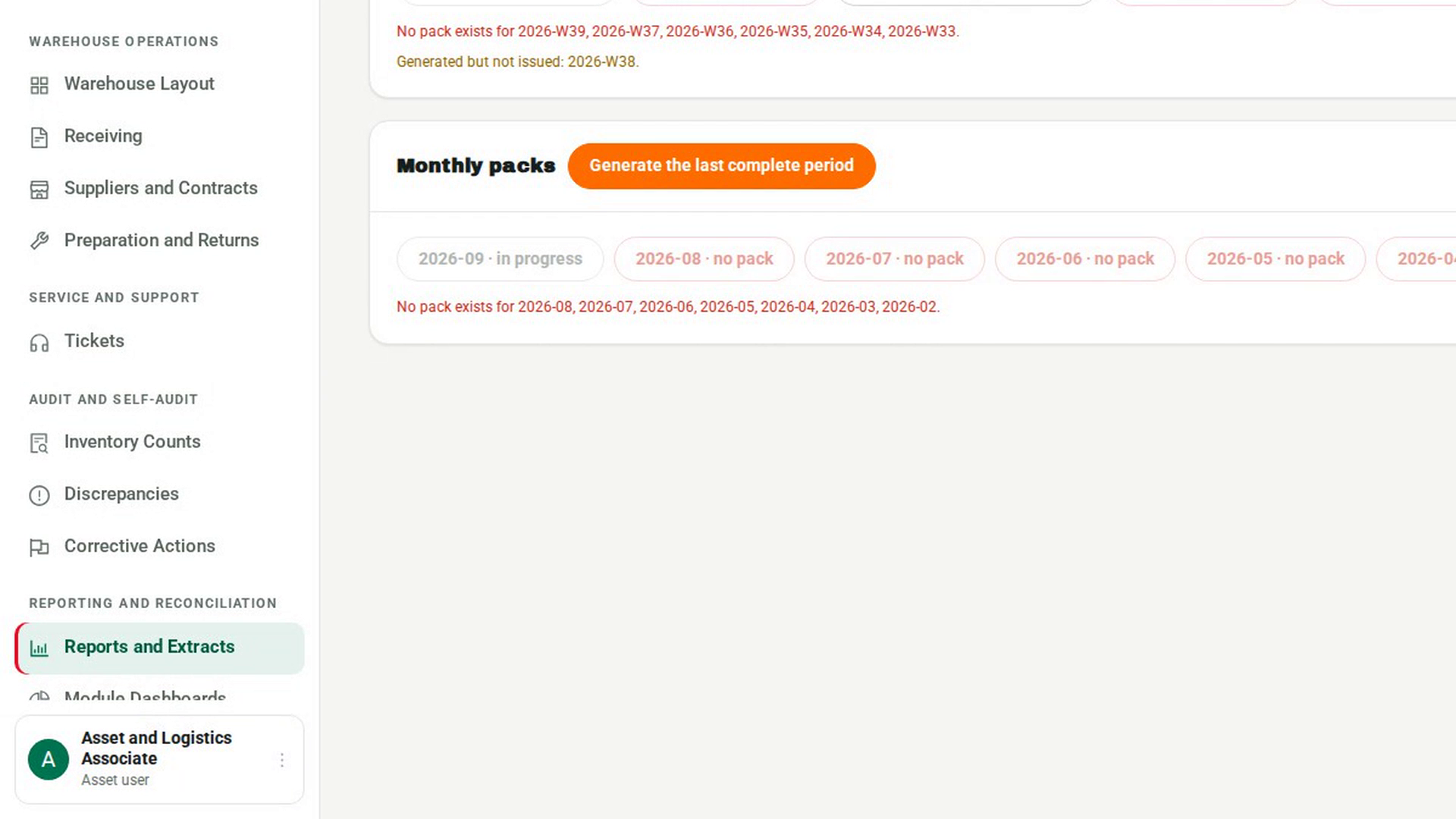
Open Reports and Extracts
In the sidebar, under Reporting and Reconciliation, select Reports and Extracts.
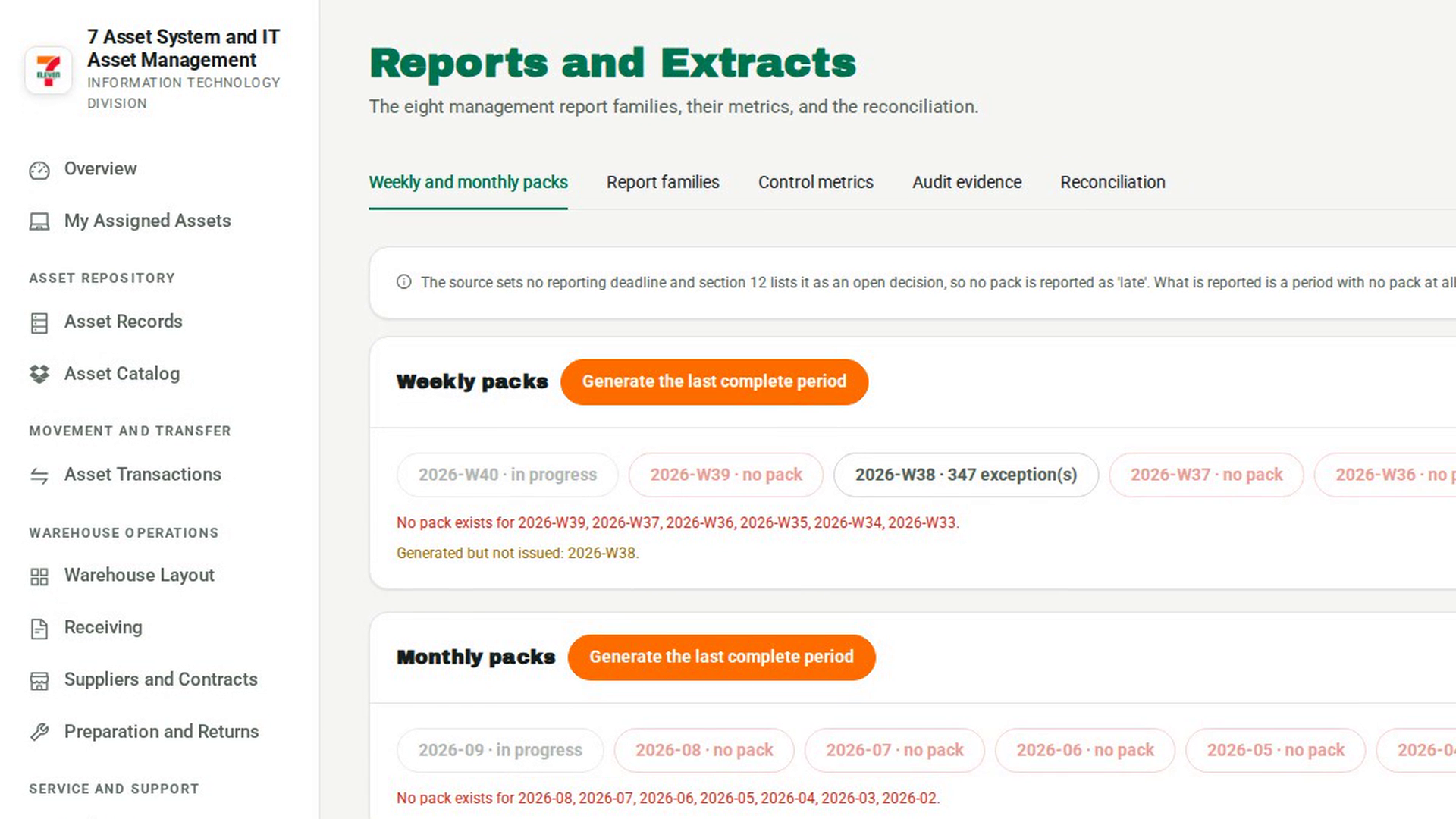
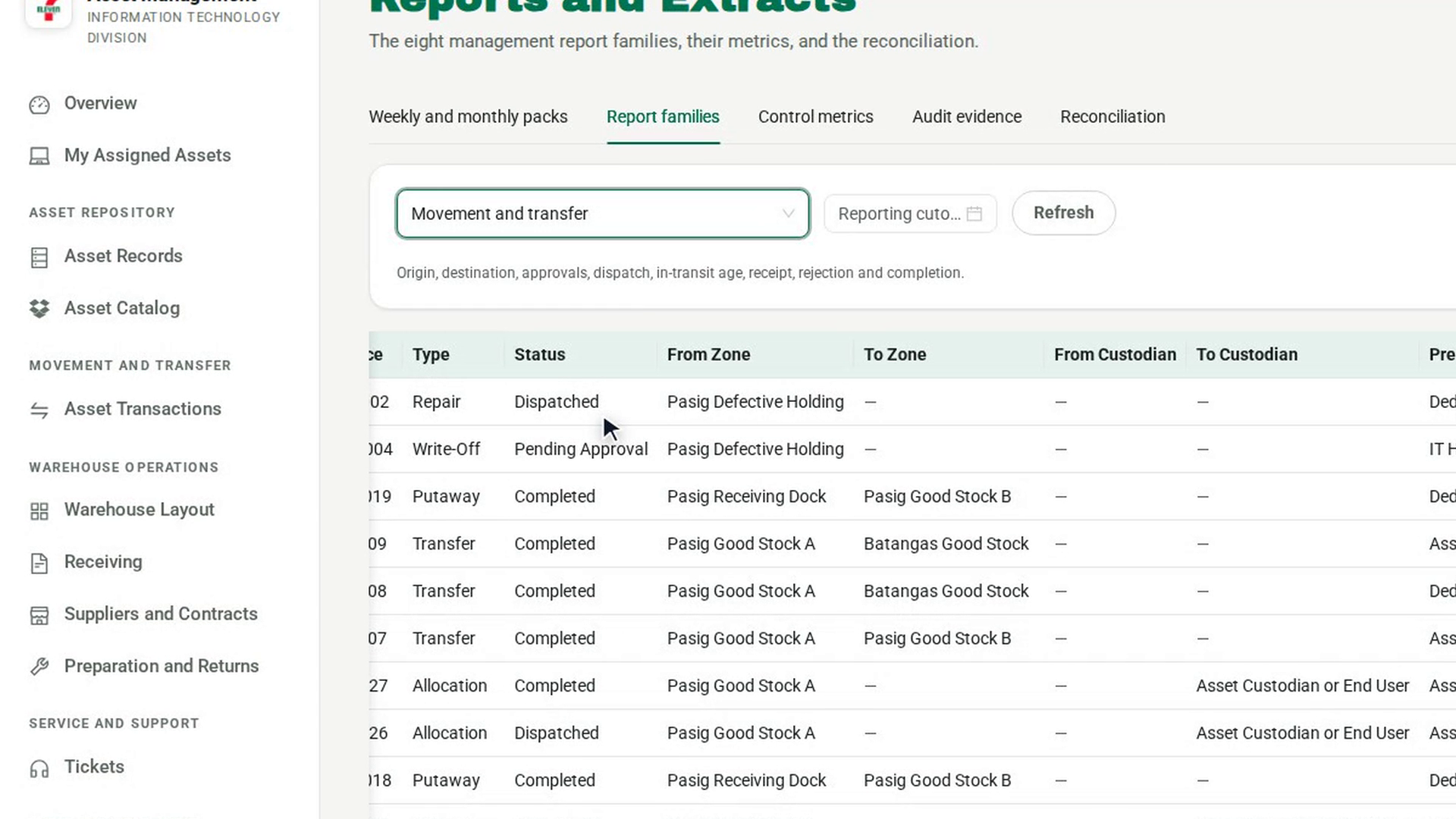
Run the movement report
Select the Report families tab. In the report list, under Management report families, choose Movement and transfer. Set a Reporting cutoff if you need one and select Refresh.
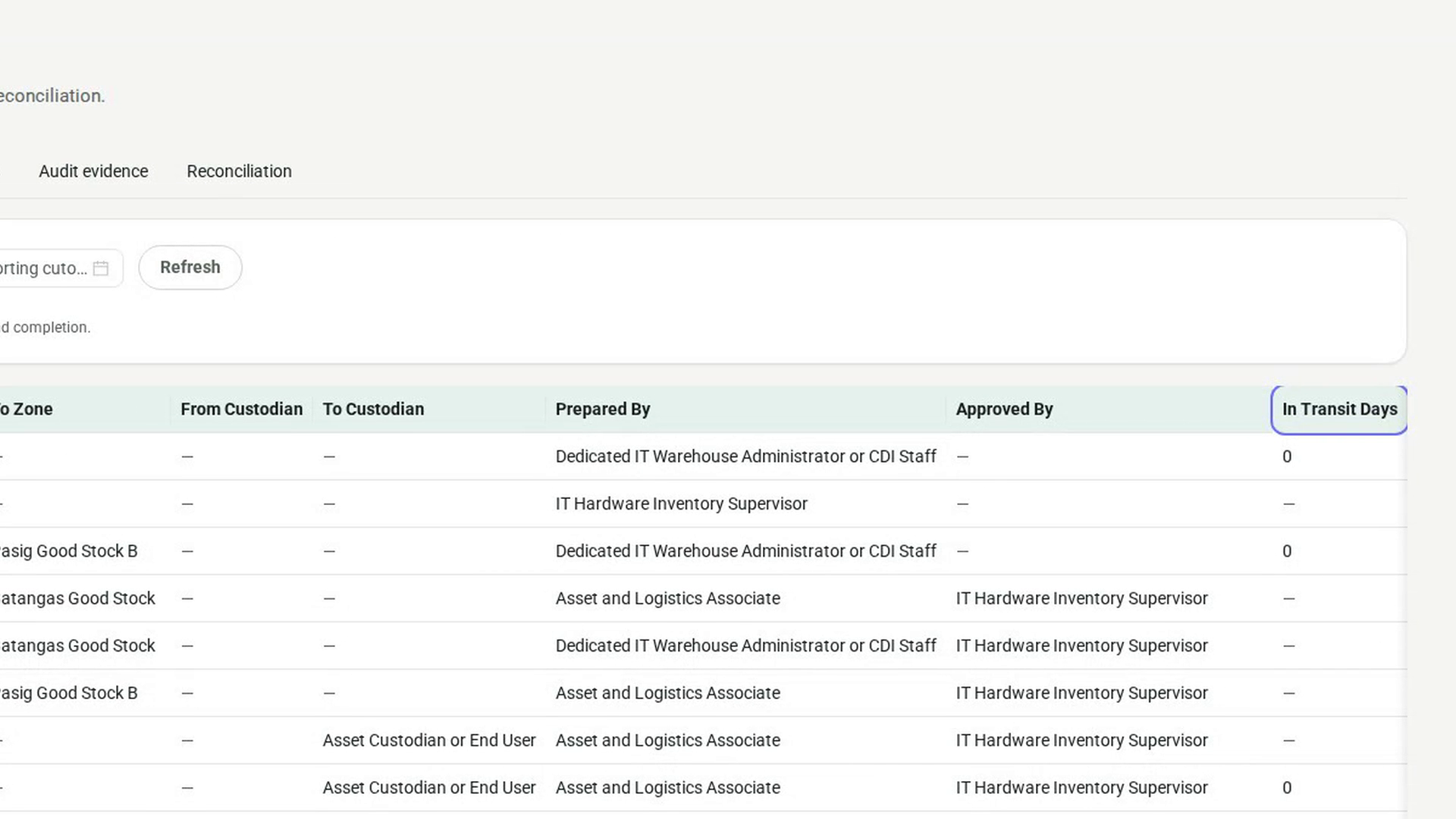
Find the movements still in transit
Look at the In Transit Days column. It is filled only for movements that were released and not yet acknowledged. Unresolved Lines and Rejected Lines show what is still open on each one. Note the Reference.
Open the movement
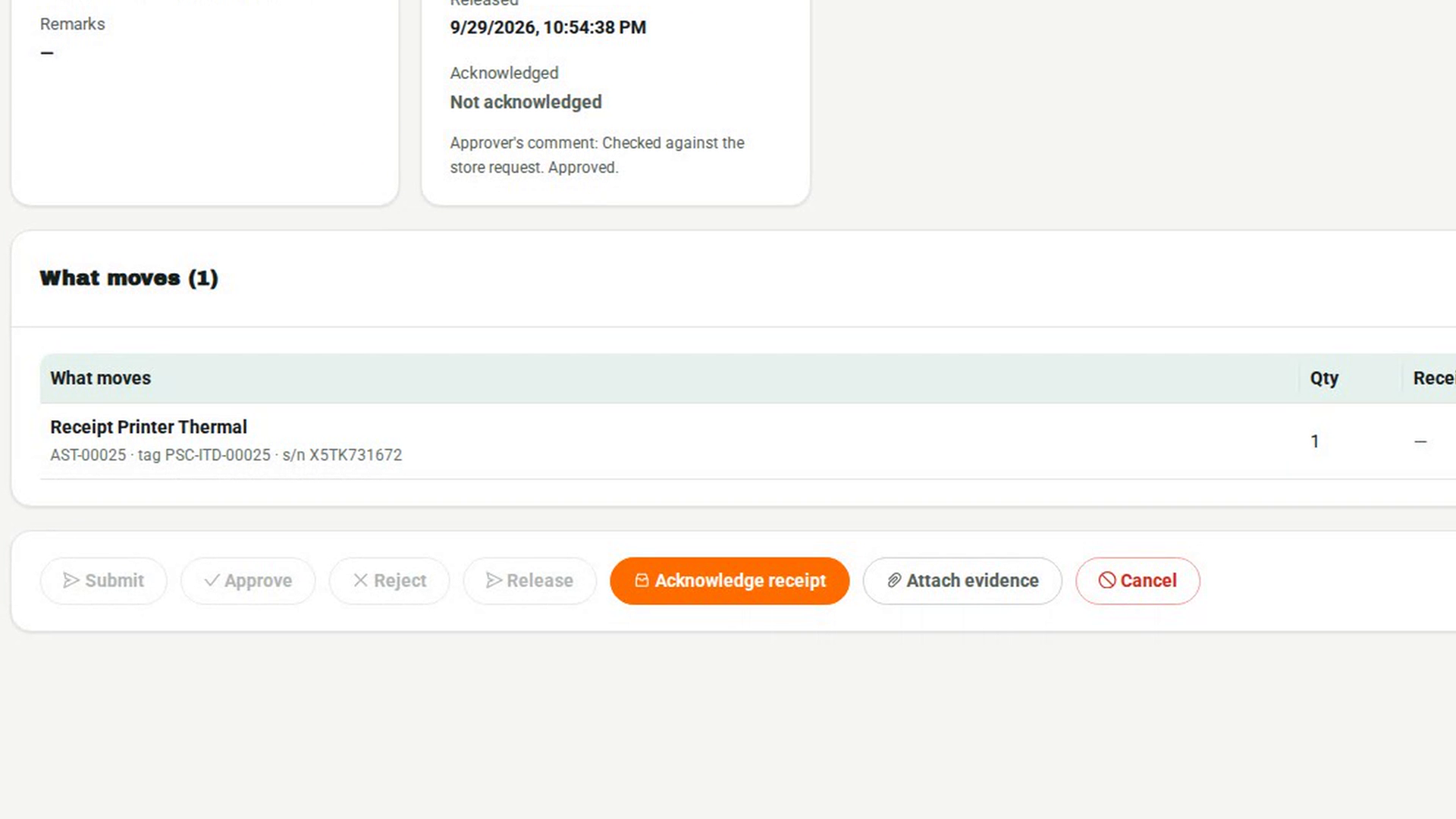
In the sidebar, under Movement and Transfer, select Asset Transactions. Select In transit to show only released movements, then select the one you noted.
Clear it at the destination
The destination selects Acknowledge receipt. In the dialog they describe the condition on arrival and, for each line, keep Accept ticked or untick it for anything that did not arrive. They select Record receipt. Accepted lines take their new location and custodian; any rejected line opens a discrepancy.
Screenshots
Step 1: Open Reports and Extracts
Step 2: Run the movement report
Step 3: Find the movements still in transit
Step 4: Open the movement
Step 5: Clear it at the destination
Watch how
Tip: The Reconciliation tab on Reports and Extracts also lists every open movement under Open In Transit, with the days each has been in transit.
Cancelling a movement that has already been released does not bring the goods back on the record. It opens a variance case for every asset still in transit, because their whereabouts must be established.