Write off an asset
A write-off records that the organization no longer carries an asset, with a documented reason, supporting evidence and an independent approval. A Write-Off transaction needs no destination acknowledgment, because nothing moves: the asset keeps its location so it can still be counted.
Before you start
- To prepare a write-off you need to be an Asset and Logistics Associate, Dedicated IT Warehouse Administrator or CDI Staff, IT Hardware Inventory Supervisor, or IT Business Systems or Application Team.
- To approve it you need to be an IT Hardware Inventory Supervisor or the IT Business Systems or Application Team, and you must not be the person who prepared it.
- Have the supporting document ready, for example an incident report, as a link or an uploaded file.
Steps
Start a write-off
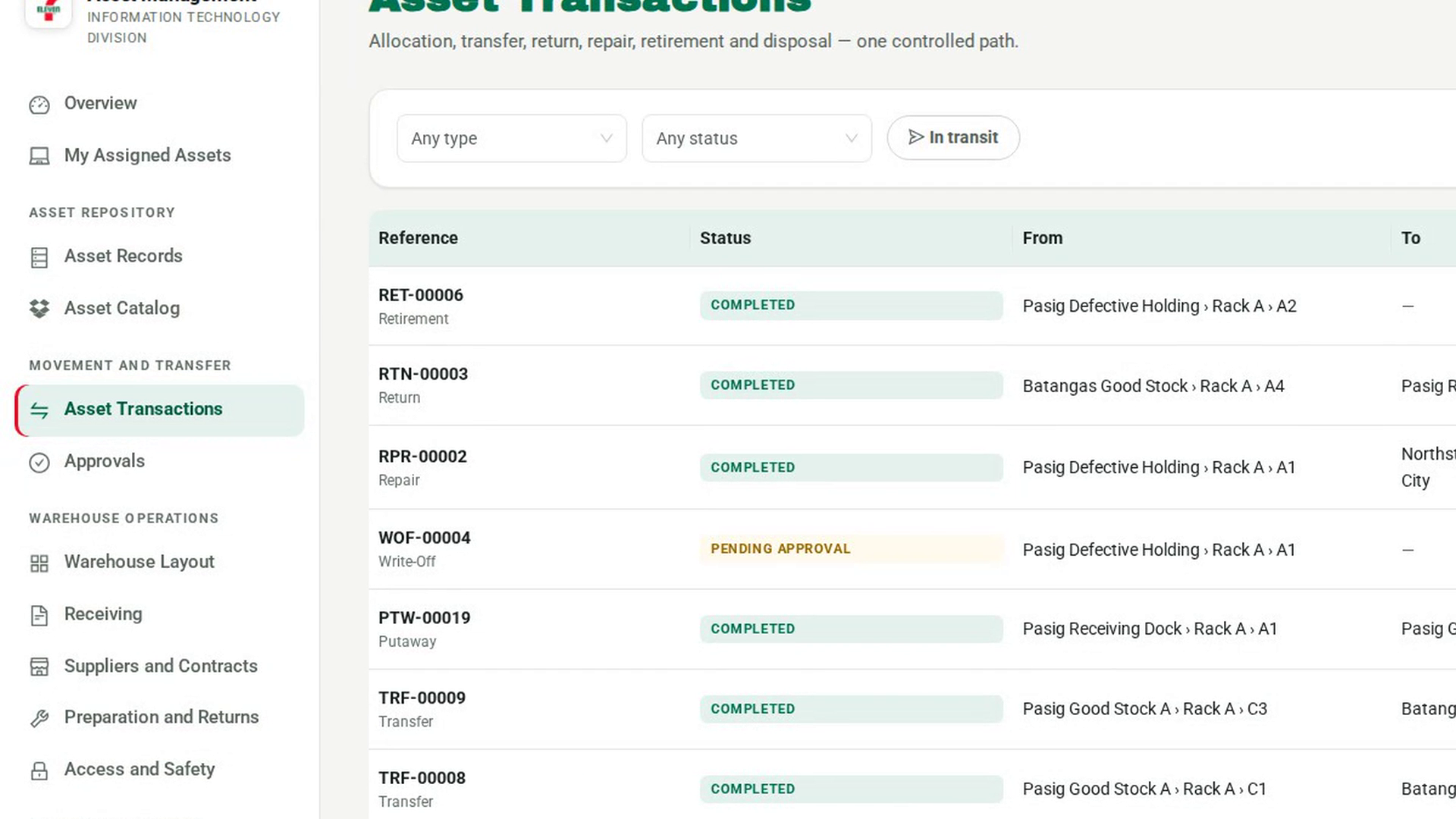
In the sidebar, under Movement and Transfer, select Asset Transactions, then New transaction. Under What kind of movement, choose Write-Off. The note reads Needs an independent approval before it can be released. Completes at release; no destination acknowledgment.
Document the reason
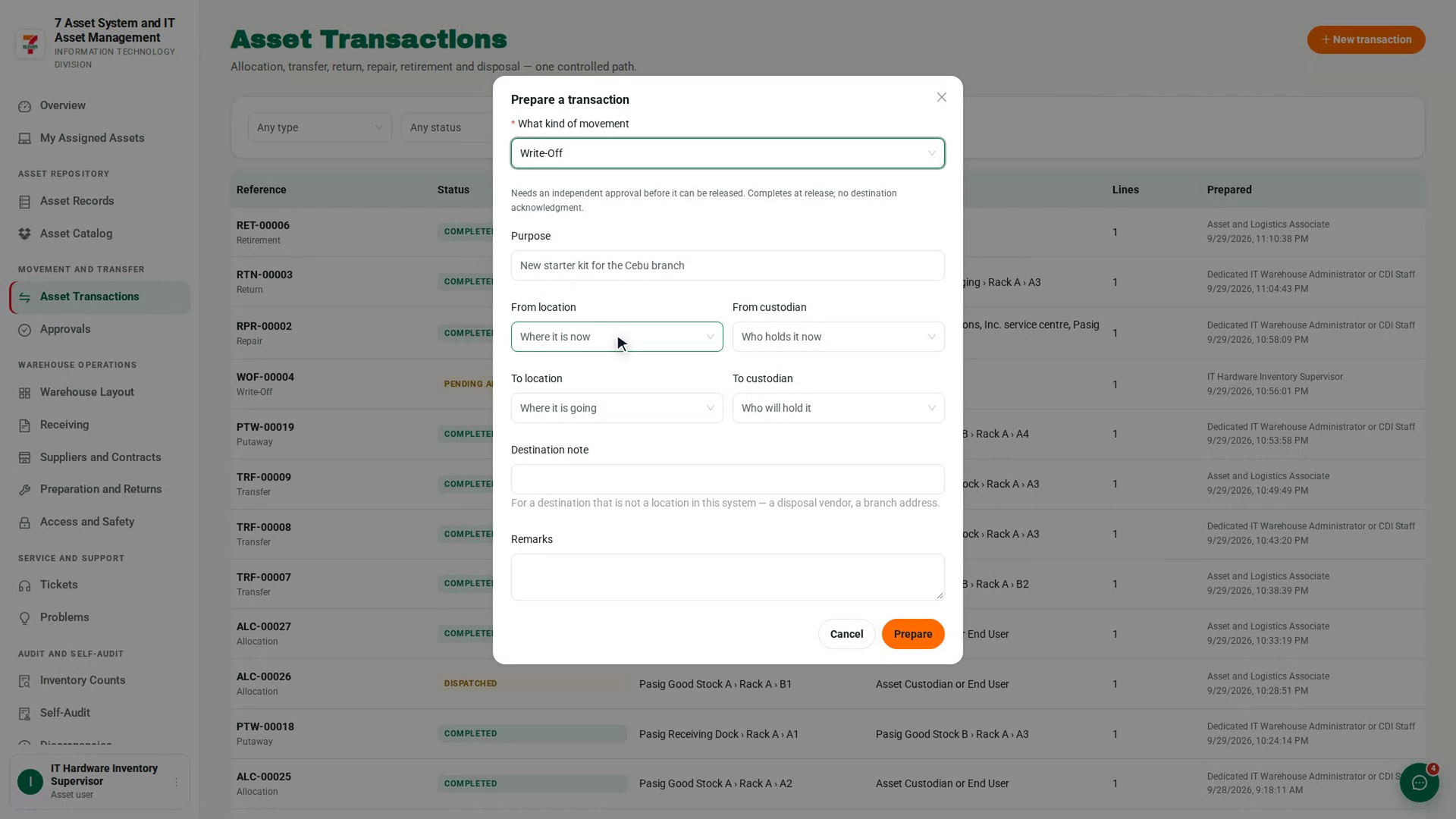
Choose the From location or From custodian where the asset is recorded. Write the reason for the write-off in Purpose, add detail in Remarks, then select Prepare.
Add the asset
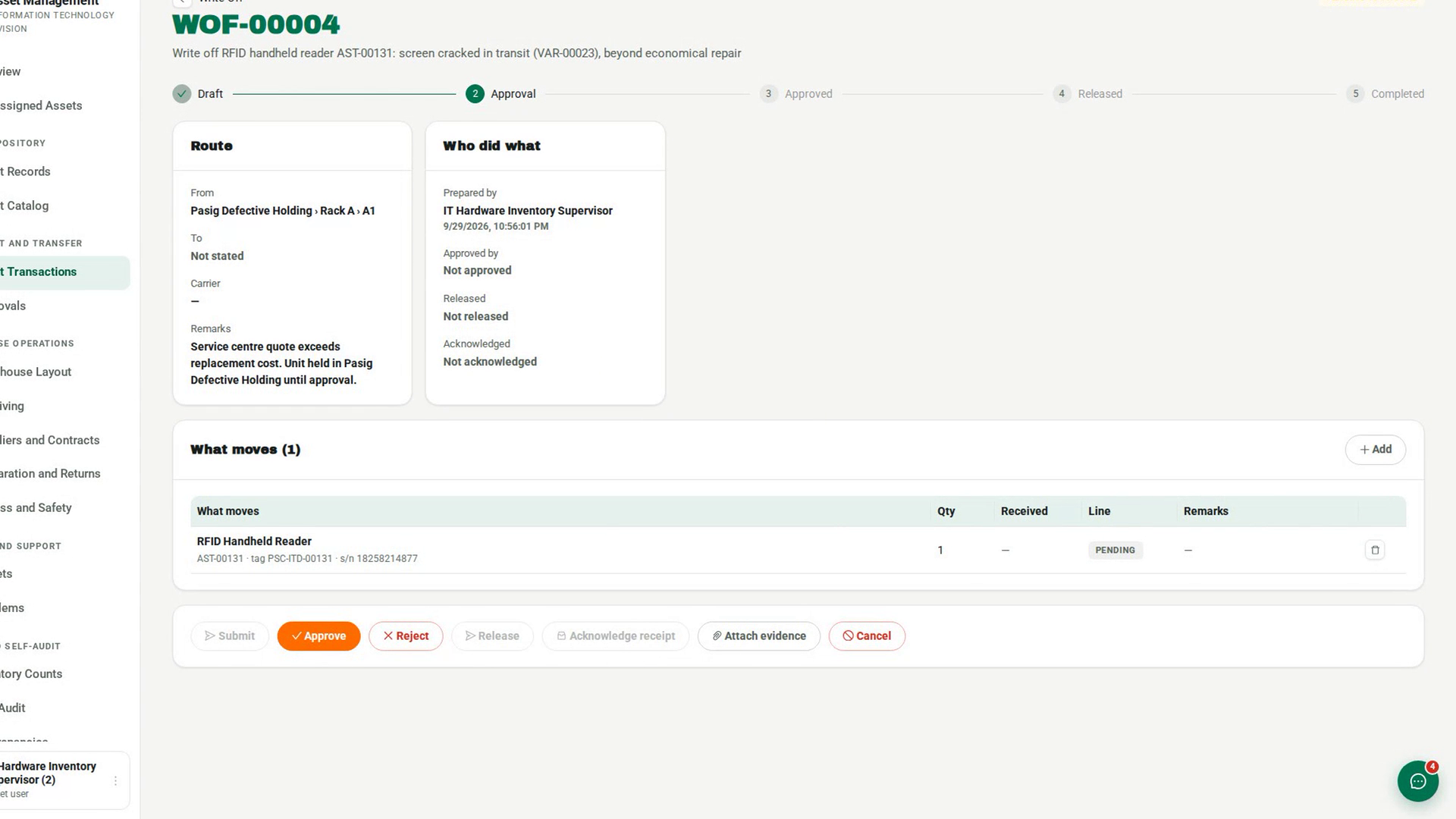
In What moves, select Add and select the asset to write off.
Attach the supporting evidence
Select Attach evidence, choose a Document type, add the Link to the document or Uploaded file URL, and select File evidence. The page shows how many documents are on file.
Submit it for approval
Select Submit. The status changes to Pending Approval, and a different approver reviews it from Approvals under Movement and Transfer and selects Approve.
Complete the write-off
When it is Approved, select Release, fill in Carrier or recipient, and select Confirm release. The write-off completes at once and the asset is recorded as Written Off, still at its location.
Screenshots
Step 1: Start a write-off
Step 2: Document the reason
Step 3: Add the asset
Step 4: Attach the supporting evidence
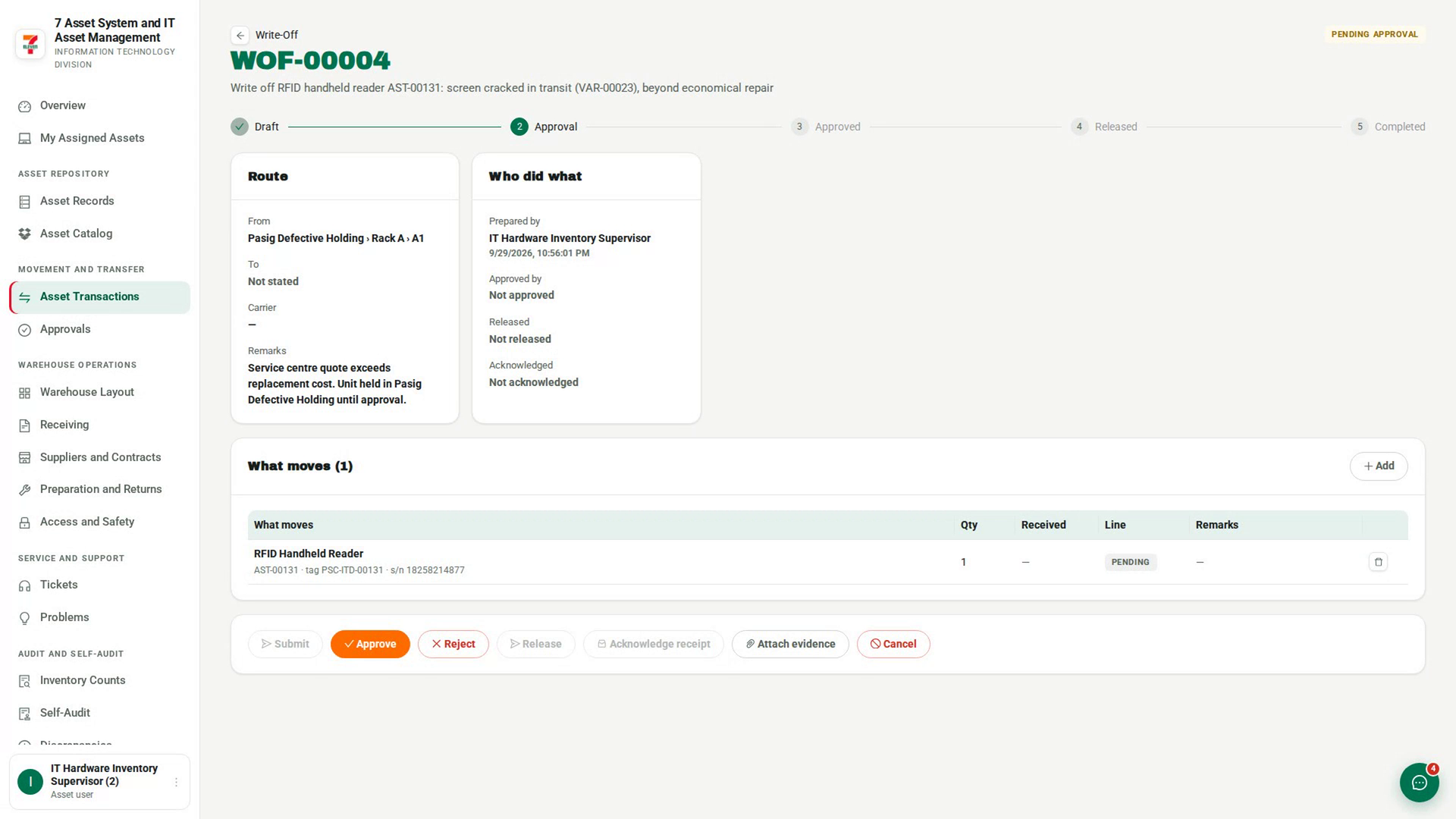
Step 5: Submit it for approval
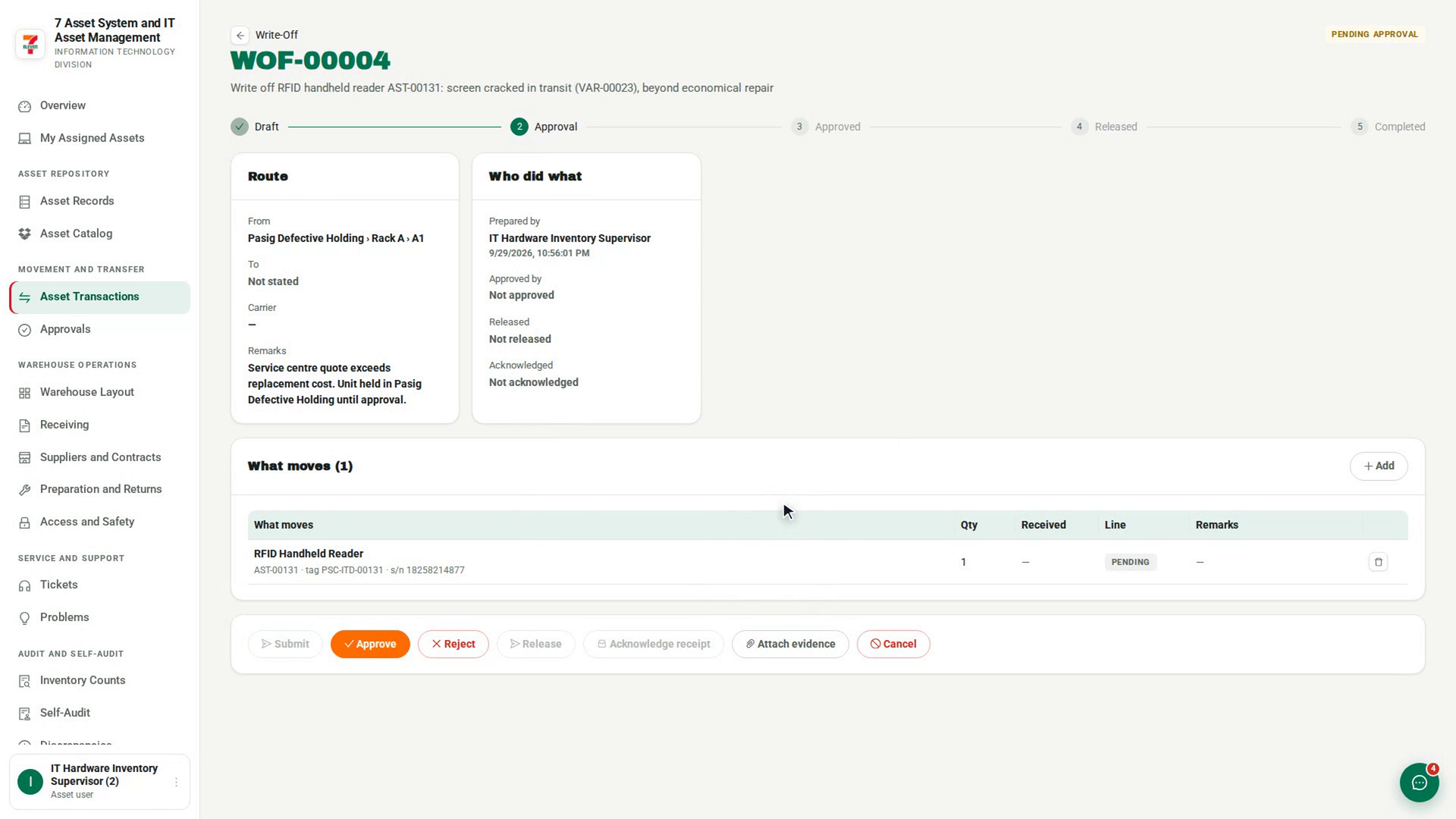
Step 6: Complete the write-off
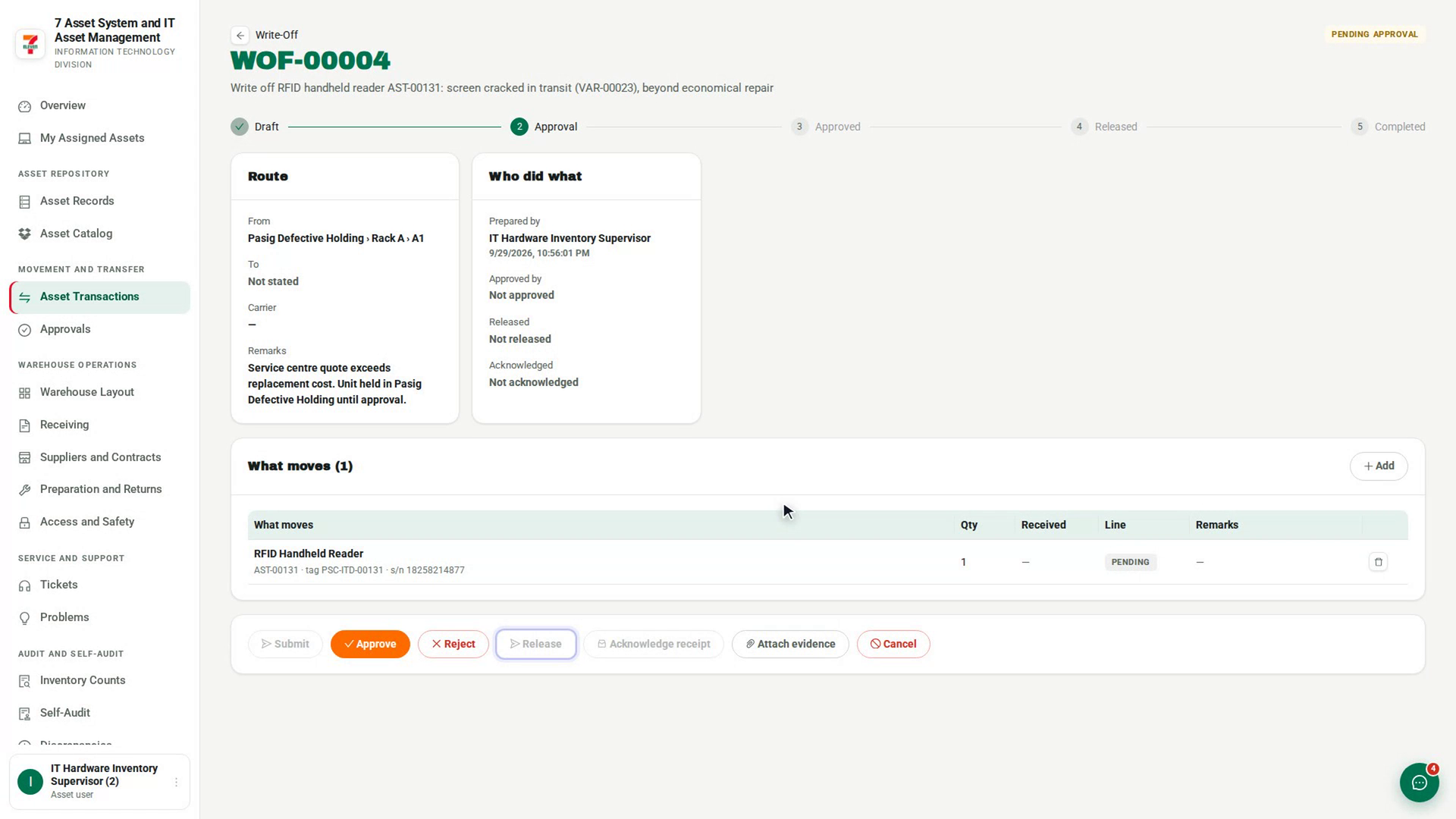
Watch how
The person who prepared a write-off cannot approve it, even if their role can approve. An attempt is refused with You prepared this write-off, so you cannot also approve it.
Tip: Writing off is not disposing. A written-off asset can still be disposed of later with a Disposal transaction, once it physically leaves.