Record a supplier contract
Record a supply, service, warranty or other agreement with a supplier, and link the assets, orders or services it covers. When the terms change, you record a renewal that supersedes the old contract, so both versions are kept.
Before you start
- To record, link or renew a contract, you need to be an IT Hardware Inventory Supervisor or the IT Business Systems or Application Team. Several other roles, such as ITD Head and Management and Asset and Logistics Associate, can view contracts.
- Add the supplier in Suppliers and Contracts first if the contract names one.
Steps
Open Contracts and Performance
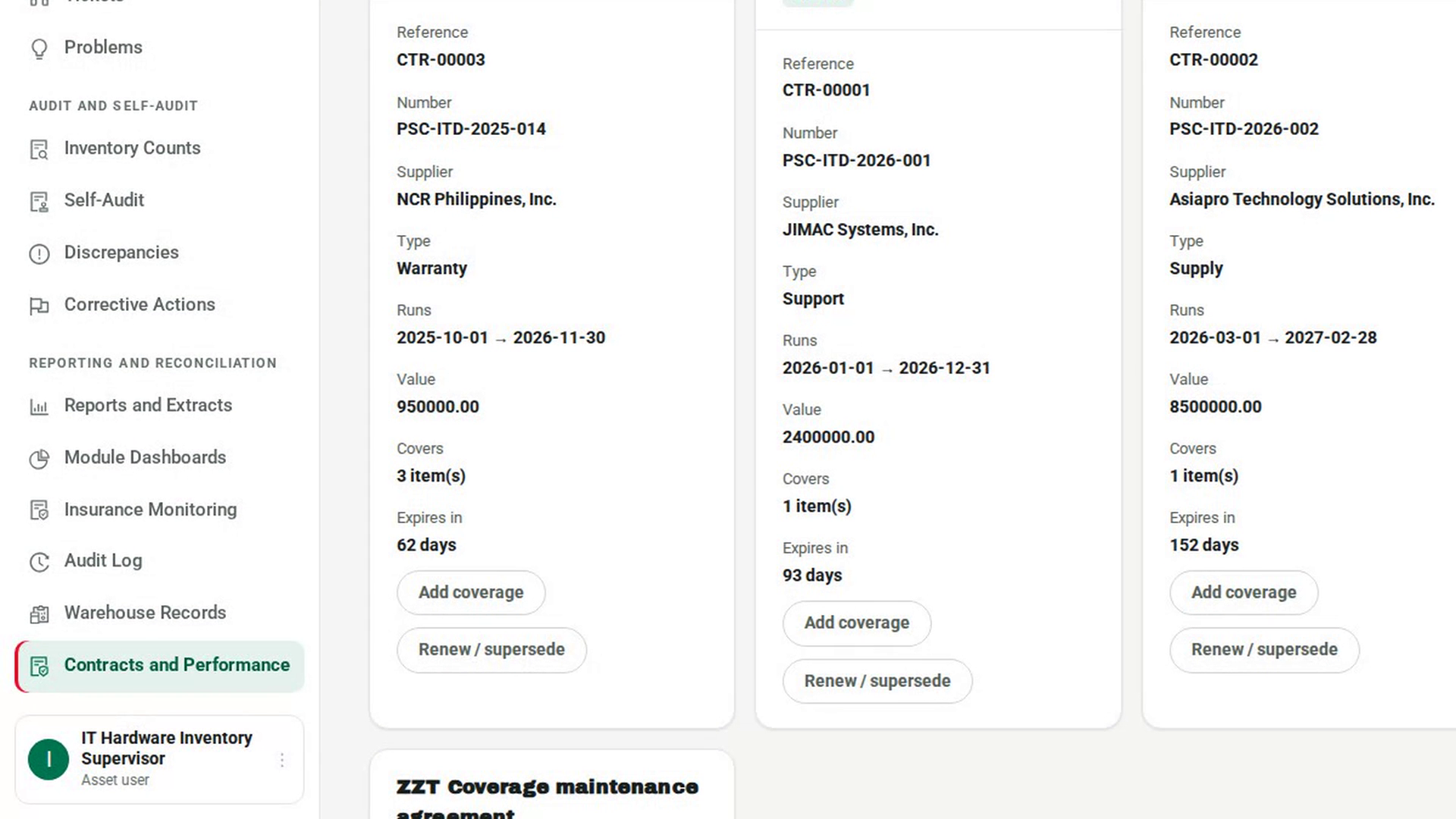
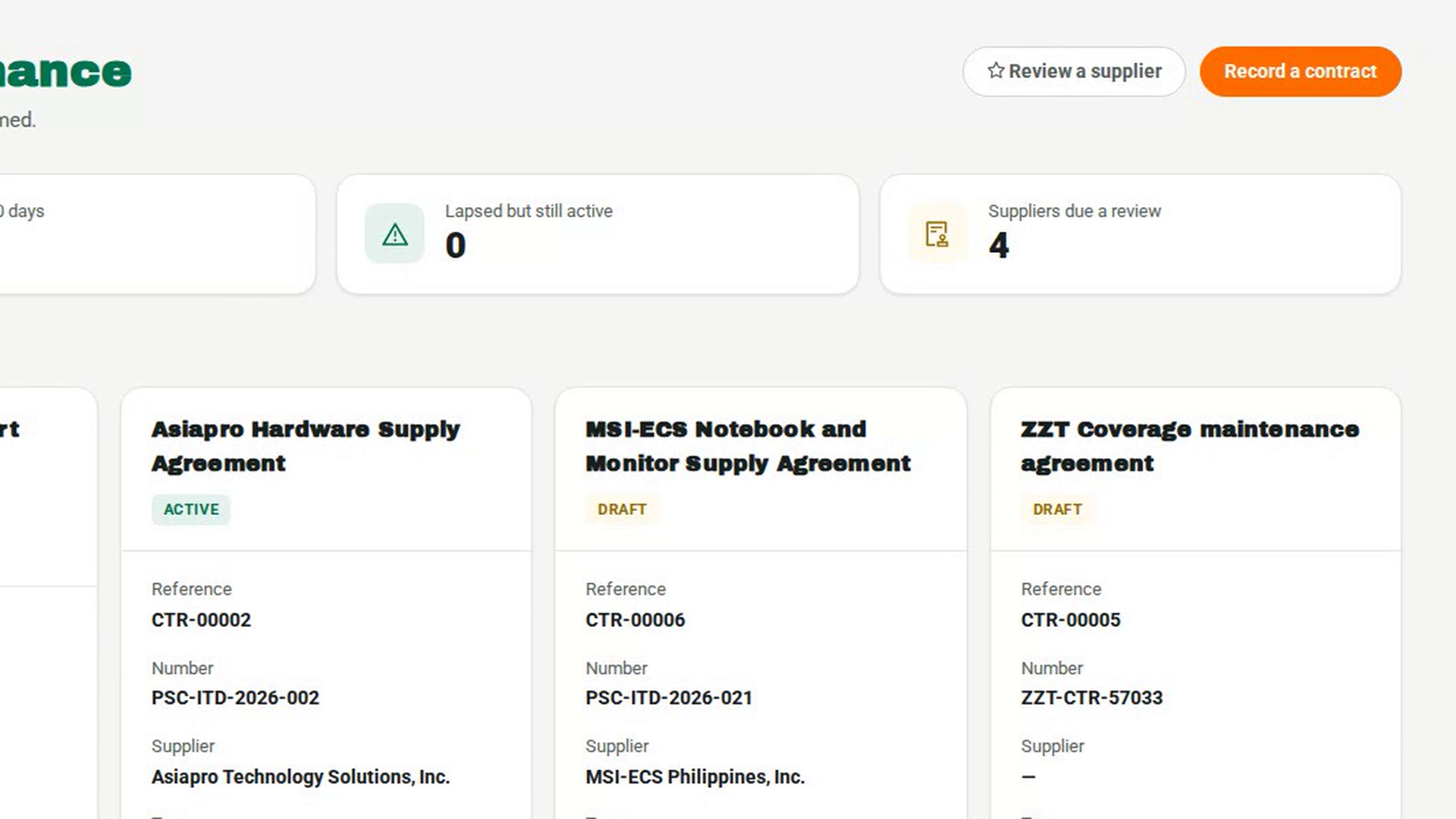
In the sidebar, under Reporting and Reconciliation, select Contracts and Performance. The top of the page counts Active contracts, Expiring in 90 days, Lapsed but still active and Suppliers due a review. The Contracts tab lists every contract.
Record a new contract
Select Record a contract. Enter the Title and choose the Type, then the Supplier, Contract number, Start and End dates, Value, Service levels and Scope. Choose a Status of Draft or Active, and select OK. The contract appears as a card with its own reference.
Check the contract details
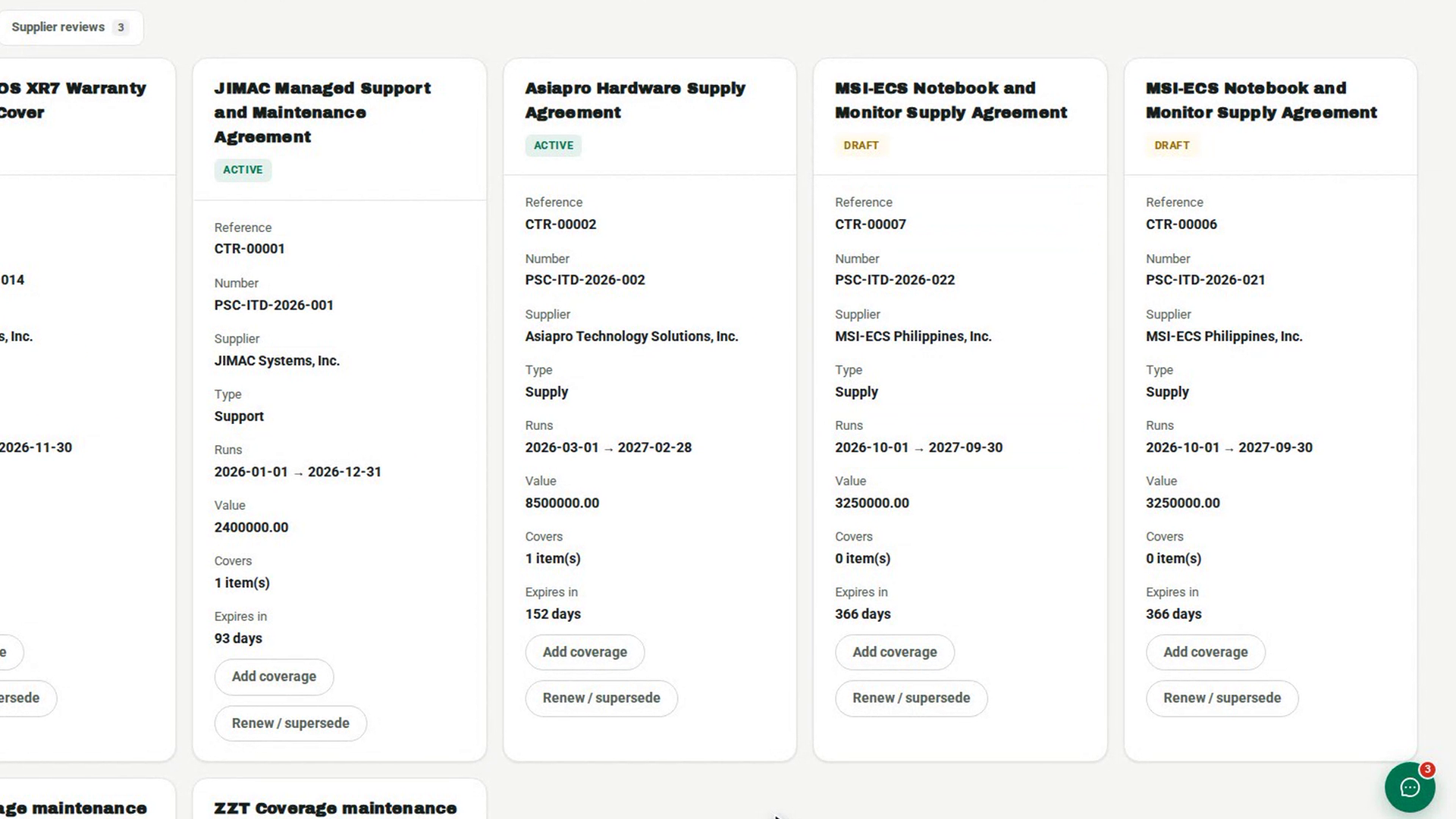
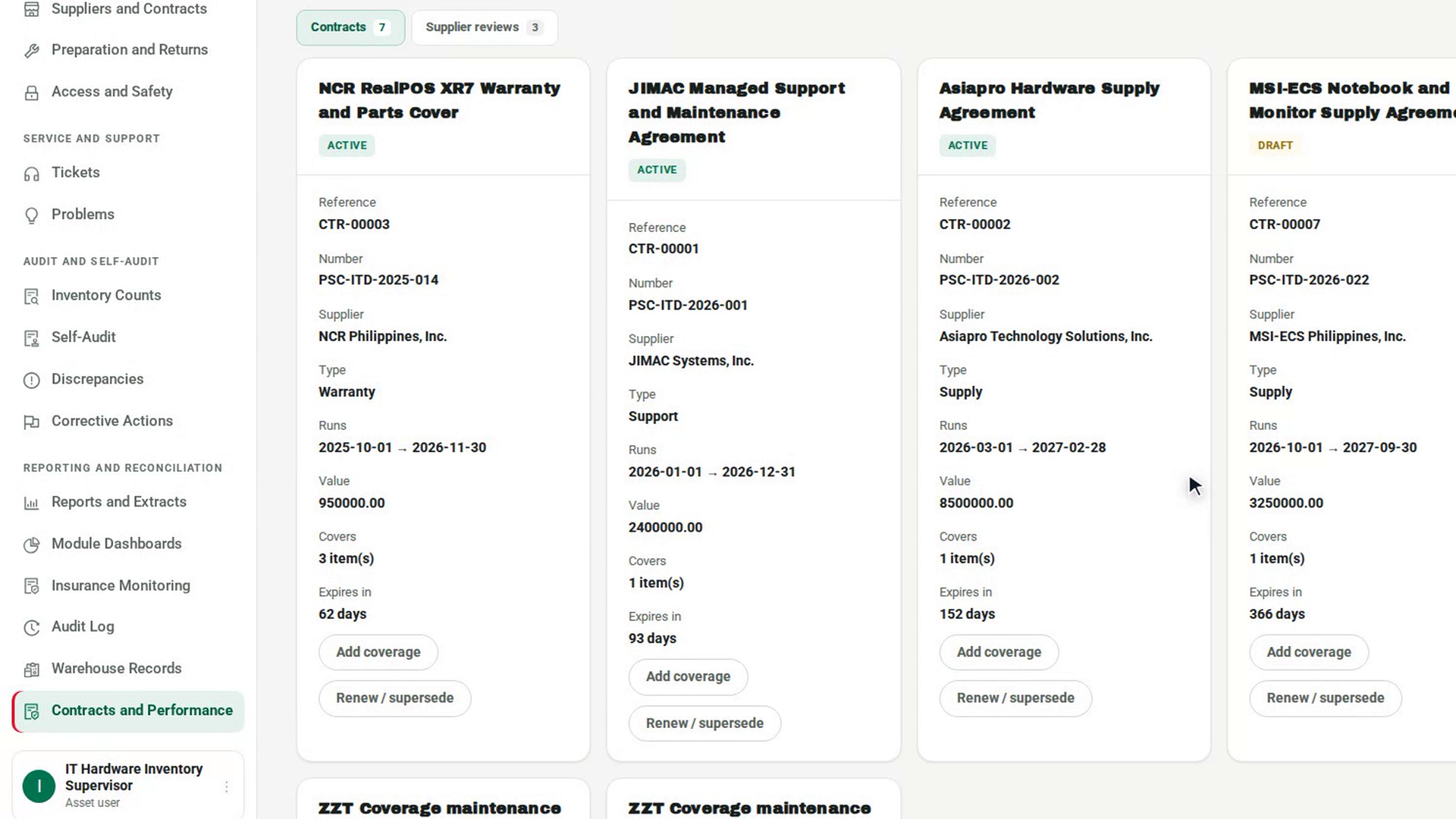
On the contract's card, check the Reference, Supplier, Type, the dates it Runs, its Value, what it Covers, and how long until it expires under Expires in.
Link what the contract covers
Select Add coverage. In What does this contract cover?, choose whether it covers A specific asset, A catalogue model, A purchase order or A service area, fill in the matching field, and describe the Coverage, for example the warranty terms. Select OK. The card's Covers count goes up.
Renew or change the terms
Select Renew / supersede. The dialog starts from the current contract's title, type and supplier. Enter the new dates, value and terms, say Why is it changing, and select OK. A new contract is recorded that supersedes the old one, and its card shows which contract it Supersedes.
Screenshots
Step 1: Open Contracts and Performance
Step 2: Record a new contract
Step 3: Check the contract details
Step 4: Link what the contract covers
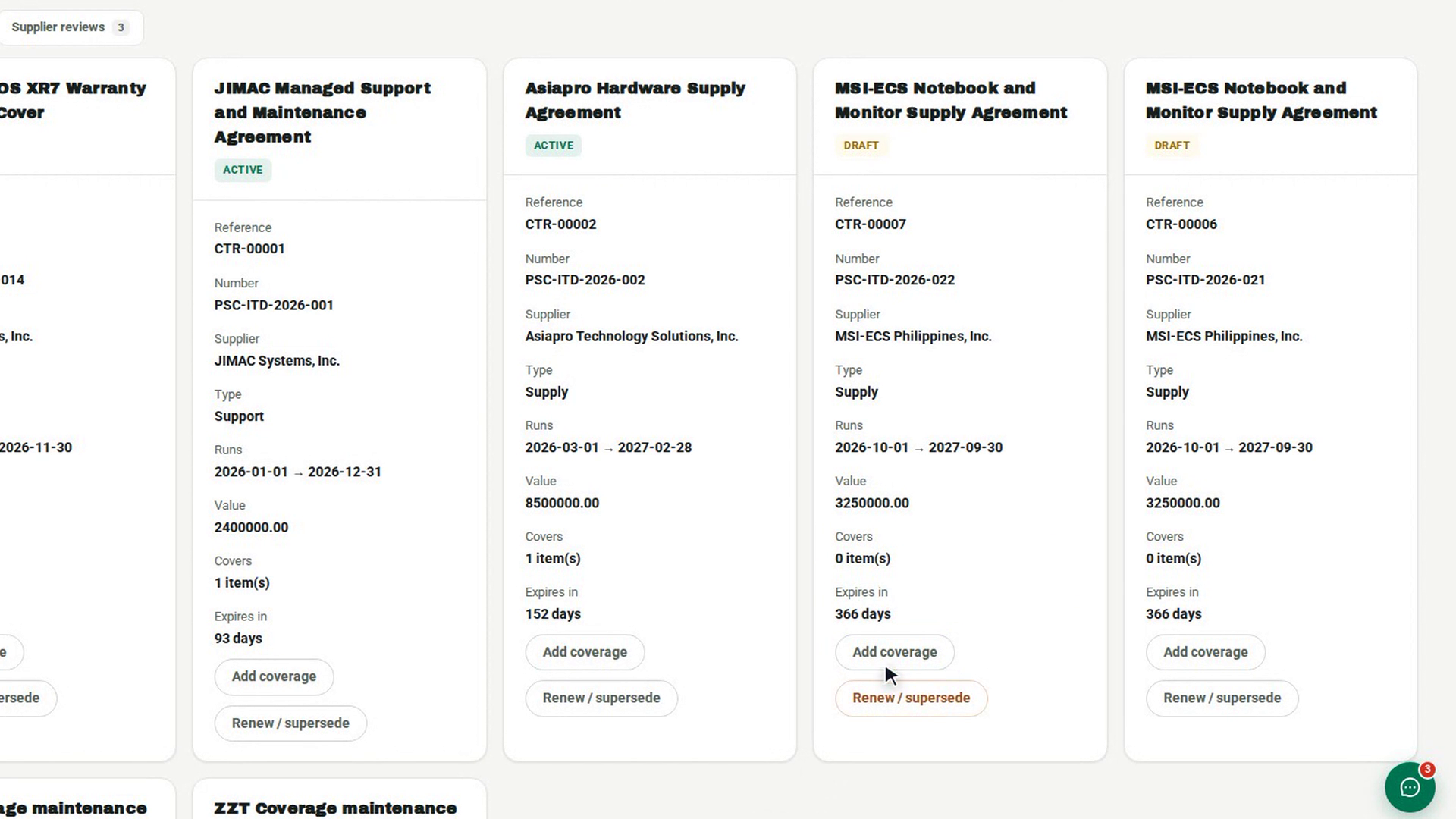
Step 5: Renew or change the terms
Watch how
Tip: An active contract must have a start date. If the page warns that contracts are lapsed but still active, renew them with Renew / supersede.
The commercial terms of a live contract cannot be edited. A change of dates, value or type is a renewal: record it with Renew / supersede so the old terms stay on record for anything acquired under them.