Return or pull out an asset
A Return transaction brings an asset back from its user or location to the warehouse. It needs no separate approval, but the warehouse must acknowledge receipt, and the asset is then inspected before it can be used again.
Before you start
- To prepare, release or acknowledge a return you need to be a Dedicated IT Warehouse Administrator or CDI Staff, Asset and Logistics Associate, IT Hardware Inventory Supervisor, or IT Business Systems or Application Team.
- The asset must be recorded with the custodian or at the location you pull it out from.
- Know which warehouse position it is coming back to.
Steps
Start a return
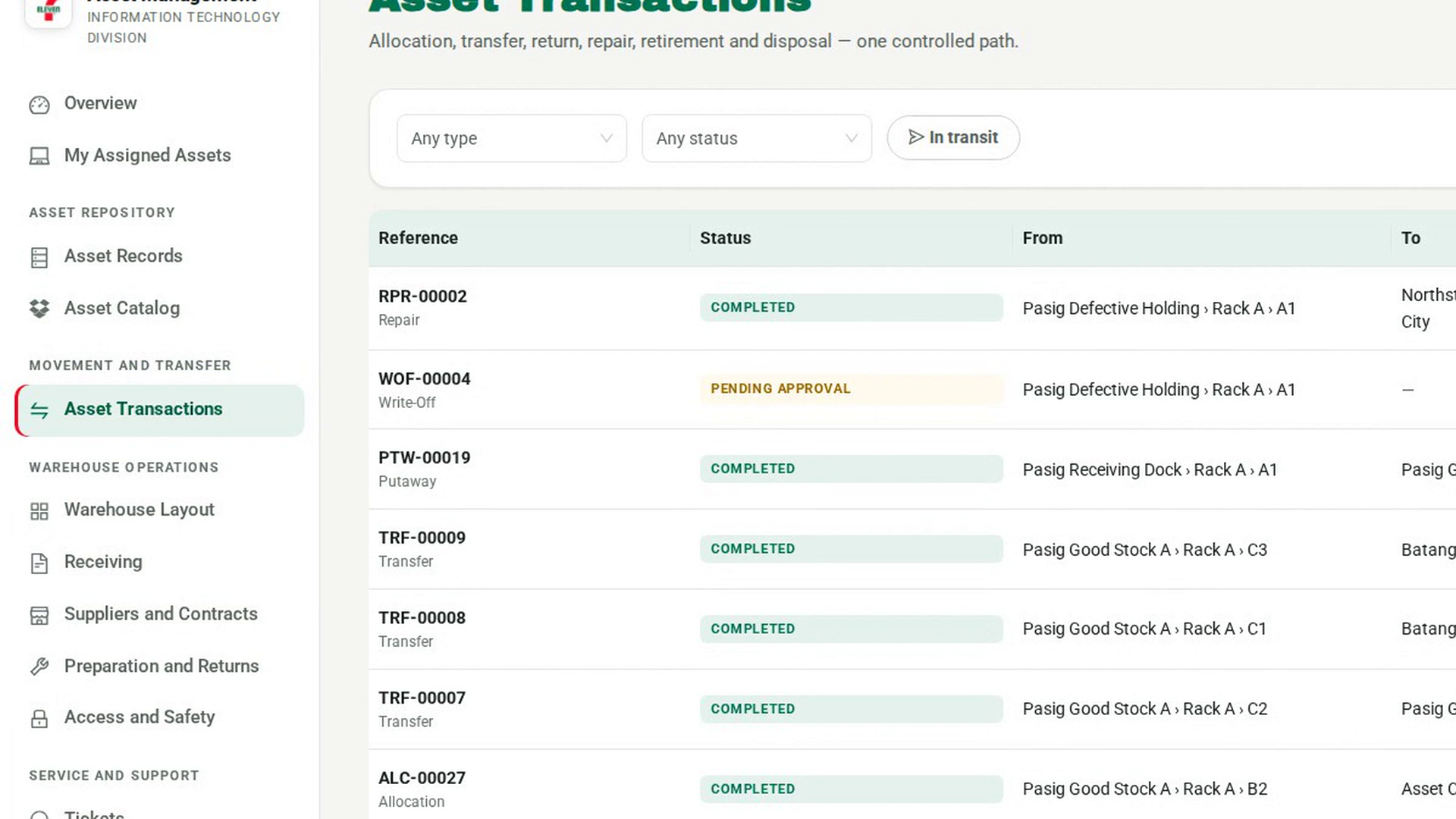
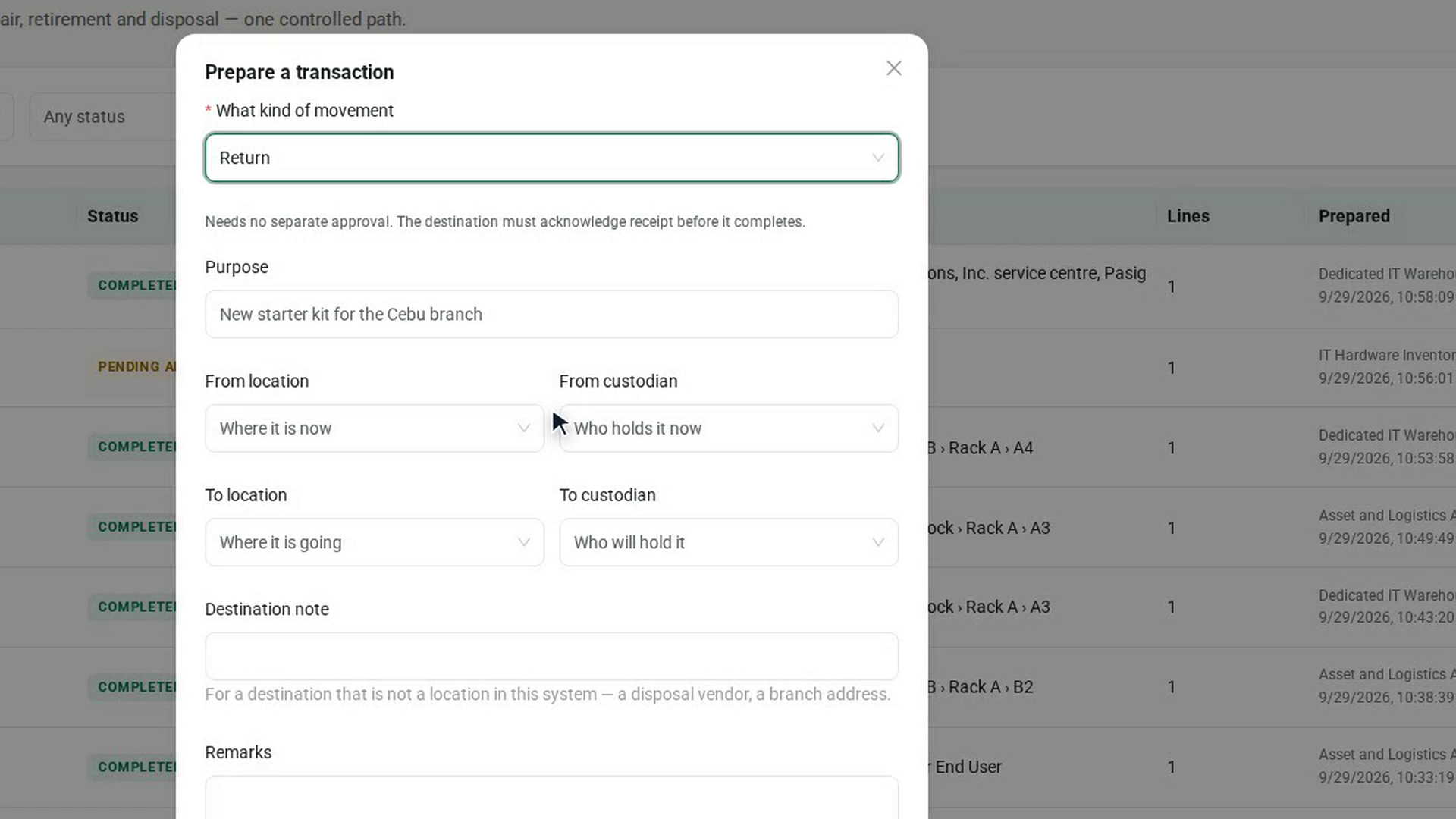
In the sidebar, under Movement and Transfer, select Asset Transactions, then New transaction. Under What kind of movement, choose Return. The note reads Needs no separate approval. The destination must acknowledge receipt before it completes.
Say who it comes from and where it goes
Choose the From custodian who has it, or the From location. Choose the warehouse To location it returns to. Give the reason in Purpose, then select Prepare.
Add the asset and submit
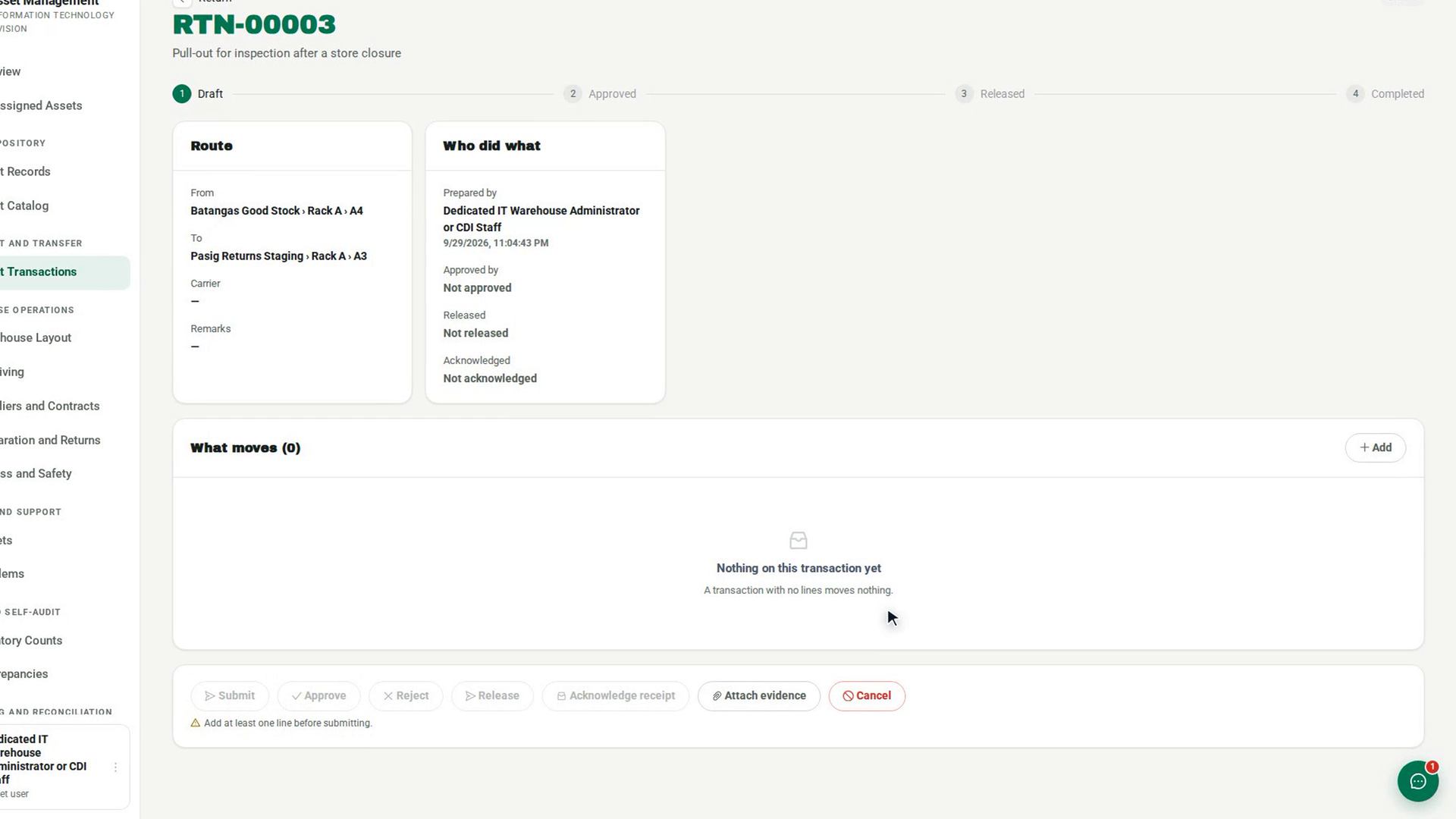
In What moves, select Add and select the asset. Then select Submit. Because a return needs no approval, it goes straight to Approved.
Release it
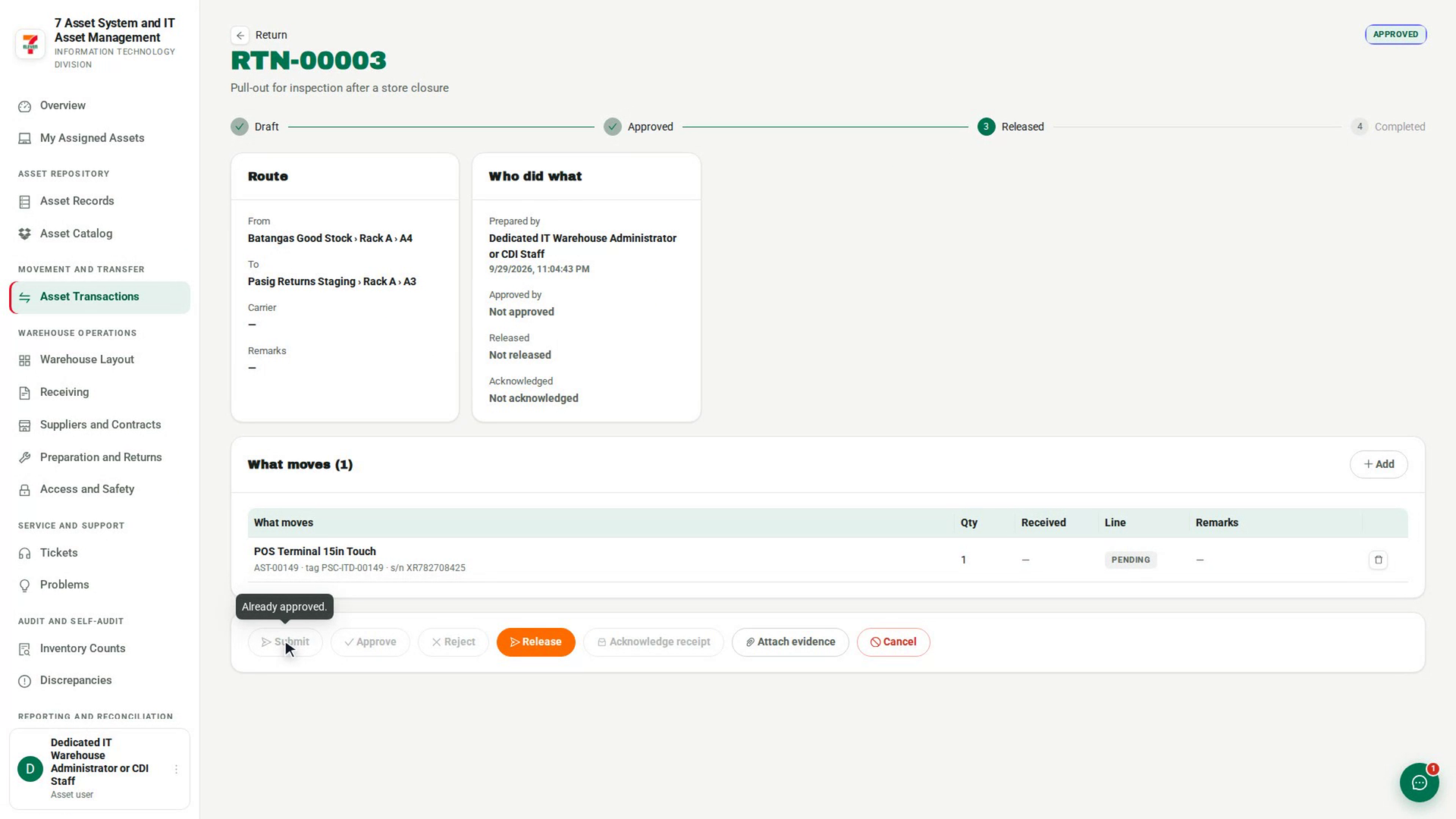
When the asset is handed over, select Release, fill in Carrier or recipient, and select Confirm release. It is in transit until the warehouse acknowledges it.
Acknowledge it at the warehouse
At the warehouse, open the return and select Acknowledge receipt. Record the Condition on receipt for each line and select Record receipt. The asset is now Returned, held at the warehouse, and no longer with the user.
Inspect and classify it
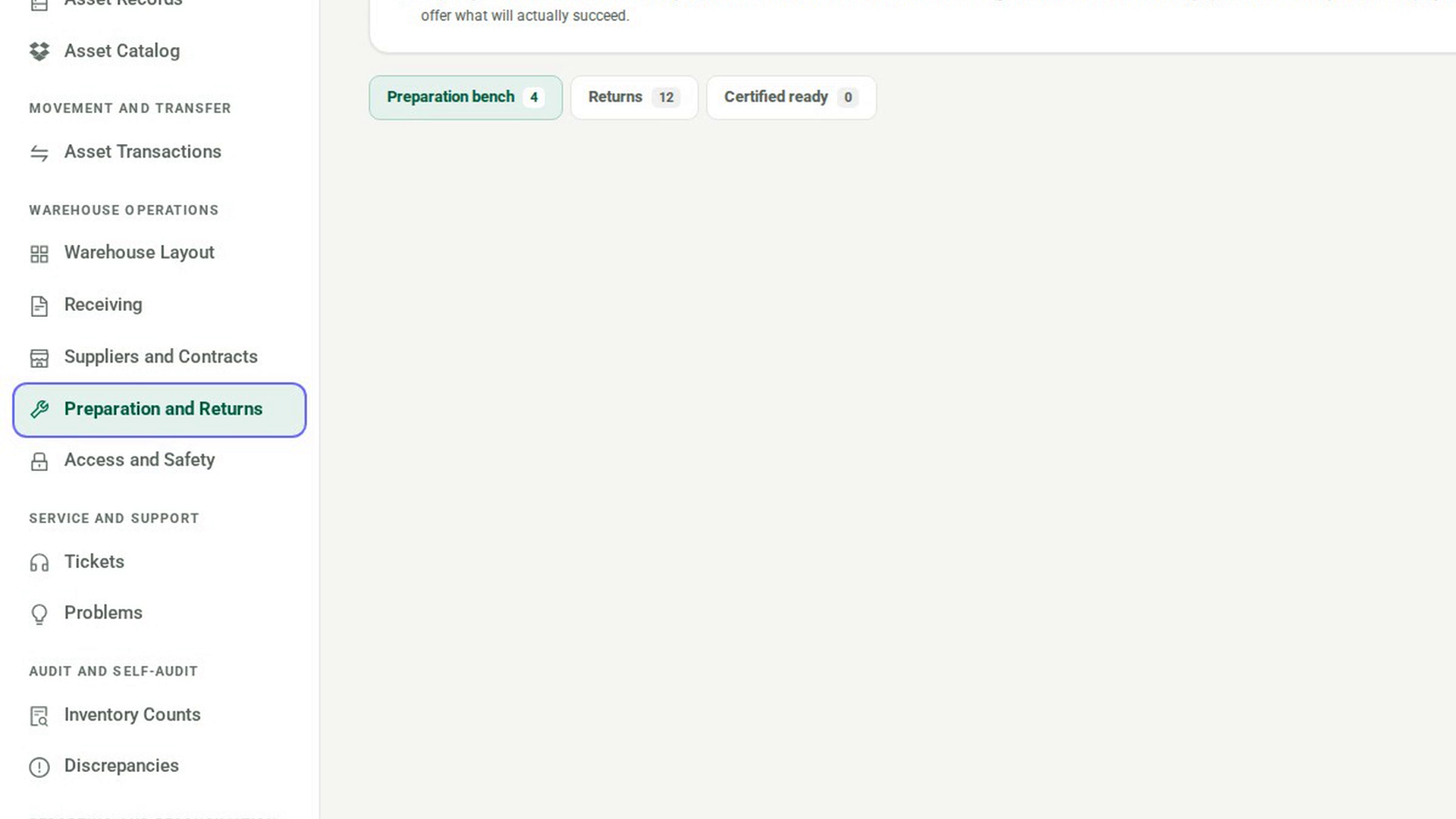
Under Warehouse Operations, select Preparation and Returns and open the Returns tab. The asset is listed under Awaiting inspection. Select Inspect and classify to decide what happens to it next.
Screenshots
Step 1: Start a return
Step 2: Say who it comes from and where it goes
Step 3: Add the asset and submit
Step 4: Release it
Step 5: Acknowledge it at the warehouse
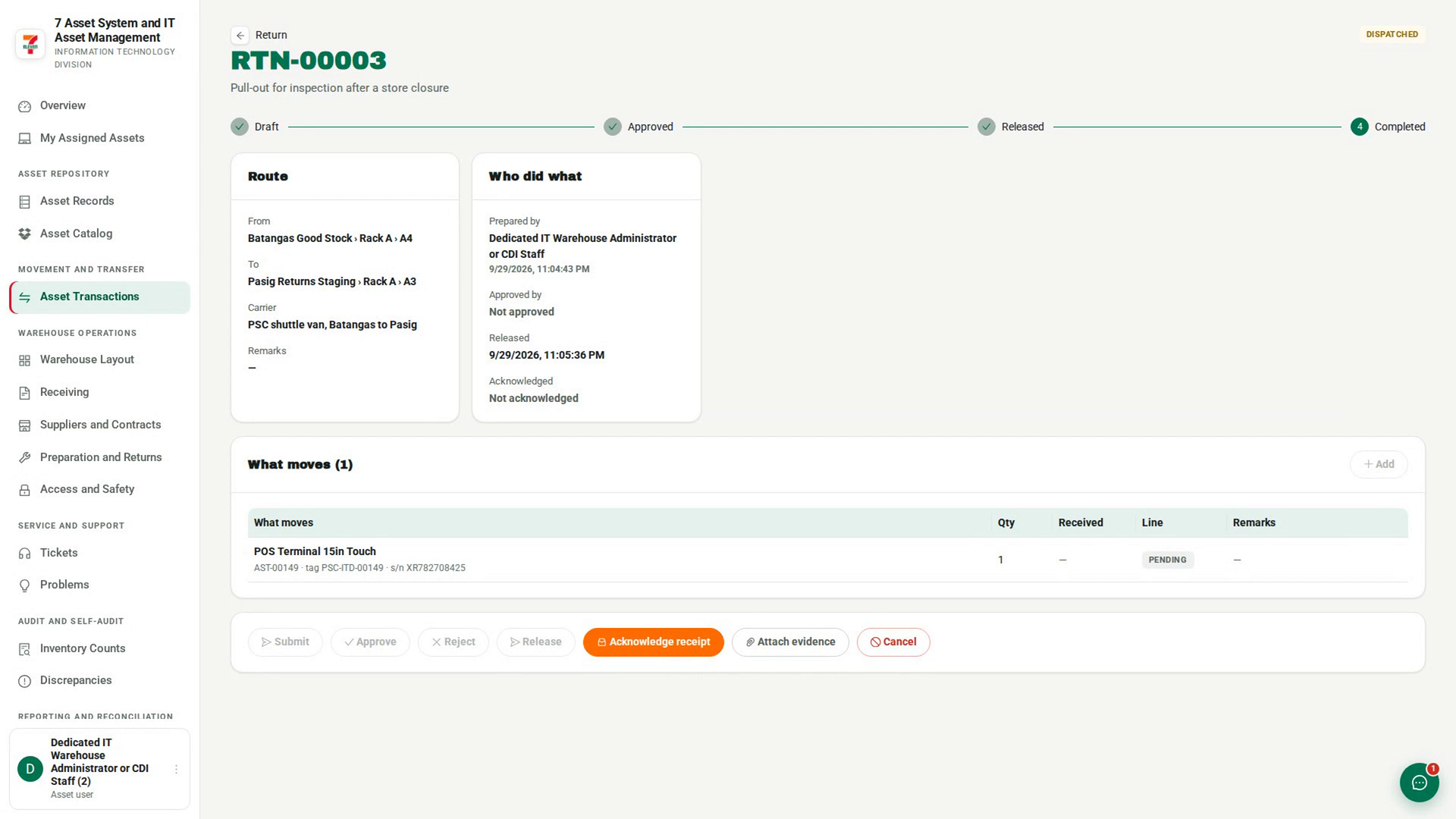
Step 6: Inspect and classify it
Watch how
Tip: A return is the way to reverse a movement that has already been released. Released transactions cannot be edited, so record the return rather than trying to change the original.