Roles and privileges
See exactly what each role may do, adjust its permissions, and create a new role when no existing one fits a job.
Before you start
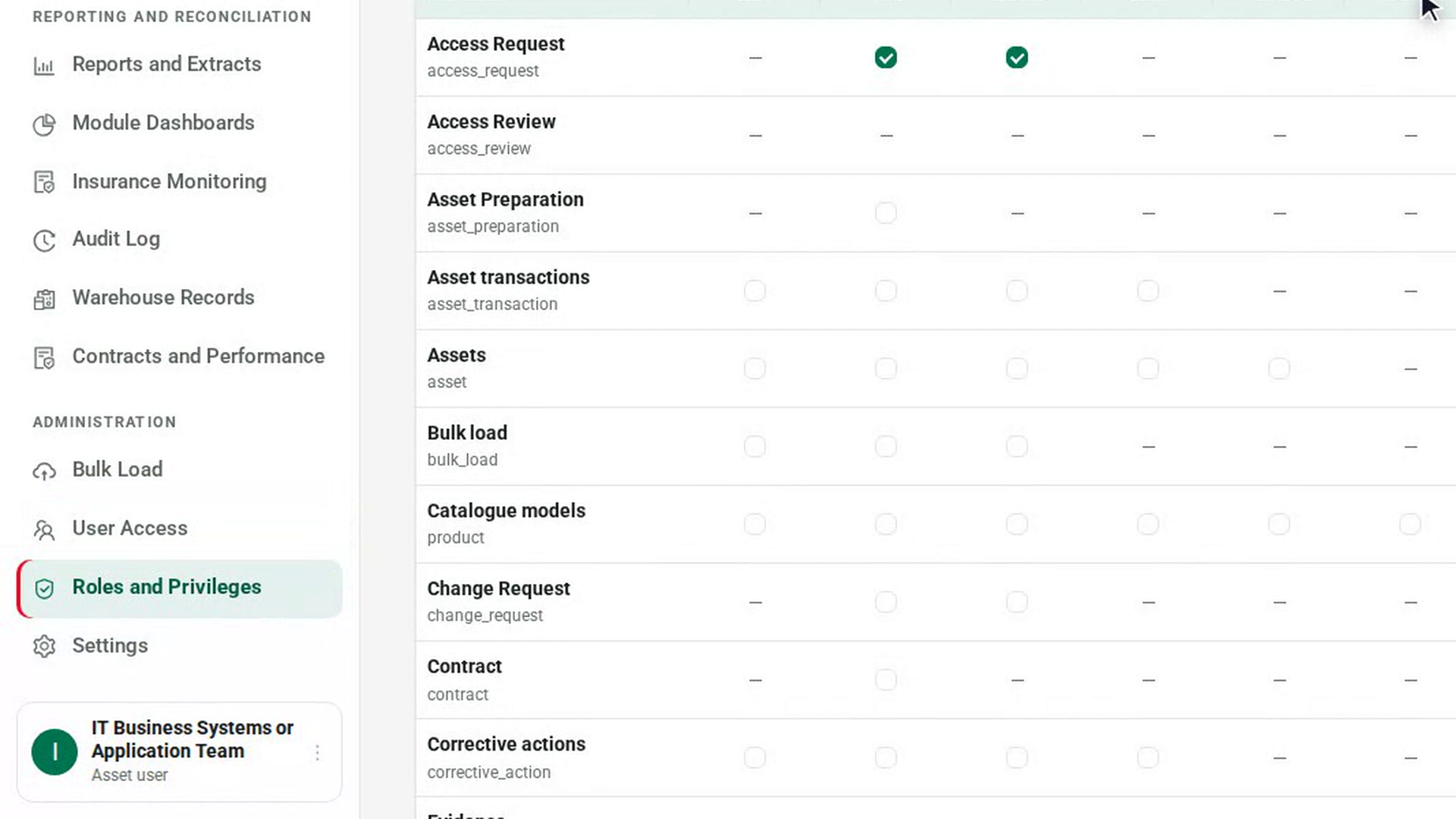
- You need the IT Business Systems or Application Team role. The Administration group in the sidebar is only for this role.
- To give a role to a person, you use User Access after the role exists.
Steps
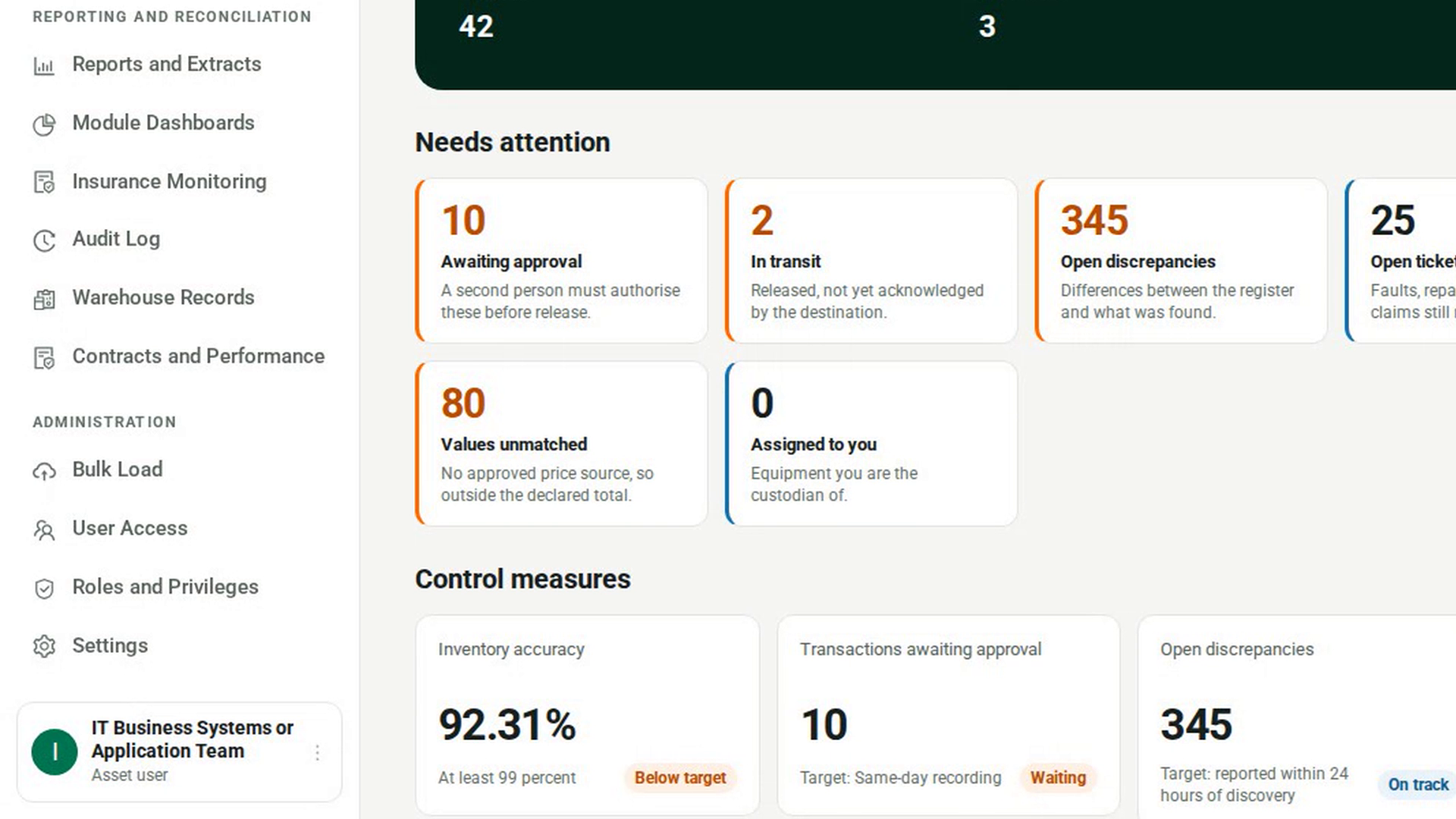
Open Roles and Privileges
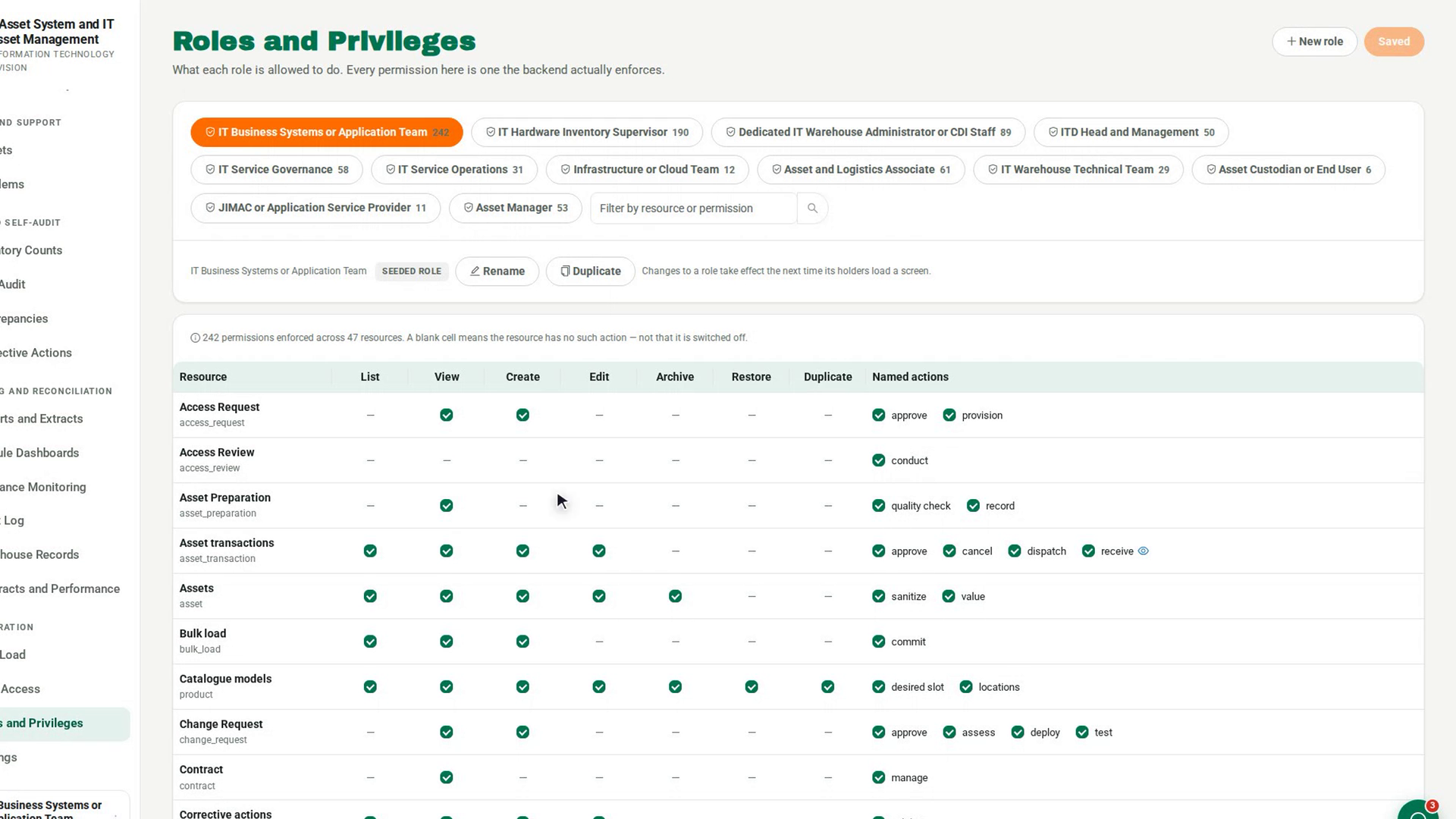
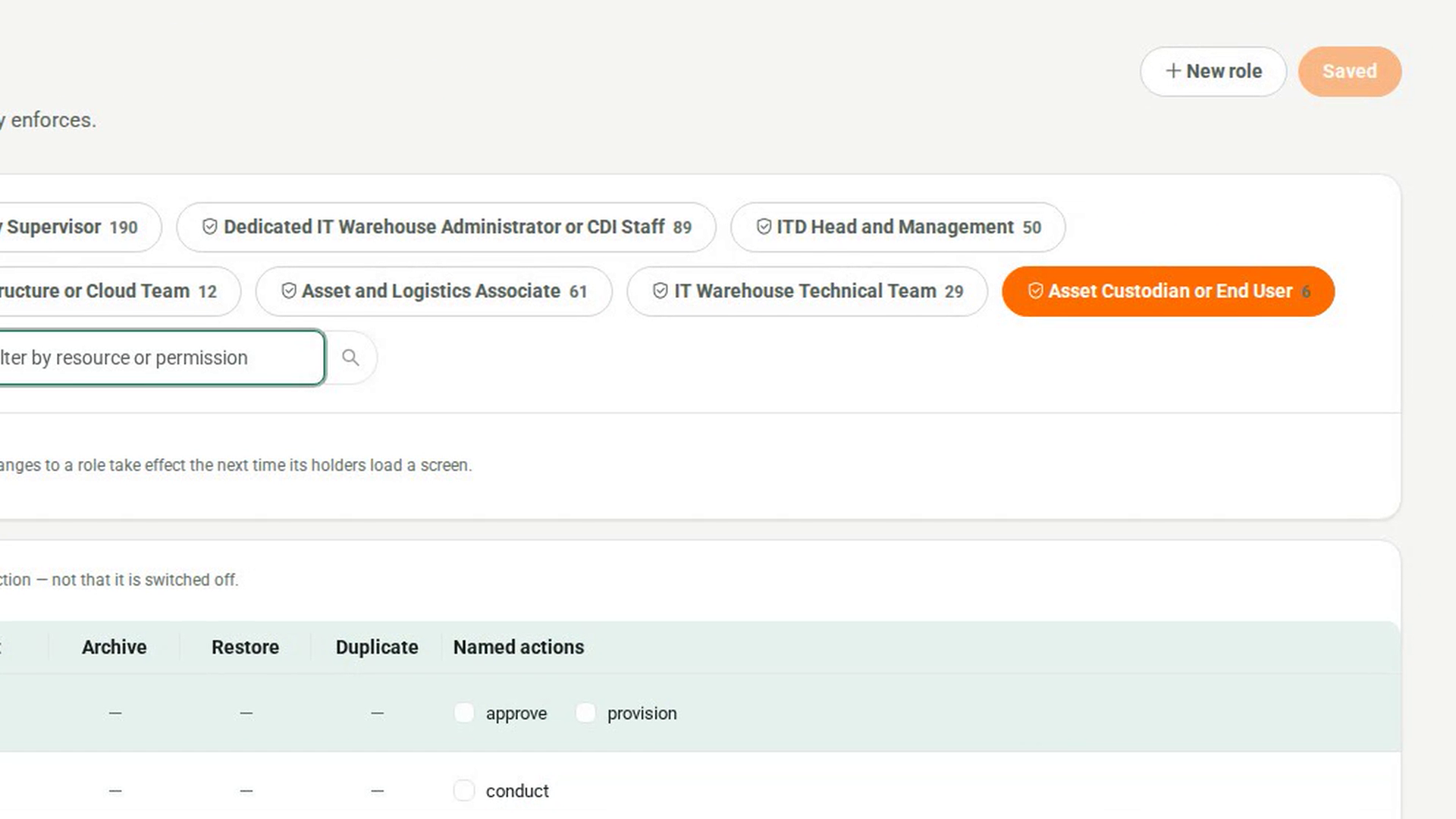
In the sidebar, under Administration, select Roles and Privileges. A button for each role runs across the top, with its number of permissions.
Pick a role
Select a role. The grid below shows the permissions it holds as ticked boxes.
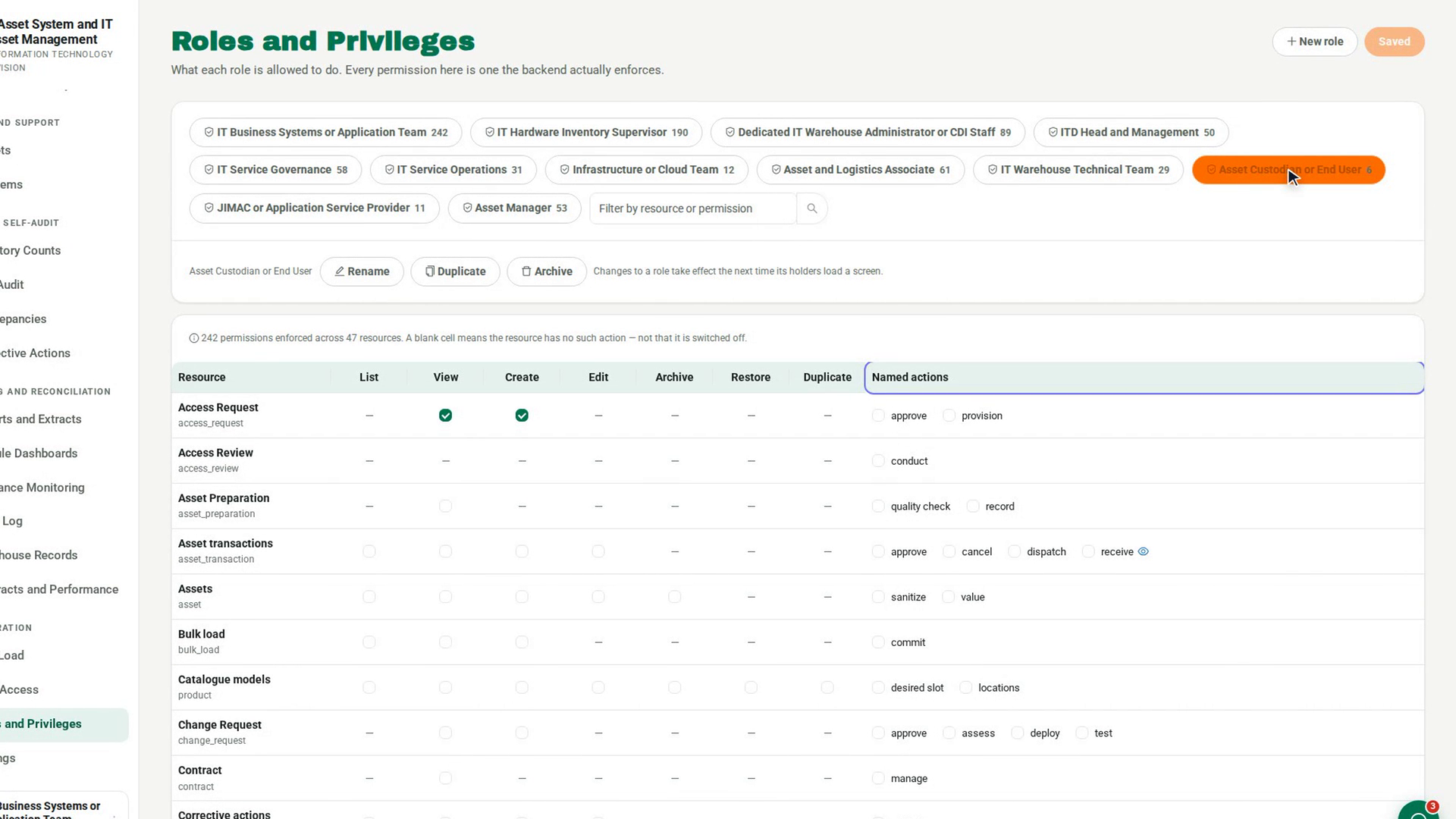
Read the permission grid
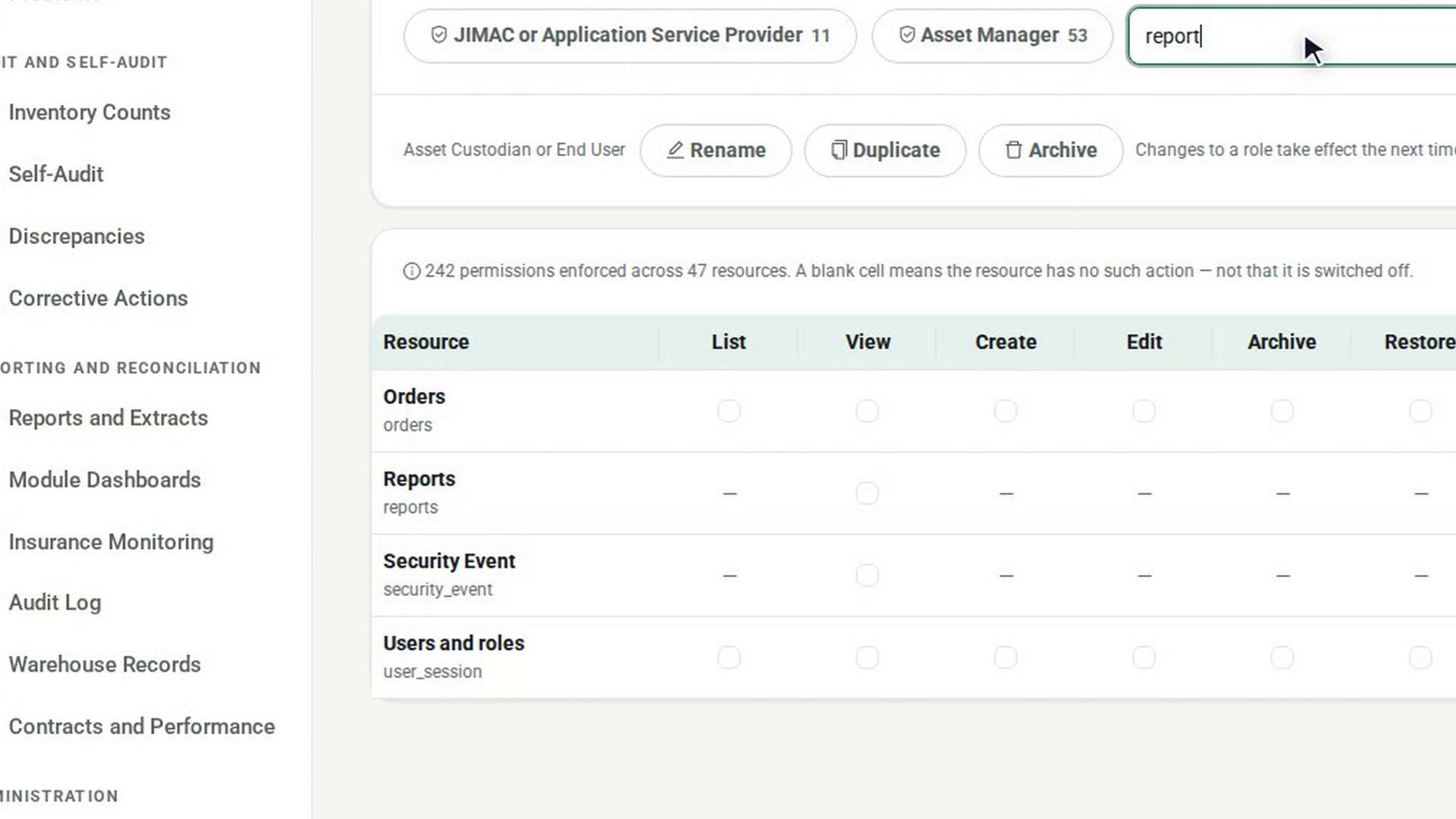
Each row is an area of 7-Asset. The columns are List, View, Create, Edit, Archive, Restore and Duplicate, and Named actions holds the actions that fit no column. A blank cell means that area has no such action. Hover over a box to see the permission it stands for. To narrow the list, type in Filter by resource or permission.
Change what the role allows
Tick or untick boxes. Unsaved changes appears until you select Save changes. A message confirms how many permissions were granted and revoked. Changes take effect the next time the role's holders load a screen.
Create a role
Select the role closest to what you need, then select New role. In the New role dialog, fill in Role name and What this role is for. The new role starts with the permissions of the role you selected. Select Create role, or Cancel to leave without creating it.
Assign the new role
A new role grants nothing until somebody holds it. Assign it to people on User Access.
Screenshots
Step 1: Open Roles and Privileges
Step 2: Pick a role
Step 3: Read the permission grid
Step 4: Change what the role allows
Step 5: Create a role
Step 6: Assign the new role
Watch how
Tip: With a role selected you can also Rename it, Duplicate it, or Archive it. If a built-in role has been edited, Reset to built-in puts its boxes back to the original set; nothing changes until you select Save changes.
Archiving a role is refused while anyone still holds it. Reassign those people first. The three roles 7-Asset was set up with, marked Seeded role, cannot be archived. 7-Asset also refuses a permission change that would leave nobody able to edit roles.