Adjust an inventory record
When an asset's location, condition or status, or a stock quantity, is wrong in 7-Asset, you do not edit the record. You correct it through a discrepancy: state the reason, propose the corrected values, and have an independent approver apply them. The old and new values stay side by side on the case.
Before you start
- To open a case and propose a correction you need to be a Dedicated IT Warehouse Administrator or CDI Staff, IT Hardware Inventory Supervisor, or IT Business Systems or Application Team. An Asset and Logistics Associate can open a case but not propose.
- The approval must come from a different person: an IT Hardware Inventory Supervisor or IT Business Systems or Application Team.
- If a count or self-audit already opened a case for the difference, use that case instead of opening a new one.
Steps
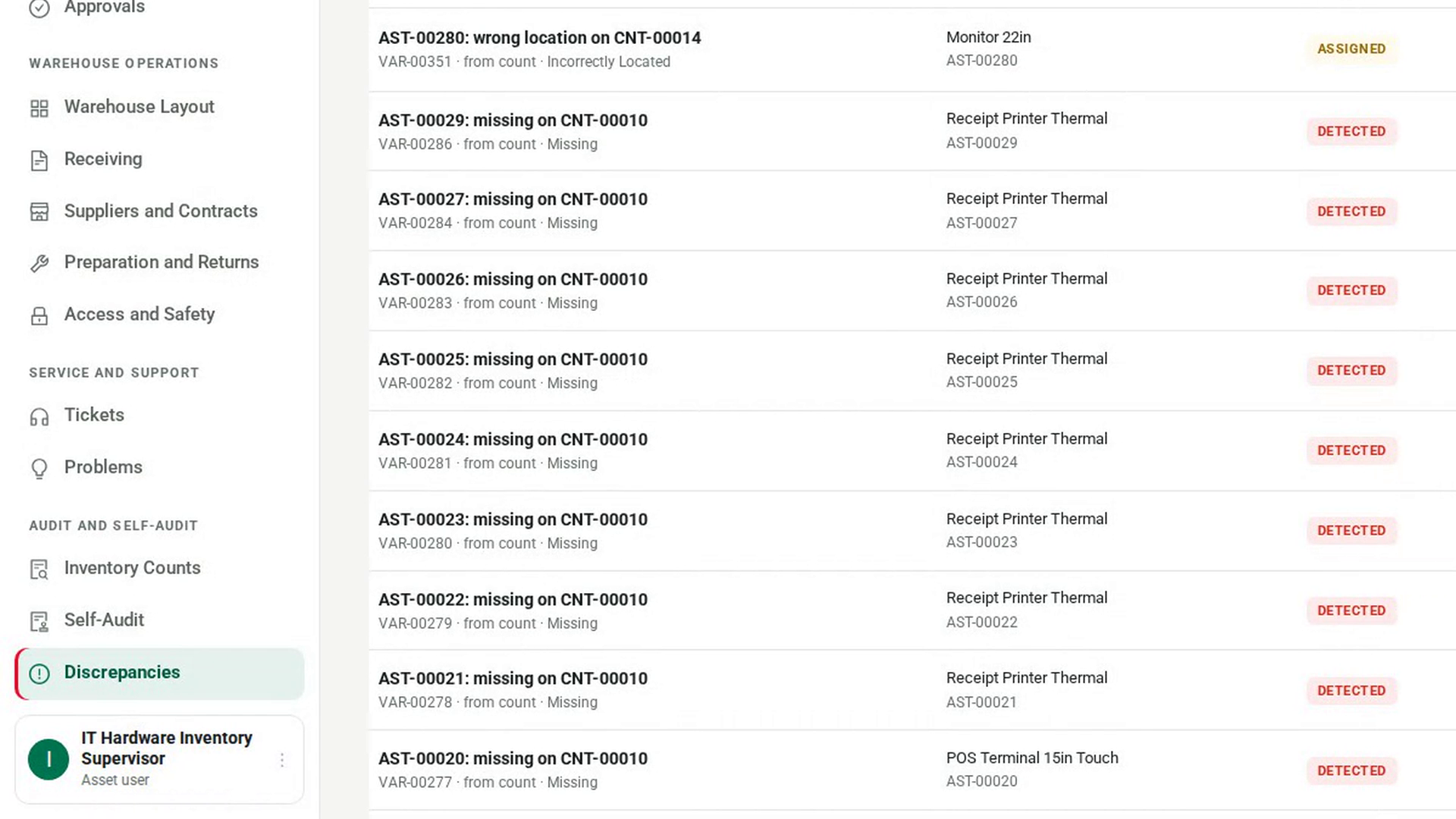
Open Discrepancies
In the sidebar, under Audit and Self-Audit, select Discrepancies.
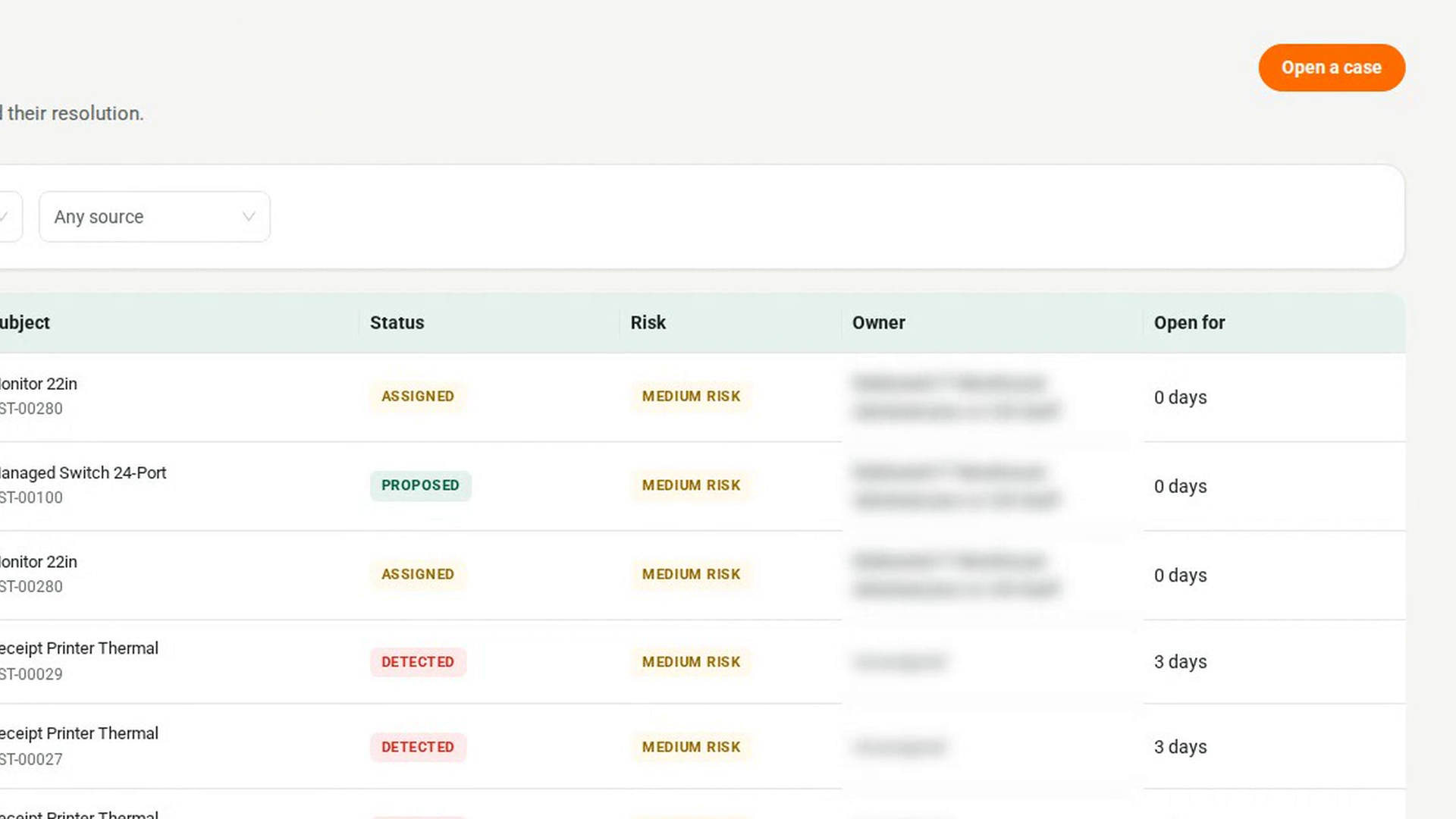
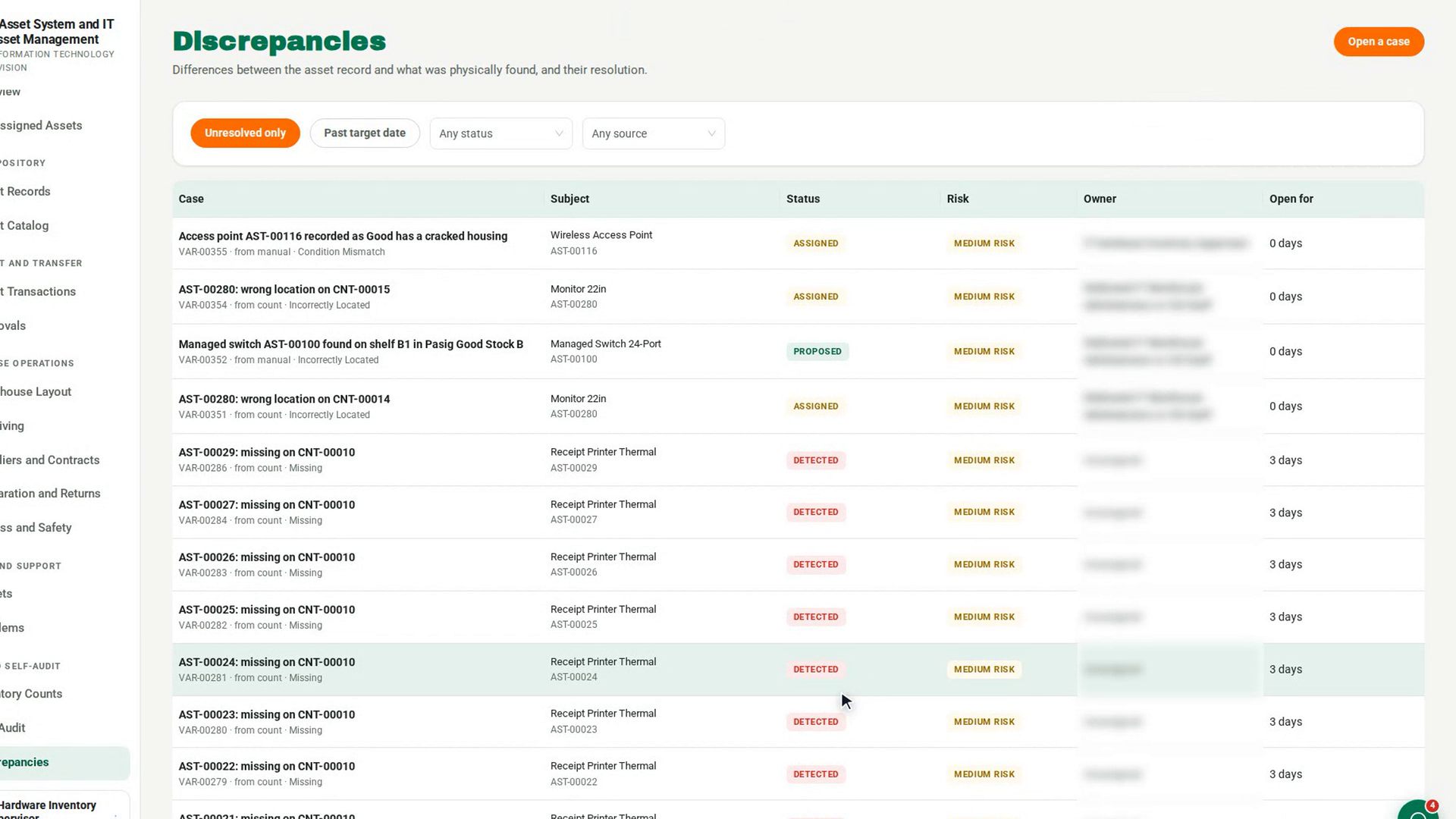
Open a case for the wrong record
Select Open a case. In the Open a variance case dialog, describe What was found, choose the Kind of variance and the Risk, and pick an Accountable owner. Fill in the Expected quantity and Observed quantity, or the Asset id for a single asset, and describe What was observed. Select Open case.
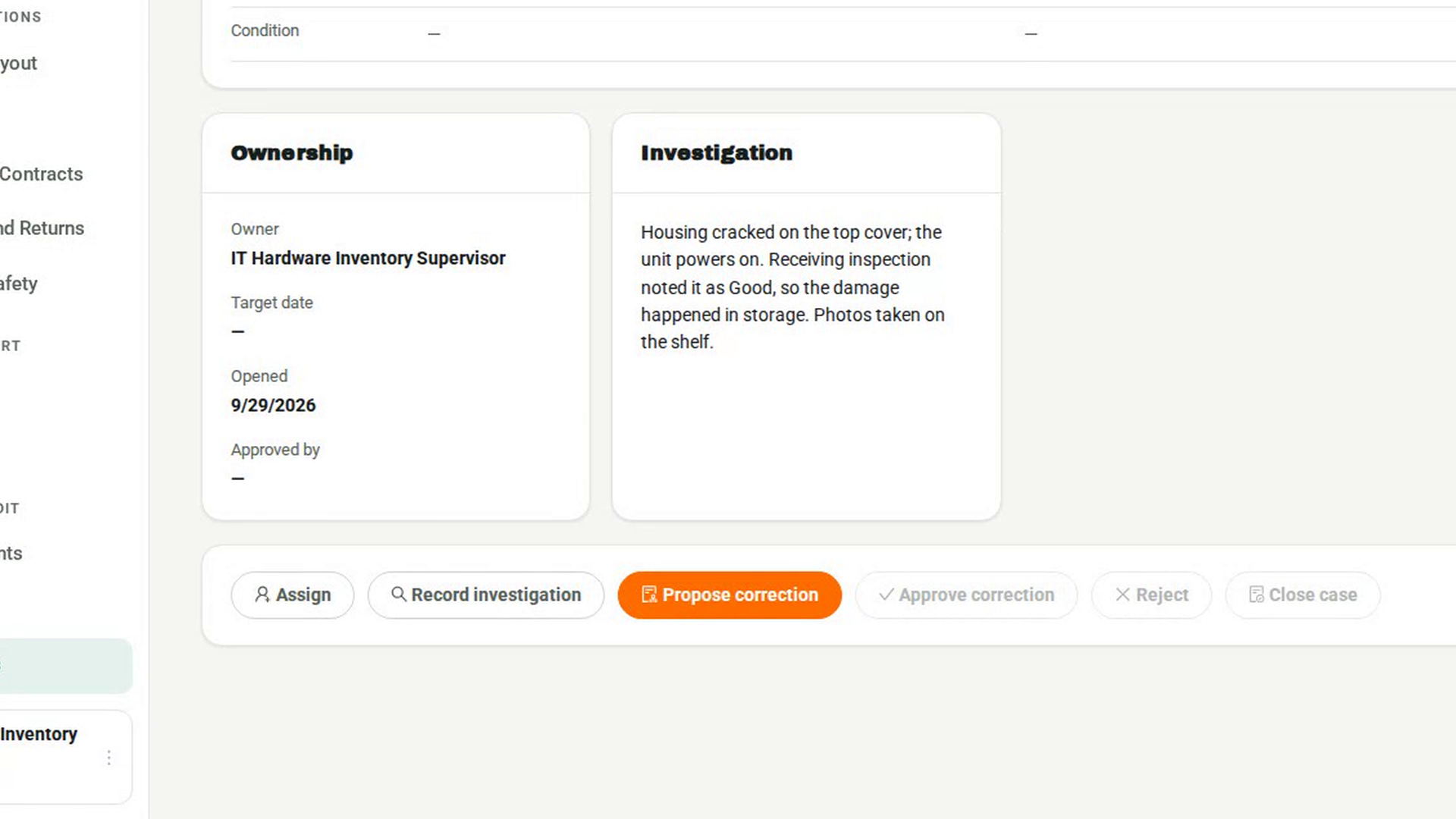
Record the reason and evidence
Open the case and select Record investigation. Under What did you find?, write down why the record is wrong and what you checked. Select Save notes.
Propose the corrected values
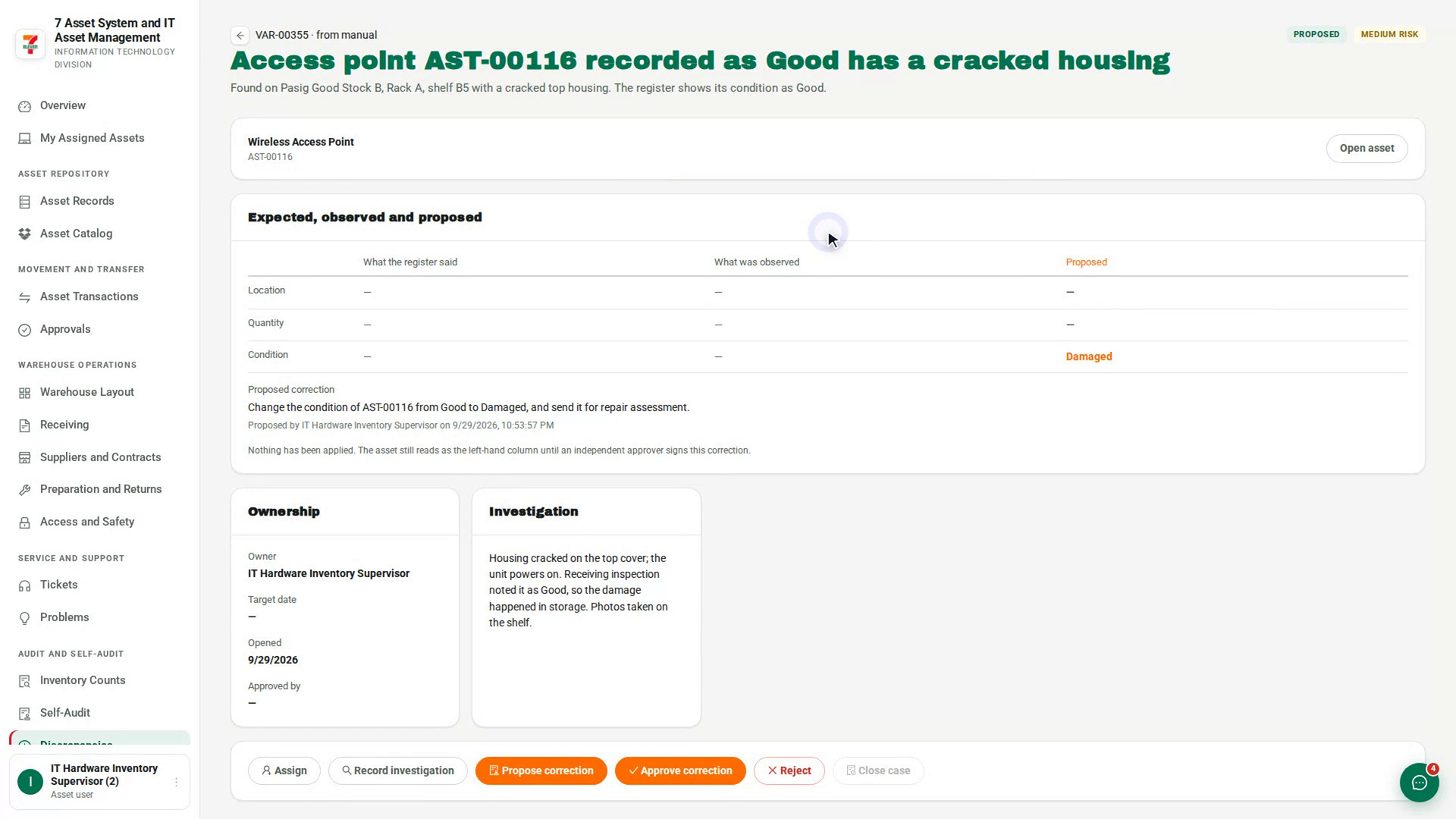
Select Propose correction. Under What should happen, state the change. For an asset, set the Corrected location, Corrected condition or Corrected status. For stock, set the Corrected quantity. Select Submit proposal. The record still shows the old values.
Have an independent approver apply it
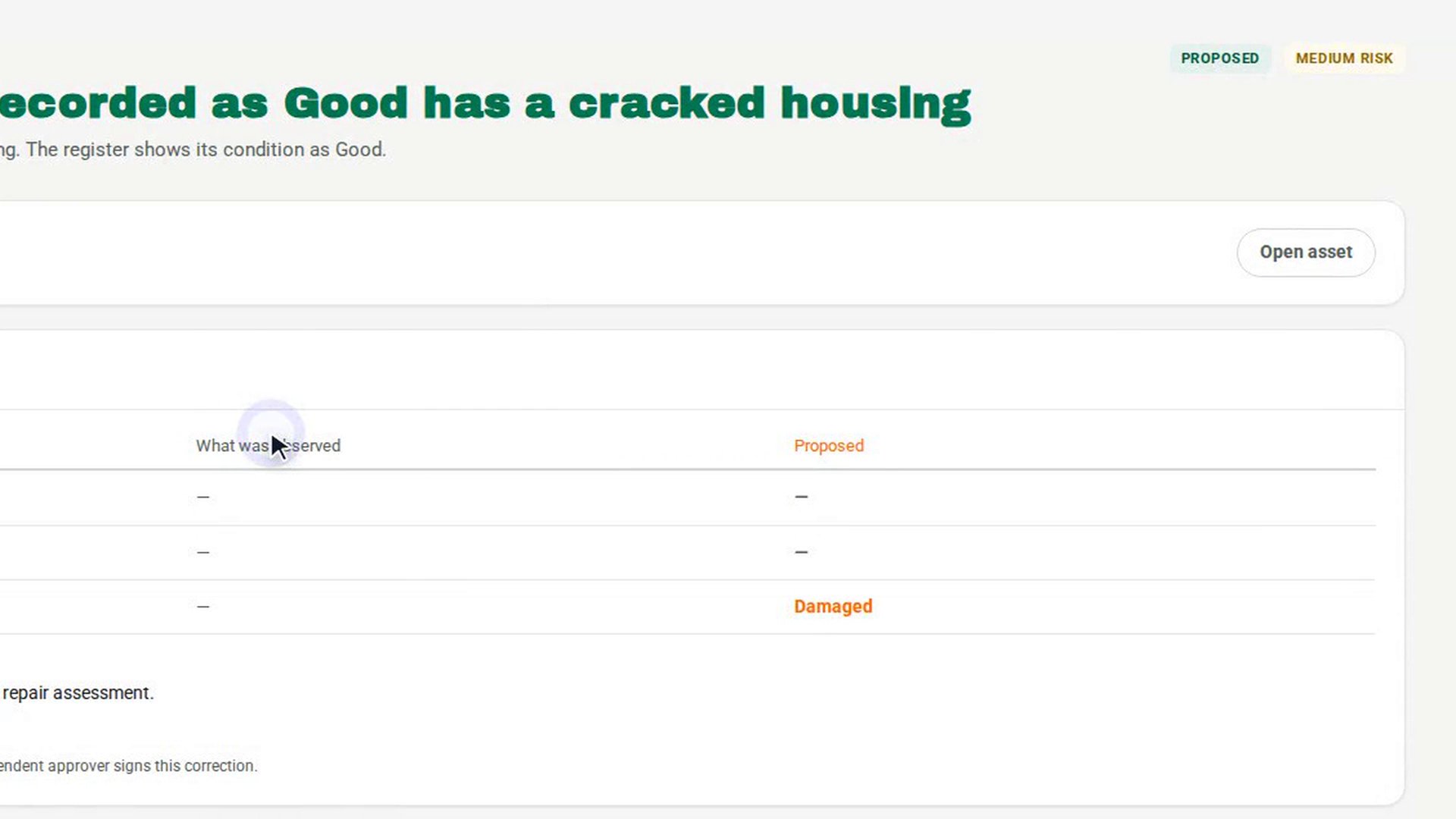
Another approver opens the case, checks the three columns and selects Approve correction, then Approve and apply. Only now does the record change. The case shows corrected and Approved by names the approver.
Check the record and close the case
Select Open asset to confirm the new values. Back on the case, select Close case, enter Closure notes and select Close case.
Screenshots
Step 1: Open Discrepancies
Step 2: Open a case for the wrong record
Step 3: Record the reason and evidence
Step 4: Propose the corrected values
Step 5: Have an independent approver apply it
Step 6: Check the record and close the case
Watch how
Approving writes the corrected values to the record. You cannot approve a correction you proposed yourself — 7-Asset replies You prepared this correction, so you cannot also approve it.
Tip: A rejected correction changes nothing. The approver must give a reason, and it appears under Investigation.