Transfer an asset between locations
A transfer moves an asset from one location or custodian to another. It is a Transfer transaction: it needs an independent approval before release, and the destination must acknowledge receipt before custody changes.
Before you start
- To prepare, release or acknowledge a transfer you need to be a Dedicated IT Warehouse Administrator or CDI Staff, Asset and Logistics Associate, IT Hardware Inventory Supervisor, or IT Business Systems or Application Team.
- The approver must be a different person with approval rights: an IT Hardware Inventory Supervisor or the IT Business Systems or Application Team.
- The asset must be recorded at the origin you name. Assets that are Defective, In Repair, For Retirement, already in transit, or held in a non-deployable zone cannot be transferred.
Steps
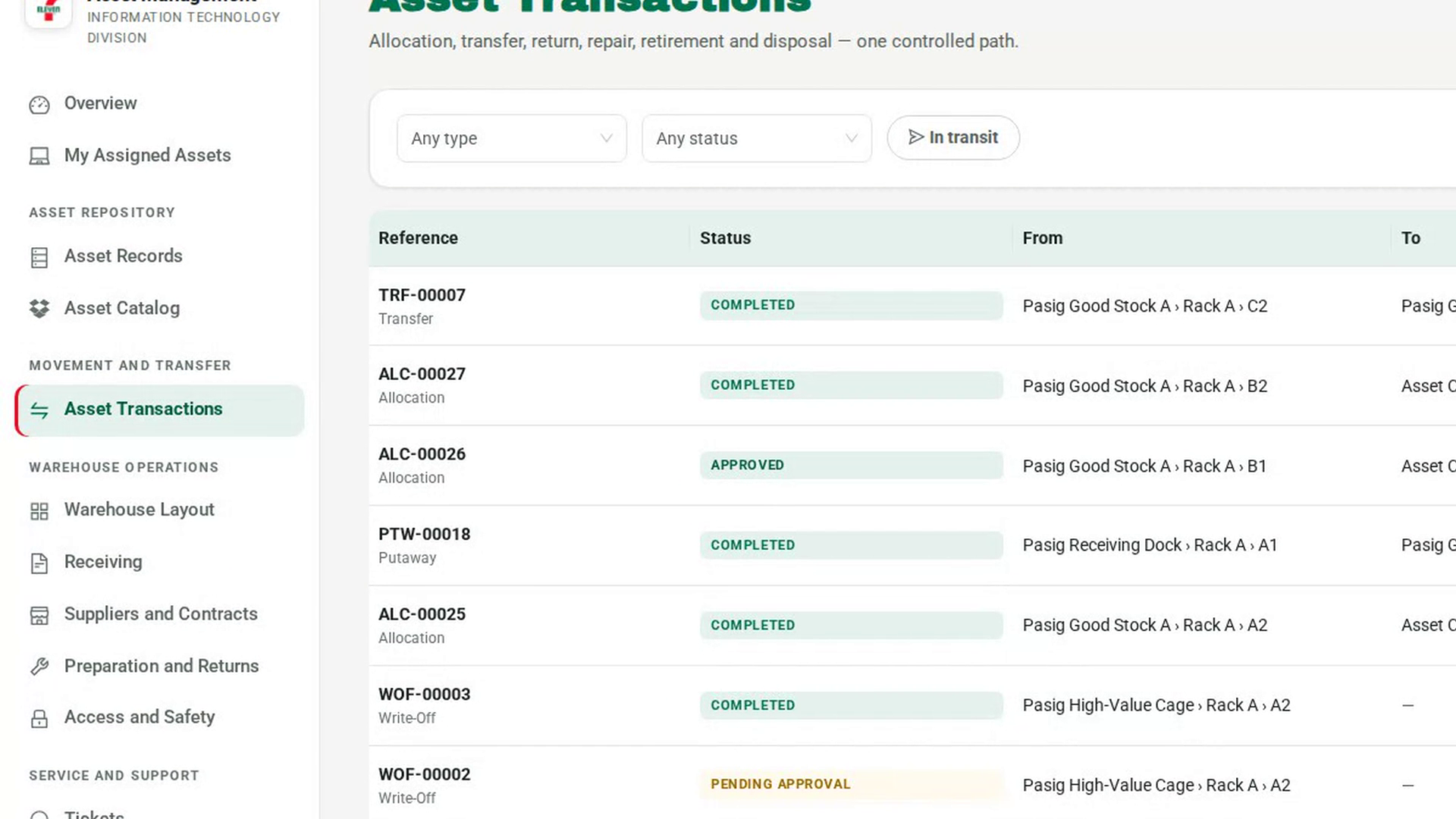
Start a transfer
In the sidebar, under Movement and Transfer, select Asset Transactions, then New transaction. Under What kind of movement, choose Transfer. The note reads Needs an independent approval before it can be released. The destination must acknowledge receipt before it completes.
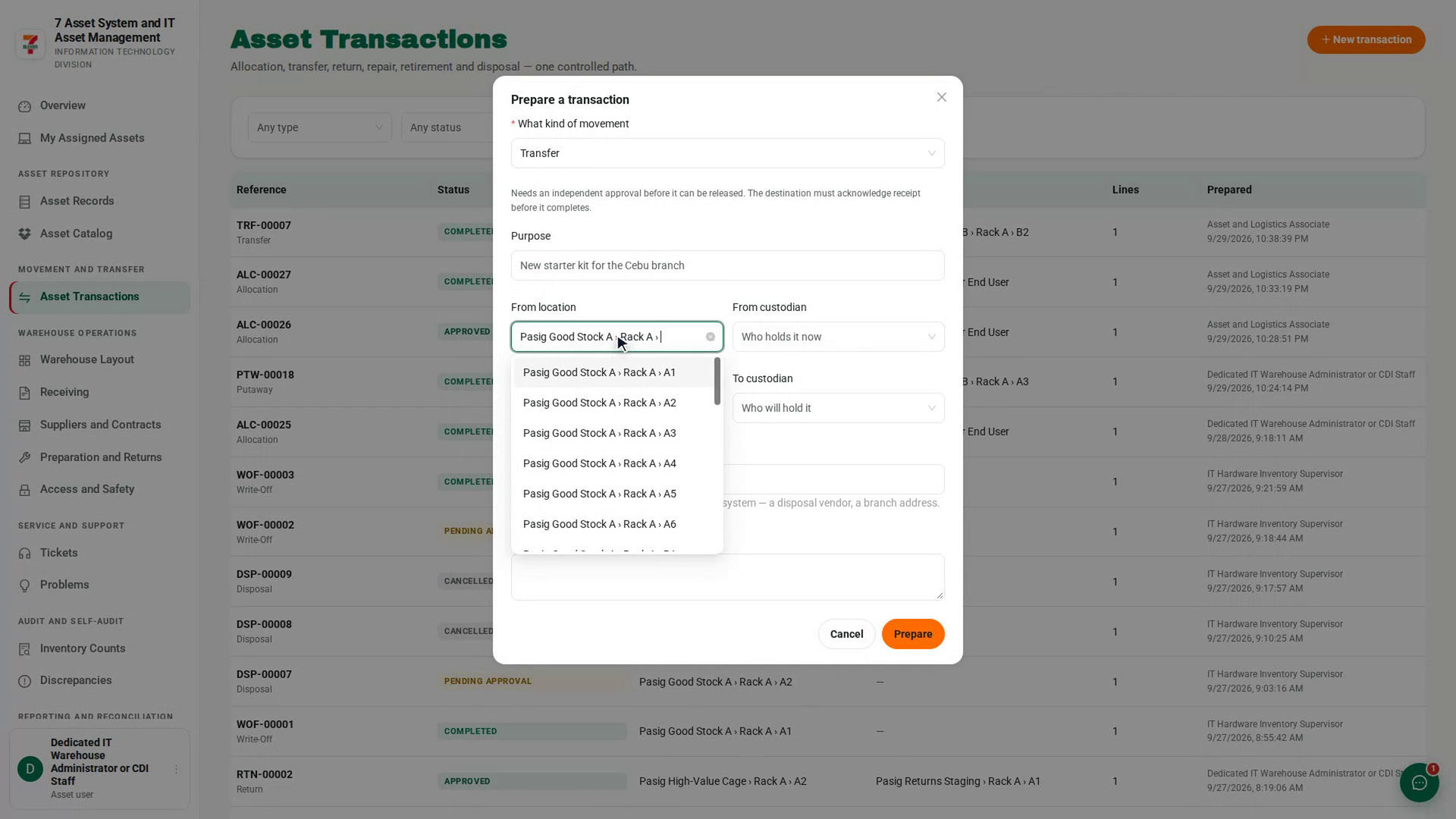
Say where it moves from and to
Choose the From location or From custodian, then the To location or To custodian. For a place that is not in 7-Asset, such as a branch address, use Destination note. Add a Purpose and select Prepare.
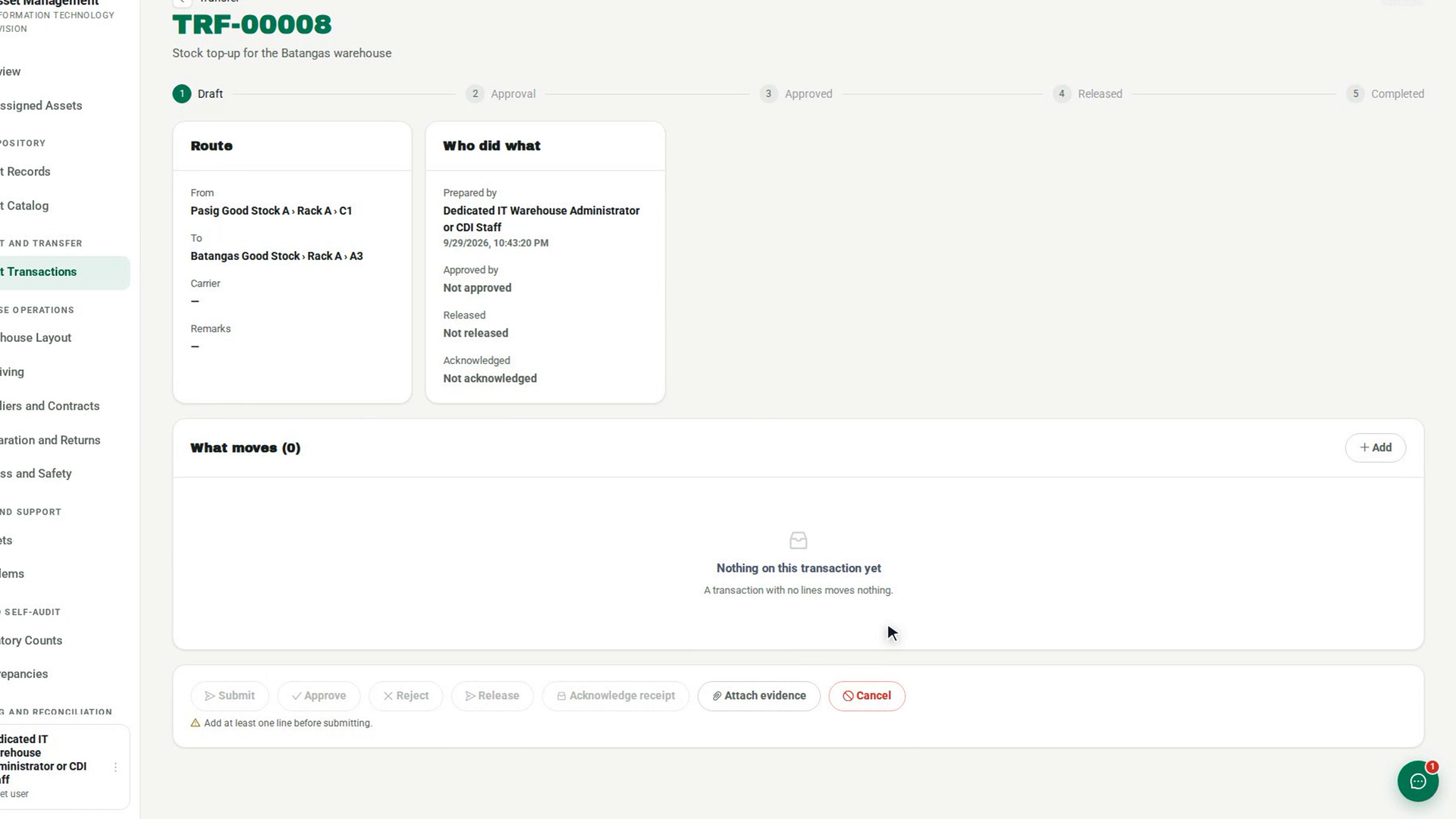
Add what moves
In What moves, select Add. Only assets currently recorded at the origin are listed. Search by tag, serial or name and select each asset to add it.
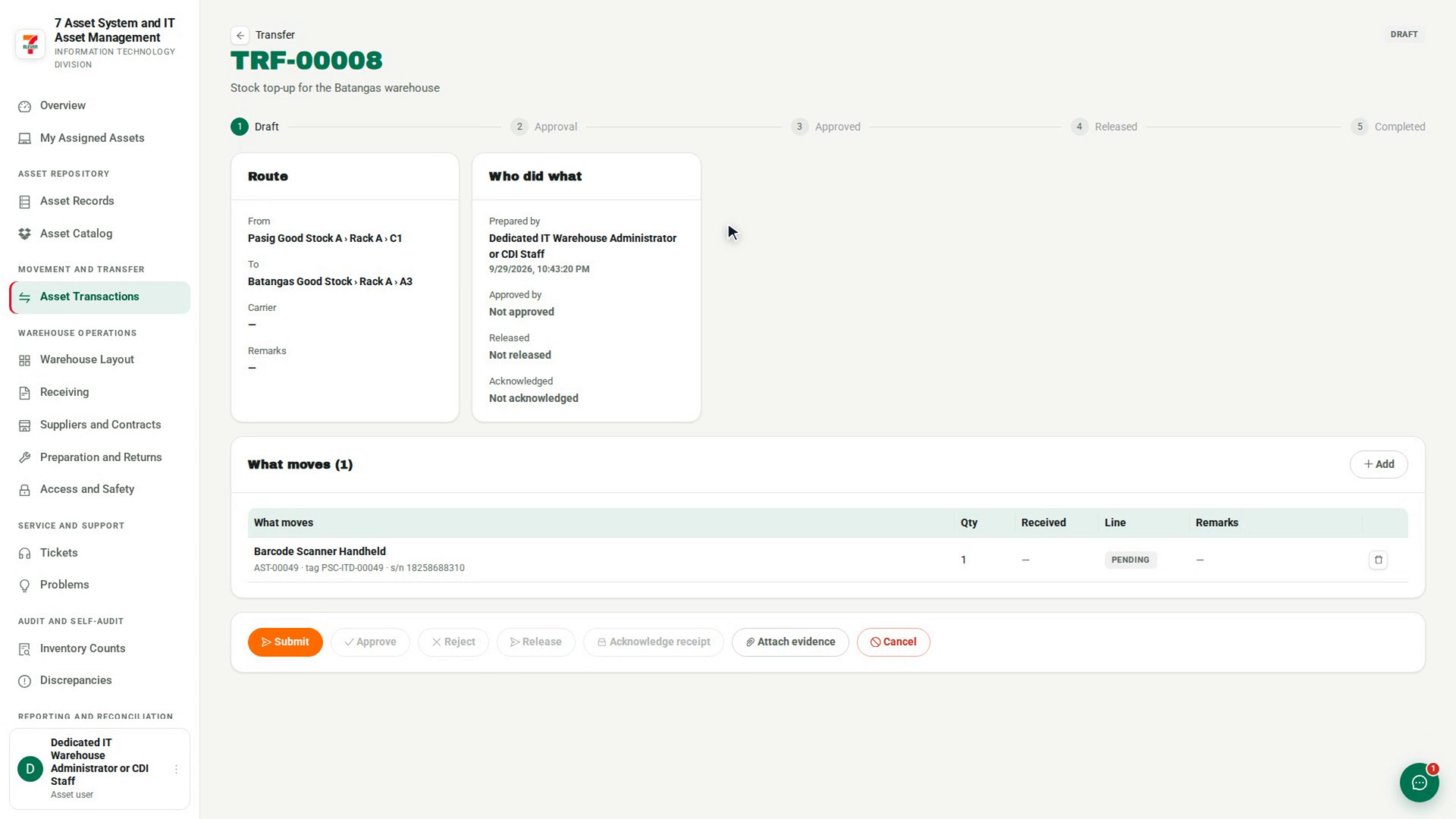
Submit it for approval
Select Submit. The status changes to Pending Approval.
Have another person approve it
A different approver opens it from Approvals under Movement and Transfer, checks the lines and route, and selects Approve. If something is wrong they select Reject and give a reason, and the transfer comes back to you as Rejected.
Release it
When it is Approved, select Release, fill in Carrier or recipient, and select Confirm release. The assets are now in transit, with no location, until the destination accepts them.
Acknowledge it at the destination
At the destination, open the transfer and select Acknowledge receipt. Accept or reject each line and select Record receipt. Accepted assets land at the destination; the transfer completes when every line is resolved.
Screenshots
Step 1: Start a transfer
Step 2: Say where it moves from and to
Step 3: Add what moves
Step 4: Submit it for approval
Step 5: Have another person approve it
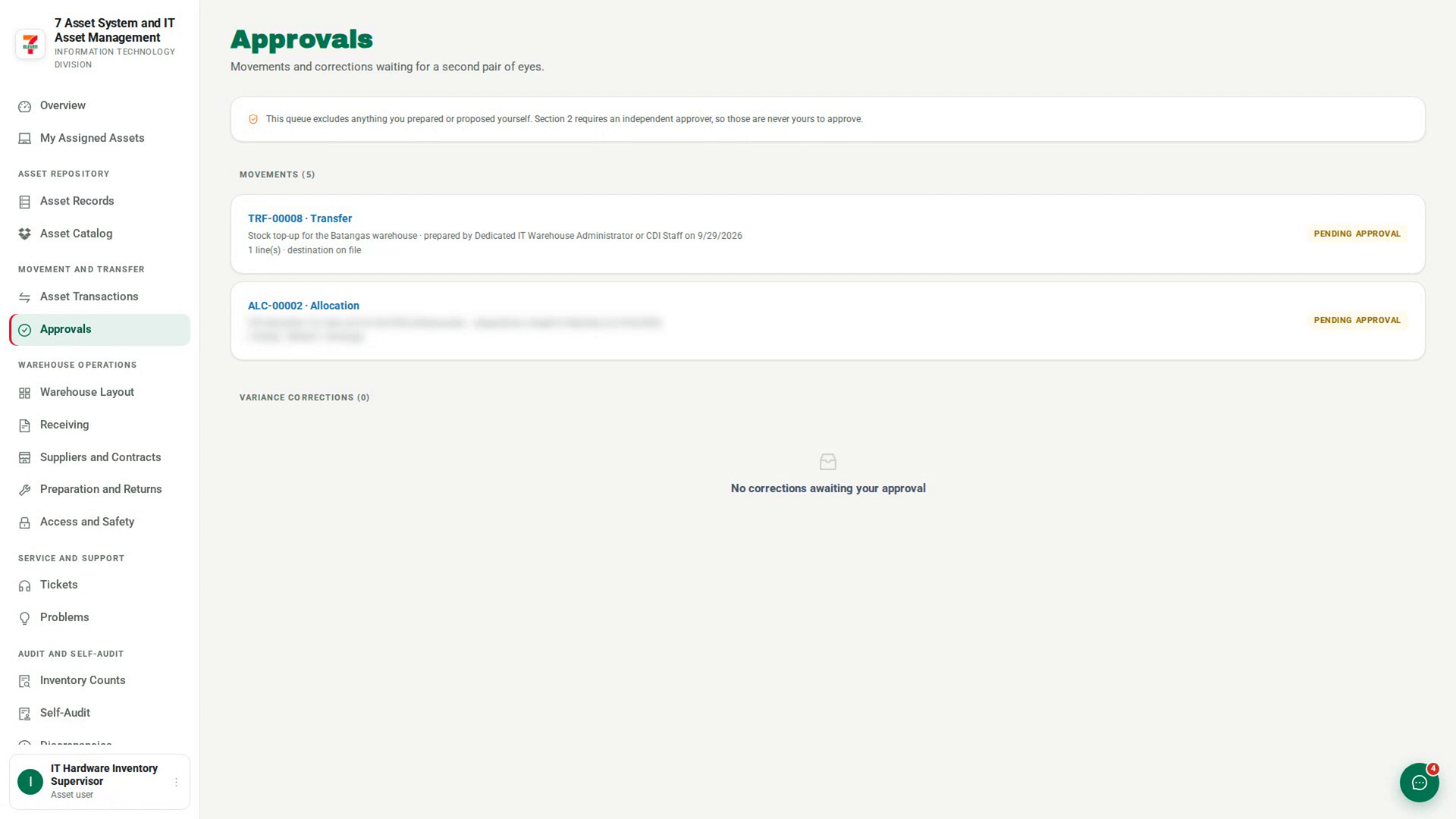
Step 6: Release it
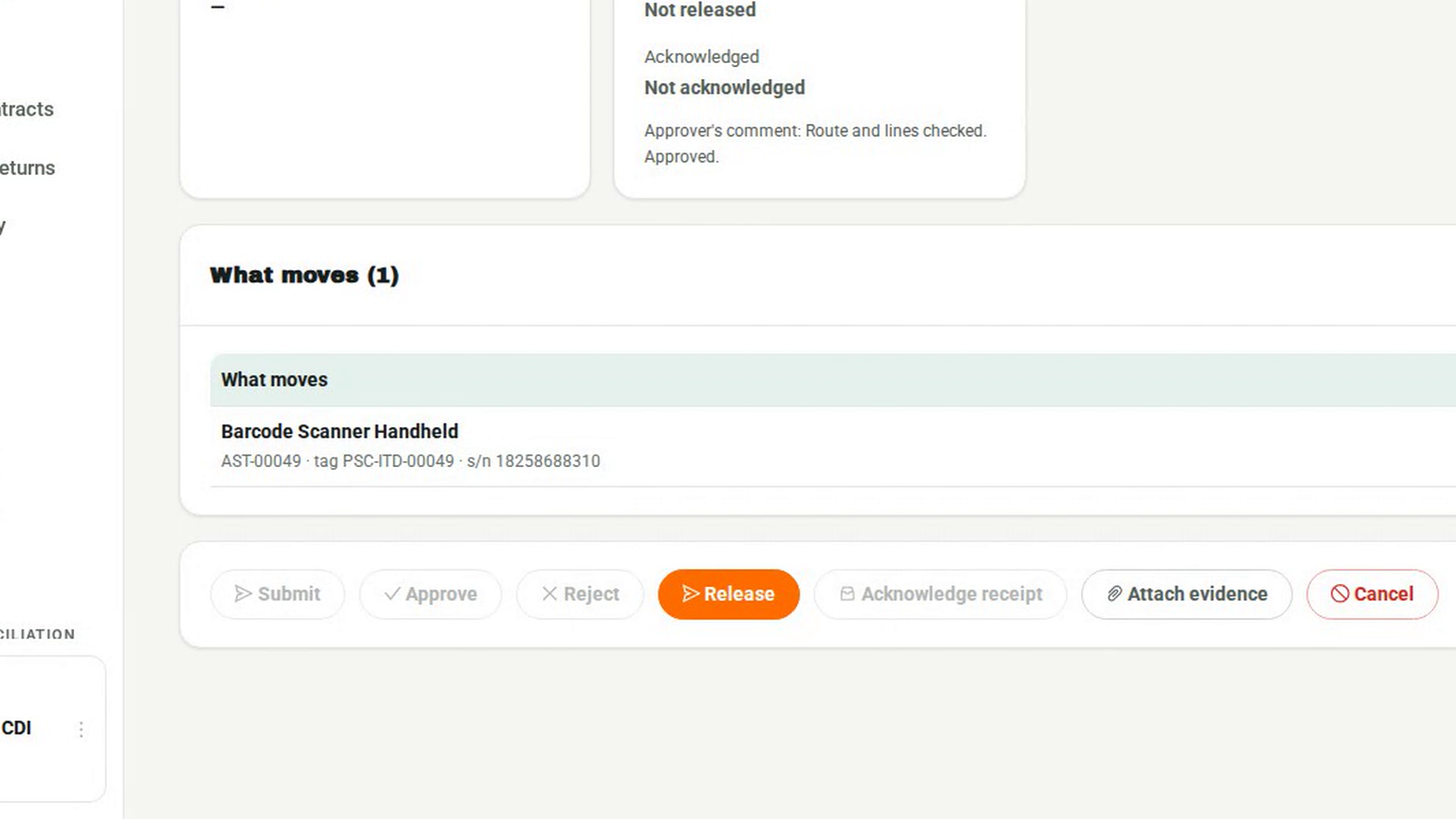
Step 7: Acknowledge it at the destination
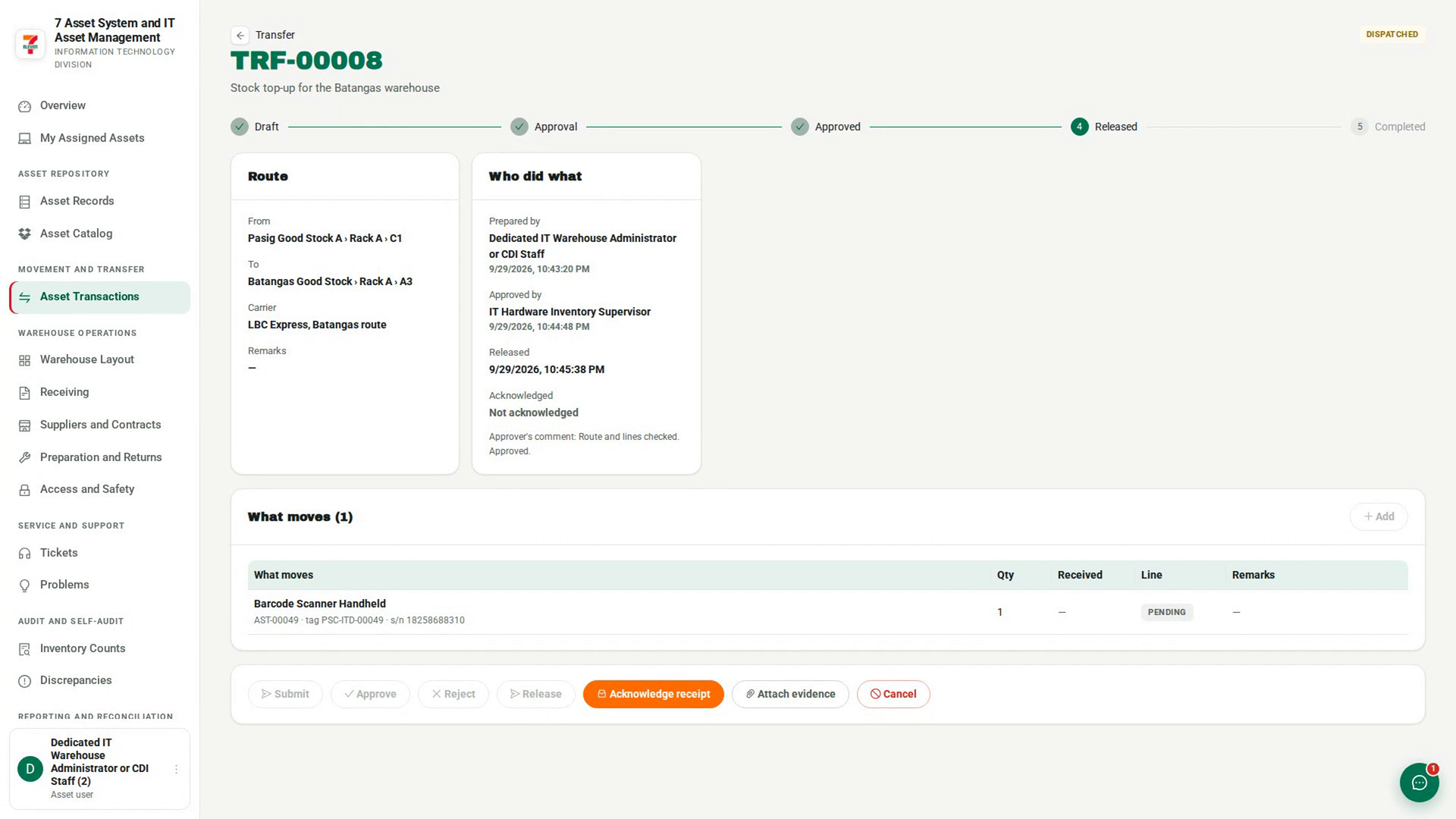
Watch how
The person who prepared a transfer cannot approve it, whatever their role. Their own transfers never appear in their Approvals queue, and an attempt from the transaction is refused with You prepared this transfer, so you cannot also approve it.
Tip: If the asset you want is missing from the Add what moves list and you see No assets available here, it is not recorded at this origin. Check where the asset is recorded and prepare the transfer from there. If the record itself is wrong, raise a discrepancy rather than moving it on paper.