Plan and acquire assets
Take a business need through specification, budget and approval to a purchase order placed with a supplier. Each stage has to be finished before the next one opens, so nobody can place an order that was never approved.
Before you start
- To raise an order and prepare it, you need to be an IT Hardware Inventory Supervisor, an Asset and Logistics Associate or the IT Business Systems or Application Team.
- To approve or refuse it, you need to be an IT Hardware Inventory Supervisor, ITD Head and Management or the IT Business Systems or Application Team — and you must not be the order's requester, shown as Requested by.
- The supplier must already exist in Suppliers and Contracts, and the assets you want must be in the catalog.
Steps
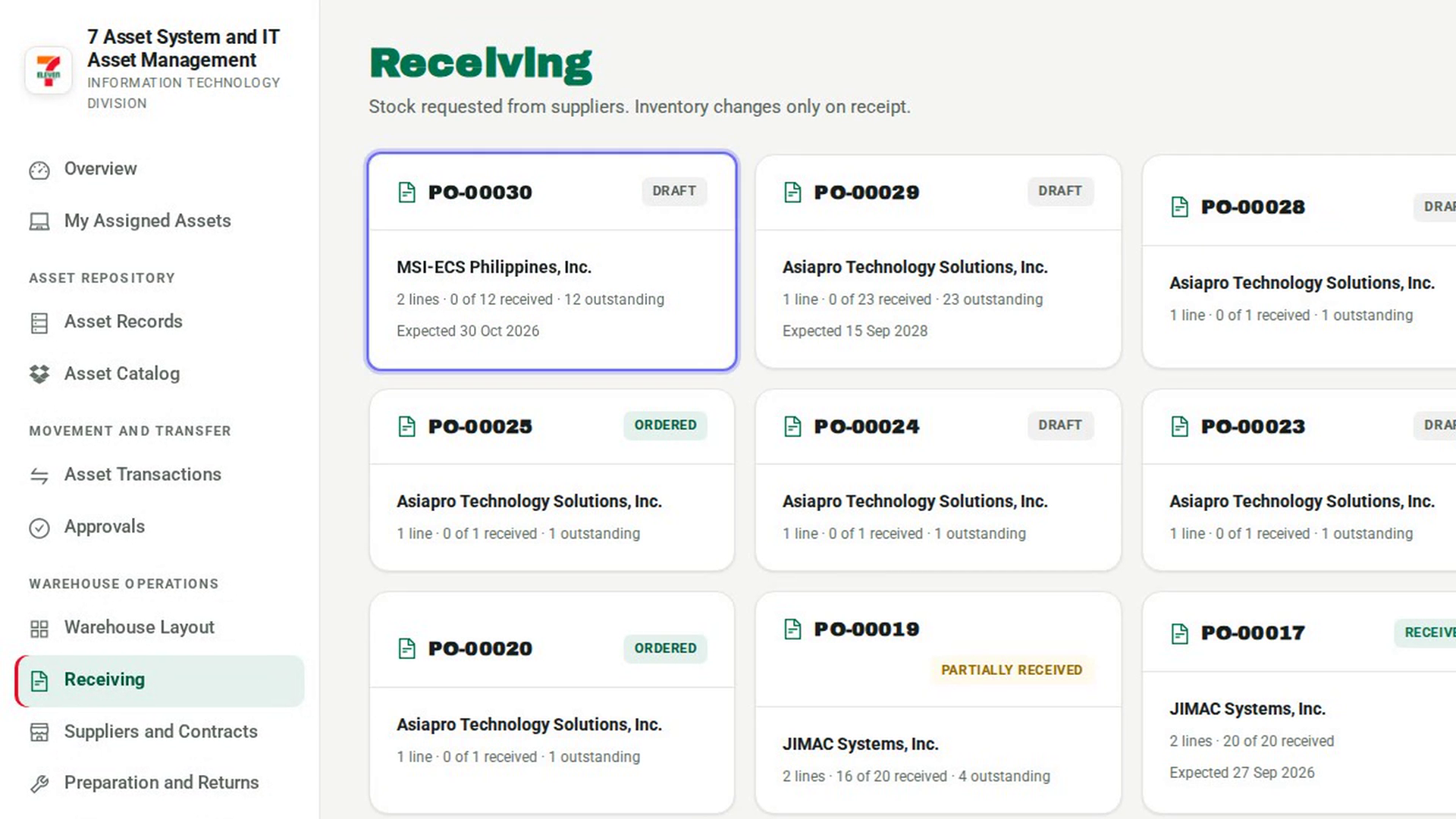
Open Receiving
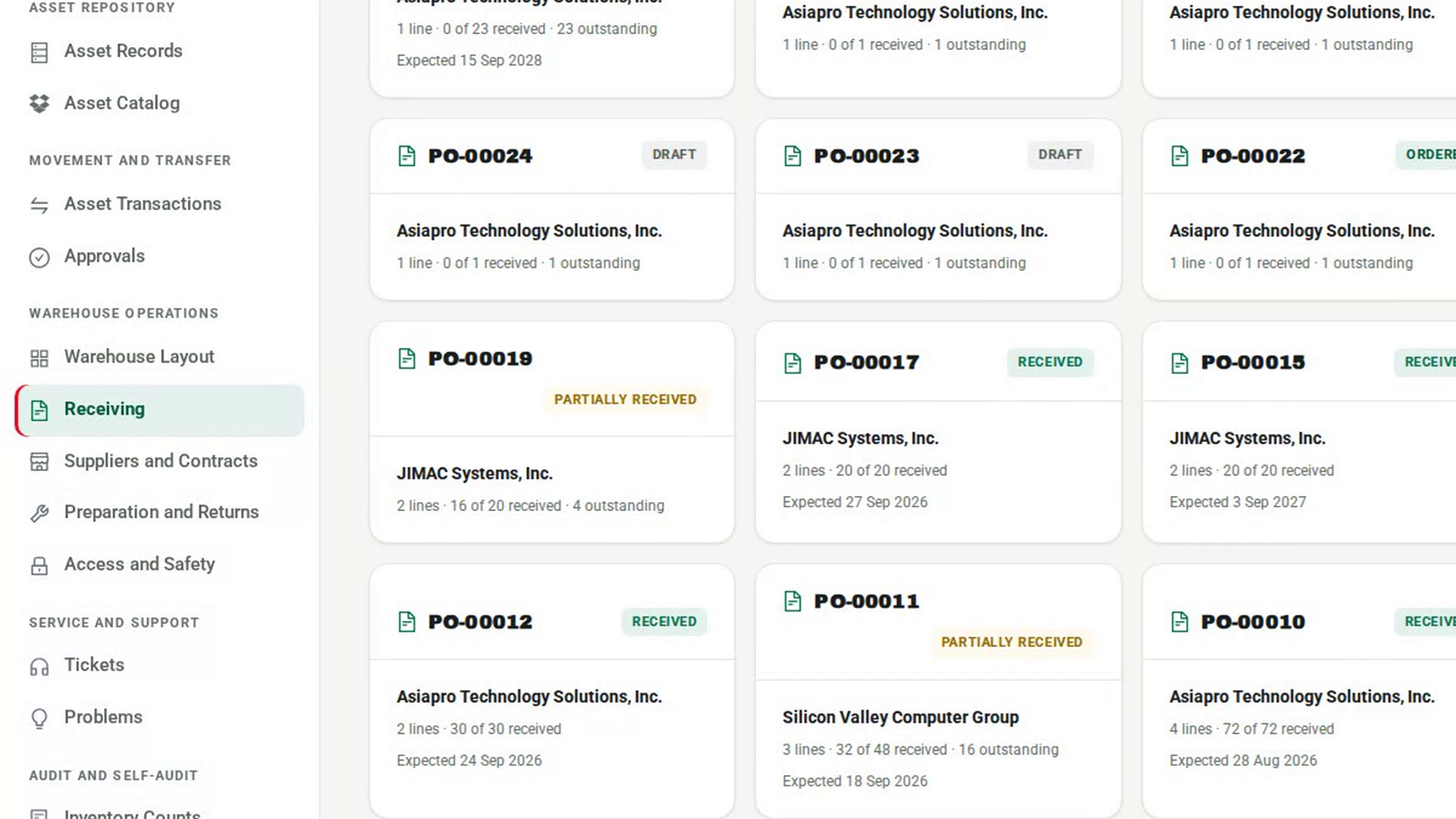
In the sidebar, under Warehouse Operations, select Receiving. Every purchase order appears as a card with its status, supplier and how much has been received.
Raise a draft order
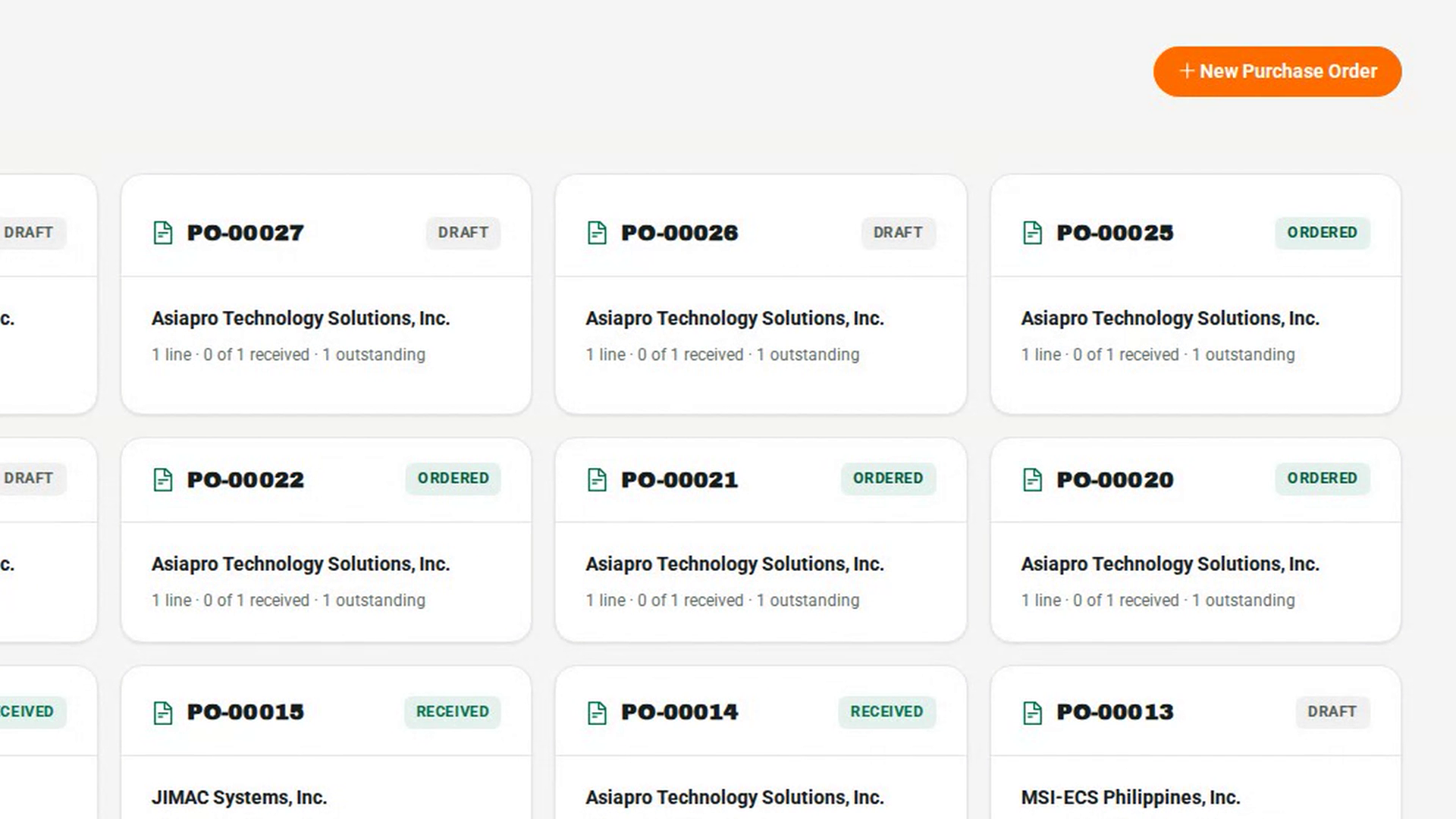
Select New Purchase Order. In New purchase order, choose the Supplier, set the Expected delivery date if you know it, and add each Asset with its Qty (use Add asset for more lines). Select Create draft. The order opens as a draft; no stock changes.
Write the business need and specification
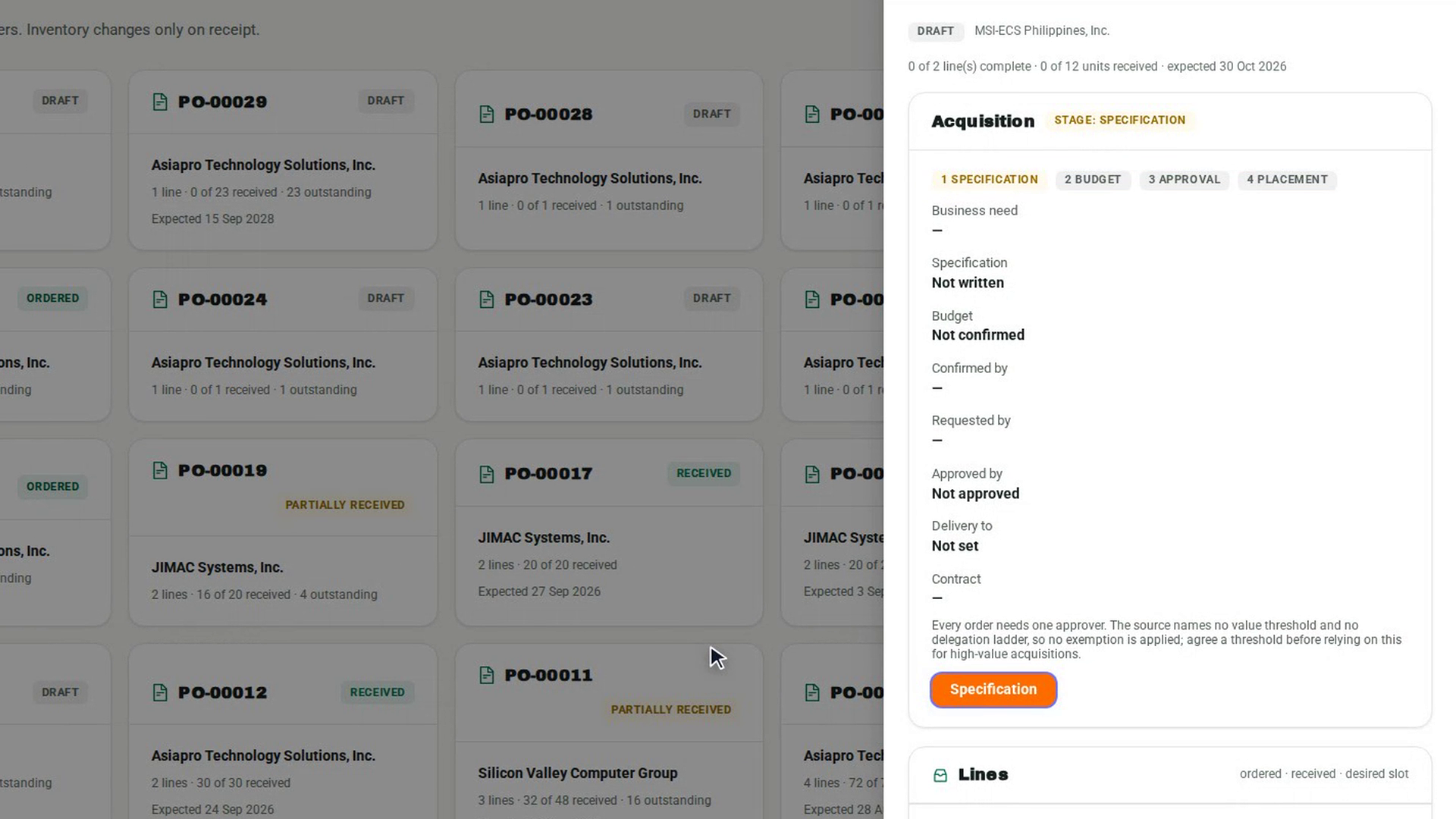
In the order's Acquisition panel, select Specification. In Business need and specification, say why the assets are needed and write the Specification — what was actually asked for, which is what the delivery is later inspected against. Choose where it will be delivered in Deliver to, then select OK. Requested by now shows your name.
Confirm the budget
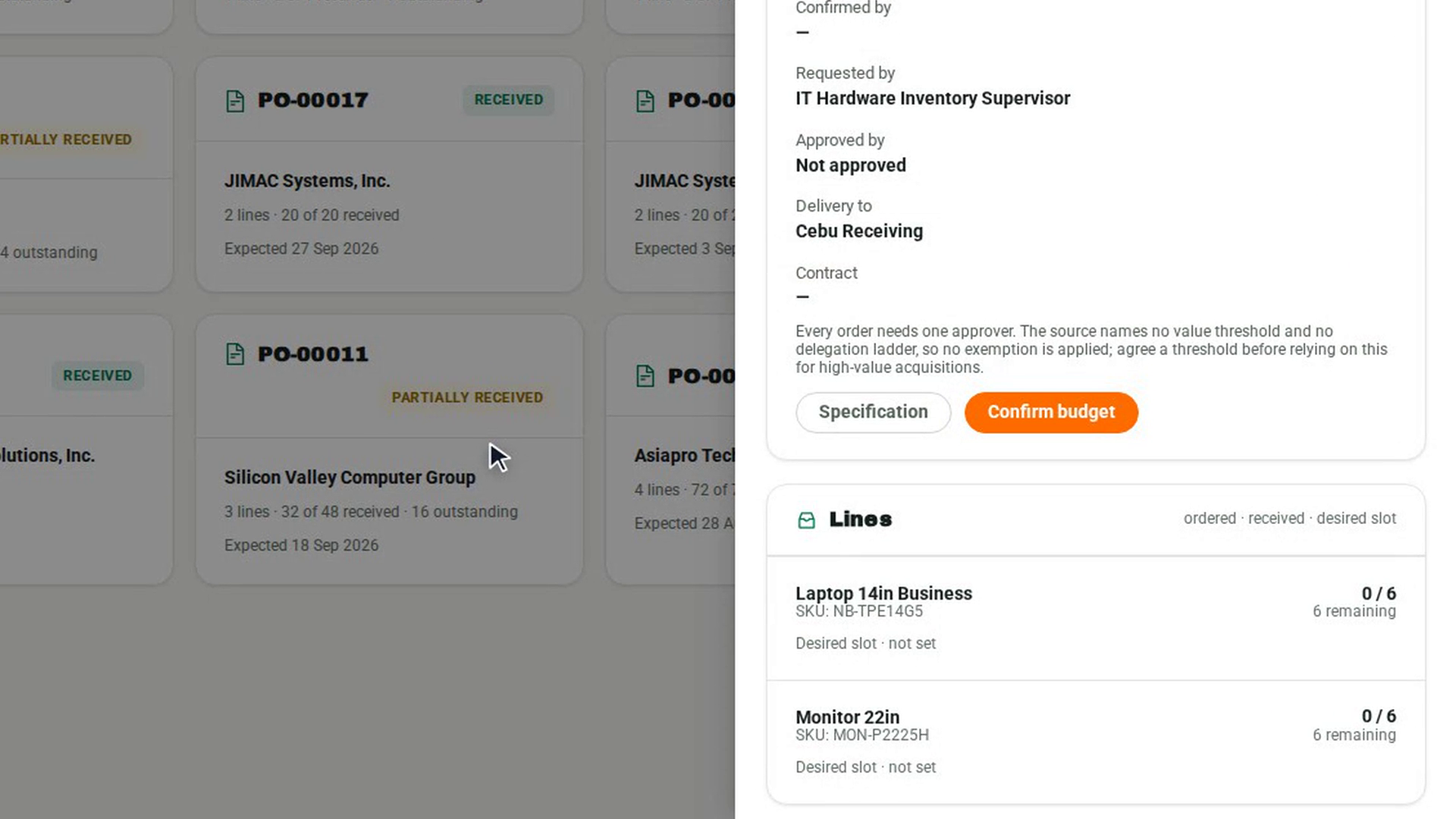
Select Confirm budget. In Confirm the budget, enter the Budget reference and the Amount, then select OK. 7-Asset records that you confirmed it and when; it does not check the budget itself. The panel's stage moves to Approval and the order waits for an approver.
Approve or refuse the order
A different person opens the order and selects Approve, adds any Notes in Approve the acquisition, and selects OK. To turn it down, they select Refuse and must say Why is it refused. Approved by then shows who approved it.
Place the order
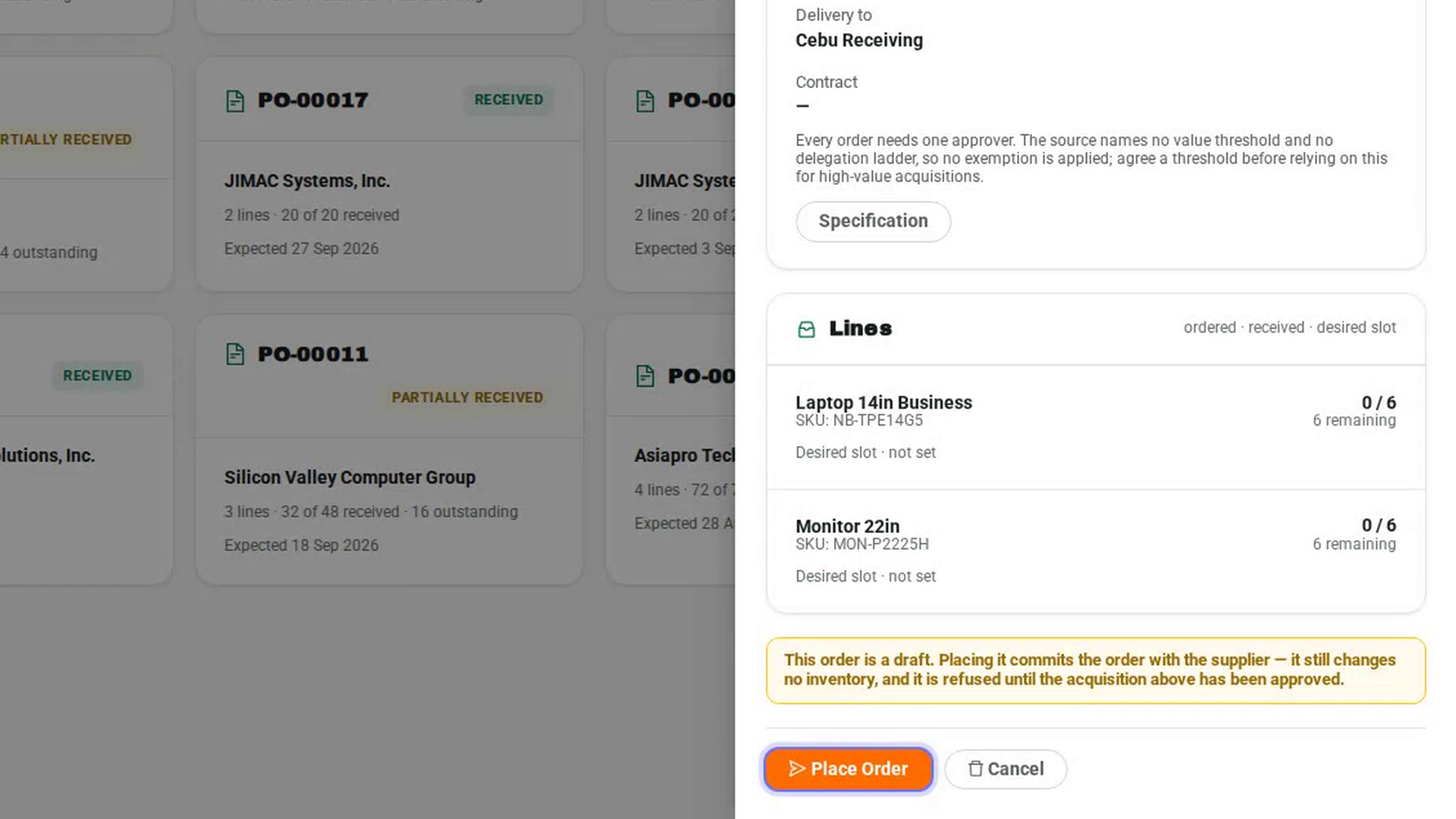
Once the order is approved, select Place Order. The order is committed with the supplier and its status changes to Ordered. Inventory still does not change until the goods arrive.
Screenshots
Step 1: Open Receiving
Step 2: Raise a draft order
Step 3: Write the business need and specification
Step 4: Confirm the budget
Step 5: Approve or refuse the order
Step 6: Place the order
Watch how
Place Order is refused until the order has been approved. The Acquisition panel shows which stage the order is waiting on, and only the actions allowed right now are shown.
Tip: You cannot approve an order you requested, even if your role allows approving. Ask another approver. Once an order is placed, its plan is fixed; raise a new order if the need changes.