Disable an account
Disable an account to stop someone signing in when they leave or no longer need 7-Asset. The account and its history are kept, and you can enable it again later.
Before you start
- You need the IT Business Systems or Application Team role.
- You cannot disable your own account or the organization owner's account.
Steps
Open User Access
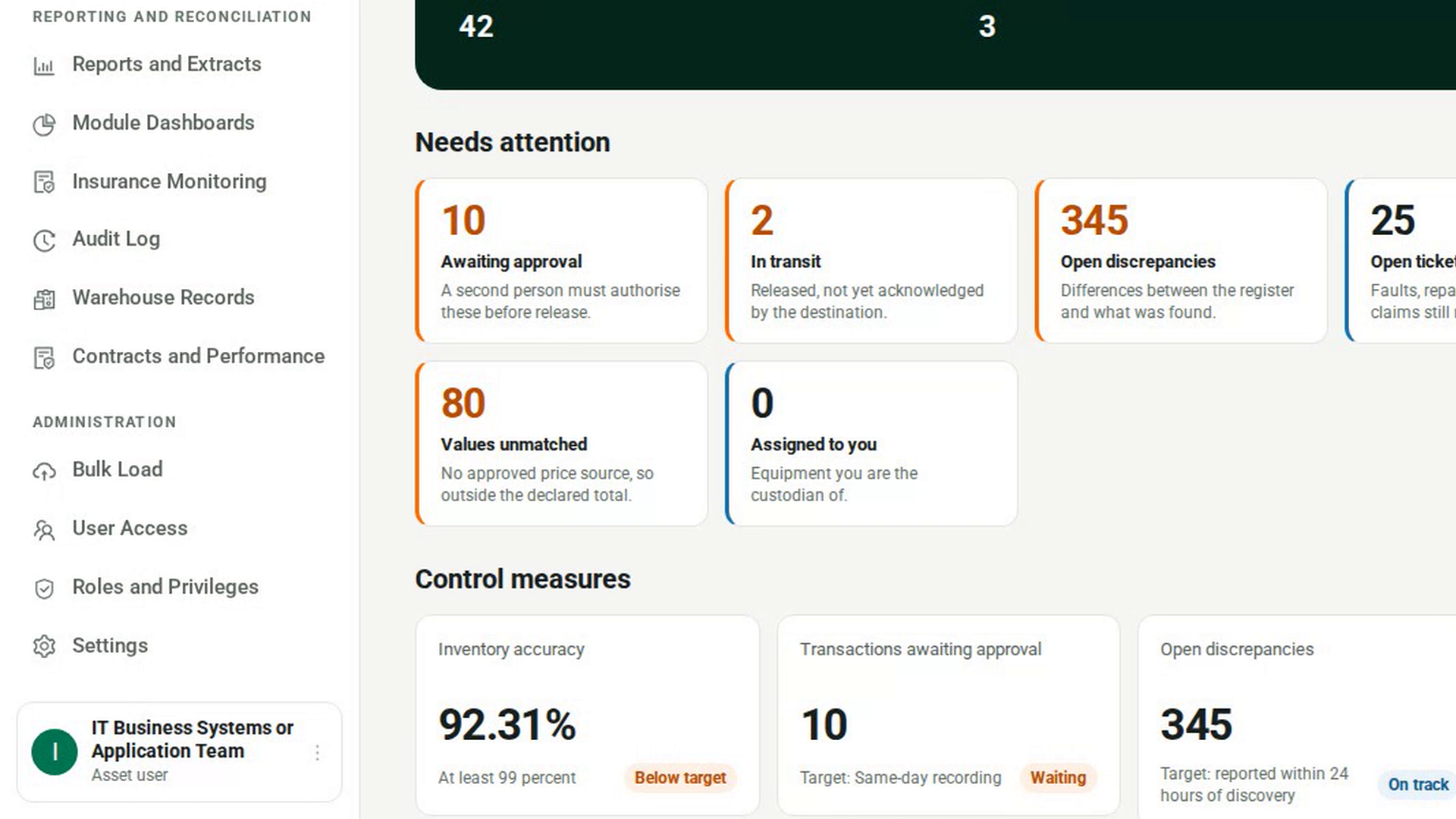
In the sidebar, under Administration, select User Access.
Find the user
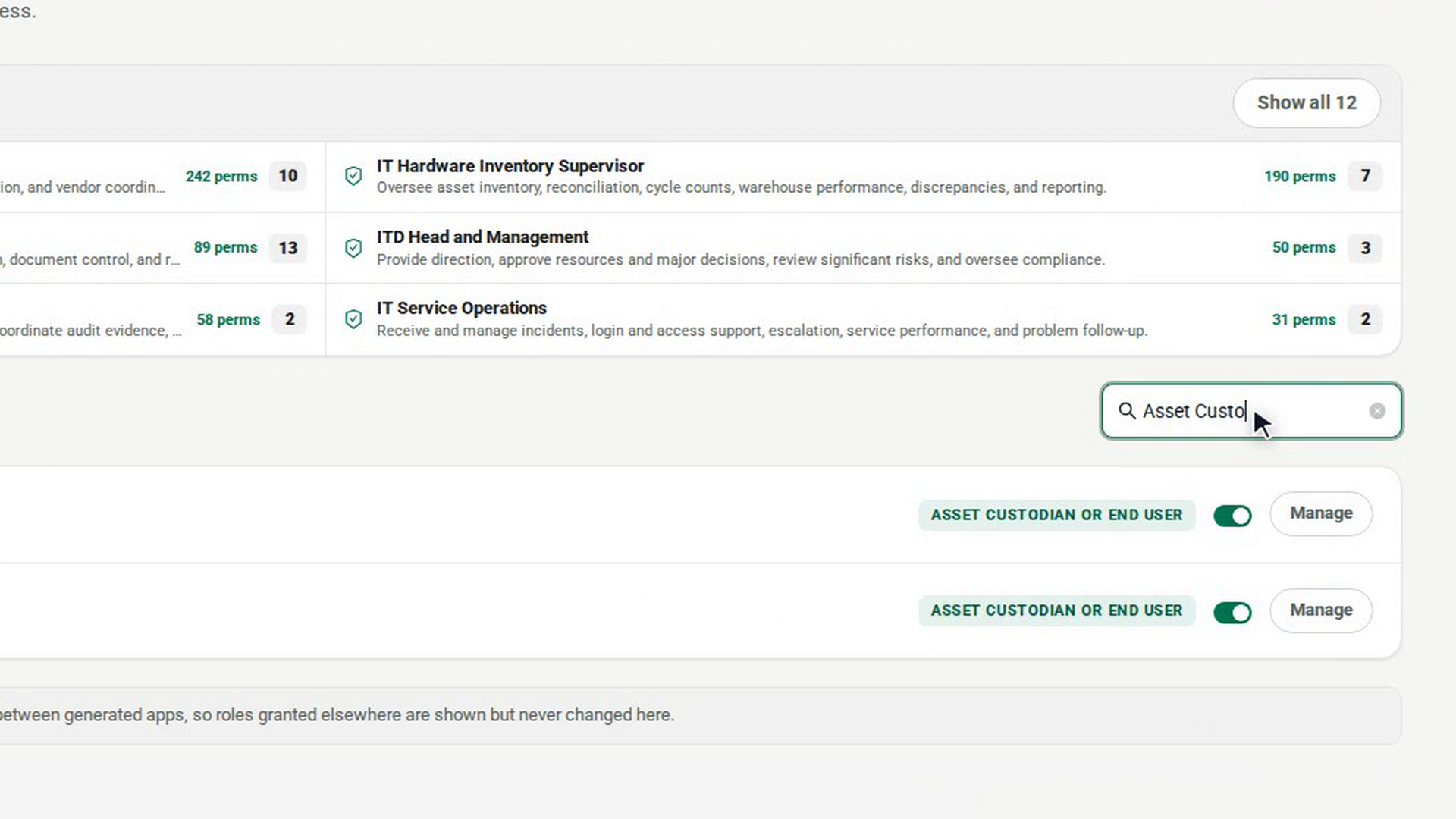
Type their name or login in Search name or login.
Open their account
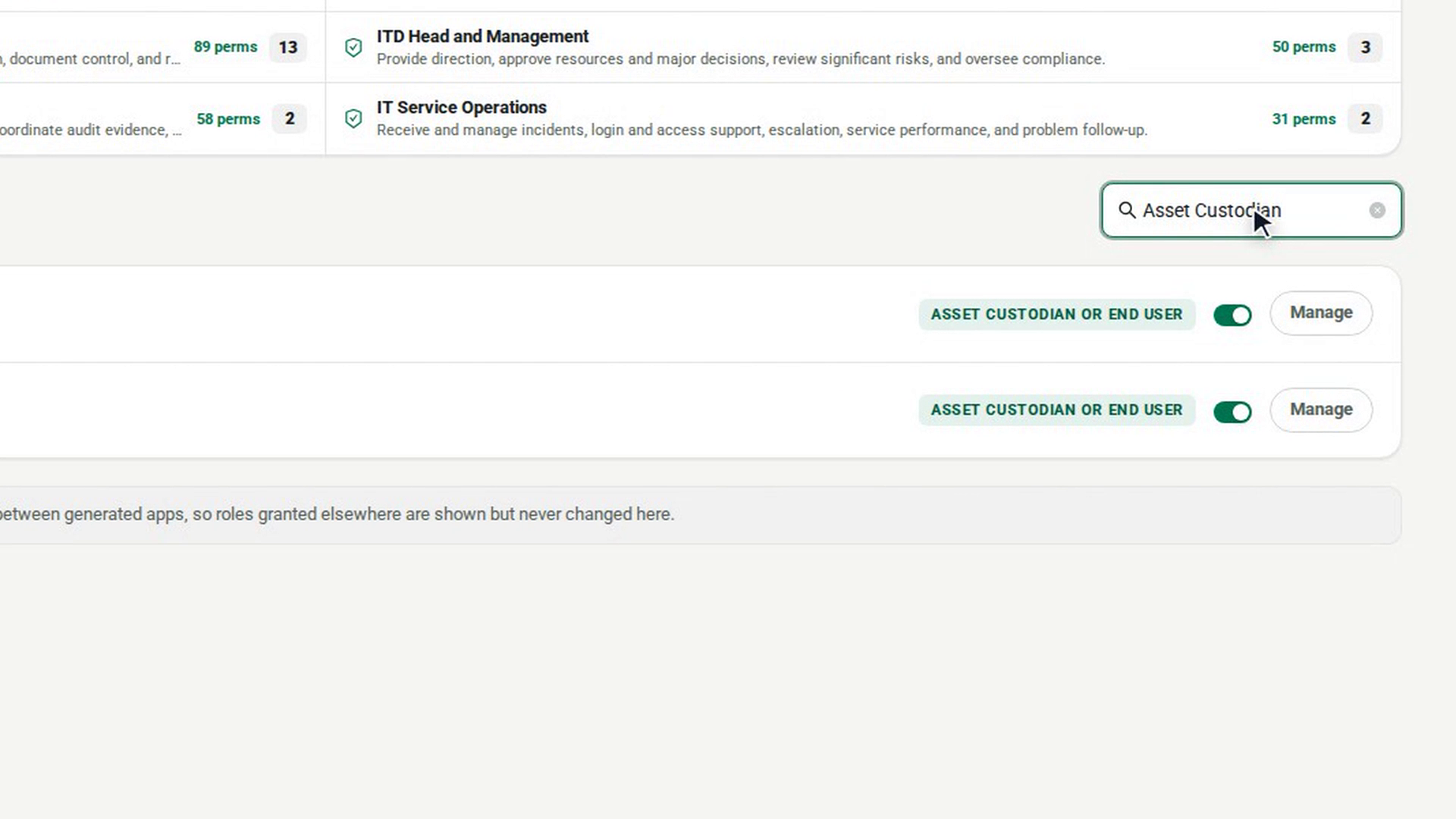
Select Manage on the user's row. Under Account, Can sign in shows whether they can sign in.
Turn off sign-in
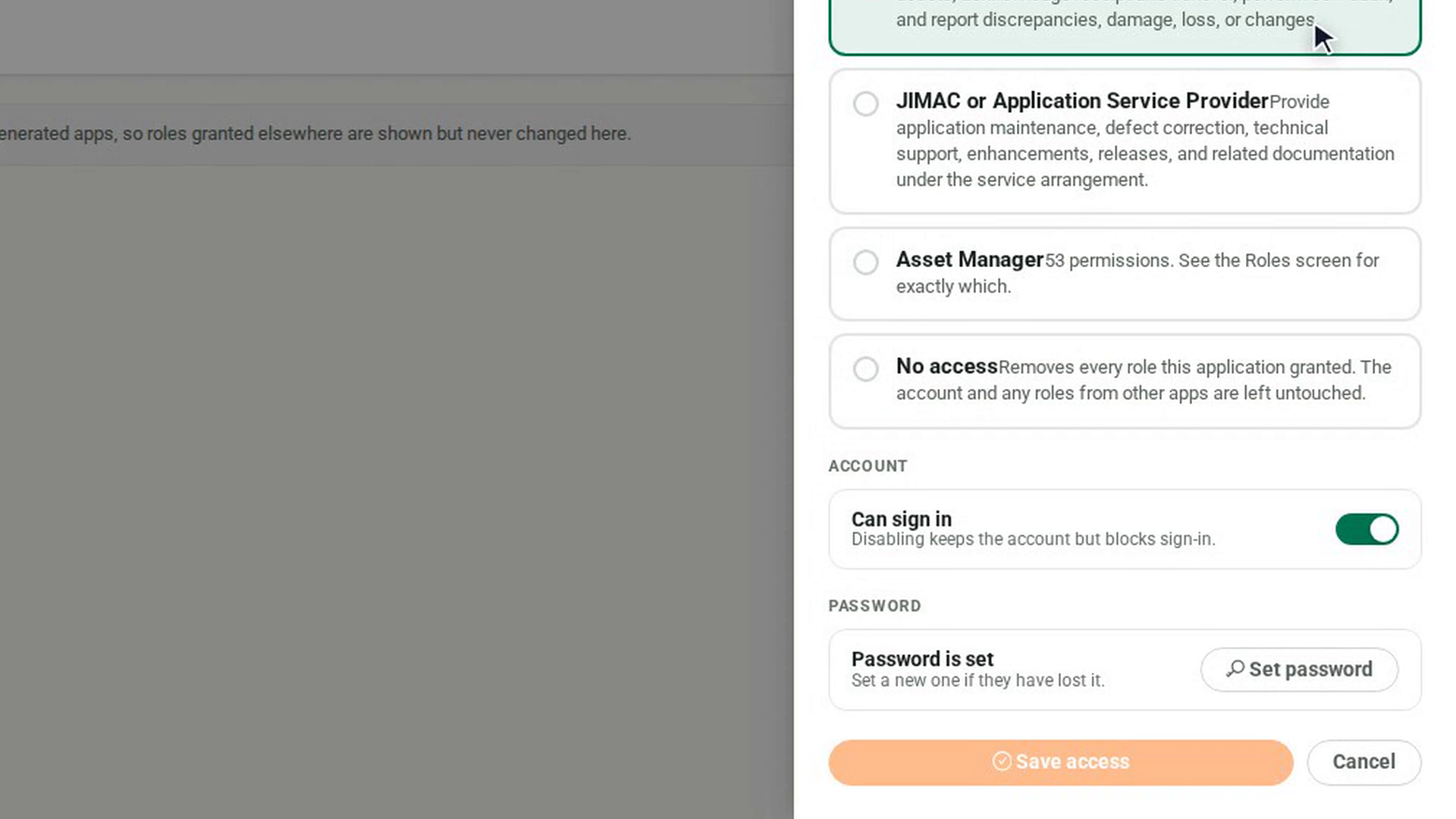
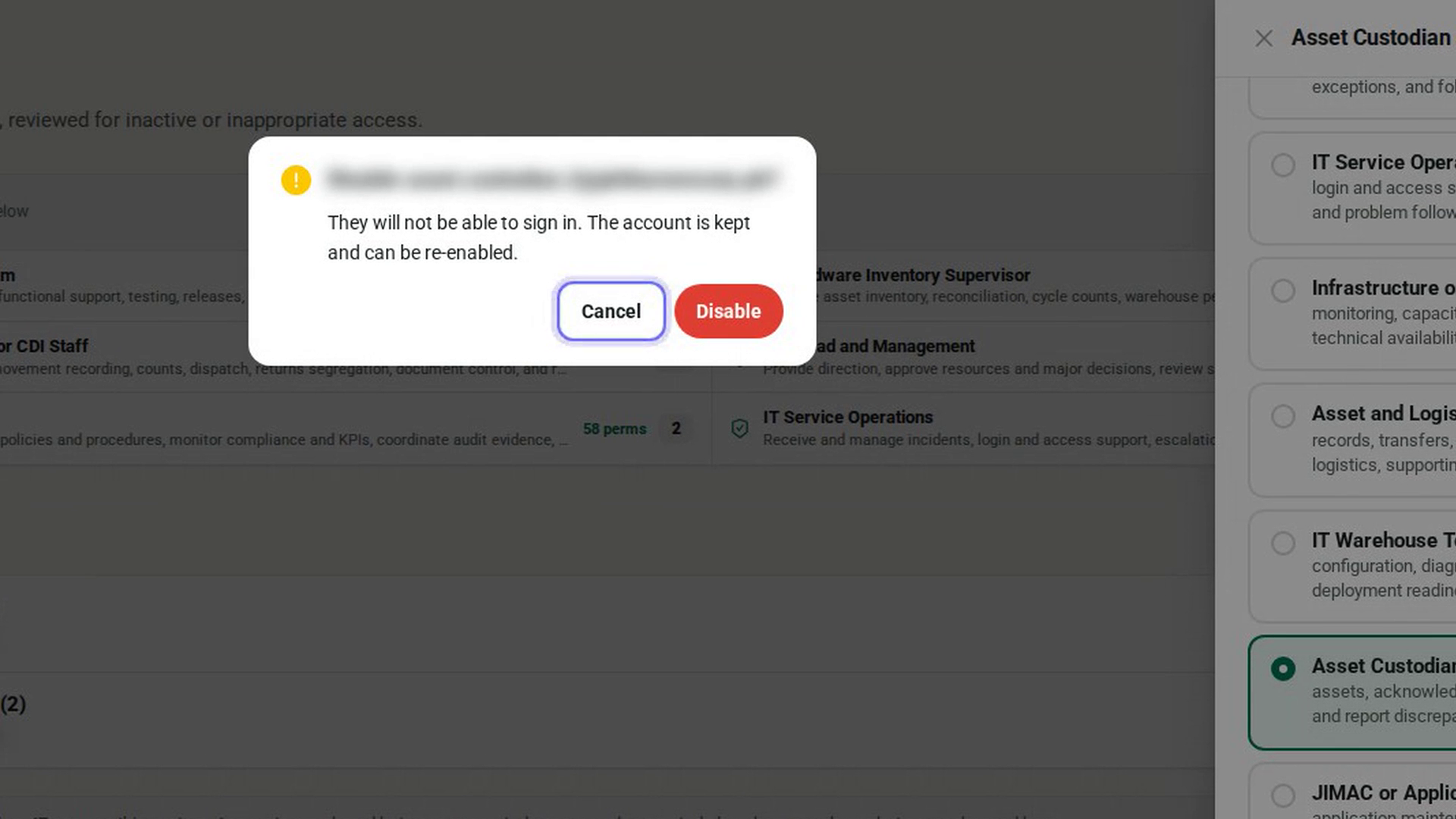
Turn off the Can sign in switch. A dialog asks you to confirm and explains that the account is kept and can be re-enabled. You can also use the switch on the user's row in the list.
Confirm
Select Disable. A message says Account disabled. and the user's row shows disabled. To keep the account active, select Cancel instead.
Screenshots
Step 1: Open User Access
Step 2: Find the user
Step 3: Open their account
Step 4: Turn off sign-in
Step 5: Confirm
Watch how
Tip: Disabling keeps the person's roles. If they are changing jobs rather than leaving, change their roles instead. To let them back in, turn the switch on again; no confirmation is needed.
For the organization owner the switch is unavailable and says The organization owner cannot be disabled here. If you try to disable your own account, 7-Asset refuses it.