Sign in and find your way
Sign in to 7-Asset with your work account, then use the sidebar to reach the screens your role can use.
Before you start
- Everyone who works with 7-Asset signs in the same way.
- You need an account with at least one 7-Asset role. The IT Business Systems or Application Team creates accounts and assigns roles. The sign-in page says the ITD Service Desk assigns them, so ask there if you have no access yet.
Steps
Open the sign-in page
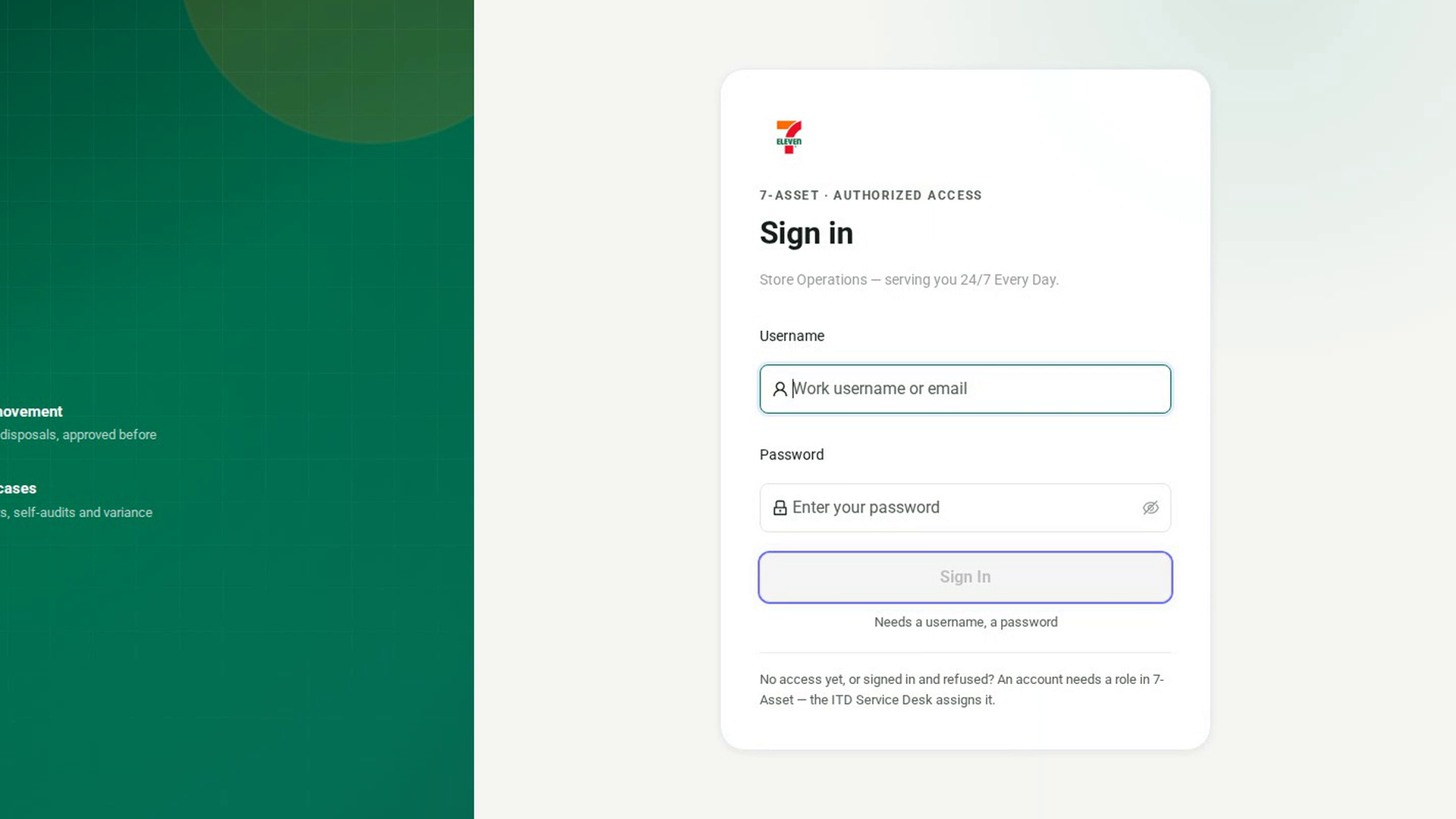
Open 7-Asset in your browser. The Sign in card asks for your username and password.
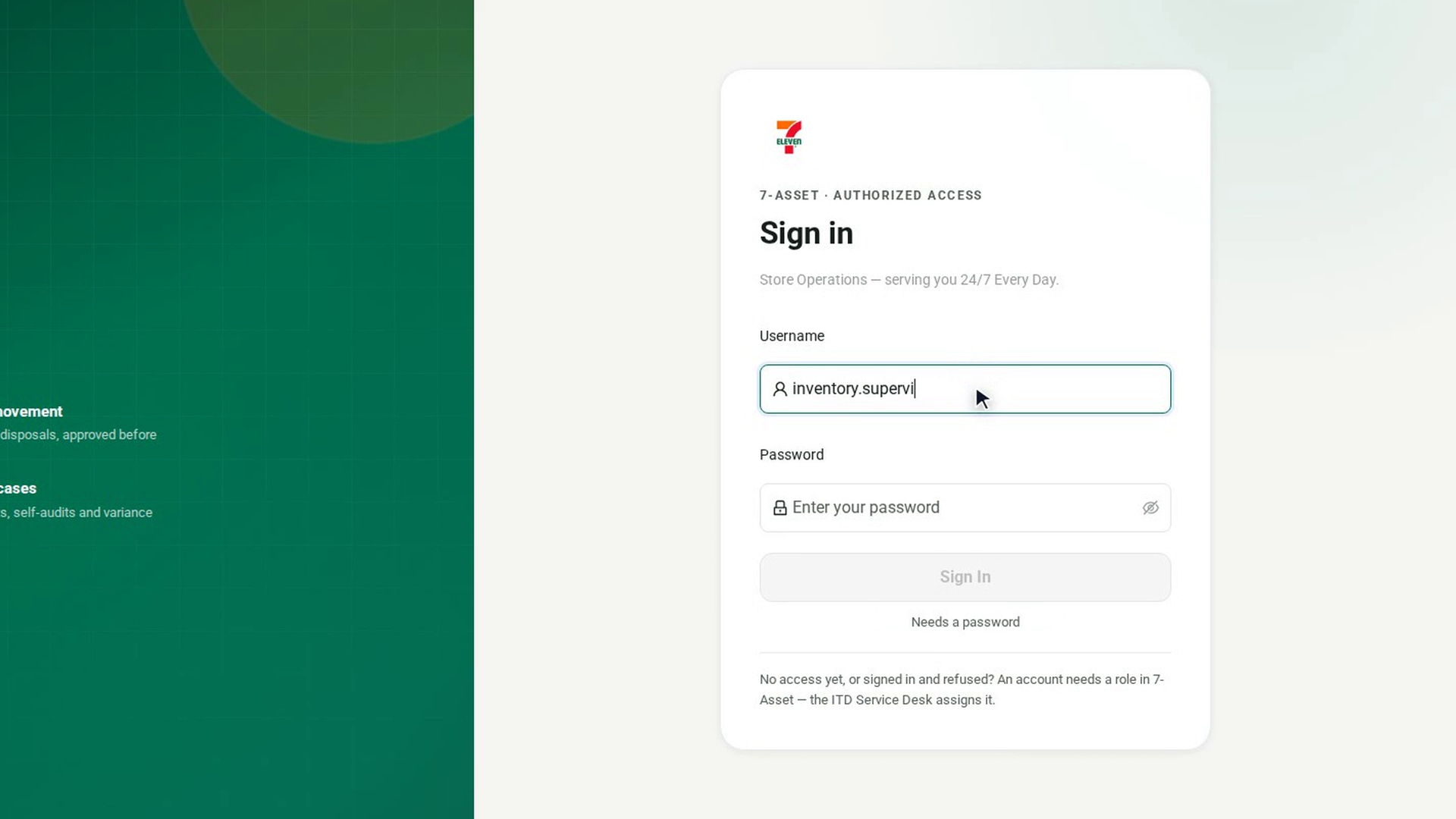
Enter your username
In Username, type your work username or email.
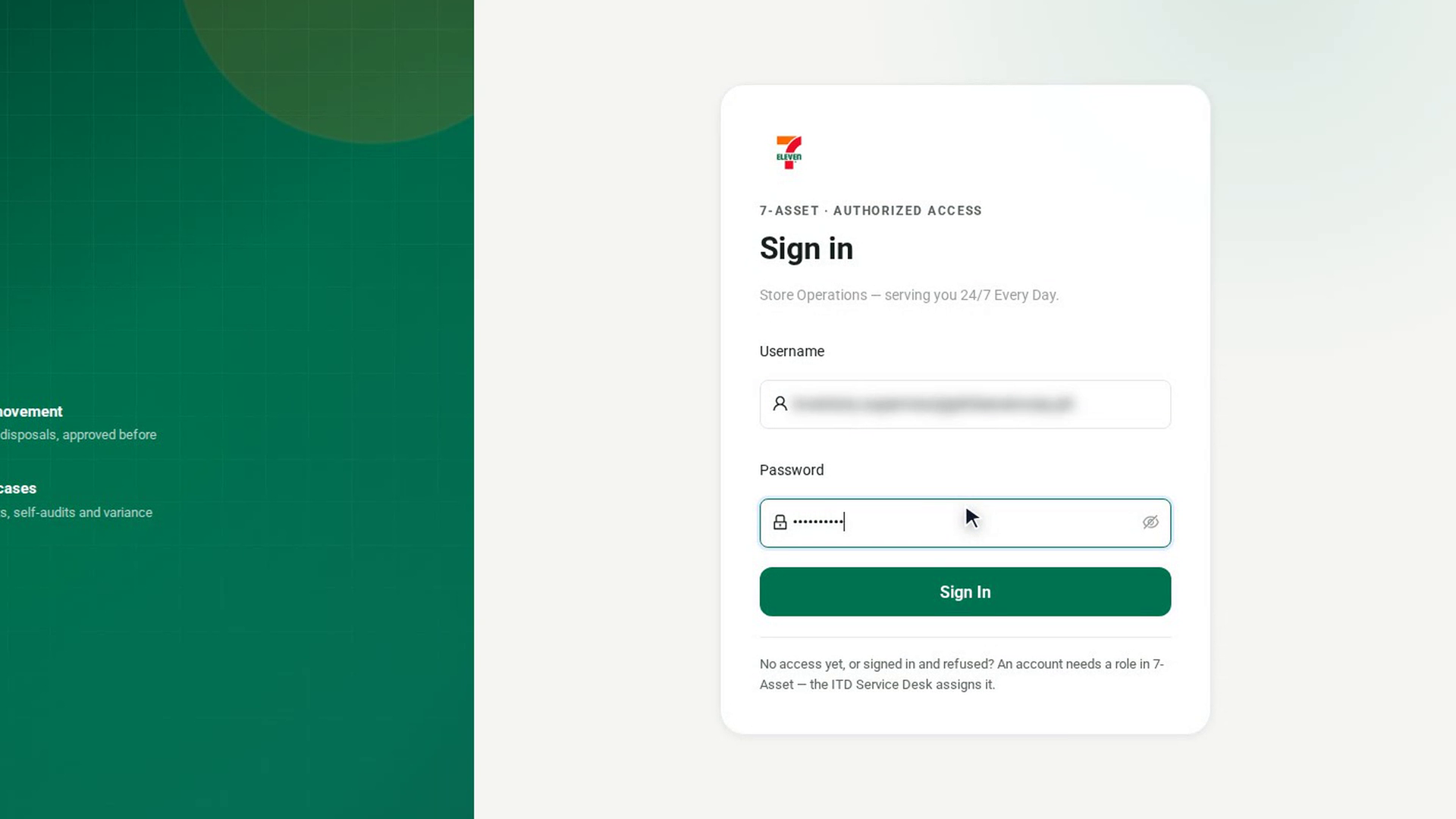
Enter your password
In Password, type your password. Passwords are case-sensitive. If Caps Lock is on, the page shows Caps Lock is on. under the field.
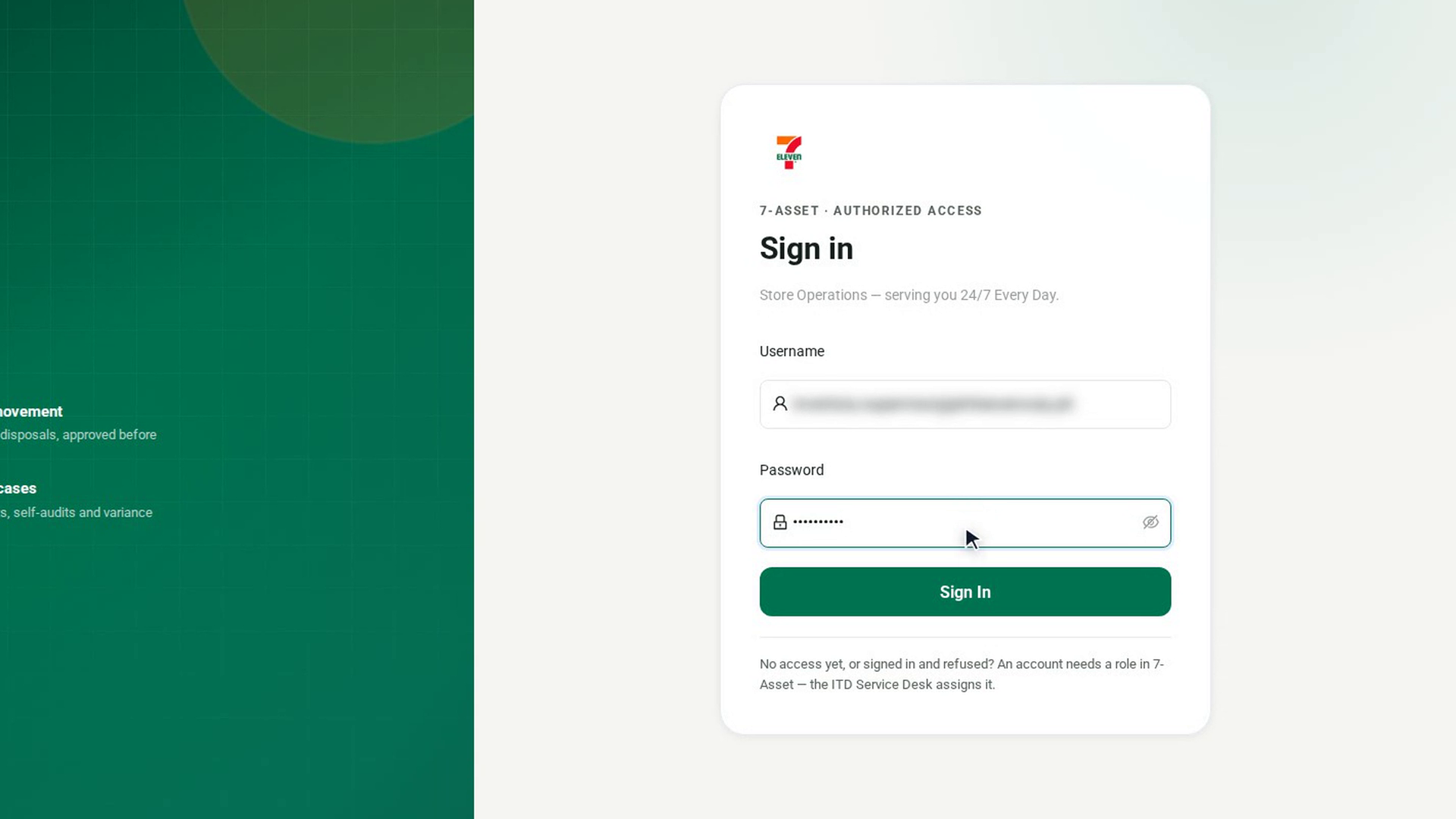
Sign in
Select Sign In. The button stays unavailable until both fields are filled, and a hint under it says what is still missing. When you are signed in, 7-Asset opens the Overview.
Find your way in the sidebar
The sidebar lists the screens by group. Overview and My Assigned Assets sit at the top. The groups below are Asset Repository, Movement and Transfer, Warehouse Operations, Service and Support, Audit and Self-Audit, Reporting and Reconciliation and Administration. You see only the screens your role can use, and a group is left out when none of its screens are open to you. So your sidebar may be shorter than a colleague's. On a narrow screen, the sidebar is hidden behind the menu button in the top bar.
Open your account menu
At the bottom of the sidebar, select your name. The menu has Your profile and Sign out. When you select Sign out, confirm with Sign out in the Sign out? dialog.
Screenshots
Step 1: Open the sign-in page
Step 2: Enter your username
Step 3: Enter your password
Step 4: Sign in
Step 5: Find your way in the sidebar
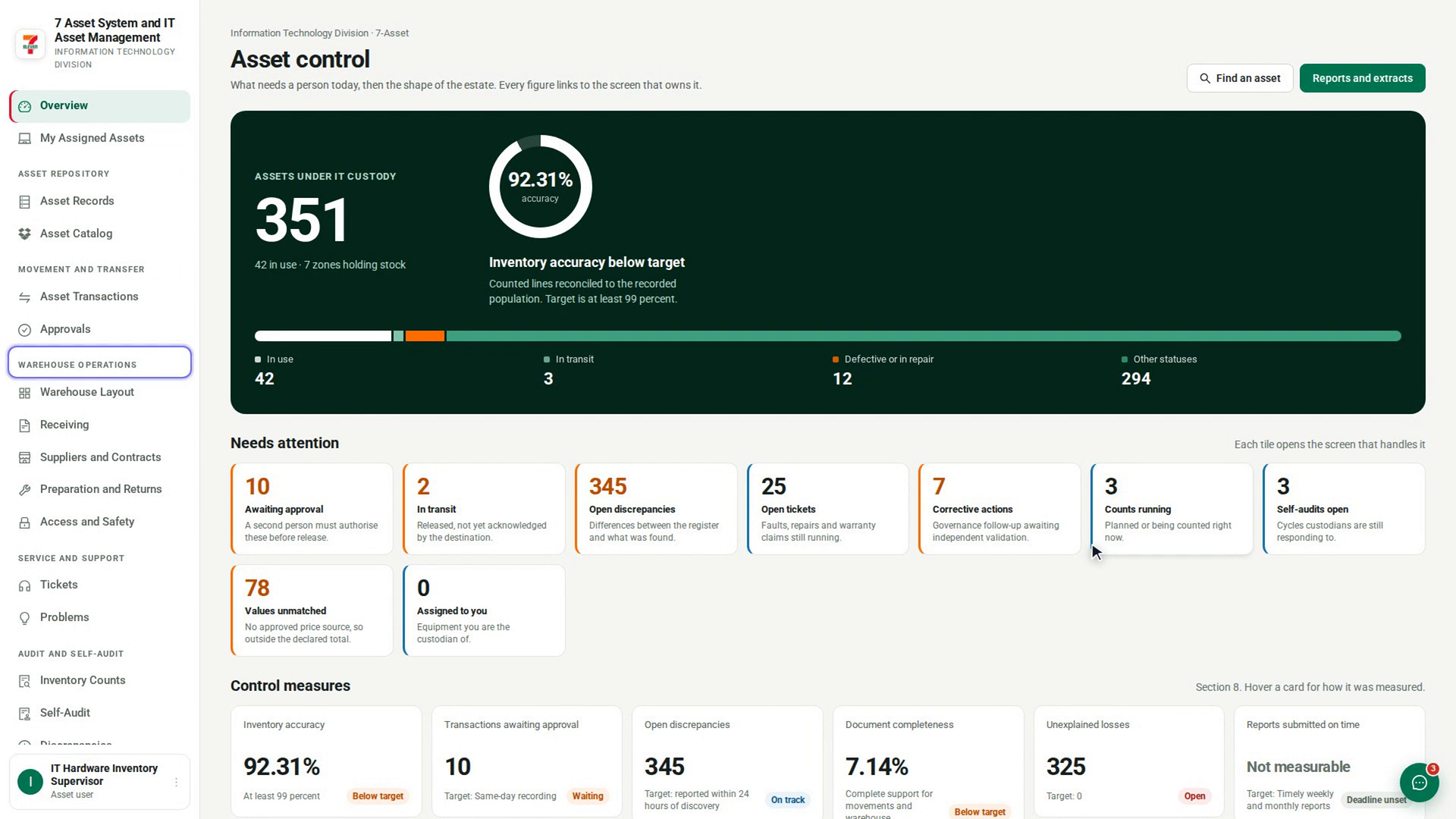
Step 6: Open your account menu
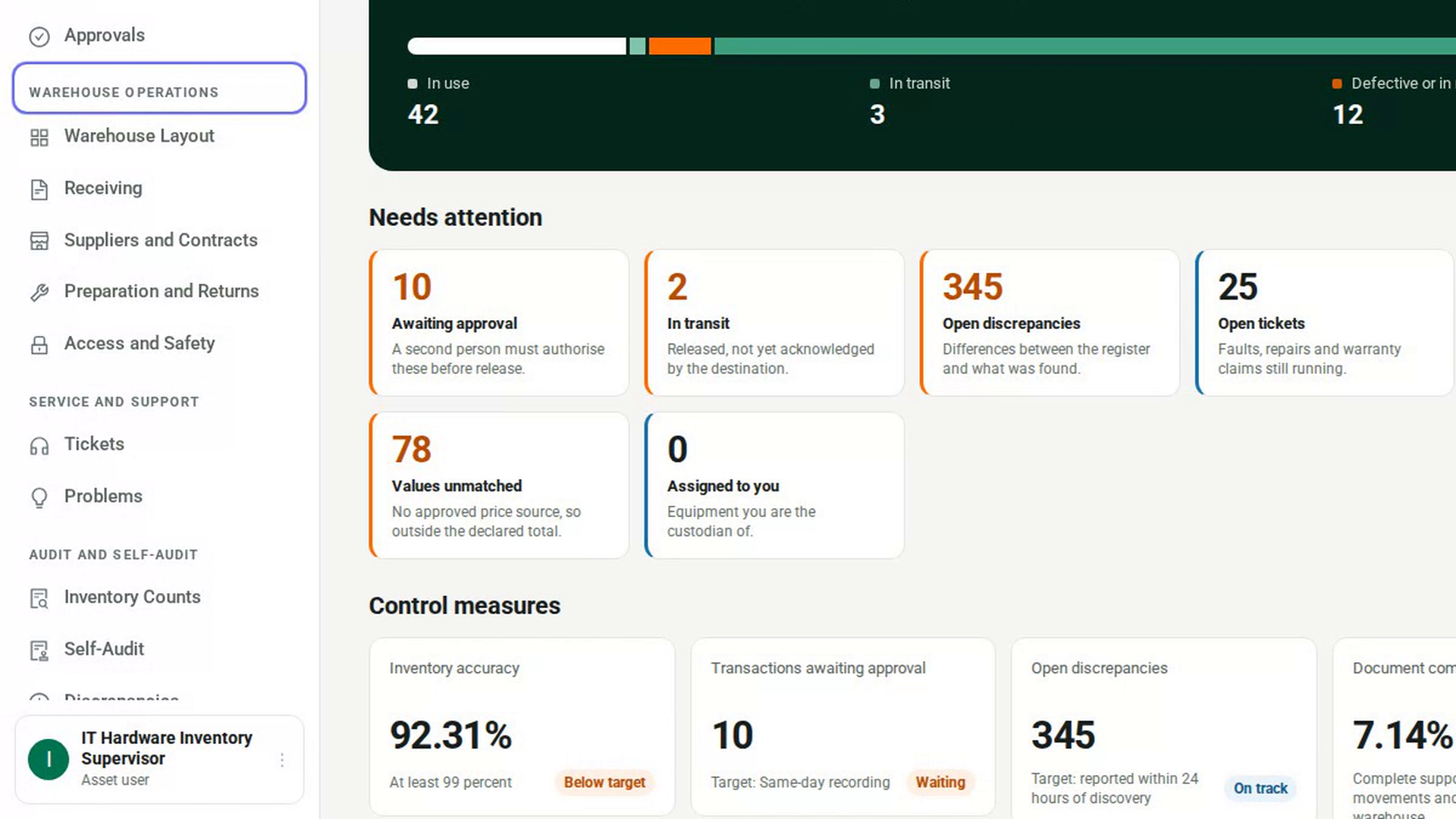
Watch how
Tip: If sign-in fails, the card shows the reason and stays on screen while you correct it. Check for a space or Caps Lock, then try again. A disabled account gets the same message as a wrong password.
Tip: The round button in the bottom-right corner of every screen opens the Assistant. It answers questions about the records you can see and points you to the right screen. It cannot change anything.
If you sign in and see Access Restricted, your account has no role in 7-Asset yet. Ask your administrator to assign one. Every change you make in 7-Asset is recorded in the audit log.