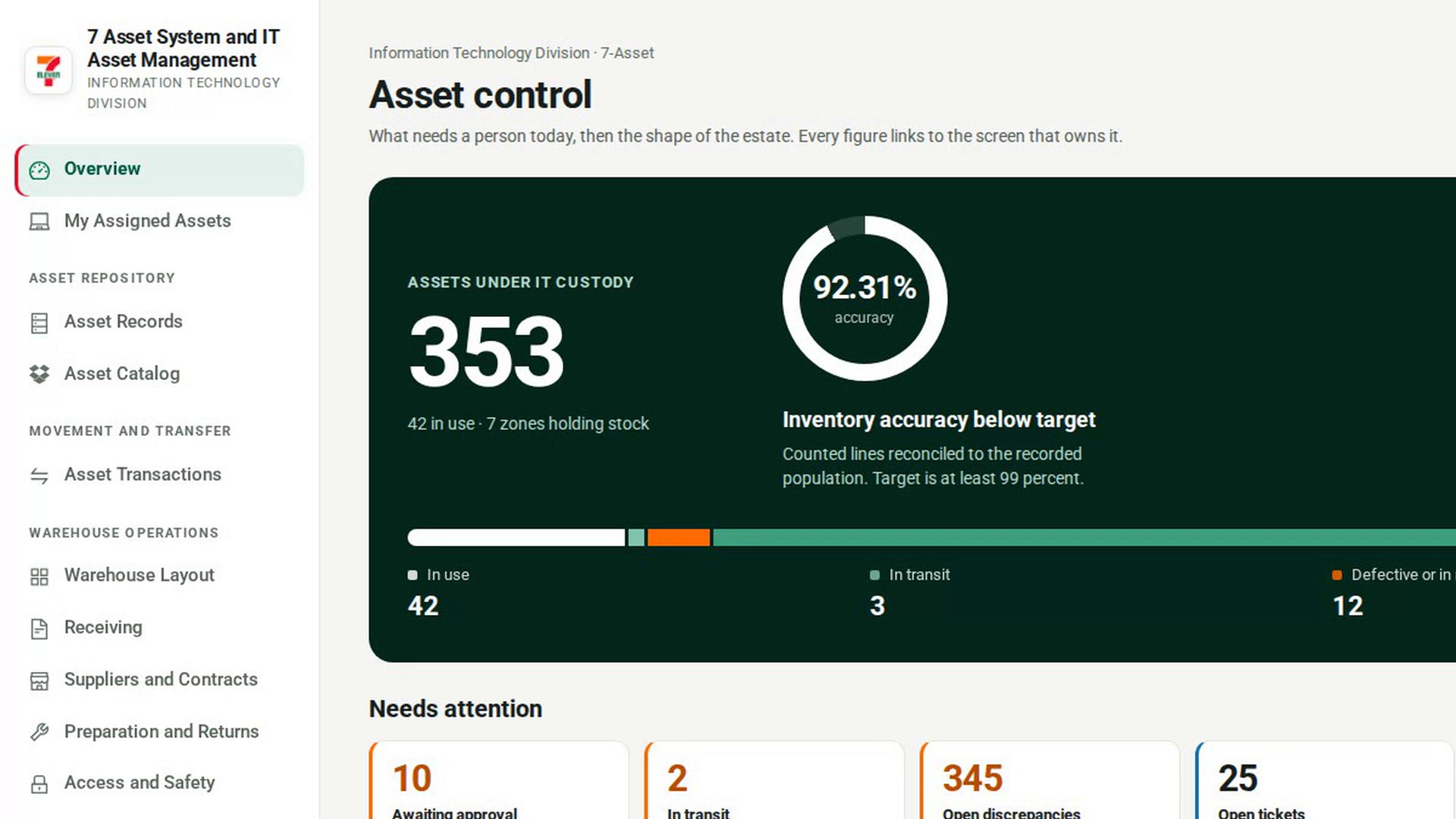
Scan an asset
Scan an asset's label, or type its code, to go straight to its record. 7-Asset only accepts an exact match, so a scan never opens the wrong asset because of a partial match.
Before you start
- You need a role that can see Asset Records: IT Business Systems or Application Team, IT Hardware Inventory Supervisor, Dedicated IT Warehouse Administrator or CDI Staff, ITD Head and Management, IT Service Governance, IT Service Operations, Asset and Logistics Associate, or IT Warehouse Technical Team.
- A barcode scanner that types into the page like a keyboard works. You can also type the code by hand. RFID tags are not supported.
Steps
Open Asset Records
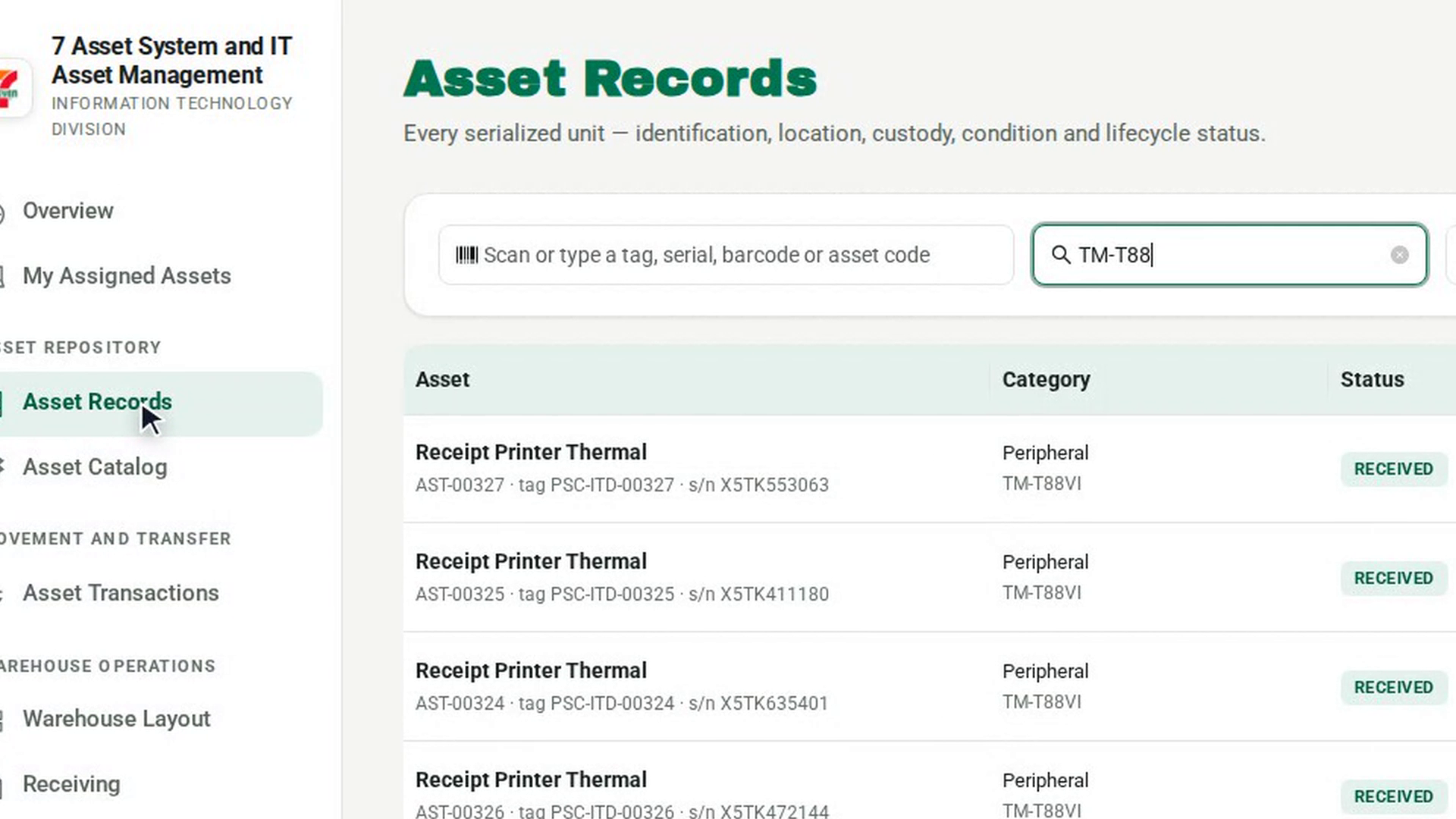
In the sidebar, under Asset Repository, select Asset Records.
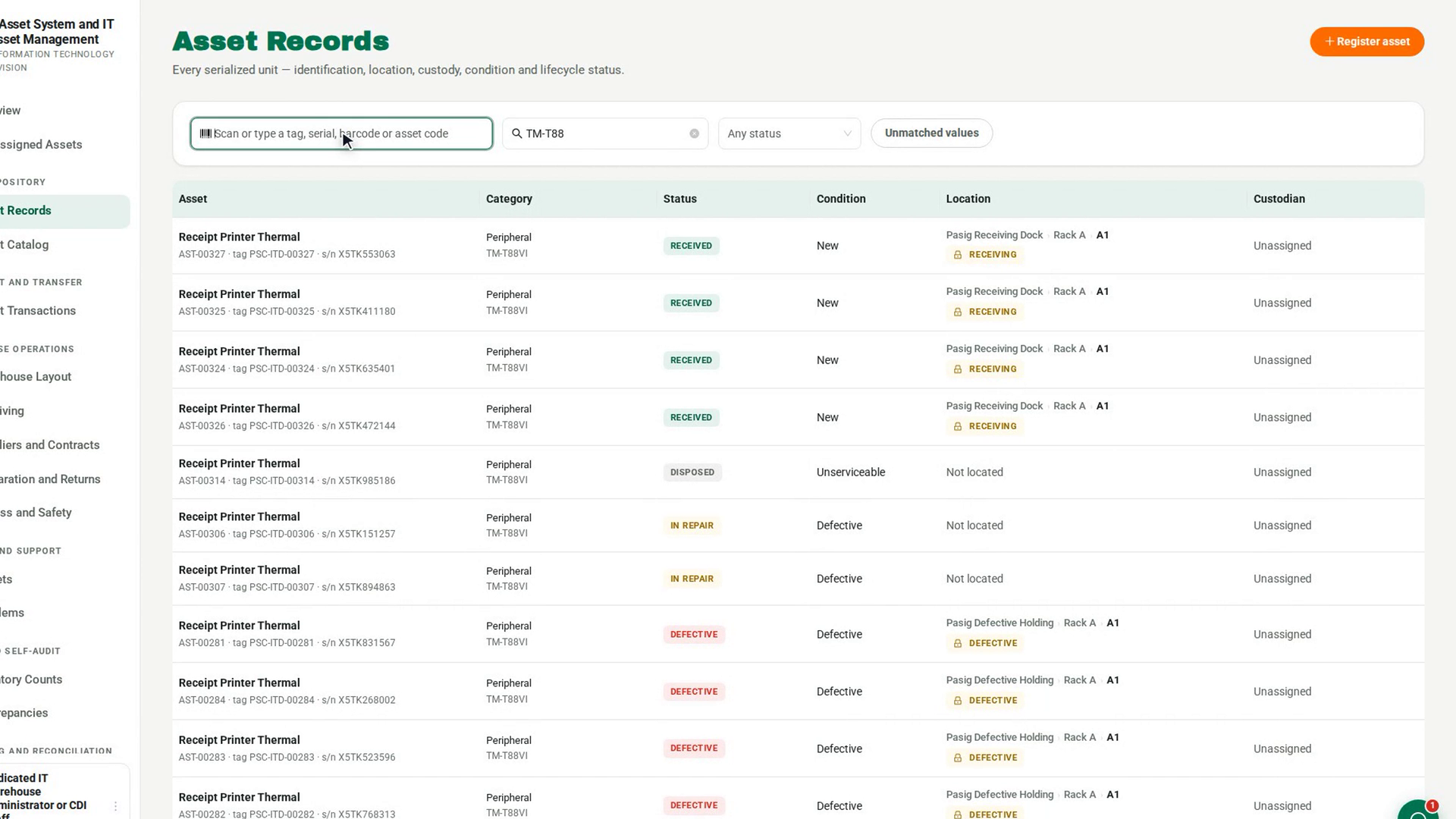
Select the scan box
Select the box with the barcode icon that reads Scan or type a tag, serial, barcode or asset code.
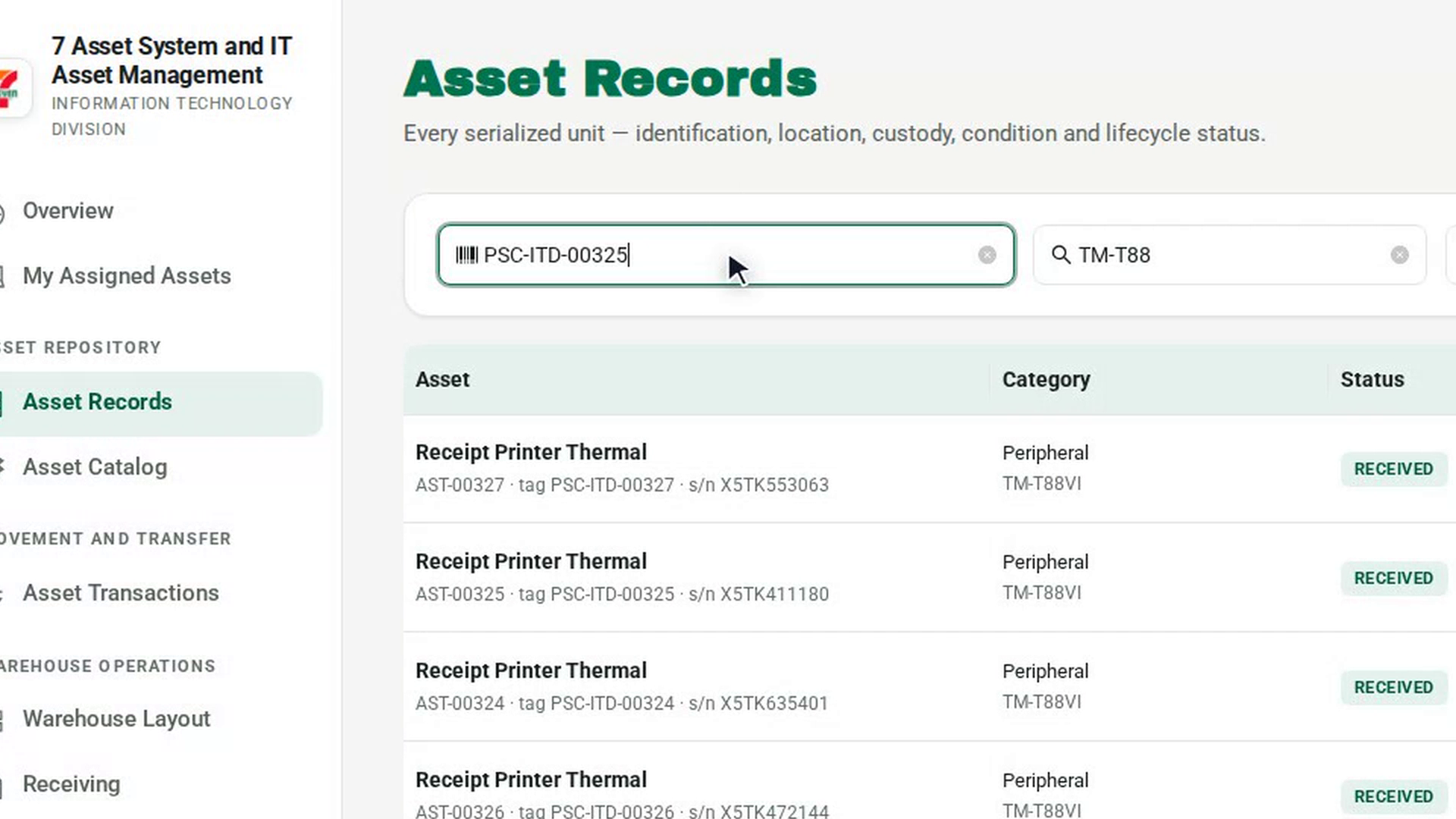
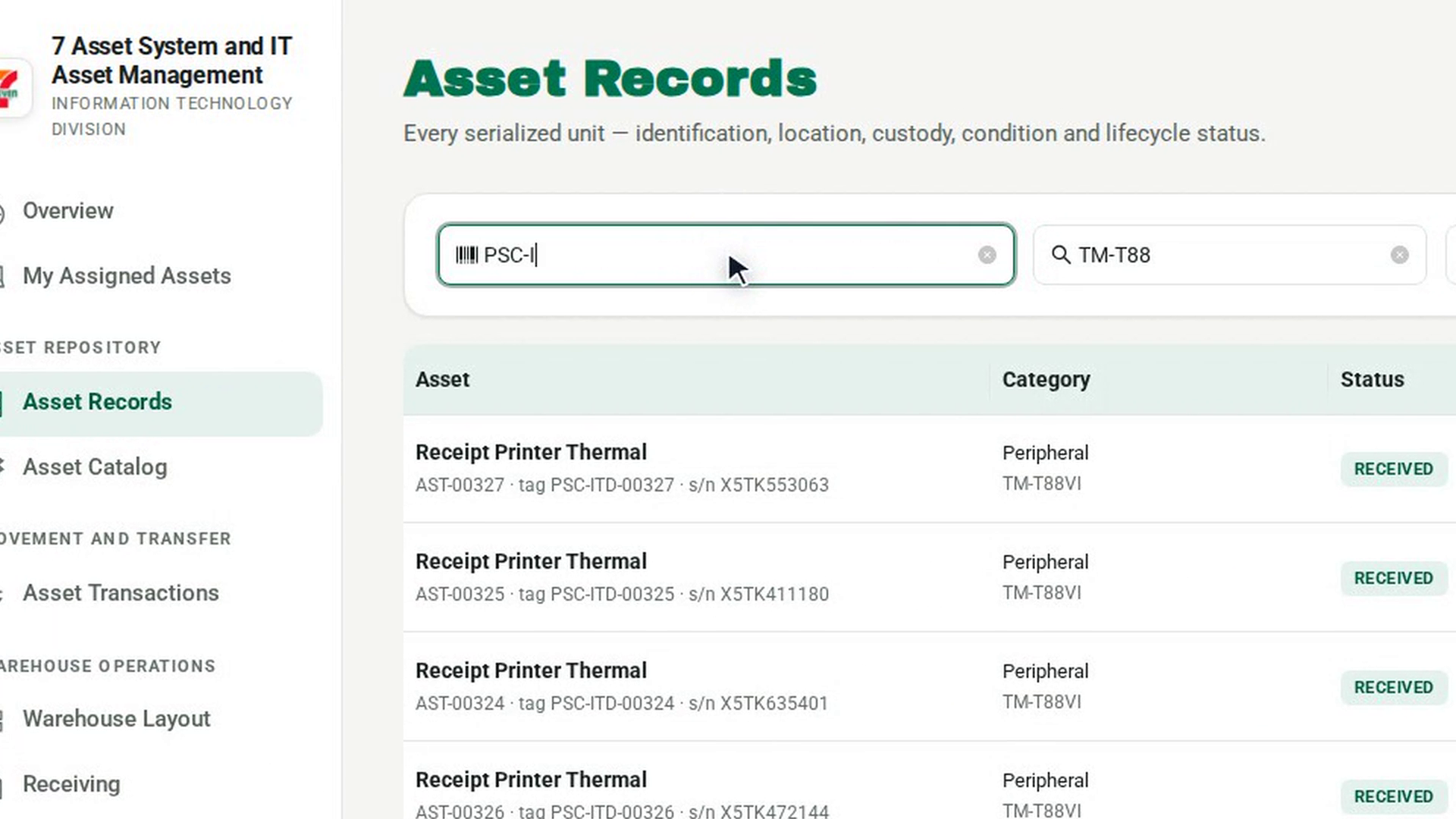
Scan or type the code
Scan the label, or type the asset code, tag, serial number or barcode, and press Enter. 7-Asset looks for an exact match, checking the asset code first, then the tag, the serial number and the barcode. Upper and lower case do not matter.
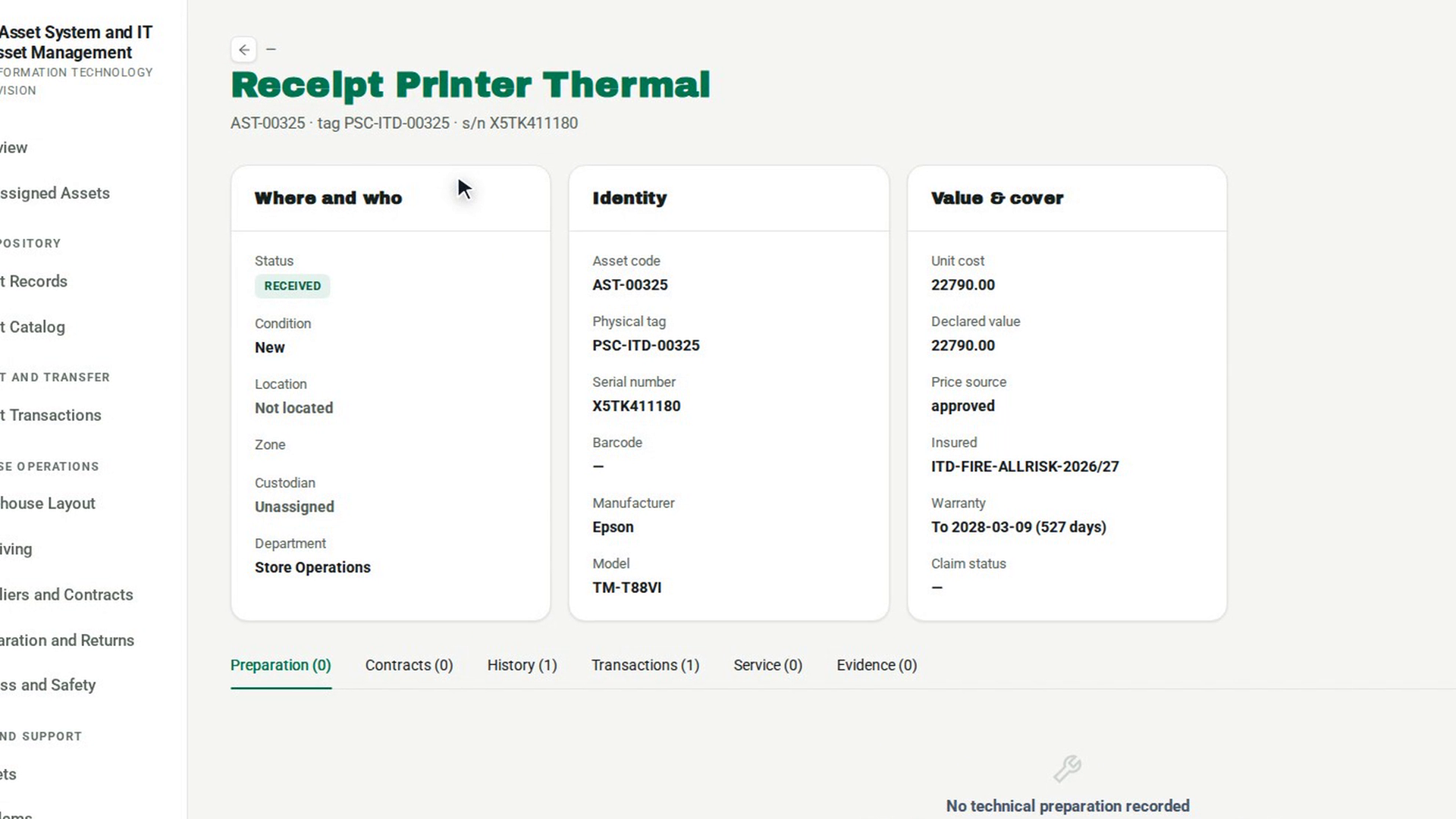
Go to the matching asset
If one asset matches, its record opens.
Check a code that matches nothing
If no asset matches, a message says no live asset carries that code, so either the label is wrong or the item was never registered. Check the label, or register the item.
Choose between two matching assets
If the code belongs to more than one live asset, a card says That code matches followed by the number of live assets, with one button per asset. Select the one in front of you to open it. Two records sharing one code is a duplicate identity, so have it resolved before you use that code to move or count anything.
Screenshots
Step 1: Open Asset Records
Step 2: Select the scan box
Step 3: Scan or type the code
Step 4: Go to the matching asset
Step 5: Check a code that matches nothing
Step 6: Choose between two matching assets
Watch how
Misses are kept. 7-Asset records every scan. Codes that matched nothing and codes that matched more than one asset are kept as findings, because each points to a bad label, unregistered equipment or a duplicate.
Need a partial match? The scan box only takes exact codes. To search by part of a name or code, use Filter the list next to it.