Keep stock in the right zone
Every zone in the warehouse has a zone type, such as Receiving, Good Stock or Quarantine. The type decides whether stock stored there can be handed out, so checking it keeps quarantined, defective, returned and disposal stock apart from stock that is ready to deploy.
Before you start
- To look at zones and their types you need a role that can open Warehouse Layout: IT Business Systems or Application Team, IT Hardware Inventory Supervisor, Dedicated IT Warehouse Administrator or CDI Staff, ITD Head and Management, IT Service Governance, IT Service Operations, Asset and Logistics Associate, or IT Warehouse Technical Team.
- To change a zone's type you need to be IT Business Systems or Application Team or IT Hardware Inventory Supervisor.
- The zones must already exist in Warehouse Layout.
Steps
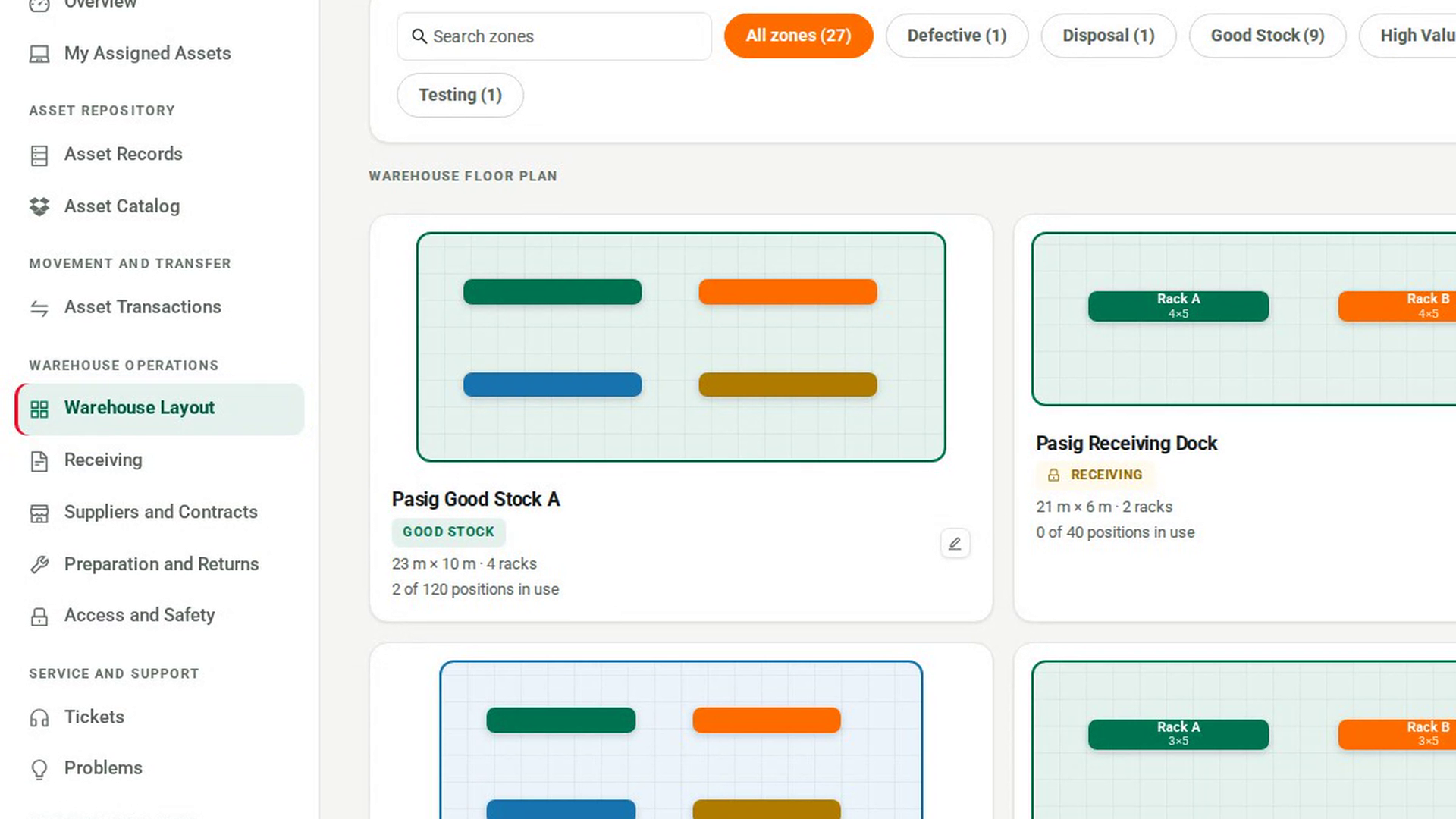
Open Warehouse Layout
In the sidebar, under Warehouse Operations, select Warehouse Layout. Each zone appears as a card with its floor plan, its name and a chip showing its zone type. The figures below the cards include Zones and Segregated Zones.
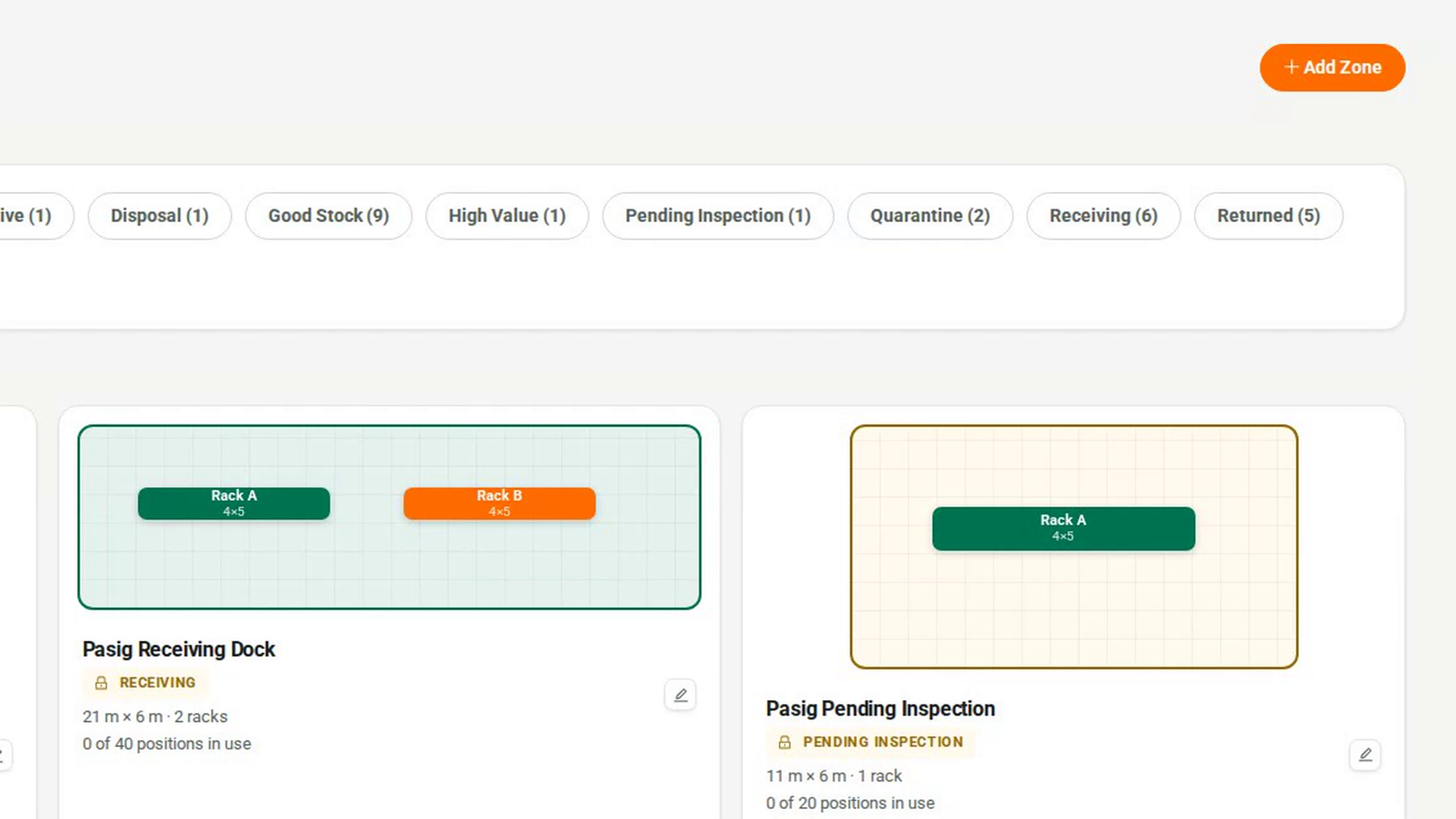
Show one kind of zone
Above the cards, select a zone type pill, for example Quarantine. The number in brackets is how many zones of that type exist. Select All zones to see every zone again, or type in Search zones to find one by name.
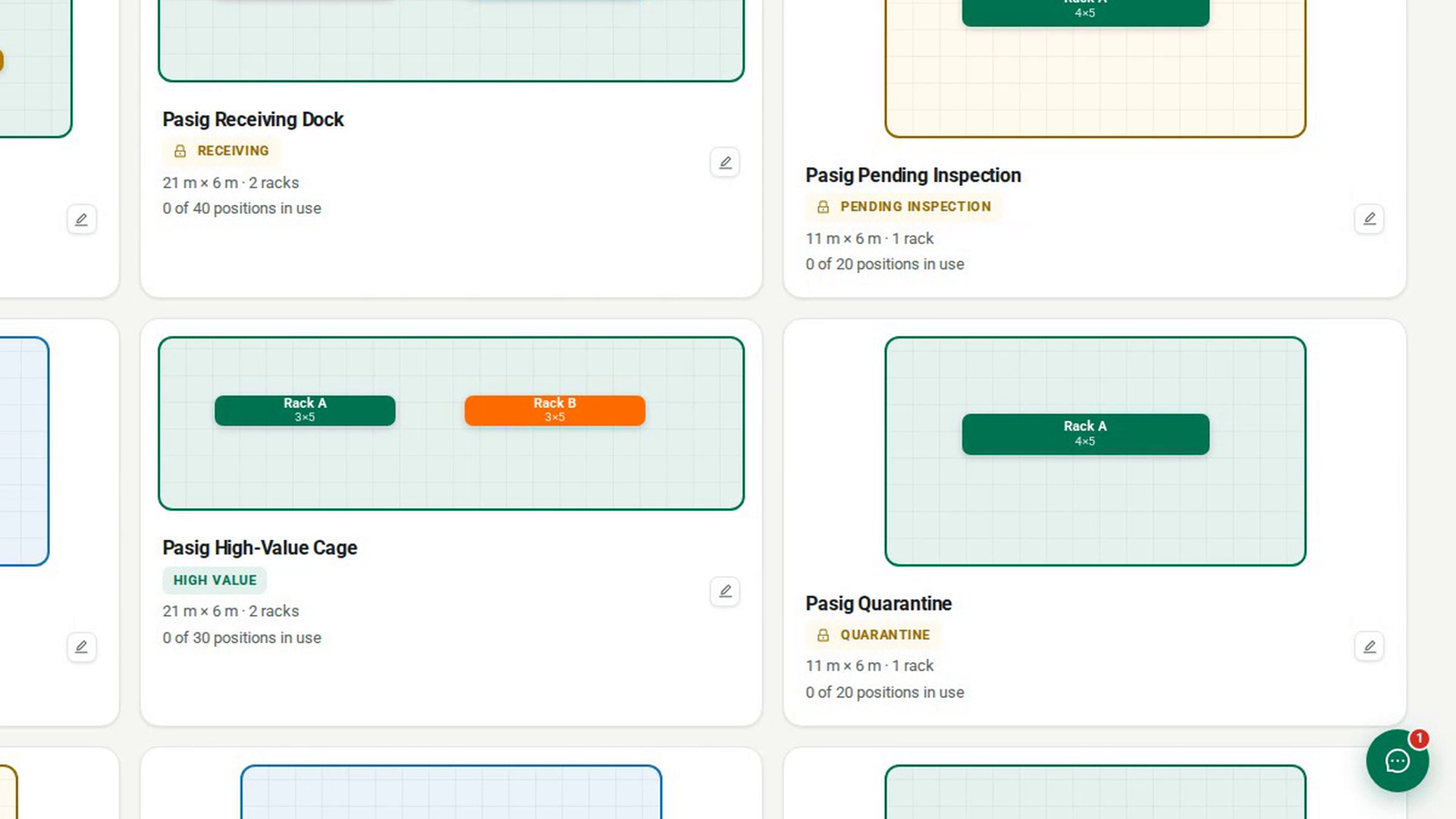
Check a zone's type
On a zone card, select the pencil icon (Edit zone). In the Edit zone dialog, Zone type shows what the zone holds, and the line under it describes the type. Types that keep stock out of deployment are marked segregated in the list. Select Cancel to close without changing anything.
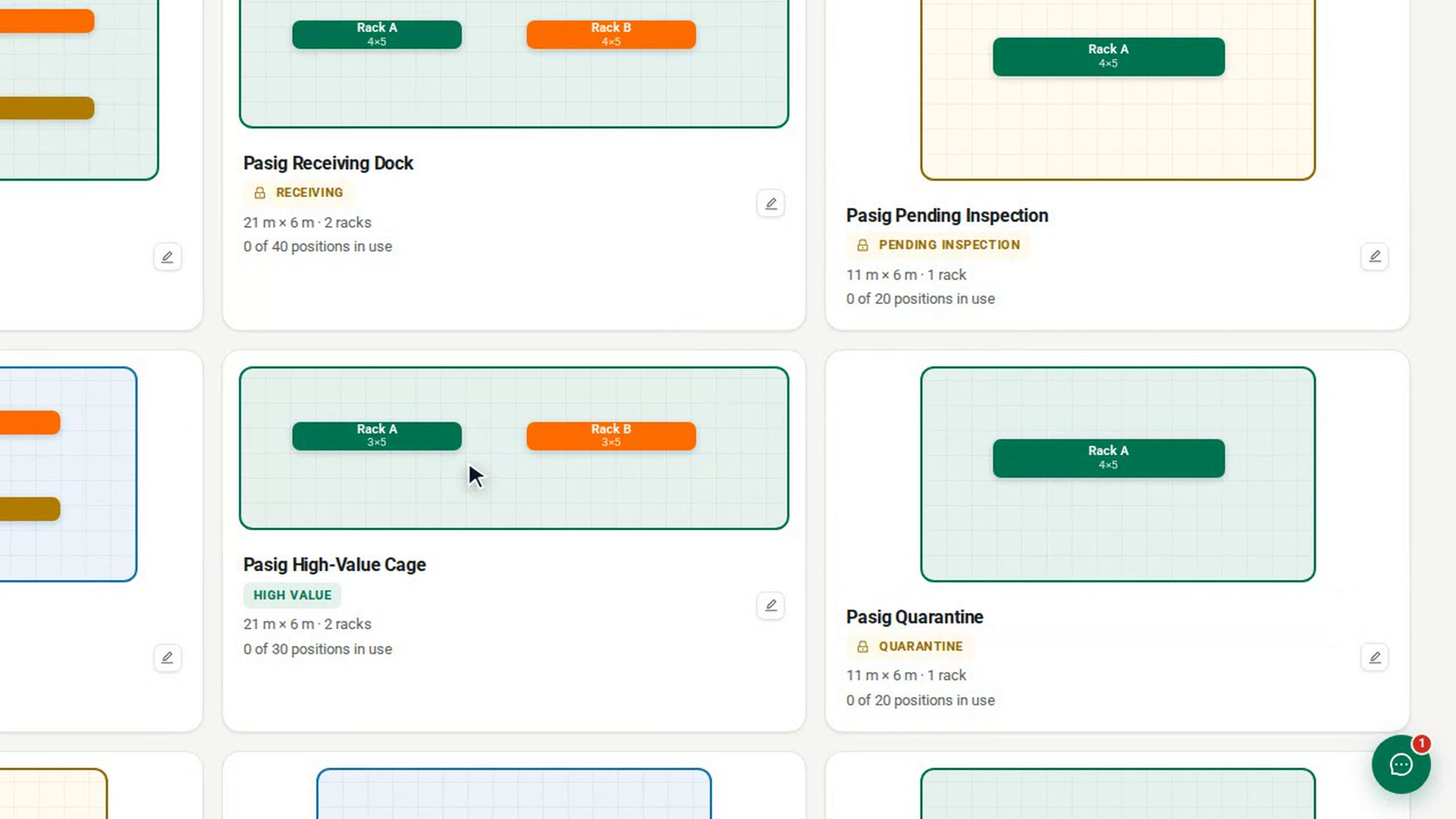
Open the zone
Select the zone card. The Zone Designer opens with the zone's type chip at the top and its racks on the floor plan, so anyone placing racks or stock here can see what the area is for.
Screenshots
Step 1: Open Warehouse Layout
Step 2: Show one kind of zone
Step 3: Check a zone's type
Step 4: Open the zone
Watch how
Tip: Only Good Stock, High Value and General zones hold deployable stock. Every other type is segregated, and the Segregated Zones figure counts those zones.
If you try to allocate or transfer an asset that sits in a segregated zone, 7-Asset refuses and tells you which area the asset is in. The asset stays out of deployable stock until an approved status change moves it.