Application service report
This report shows what 7-Asset itself can observe about its own service: how many audited events happened each day. It says plainly what it cannot measure.
Before you start
- You need a role that can open Reports and Extracts: IT Business Systems or Application Team, IT Hardware Inventory Supervisor, Dedicated IT Warehouse Administrator or CDI Staff, ITD Head and Management, IT Service Governance, IT Service Operations, Infrastructure or Cloud Team, Asset and Logistics Associate, or IT Warehouse Technical Team.
Steps
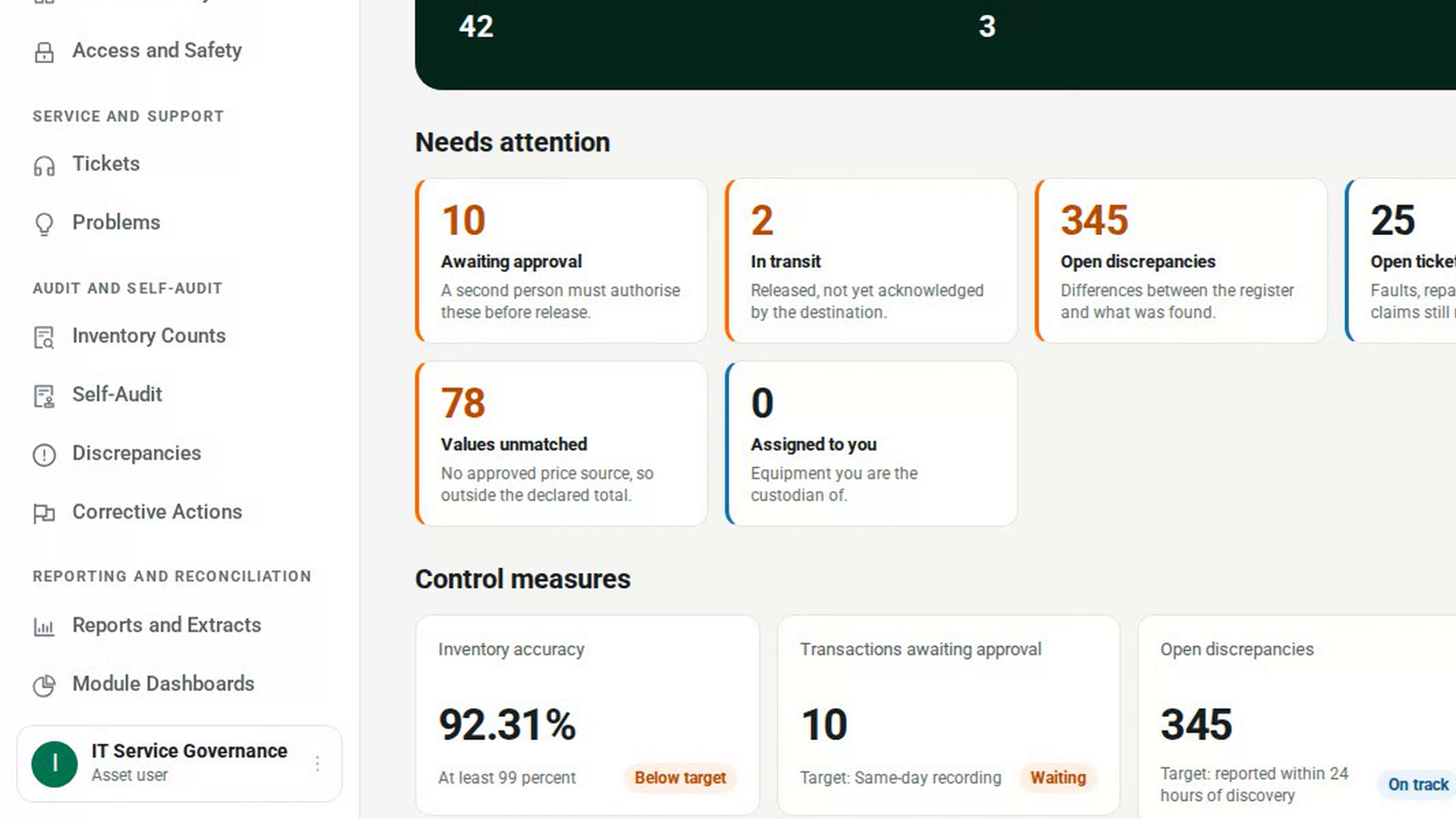
Open Reports and Extracts
In the sidebar, under Reporting and Reconciliation, select Reports and Extracts. The page opens on the Weekly and monthly packs tab.
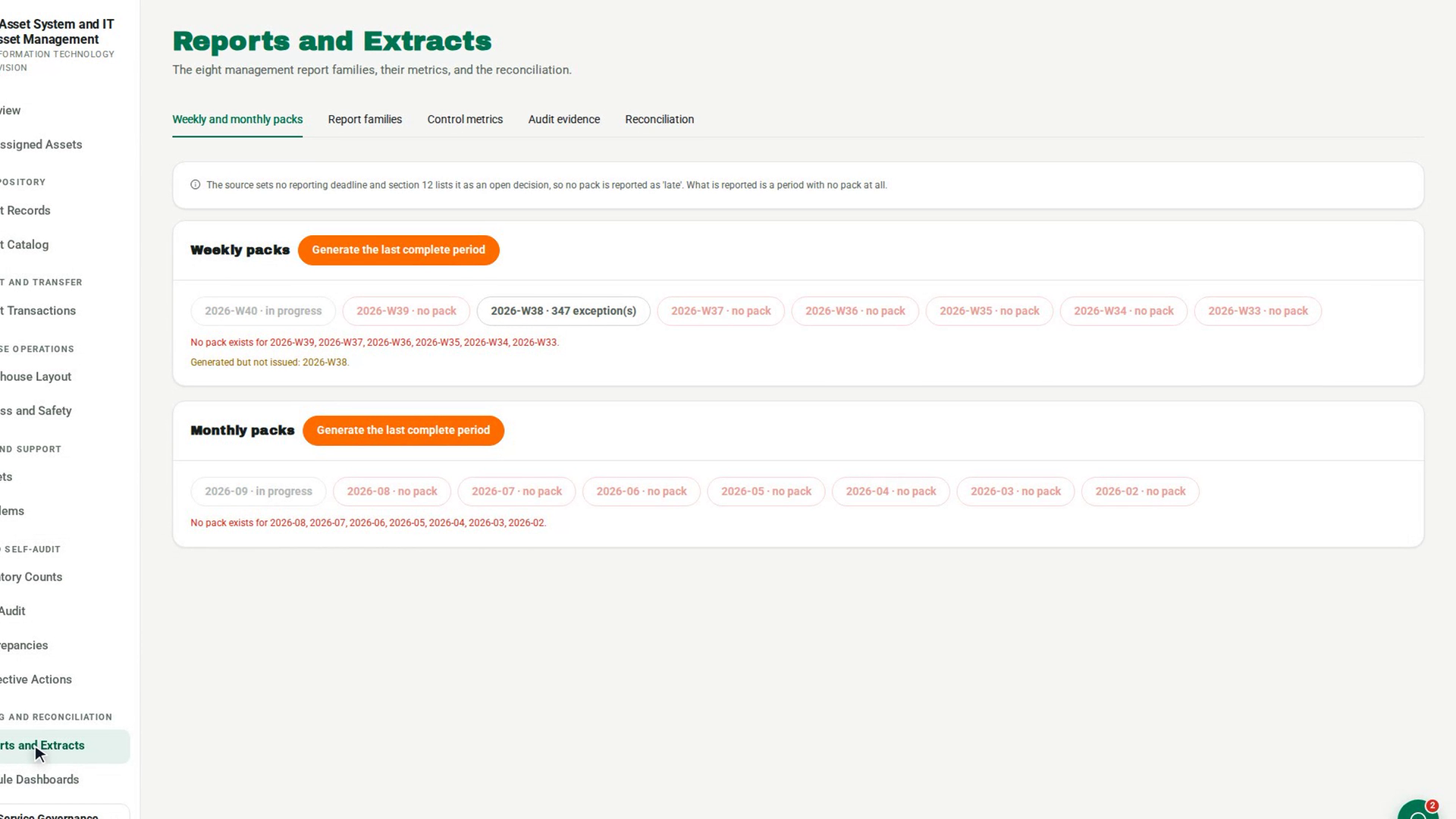
Open the Report families tab
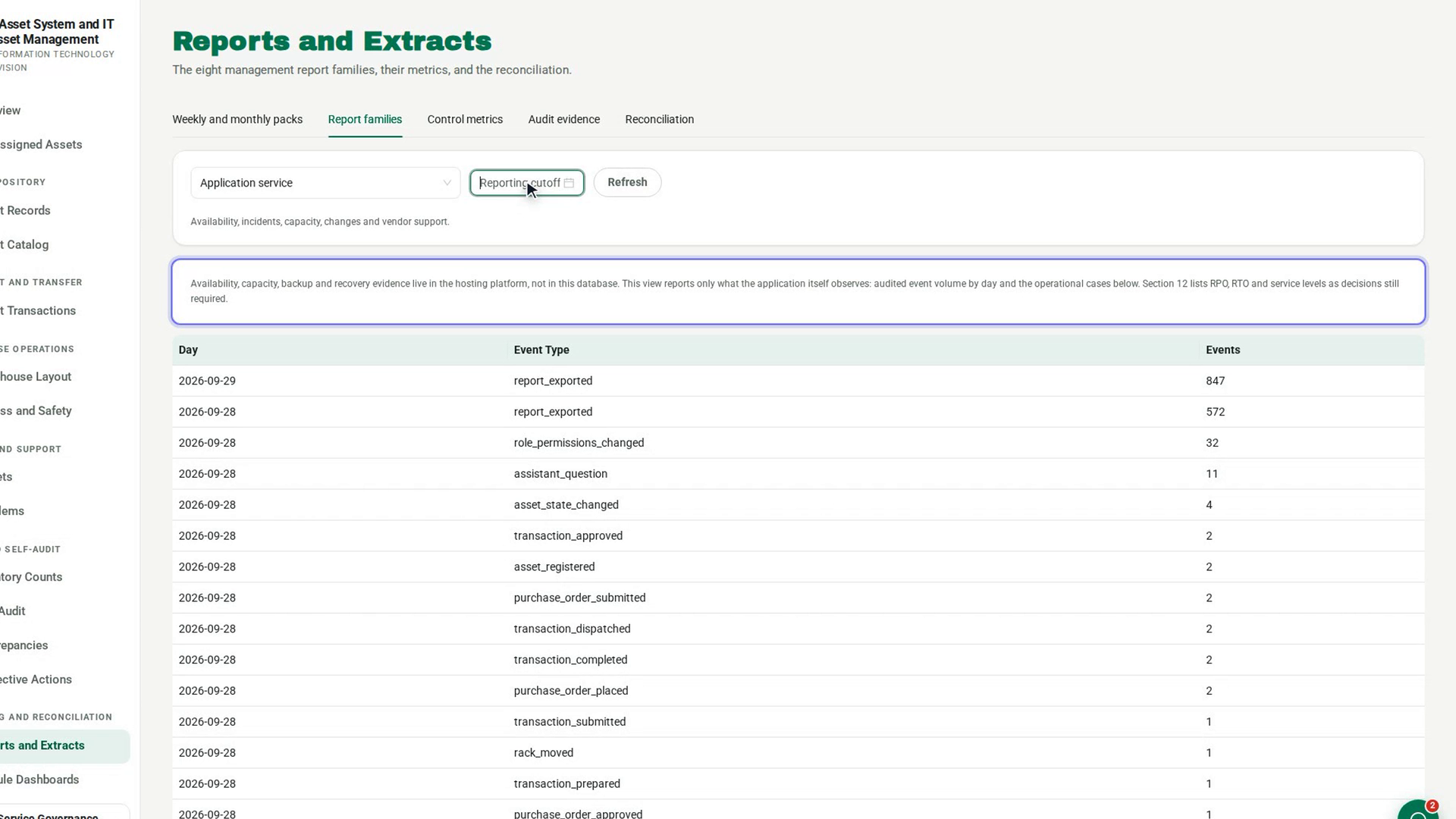
Select the Report families tab. It shows a report list, a Reporting cutoff date and Refresh.
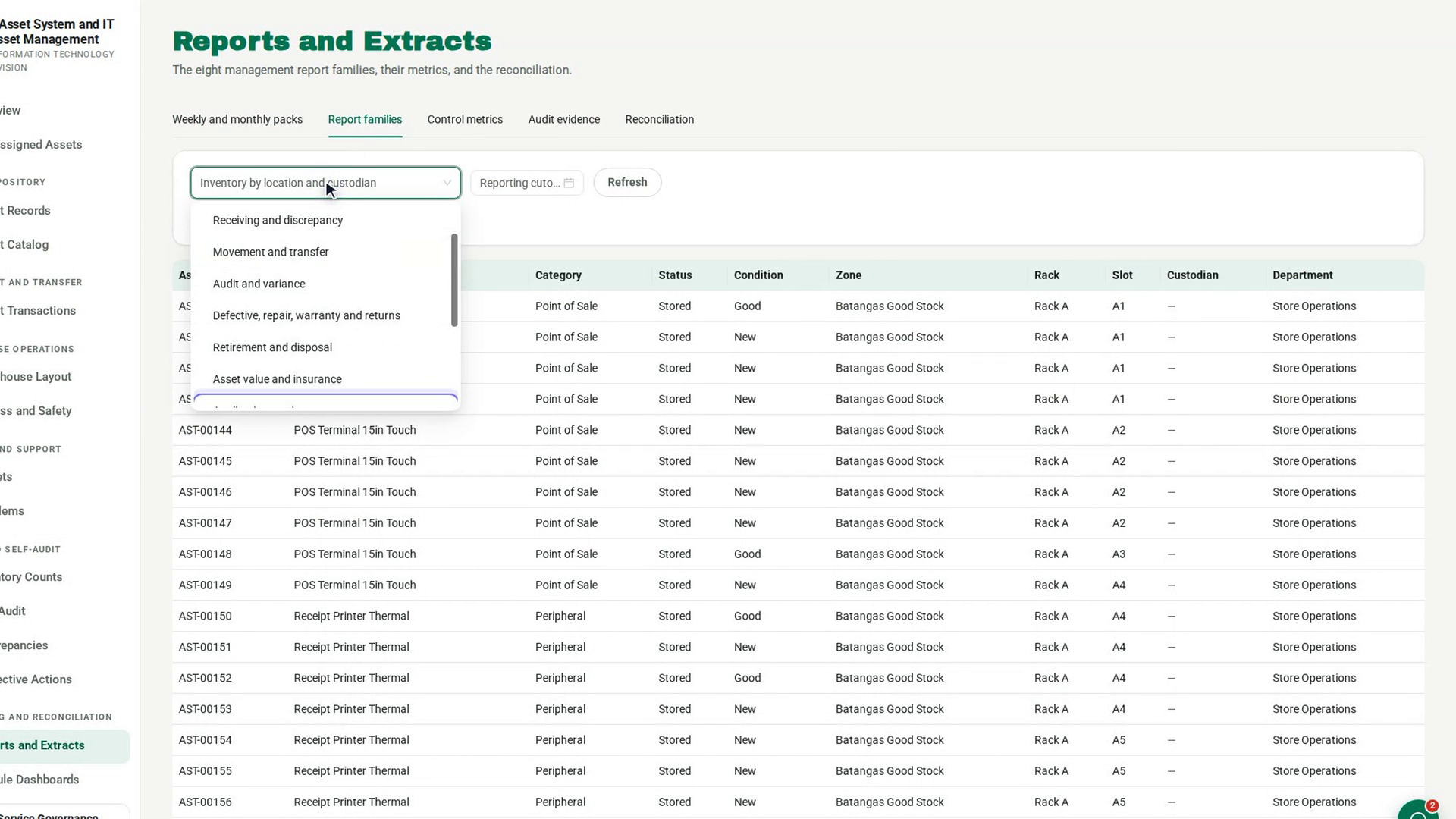
Choose the report
In the list, under Management report families, choose Application service. The line under the list describes what it covers: Availability, incidents, capacity, changes and vendor support.
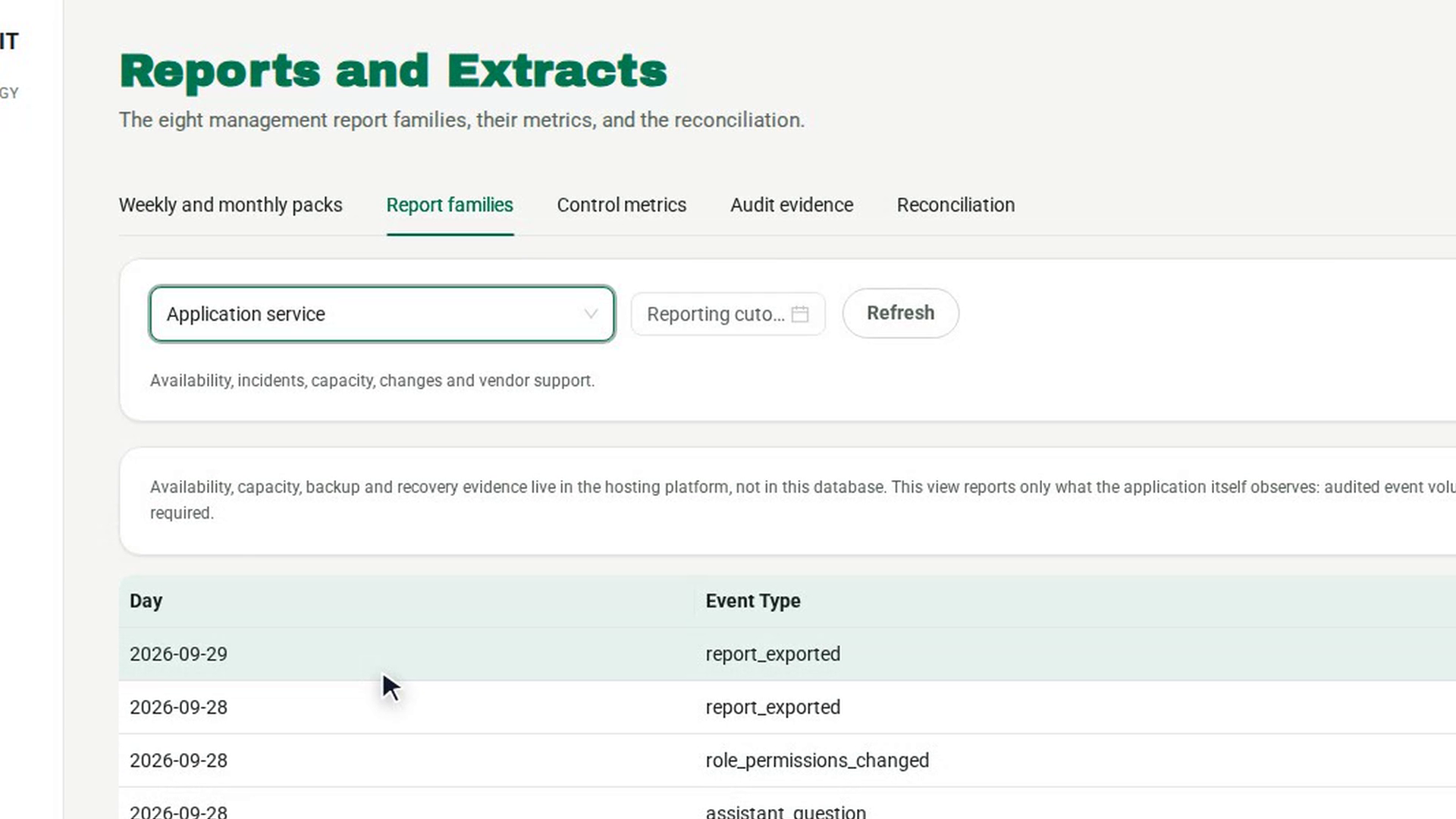
Set a reporting cutoff
If the report is for a set reporting date, pick it in Reporting cutoff, then select Refresh. Without a cutoff the report shows live data.
Read the notice
Above the table, the report prints its own notice: Availability, capacity, backup and recovery evidence live in the hosting platform, not in this database. It reports only what the application itself observes. Availability, capacity and backup figures are not in this report.
Read the rows
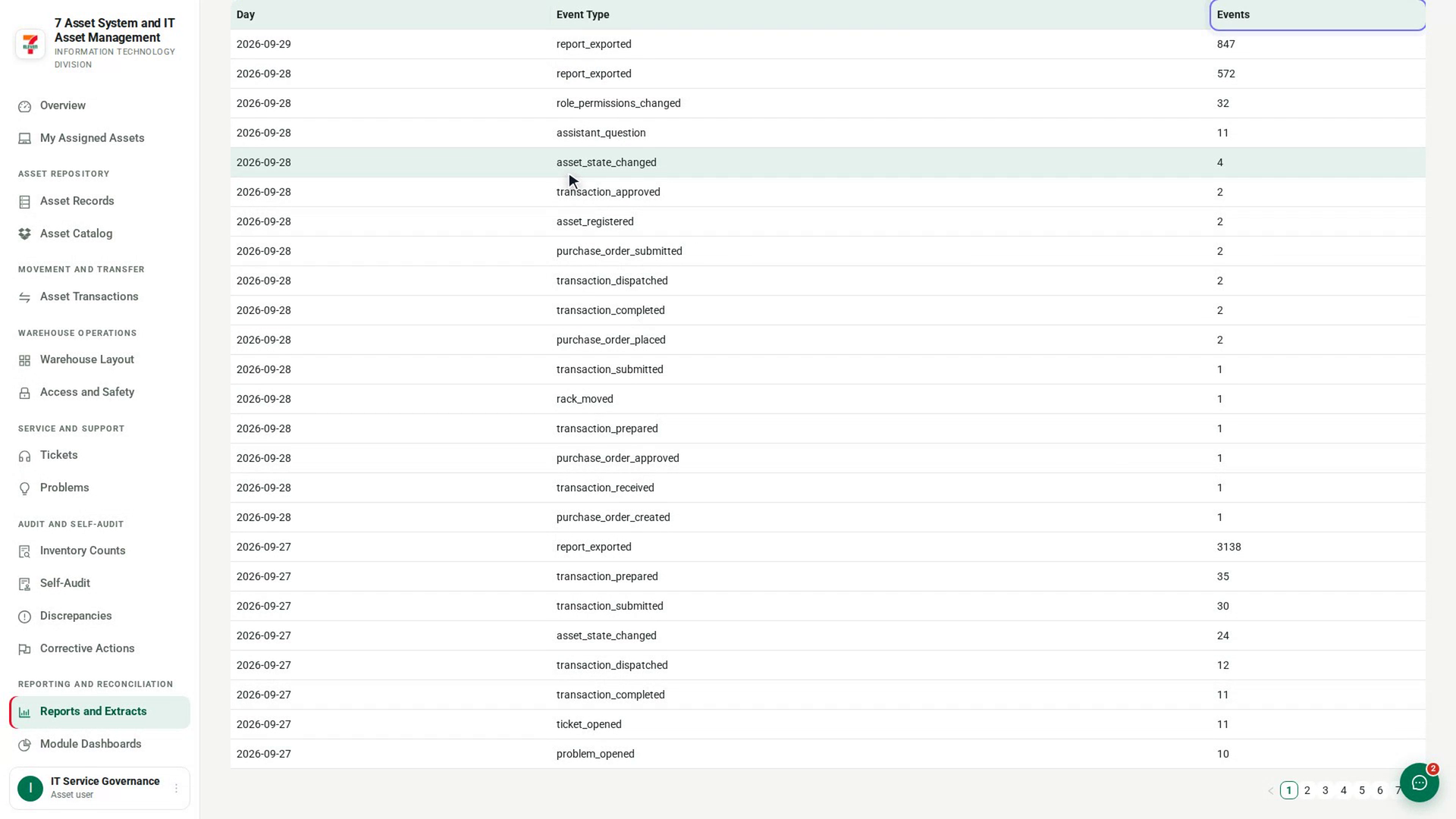
The table shows Day, Event Type and Events. Each row is one kind of event on one day, covering the last 30 days, newest first. If nothing matches, you see No rows at this cutoff.
Check where the figures came from
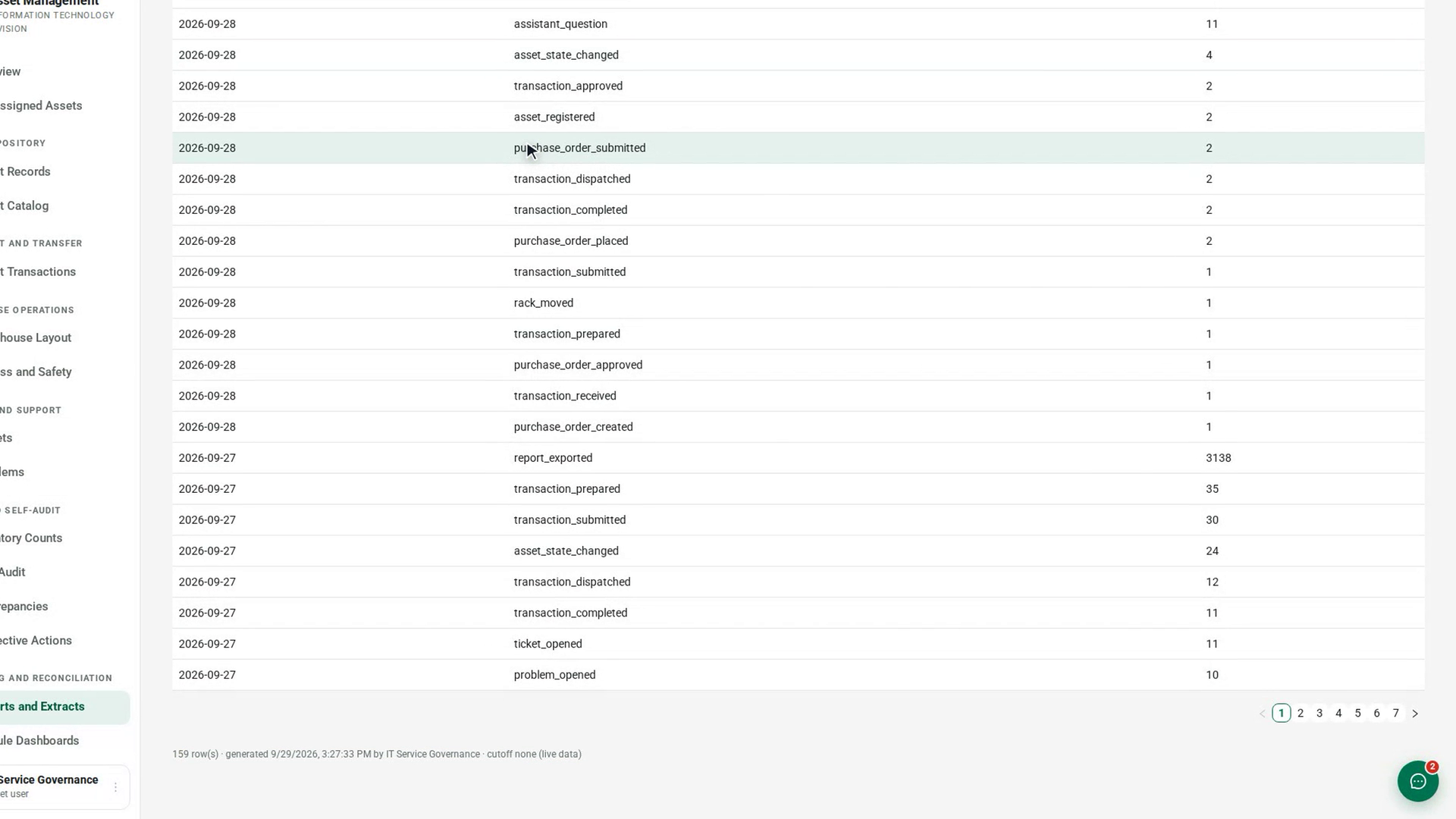
Under the table, a line shows the number of rows, when the report was generated and by whom, and the cutoff it was run at. Keep this with any figure you pass on.
Screenshots
Step 1: Open Reports and Extracts
Step 2: Open the Report families tab
Step 3: Choose the report
Step 4: Set a reporting cutoff
Step 5: Read the notice
Step 6: Read the rows
Step 7: Check where the figures came from
Watch how
Tip: For incidents and support performance, use the Defective, repair, warranty and returns report and the Tickets screen. Hosting figures come from the hosting platform, not from 7-Asset.
Running a report is itself recorded in the Audit Log, with who ran it and how many rows it returned.