Attach warehouse documents
Keep the paperwork for every warehouse movement with the transaction it belongs to: delivery receipts, dispatch documents, handover and receipt acknowledgments, condition photos and disposal certificates. Anyone reviewing the transaction later sees what was filed and when.
Before you start
- To file evidence you need to be a Dedicated IT Warehouse Administrator or CDI Staff, Asset and Logistics Associate, IT Warehouse Technical Team, IT Hardware Inventory Supervisor, IT Service Operations, IT Service Governance, or IT Business Systems or Application Team.
- The transaction must already exist. You can attach evidence at any stage, before or after release.
- The document must be reachable as a link, for example in the system that holds it, or as an uploaded file.
Steps
Open the transaction
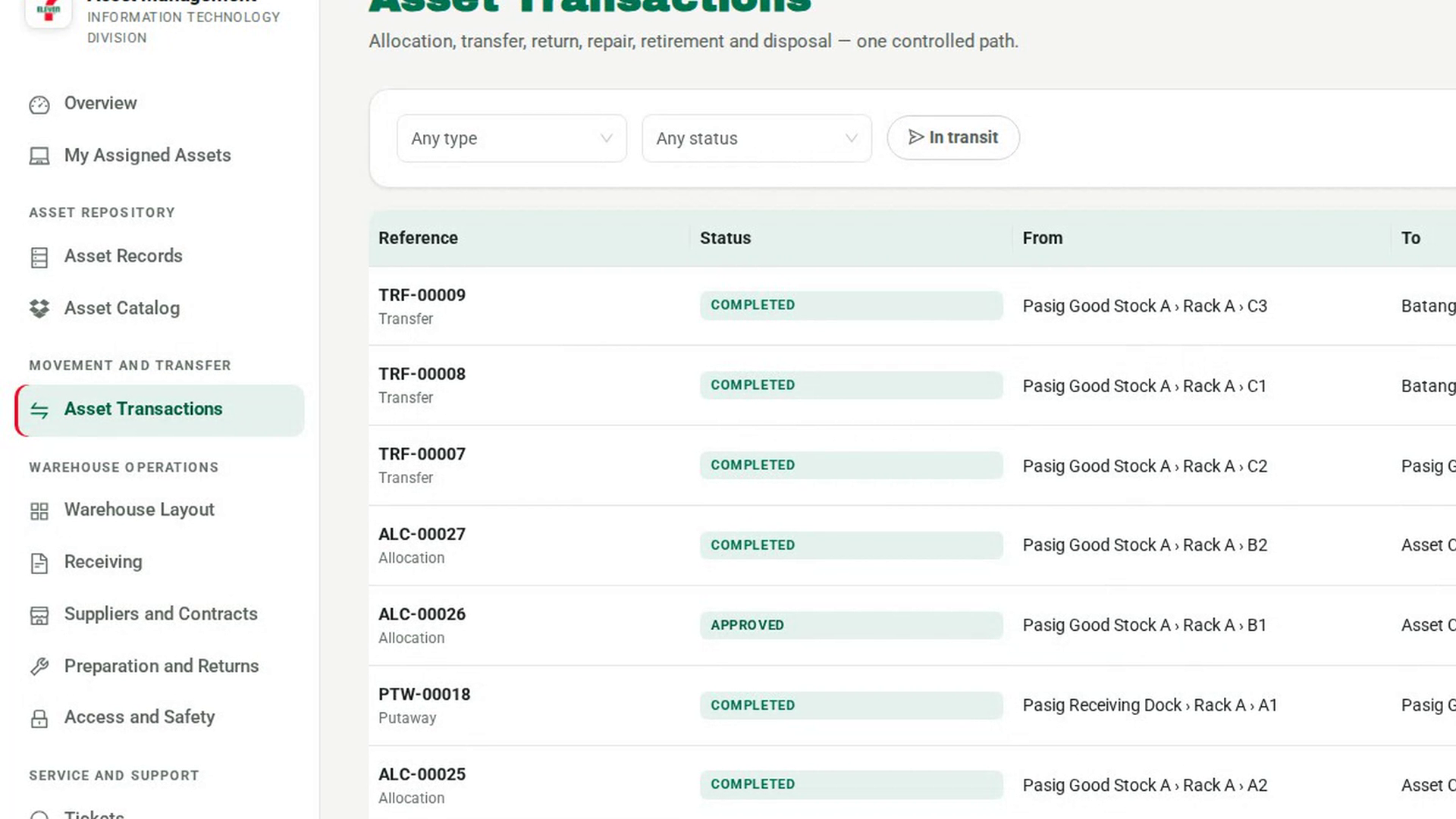
In the sidebar, under Movement and Transfer, select Asset Transactions, then select the transaction the document belongs to.
Start attaching
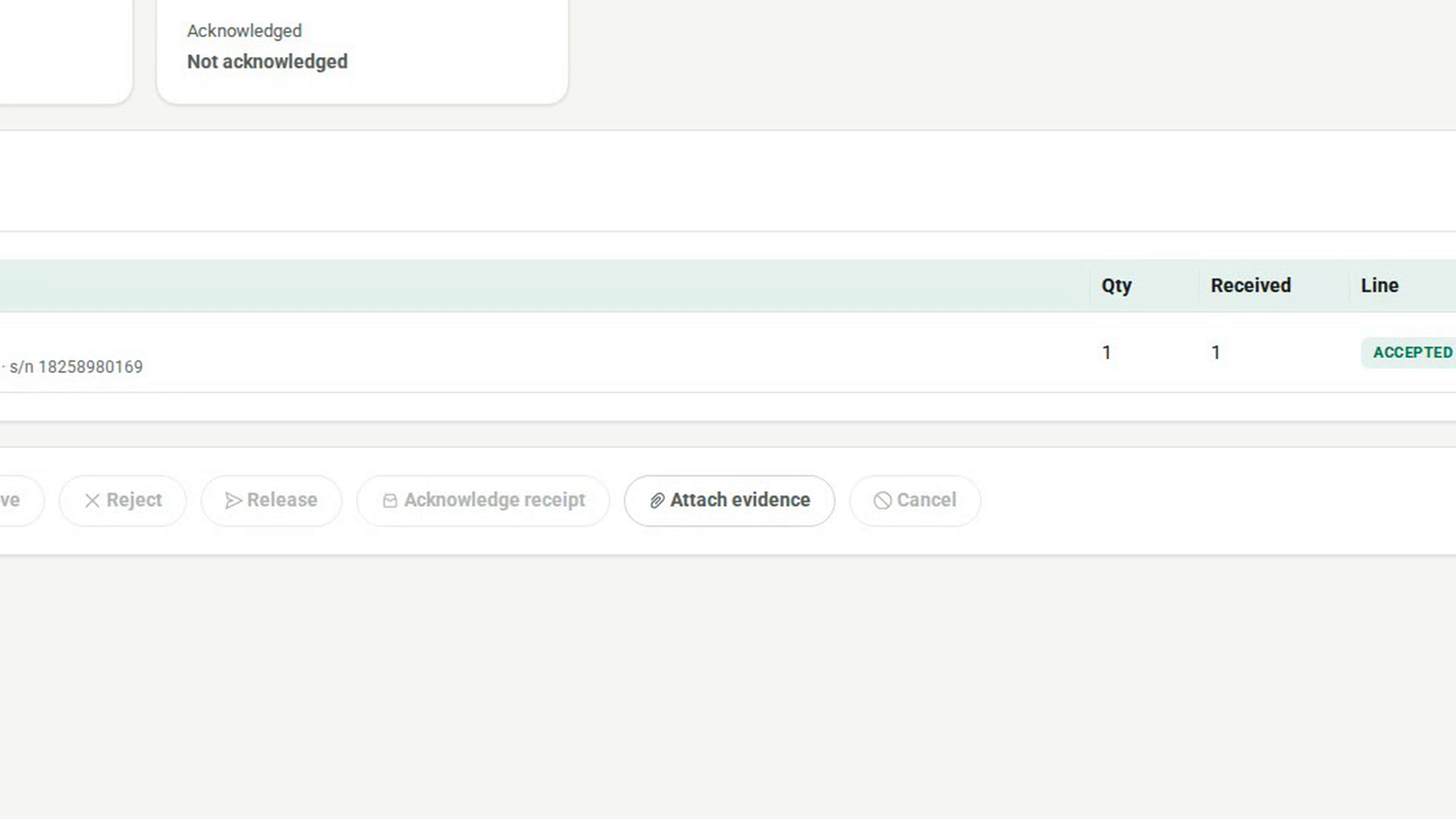
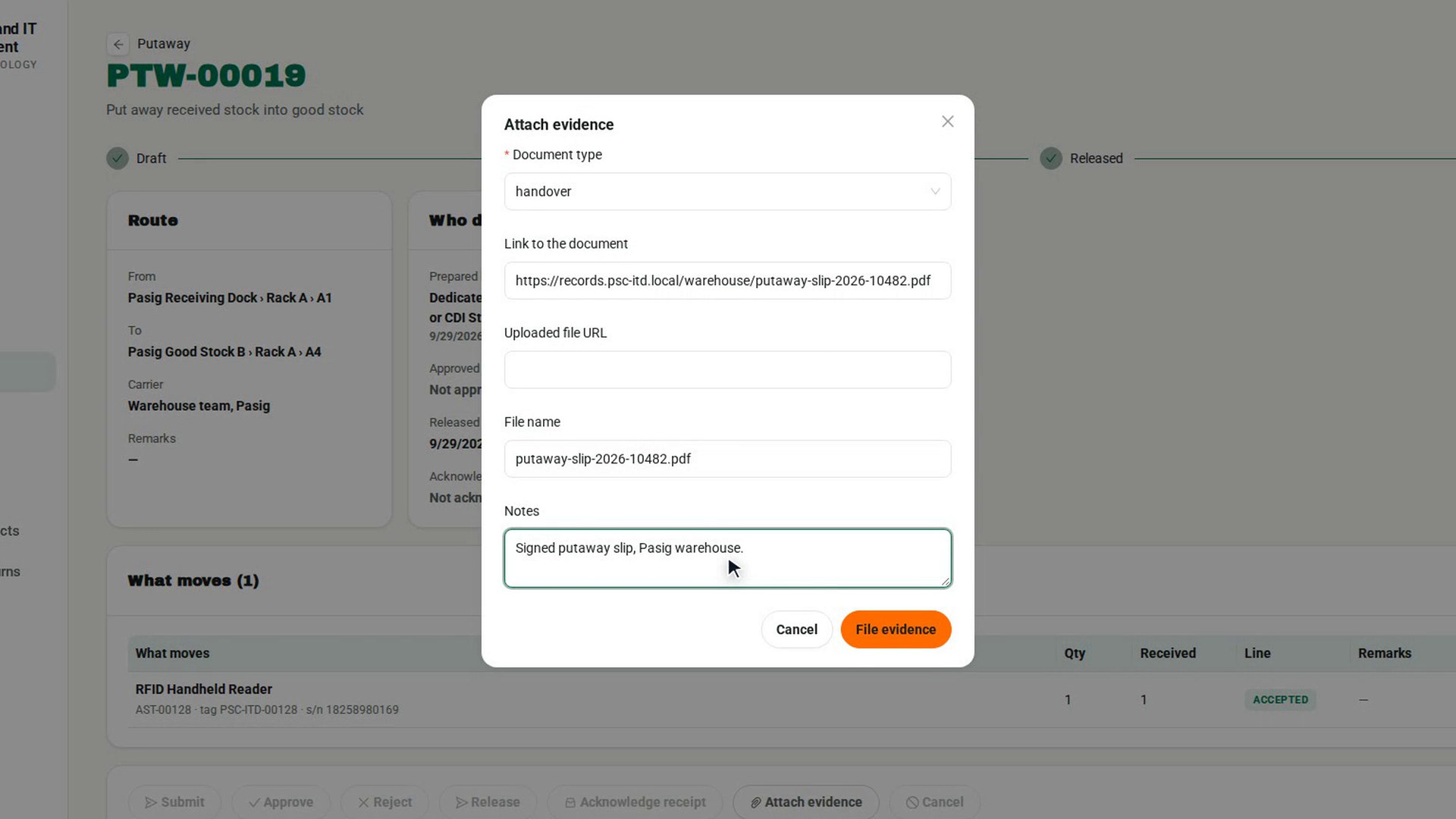
Select Attach evidence. The Attach evidence dialog opens.
Choose the document type
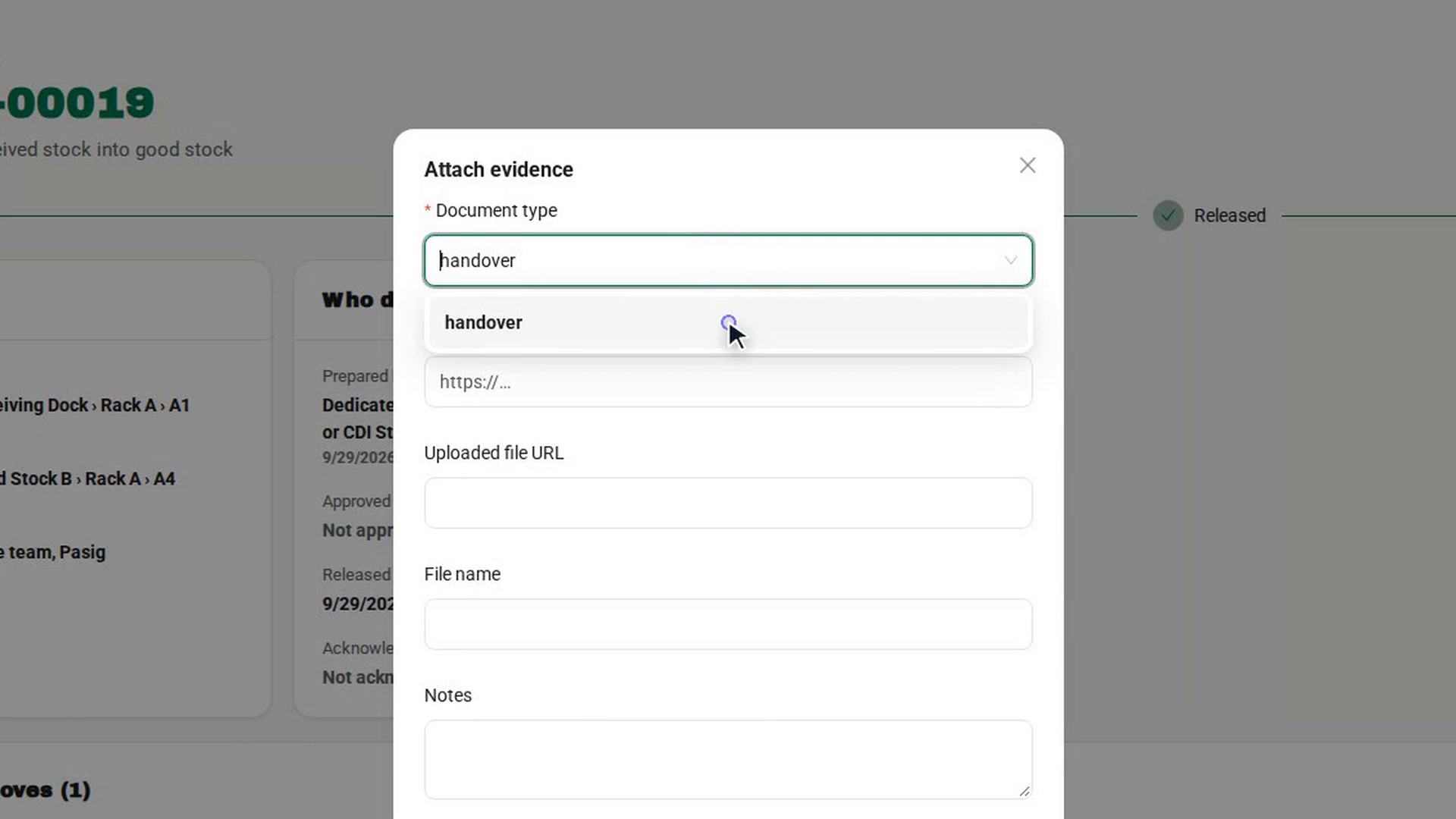
In Document type, choose what the document is, for example dispatch document, receipt acknowledgment or condition photo. File evidence stays disabled until you choose one.
Point to the document
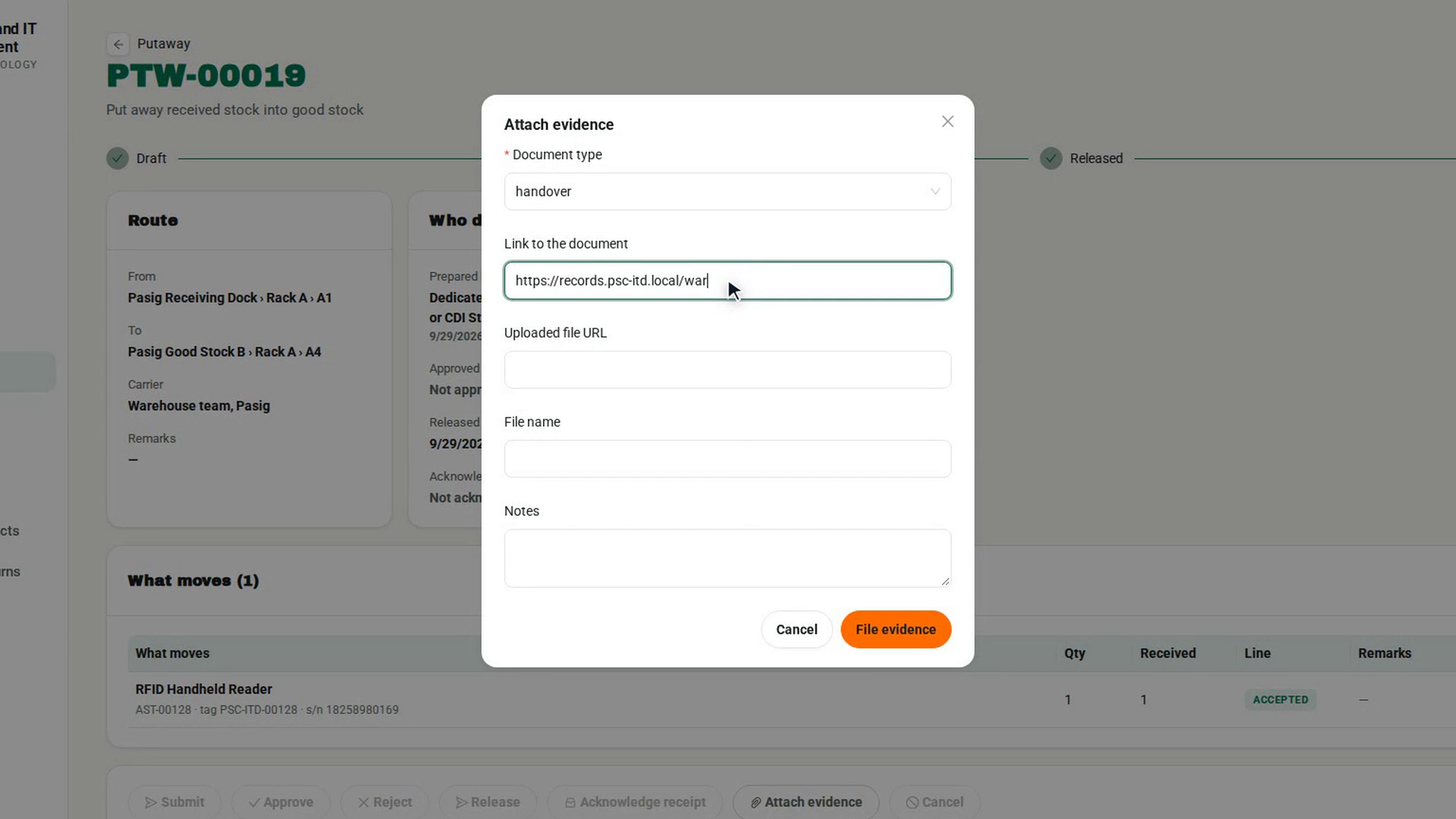
Enter the Link to the document, or the Uploaded file URL and its File name. Add Notes if they help the next reader.
File it
Select File evidence. The message Evidence filed. appears, and under the buttons the page lists how many documents are on file and their types.
Screenshots
Step 1: Open the transaction
Step 2: Start attaching
Step 3: Choose the document type
Step 4: Point to the document
Step 5: File it
Watch how
Filed evidence cannot be edited or removed. To replace a document, file the new one with the same type; it is kept as a new version next to the old one.
Tip: You need either a link or a file. If you fill in neither, the app refuses with Evidence needs either an uploaded file or a link to the document in the system that holds it.