Work a discrepancy to closure
A discrepancy is a difference between the asset record and what was physically found — from a count, a self-audit, a delivery, a transfer or a reconciliation. Working it to closure means giving it an owner, investigating it, proposing a correction and having someone else approve it. This is the only way a record is corrected after the fact.
Before you start
- To assign, investigate, propose and close you need to be a Dedicated IT Warehouse Administrator or CDI Staff, IT Hardware Inventory Supervisor, or IT Business Systems or Application Team.
- To approve or reject a correction you need to be an IT Hardware Inventory Supervisor or IT Business Systems or Application Team — and you must not be the person who proposed it.
- A case must already exist. Counts, self-audits, receipts and reconciliations open them for you, or you can select Open a case on Discrepancies.
Steps
Open the case
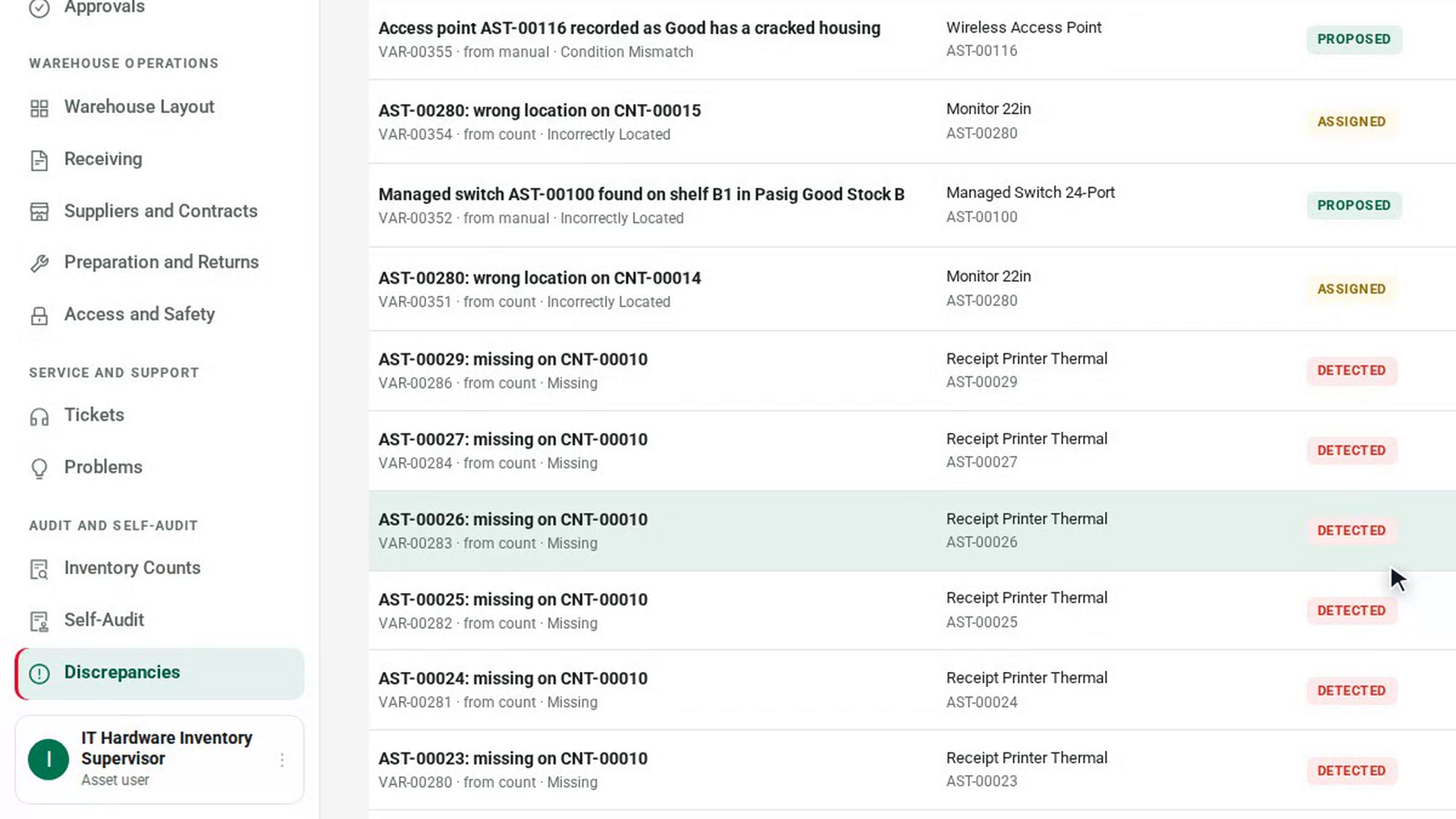
In the sidebar, under Audit and Self-Audit, select Discrepancies. Unresolved only is on by default. Select a case to open it. The Expected, observed and proposed panel shows What the register said, What was observed and Proposed side by side.
Assign an owner
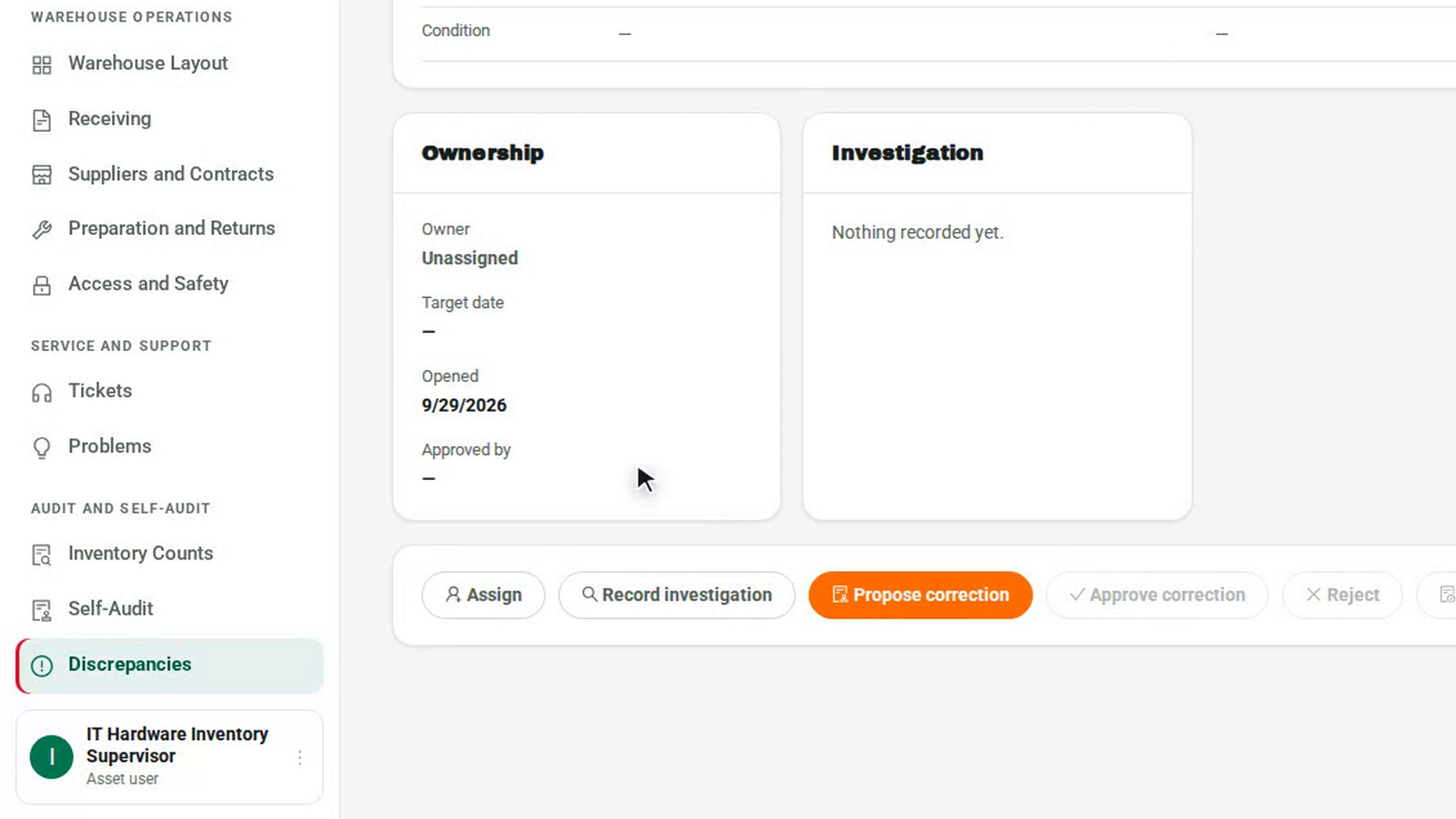
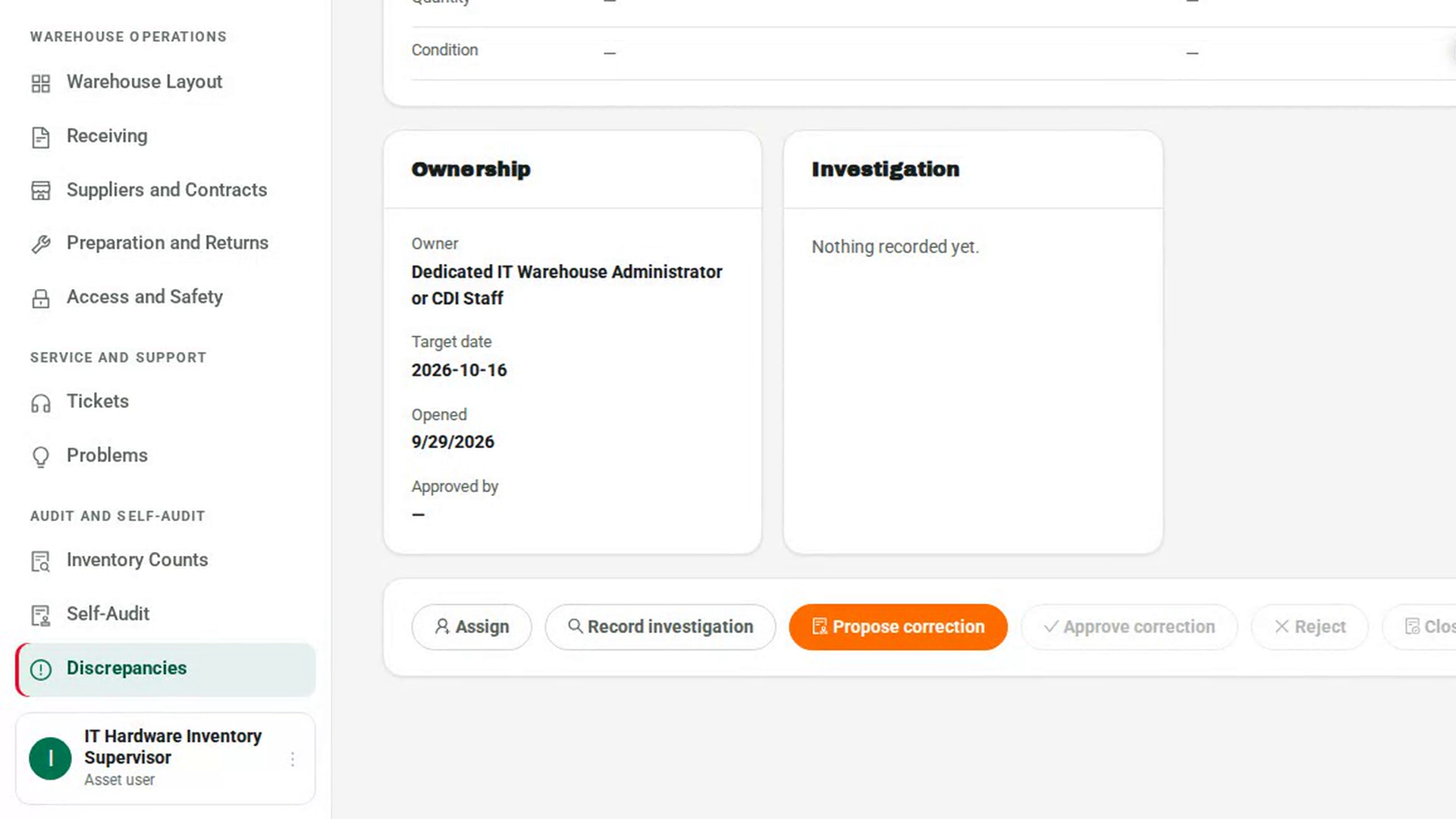
Select Assign. In the Assign this case dialog, choose the Accountable owner, set the Risk and a Target date, then select Assign. The owner appears under Ownership.
Record the investigation
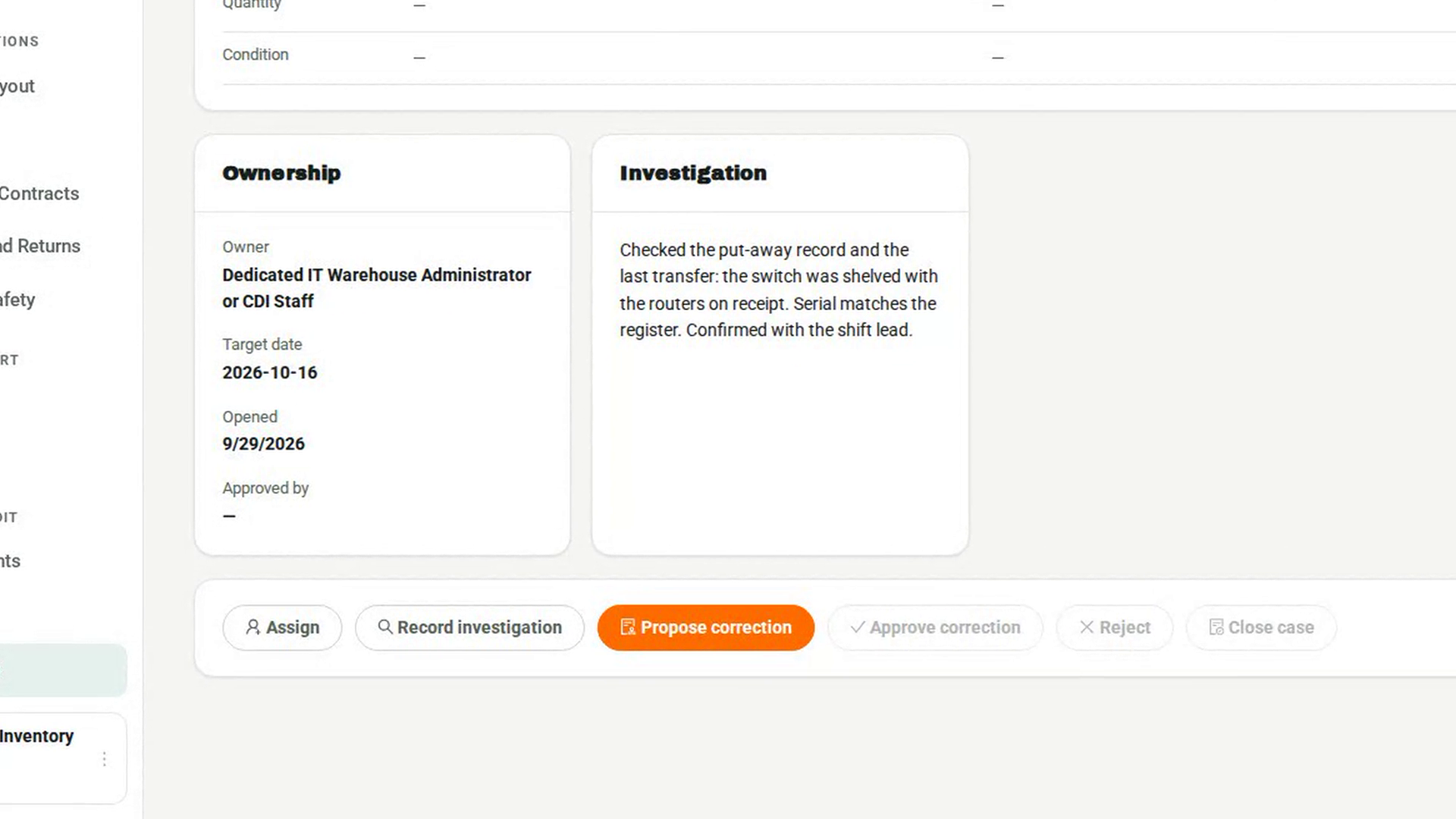
Select Record investigation. Under What did you find?, note the records you checked, the physical evidence and who you spoke to. Select Save notes. The notes appear under Investigation.
Propose a correction
Select Propose correction. In the Propose a correction dialog, describe the outcome under What should happen and fill in the corrected values, such as Corrected location or Corrected quantity. Select Submit proposal. The case shows proposed, and nothing has been applied yet.
Have another person approve it
A different approver opens the case and selects Approve correction. In the confirmation they can add a comment, then select Approve and apply. The proposed values are written to the record and the case shows corrected. If the proposal is wrong, they select Reject and give a reason instead.
Close the case
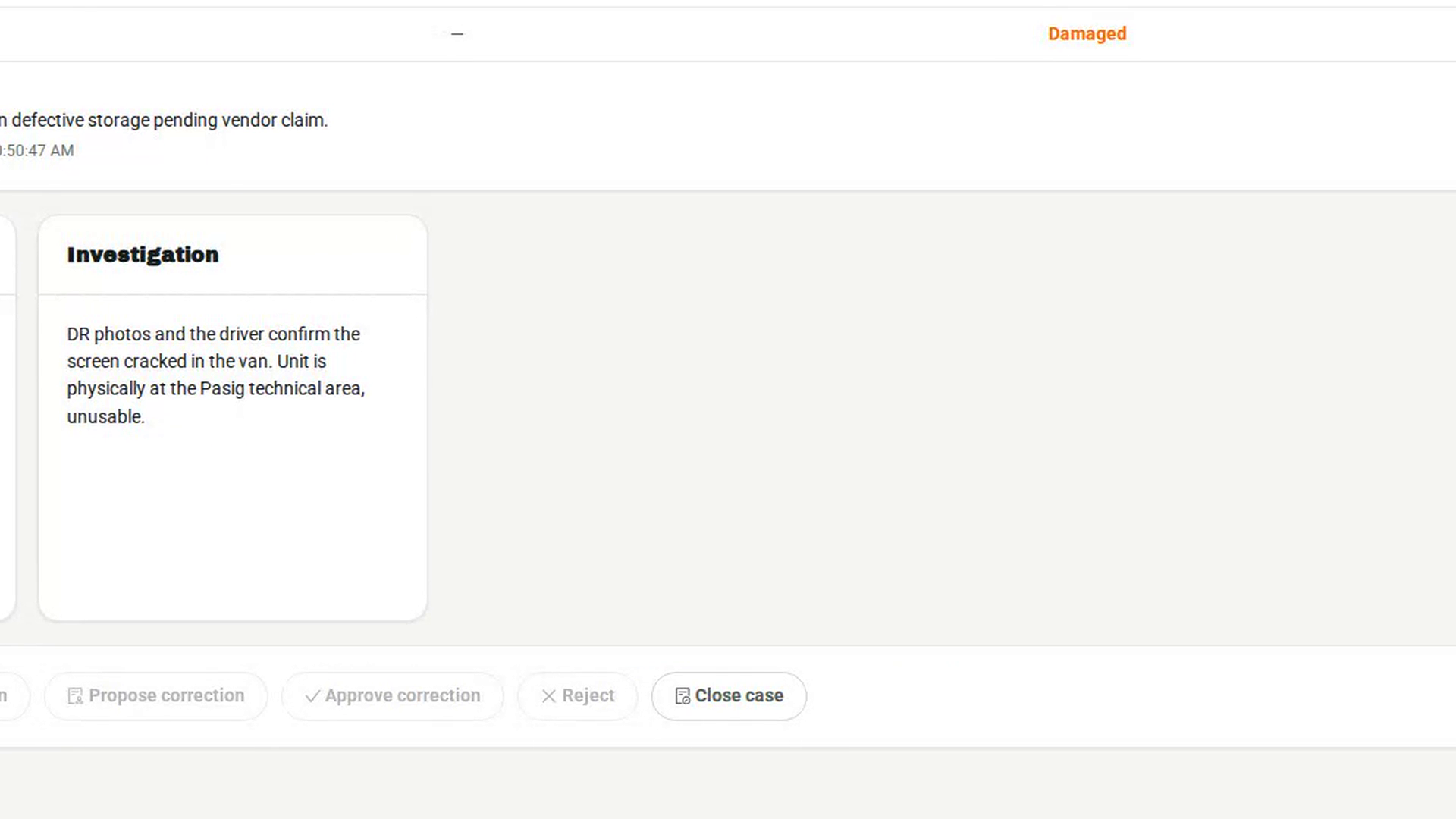
Select Close case. Enter Closure notes and, where one exists, an External process reference. Select Close case.
Screenshots
Step 1: Open the case
Step 2: Assign an owner
Step 3: Record the investigation
Step 4: Propose a correction
Step 5: Have another person approve it
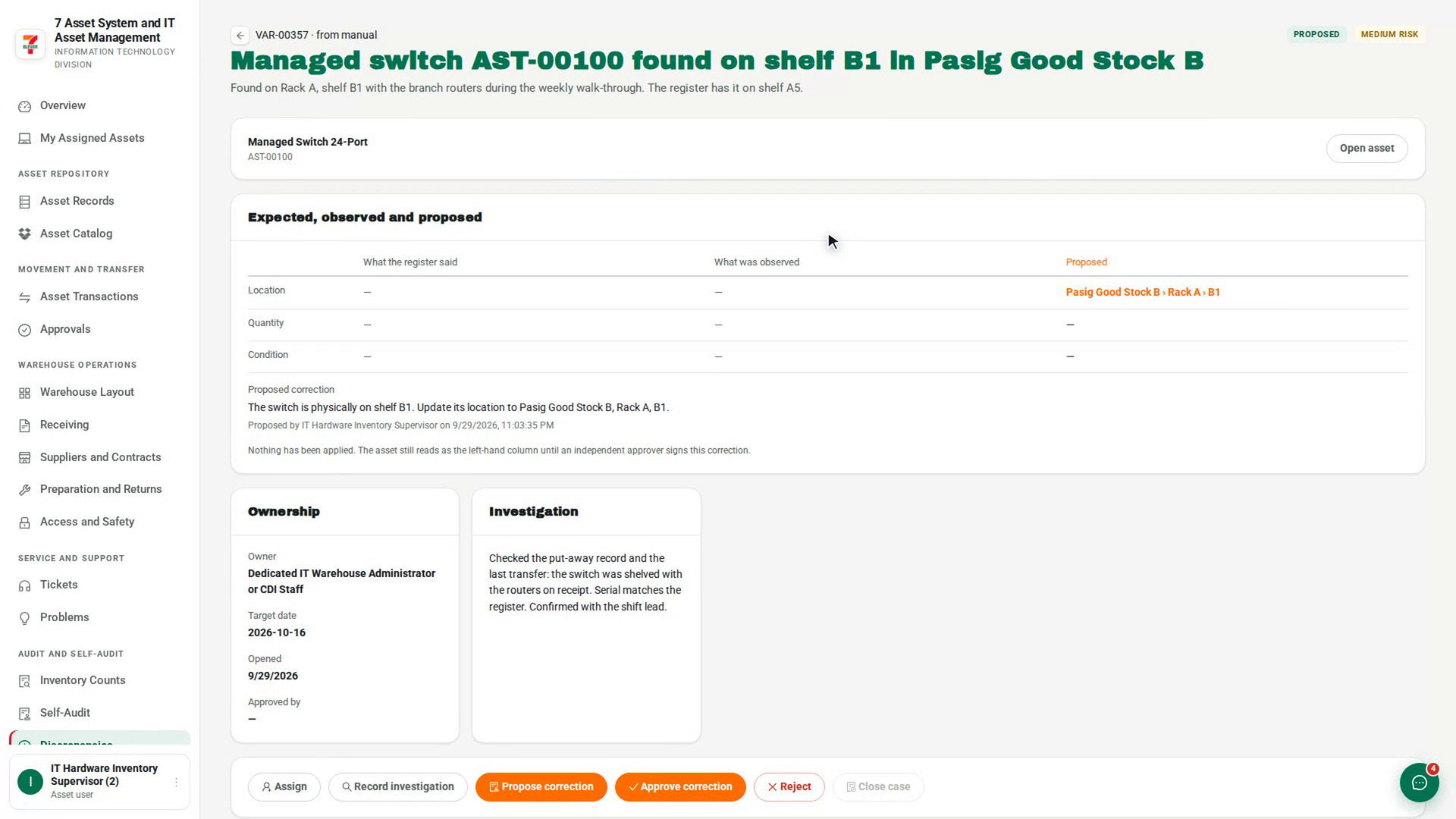
Step 6: Close the case
Watch how
You cannot approve or reject a correction you proposed, even if your role can approve. 7-Asset replies You prepared this correction, so you cannot also approve it. Ask another approver.
Tip: A button you cannot use yet is greyed out. Hover over it to see why — for example, Resolve the case before closing it.
A decision to change nothing is a valid outcome. Record it under What should happen and leave the corrected fields empty, so the approval documents the decision.