Look after the assets assigned to you
My Assigned Assets shows the equipment you are accountable for. Use it to accept equipment sent to you, confirm what you have when a self-audit asks, and report damage, a move, loss or theft.
Before you start
- Everyone who signs in has My Assigned Assets. You do not need a special role.
- An asset appears here once a transfer or allocation to you has been acknowledged.
Steps
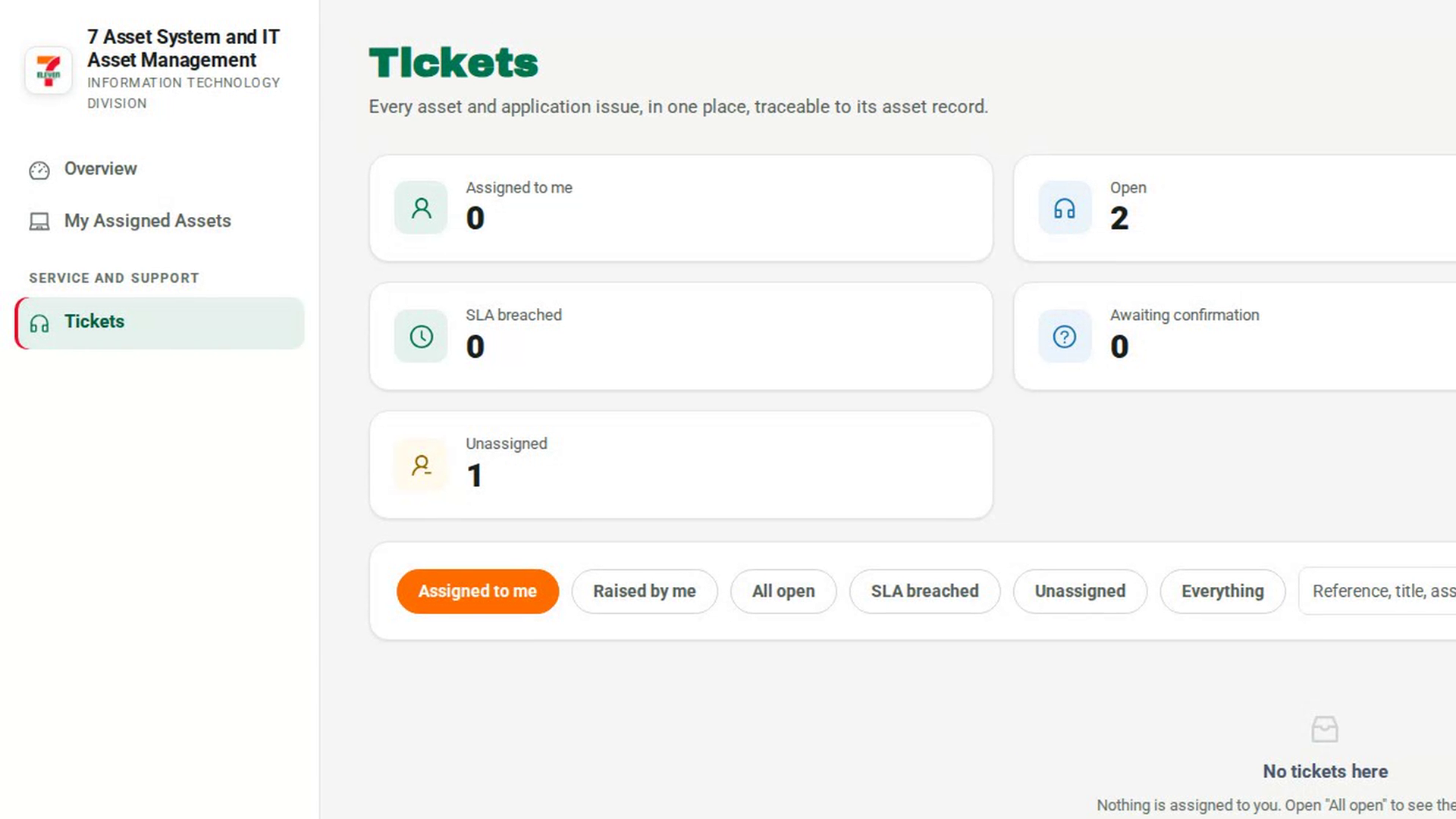
Open My Assigned Assets
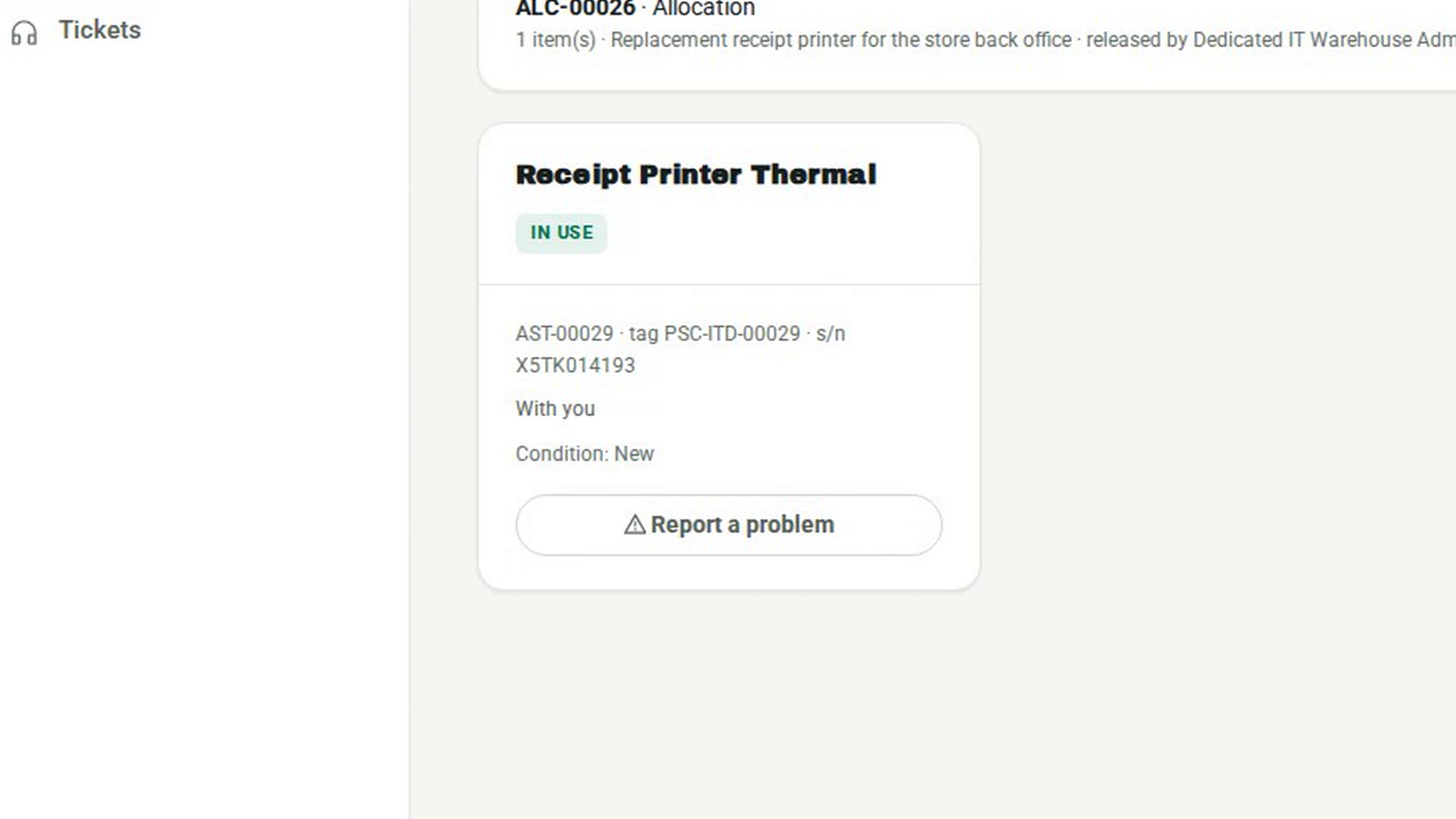
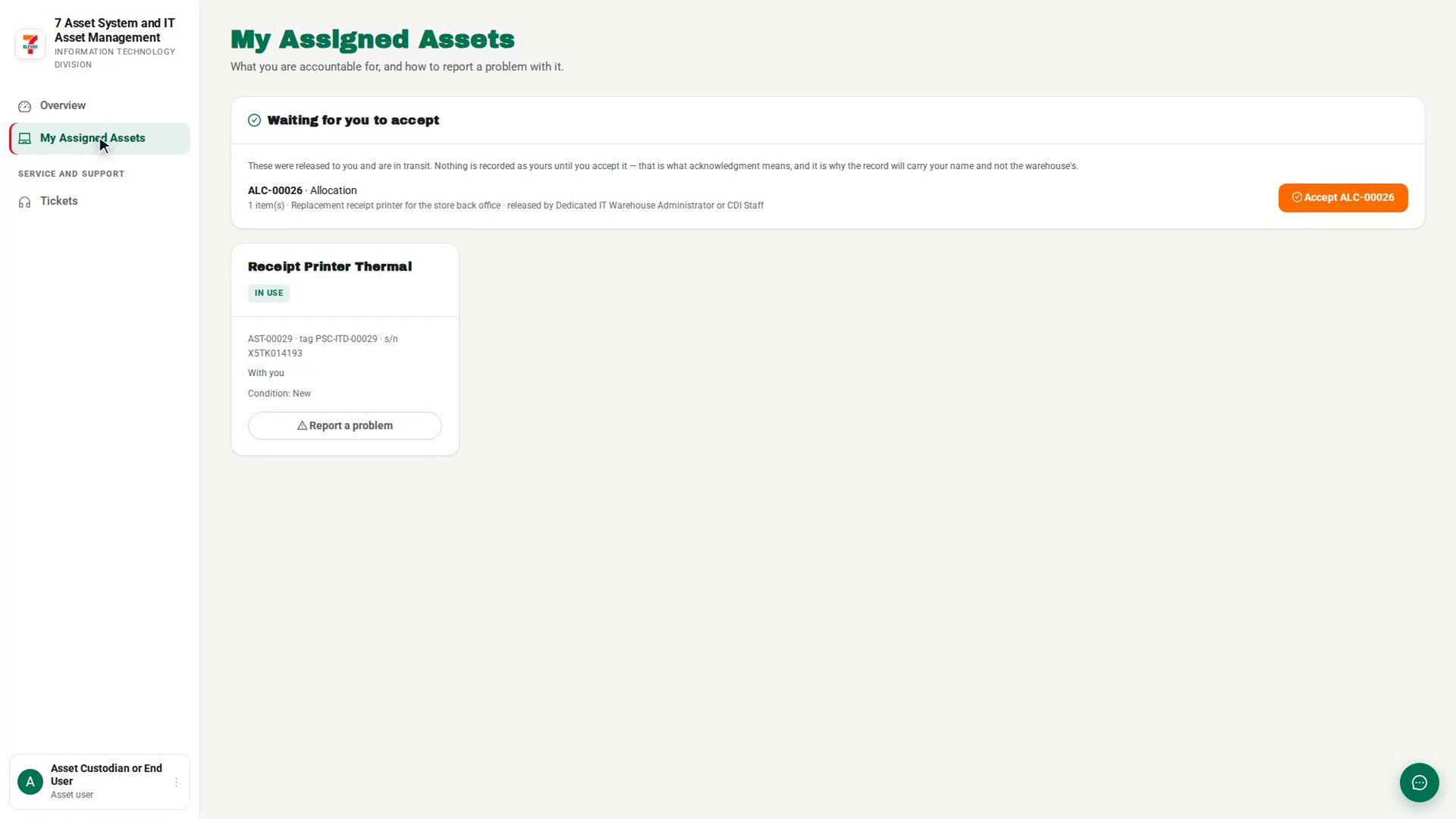
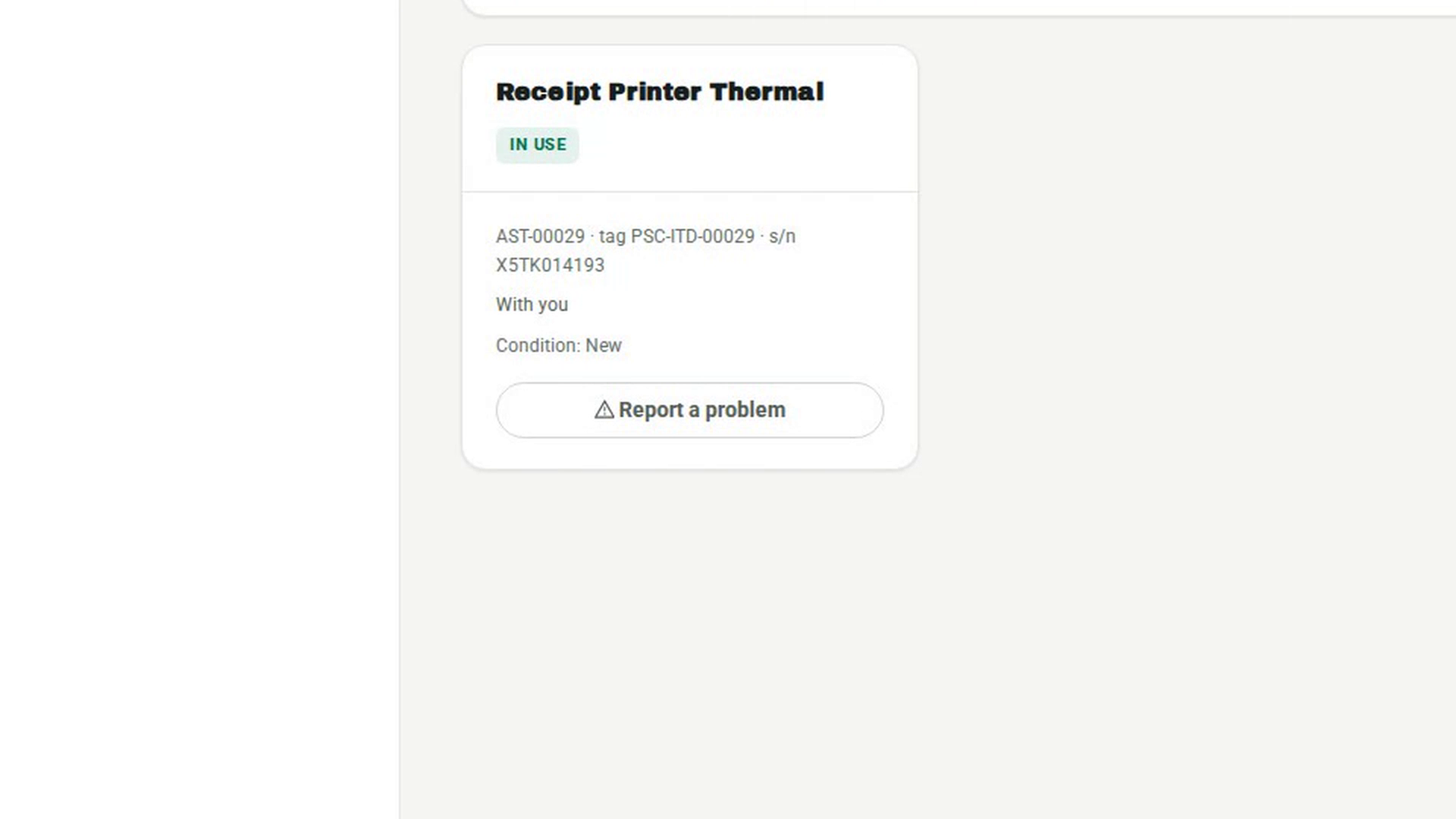
In the sidebar, select My Assigned Assets. Each asset you hold is shown as a card with its name, status, asset code, tag, serial number, location and condition. If you hold nothing, the page says Nothing is assigned to you.
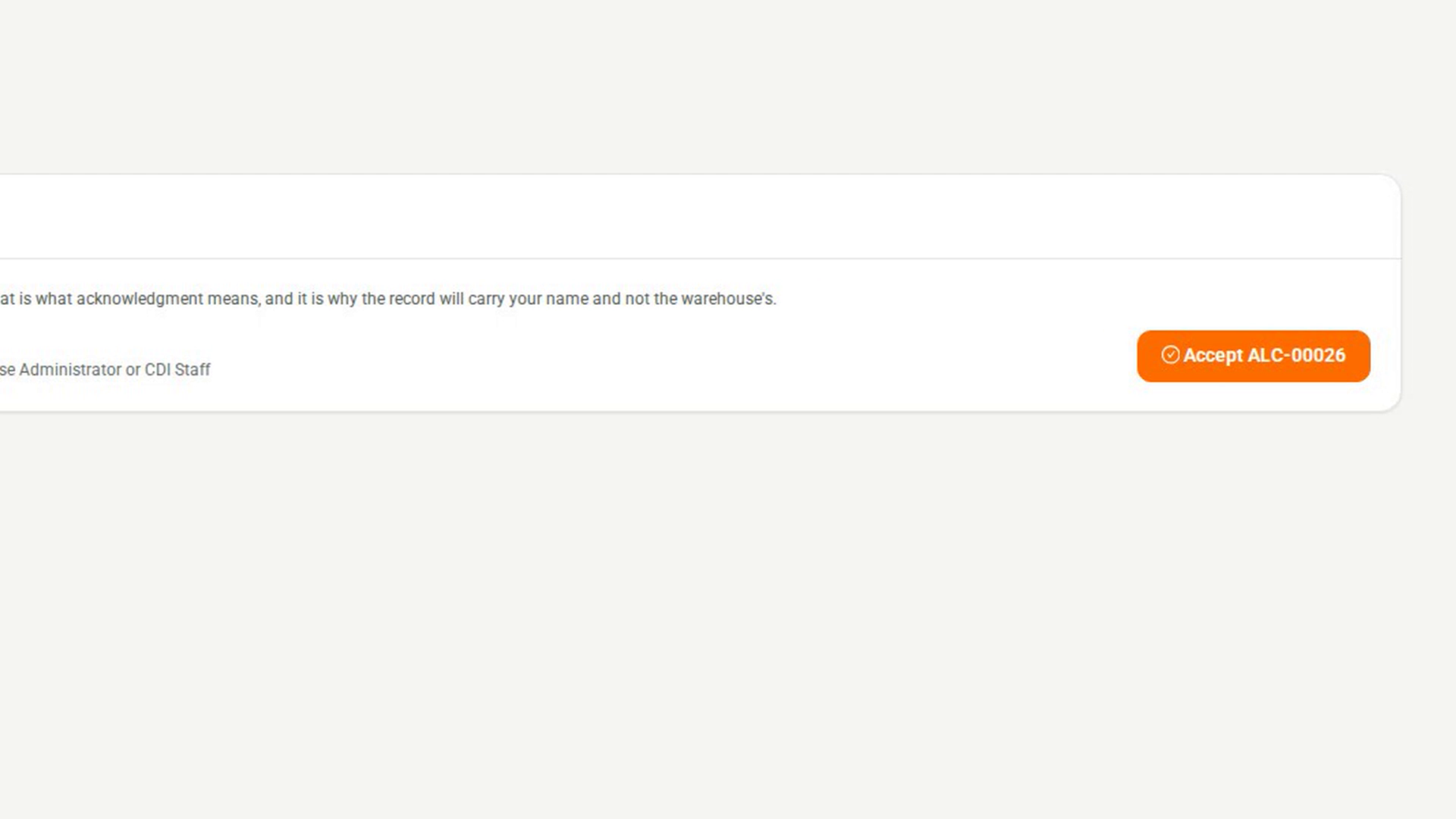
Accept anything waiting for you
If equipment has been released to you, a Waiting for you to accept section lists each delivery with its reference and number of items. Check that you have the items, then select Accept followed by the reference. Until you accept, the equipment is in transit and is not recorded as yours.
Check your assets
Read each card. Location shows With you when the asset is not in a warehouse slot. If something on a card does not match what you have, report it.
Confirm your assets when a self-audit asks
When a self-audit round is open, a card at the top shows its name, how many items you have answered and its due date. Select Confirm my assets. In the Confirm your assets dialog, choose an answer for every item, such as I have it, and it is as described or I cannot find it, then select Submit my answers.
Report a problem with an asset
On the asset's card, select Report a problem. Under What happened, choose what changed, describe it under What you observed, and select File report. A message confirms the report and says the asset record is unchanged pending review.
Screenshots
Step 1: Open My Assigned Assets
Step 2: Accept anything waiting for you
Step 3: Check your assets
Step 4: Confirm your assets when a self-audit asks
Step 5: Report a problem with an asset
Watch how
Reporting never changes your record by itself. A report or a self-audit answer opens a case for the inventory team. The asset's location, custodian and condition stay exactly as they are until the team investigates and a correction is approved.
Every item needs an answer. Nothing is filled in for you in the self-audit. Submit my answers stays disabled until each item has one.