Record safety and handling rules
The Safety tab of Access and Safety keeps the warehouse's stacking rules, rack load limits and other handling rules on record, together with the inspections that checked them. It is a register: protective equipment, fire protection and the rules themselves are applied on the warehouse floor, not by 7-Asset.
Before you start
- To open the screen you need to be IT Business Systems or Application Team, IT Hardware Inventory Supervisor, Dedicated IT Warehouse Administrator or CDI Staff, ITD Head and Management, or IT Service Governance.
- Record a rule is available to IT Business Systems or Application Team and IT Hardware Inventory Supervisor.
- Record an inspection is also available to Dedicated IT Warehouse Administrator or CDI Staff.
- Have the source of each rule ready, such as the warehouse procedure or the rack's rating plate. No rules come with 7-Asset.
Steps
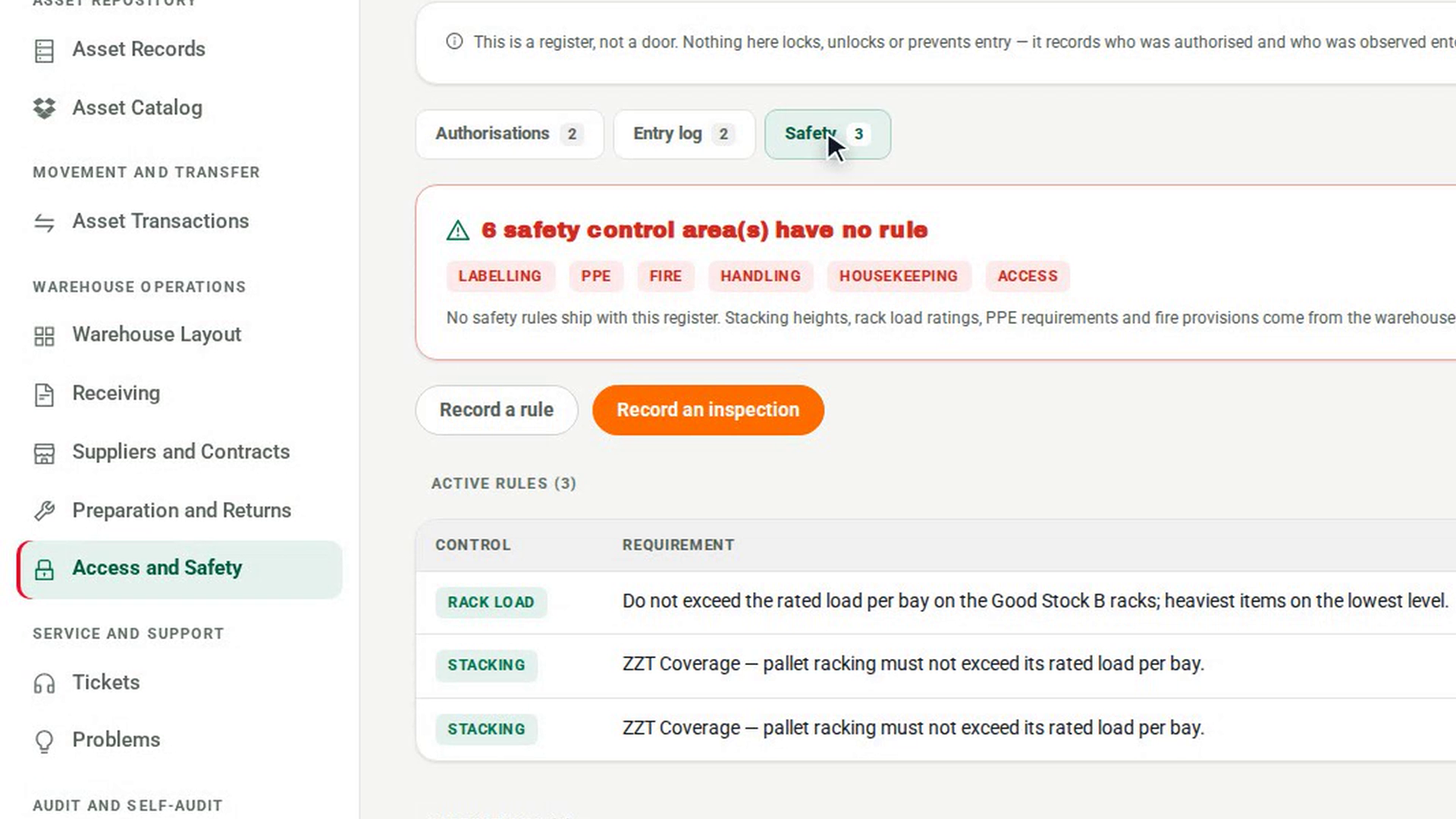
Open the Safety tab
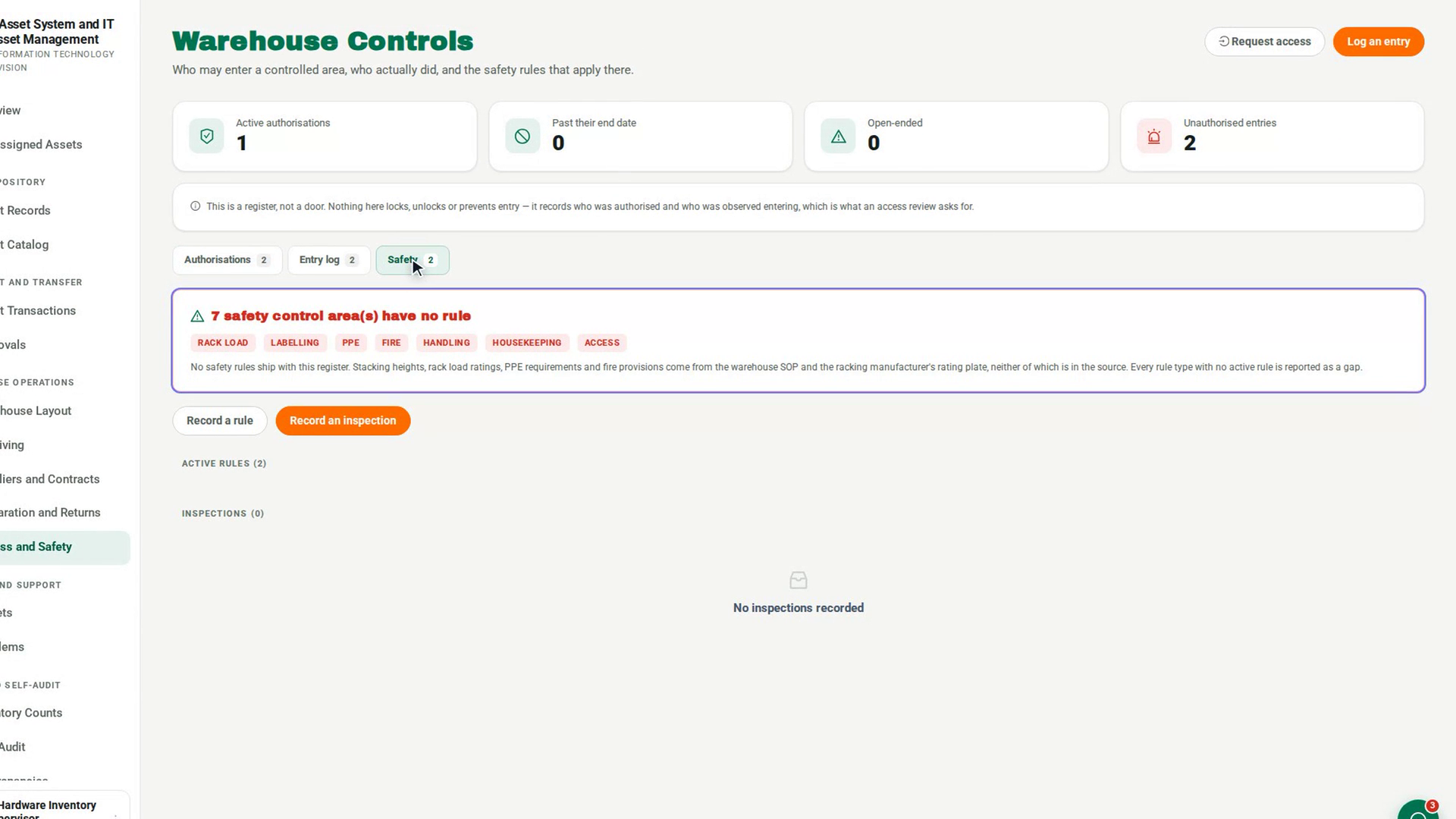
In the sidebar, under Warehouse Operations, select Access and Safety, then open the Safety tab.
See which areas have no rule
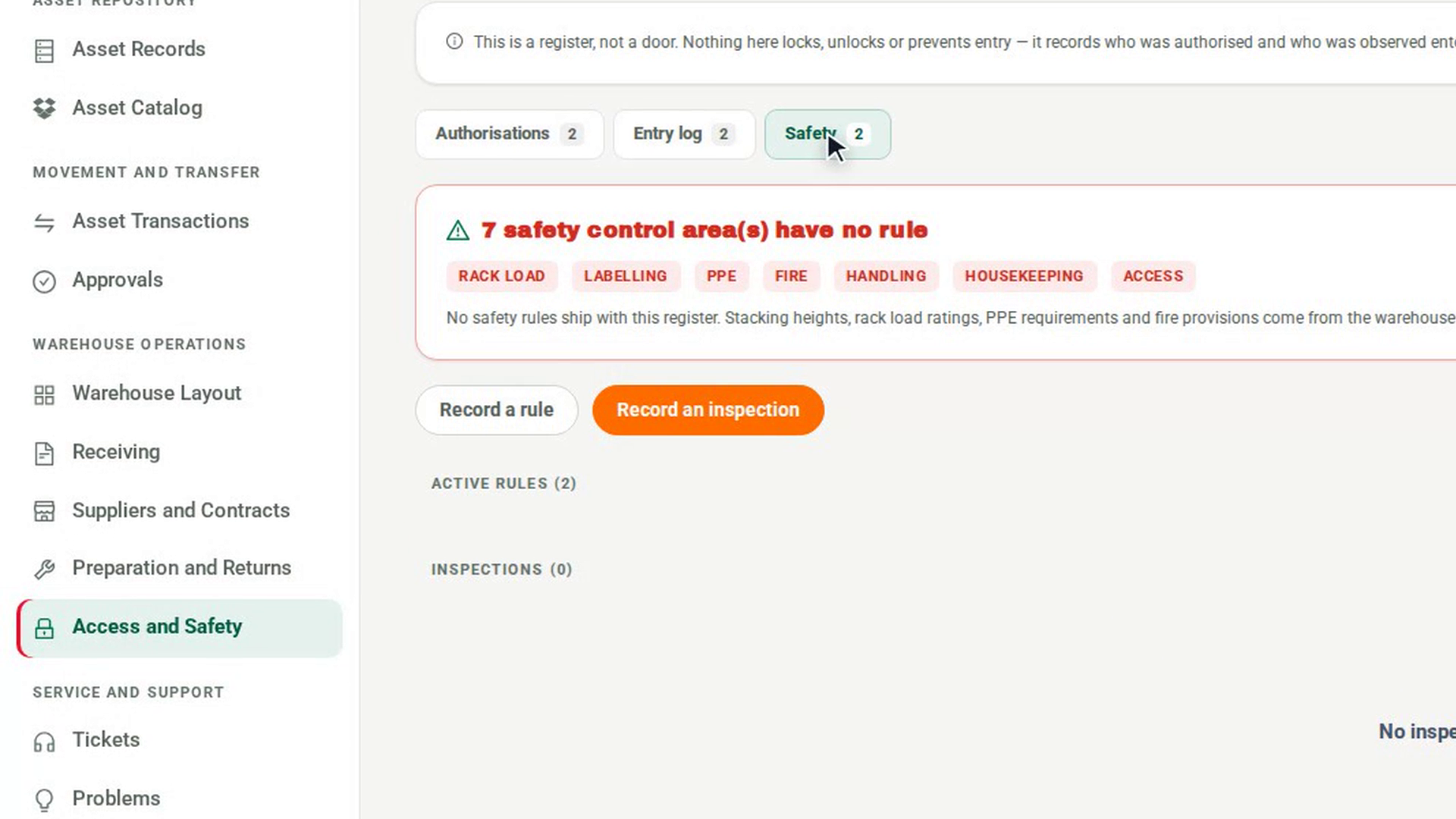
The panel at the top counts the safety control areas with no rule yet, such as stacking, rack load, labelling, PPE, fire protection, material handling, housekeeping and access. A warning also lists any area that has a rule but no number where a limit belongs.
Record a rule
Select Record a rule. In Record a safety rule, choose the Control area and write the Requirement. For a limit, enter the Limit and its Unit, for example kg per bay. Choose the Area it applies to and name the Source. Select OK.
Read the active rules
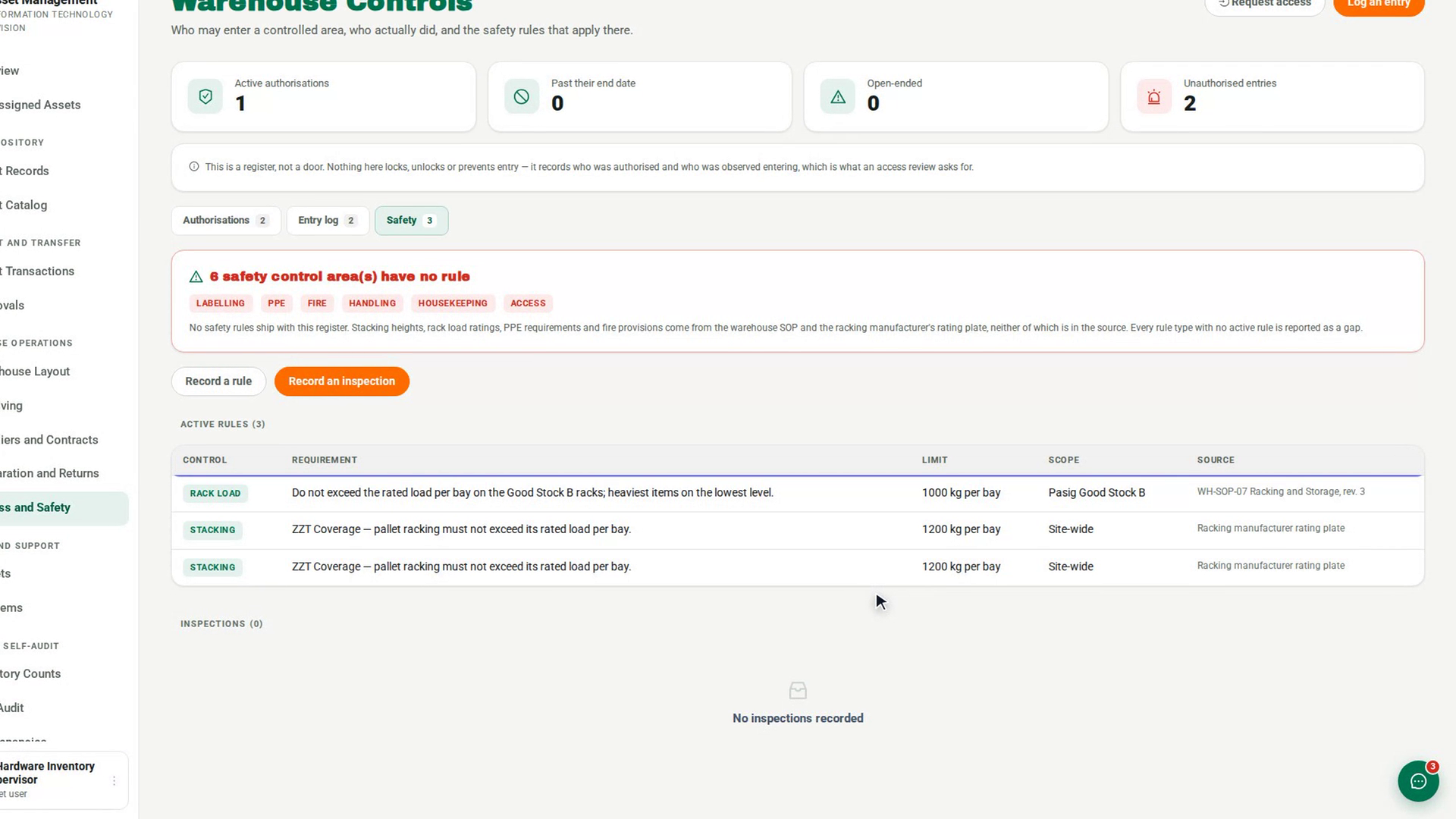
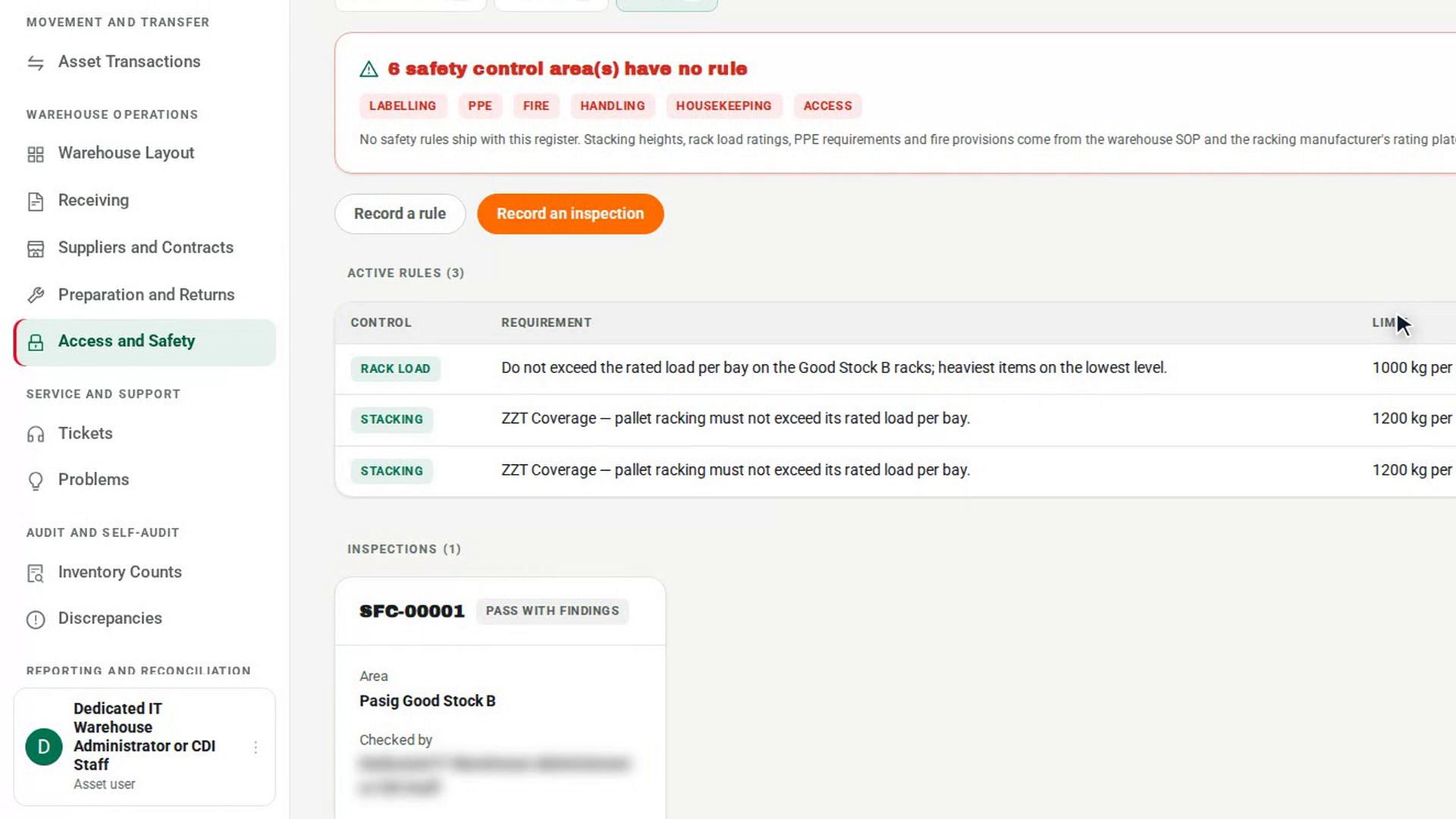
Under Active rules, the table shows each rule's Control, Requirement, Limit, Scope and Source. A rule with no area applies Site-wide.
Record an inspection
Select Record an inspection. In Record a safety inspection, choose the Area and enter the Period. Select Add an observation for each rule you checked, choose the Rule, and mark it Compliant, Non-compliant or N/A. Add Findings and select OK.
Read the inspections
Under Inspections, each card shows the inspection's reference and result, with Area, Checked by, When and Non-compliant, the number of rules that failed.
Screenshots
Step 1: Open the Safety tab
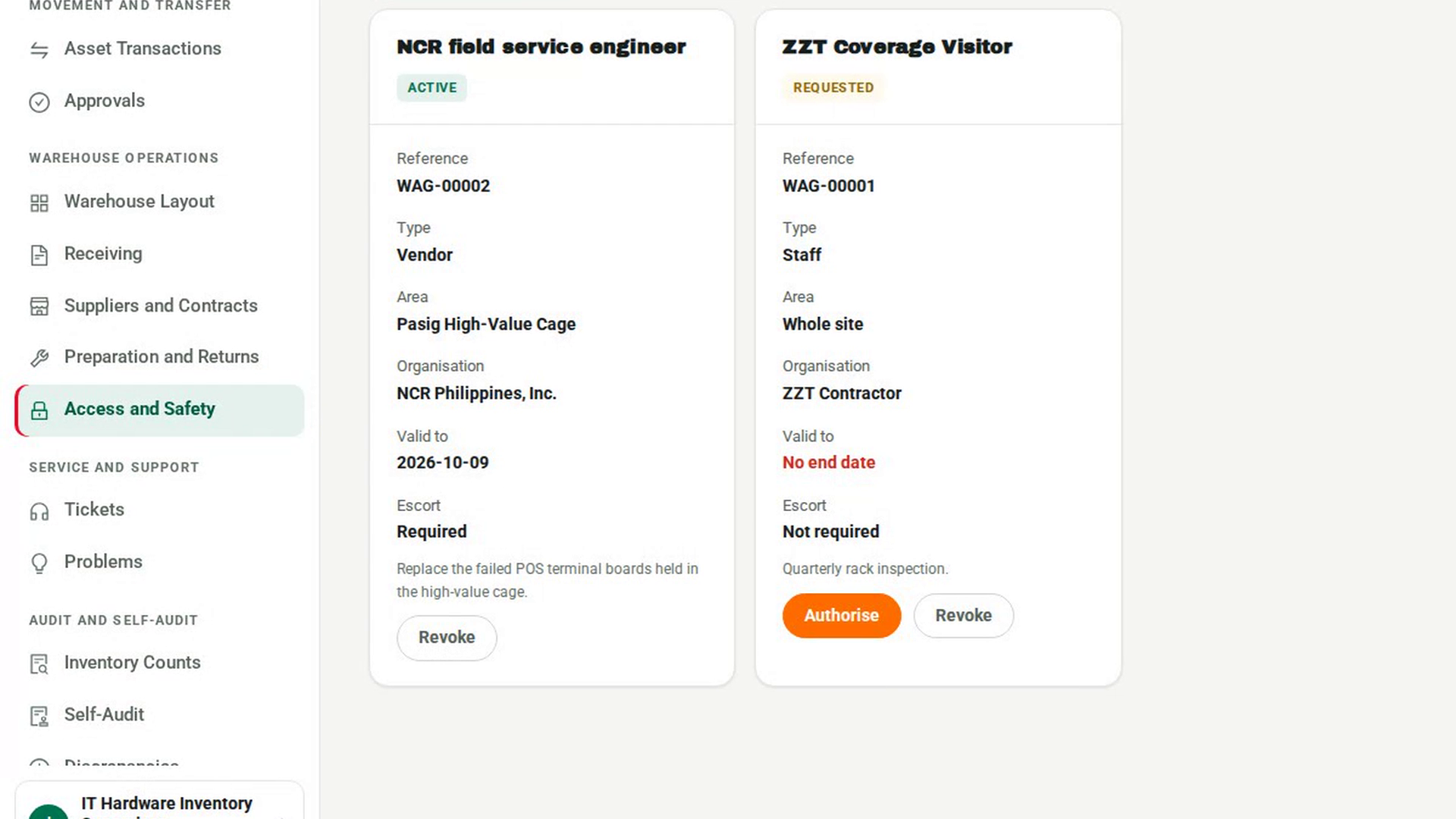
Step 2: See which areas have no rule
Step 3: Record a rule
Step 4: Read the active rules
Step 5: Record an inspection
Step 6: Read the inspections
Watch how
Tip: A limit needs a unit. 7-Asset refuses a limit on its own: "1200" is not a load rating, "1200 kg per bay" is.
A Non-compliant observation must say what was wrong. If the note on that line is empty, 7-Asset refuses the inspection: A failed observation must say what was wrong — otherwise nobody can fix it.