Reuse and redeploy an asset
Put a returned asset back into deployable stock after inspection, and then allocate it to its next user. You record the reuse decision on Preparation and Returns. The new allocation is a separate transaction on Asset Transactions.
Before you start
- To classify the return, you need to be Asset and Logistics Associate, IT Warehouse Technical Team, Dedicated IT Warehouse Administrator or CDI Staff, IT Hardware Inventory Supervisor, or IT Business Systems or Application Team.
- The asset must have the status Returned and appear under Awaiting inspection.
- If it needs rebuilding first, the preparation and its quality check need two different people.
Steps
Find the returned asset
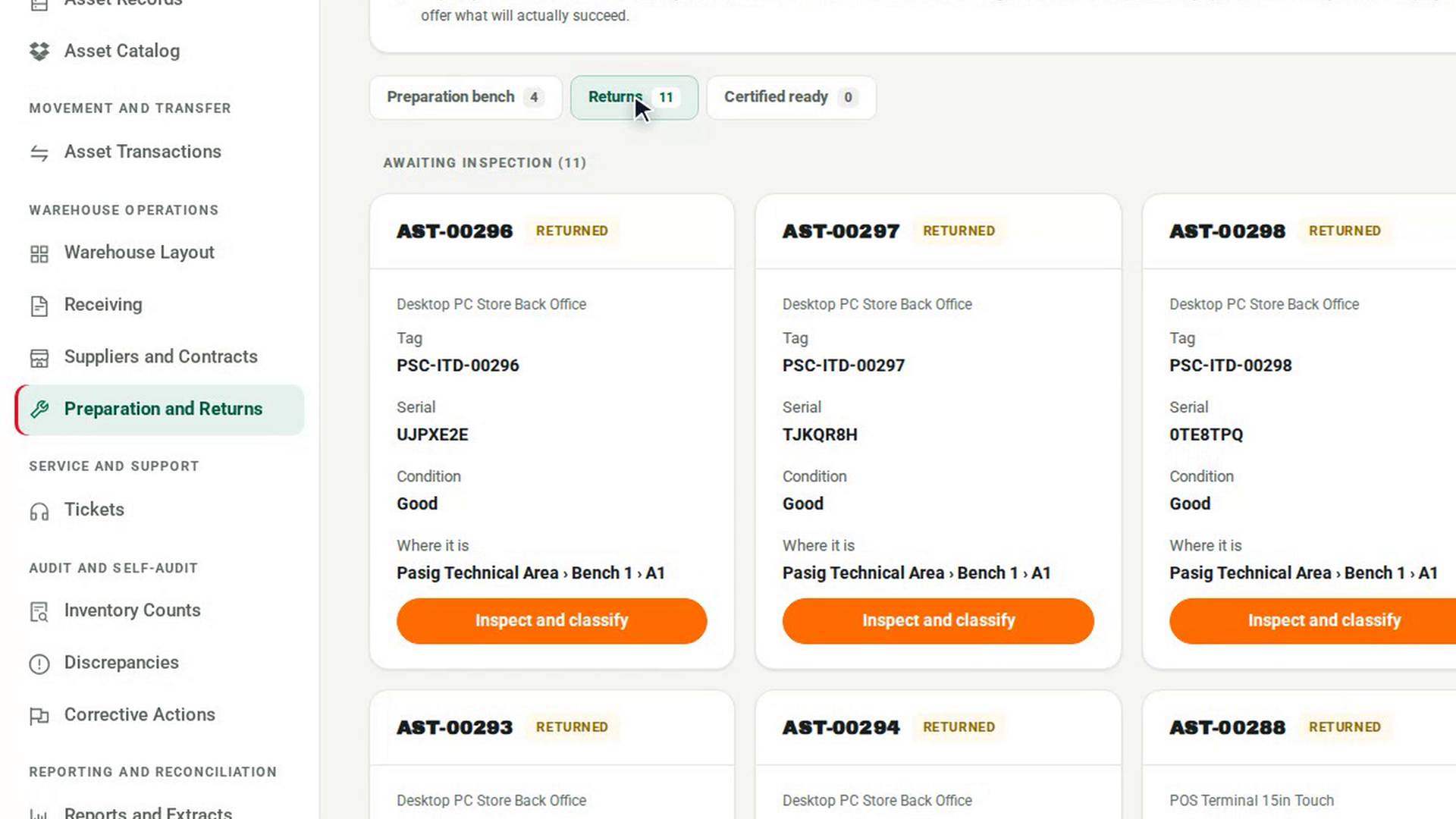
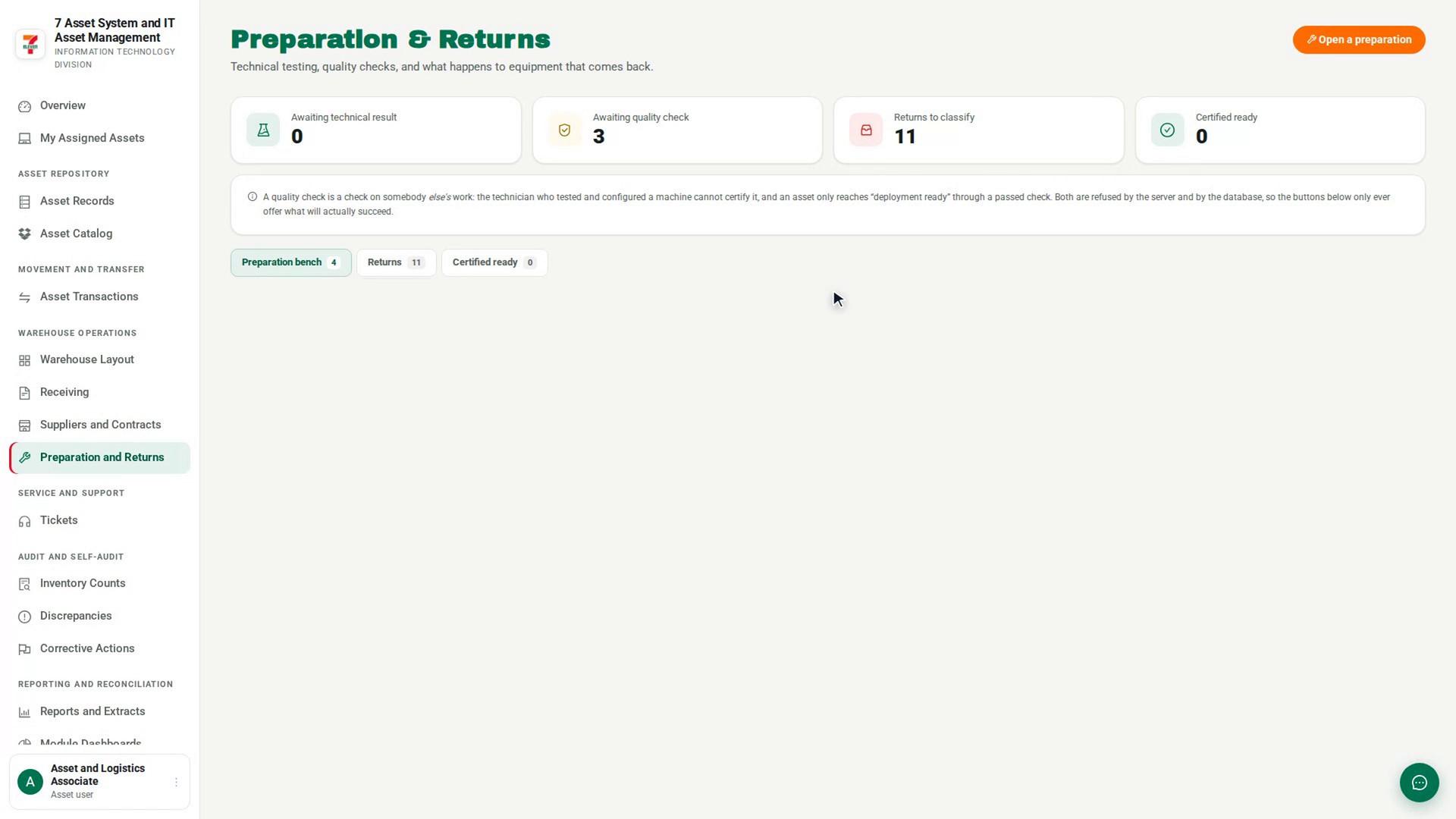
In the sidebar, under Warehouse Operations, select Preparation and Returns, then open the Returns tab. Find the asset under Awaiting inspection.
Classify it for reuse
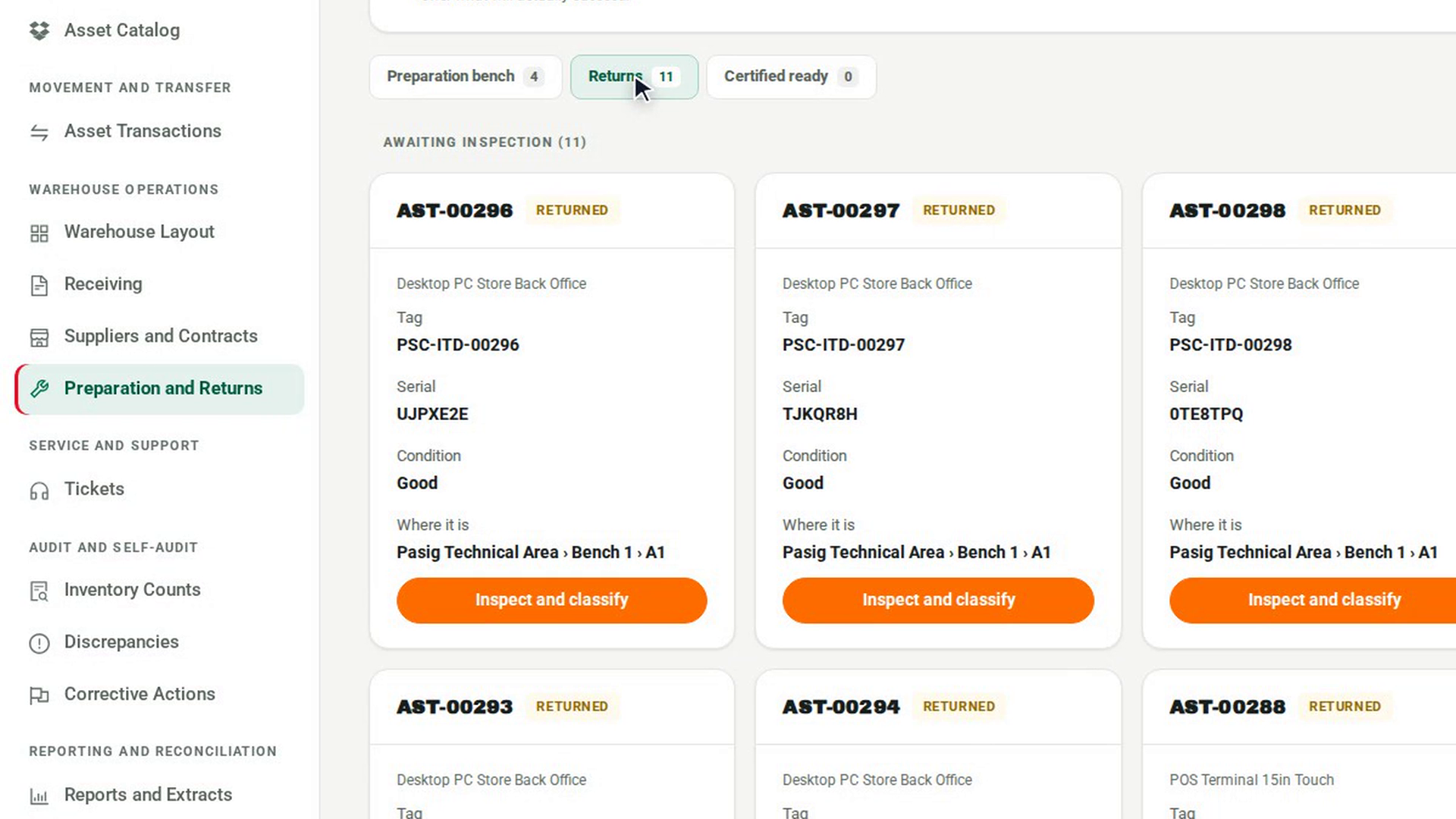
Select Inspect and classify. If the asset is fit to use as it is, choose Reusable — held in Good stock. If it needs a rebuild or a new image first, choose Testing required — held in Testing. Write your reason in Why and select OK.
Record where it went
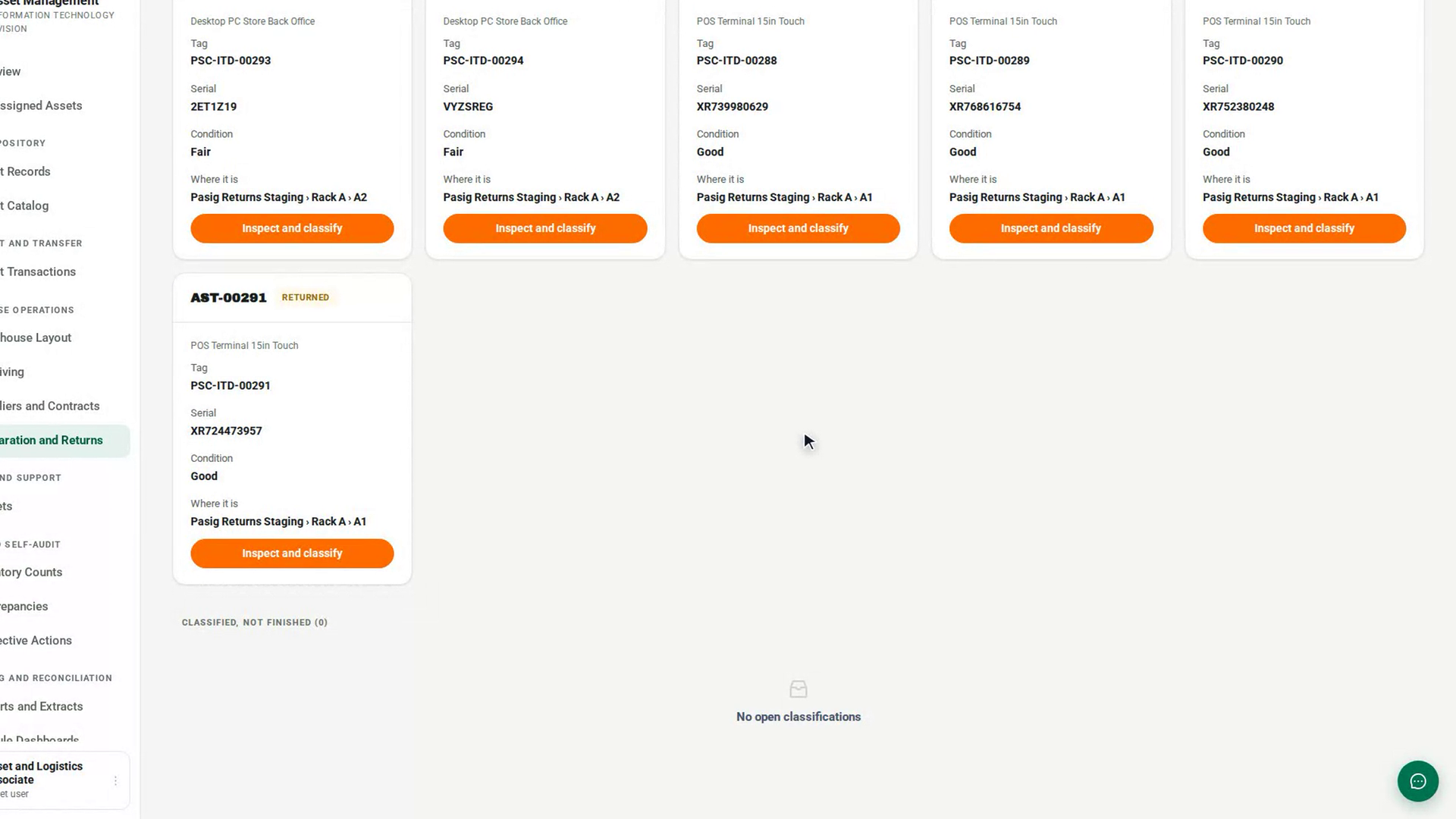
Under Classified, not finished, select Record where it went and choose a slot in the area the decision names. Select OK. Segregated shows Yes.
Prepare it, if testing is required
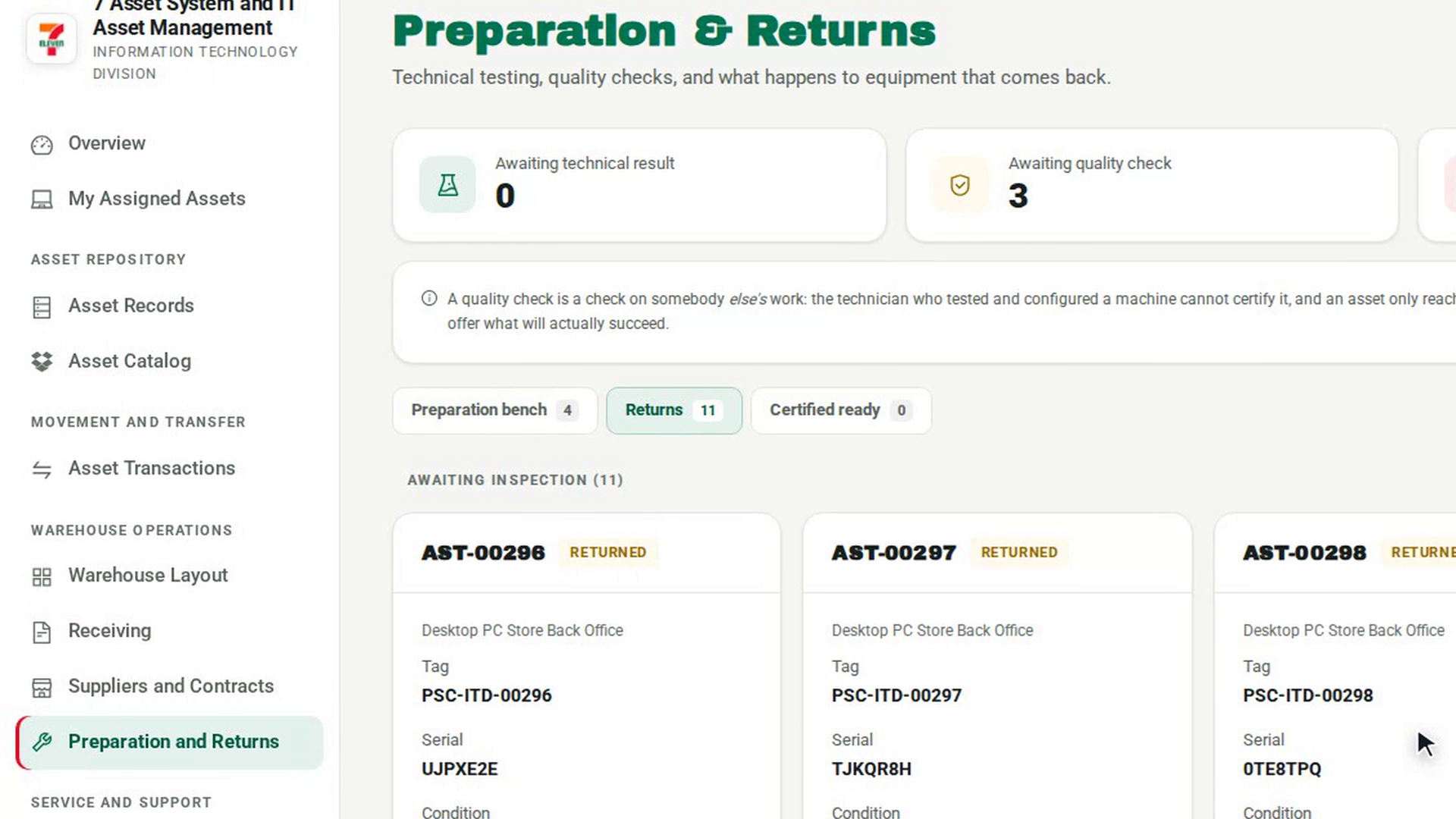
For Testing required, go to the Preparation bench tab and select Open a preparation. Choose Redeployment under Why is it being prepared?. Record the technical result, have a colleague pass the Quality check, then Conclude with Deployment ready. The asset appears on the Certified ready tab.
Link the preparation and close
Back on the Returns tab, for a Testing required decision select Link the follow-up, enter the Preparation id and select OK. Then select Close. A Reusable decision needs no follow-up, so you can close it as soon as it is segregated.
Allocate the asset again
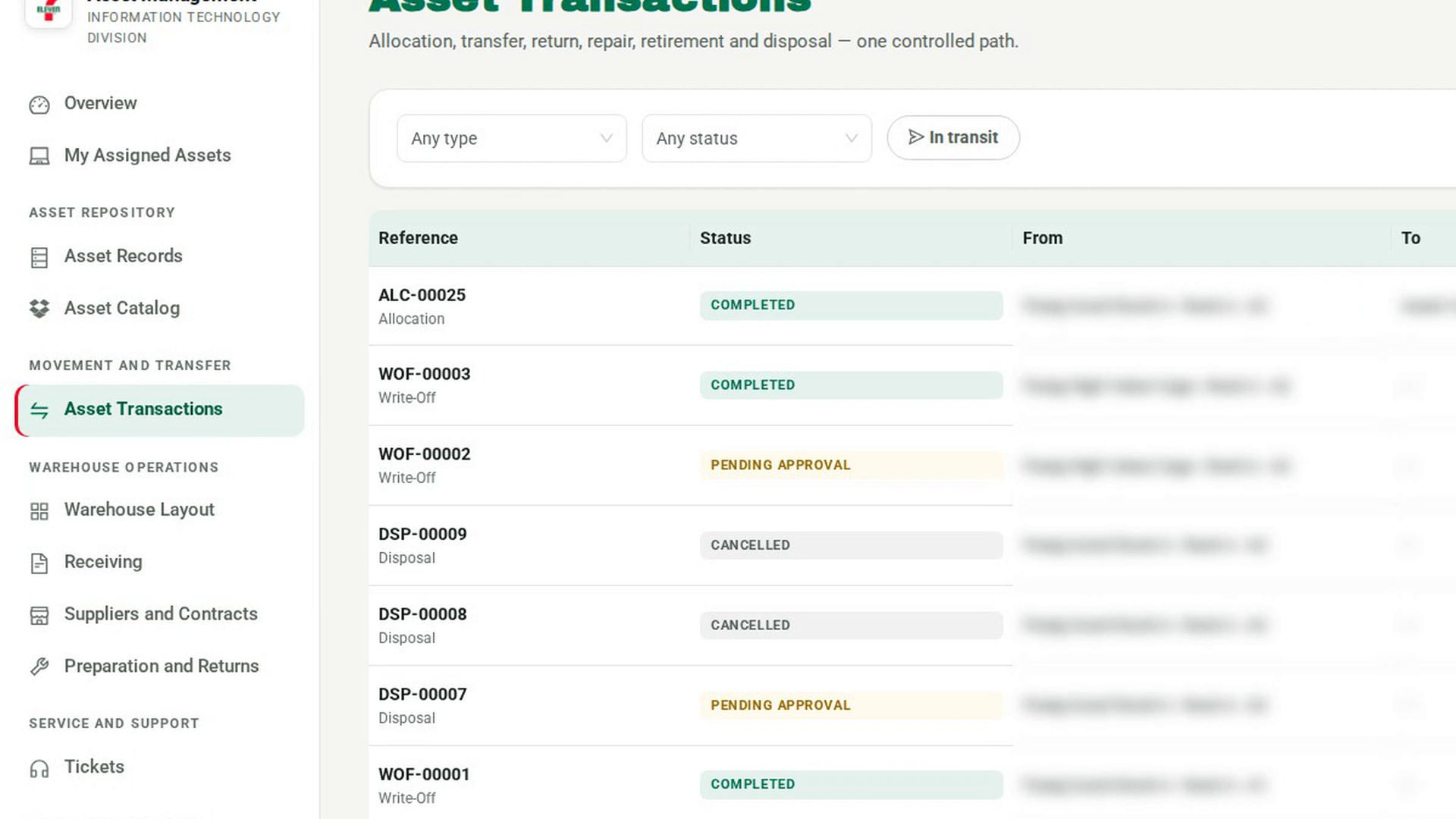
In the sidebar, under Movement and Transfer, select Asset Transactions and create an allocation for the asset. The allocation goes through its own approval and acknowledgment.
Screenshots
Step 1: Find the returned asset
Step 2: Classify it for reuse
Step 3: Record where it went
Step 4: Prepare it, if testing is required
Step 5: Link the preparation and close
Step 6: Allocate the asset again
Watch how
Tip: Nothing on Preparation and Returns allocates the asset. A Reusable or Deployment ready asset waits in stock until you create the allocation.
An allocation is refused while the asset sits in an area that is not deployable, such as Testing, Defective or Quarantine. The refusal names the area. An asset prepared in the Testing area has to be moved to Good stock with an internal movement before you allocate it.