Manage suppliers
Keep the list of suppliers your organisation orders from, keep their contact details current, and review how each one has performed.
Before you start
- To add, edit or archive a supplier, or to review one, you need to be an IT Hardware Inventory Supervisor or the IT Business Systems or Application Team.
- Other roles that work with orders, such as an Asset and Logistics Associate, can see the supplier list but not change it.
Steps
Open Suppliers and Contracts
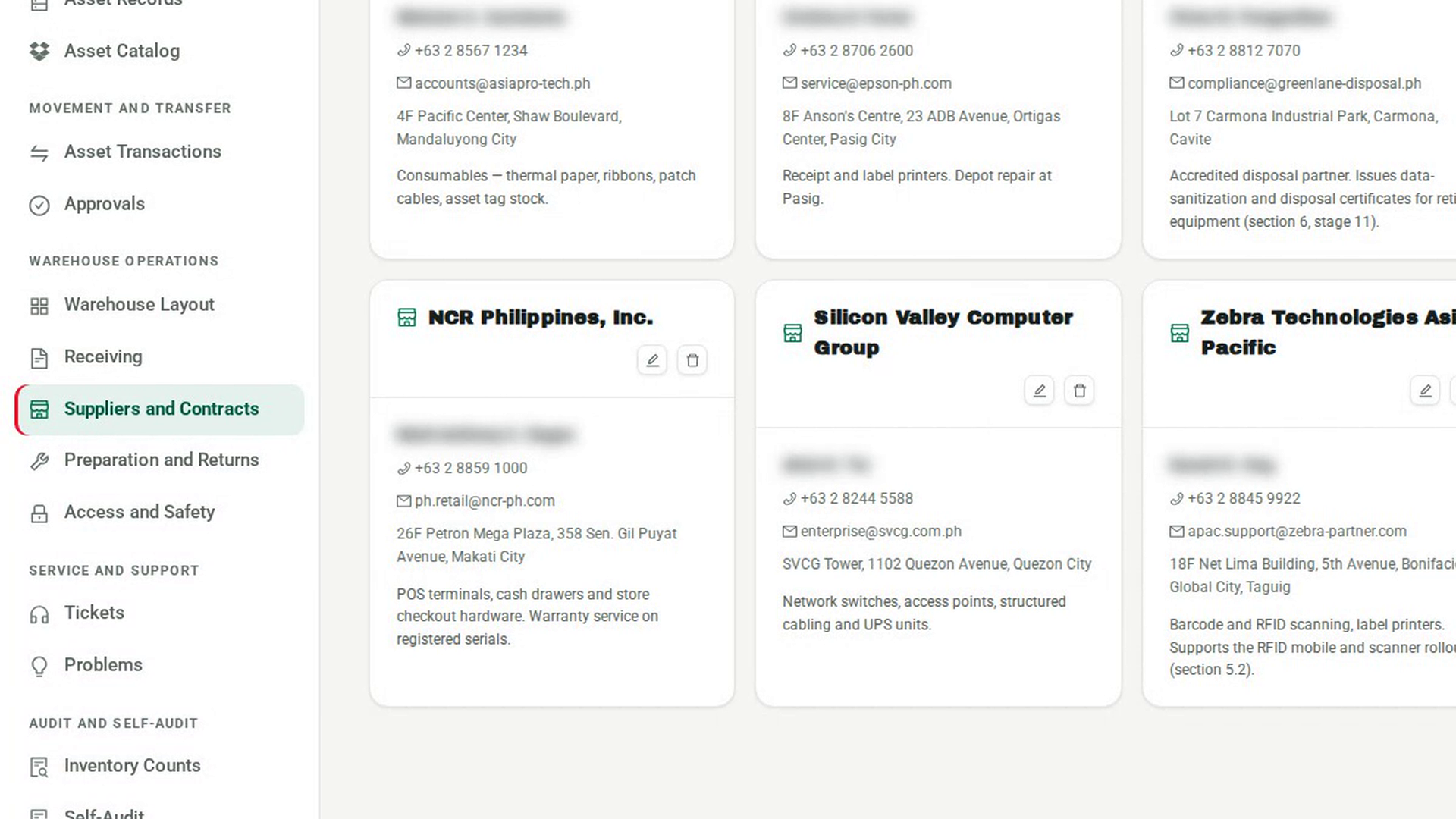
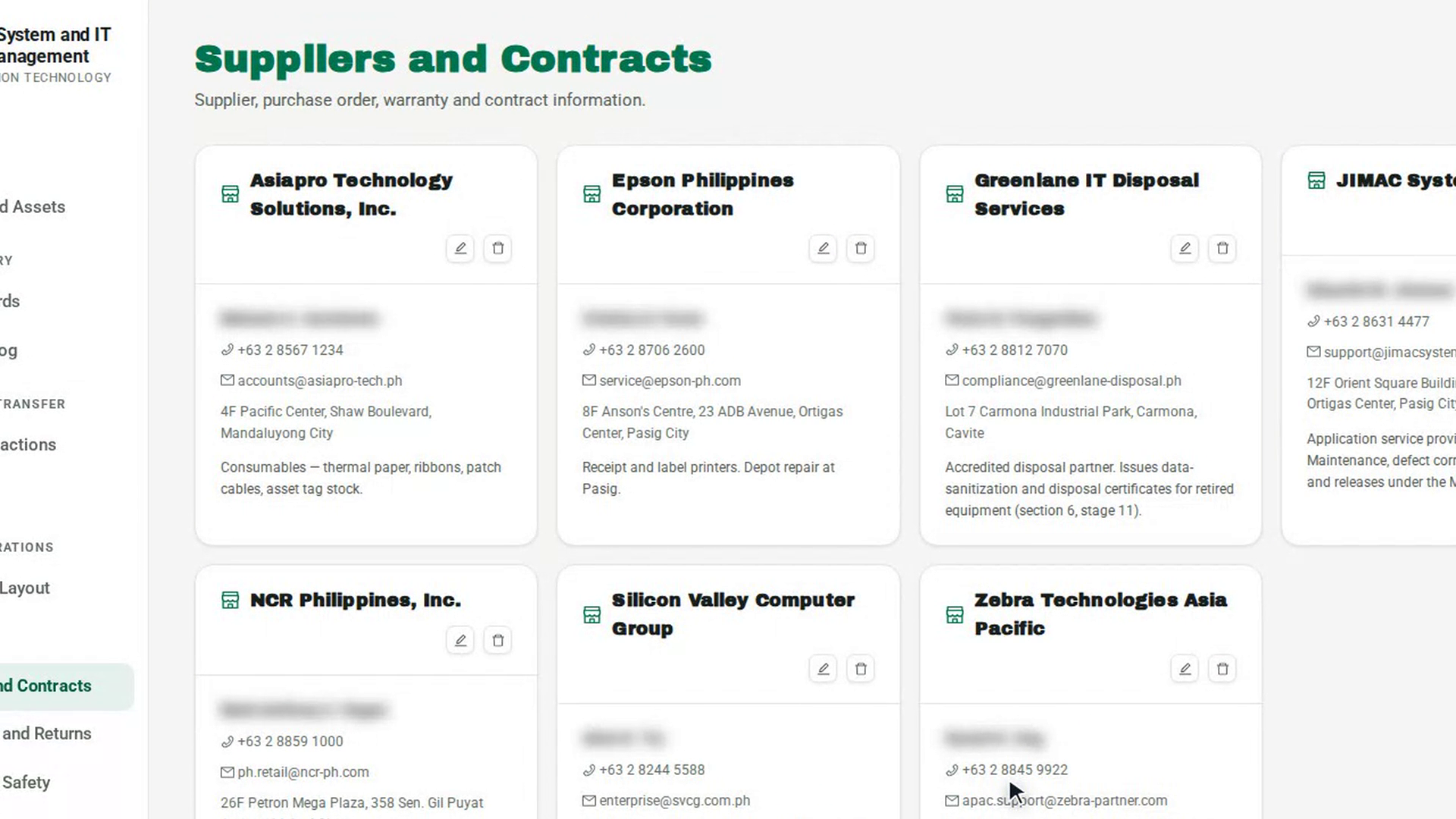
In the sidebar, under Warehouse Operations, select Suppliers and Contracts. Each supplier appears as a card with its contact person, phone, email and address.
Add a supplier
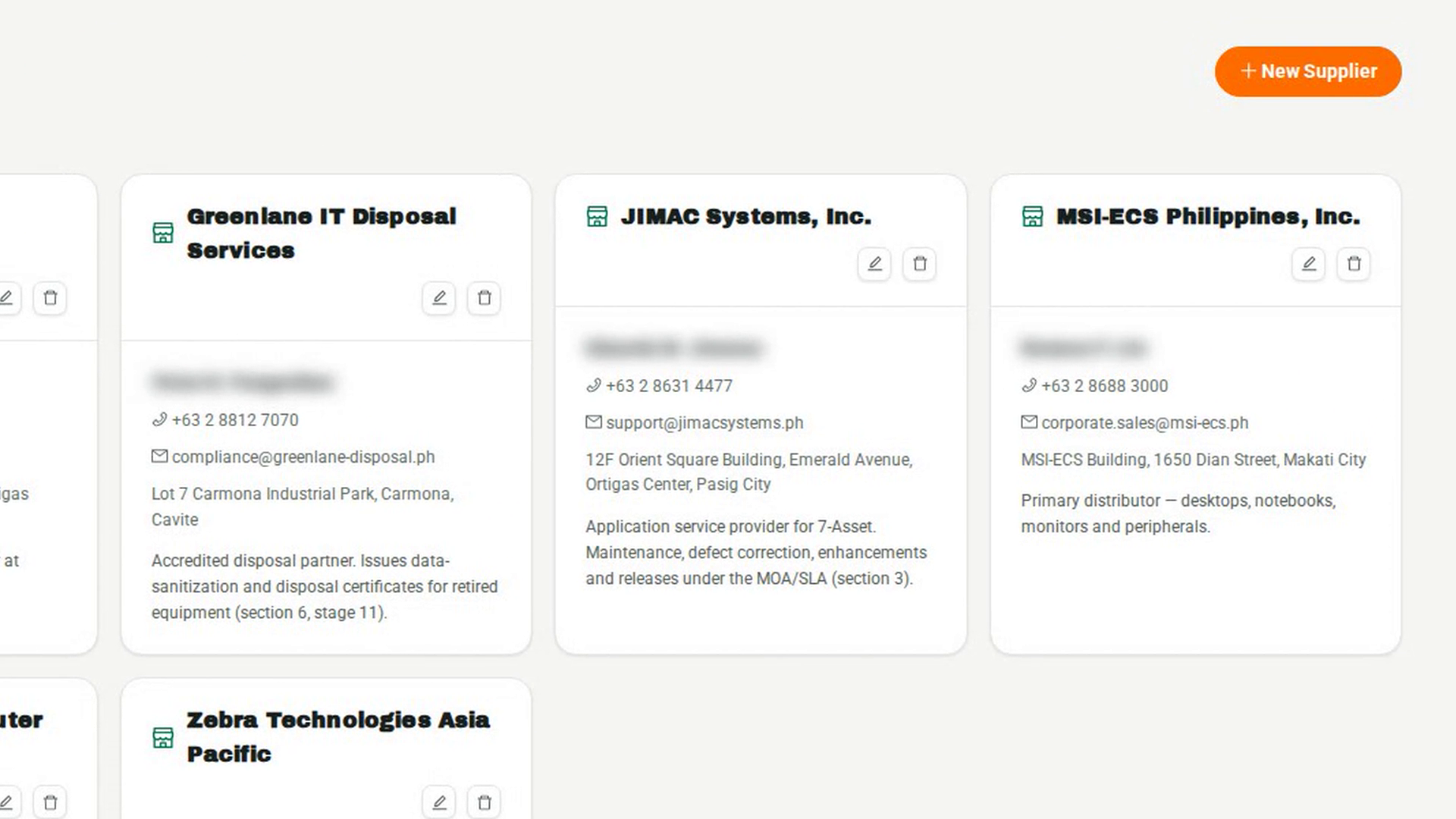
Select New Supplier. In New supplier, enter the Supplier name, and the Contact person, Phone, Email, Address and Notes you have. Select Create supplier. The supplier can now be chosen on a new purchase order.
Update a supplier's details
On the supplier's card, select the Edit supplier button. Change the details in Edit supplier and select Save supplier.
Archive a supplier you no longer use
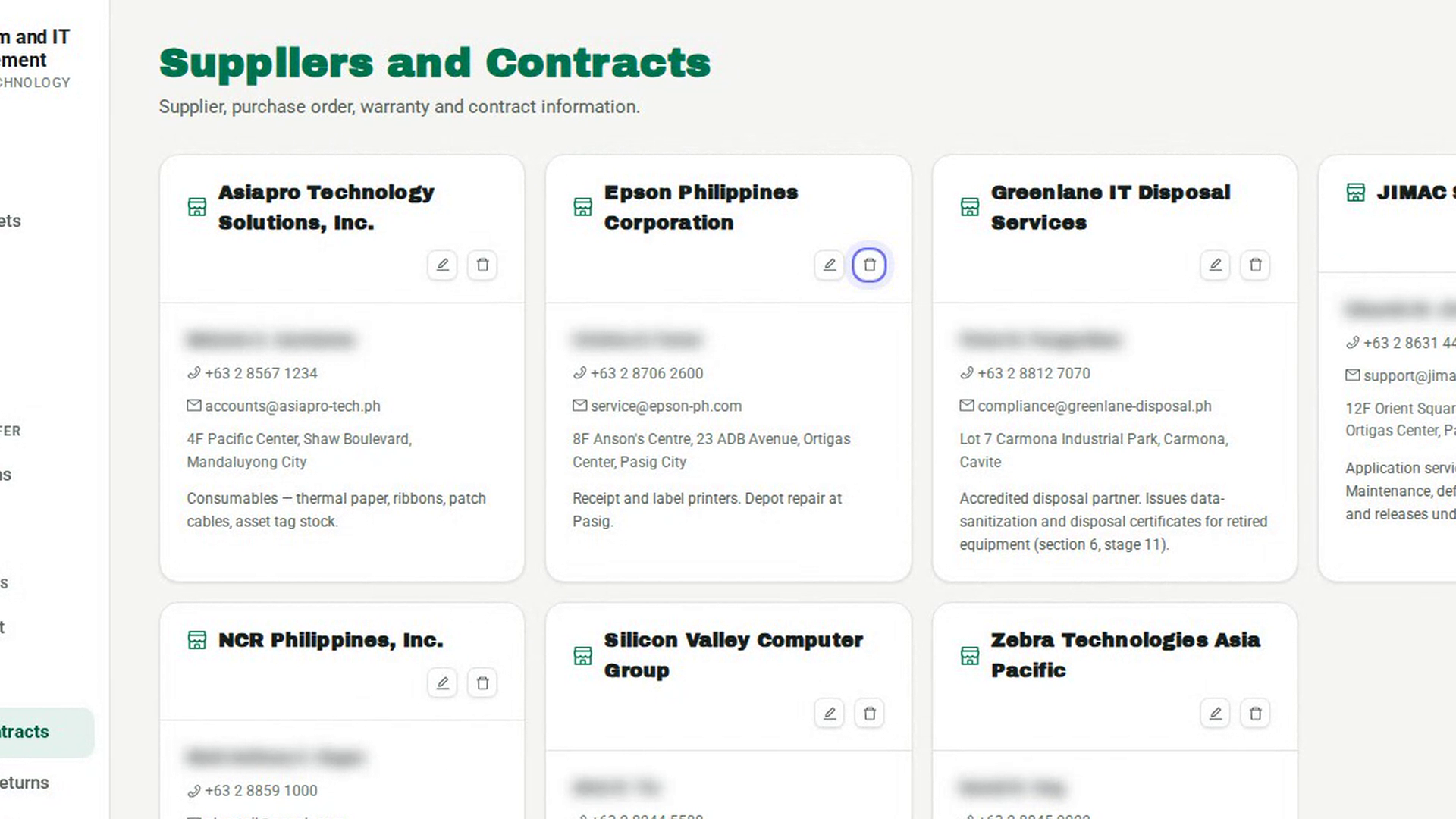
On the card, select the Archive supplier button, then Archive. The supplier is hidden from the list.
Review how a supplier performed
In the sidebar, under Reporting and Reconciliation, select Contracts and Performance, then Review a supplier. Choose the Supplier, name the Period and enter its From and To dates, then select Measure this period to see orders, on-time deliveries, acceptance and discrepancies. Choose a Rating, write your Findings and Actions agreed, and choose whether to Save as draft or Sign the review. Select OK.
See past reviews
Select the Supplier reviews tab. Each review shows the period, the figures measured at the time, the rating and who signed it.
Screenshots
Step 1: Open Suppliers and Contracts
Step 2: Add a supplier
Step 3: Update a supplier's details
Step 4: Archive a supplier you no longer use
Step 5: Review how a supplier performed
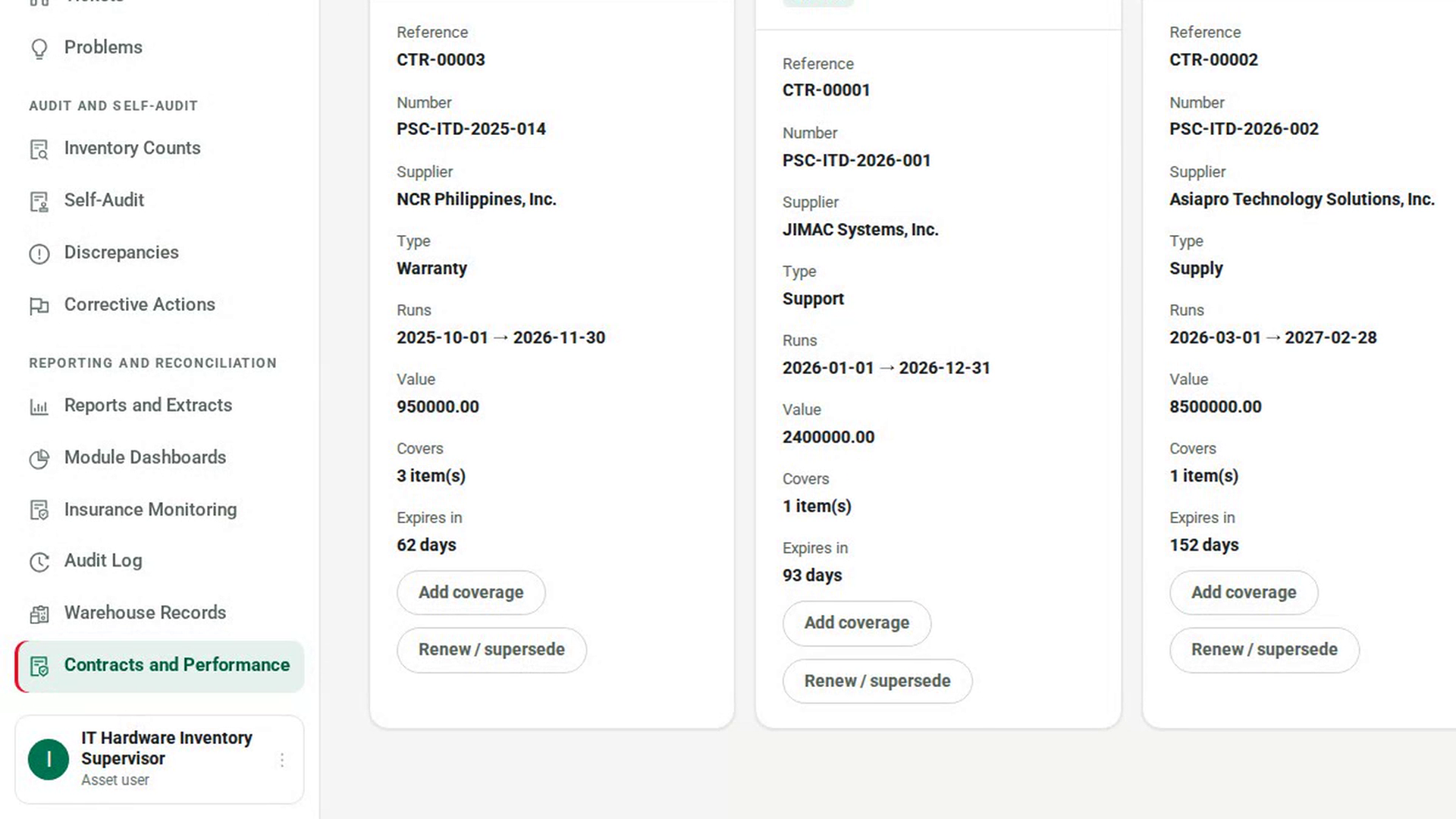
Step 6: See past reviews
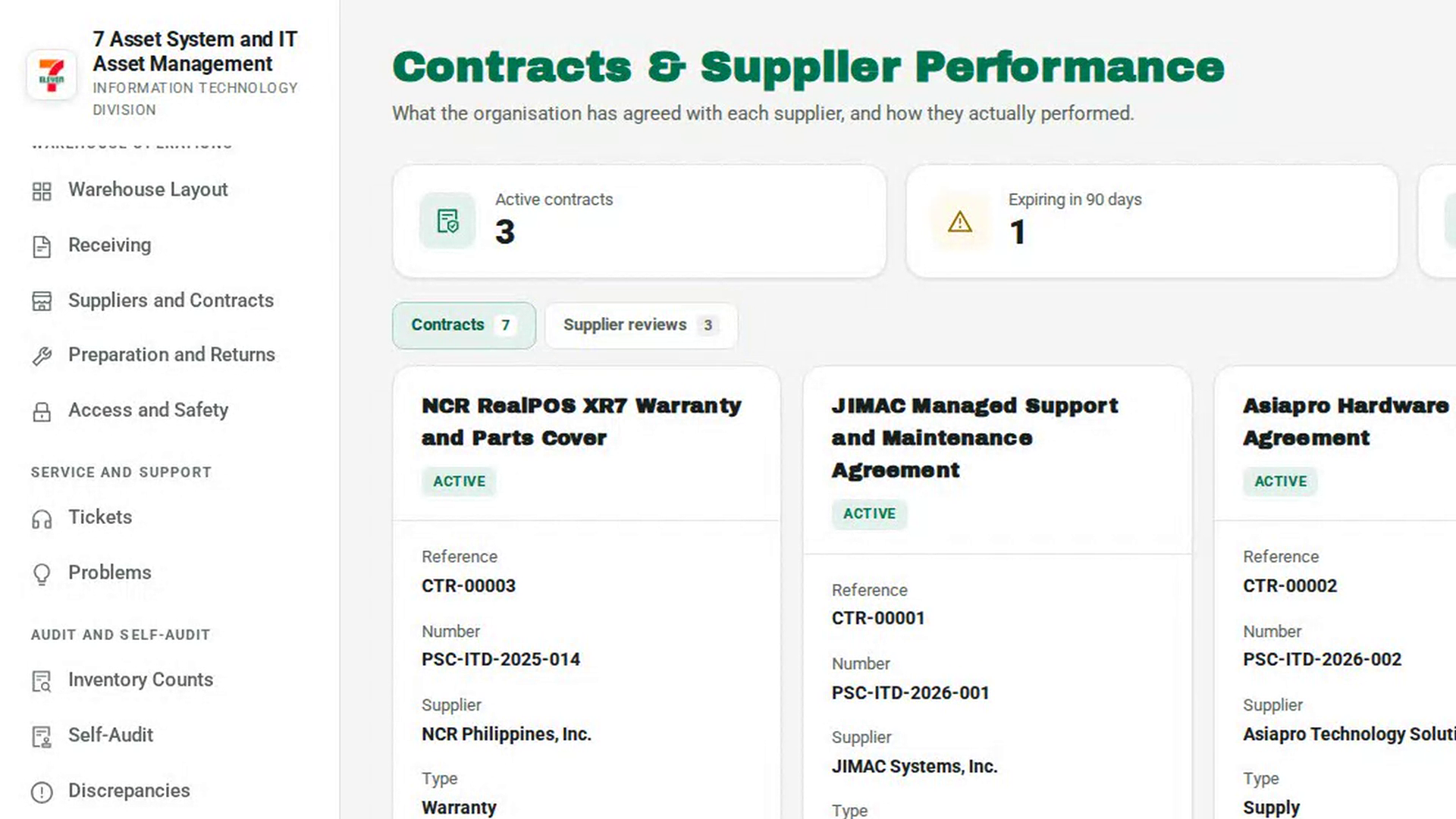
Watch how
Archiving is refused while the supplier still has an open purchase order. Receive or cancel those orders first.
Tip: 7-Asset measures the figures but never grades a supplier — the rating is yours, and a signed review needs one. A signed review keeps the figures it was signed with; if records for that period arrive later, the review says how many figures now differ.