Escalate an overdue action
When a corrective action passes its target date without closing, it should be escalated up the ladder toward ITD management. 7-Asset shows which actions are late and the level each one warrants, but escalating is your decision — nothing escalates by itself.
Before you start
- You need to be IT Service Governance, IT Hardware Inventory Supervisor, or IT Business Systems or Application Team.
- Only open actions with a Target date in the past can be escalated.
Steps
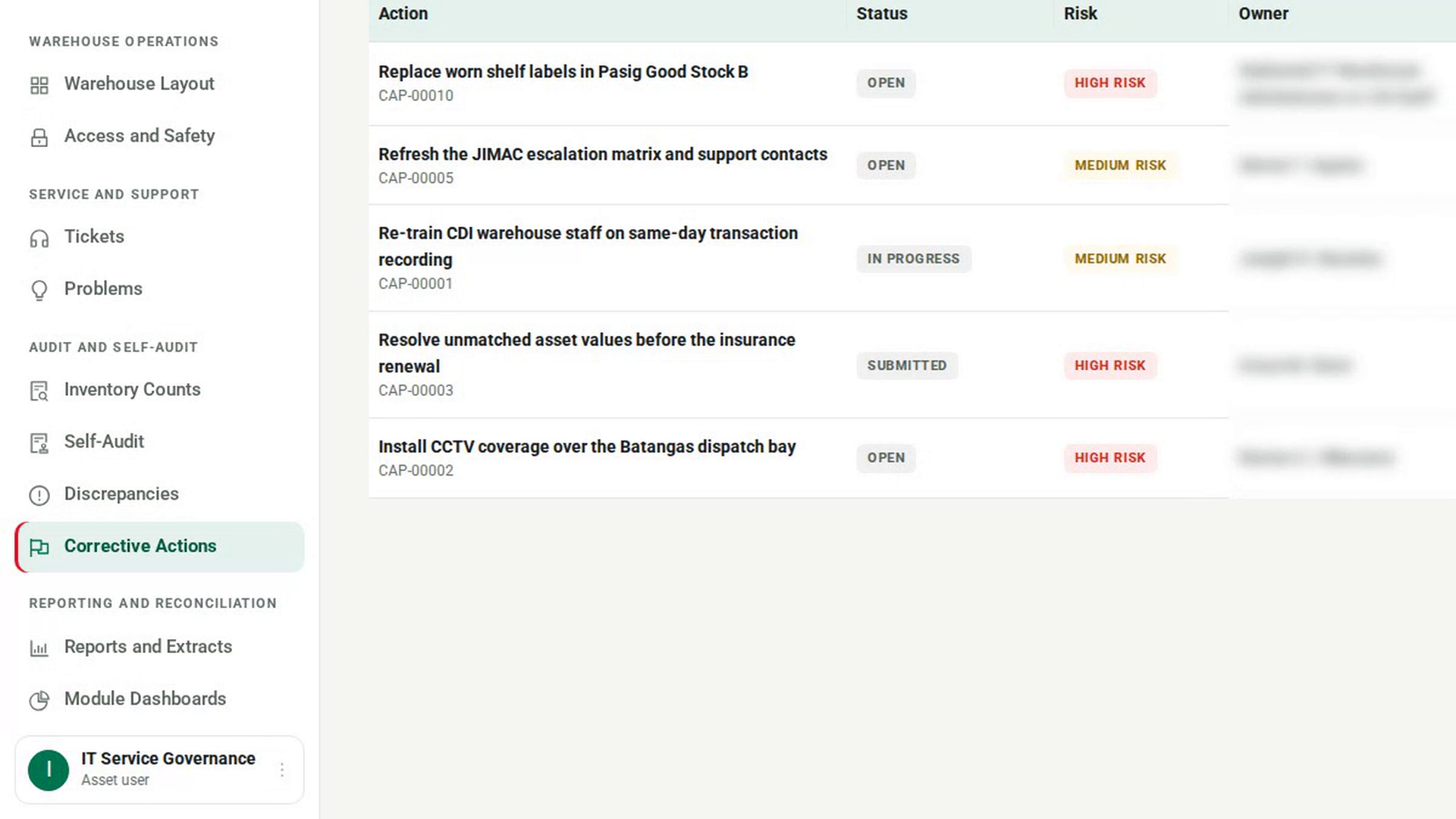
Open Corrective Actions
In the sidebar, under Audit and Self-Audit, select Corrective Actions.
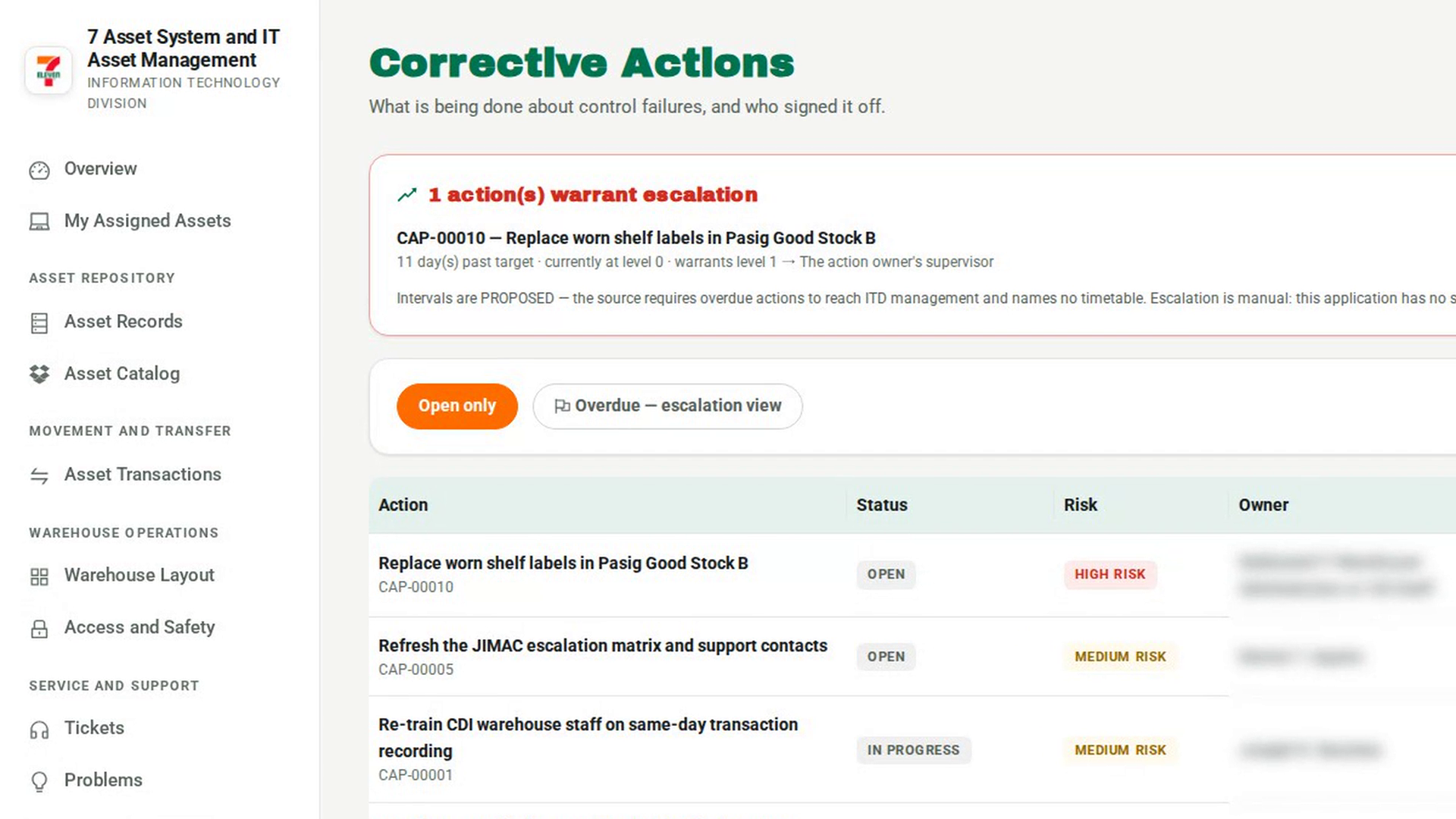
Show the overdue actions
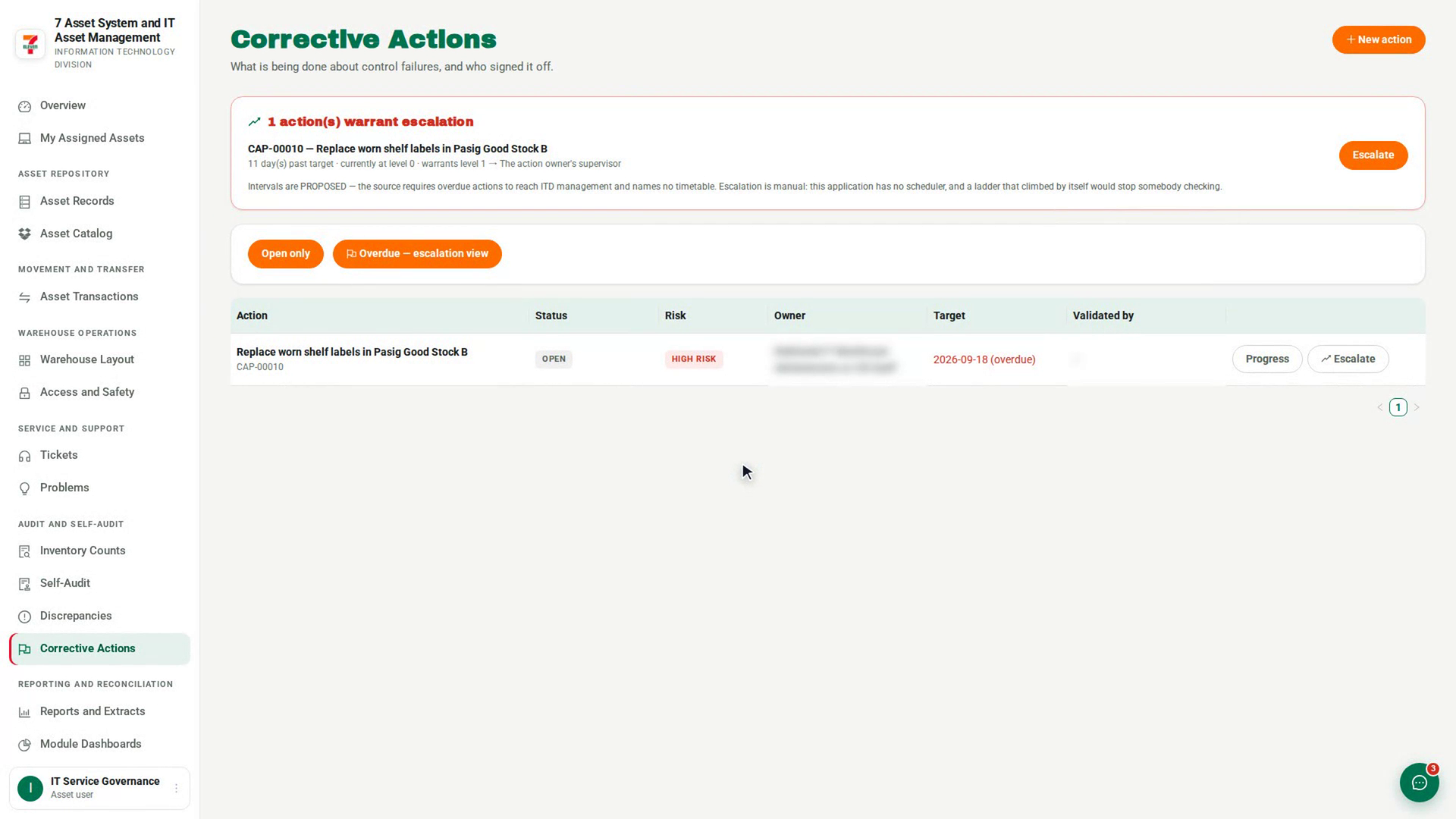
Select Overdue — escalation view. The list shows only late actions, and the Target column marks each one (overdue).
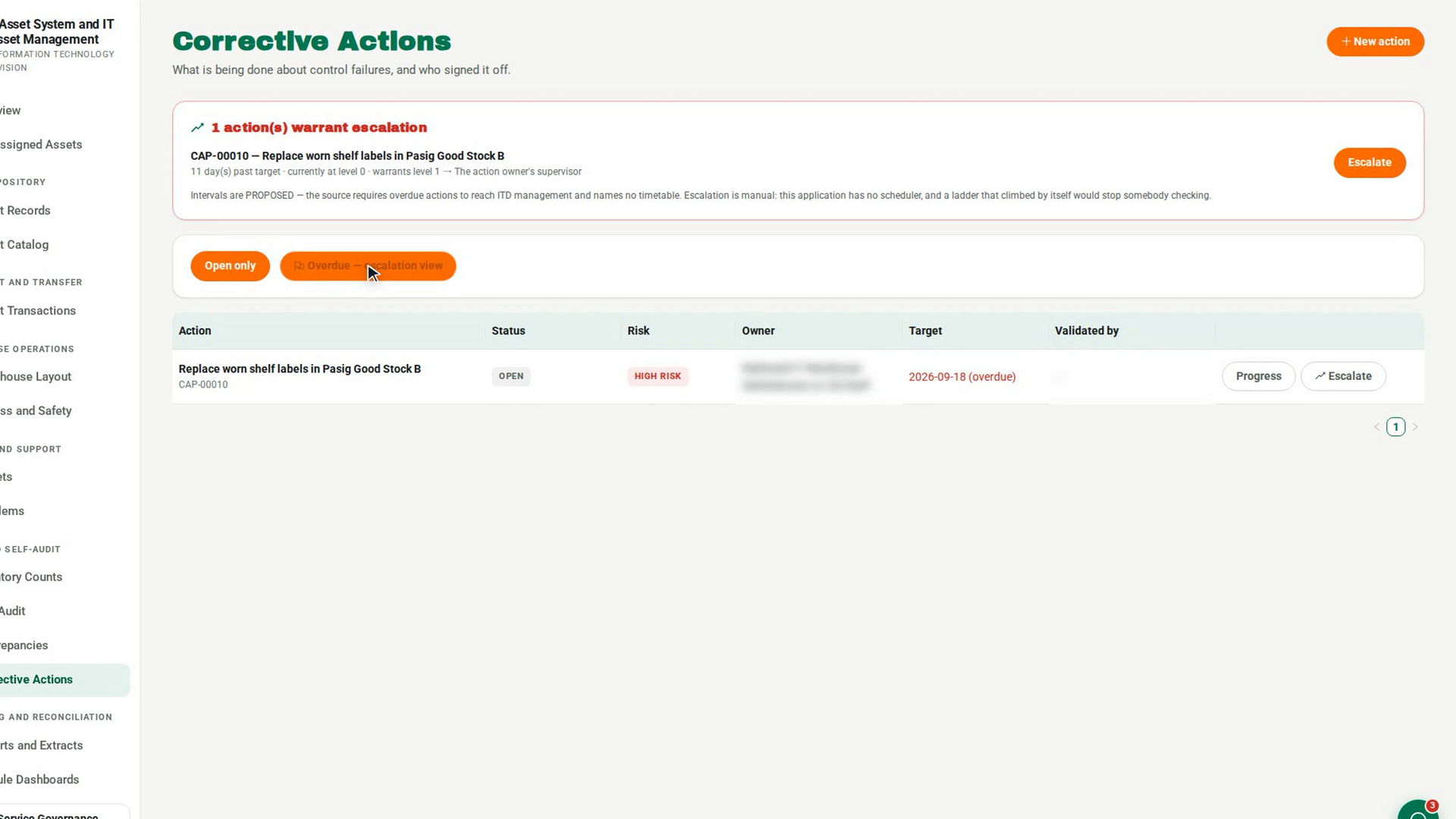
See which actions warrant escalation
When any action is due a higher level, a panel at the top reads how many actions warrant escalation. Each entry shows how many days it is past target, the level it is at now, and the level and recipient it warrants.
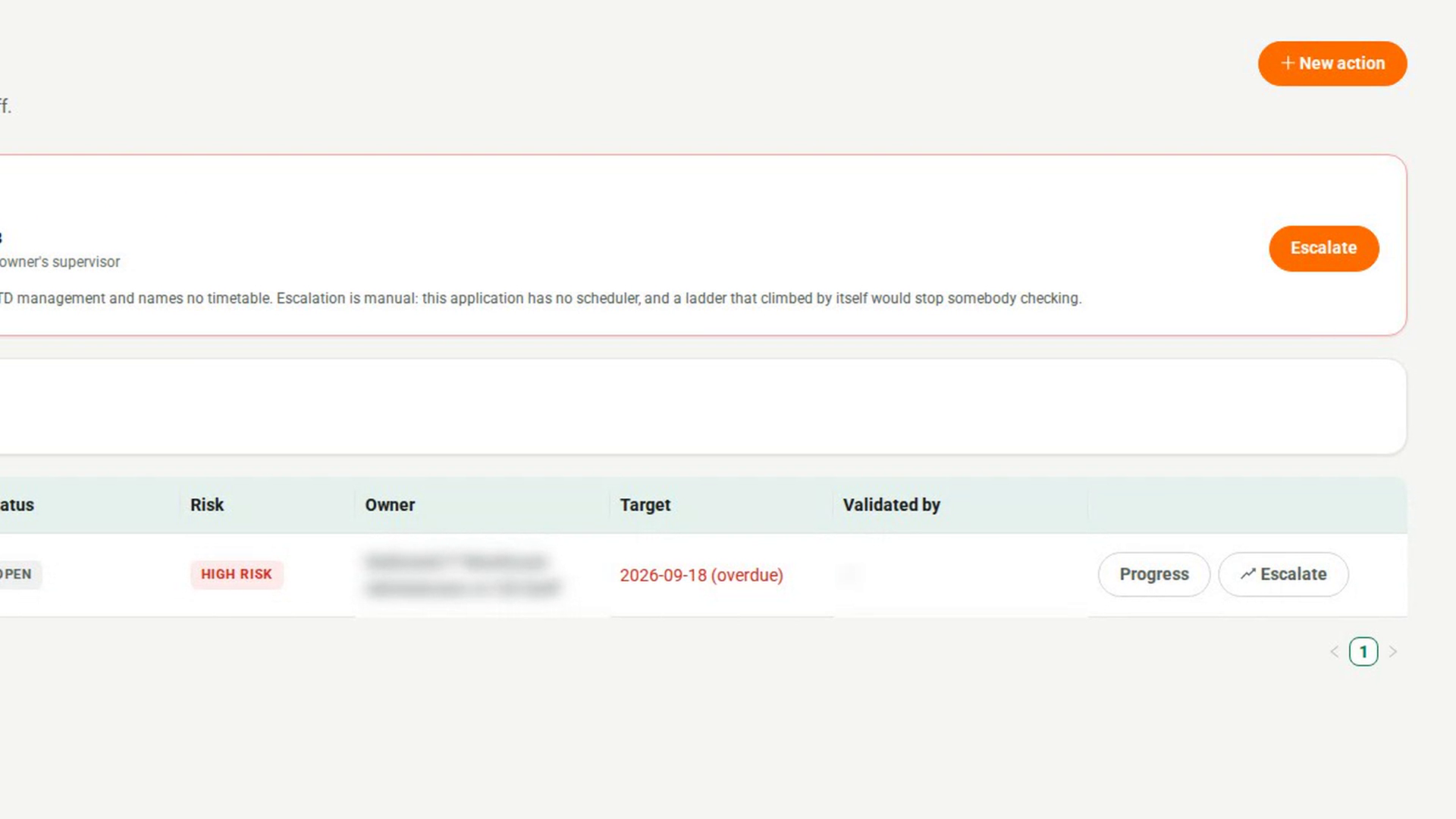
Escalate the action
Select Escalate on the action. In the Escalate the action dialog, check the Level and Escalated to — both are filled in from the ladder — and change the recipient if your organisation's contact differs. Add Notes, then select Record the escalation.
Tell the person you escalated to
7-Asset records the escalation but does not send it. Contact the person named in Escalated to yourself.
Screenshots
Step 1: Open Corrective Actions
Step 2: Show the overdue actions
Step 3: See which actions warrant escalation
Step 4: Escalate the action
Step 5: Tell the person you escalated to
Watch how
Levels only go up. Escalating again to a level the action has already reached is refused, because escalating twice to the same person and escalating to the next level are different facts.
Tip: The ladder's intervals are proposed, not agreed policy. The panel says so under its list. Use your judgement on whether the work is stalled or just slow.