Record warehouse access
Access and Safety is the register of who may enter the warehouse and its controlled areas, and who was seen going in or out. It is a record for access reviews. It does not lock, unlock or control any door.
Before you start
- To open the screen you need to be IT Business Systems or Application Team, IT Hardware Inventory Supervisor, Dedicated IT Warehouse Administrator or CDI Staff, ITD Head and Management, or IT Service Governance.
- Request access and Log an entry are available to IT Business Systems or Application Team, IT Hardware Inventory Supervisor, and Dedicated IT Warehouse Administrator or CDI Staff.
- Authorise, Revoke and Expire lapsed are available to IT Business Systems or Application Team and IT Hardware Inventory Supervisor.
Steps
Open Access and Safety
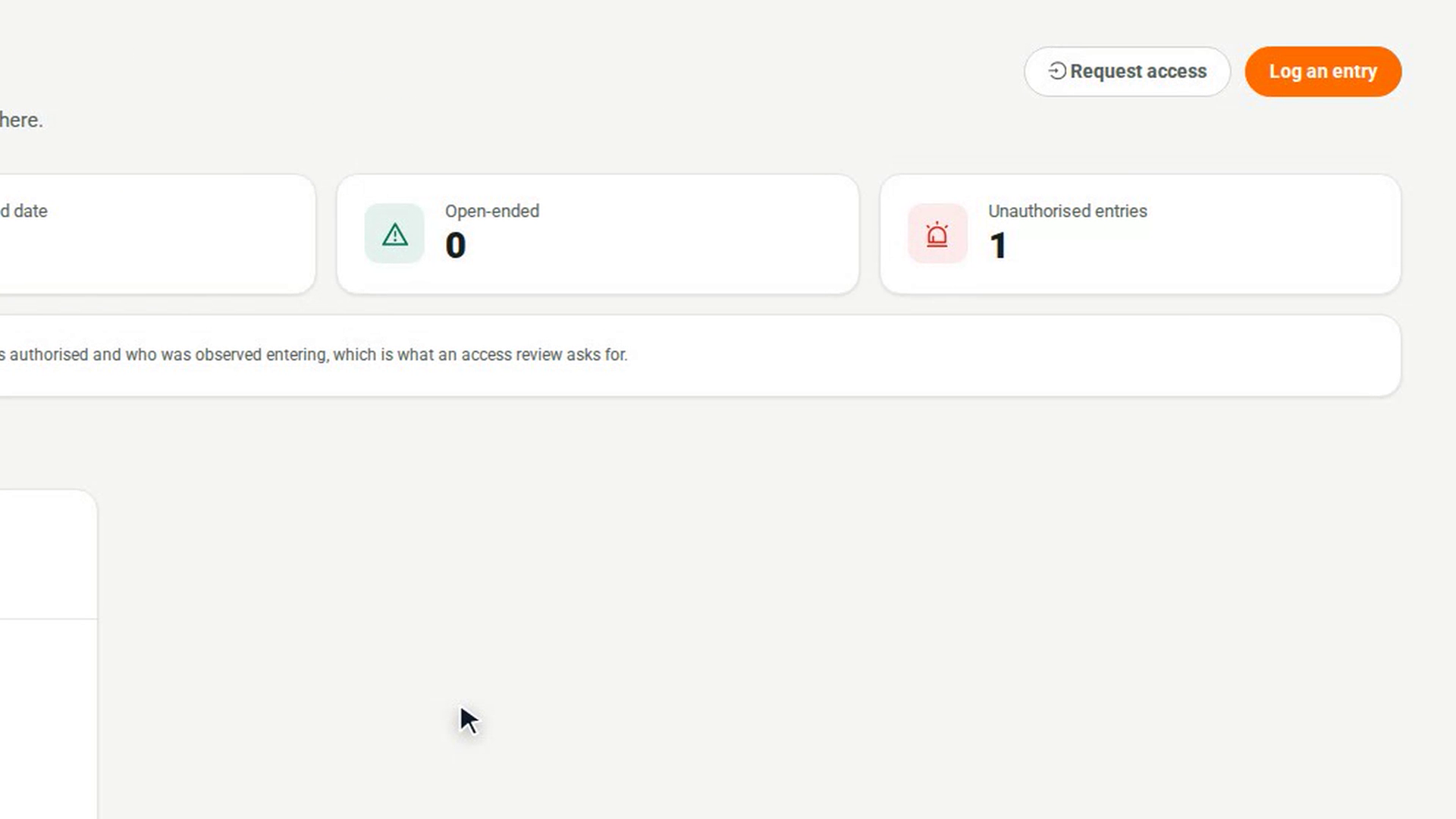
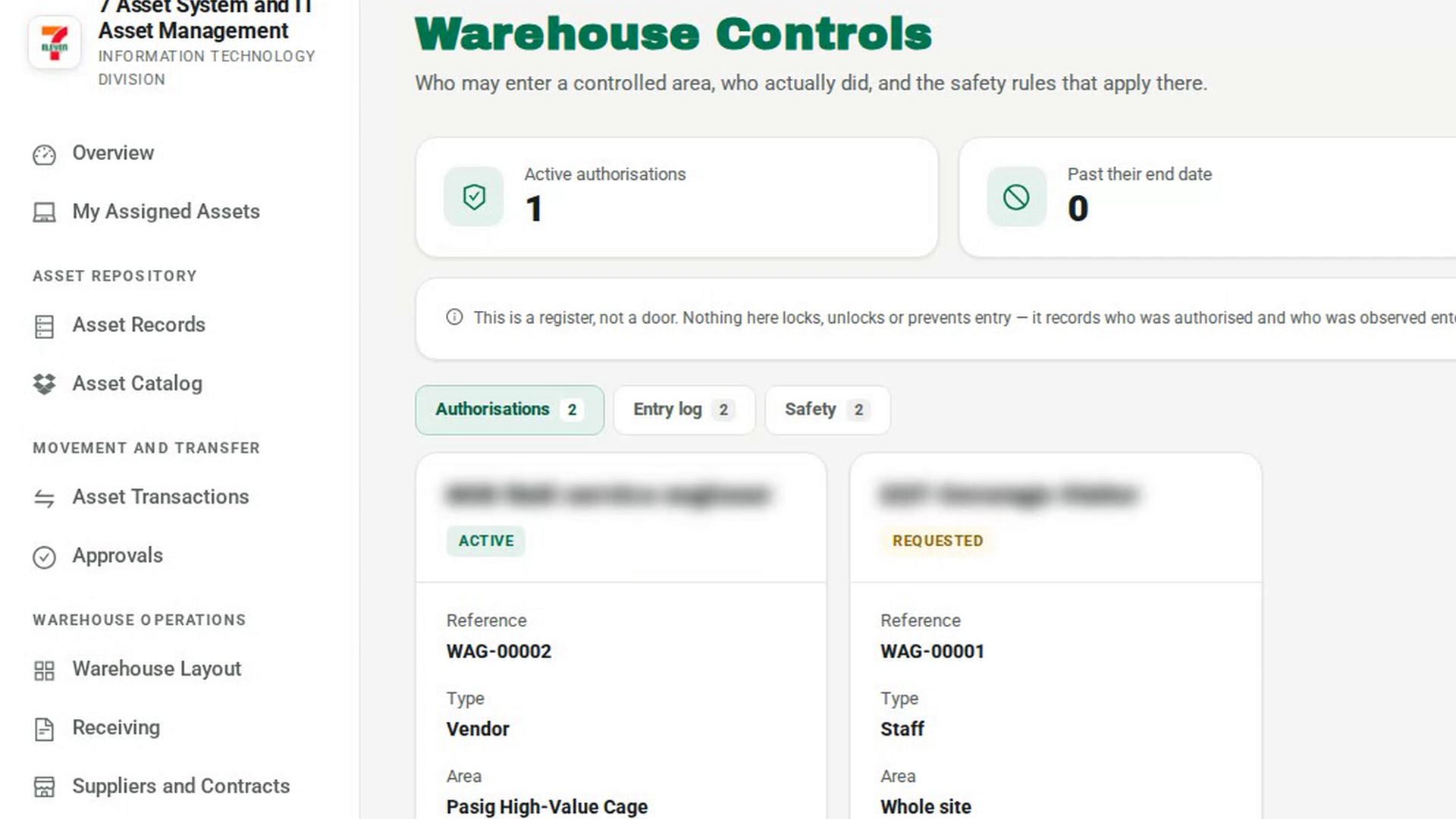
In the sidebar, under Warehouse Operations, select Access and Safety. The page is headed Warehouse Controls. The figures at the top show Active authorisations, Past their end date, Open-ended and Unauthorised entries, and the banner below them says the screen is a register, not a door.
Review who is authorised
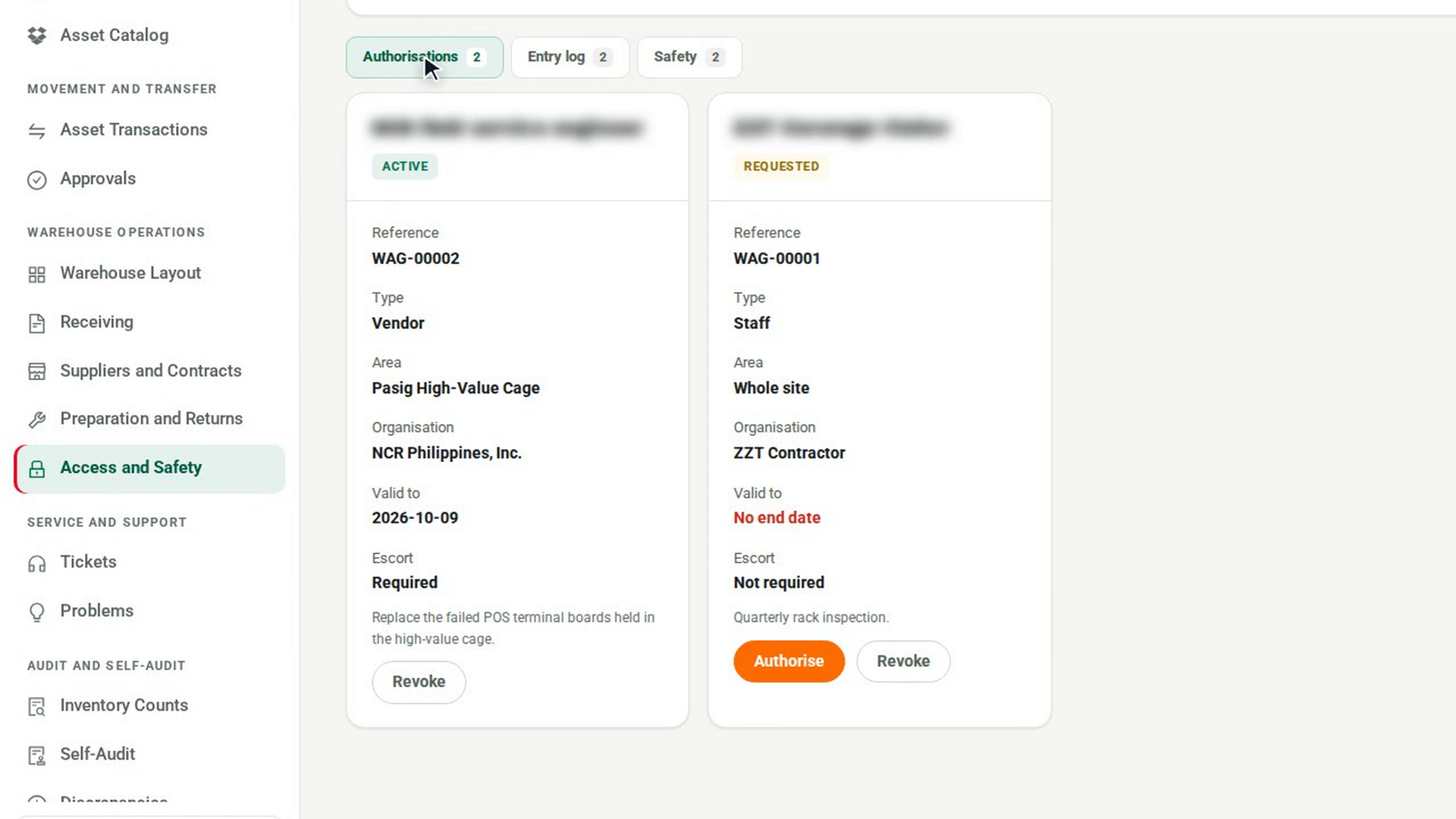
The Authorisations tab shows one card per person with their Reference, Type, Area, Organisation, Valid to and Escort. An authorisation with no end date shows No end date in red.
Request access for someone
Select Request access. In Request access to a controlled area, choose Who is this, enter the Name or Account id (staff), and fill in Organisation, Area and Purpose. Leave Area empty for the whole site. Select OK. The request appears as a new card.
Authorise the request
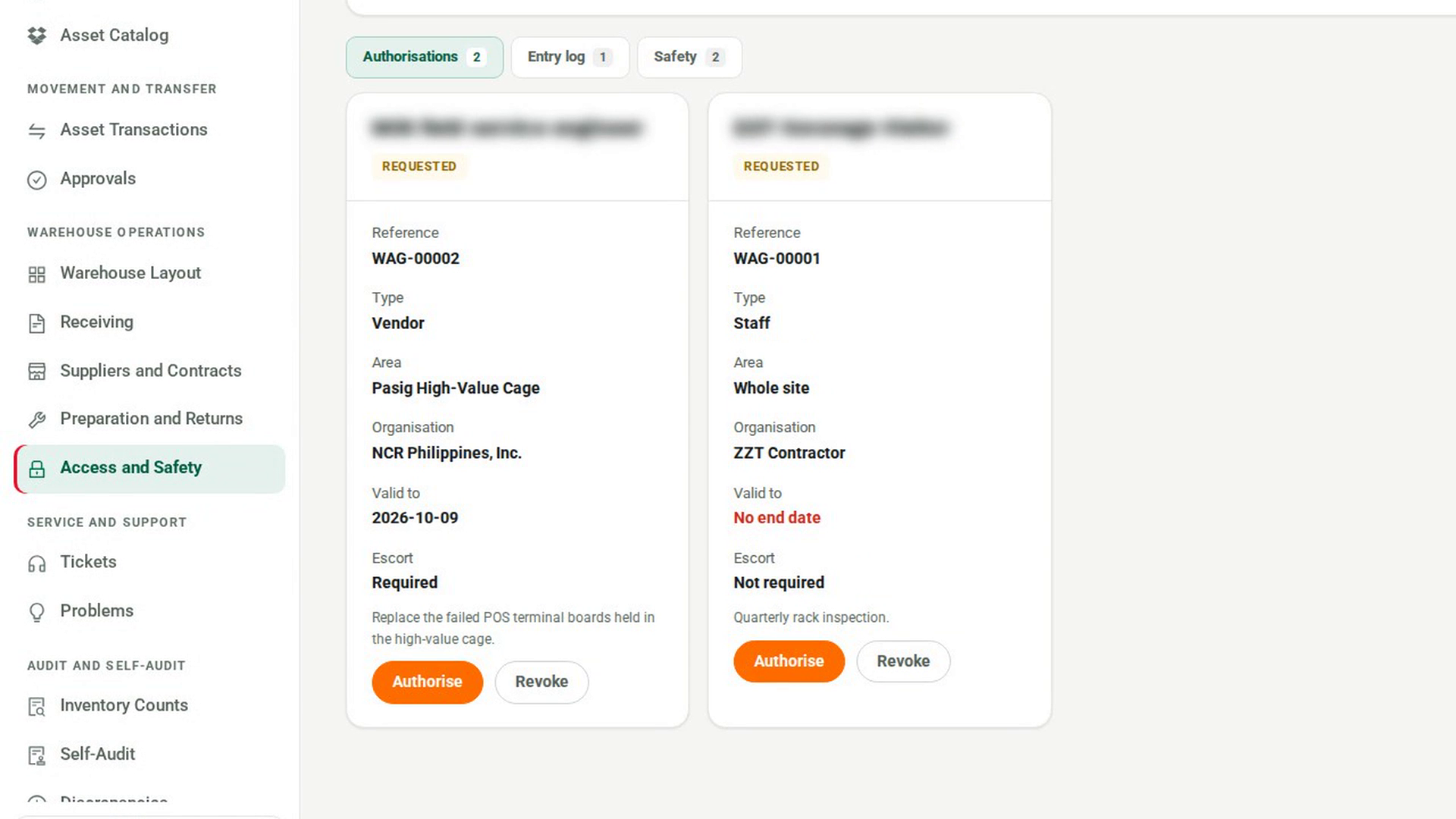
On a requested card, select Authorise. In Authorise access, enter Valid to (YYYY-MM-DD), which is required, and switch on Escort required if the person must be escorted. Select OK.
Log an entry or exit
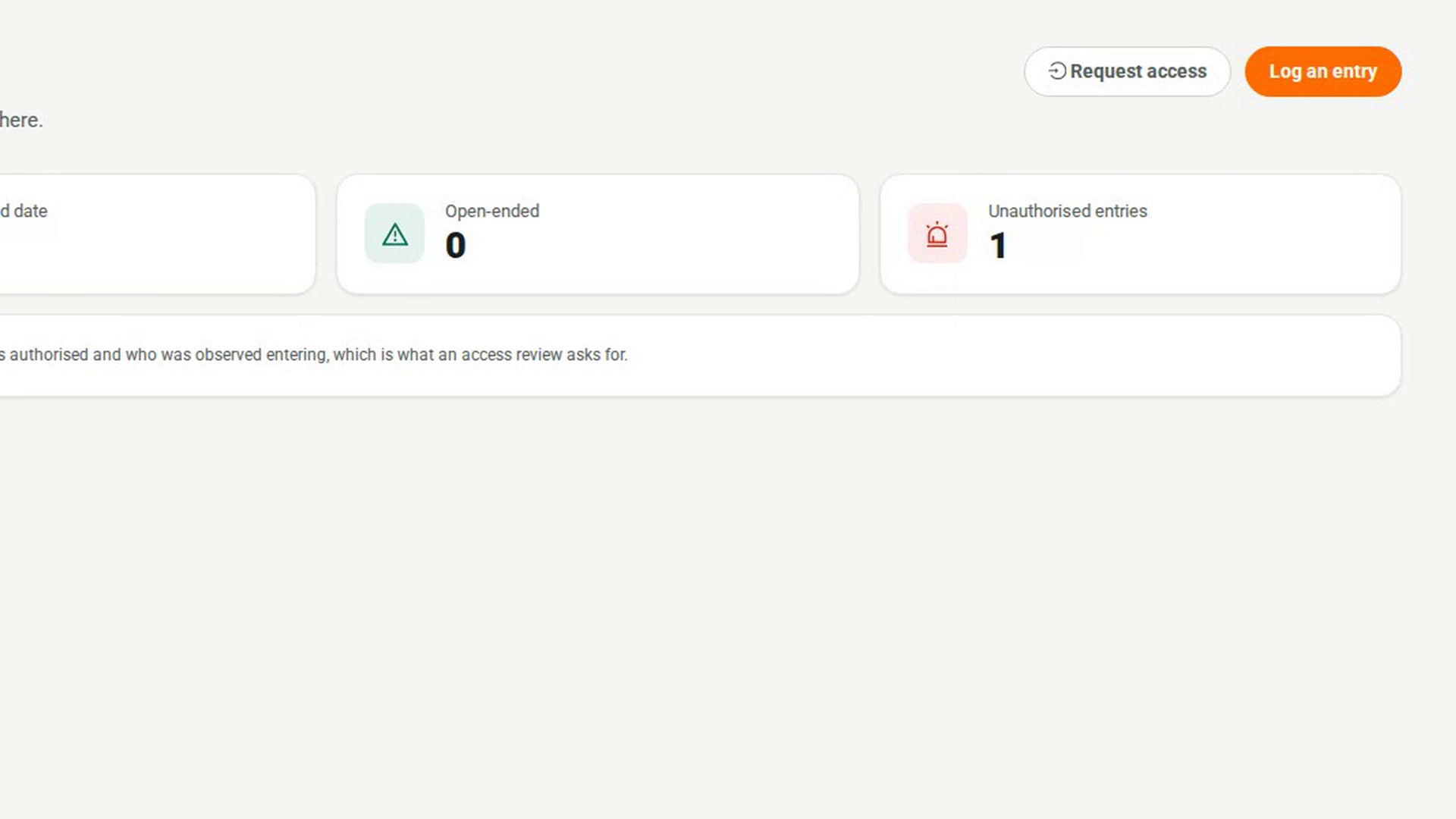
Select Log an entry. In Record an entry or exit, choose the Direction (Entry or Exit), the Area, and the person's Account id or Name (visitor). If the person has no authorisation, say why in Reason, if there is no authorisation. Select OK.
Check the entry log
Open the Entry log tab. Each row shows When, Person, Area, Direction, Authorised and Note. Entries with no live authorisation show No and are highlighted in red.
End someone's access
On an active or requested card, select Revoke, fill in Why is access ending and select OK. When authorisations are still active past their end date, a warning appears on the Authorisations tab with Expire lapsed to close them.
Screenshots
Step 1: Open Access and Safety
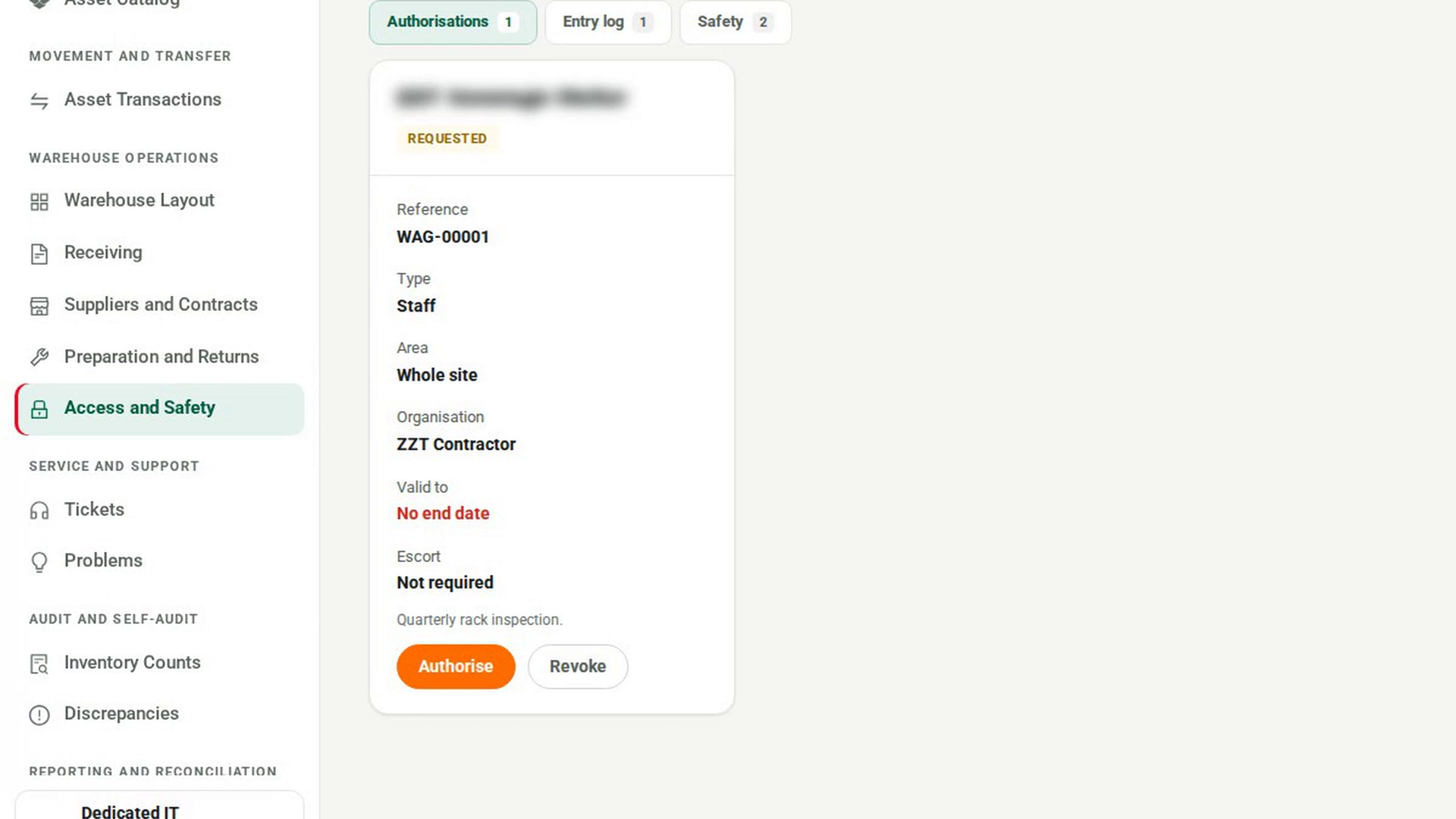
Step 2: Review who is authorised
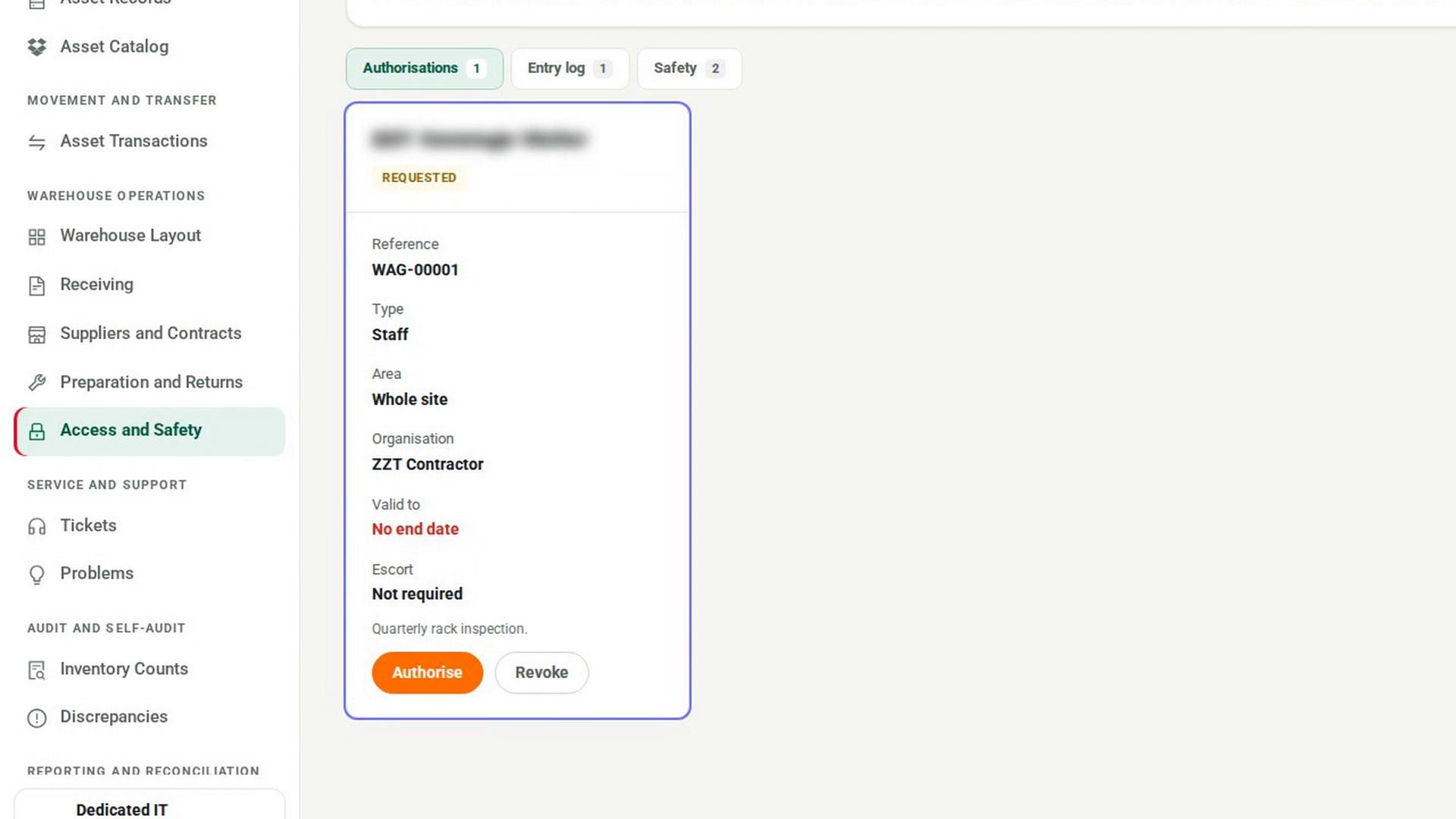
Step 3: Request access for someone
Step 4: Authorise the request
Step 5: Log an entry or exit
Step 6: Check the entry log
Step 7: End someone's access
Watch how
Tip: An entry with no live authorisation is recorded, not refused. It is flagged instead, and if you give no reason 7-Asset notes that no live authorisation covers the entry. These flagged entries are what an access review looks for.
You cannot authorise your own access. The screen says: You cannot authorise your own access to a controlled area. The permission is yours; the decision is not. Ask another supervisor to authorise it.
Expiry is not automatic. An authorisation stays active past its end date until someone selects Expire lapsed, so check that the person's access really ended.