Run a full physical inventory audit
A full physical inventory audit is a count of everything in scope — usually the whole site — at a set point in time. You use the same Inventory Counts screen as a cycle count, with a wider scope and an Annual or Quarterly type, then follow up every difference and reconcile.
Before you start
- To open the audit you need to be an IT Hardware Inventory Supervisor or IT Business Systems or Application Team.
- The people counting need to be a Dedicated IT Warehouse Administrator or CDI Staff, Asset and Logistics Associate, IT Hardware Inventory Supervisor, or IT Business Systems or Application Team.
- The reconciliation must be signed by an IT Hardware Inventory Supervisor, IT Service Governance, or IT Business Systems or Application Team who did not submit the count.
- Agree the counting day first. The snapshot is taken the moment you open the count.
Steps
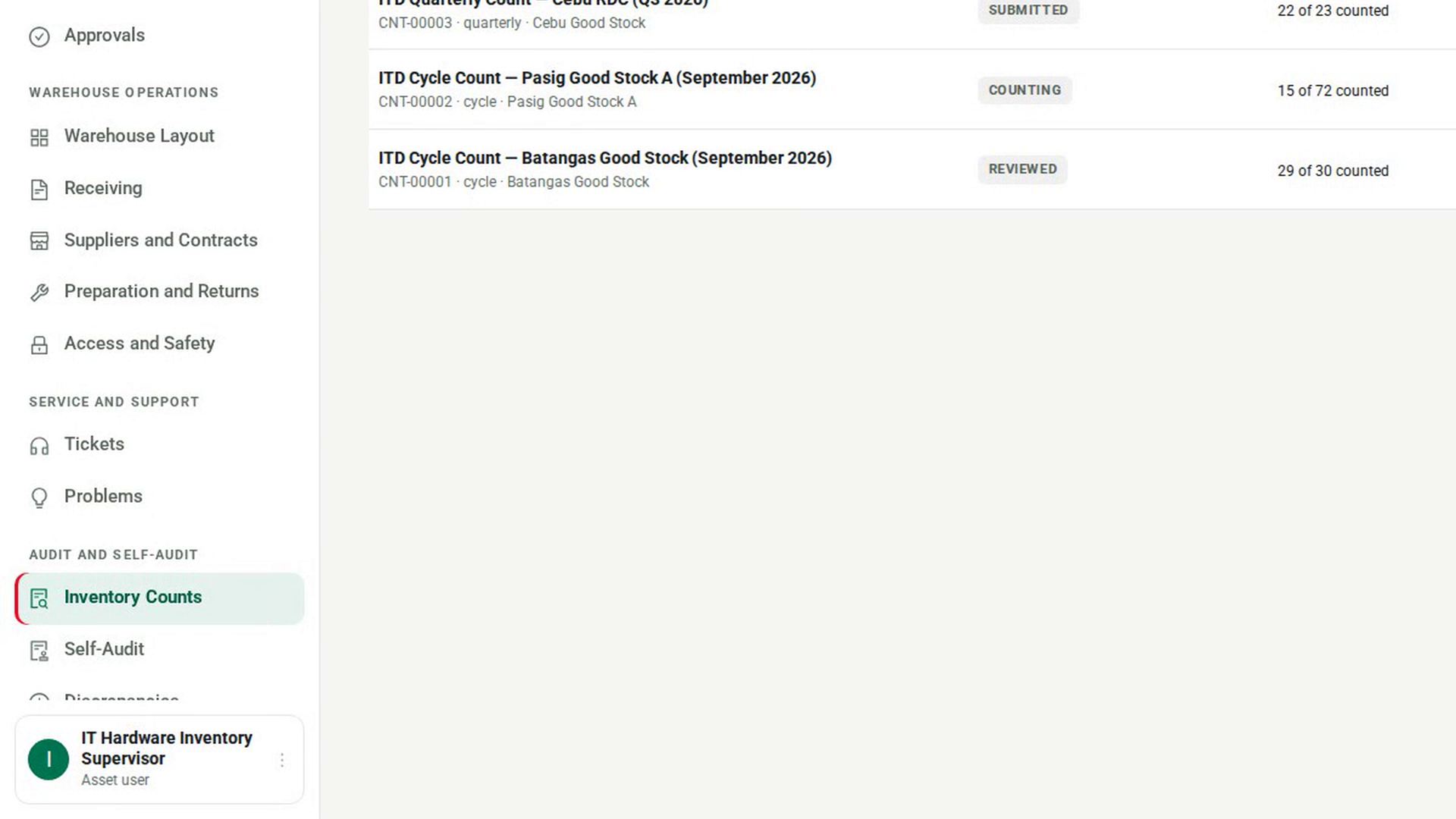
Open Inventory Counts
In the sidebar, under Audit and Self-Audit, select Inventory Counts.
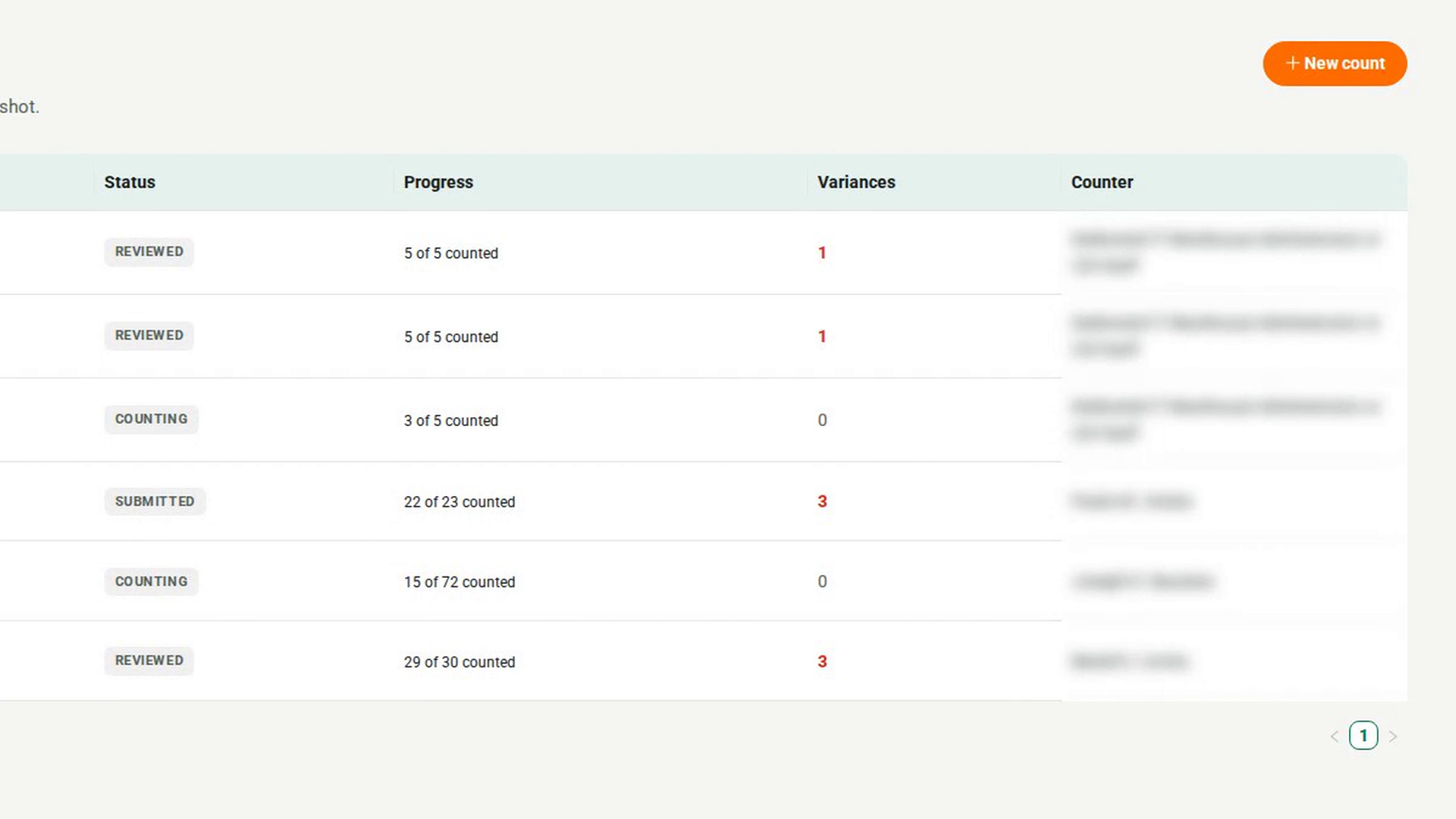
Set up the audit with a full scope
Select New count. In the Open a count dialog, enter a Count name, set Type to Annual or Quarterly, and leave Scope empty to count the Whole site. Choose the Assigned counter.
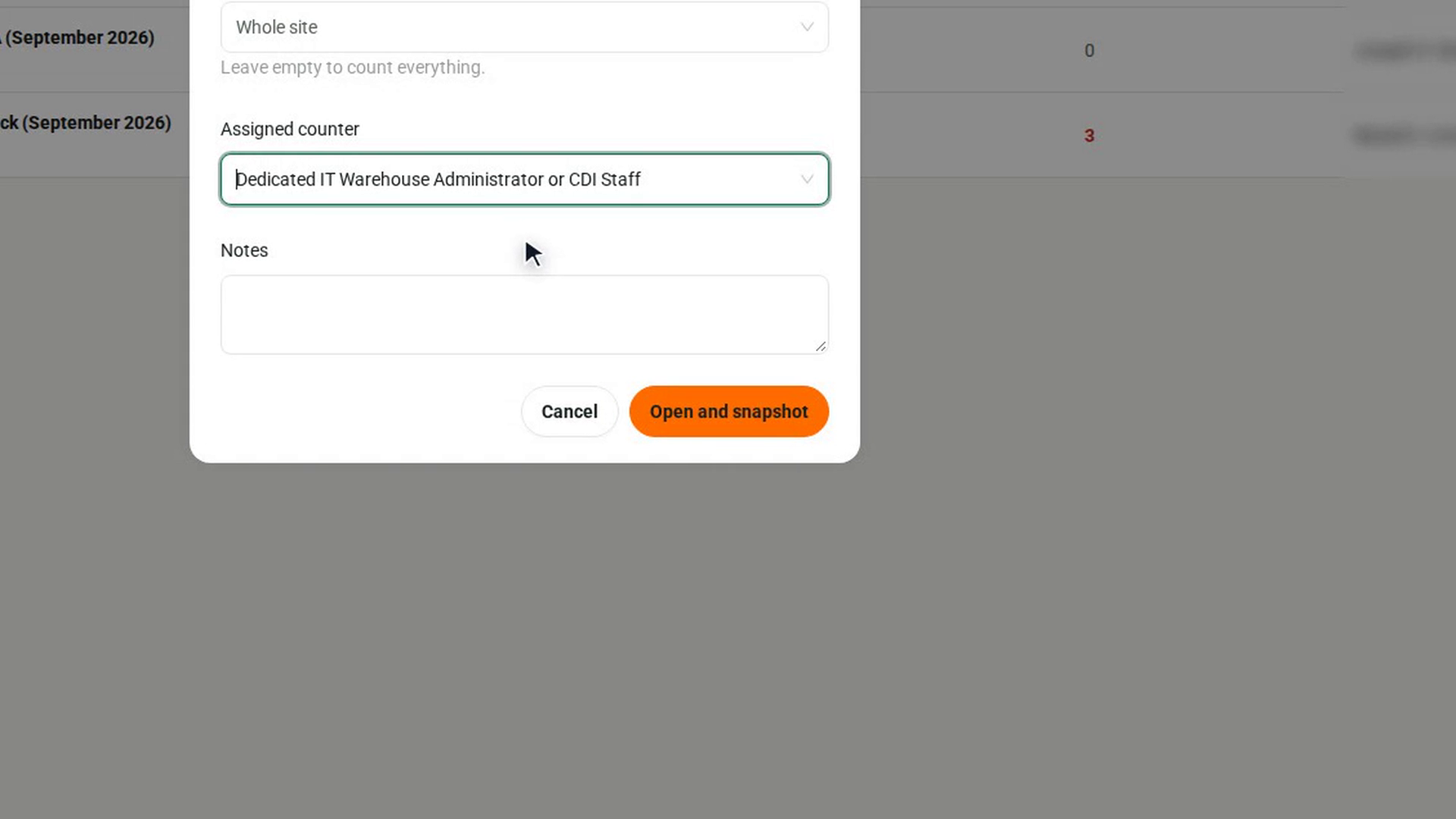
Freeze the register
Select Open and snapshot. What 7-Asset holds right now is frozen, and every line of the audit is measured against it.
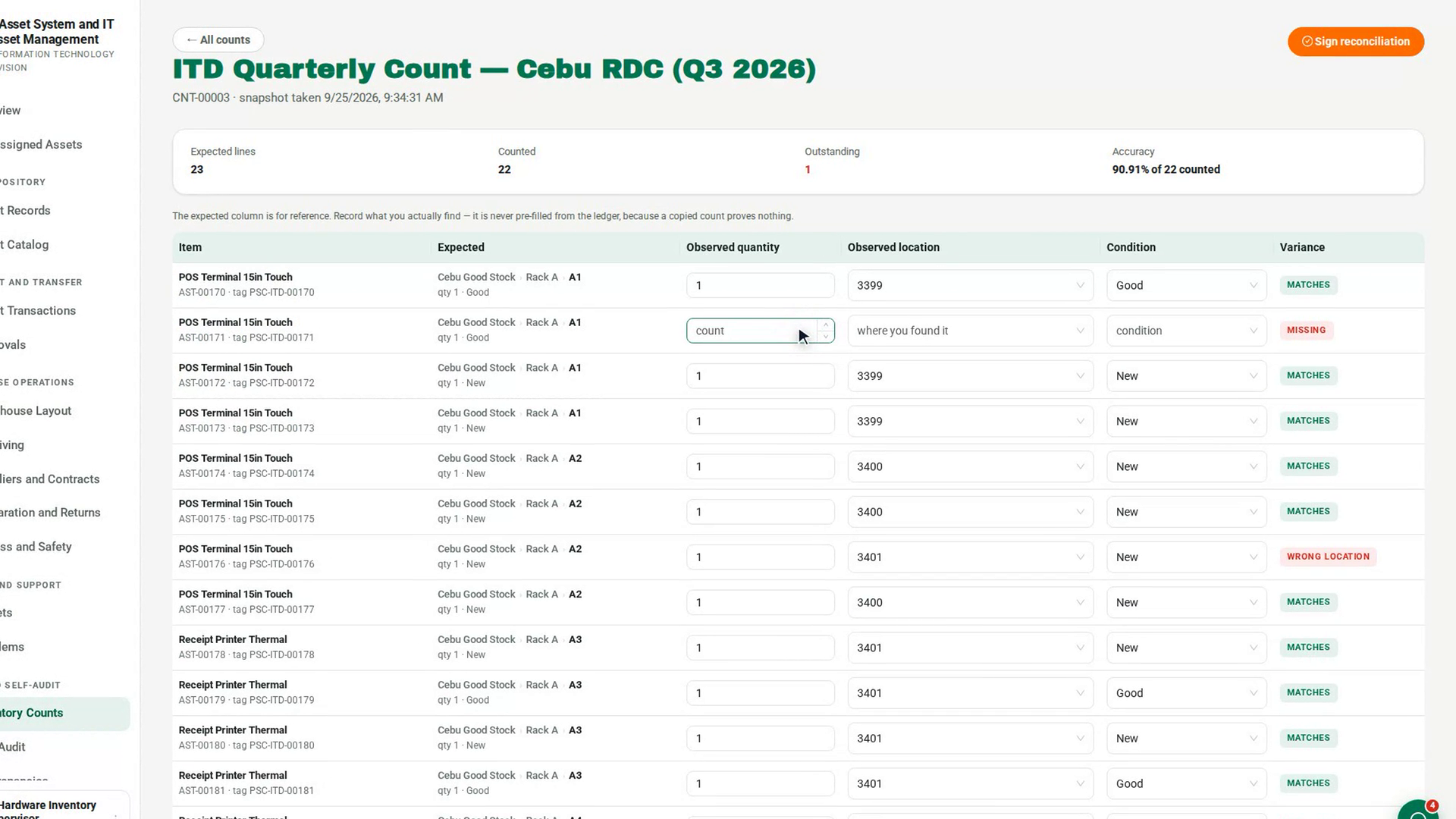
Verify location and condition for every line
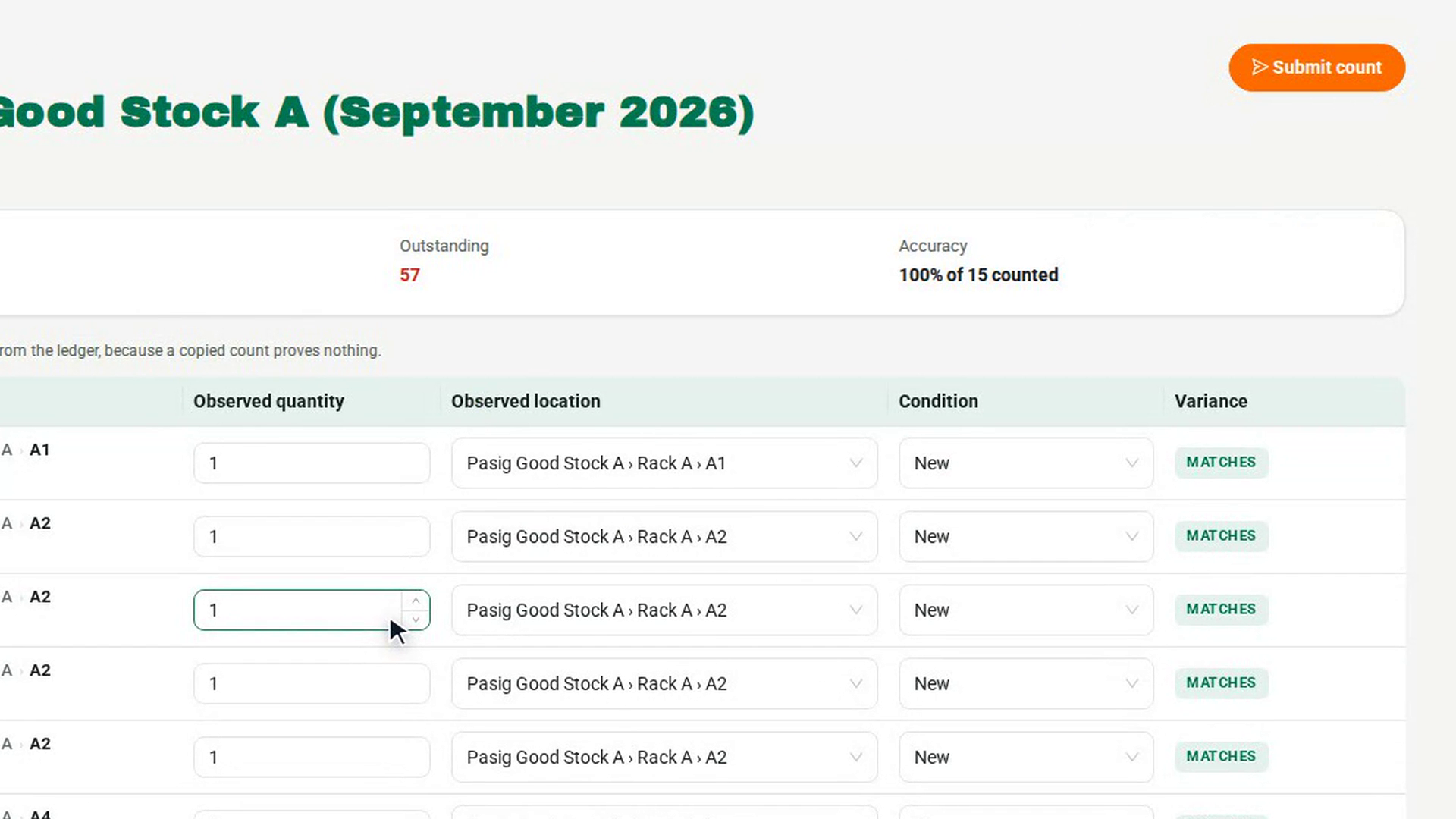
Work through the list. For each item, enter the Observed quantity, the Observed location and the Condition. Watch Outstanding in the summary fall to zero, and check Accuracy as you go.
Submit the audit
Select Submit count, read the confirmation, and select Submit count again. Every difference opens a variance case, and uncounted lines are reported as missing.
Have it signed and follow up the differences
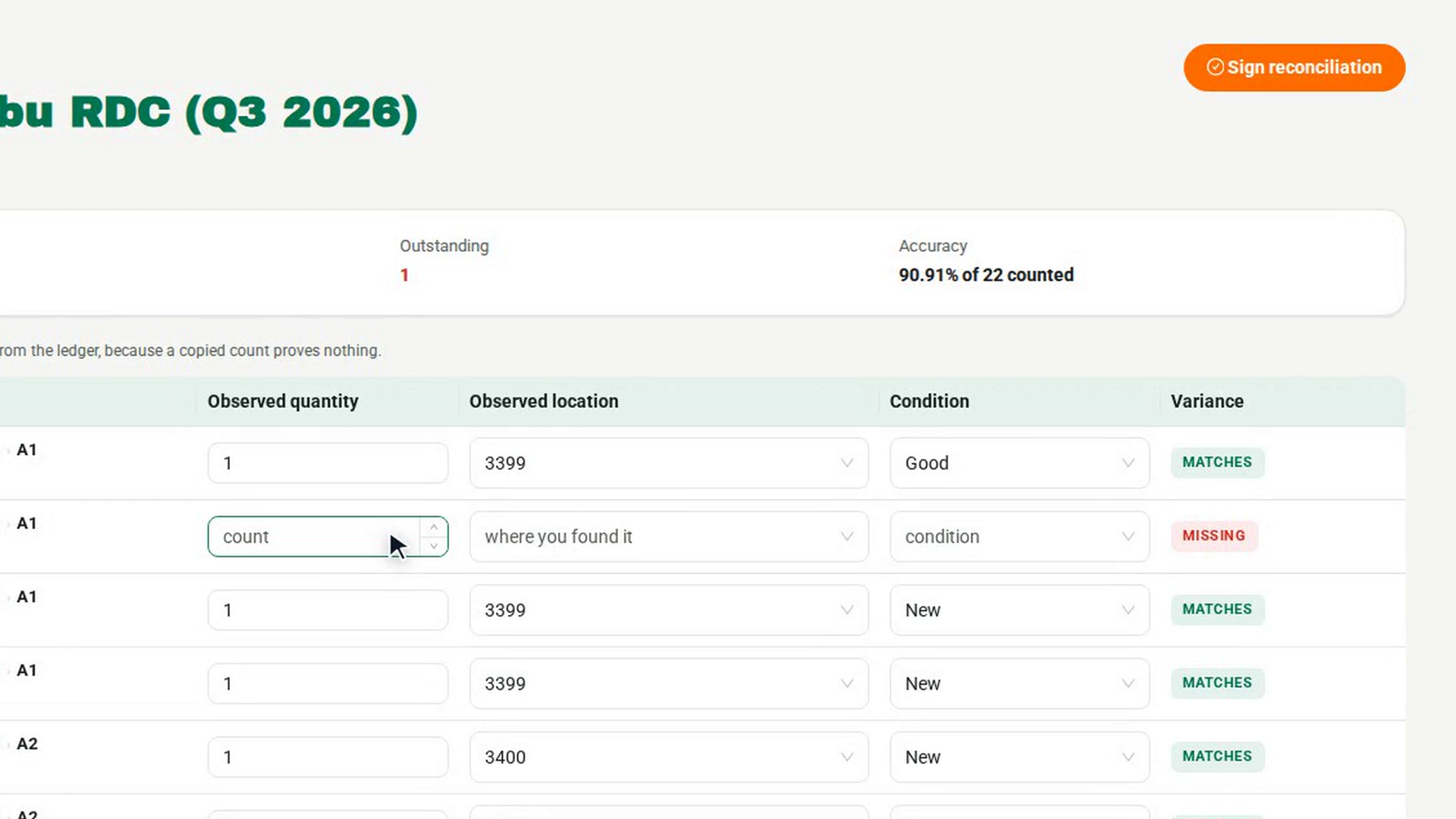
Another person selects Sign reconciliation, adds Review notes and confirms. Then open Discrepancies under Audit and Self-Audit and choose count under Any source to work the cases the audit opened.
Screenshots
Step 1: Open Inventory Counts
Step 2: Set up the audit with a full scope
Step 3: Freeze the register
Step 4: Verify location and condition for every line
Step 5: Submit the audit
Step 6: Have it signed and follow up the differences
Watch how
Tip: The count sheet records location, quantity and condition, not who holds an asset. To confirm custody, run a custodian self-audit alongside the physical audit.
You cannot sign an audit you submitted yourself. 7-Asset replies You submitted this count, so you cannot also sign its reconciliation.